

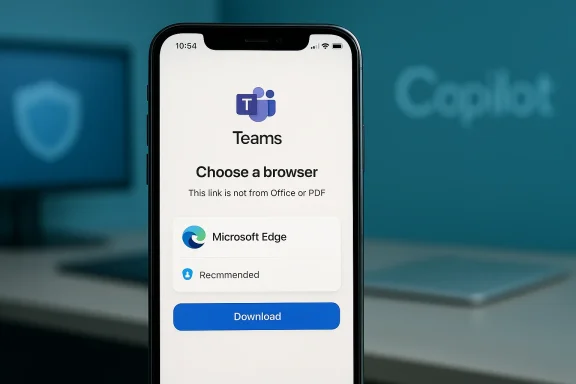
Microsoft’s latest Teams mobile update doesn’t hide its intentions: a new “Links in Teams” setting will prompt mobile users to pick a browser when they open non‑Office and PDF links — and the experience is designed to steer people toward Microsoft Edge, complete with single sign‑on, Copilot integration, and a download prompt if Edge isn’t already installed.
For years Microsoft has been refining how links and documents flow between Teams, Office apps, and the browser. Historically, Teams has offered settings to control whether Office files open inside the app, in the desktop app, or in a browser; more recently Microsoft has moved to surface deeper integration between Teams and Microsoft Edge—particularly on Windows—drawing pushback from users who prefer third‑port.microsoft.com]
Now that policy and UI work has come to mobile. The change arrives as a message center announcement (Message ID MC1216263) that frames the update as an improvement to security and user experience, but it also explicitly notes metrics the company will track during rollout: user satisfaction, Microsoft Edge installation rates, and retention.
But the implementation choices — ordering Edge first, prompting users to install when Edge is absent, and explicitly tracking Edge installs — make the feature read less like a neutral usability improvement and more like a growth lever for a proprietary browser inside a collaboration platform. That dual function will keep the topic in the spotlight: IT teams must treat this as both a UX change and a product‑strategy signal from Microsoft.
Microsoft’s “Links in Teams” is a compact feature with an outsized set of implications. On paper it delivers a sensible convenience for orgs that standardize on Edge and want tight Copilot and SSO integration; in practice it will test the balance between user choice and platform ecosystem consolidation. IT leaders should treat February 2026 as a hard planning milestone: test early, communicate widely, and apply policy where user experience or compliance demands neutrality.
In short: the setting is useful and manageable — but it’s also another sign that Microsoft is leaning into Edge as the preferred surface for Microsoft 365. Expect conversations about user choice, telemetry, and antitrust optics to follow as the feature reaches broader audiences.
Source: Windows Central Microsoft is promoting Edge inside Teams mobile with zero subtlety
 Background / Overview
For years Microsoft has been refining how links and documents flow between Teams, Office apps, and the browser. Historically, Teams has offered settings to control whether Office files open inside the app, in the desktop app, or in a browser; more recently Microsoft has moved to surface deeper integration between Teams and Microsoft Edge—particularly on Windows—drawing pushback from users who prefer third‑port.microsoft.com]Now that policy and UI work has come to mobile. The change arrives as a message center announcement (Message ID MC1216263) that frames the update as an improvement to security and user experience, but it also explicitly notes metrics the company will track during rollout: user satisfaction, Microsoft Edge installation rates, and retention.
What Microsoft announced (the facts)
- A new setting, Links in Teams, will appear in Teams Mobile settings on Android and iOS. When a user taps a non‑Office or PDF link, Teams will show a pop‑up (a bottom sheet) offering browser choices.
- The feature will be enabled by default for tenants but can be controlled by admins through the Teams mobility policy. The policy name is TeamsMobilityPolicy, and the new attribute is LinksInTeams with two values: OfferBrowserOptions (enable the in‑app selection) and UseSystemDefaults (fall back to the OS default). (learn.microsoft.com)
- The rollout window is February 2026, with the company expecting completion by the end of that month for most tenants. The company will monitor DSAT (dissatisfaction), Edge install rates, and retention during rollout.
- Crucially: the UI will encourage users to choose Microsoft Edge, and if a user selects Edge when it’s not installed, Teams will direct them to the app store to download it. Reports note Edge is presented first in the selection UI.
How the feature will behave (user flow)
Typical user experience
- A Teams user taps a non‑Office or PDF link inside a chat, channel post, or meeting chat.
- Teams displays a bottom sheet prompting the user to choose which browser should open the link.
- Microsoft Edge appears as the promoted choice in the pop‑up; selecting it will either open Edge or, if it’s not installed, prompt the user to download it from their platform’s app store.
Admin override
- IT admins can change the organization’s behavior with PowerShell by using the Teams mobility policy cmdlets. The Microsoft Teams PowerShell module now exposes a LinksInTeams parameter for the relevant mobility policy cmdlets, so admins can set the attribute to OfferBrowserOptions or UseSystemDefaults to enable or disable the in‑app prompt at the tenant or policy level.
Why Microsoft is doing this — the company case
Microsoft’s public rationale focuses on three selling points:- Single Sign‑On (SSO): opening links in Microsoft Edge lets Microsoft preserve the user’s authenticated session across Teams and the browser, reducing friction when links require organization credentials. Microsoft positions SSO as a productivity and security win.
- Copilot integration: Edge is becoming a first‑class surface for Microsoft’s Copilot features; routing links into Edge enables deeper Copilot interactions with web content and authenticated resources.
- Security benefits: Microsoft highlights built‑in protections (SmartScreen, enterprise hardening) and the ability to open links with the “correct” work profile in Edge as a secure default for business users.
Strategic analysis — benefits, blind spots, and risks
Benefits (what IT teams and users stand to gain)
- Reduced friction for SSO‑protected content. Users in single‑tenant organizations that use Edge as their managed browser will likely see fewer prompts to authenticate when links require Azure AD credentials. This is a legitimate productivity improvement for many enterprise workflows. ([mc.merill.l.net/message/MC1216263)
- Cleaner Copilot and M365 experiences. By routing links into Edge, Microsoft can surface Copilot‑driven assistive workflows that operate against authenticated web content or the wider Microsoft 365 context. For organizations already standardizing on Edge, this is an acceleration of a coordinated stack.
- Administrative control. The addition of the LinksInTeams parameter to Teams mobility policies gives admins a policy knob to opt out and revert to system defaults, which is essential for governance. The Teams PowerShell module explicitly exposes this control.
Risks and blind spots (what’s left under‑examined)
- Optics of product promotion inside a productivity app. Microsoft’s choice to display Edge as the first option and to nudge users to install it looks (and will be perceived) as a deliberate product push inside an otherwise neutral collaboration environment. That can fuel concern about anti‑competitive bundling and user choice. Observers and admin communities are already sensitive to this history. (heise.de)
- Multi‑tenant and multi‑profile friction. Many users juggle multiple organizations and browser profiles. For these people, being routed into Edge—or being prompted to install it—can create confusion if Edge holds different credentials or profiles for different tenants. Historical complaints about Teams routing links into Edge or ignoring the system default show this is a real operational issue for some teams.
- Telemetry and product‑growth metrics. The Message Center explicitly says Microsoft will track Edge install and retention rates. Using a productivity app prompt to measure product growth blurs the line between user experience improvements and commercial acquisition tactics, and may unsettle privacy‑focused customers and regulators.
- Potential for confusion and support tickets. Any UI change that prompts millions of users to make a technical choice can spike helpdesk calls. The message center does advise admins to prepare documentation and helpdesk teams, but organizations that skip proactive communications will still see fallout.
Legal and regulatory considerations (concise)
Microsoft’s move will almost certainly attract attention from competition watchers in the EU and elsewhere, given prior regulatory scrutiny around default settings and product bundling. While prompting users to choose a browser is not a hard technical block, the combination of UI ordering, download prompts, and telemetry about installs can be framed as a form of product promotion inside a widely used productivity service. That framing — whether or not it’s dispositive — will be part of the conversation in any future antitrust or platform‑neutrality review. News outlets and commentators have already noted the promotional angle.Practical guidance for administrators (what to do now)
If you run Teams for a company, here are clear, tested steps to prepare, test, and control the rollout.1. Audit and pilot
- Use PowerShell to read the current mobility policy and check the LinksInTeams setting:
Get-CsTeamsMobilityPolicy -Identity Global. - Create a pilot policy for a small user cohort and assign it with OfferBrowserOptions to experience the in‑app flow before a full‑tenant rollout. Use New‑CsTeamsMobilityPolicy or Set‑CsTeamsMobilityPolicy with the LinksInTeams parameter to configure.
2. Example PowerShell commands
- Check the current setting:
- Get-CsTeamsMobilityPolicy -Identity Global.
- Enable the new selection UI for the Global policy (OfferBrowserOptions):
- Set‑CsTeamsMobilityPolicy -Identity Global -LinksInTeams OfferBrowserOptions.
- Revert to system defaults and disable the Teams prompt:
- Set‑CsTeamsMobilityPolicy -Identity Global -LinksInTeams UseSystemDefaults.
3. Update support documentation and run internal comms
- Draft a short internal FAQ that explains the new behavior, how to set a preferred browser in Teams Mobile, and steps to revert to system defaults or contact the helpdesk. Microsoft’s message center explicitly recommends notifying helpdesk teams.
- Prepare troubleshooting scripts for the two most common issues: (a) a user gets the Edge download prompt, and (b) links appear in the unexpected browser profile. These corner cases are the most cited sources of confusion in prior Teams link policy rollouts.
4. Decide policy by user populationes and standard‑image fleets where Edge is sanctioned and preconfigured, enabling OfferBrowserOptions will likely reduce friction.
- For BYOD users, or companies that explicitly standardize on a third‑party browser, consider UseSystemDefaults to avoid prompting users or steering installs.
Developer & power‑user perspective
Power users who rely on multiple browsers per task should be aware that Teams’ in‑app selector overrides the OS default for non‑Office/PDF links in Teams only. That means your overall workflow may need small adjustments: set Teams’ preferred browser to your workflow browser or use the system default and control browser behavior at the OS level. This approach preserves existing habits without adding a new in‑app choice you need to manage every time you tap a link.Broader product strategy: why this matters beyond a single setting
Microsoft’s Edge team has been explicit about connecting the browser more tightly to Microsoft 365 experiences: features like a Shared Links view in Edge’s history, profile‑aware authenticated link handling, and Copilot integration are all part of the same product story. Routing Teams links into Edge isn’t an isolated UX tweak; it’s a vector to makeduit for enterprise web experiences inside the Microsoft cloud. That strategic picture is why telemetry on installs and retention matters to Microsoft’s product teams — and why admins should treat this as a cross‑product rollout, not a purely mobile tweak.Expected user reactions and how to respond
- Many users will accept Edge if their organization already uses it; for them the prompt will be a small convenience.
- Some will view the prompt as intrusive marketing inside a productivity tool; be ready for social‑media posts and internal feedback calling it a “browser push.” Responses should be factual and concise: explain the option, show how to set the system default, and, if needed, disable the prompt tenant‑wide.
Final assessment — fair move or product push?
From a purely technical and productivity perspective, the new Links in Teams option can be defended: in controlled enterprise environments, routing authenticated links into an enterprise‑managed browser with SSO and Copilot capabilities can reduce friction and improve security outcomes. The policy control built into Teams PowerShell also ensures admins have an out if they prefer different behavior.But the implementation choices — ordering Edge first, prompting users to install when Edge is absent, and explicitly tracking Edge installs — make the feature read less like a neutral usability improvement and more like a growth lever for a proprietary browser inside a collaboration platform. That dual function will keep the topic in the spotlight: IT teams must treat this as both a UX change and a product‑strategy signal from Microsoft.
Checklist for IT teams (quick reference)
- [ ] Confirm Teams PowerShell module is updated (7.6+).
- [ ] Audit current TeamsMobilityPolicy settings: Get‑CsTeamsMobilityPolicy -Identity Global.
- [ ] Decide pilot group and test OfferBrowserOptions flow.
- [ ] Prepare helpdesk scripts for Edge download prompts and cross‑profile link confusion.
- [ ] Communicate with end users (short FAQ + screenshots) before rollout.
- [ ] If needed, enforce UseSystemDefaults to disable the prompt tenant‑wide.
Microsoft’s “Links in Teams” is a compact feature with an outsized set of implications. On paper it delivers a sensible convenience for orgs that standardize on Edge and want tight Copilot and SSO integration; in practice it will test the balance between user choice and platform ecosystem consolidation. IT leaders should treat February 2026 as a hard planning milestone: test early, communicate widely, and apply policy where user experience or compliance demands neutrality.
In short: the setting is useful and manageable — but it’s also another sign that Microsoft is leaning into Edge as the preferred surface for Microsoft 365. Expect conversations about user choice, telemetry, and antitrust optics to follow as the feature reaches broader audiences.
Source: Windows Central Microsoft is promoting Edge inside Teams mobile with zero subtlety
