

Microsoft Teams administrators should place most organizers on RequireApprovalWhenDetected, use BlockDetectedBots for organizers of sensitive meetings, and grant AllowAllBots only as a reviewed exception for unattended workflows. WindowsForum reports on the rollout describe the practical change: Teams can detect likely external third-party meeting bots, label them in the lobby, and require an explicit admission decision even when ordinary lobby-bypass settings might otherwise allow entry.
The policy controls access treatment for detected external bots. It does not replace vendor review, data governance, or normal meeting-access controls, and it does not turn a detected bot into an approved service merely because an organizer can see it in the lobby.
Use this compact decision tree before creating policies:
Create a separate BlockDetectedBots policy for organizers who routinely host meetings where an unfamiliar automated attendee would create an unacceptable risk or distraction. This can include executive leadership, investigations, legal discussions, HR matters, financial planning, security operations, and incident response.
Reserve AllowAllBots for reviewed unattended workflows. It is an access-policy exception, not a recommendation to disable detection or ignore the risks associated with external meeting assistants. The purpose is to accommodate a defined business process when manual approval would prevent that process from functioning as intended.
Set the relevant meeting policy so that lobby admission is limited to organizers and co-organizers where bot scrutiny matters. Teams admin center labels and placement can change over time, so verify the current lobby-admission control in Microsoft’s Teams meeting-policy documentation and in your tenant before documenting a navigation path for administrators.
This companion setting is important because bot detection is most useful when the resulting lobby decision is deliberate. A suspected external assistant should not be admitted casually by someone who lacks context about the meeting, the service owner, or the data that may be discussed.
WindowsForum user reports have focused on this operational point: the new control brings likely external bots into view before they join. That visibility gives meeting owners a chance to assess who invited the service, what it will do, and whether its presence is appropriate.
Before admitting a detected assistant, the organizer should know:
This tier is especially appropriate when meetings may involve legal advice, personnel actions, security incidents, financial results, strategic planning, investigations, or other information that should not be exposed to an unreviewed external service.
That does not mean the bot is exempt from detection, governance, or review. It means the organization has made a limited access-policy decision for a specific workflow after determining that the workflow, meeting types, and data exposure are acceptable.
Do not use AllowAllBots simply because organizers find lobby decisions inconvenient. In most cases, RequireApprovalWhenDetected preserves the useful control: a detected assistant is visible, and a knowledgeable meeting owner can make the admission decision.
A focused test plan should include the following:
Do not assume behavior that has not been tested in your own tenant. In particular, validate the interaction between the detected-bot policy, meeting roles, co-organizer permissions, lobby settings, and any other meeting templates or access controls used by your organization.
Document the results for help desk and meeting-support teams. They should know how to identify a policy-assignment issue, how to distinguish a detected-bot prompt from an ordinary lobby request, and where organizers should send exception requests.
Similarly, an approved external service should not be assumed safe solely because it supports a legitimate workflow. Organizations still need vendor review, data-classification rules, meeting-access controls, and user guidance.
The simplest organizer instruction is also the most useful: approve a detected external bot only when you know who brought it, why it is present, and whether its access to meeting content is appropriate.
The operational goal is straightforward: give ordinary organizers a deliberate review point, keep detected bots out of sensitive meetings, and grant unattended access only where a reviewed workflow genuinely requires it.
The policy controls access treatment for detected external bots. It does not replace vendor review, data governance, or normal meeting-access controls, and it does not turn a detected bot into an approved service merely because an organizer can see it in the lobby.
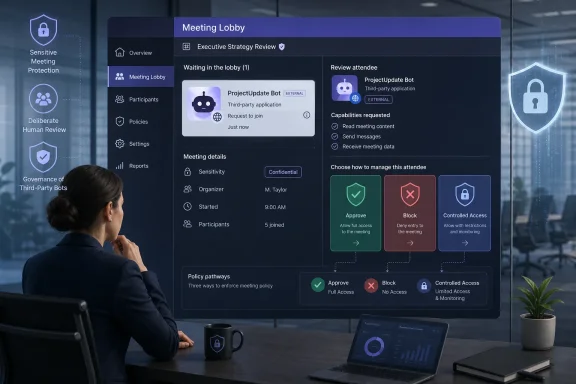 Choose the Right Policy First
Use this compact decision tree before creating policies:- Does the organizer regularly host sensitive, privileged, regulated, or high-impact meetings?
Use BlockDetectedBots. - Does the organizer host ordinary business meetings where a known external assistant may sometimes be legitimate?
Use RequireApprovalWhenDetected. - Does a documented, reviewed workflow require an external bot to join without manual lobby approval?
Consider AllowAllBots, but only for the smallest practical organizer population and only after formal approval.
Deployment Prerequisites
Complete these checks before changing meeting policies:- Identify organizer populations that routinely host sensitive meetings, such as legal, HR, executive, finance, security, investigations, incident response, and merger-related teams.
- Define who can approve an AllowAllBots exception. Include the business owner and the appropriate privacy, security, procurement, legal, or compliance reviewers for your organization.
- Confirm the intended assignment scope: tenant-wide, group-based, or individual organizer assignment.
- Verify that the policy assignment method matches the population being protected. A tenant-wide rule is appropriate only when it truly applies to all organizers.
- Identify the external bot services already in use and determine whether their meeting-content handling has completed the organization’s normal review process.
- Prepare a small pilot group with real organizers and real meeting scenarios before broad deployment.
Configure the Policy in Teams Admin Center
Microsoft identifies the setting as Manage external bots and their access to meetings. It is an organizer meeting-policy control, allowing different organizer populations to receive different treatment.- Open the Teams admin center.
- Go to Meetings > Meeting policies.
- Select an existing policy or create a new meeting policy.
- Locate Manage external bots and their access to meetings.
- Select the appropriate value:
- RequireApprovalWhenDetected
- BlockDetectedBots
- AllowAllBots
- Save the policy.
- Assign it to the intended organizer population.
Create a separate BlockDetectedBots policy for organizers who routinely host meetings where an unfamiliar automated attendee would create an unacceptable risk or distraction. This can include executive leadership, investigations, legal discussions, HR matters, financial planning, security operations, and incident response.
Reserve AllowAllBots for reviewed unattended workflows. It is an access-policy exception, not a recommendation to disable detection or ignore the risks associated with external meeting assistants. The purpose is to accommodate a defined business process when manual approval would prevent that process from functioning as intended.
Restrict Lobby Admission Authority
Pair approval-based and blocking policies with a restrictive lobby-admission model. The goal is to ensure that detected-bot review remains with people who understand the meeting’s purpose and confidentiality requirements.Set the relevant meeting policy so that lobby admission is limited to organizers and co-organizers where bot scrutiny matters. Teams admin center labels and placement can change over time, so verify the current lobby-admission control in Microsoft’s Teams meeting-policy documentation and in your tenant before documenting a navigation path for administrators.
This companion setting is important because bot detection is most useful when the resulting lobby decision is deliberate. A suspected external assistant should not be admitted casually by someone who lacks context about the meeting, the service owner, or the data that may be discussed.
WindowsForum user reports have focused on this operational point: the new control brings likely external bots into view before they join. That visibility gives meeting owners a chance to assess who invited the service, what it will do, and whether its presence is appropriate.
Apply the Three Organizer Tiers
General organizers: RequireApprovalWhenDetected
Use this tier for routine internal meetings, customer calls, project sessions, and recurring operational meetings. The policy supports legitimate assistant use while requiring an intentional admission decision when Teams detects an external bot.Before admitting a detected assistant, the organizer should know:
- Who requested or owns the bot.
- What the bot is expected to do in the meeting.
- Whether it may access meeting audio, chat, recordings, transcripts, or other content.
- Whether the service has been reviewed under the organization’s normal third-party and data-handling requirements.
Sensitive-meeting organizers: BlockDetectedBots
Use this tier for organizers whose meetings frequently involve confidential, privileged, regulated, or high-consequence information. The practical benefit is that it removes the need to make a hurried admission judgment as a sensitive meeting begins.This tier is especially appropriate when meetings may involve legal advice, personnel actions, security incidents, financial results, strategic planning, investigations, or other information that should not be exposed to an unreviewed external service.
Approved automation organizers: AllowAllBots
Use this tier only for a narrowly defined group with a documented need for unattended external bot attendance. A reviewed scheduling, transcription, support, or workflow service may need to join without waiting for someone to admit it manually.That does not mean the bot is exempt from detection, governance, or review. It means the organization has made a limited access-policy decision for a specific workflow after determining that the workflow, meeting types, and data exposure are acceptable.
Govern AllowAllBots Exceptions
Require a formal request before assigning AllowAllBots. The request should include:- The named business owner and organizer population.
- The external service or bot involved.
- The business workflow it supports.
- Why manual approval creates a real operational problem.
- The meeting types and data classifications covered.
- Required privacy, security, procurement, legal, and compliance reviews.
- A defined duration, review date, and removal process.
- Confirmation that the exception is limited to the smallest practical group.
Do not use AllowAllBots simply because organizers find lobby decisions inconvenient. In most cases, RequireApprovalWhenDetected preserves the useful control: a detected assistant is visible, and a knowledgeable meeting owner can make the admission decision.
Test Before Broad Rollout
Test with real organizer accounts that have received each intended policy. Confirm the policy assignment itself before treating an unexpected result as a product issue.A focused test plan should include the following:
| Scenario | What to validate |
|---|---|
| Organizer assigned RequireApprovalWhenDetected; a detected external bot joins | Confirm that Teams routes the detected bot to the lobby and identifies it for review, including a meeting where ordinary lobby bypass would otherwise be expected. |
| Organizer assigned BlockDetectedBots; a detected external bot joins | Confirm the behavior delivered by the policy in your tenant and document the attendee experience for organizers and support staff. |
| Organizer assigned AllowAllBots for an approved workflow | Confirm that the approved workflow operates as intended and that the exception applies only to its authorized organizer population. |
| Lobby admission restricted to organizers and co-organizers | Confirm that the intended meeting roles have the expected admission authority under your current Teams configuration. |
| A person is incorrectly identified as a bot | Confirm the organizer escalation process and use the per-meeting This is not a bot correction only after the attendee’s identity has been verified. |
Document the results for help desk and meeting-support teams. They should know how to identify a policy-assignment issue, how to distinguish a detected-bot prompt from an ordinary lobby request, and where organizers should send exception requests.
Detection Is Not an Allowlist
Teams detection is a risk-reduction feature, not a complete inventory of every possible external assistant. A detected label should prompt review; it is not proof that a service is malicious, approved, or suitable for the meeting.Similarly, an approved external service should not be assumed safe solely because it supports a legitimate workflow. Organizations still need vendor review, data-classification rules, meeting-access controls, and user guidance.
The simplest organizer instruction is also the most useful: approve a detected external bot only when you know who brought it, why it is present, and whether its access to meeting content is appropriate.
Frequently Asked Questions
Should every organization block detected bots?
No. RequireApprovalWhenDetected is a practical default for ordinary organizers because it preserves a visible, deliberate admission decision for legitimate use cases.Who should receive BlockDetectedBots?
Use it for organizers whose meetings routinely contain sensitive, privileged, regulated, or high-impact information and where an in-the-moment approval decision is inappropriate.Does BlockDetectedBots stop every possible external assistant?
No. It applies to bots that Teams detects. Keep broader meeting security, data protection, and third-party governance controls in place.Is AllowAllBots a way to disable bot detection?
No. AllowAllBots is an access-policy exception for approved unattended workflows. Detection and governance still matter; the exception determines how detected bots are handled for the assigned organizer population.Should co-organizers be allowed to admit lobby participants?
Organizations that need strong control should limit lobby admission to organizers and co-organizers, then define internally which co-organizers are authorized to make that decision. Validate the resulting permissions in a pilot because meeting-role behavior and policy configuration must be confirmed in the tenant.The operational goal is straightforward: give ordinary organizers a deliberate review point, keep detected bots out of sensitive meetings, and grant unattended access only where a reviewed workflow genuinely requires it.
References
- Primary source: learn.microsoft.com
Teams Bot Identification Program - Microsoft Teams | Microsoft Learn
Learn about the Teams Bot Identification Program.learn.microsoft.com - Independent coverage: techcommunity.microsoft.com
- Independent coverage: support.microsoft.com
Prevent spam or phishing attempts from external chats in Microsoft Teams | Microsoft Support
Ensure your security from spam, phishing, or impersonation attempts from external chats in Microsoft Teams.support.microsoft.com - Primary source: WindowsForum
Microsoft Teams 2026 Bot Detection: Lobby Approval as AI Assistant Governance | Windows Forum
Microsoft Teams is rolling out an admin-controlled external bot detection system in 2026 that routes suspected third-party meeting bots into the lobby...windowsforum.com
