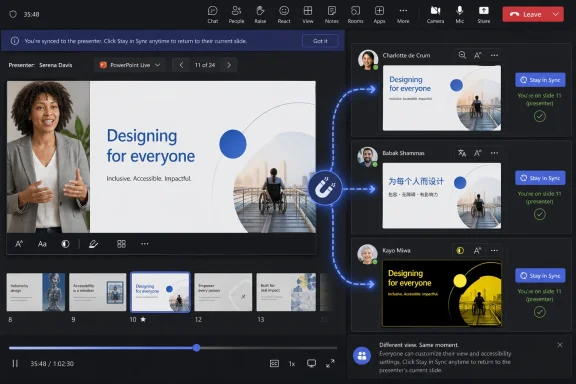
Microsoft Teams is rolling out a summer 2026 bundle of meeting, presentation, chat, performance, and webinar changes, led by a PowerPoint Live control that lets presenters sync last-minute slide edits into an active meeting by choosing “Present the latest version.” That sounds like a small button, but it attacks one of the oldest anxieties in office software: the deck that becomes wrong the moment the meeting starts. Microsoft is not reinventing collaboration here so much as admitting that live work is messy, late, and constantly revised. The real story is that Teams is being tuned less like a video-call app and more like the operating surface for Microsoft 365 work itself.
The headline feature is the one presenters will understand instantly. PowerPoint Live in Teams can now expose a “Present the latest version” option, allowing a presenter to pull in updates made to the PowerPoint file while the meeting is underway. In plain English: the meeting no longer has to choose between continuing with stale slides or awkwardly stopping so someone can reshuffle the deck.
That is not just convenience. In the Teams-and-PowerPoint universe, the slide deck is often the meeting’s contract with reality: quarterly numbers, project timelines, customer commitments, policy language, incident status, and launch plans. When that information changes while people are already on the call, the old workflow made the presenter look unprepared even when the problem was the pace of the business, not the presenter.
The new control changes the social dynamic of the meeting. A presenter can respond to a stakeholder’s correction, a finance update, or an executive’s requested wording change without breaking the presentation rhythm. The awkward choreography of “hang on, I’ll stop sharing, reopen the file, and share again” becomes less necessary.
There is also a subtle governance angle. PowerPoint Live already works best when the file lives in OneDrive or SharePoint, where versioning, permissions, and coauthoring are part of the Microsoft 365 fabric. By making the latest version easier to present, Microsoft is nudging users away from emailed attachments and local copies, and toward cloud-hosted documents as the canonical source.
Teams’ live update model reflects a different premise: the presentation is part of the work, not a polished artifact shown after the work is done. That matters for incident reviews, sales calls, product meetings, board updates, and classroom scenarios where the presenter must adapt to the room. The slide deck becomes less of a broadcast and more of a shared interface.
There are limits, of course. “Present the latest version” is not a magic wand for sloppy preparation. If a presenter makes chaotic edits mid-call, the audience may still experience confusion. But the button gives competent presenters a way to incorporate legitimate changes without punishing everyone else in the meeting.
This also highlights why PowerPoint Live remains strategically important to Microsoft. Screen sharing is universal, but PowerPoint Live gives Teams more context: slides, notes, navigation, reactions, chat, and accessibility features can coexist in a purpose-built presentation experience. Microsoft wants users to present inside the Microsoft 365 model, not merely stream pixels from a desktop.
A meeting where the deck is tiny, the chat is hidden, and the participant gallery is eating half the screen feels more exhausting than it needs to. The same call can require different visual priorities from minute to minute. A presenter may need notes and chat; an attendee may need shared content and captions; a manager may need to watch reactions while a document is being reviewed.
Resizable panes acknowledge that Teams meetings are no longer just video conferences. They are document reviews, workshops, training rooms, webinars, support calls, and decision sessions. A fixed layout is inevitably wrong for some of those jobs.
The deeper point is that Microsoft is inching Teams toward workspace malleability. The more Teams absorbs chat, meetings, files, notes, tasks, webinars, and Copilot-adjacent workflows, the more the interface must let users shape attention. Otherwise, Teams becomes the place where work happens but also the place where focus goes to die.
For users, the value is obvious when it works. A group chat can now become a lightweight project workspace. People can capture a decision, assign a task, update a checklist, or draft a shared set of notes without moving into Word, Planner, OneNote, or a separate Loop page.
For Microsoft, the value is even more obvious. Loop components are Microsoft’s answer to the fact that work no longer fits cleanly into files. A task list may need to appear in a Teams chat, a meeting recap, a Loop page, and a Planner workflow at the same time. The component, not the document, becomes the unit of collaboration.
That is powerful, but it also raises the familiar Microsoft 365 complexity problem. Users may reasonably ask where the “real” note lives, who can edit it, what happens when guests are involved, and how retention policies apply. Microsoft’s collaboration stack is at its best when these details fade into the background; it is at its worst when users feel they need a licensing diagram and a permissions flowchart to take meeting notes.
That is useful, but it is also a confession. Teams has carried a reputation for heaviness for years, even after Microsoft’s shift to the newer Teams client architecture. IT admins know the complaints: high memory use, sluggish meeting joins, fans spinning during calls, laptops draining batteries, and users blaming “the network” when the client itself is fighting for resources.
Efficiency Mode suggests Microsoft knows that performance cannot be treated as a background engineering concern. Teams is now too central to work to be allowed to feel optional or bloated. If the app struggles, the meeting struggles; if the meeting struggles, the workday struggles.
The timing is also interesting. The PC market is being pulled in two directions at once: premium AI PCs with more memory and neural processors at the high end, and cost-sensitive business fleets that still include plenty of modest laptops at the low end. Microsoft cannot build Teams only for the machines it wants people to buy. It has to make Teams tolerable on the machines companies actually deploy.
Reducing network usage is not glamorous, but it changes the lived experience of Teams. A user on a weak connection may not care about every advanced feature if audio stays stable, screen sharing remains legible, and the app does not collapse under its own load. Reliability is often more valuable than richness.
This is where Microsoft’s challenge is harder than Zoom’s original challenge. Teams is not just competing as a meeting app; it is carrying chat, files, calendars, apps, workflows, enterprise policy, and increasingly AI surfaces. Every added capability risks more overhead. Efficiency Mode is a counterweight to that sprawl.
Still, admins will want more than a marketing line. They will want policy controls, telemetry, predictable behavior, and clarity on what tradeoffs Efficiency Mode makes. If the mode silently lowers video quality or changes background behavior, users may notice without understanding why. Microsoft needs to make the feature manageable, not merely available.
The need is real. Teams’ success as a workplace hub has made it noisy. The more organizations depend on it, the more every workflow wants to push a notification, every meeting creates a chat, and every project spawns another thread. Users end up with a communication surface that is technically searchable but cognitively expensive.
Better organization can reduce that tax. A user who can separate active project chats from dormant meeting threads has a better chance of responding to what matters. Muting and pinning are not new concepts, but categorization makes them more systematic.
The risk is that Microsoft creates another layer of user-managed hygiene that busy people will ignore. The best collaboration tools do not require constant gardening. Teams will need automation, sensible defaults, and perhaps AI-assisted triage if chat organization is going to scale beyond power users who already maintain their digital workspace carefully.
For organizations already standardized on Microsoft 365, the appeal is obvious. If Teams can handle internal town halls, customer webinars, training sessions, and partner events, companies can reduce the number of separate event tools they license. Identity, compliance, calendar integration, recordings, and admin policy all sit closer to the systems IT already manages.
But large events are unforgiving. A ten-person meeting can survive awkward transitions and minor glitches. A 10,000-person webinar cannot. Registration, presenter coordination, lobby behavior, Q&A, attendee permissions, streaming performance, and post-event follow-up all have to work cleanly because failures scale with the audience.
The new event-specific group chats for organizers and presenters are especially practical. Anyone who has run a live virtual event knows that the public stage is only half the operation. Behind the scenes, producers and speakers need a private channel to handle timing, questions, technical issues, and last-minute changes. Baking that into Teams recognizes how events actually run.
This is where Microsoft’s bundling power cuts both ways. On one hand, Teams gains momentum because it is already in the Microsoft 365 estate. On the other hand, customers have learned to be wary when features appear in demos but depend on license tier, capacity add-on, policy setting, or rollout stage.
The webinar improvements are likely to be welcomed by organizations trying to consolidate platforms. Yet the buying conversation may be as important as the technical conversation. IT departments will need to map event size, interactivity, registration requirements, and compliance needs against the actual licensing model available to them.
Microsoft has an opportunity here to simplify. If Teams events become a maze of entitlements, some organizations will keep specialist tools simply because the boundaries are clearer. In enterprise software, predictable limits are often better than impressive but conditional capabilities.
Microsoft is trying to make Teams the place where work moves from conversation to artifact to decision to broadcast. A chat can become notes. Notes can become tasks. A deck can update during a meeting. A meeting can become a webinar. A webinar can be managed with registration, backstage coordination, and post-event assets. The app is less a product than a layer across Microsoft 365.
That strategy has obvious strengths. Users do not want to stitch together ten tools for every project. Admins do not want ten separate compliance models. Microsoft can use identity, storage, permissions, and Office file formats as connective tissue in ways few competitors can match.
The weakness is equally obvious. Integration can become accumulation. Teams already carries the weight of being chat, phone, meeting room, file browser, app platform, event venue, and notification center. Every improvement that adds capability also adds another surface for confusion unless Microsoft is ruthless about design.
Efficiency Mode will be judged by users on 8GB laptops, aging fleet hardware, and overloaded home networks. If Teams feels less like a tax on the system, Microsoft will earn goodwill that no AI branding campaign can buy. If it merely hides performance compromises behind another toggle, admins will hear about it quickly.
Shared notes will be judged by whether they reduce after-meeting archaeology. If action items captured in a chat reliably surface where people expect them, the feature will become habit. If permissions or discoverability get weird, users will retreat to the familiar chaos of pasted notes and follow-up emails.
Webinars will be judged by operations teams under pressure. A large event either works or it does not. The presenter chat, registration controls, waitlists, and event management interface need to reduce risk, not just expand a feature matrix.
Microsoft’s summer Teams changes do not eliminate that debt, but they attack several common sources at once.
Microsoft Teams’ summer update is not a revolution, and that may be why it matters. The future of workplace software will be shaped less by one dazzling feature than by hundreds of small reductions in friction, latency, context switching, and duplicated effort. If Microsoft can make the live deck current, the cramped meeting window adjustable, the chat more organized, the notes more durable, and the client less hungry, Teams becomes harder to replace not because it is flashy, but because it is finally learning to stay out of the way.
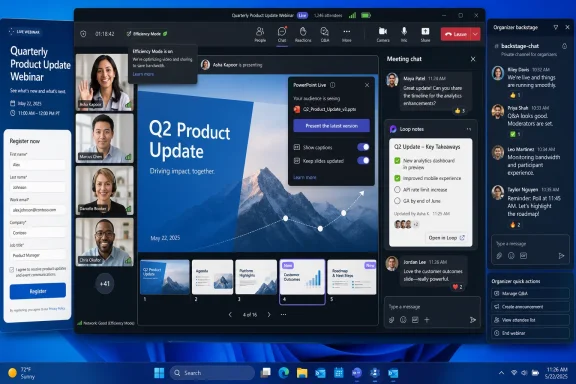 Microsoft Turns the Slide Deck Into a Living Document
The headline feature is the one presenters will understand instantly. PowerPoint Live in Teams can now expose a “Present the latest version” option, allowing a presenter to pull in updates made to the PowerPoint file while the meeting is underway. In plain English: the meeting no longer has to choose between continuing with stale slides or awkwardly stopping so someone can reshuffle the deck.That is not just convenience. In the Teams-and-PowerPoint universe, the slide deck is often the meeting’s contract with reality: quarterly numbers, project timelines, customer commitments, policy language, incident status, and launch plans. When that information changes while people are already on the call, the old workflow made the presenter look unprepared even when the problem was the pace of the business, not the presenter.
The new control changes the social dynamic of the meeting. A presenter can respond to a stakeholder’s correction, a finance update, or an executive’s requested wording change without breaking the presentation rhythm. The awkward choreography of “hang on, I’ll stop sharing, reopen the file, and share again” becomes less necessary.
There is also a subtle governance angle. PowerPoint Live already works best when the file lives in OneDrive or SharePoint, where versioning, permissions, and coauthoring are part of the Microsoft 365 fabric. By making the latest version easier to present, Microsoft is nudging users away from emailed attachments and local copies, and toward cloud-hosted documents as the canonical source.
The Meeting Is No Longer a Frozen Performance
For years, the default assumption in presentation software was that preparation ended before delivery. You built the deck, joined the meeting, shared the screen, and hoped nothing important changed. That model fit a world of conference rooms and fixed agendas better than today’s hybrid meetings, where comments, data, and decisions arrive in real time from multiple channels.Teams’ live update model reflects a different premise: the presentation is part of the work, not a polished artifact shown after the work is done. That matters for incident reviews, sales calls, product meetings, board updates, and classroom scenarios where the presenter must adapt to the room. The slide deck becomes less of a broadcast and more of a shared interface.
There are limits, of course. “Present the latest version” is not a magic wand for sloppy preparation. If a presenter makes chaotic edits mid-call, the audience may still experience confusion. But the button gives competent presenters a way to incorporate legitimate changes without punishing everyone else in the meeting.
This also highlights why PowerPoint Live remains strategically important to Microsoft. Screen sharing is universal, but PowerPoint Live gives Teams more context: slides, notes, navigation, reactions, chat, and accessibility features can coexist in a purpose-built presentation experience. Microsoft wants users to present inside the Microsoft 365 model, not merely stream pixels from a desktop.
Teams Is Fixing the Small Frictions That Make Meetings Feel Large
The slide-sync feature lands alongside another very practical change: flexible meeting pane sizing. Users can resize panes such as shared content, chat, and participant video feeds to better match the task at hand. That may sound mundane, but meeting software is often won or lost in these layout details.A meeting where the deck is tiny, the chat is hidden, and the participant gallery is eating half the screen feels more exhausting than it needs to. The same call can require different visual priorities from minute to minute. A presenter may need notes and chat; an attendee may need shared content and captions; a manager may need to watch reactions while a document is being reviewed.
Resizable panes acknowledge that Teams meetings are no longer just video conferences. They are document reviews, workshops, training rooms, webinars, support calls, and decision sessions. A fixed layout is inevitably wrong for some of those jobs.
The deeper point is that Microsoft is inching Teams toward workspace malleability. The more Teams absorbs chat, meetings, files, notes, tasks, webinars, and Copilot-adjacent workflows, the more the interface must let users shape attention. Otherwise, Teams becomes the place where work happens but also the place where focus goes to die.
Loop Keeps Creeping Into the Conversation
Shared notes in chats and group chats are another piece of the same puzzle. Microsoft is bringing collaborative notes into Teams conversations, with Loop-powered components that can include agendas, tasks, checklists, and other shared working material. The pitch is simple: stop turning every decision into a separate document, and stop letting action items disappear into the chat scroll.For users, the value is obvious when it works. A group chat can now become a lightweight project workspace. People can capture a decision, assign a task, update a checklist, or draft a shared set of notes without moving into Word, Planner, OneNote, or a separate Loop page.
For Microsoft, the value is even more obvious. Loop components are Microsoft’s answer to the fact that work no longer fits cleanly into files. A task list may need to appear in a Teams chat, a meeting recap, a Loop page, and a Planner workflow at the same time. The component, not the document, becomes the unit of collaboration.
That is powerful, but it also raises the familiar Microsoft 365 complexity problem. Users may reasonably ask where the “real” note lives, who can edit it, what happens when guests are involved, and how retention policies apply. Microsoft’s collaboration stack is at its best when these details fade into the background; it is at its worst when users feel they need a licensing diagram and a permissions flowchart to take meeting notes.
Efficiency Mode Is an Admission as Much as an Optimization
The new Teams Efficiency Mode may be the most revealing update in the batch. It is designed to reduce processor, memory, and network usage, particularly for lower-performance devices or constrained bandwidth environments. Users can toggle it as needed, and Microsoft is positioning it as a way to keep Teams usable when hardware or connectivity is not ideal.That is useful, but it is also a confession. Teams has carried a reputation for heaviness for years, even after Microsoft’s shift to the newer Teams client architecture. IT admins know the complaints: high memory use, sluggish meeting joins, fans spinning during calls, laptops draining batteries, and users blaming “the network” when the client itself is fighting for resources.
Efficiency Mode suggests Microsoft knows that performance cannot be treated as a background engineering concern. Teams is now too central to work to be allowed to feel optional or bloated. If the app struggles, the meeting struggles; if the meeting struggles, the workday struggles.
The timing is also interesting. The PC market is being pulled in two directions at once: premium AI PCs with more memory and neural processors at the high end, and cost-sensitive business fleets that still include plenty of modest laptops at the low end. Microsoft cannot build Teams only for the machines it wants people to buy. It has to make Teams tolerable on the machines companies actually deploy.
Low Bandwidth Is Not an Edge Case
Efficiency Mode’s bandwidth angle deserves attention because hybrid work exposed a truth enterprise software vendors often ignored: not every worker sits on pristine office Wi-Fi. People join calls from trains, hotels, home networks, shared apartments, branch offices, customer sites, and mobile hotspots. A collaboration platform that only shines under ideal conditions is not truly enterprise-ready.Reducing network usage is not glamorous, but it changes the lived experience of Teams. A user on a weak connection may not care about every advanced feature if audio stays stable, screen sharing remains legible, and the app does not collapse under its own load. Reliability is often more valuable than richness.
This is where Microsoft’s challenge is harder than Zoom’s original challenge. Teams is not just competing as a meeting app; it is carrying chat, files, calendars, apps, workflows, enterprise policy, and increasingly AI surfaces. Every added capability risks more overhead. Efficiency Mode is a counterweight to that sprawl.
Still, admins will want more than a marketing line. They will want policy controls, telemetry, predictable behavior, and clarity on what tradeoffs Efficiency Mode makes. If the mode silently lowers video quality or changes background behavior, users may notice without understanding why. Microsoft needs to make the feature manageable, not merely available.
Chat Organization Tries to Clean Up the Workplace Junk Drawer
Teams chat has become the junk drawer of the digital workplace. It contains urgent messages, meeting sidebars, project decisions, social chatter, vendor conversations, bot notifications, and threads that should probably have been emails. Microsoft’s new chat categorization features try to impose some order by letting users organize conversations into sections such as meeting chats, pinned chats, or muted chats.The need is real. Teams’ success as a workplace hub has made it noisy. The more organizations depend on it, the more every workflow wants to push a notification, every meeting creates a chat, and every project spawns another thread. Users end up with a communication surface that is technically searchable but cognitively expensive.
Better organization can reduce that tax. A user who can separate active project chats from dormant meeting threads has a better chance of responding to what matters. Muting and pinning are not new concepts, but categorization makes them more systematic.
The risk is that Microsoft creates another layer of user-managed hygiene that busy people will ignore. The best collaboration tools do not require constant gardening. Teams will need automation, sensible defaults, and perhaps AI-assisted triage if chat organization is going to scale beyond power users who already maintain their digital workspace carefully.
Webinars Become a First-Class Teams Workload
The webinar upgrades push Teams further into territory once occupied by dedicated virtual event platforms. Microsoft is improving support for large events, including audiences that can reach 10,000 attendees in certain scenarios, along with waitlists, customizable registration forms, co-organizer roles, and event-specific coordination chats. That is not a minor meeting enhancement; it is a platform bid.For organizations already standardized on Microsoft 365, the appeal is obvious. If Teams can handle internal town halls, customer webinars, training sessions, and partner events, companies can reduce the number of separate event tools they license. Identity, compliance, calendar integration, recordings, and admin policy all sit closer to the systems IT already manages.
But large events are unforgiving. A ten-person meeting can survive awkward transitions and minor glitches. A 10,000-person webinar cannot. Registration, presenter coordination, lobby behavior, Q&A, attendee permissions, streaming performance, and post-event follow-up all have to work cleanly because failures scale with the audience.
The new event-specific group chats for organizers and presenters are especially practical. Anyone who has run a live virtual event knows that the public stage is only half the operation. Behind the scenes, producers and speakers need a private channel to handle timing, questions, technical issues, and last-minute changes. Baking that into Teams recognizes how events actually run.
The Licensing Story Still Shadows the Feature Story
No modern Teams feature story is complete without licensing caveats. Microsoft’s event portfolio has been shifting, with Teams Premium, enterprise licenses, attendee capacity packs, and changing limits all part of the picture. That does not make the features less useful, but it does mean admins should verify exactly what their tenant can do before promising a 10,000-person event to the CEO.This is where Microsoft’s bundling power cuts both ways. On one hand, Teams gains momentum because it is already in the Microsoft 365 estate. On the other hand, customers have learned to be wary when features appear in demos but depend on license tier, capacity add-on, policy setting, or rollout stage.
The webinar improvements are likely to be welcomed by organizations trying to consolidate platforms. Yet the buying conversation may be as important as the technical conversation. IT departments will need to map event size, interactivity, registration requirements, and compliance needs against the actual licensing model available to them.
Microsoft has an opportunity here to simplify. If Teams events become a maze of entitlements, some organizations will keep specialist tools simply because the boundaries are clearer. In enterprise software, predictable limits are often better than impressive but conditional capabilities.
Microsoft’s Strategy Is Integration, Not Surprise
None of these updates is individually shocking. Live slide syncing, resizable panes, shared notes, performance mode, chat categories, and better webinar management are all sensible improvements. The significance is in how they point in the same direction.Microsoft is trying to make Teams the place where work moves from conversation to artifact to decision to broadcast. A chat can become notes. Notes can become tasks. A deck can update during a meeting. A meeting can become a webinar. A webinar can be managed with registration, backstage coordination, and post-event assets. The app is less a product than a layer across Microsoft 365.
That strategy has obvious strengths. Users do not want to stitch together ten tools for every project. Admins do not want ten separate compliance models. Microsoft can use identity, storage, permissions, and Office file formats as connective tissue in ways few competitors can match.
The weakness is equally obvious. Integration can become accumulation. Teams already carries the weight of being chat, phone, meeting room, file browser, app platform, event venue, and notification center. Every improvement that adds capability also adds another surface for confusion unless Microsoft is ruthless about design.
Windows Users Will Feel This in the Everyday Meetings, Not the Demos
For WindowsForum.com readers, the practical test is not whether Microsoft can show a polished demo. It is whether these changes make Tuesday’s messy meetings better on real Windows laptops, real tenant policies, and real networks. The PowerPoint update feature will be judged the first time a presenter saves a corrected slide two minutes before an executive review and the room sees the right version without drama.Efficiency Mode will be judged by users on 8GB laptops, aging fleet hardware, and overloaded home networks. If Teams feels less like a tax on the system, Microsoft will earn goodwill that no AI branding campaign can buy. If it merely hides performance compromises behind another toggle, admins will hear about it quickly.
Shared notes will be judged by whether they reduce after-meeting archaeology. If action items captured in a chat reliably surface where people expect them, the feature will become habit. If permissions or discoverability get weird, users will retreat to the familiar chaos of pasted notes and follow-up emails.
Webinars will be judged by operations teams under pressure. A large event either works or it does not. The presenter chat, registration controls, waitlists, and event management interface need to reduce risk, not just expand a feature matrix.
The Summer Teams Release Is Really About Reducing Meeting Debt
The most concrete reading of this update is that Microsoft is trying to pay down meeting debt. That debt accumulates when tools force people to repeat work, restart shares, hunt through chats, manually copy notes, tolerate lag, and coordinate large events through side channels. The debt is paid in lost attention.Microsoft’s summer Teams changes do not eliminate that debt, but they attack several common sources at once.
- Presenters can sync updated PowerPoint content during a Teams meeting instead of restarting the presentation flow.
- Users can resize meeting panes so shared content, chat, and video fit the task rather than the other way around.
- Teams chats can host collaborative notes powered by Loop, making action items and shared context less likely to vanish.
- Efficiency Mode targets processor, memory, and network pressure on constrained devices and connections.
- Webinar improvements expand Teams’ usefulness for large, managed events with registration and organizer coordination.
- Admins should still verify licensing, rollout status, and policy controls before treating every announced capability as universally available.
Microsoft Teams’ summer update is not a revolution, and that may be why it matters. The future of workplace software will be shaped less by one dazzling feature than by hundreds of small reductions in friction, latency, context switching, and duplicated effort. If Microsoft can make the live deck current, the cramped meeting window adjustable, the chat more organized, the notes more durable, and the client less hungry, Teams becomes harder to replace not because it is flashy, but because it is finally learning to stay out of the way.
References
- Primary source: Geeky Gadgets
Published: Tue, 23 Jun 2026 09:18:31 GMT
Top 8 Microsoft Teams New Features for Summer 2026 - Geeky Gadgets
Discover the top 8 new Microsoft Teams features for summer 2026, including live PowerPoint editing, efficiency mode, and advanced chat organization.www.geeky-gadgets.com - Official source: support.microsoft.com
Share slides in Microsoft Teams meetings with PowerPoint Live | Microsoft Support
When you need to present your PowerPoint slides in Microsoft Teams, PowerPoint Live gives both the presenter and audience an inclusive and engaging experience, combining the best parts of presenting with the connection and collaboration of a Teams meeting.support.microsoft.com - Related coverage: windowslatest.com
Microsoft reveals Teams can't run well on low-RAM PCs, builds Efficiency Mode after years of bloat
Microsoft Teams is testing a new feature called "Efficiency mode," and it will become available for everyone by the end of June 2026. www.windowslatest.com
- Official source: news.microsoft.com
- Official source: cdn-dynmedia-1.microsoft.com
</rdf:Alt> </dc:title> <dc:creator> <rdf:Seq> <rdf:li>Ryan Fowles
PDF documentcdn-dynmedia-1.microsoft.com
- Official source: techcommunity.microsoft.com
- Official source: adoption.microsoft.com
- Official source: learn.microsoft.com
Manage the registration form for webinars in Microsoft Teams - Microsoft Teams | Microsoft Learn
Learn how to manage the registration form for webinars in Microsoft Teams for admins. Require attendees to answer required questions, custom questions, and standard questions.learn.microsoft.com - Official source: microsoft.com
Your request has been blocked. This could be due to several reasons.
www.microsoft.com
- Related coverage: techriver.com