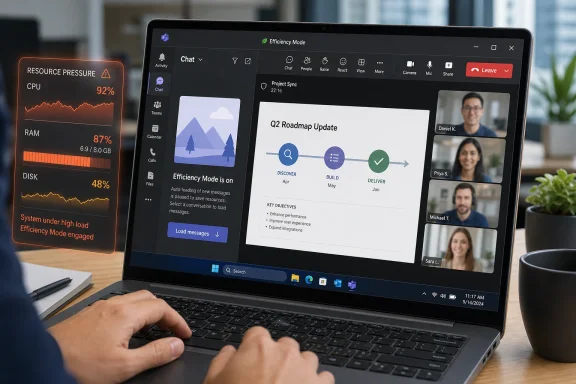
Microsoft Teams Efficiency Mode is a new Windows and Mac desktop client behavior rolling out globally in late May 2026 for eligible hardware-constrained devices, where Teams reduces startup and meeting load by avoiding a preselected chat and dynamically adjusting outgoing camera resolution. The feature is modest in mechanics but revealing in strategy: Microsoft is no longer pretending that every endpoint can absorb the full weight of the modern collaboration stack. Instead, Teams is being taught to degrade gracefully. For users on thin, aging, or simply overburdened PCs, that may matter more than another Copilot button.
Teams has spent years as both the symbol and scapegoat of Microsoft 365 sprawl. It is the chat client, the meeting room, the telephony surface, the file hub, the app launcher, the compliance boundary, and increasingly the front door to AI workflows. That breadth is useful in procurement decks and punishing on hardware that was never bought with that ambition in mind.
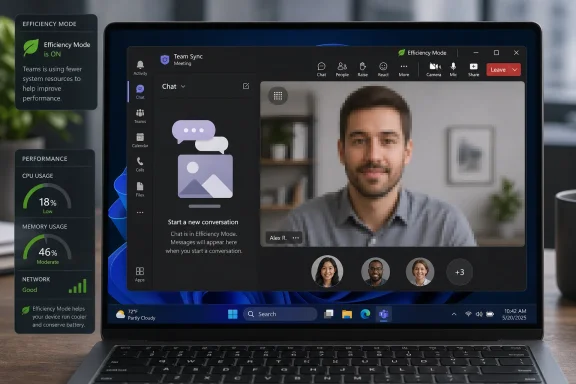
Efficiency Mode is not a glamorous feature. It does not add a new meeting layout, a new avatar, or a new pane promising to summarize the last hour of corporate chatter. Its most visible change is almost comically restrained: when Teams launches, it no longer immediately loads a selected chat on eligible low-resource machines, instead showing a static image in the message pane until the user chooses where to go.
That small act of restraint is the story. Microsoft is acknowledging that instantaneous context is not free. Loading a chat, rendering messages, preparing media surfaces, syncing state, and priming the interface all compete with the same CPU and memory that the user needs for Outlook, Edge, Excel, a browser full of SaaS tabs, endpoint security, and whatever line-of-business software the company still cannot replace.
The company’s bet is that a slightly less eager Teams is a better Teams. On weaker hardware, the fastest app is often the one that does less before the user has made a choice.
The leaf icon also connects Teams to a broader Microsoft design language around energy and performance trade-offs. Windows has used similar cues for process efficiency, and Edge has long pursued sleeping tabs and resource-saving behavior. Teams is now being pulled into that same philosophy: the collaboration app must participate in resource governance rather than behave like the desktop belongs to it alone.
The unresolved piece is eligibility. Microsoft has described the target broadly as devices with limited CPU and memory, but the public detail remains thinner than admins would like. That leaves IT teams in the awkward position of explaining a user-visible behavior without having a clean checklist of which machines will qualify, when they will qualify, and whether borderline systems will move in or out of the bucket after updates.
That ambiguity matters in enterprises because unexplained variation breeds tickets. One user sees the leaf and a static pane; another with a superficially similar laptop does not. Unless Microsoft documents the detection logic more clearly, help desks will have to translate “hardware-constrained” into something supportable through inventory data, endpoint telemetry, and painful trial and error.
This is not merely about shaving a second from startup. It is about making the first interaction feel less like the user is fighting the machine. In the real world, Teams is often opened under time pressure: a meeting is starting, a manager is calling, or a message notification has become urgent. A static placeholder is less informative than a loaded chat, but it may be preferable to the familiar stutter of an app trying to do everything at once.
There is a trade-off, of course. Some users expect Teams to reopen exactly where they left off. For them, the new behavior may feel like a regression, especially if they live in a small number of chats and channels. Microsoft’s answer is that Efficiency Mode can be disabled through Settings under General by choosing the option never to use it.
That opt-out path is important, but it is not the same as administrative clarity. In managed environments, user toggles can become policy debates. If a department complains that Teams feels different, does IT tell users to disable the feature, leave it alone for better performance, or wait for Microsoft to tune the detection? The technical feature is simple; the operational story is messier.
Still, it is a rational place to spend the savings. Video is one of the most resource-intensive parts of Teams, especially on machines with modest CPUs, integrated graphics, limited memory, or heavy background security tooling. Encoding and transmitting camera video while also decoding other participants, rendering shared content, and keeping chat alive can expose every weakness in the endpoint.
The key word is sent. Efficiency Mode is not primarily described as reducing what the user sees from everyone else; it adjusts the resolution transmitted from the constrained device. That distinction matters. Microsoft is trying to preserve the user’s ability to participate in the meeting while reducing the cost of presenting that user’s own camera stream.
In practice, this could be the right compromise for many organizations. A slightly softer camera feed is usually less damaging than audio dropouts, frozen UI controls, or a laptop that sounds like a small aircraft during every stand-up. The risk is perception: users may interpret any visible quality drop as network trouble, camera failure, or another Teams bug unless the leaf indicator and internal support messaging make the behavior obvious.
Default-on also reflects the reality of large fleets. Many organizations still run a long tail of aging laptops, shared front-line devices, virtualized desktops, small-form-factor PCs, and machines burdened by years of software accretion. The people using those systems are not going to tune Teams. They are going to complain that calls lag, chats load slowly, and the machine becomes unusable at precisely the moment work is supposed to happen.
But default-on features must be predictable. Admins need to know whether they can report on it, whether it can be governed centrally, and how it interacts with existing performance, accessibility, and meeting policies. A per-user setting is useful for local relief, but it does not answer the fleet-management question.
Microsoft’s current framing says no action is required if the default behavior works for the organization. That phrase is doing a lot of work. In smaller environments, it may be true. In larger enterprises, “no action required” often means “prepare for the tickets before the documentation catches up.”
Microsoft has already spent years trying to repair Teams’ performance reputation, most notably with the new Teams client that replaced the older architecture and promised faster launch times and lower memory use. Efficiency Mode does not negate that work. It suggests the next phase is more situational: not one client experience for everyone, but adaptive behavior depending on endpoint capability.
That is a more honest model for 2026 computing. The Windows ecosystem is not a uniform fleet of premium Copilot+ PCs. It includes five-year-old business laptops, education devices, underpowered desktops in branch offices, shared kiosks, and remote workers running too much on too little. Software that ignores that spread becomes a tax on the organizations least able to refresh hardware quickly.
The irony is that Microsoft’s productivity strategy keeps making Teams more central while endpoint reality keeps demanding that Teams become more polite. Efficiency Mode is where those two forces meet. Teams can be the hub, but it cannot assume the machine has unlimited headroom.
But the delay is still worth noticing because performance features are delicate. Unlike a new emoji set or a meeting reaction, Efficiency Mode changes the feel of an app under specific conditions. Microsoft has to get the detection and communication right enough that the feature reduces complaints instead of creating new ones.
Late-May timing also means many admins will encounter this as a quiet change rather than a planned project. A new icon appears. A user asks why Teams opened differently. A VIP says their camera looks worse. The answer may be buried in message center text that was read once, forwarded to no one, and then overtaken by the next dozen Microsoft 365 changes.
That cadence is now the Microsoft 365 administrative burden in miniature. The platform improves continuously, but customers must continuously interpret those improvements. Efficiency Mode may be technically small, yet it arrives inside the same release machinery that has trained admins to expect moving dates, partial documentation, and features that appear before the internal comms plan is ready.
Efficiency Mode reframes the problem. It says collaboration software should adapt to lower-end hardware rather than merely expose it. That is a better posture for schools, nonprofits, local government, healthcare front lines, retail back offices, and small businesses that do not replace fleets on a Silicon Valley schedule.
It also matters for sustainability narratives, though Microsoft should be careful not to overplay that angle. Extending the usable life of hardware is good, but only if the user experience remains acceptable. A degraded collaboration app can keep a machine in service while also frustrating the person assigned to use it.
The more practical value is resilience. If Teams can scale down gracefully on a constrained endpoint, organizations gain more flexibility. A backup laptop, a temporary workstation, or an older Mac can remain viable for essential communication instead of becoming a performance liability the moment a video call begins.
Microsoft may choose to keep this mostly user-driven, at least at first. That would reduce complexity and avoid creating yet another Teams policy surface. But Teams is not a consumer app inside most organizations; it is managed infrastructure. If the mode affects meetings, startup state, and user expectations, admins will eventually ask for knobs.
There is also a support analytics question. If a user reports poor video quality, can the help desk see whether Efficiency Mode was active at the time? If Teams launches to a static pane, can support distinguish that from a loading failure? If a device is classified as constrained, can IT see why?
Without that visibility, Efficiency Mode risks becoming another ghost in the machine. Users will see effects; admins will infer causes. That is the exact gap modern endpoint management is supposed to close.
That makes it one of Microsoft’s more believable Teams changes. The company has a habit of presenting Teams as the place where every work pattern should converge, which often means more surfaces, more notifications, more apps, and more cognitive overhead. Efficiency Mode moves in the opposite direction. It removes immediacy in one place and fidelity in another to preserve responsiveness.
For WindowsForum readers, the Windows angle is obvious but not exclusive. The feature applies to Teams desktop on Windows and Mac, which is the right scope because the performance problem is not ideological. A low-end Mac can struggle just as a low-end Windows PC can, and a bloated meeting workload does not care which logo is on the lid.
Still, Windows admins will feel this most acutely because Windows fleets are broader and more varied. The same tenant may include modern Intel and AMD laptops, Arm devices, virtual desktops, cheap education hardware, old desktops with spinning disks somehow still in service, and premium machines docked to multiple displays. Adaptive Teams behavior is not a luxury in that world. It is a survival tactic.
Organizations should treat Efficiency Mode as a pressure valve, not a cure. It can make Teams more tolerable on constrained devices, but it cannot turn underpowered hardware into a modern collaboration workstation. If users spend hours per day in video calls, the right answer may still be a better device, a better webcam, more memory, or a more disciplined software load.
The feature may, however, help IT triage. Devices where Efficiency Mode frequently appears or where users depend on it may be the very devices that belong near the top of the refresh queue. In that sense, the leaf icon is not just a user-facing signal. It is a visible hint that the endpoint is operating close to the edge.
Microsoft should lean into that operational value. If Teams can detect constrained conditions well enough to change behavior, that information could be useful beyond Teams. Admins do not need another mysterious icon; they need telemetry that helps them decide whether to tune, replace, or retire a machine.
Help desks should know what the leaf icon means. Power users should know where the opt-out lives. Meeting support teams should understand that reduced outgoing camera resolution may be intentional rather than a network defect. Endpoint teams should watch whether complaints cluster around specific hardware models or memory configurations.
That last point is important because Microsoft’s eligibility language is broad. If the company does not publish precise thresholds, organizations will have to build their own understanding from observed behavior. That is not ideal, but it is manageable if IT treats the rollout as a signal-gathering exercise rather than a surprise nuisance.
The best outcome is boring: constrained devices become a little more responsive, meeting reliability improves slightly, and most users never care why. In enterprise software, boring success is underrated.
The feature’s most concrete implications are straightforward:
Microsoft’s next challenge is to turn this from a quiet mitigation into a well-documented operating model. If Efficiency Mode remains transparent, controllable, and predictable, it can make Teams feel more humane on the hardware people actually use. If it remains underexplained, it will become one more Microsoft 365 behavior admins must reverse-engineer after rollout. Either way, the direction is right: the future of collaboration software is not only more intelligence and richer meetings, but smarter retreat when the endpoint has nothing left to give.
 Microsoft Chooses Restraint Over Another Rewrite
Teams has spent years as both the symbol and scapegoat of Microsoft 365 sprawl. It is the chat client, the meeting room, the telephony surface, the file hub, the app launcher, the compliance boundary, and increasingly the front door to AI workflows. That breadth is useful in procurement decks and punishing on hardware that was never bought with that ambition in mind.Efficiency Mode is not a glamorous feature. It does not add a new meeting layout, a new avatar, or a new pane promising to summarize the last hour of corporate chatter. Its most visible change is almost comically restrained: when Teams launches, it no longer immediately loads a selected chat on eligible low-resource machines, instead showing a static image in the message pane until the user chooses where to go.
That small act of restraint is the story. Microsoft is acknowledging that instantaneous context is not free. Loading a chat, rendering messages, preparing media surfaces, syncing state, and priming the interface all compete with the same CPU and memory that the user needs for Outlook, Edge, Excel, a browser full of SaaS tabs, endpoint security, and whatever line-of-business software the company still cannot replace.
The company’s bet is that a slightly less eager Teams is a better Teams. On weaker hardware, the fastest app is often the one that does less before the user has made a choice.
The Leaf Icon Is a Tiny Admission of Hardware Reality
When Efficiency Mode is active, users will see a leaf indicator in the Teams title bar. That is a small user-interface decision with outsized importance, because performance management becomes far more irritating when it is invisible. Nobody likes discovering that an application silently changed its behavior only after a meeting goes blurry or a pane fails to populate as expected.The leaf icon also connects Teams to a broader Microsoft design language around energy and performance trade-offs. Windows has used similar cues for process efficiency, and Edge has long pursued sleeping tabs and resource-saving behavior. Teams is now being pulled into that same philosophy: the collaboration app must participate in resource governance rather than behave like the desktop belongs to it alone.
The unresolved piece is eligibility. Microsoft has described the target broadly as devices with limited CPU and memory, but the public detail remains thinner than admins would like. That leaves IT teams in the awkward position of explaining a user-visible behavior without having a clean checklist of which machines will qualify, when they will qualify, and whether borderline systems will move in or out of the bucket after updates.
That ambiguity matters in enterprises because unexplained variation breeds tickets. One user sees the leaf and a static pane; another with a superficially similar laptop does not. Unless Microsoft documents the detection logic more clearly, help desks will have to translate “hardware-constrained” into something supportable through inventory data, endpoint telemetry, and painful trial and error.
Startup Performance Is the First Battleground
The launch behavior is the clearest example of Microsoft choosing latency over completeness. A full chat view may feel natural on a high-end workstation, but it is expensive on a device already under pressure. By launching Teams without a preselected chat, Microsoft cuts down the amount of immediate interface work the client needs to perform before the user can orient themselves.This is not merely about shaving a second from startup. It is about making the first interaction feel less like the user is fighting the machine. In the real world, Teams is often opened under time pressure: a meeting is starting, a manager is calling, or a message notification has become urgent. A static placeholder is less informative than a loaded chat, but it may be preferable to the familiar stutter of an app trying to do everything at once.
There is a trade-off, of course. Some users expect Teams to reopen exactly where they left off. For them, the new behavior may feel like a regression, especially if they live in a small number of chats and channels. Microsoft’s answer is that Efficiency Mode can be disabled through Settings under General by choosing the option never to use it.
That opt-out path is important, but it is not the same as administrative clarity. In managed environments, user toggles can become policy debates. If a department complains that Teams feels different, does IT tell users to disable the feature, leave it alone for better performance, or wait for Microsoft to tune the detection? The technical feature is simple; the operational story is messier.
Meeting Video Becomes the Negotiable Layer
The second major behavior is dynamic adjustment of the video resolution sent from the user’s camera during meetings. That is the more sensitive change, because video quality is socially visible. A static launch pane may be noticed only by the person using the PC; a lower-quality camera feed is seen by everyone in the call.Still, it is a rational place to spend the savings. Video is one of the most resource-intensive parts of Teams, especially on machines with modest CPUs, integrated graphics, limited memory, or heavy background security tooling. Encoding and transmitting camera video while also decoding other participants, rendering shared content, and keeping chat alive can expose every weakness in the endpoint.
The key word is sent. Efficiency Mode is not primarily described as reducing what the user sees from everyone else; it adjusts the resolution transmitted from the constrained device. That distinction matters. Microsoft is trying to preserve the user’s ability to participate in the meeting while reducing the cost of presenting that user’s own camera stream.
In practice, this could be the right compromise for many organizations. A slightly softer camera feed is usually less damaging than audio dropouts, frozen UI controls, or a laptop that sounds like a small aircraft during every stand-up. The risk is perception: users may interpret any visible quality drop as network trouble, camera failure, or another Teams bug unless the leaf indicator and internal support messaging make the behavior obvious.
Default-On Is Sensible, but It Raises the Governance Stakes
Microsoft plans to enable Efficiency Mode by default on eligible devices. That is the correct product decision if the goal is actual impact. Optional performance features tend to be discovered only by the users who need them least: enthusiasts, admins, and people who read release notes for sport.Default-on also reflects the reality of large fleets. Many organizations still run a long tail of aging laptops, shared front-line devices, virtualized desktops, small-form-factor PCs, and machines burdened by years of software accretion. The people using those systems are not going to tune Teams. They are going to complain that calls lag, chats load slowly, and the machine becomes unusable at precisely the moment work is supposed to happen.
But default-on features must be predictable. Admins need to know whether they can report on it, whether it can be governed centrally, and how it interacts with existing performance, accessibility, and meeting policies. A per-user setting is useful for local relief, but it does not answer the fleet-management question.
Microsoft’s current framing says no action is required if the default behavior works for the organization. That phrase is doing a lot of work. In smaller environments, it may be true. In larger enterprises, “no action required” often means “prepare for the tickets before the documentation catches up.”
Teams’ Performance Problem Was Never Just Teams
It is tempting to read Efficiency Mode as an admission that Teams is still too heavy. That is partly fair, but too narrow. Teams sits at the intersection of modern web-app architecture, real-time media, identity, compliance, storage, notifications, and extensibility. Even a well-optimized Teams client is being asked to behave like a communications operating system inside the actual operating system.Microsoft has already spent years trying to repair Teams’ performance reputation, most notably with the new Teams client that replaced the older architecture and promised faster launch times and lower memory use. Efficiency Mode does not negate that work. It suggests the next phase is more situational: not one client experience for everyone, but adaptive behavior depending on endpoint capability.
That is a more honest model for 2026 computing. The Windows ecosystem is not a uniform fleet of premium Copilot+ PCs. It includes five-year-old business laptops, education devices, underpowered desktops in branch offices, shared kiosks, and remote workers running too much on too little. Software that ignores that spread becomes a tax on the organizations least able to refresh hardware quickly.
The irony is that Microsoft’s productivity strategy keeps making Teams more central while endpoint reality keeps demanding that Teams become more polite. Efficiency Mode is where those two forces meet. Teams can be the hub, but it cannot assume the machine has unlimited headroom.
The Admin Center Delay Tells Its Own Story
The timing has shifted. Earlier guidance pointed to an early May rollout with completion by mid-May, while updated Admin Center messaging reportedly moved that window to late May with completion by the end of the month. In Microsoft 365 terms, this is not a dramatic delay. It is the normal slippage of a cloud service with staged deployment rings and last-minute adjustments.But the delay is still worth noticing because performance features are delicate. Unlike a new emoji set or a meeting reaction, Efficiency Mode changes the feel of an app under specific conditions. Microsoft has to get the detection and communication right enough that the feature reduces complaints instead of creating new ones.
Late-May timing also means many admins will encounter this as a quiet change rather than a planned project. A new icon appears. A user asks why Teams opened differently. A VIP says their camera looks worse. The answer may be buried in message center text that was read once, forwarded to no one, and then overtaken by the next dozen Microsoft 365 changes.
That cadence is now the Microsoft 365 administrative burden in miniature. The platform improves continuously, but customers must continuously interpret those improvements. Efficiency Mode may be technically small, yet it arrives inside the same release machinery that has trained admins to expect moving dates, partial documentation, and features that appear before the internal comms plan is ready.
Low-End Hardware Is Now a First-Class Collaboration Problem
For years, endpoint performance was treated as a hardware refresh issue. If Teams ran poorly, buy better machines. That answer still has merit, especially for employees who spend all day in meetings, browsers, and data-heavy Office files. But it is insufficient for organizations with budget constraints, shared-device models, or operational environments where ruggedness and cost matter more than benchmark scores.Efficiency Mode reframes the problem. It says collaboration software should adapt to lower-end hardware rather than merely expose it. That is a better posture for schools, nonprofits, local government, healthcare front lines, retail back offices, and small businesses that do not replace fleets on a Silicon Valley schedule.
It also matters for sustainability narratives, though Microsoft should be careful not to overplay that angle. Extending the usable life of hardware is good, but only if the user experience remains acceptable. A degraded collaboration app can keep a machine in service while also frustrating the person assigned to use it.
The more practical value is resilience. If Teams can scale down gracefully on a constrained endpoint, organizations gain more flexibility. A backup laptop, a temporary workstation, or an older Mac can remain viable for essential communication instead of becoming a performance liability the moment a video call begins.
The Feature Still Needs an Admin Story
The biggest missing piece is not the static image, the leaf icon, or the video adjustment. It is policy. Enterprise IT will want to know whether Efficiency Mode can be forced on, forced off, reported on, or scoped by group, device class, platform, or virtual desktop environment. A feature that changes user experience based on hardware should ideally be visible in the same operational language admins use to manage hardware.Microsoft may choose to keep this mostly user-driven, at least at first. That would reduce complexity and avoid creating yet another Teams policy surface. But Teams is not a consumer app inside most organizations; it is managed infrastructure. If the mode affects meetings, startup state, and user expectations, admins will eventually ask for knobs.
There is also a support analytics question. If a user reports poor video quality, can the help desk see whether Efficiency Mode was active at the time? If Teams launches to a static pane, can support distinguish that from a loading failure? If a device is classified as constrained, can IT see why?
Without that visibility, Efficiency Mode risks becoming another ghost in the machine. Users will see effects; admins will infer causes. That is the exact gap modern endpoint management is supposed to close.
Microsoft’s Smallest Teams Change May Be Its Most Sensible One
There is a refreshing lack of spectacle here. Efficiency Mode does not pretend to reinvent collaboration. It does not demand a new license tier or ask users to learn a new workflow. It simply trims two costly behaviors when the machine appears least able to afford them.That makes it one of Microsoft’s more believable Teams changes. The company has a habit of presenting Teams as the place where every work pattern should converge, which often means more surfaces, more notifications, more apps, and more cognitive overhead. Efficiency Mode moves in the opposite direction. It removes immediacy in one place and fidelity in another to preserve responsiveness.
For WindowsForum readers, the Windows angle is obvious but not exclusive. The feature applies to Teams desktop on Windows and Mac, which is the right scope because the performance problem is not ideological. A low-end Mac can struggle just as a low-end Windows PC can, and a bloated meeting workload does not care which logo is on the lid.
Still, Windows admins will feel this most acutely because Windows fleets are broader and more varied. The same tenant may include modern Intel and AMD laptops, Arm devices, virtual desktops, cheap education hardware, old desktops with spinning disks somehow still in service, and premium machines docked to multiple displays. Adaptive Teams behavior is not a luxury in that world. It is a survival tactic.
The Leaf Is Not a Fix for Bad Fleet Planning
Efficiency Mode should not become an excuse to ignore hardware baselines. If a machine is constantly resource-starved, Teams is only one symptom. Endpoint security, browser workloads, Office documents, sync clients, management agents, and background services will continue to fight for the same limited resources.Organizations should treat Efficiency Mode as a pressure valve, not a cure. It can make Teams more tolerable on constrained devices, but it cannot turn underpowered hardware into a modern collaboration workstation. If users spend hours per day in video calls, the right answer may still be a better device, a better webcam, more memory, or a more disciplined software load.
The feature may, however, help IT triage. Devices where Efficiency Mode frequently appears or where users depend on it may be the very devices that belong near the top of the refresh queue. In that sense, the leaf icon is not just a user-facing signal. It is a visible hint that the endpoint is operating close to the edge.
Microsoft should lean into that operational value. If Teams can detect constrained conditions well enough to change behavior, that information could be useful beyond Teams. Admins do not need another mysterious icon; they need telemetry that helps them decide whether to tune, replace, or retire a machine.
The Late-May Rollout Leaves IT With a Familiar Homework Assignment
The practical message for admins is not panic, but preparation. Efficiency Mode is likely to be a net positive, especially where Teams has become a daily burden on marginal hardware. But any automatic user-experience change deserves a short internal note before the tickets arrive.Help desks should know what the leaf icon means. Power users should know where the opt-out lives. Meeting support teams should understand that reduced outgoing camera resolution may be intentional rather than a network defect. Endpoint teams should watch whether complaints cluster around specific hardware models or memory configurations.
That last point is important because Microsoft’s eligibility language is broad. If the company does not publish precise thresholds, organizations will have to build their own understanding from observed behavior. That is not ideal, but it is manageable if IT treats the rollout as a signal-gathering exercise rather than a surprise nuisance.
The best outcome is boring: constrained devices become a little more responsive, meeting reliability improves slightly, and most users never care why. In enterprise software, boring success is underrated.
The Useful Parts Are the Ones Users Barely Notice
Efficiency Mode’s promise is not that Teams becomes light. It is that Teams becomes less stubborn. That distinction matters because the modern Teams client is still a large, ambitious application tied deeply into Microsoft 365, and no single mode will change its fundamental role.The feature’s most concrete implications are straightforward:
- Teams on eligible constrained Windows and Mac devices will open without automatically loading a selected chat.
- The message pane will show a static image until the user chooses a chat or conversation.
- Meetings can dynamically reduce the resolution sent from the user’s camera when the device is under pressure.
- A leaf icon in the title bar will indicate that Efficiency Mode is active.
- Users can disable the behavior in Teams settings by choosing never to use Efficiency Mode.
- Admins should brief support teams because Microsoft has not yet provided the kind of eligibility detail many enterprises will want.
Microsoft’s next challenge is to turn this from a quiet mitigation into a well-documented operating model. If Efficiency Mode remains transparent, controllable, and predictable, it can make Teams feel more humane on the hardware people actually use. If it remains underexplained, it will become one more Microsoft 365 behavior admins must reverse-engineer after rollout. Either way, the direction is right: the future of collaboration software is not only more intelligence and richer meetings, but smarter retreat when the endpoint has nothing left to give.
References
- Primary source: Neowin
Published: Fri, 29 May 2026 21:00:00 GMT
Here is how Efficiency Mode will work in Microsoft Teams - Neowin
Microsoft Teams' new Efficiency Mode is rolling out soon, bringing smarter resource management for low-powered hardware. www.neowin.net
- Official source: mrmicrosoft.com
Efficiency Mode in Microsoft Teams - Mezba Uddin
Low-end devices have always been the quiet pain point in Teams rollouts. Microsoft is finally addressing that directly.mrmicrosoft.com - Related coverage: websites.uta.edu
Microsoft Teams Introduces Efficiency Mode – OIT News
 websites.uta.edu
- Related coverage: hendryadrian.com
Microsoft Teams to get efficiency mode on PCs with limited resources
Microsoft will roll out an Efficiency Mode for Microsoft Teams in May 2026 that optimizes performance on CPU- and memory-constrained Windows and Mac devices by dynamically adjusting video resolution and app behavior. The update is enabled by default on eligible devices and is accompanied by new...www.hendryadrian.com - Related coverage: bleepingcomputer.com
Microsoft Teams to get efficiency mode on PCs with limited resources
Microsoft is preparing to roll out a new Efficiency Mode for Microsoft Teams for systems with limited CPU and memory resources to improve app responsiveness.www.bleepingcomputer.com - Related coverage: windowsreport.com

Microsoft Teams to Add Efficiency Mode to Improve Performance on Low-End Devices
Microsoft Teams adds Efficiency Mode in May 2026 to improve performance on low-end devices with dynamic video adjustments.
windowsreport.com
- Official source: techcommunity.microsoft.com
Goodbye Together mode, hello simplified meeting layouts in Microsoft Teams | Microsoft Community Hub
Beginning June 30th, the Together mode experience will no longer be available. We recommend using the modern Gallery view. techcommunity.microsoft.com
- Related coverage: itdaily.com
Microsoft Teams introduces efficiency mode for devices with smaller processors - ITdaily
Microsoft Teams is introducing Efficiency Mode, a feature that will be activated by default starting May 2026 on hardware-limited Windows and Mac devices.itdaily.com - Related coverage: cryptika.com
- Related coverage: cyberhappenings.com
- Related coverage: vpncentral.com
Microsoft Teams is getting an Efficiency Mode for slower PCs and Macs
Microsoft is preparing to roll out a new Efficiency Mode in Teams to help the app run better on hardware-constrained devices. Microsoft’s message center says the feature will start rolling out in early May 2026 and should finish by mid-May 2026. It is tied to Microsoft 365 Roadmap ID 560055. The... vpncentral.com
- Related coverage: technochat.in
Microsoft Teams’ Efficiency Mode Arrives for Low‑End Devices
Microsoft is rolling out an Efficiency Mode for Microsoft Teams designed to help devices with limited CPU and memory run the app more smoothly.technochat.in - Related coverage: techzone.omnissa.com
- Official source: cdn-dynmedia-1.microsoft.com
- Related coverage: seattle.gov
- Official source: microsoft.com
Microsoft 365 Roadmap | Microsoft 365
The Microsoft 365 Roadmap lists updates that are currently planned for applicable subscribers. Check here for more information on the status of new features and updates.www.microsoft.com