

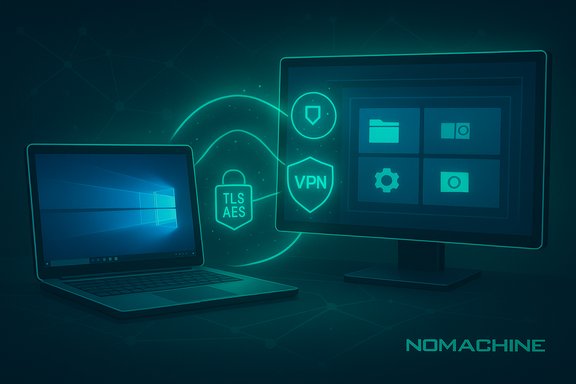
NoMachine for Windows distills a fast, low-latency remote-desktop experience into a compact, cross‑platform client and server that’s free for personal use and increasingly feature‑rich for enterprises—this article distills what NoMachine does on Windows, walks through setup and everyday use, and evaluates the security, performance, and deployment trade‑offs every Windows power user and IT pro should know.
Background
NoMachine began as an NX‑based remote desktop system and has evolved into a broad product family that includes the free Player/Server for individuals and several Enterprise products for centralized, managed deployments. It aims to deliver “local feel” responsiveness through protocol optimizations, optional UDP acceleration, and efficient codecs that reduce bandwidth use while preserving image quality. The vendor documents native support for Windows hosts (Windows 7 and later) and cross‑platform client support across Windows, macOS, Linux, iOS and Android. NoMachine’s modern releases (branded as NoMachine 9 and later) introduced a hosted “NoMachine Network” service to simplify connections behind NAT, and have added features such as integrated VPN and two‑factor authentication (2FA) that broaden its appeal for less‑technical users and for enterprise deployments. These additions shift some of NoMachine’s traditional self‑hosted model toward hybrid convenience while keeping the option to run everything on‑premise.What NoMachine on Windows actually does
Core capabilities (at a glance)
- Real‑time desktop streaming with low latency and adaptive quality.
- Full remote control (keyboard, mouse, window management) and multi‑monitor support.
- Audio forwarding so system sounds and media play through the client.
- File transfer and clipboard sharing during sessions.
- Built‑in recording of sessions to local files.
- Multiple authentication methods: password, key‑based, SSH tunneling, and NoMachine 2FA/Network.
- Enterprise features: clustering, centralized admin, web player, VPN and scalable licensing.
Preparing Windows: system requirements and checklist
NoMachine’s documentation lists modest hardware requirements: Windows 7 or later for hosts, a basic dual‑core CPU, and around 100–200 MB of free disk space for the application. Most modern Windows 10/11 PCs far exceed these minimums, but you should validate GPU/driver compatibility if you plan to stream high‑resolution video or use hardware acceleration. For enterprise use, consider the Enterprise Desktop/Cloud Server guidance for recommended specs. Before installing:- Confirm Windows updates and GPU drivers are current.
- Decide whether the Windows machine will be publicly reachable (port forwarding) or accessed through NoMachine Network/SSH tunnel.
- If exposing to the Internet, plan firewall rules, a strong authentication policy, and 2FA or SSH keys where possible.
Step‑by‑step: Installing NoMachine on a Windows PC
- Download the Windows installer from NoMachine’s site (choose the x64/x86 package that matches your OS).
- Run the installer and follow the wizard: Next → Accept license → Keep default options unless you need a custom path.
- Finish and allow the installer to create the NoMachine service; reboot if prompted.
- After installation, look for the NoMachine tray icon (!M). Open it to inspect the Service/Connections panel and to see the host’s listening address and status.
How to connect: basics and a recommended workflow
- On the Windows host, open NoMachine and note the host IP or Machine Id (if you’ll use NoMachine Network). Ensure the server shows “NoMachine service running.”
- On your client device, open NoMachine Player and click Add (or New) to create a connection. Choose the NX protocol for IP connections.
- Enter host IP (or Machine Id), port (default 4000 for NX), and save. Select authentication method (username/password or key) at time of connect.
- Authenticate when prompted and accept any certificate warnings if you are on a trusted network or have installed a valid certificate.
- Default NX port is typically 4000 (editable in server config). If you use SSH mode you may connect via SSH port 22 or a mapped port like 4022. If you prefer not to open ports you can use NoMachine Network to proxy the connection.
- If you will connect across the public internet, enable 2FA and consider NoMachine Network or an SSH tunnel to avoid exposing TCP 4000 directly.
Using NoMachine’s main features on Windows
File transfer
- Open the session menu (move cursor to the right edge or use the !M menu) → Transfer files.
- You can drag files between panes or use the file dialog to select transfers; transfers occur over the established connection and are encrypted. Performance depends on network speed and server disk throughput.
Multi‑monitor handling
- Use Display controls in the session menu to switch which remote monitor you view or to span the remote desktop across your client display.
- NoMachine supports both viewing a single physical monitor and switching between multiple monitors without reconnecting.
Audio forwarding
- Audio forwarding can be enabled inside the session menu; this forwards system audio and application sound to the client so media and calls work across the session. Latency and sync depend on bandwidth and the codecs negotiated.
Recording sessions
- Press Ctrl+Alt+R or use the session menu → Record session. NoMachine stores recordings locally in .nxr (or WebM in newer builds) and they can be played back with the NoMachine Player. Use recording for demos, training, or audit trails.
Troubleshooting: common issues and fixes
- Connection refused or cannot see host: check Windows Defender Firewall and any third‑party firewall; allow NoMachine services and the chosen NX/SSH ports (default 4000 / 22). If using a router, configure port forwarding or use NoMachine Network.
- Lag or stuttering: reduce display quality in connection settings, switch to a lower color depth, prioritize wired Ethernet, and close CPU‑heavy apps on the server. UDP acceleration helps but is disabled over SSH tunnels.
- Black or blank screen after login (headless server): ensure the display manager/desktop environment is properly configured for headless sessions or use a virtual display configuration; on Windows verify the active session and display drivers. For Linux headless tips, NoMachine and community guides show creating virtual displays.
- Authentication failures: check username/password, consider enabling key‑based authentication or linking to enterprise identity (AD/LDAP) in Enterprise editions. Activate 2FA where possible to harden access.
Security: what NoMachine does well — and the risks to mitigate
What NoMachine provides:- Encryption: native NX uses TLS/OpenSSL and AES/TLS encryption for traffic; NoMachine supports SSH tunneling and, in recent releases, 2FA for account and connection approval. For enterprise, the Cloud Server and Enterprise products add VPN tunneling and centralized admin controls.
- Two‑factor authentication and NoMachine Network: NoMachine 9 introduced built‑in 2FA with mobile push approval and a Network service that can simplify connections across NAT without exposing ports. These features improve security for remote access by reducing reliance on direct port forwarding and single‑factor passwords.
- Exposed ports: opening TCP port 4000 on a home or corporate gateway without additional access controls increases attack surface. Prefer NoMachine Network, SSH tunneling, or a VPN for remote access. If you must open the port, restrict source IPs, use non‑standard ports, and enable 2FA/strong keys.
- Default keys and configuration drift: early NX implementations and some setups use default keys; review and rotate keys where supported and check the server config for hardening options. For high‑assurance environments, prefer Enterprise controls and certificate management.
- Recording and privacy: session recordings may contain sensitive data—treat recordings like any other sensitive file: store securely, restrict access, and enforce retention policies.
- Supply‑chain and updates: install NoMachine from official downloads and keep it updated—recent builds added new features (VPN, 2FA) and security fixes that matter for safe remote access.
Performance and tuning tips for Windows users
- Prefer wired Ethernet for hosts; Wi‑Fi increases jitter and input lag.
- In NoMachine connection settings choose “Balanced” or “Low Bandwidth” when on slow links; “High quality” or “Multimedia” when on fast, low‑latency networks.
- Disable remote printing or heavy device redirections when performance matters.
- Use the session menu’s compression and encoding options to favor responsiveness over visual fidelity for interactive tasks, and prioritize fidelity for video playback tasks.
- For headless servers, preconfigure a virtual display or use the Enterprise server’s virtual desktop features so the server exposes a stable resolution to clients. Community guides show common config adjustments for Linux headless setups; Windows generally behaves more predictably but monitor driver settings still affect remote resolution.
Enterprise considerations: scale, administration and governance
For organizations, NoMachine sells Enterprise Desktop, Cloud Server and clustering solutions that add:- Centralized administration and remote configuration of servers.
- Multi‑node clustering for load balancing and failover.
- Built‑in VPN functionality in certain Enterprise/Cloud builds.
- Granular audit logging, session recording controls and AD/LDAP/kerberos integration for single‑sign on and enterprise identity management.
- Choose self‑hosted Enterprise Server vs NoMachine Network based on data control and compliance.
- Enforce centralized authentication and 2FA for remote access.
- Use ADMX/Group Policy to push consistent client/server settings and to lock down features that broaden the attack surface (for example, restricting device redirection).
- Monitor and rotate certificates/keys and maintain a patch cadence.
How NoMachine compares to common alternatives
- Microsoft Remote Desktop (RDP): built into Windows, well integrated with AD and Windows management tools; RDP performs well on LAN and in enterprise via RD Gateway, but requires Windows Pro/Server on hosts for full features. NoMachine often outperforms RDP on mixed‑platform scenarios and streaming multimedia content to non‑Windows clients.
- TeamViewer / AnyDesk: cloud‑brokered convenience and NAT traversal similar to NoMachine Network; TeamViewer/AnyDesk are commercial with closed source. NoMachine’s free edition is a strong alternative for personal use, while its Enterprise products compete functionally with commercial remote‑support suites.
- Chrome Remote Desktop: extremely simple and free for basic desktop access; lacks advanced device redirection, enterprise management and the media performance tuning NoMachine offers.
- If you need enterprise governance, AD integration and audit: RDP or NoMachine Enterprise are strong choices.
- If you need cross‑platform multimedia and file transfers with a high quality experience: NoMachine often provides better tunability.
- If you need simple ad‑hoc access without installs: Chrome Remote Desktop or browser‑based Web Player modes may be simpler.
Advanced topics: tunneling, ports, headless servers, and scripting
- Default NX port is 4000. You can run NoMachine over SSH (port 22 or a mapped port), or change NX port in server config if you prefer non‑standard ports. If you run a public‑facing service, restrict access with firewall rules and use SSH or NoMachine Network to avoid exposing NX directly.
- SSH tunneling: useful on Linux/Windows servers where an SSH endpoint already exists—SSH gives a single encrypted channel and reduces need for port forwarding, at the cost of disabling UDP acceleration.
- Headless setups: on Linux you often create a virtual display; on Windows ensure a realistic display driver and session configuration so that apps render at expected resolutions for remote clients.
- Automation and unattended access: NoMachine supports unattended sessions with saved credentials and can be deployed with scripts or Group Policy in enterprise contexts; however unattended access increases risk—combine it with 2FA or IP filters.
Practical checklist before you go live
- Install and patch NoMachine on both host and client.
- Decide connection model: IP/port forward (not recommended unless secured), SSH tunnel, or NoMachine Network.
- Enable 2FA and restrict administrative access to the server.
- Harden Windows firewall: allow only required ports and limit allowed source IPs when possible.
- Test audio, file transfer and recording in a controlled environment before production use.
- For teams, adopt Enterprise tooling for centralized policy and auditing.
Conclusion
NoMachine for Windows is a mature, high‑quality remote desktop solution that balances performance, features and cross‑platform compatibility. For personal users it provides a free, full‑featured remote desktop with good media handling, file transfer and recording. For IT and enterprise use, recent releases add serious enhancements—2FA, built‑in VPN options and NoMachine Network—that reduce the friction of NAT traversal while improving security posture when configured correctly. However, as with any remote‑access technology, safe deployment depends on how it’s configured: avoid exposing default ports blindly, prefer tunneled or brokered connections, enforce multi‑factor authentication, and keep software patched.This article summarized the core guidance and real‑world tips gathered from the NoMachine documentation and community resources to help Windows users install, configure and run NoMachine reliably, while highlighting the security decisions and trade‑offs you must manage for both home and enterprise scenarios.
Source: Windows Report NoMachine Windows: How To Set Up And Use Remote Desktop
