

Microsoft keeps promising a sleeker, more unified Windows. What it actually shipped in many places is a modern skin that looks cleaner but often gets in the way of speed, clarity, and control — and for a surprising number of everyday tasks the old, battle‑tested tools still outperform the shiny replacements.
Windows has been through at least two major UX shifts over the past decade: a long migration from the old Control Panel / Win32 shell to a Settings / WinUI world, and an increasing push to integrate cloud services, recommendations, and web search into system surfaces. Those moves serve clear goals — consistency across form factors, easier onboarding for casual users, and revenue/telmetry channels — but they also change the tradeoffs that matter to people who get work done on PCs.
This piece looks at several common complaints that keep cropping up in forums and testing labs: the Start menu, Control Panel vs Settings, and File Explorer. For each, I’ll explain what changed, why some of the legacy components remain measurably faster or more complete, and how to restore or reproduce the old behavior safely when you need it. I’ll also examine the risks of sticking with legacy tools and the places where Microsoft’s replacement actually improves things.
Windows 11’s Start menu introduced several big behavioral changes:
Concrete examples that matter
What changed under Windows 11
Consequences:
Quick performance triage (safe, reversible)
That said, speed and control matter. If you’re a power user, technician, or administrator, there are low‑risk steps you can take right now to recover the old behavior without sacrificing long‑term safety:
Source: MakeUseOf These old Windows features still beat Microsoft’s shiny new replacements
 Background
Windows has been through at least two major UX shifts over the past decade: a long migration from the old Control Panel / Win32 shell to a Settings / WinUI world, and an increasing push to integrate cloud services, recommendations, and web search into system surfaces. Those moves serve clear goals — consistency across form factors, easier onboarding for casual users, and revenue/telmetry channels — but they also change the tradeoffs that matter to people who get work done on PCs.This piece looks at several common complaints that keep cropping up in forums and testing labs: the Start menu, Control Panel vs Settings, and File Explorer. For each, I’ll explain what changed, why some of the legacy components remain measurably faster or more complete, and how to restore or reproduce the old behavior safely when you need it. I’ll also examine the risks of sticking with legacy tools and the places where Microsoft’s replacement actually improves things.
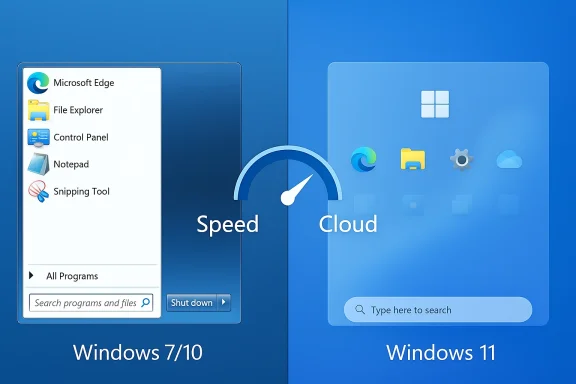
The Start menu: muscle memory vs curated suggestions
The classic Start menu — the compact, left‑hand list of programs and folders Windows shipped through Windows 7 and 10 — was built around predictable, discoverable organization. Pin what you use, group things logically, and reach them in two or three clicks. That model placed a premium on muscle memory.Windows 11’s Start menu introduced several big behavioral changes:
- a centered layout,
- a pinned icons grid rather than a long list,
- and a Recommended area that mixes recently used files, suggested apps, and — in some builds and markets — promoted items.
- The classic menu rewarded intentional organization and fast, repeatable navigation. The new menu favors discovery and surfacing content the OS thinks you’ll want.
- For people who live in the same set of apps and files day after day, auto‑curated recommendations and extra layers of UI add cognitive friction and visual clutter.
- The new Start’s layout makes some operations (for example, creating a shallow, persistent mental map of folders and tools) harder.
- Microsoft exposed toggles and policy controls to reduce or hide recommendations, and there are registry and group policy approaches to stop web results from surfacing. There are also mature third‑party tools that restore a classic Start menu experience for Windows 11 while integrating with system updates. Those options give power users back the predictable launcher they prefer.
- The modern Start menu is arguably better for new or casual users and for a cross‑device experience that emphasizes cloud content. It’s also where Microsoft can place promotional content or product hooks.
- Restoring the classic menu with third‑party programs works well for many users, but third‑party shell replacements are effectively hooks into the shell — they have to be updated whenever Microsoft changes internals and they introduce a maintenance burden for IT.
Control Panel still holds knobs that Settings doesn’t
Microsoft has invested heavily in the Settings app: it’s touch friendly, visually consistent with modern Windows, and easier to navigate on small screens. But in the migration from Control Panel to Settings, a handful of power‑user and hardware‑level controls have remained either missing, more difficult to reach, or fragmented across multiple places.Concrete examples that matter
- Fast Startup: the checkbox to turn Fast Startup on or off lives in the old Power Options (Control Panel > Hardware and Sound > Power Options > “Choose what the power buttons do”). The Settings app does not expose the equivalent toggle with the same clarity, so many users still have to drop into the Control Panel or use PowerShell/command‑line to change this behavior.
- Lid close action: the classic “Choose what closing the lid does” page remains the simplest way to set laptop lid behavior (do nothing, sleep, hibernate, shut down). That exact flow is still a Control Panel path in many builds.
- Fonts management: legacy Control Panel and the Fonts folder in File Explorer have features (multi‑select and direct file operations) that are either limited or still evolving in Settings. Microsoft has been migrating fonts management into Settings, but the filesystem view in C:\Windows\Fonts gives administrators a more direct, bulk‑action capable interface.
- Disk and formatting quirks: some stubborn USB drives that refuse to format correctly in the Settings storage UI can be successfully reinitialized using Disk Management or DiskPart — components that are either absent from Settings or are more complex to find there.
- Administrators and power users frequently need to compare multiple dialogs side‑by‑side, run quick checks, or perform operations that require elevated privileges while keeping other windows visible. The Control Panel and classic MMC-style tools were designed around multi‑window workflows; some modern Settings pages are single‑instance and more siloed, which slows down multi‑task troubleshooting and configuration.
- Settings is better for discoverability for non‑technical users, and Microsoft is steadily migrating more features into it. For everyday personalization, account management, and many device settings the modern app is cleaner and safer for casual users.
- For control and completeness the legacy Control Panel (and the file‑based utilities that sit alongside it) still has a place in a productivity workflow. Until Settings reaches full parity and preserves multi‑window workflows, power users will continue to fall back to the older tools.
File Explorer: engineered for local speed, hampered by modern wrappers
File operations are the heart of many workflows: opening folders, dragging files, copying, searching. The core file APIs under Windows aren’t new, but the shell that paints them changed.What changed under Windows 11
- File Explorer’s visuals and some UI surfaces were moved onto a WinUI / XAML layer and a richer Home view that aggregates recent files, pinned items, and cloud content by default.
- Microsoft began experimenting with background preloading of Explorer to make the first open faster, because real‑world tests showed that the combination of richer UI and cloud lookups had increased the time to a usable window.
- Many users reported that Explorer opens slower, has delayed or freezing context menus, and behaves less predictably when compared to the classic Win32‑based Explorer in Windows 10.
- The Home view — which surfaces recent files and cloud items — can cause visible delay as it enumerates cloud placeholders, contacts OneDrive/Office.com APIs, and initializes thumbnail/preview handlers. That network or shell extension work can make the first paint of Explorer stall.
- Microsoft’s preloading experiment reduced launch latency for some scenarios but increased memory use, and it doesn’t remove the Home‑view overhead on navigation.
- Open Explorer to This PC by default — change Folder Options > Open File Explorer in: This PC. That avoids Home’s cloud‑driven aggregation and gives a faster initial paint.
- Disable Home features you don’t use — turn off “Show files from Office.com” and recent items if you don’t rely on them.
- Investigate shell extensions — poorly written shell extensions and third‑party context menu handlers (cloud sync clients, archive utilities, antivirus) are frequent culprits for sluggishness. Tools that enumerate and disable non‑Microsoft shell extensions can make Explorer feel dramatically faster.
- Use Disk Management or command tools for heavy ops — when Explorer stalls on format or volume operations, Disk Management or DiskPart often succeed.
- The older Explorer’s UI had fewer moving pieces: no cloud lookups, fewer WinUI paint passes, and fewer animated transitions. That simplicity often results in a snappier, lower‑latency experience on both old and modest hardware.
Offline-first tools versus a cloud‑first OS
A recurring theme in complaints is not strictly UI design but model: old Windows prioritized local files, programs, and settings; the modern design prioritizes synchronization, recommendations, and single‑sign‑on.Consequences:
- Users who prefer local control see network calls and account prompts where there used to be immediate local actions.
- IT shops that want predictable, offline behavior still need to lock down policies to prevent cloud‑first features from interfering with workflows.
- Microsoft’s cloud integration brings benefits — seamless access to synced content, automatic backup, and cross‑device continuity — but when those features are enabled by default they can slow down operations for people who primarily use their machine offline.
Practical, safe ways to get the old behavior back (and when not to)
If you’re confident about the changes you want, here are carefully ordered steps to restore faster, more predictable behavior while minimizing risk.Quick performance triage (safe, reversible)
- Change File Explorer default to This PC:
- Open File Explorer > View menu > Options > General > Open File Explorer in: This PC.
- Disable recent/cloud lists you don’t use:
- Settings > Personalization > Start: turn off “Show recently opened items in Start, Jump Lists, and File Explorer.”
- File Explorer > Folder Options > Privacy: uncheck “Show recently used files in Quick access.”
- Turn off web results in Start search:
- Settings > Privacy & security > Search > turn off “Search online and include web results” (or use Group Policy on managed devices).
- Control preloading (if your Windows build exposes this toggle):
- Explorer Options or experimental Settings pages sometimes expose the “Enable window preloading for faster launch times” toggle; try toggling it to see net effect with your workload.
- Disable Fast Startup (if you need full shutdowns for firmware updates or predictable boot behavior):
- Control Panel > Hardware and Sound > Power Options > “Choose what the power buttons do” > Click “Change settings that are currently unavailable” > uncheck “Turn on fast startup”.
- Or run as admin: powercfg -h off (this disables hibernate and fast startup).
- Caveat: turning off Fast Startup can increase boot time; only change it if you need a full shutdown/clean boot.
- Fix stubborn USB formatting problems:
- Use Disk Management (diskmgmt.msc) or DiskPart to clean and create partitions when Explorer’s format dialog fails.
- If the drive is write‑protected, identify and clear device or Registry level write‑protect flags before formatting.
- Repair slow context menus:
- Use a shell extension viewer (for example, NirSoft’s ShellExView) to disable third‑party, non‑Microsoft context menu handlers and re‑test.
- Registry tweaks and third‑party shell replacements can make day‑to‑day life better but may break on major Windows feature updates. If you manage many machines or need vendor support, prefer Group Policy / MDM configurations over hacks.
- Don’t run obscure or unvetted executables to “block Bing” or “remove ads.” Prefer documented Group Policy, registry keys you understand, or vetted tools with a strong track record.
Strengths and risks: a balanced view
What Microsoft’s replacements get right- Settings modernizes many common flows, provides touch‑first ergonomics, and consolidates mobile‑style experiences into a consistent app.
- Cloud first features unlock productivity for users who move between devices, collaborate on documents, and rely on Microsoft 365.
- The new UI language and WinUI bring visual consistency and accessibility improvements in many places.
- Some modernized shells introduced extra rendering layers and network calls that increase the perceived latency of core tasks.
- The migration has been piecemeal: features are split between Settings and Control Panel unpredictably, creating friction for power users.
- Default choices often favor recommendations and cloud content over deterministic, local control.
- Microsoft is steadily migrating features out of Control Panel and into Settings; over time some legacy routes will be removed or redirected. That means workarounds that depend on old dialogs may stop working in future releases.
- Third‑party shell replacements hook deep into the OS and require maintenance across updates — they’re not a zero‑risk long‑term replacement for a vendor‑maintained workflow.
- Registry or Group Policy modifications that suppress telemetry or web features may be reverted by feature updates and could complicate support scenarios.
Enterprise and admin considerations
For IT administrators the guidance is straightforward:- Prefer supported management tools: Group Policy, Configuration Service Provider (CSP) via MDM, or Intune provisioning. Use documented policies to control Start menu behavior, default Start layout, and search provider configuration.
- Document any deviations from default configurations and test them against Windows Feature and Quality Updates.
- Use the classic tools (Disk Management, Device Manager, Control Panel pages) for troubleshooting, but plan migrations toward supported Settings equivalents for long‑term manageability.
The pragmatic conclusion
The headline — “old Windows features still beat Microsoft’s shiny new replacements” — isn’t hyperbole. For a meaningful subset of real‑world tasks, the legacy tools are faster, more direct, and more complete. They were designed around an offline, local‑first desktop paradigm that rewarded predictability and muscle memory. Modern Windows prioritizes consistency, cross‑device integration, and discoverability, and many of those benefits are real and valuable — especially for mainstream users who accept a degree of automation and cloud sync.That said, speed and control matter. If you’re a power user, technician, or administrator, there are low‑risk steps you can take right now to recover the old behavior without sacrificing long‑term safety:
- change Explorer’s default to This PC,
- disable Home/Office.com file aggregation if you don’t use it,
- use Control Panel’s power options for Fast Startup and lid behaviors,
- and audit shell extensions when context menus or Explorer are sluggish.
Source: MakeUseOf These old Windows features still beat Microsoft’s shiny new replacements
