

The Bella Vista Computer Club will meet at 3 p.m. June 8 at its Highlands Crossing Center training room for a session on Microsoft OneDrive, the cloud-sync service built into Windows 10 and Windows 11. That sounds like a modest community calendar item, but it lands on one of the most consequential everyday changes in modern Windows: files are no longer necessarily where users think they are. OneDrive is not just an app on the side of the operating system anymore. For many people, it has become the invisible plumbing between their desktop, Microsoft account, backup prompts, and the recurring question of who controls the PC.
The most interesting Windows news this week is not a new Insider build, a flashy Copilot demo, or another Start menu experiment. It is a computer club in Bella Vista, Arkansas, telling ordinary users that OneDrive may already be active on their machines even if they never made a conscious decision to use it.
That is exactly the kind of sentence that should make Microsoft nervous. The company has spent years trying to turn Windows into a cloud-connected environment where identity, settings, documents, photos, Office files, and device recovery all flow through a Microsoft account. For power users, that can be convenient. For everyone else, it can feel like the computer quietly changed the filing system while no one was looking.
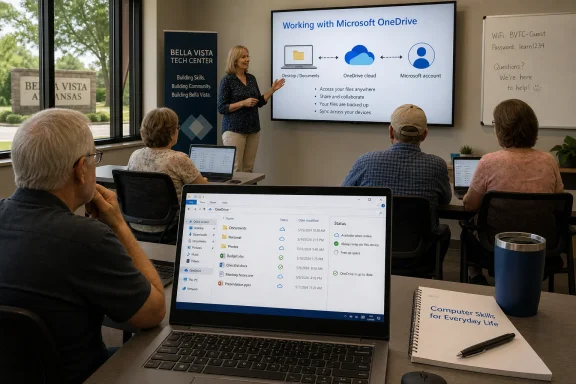
The Bella Vista Computer Club’s June 8 program, a video presentation from the Association of PC Users Groups called “Working with Microsoft OneDrive,” is therefore more than a tutorial. It is a community-level response to a design decision made in Redmond: Windows now assumes that cloud sync is part of normal PC ownership.
That assumption is defensible in 2026. Laptops are lost, drives fail, households own more than one device, and ransomware has made local-only storage look increasingly fragile. But the way OneDrive appears inside Windows has created a persistent gap between what Microsoft thinks it is offering and what users think they agreed to.
Modern Windows makes the model murkier. During setup, account sign-in, Windows Backup configuration, or folder protection prompts, OneDrive can become responsible for Desktop, Documents, Pictures, and other familiar user locations. The result is that a person may not think they are “using OneDrive” at all. They may think they are saving a document to the desktop, because the desktop is what they can see.
That distinction matters. A folder named Desktop inside a user profile and a Desktop folder redirected into OneDrive can look nearly identical in File Explorer. A file that appears local may also be syncing to the cloud. A file removed from one PC may disappear or change on another. A storage warning may not be about the laptop’s drive at all, but about the five gigabytes of free cloud storage attached to a Microsoft account.
This is where a community computer club earns its keep. Microsoft’s documentation can explain sync status icons, folder backup, Files On-Demand, and account settings. But a local training session can ask the blunt question that actually matters: “Where are my files?”
The problem is that Windows setup is not a neutral environment. A new PC owner is usually trying to get through a gauntlet of region settings, network prompts, account sign-ins, privacy screens, device naming, Microsoft 365 offers, recovery options, and update checks. The person may be impatient, distracted, or simply trying to reach the desktop. In that moment, “back up your folders” sounds like safety, not a permanent change to the way core folders behave.
Microsoft has every incentive to frame OneDrive as protection. It reduces support pain when a user replaces a machine and expects files to reappear. It strengthens the Microsoft account as the center of Windows identity. It also nudges users toward paid storage once free capacity is exhausted.
None of that makes OneDrive bad software. It does make the consent model unusually important. When the operating system touches personal documents, family photos, tax files, school assignments, and work-in-progress folders, the defaults deserve more than cheerful copywriting.
Sync is about making the same file state available in multiple places. If the file changes, the change propagates. If the file is deleted, that deletion may propagate too, subject to recycle bins, retention windows, and version history. A backup, in the older and stricter sense, is a separate historical copy designed to survive mistakes, corruption, malware, and human error.
This difference is not academic. A user who believes “my files are backed up” may be less cautious about accidental deletion. A household sharing an account across multiple PCs may not understand that activity on one machine can affect the view on another. A small-business owner using a consumer Microsoft account may not have the retention, auditing, and administrative controls they assume the word backup implies.
OneDrive has recovery features, and for many home users those features are better than nothing. But the service’s greatest strength — keeping files current everywhere — is also the reason it should not be treated as the only safety net.
Cloud sync challenges that intuition. The desktop becomes less like a surface and more like a replicated view. That is a profound shift for users who learned computing through local drives and visible folders.
Microsoft’s design language often tries to soften this by making cloud-connected files appear ordinary. The little status icons in File Explorer — cloud-only, locally available, always keep on this device — are supposed to clarify the difference. In practice, they introduce a new literacy requirement. Users must understand not only where a file appears, but whether it is fully downloaded, merely represented, synchronized, shared, protected, or pending upload.
This is why the Bella Vista session’s framing is so apt. “Working with Microsoft OneDrive” is not just about clicking the right buttons. It is about learning a new geography of Windows.
For users with more than one Windows machine, OneDrive can be transformative. Save a document on a desktop PC, open it on a laptop, continue later from another device. Replace a failing computer, sign in, and watch familiar folders repopulate. Work on a club newsletter, church bulletin, school file, or family archive without manually copying everything to a USB stick.
That is the version of OneDrive Microsoft wants people to see. And when it works, it feels modern in the best sense: the PC becomes less of a single fragile box and more of an access point to a personal workspace.
The issue is not the promise. The issue is the mismatch between the promise and the default experience. A user who deliberately chooses OneDrive as a cross-device workspace is making an informed trade. A user who discovers after the fact that Windows redirected important folders into cloud sync is living inside a decision they may not remember making.
A retiree managing scanned medical records, a volunteer treasurer handling spreadsheets, a photographer organizing years of images, or a family historian maintaining documents may all run into OneDrive questions. These are not edge cases. They are the normal use cases of a personal computer in 2026.
The local computer club is especially well suited to this moment because it does something big tech support rarely does: it slows down. It can show users the system tray icon, the OneDrive folder path, the backup settings, the web interface, and the difference between local disk space and cloud quota. It can explain the icons without assuming that the user should already know them.
That kind of teaching is not glamorous, but it is essential. Microsoft can ship features. Communities translate them into habits.
That is where Microsoft’s benign story about protection starts to look commercially convenient. If Windows encourages users to route important folders through OneDrive, and OneDrive then reports insufficient cloud storage, the next step is obvious: buy more storage, usually through a Microsoft 365 plan.
There is nothing inherently wrong with selling cloud storage. Storage costs money, and Microsoft’s paid plans can be good value for users who also want Office apps and family sharing. But the path from Windows setup to storage subscription should be unmistakably voluntary.
For technically confident users, this is manageable. They can disable folder backup, unlink a PC, move folders back, choose “always keep on this device,” or maintain separate backup drives. For less confident users, the experience can feel like a penalty for not understanding the operating system’s invisible assumptions.
Admins can control sync behavior with policy. They can limit account types, steer known folders, enforce Files On-Demand, manage retention, and pair OneDrive with device management. In that context, cloud sync reduces data loss when hardware fails or employees move between devices.
But enterprise controls also reveal what consumers lack. A sysadmin can document the policy, train users, and audit behavior. A home user gets a set of prompts and icons. The same technical system that looks manageable in Microsoft Intune can feel opaque on a kitchen-table laptop.
That contrast should inform how we judge Windows defaults. Microsoft designs for scale, but Windows is still used by individuals who do not have an IT department standing behind them.
But from the user’s point of view, ambiguity is itself a failure. If someone cannot tell whether a file is on the PC, in the cloud, both, or neither, the system has not communicated clearly enough.
This is the same problem that has dogged cloud services for years. The abstraction is useful until it breaks. Then the user desperately needs to know what is local, what is remote, what is merely cached, and what can be recovered.
Windows should be better at making that visible. A file manager in 2026 should not require folklore. It should tell users, in plain language, whether key folders are being backed up to OneDrive, how much cloud space remains, what happens if sync is turned off, and whether deleting a file here will delete it elsewhere.
That should not be read as a knock on the club. It is a compliment. The Association of PC Users Groups and local organizations like BVCC occupy a crucial middle ground between corporate documentation and user frustration. They are where Windows becomes understandable again.
Still, Microsoft should pay attention to why these sessions are needed. If a default Windows 11 installation can leave users unaware that OneDrive is active, then the product is succeeding technically while failing conversationally. It is doing the job, but not making the deal clear.
The best operating systems do not merely automate. They explain the consequences of automation at the moment the user can still make a meaningful choice.
A good OneDrive setup begins with inventory. Which folders are syncing? Which account is being used? How much storage is available? Are the files also backed up somewhere else? Are multiple PCs connected to the same account? Does the user understand the difference between freeing up local space and deleting a file?
Those questions sound basic because they are. They are also exactly the questions skipped when Windows reduces cloud onboarding to a handful of setup screens.
If Microsoft wants OneDrive to be trusted as part of Windows, it should make the system more legible. Put the sync state of core folders in one obvious place. Use clearer language during setup. Stop implying that cloud sync is synonymous with complete backup. Treat local-only storage as a legitimate choice rather than a reluctance to be overcome.
 A Local Club Meeting Finds the Real Windows Story
The most interesting Windows news this week is not a new Insider build, a flashy Copilot demo, or another Start menu experiment. It is a computer club in Bella Vista, Arkansas, telling ordinary users that OneDrive may already be active on their machines even if they never made a conscious decision to use it.That is exactly the kind of sentence that should make Microsoft nervous. The company has spent years trying to turn Windows into a cloud-connected environment where identity, settings, documents, photos, Office files, and device recovery all flow through a Microsoft account. For power users, that can be convenient. For everyone else, it can feel like the computer quietly changed the filing system while no one was looking.
The Bella Vista Computer Club’s June 8 program, a video presentation from the Association of PC Users Groups called “Working with Microsoft OneDrive,” is therefore more than a tutorial. It is a community-level response to a design decision made in Redmond: Windows now assumes that cloud sync is part of normal PC ownership.
That assumption is defensible in 2026. Laptops are lost, drives fail, households own more than one device, and ransomware has made local-only storage look increasingly fragile. But the way OneDrive appears inside Windows has created a persistent gap between what Microsoft thinks it is offering and what users think they agreed to.
OneDrive Became Infrastructure by Pretending to Be Convenience
OneDrive began life, in the mind of many users, as a folder. Put files in the folder, get them somewhere else. That mental model was simple, voluntary, and easy to explain.Modern Windows makes the model murkier. During setup, account sign-in, Windows Backup configuration, or folder protection prompts, OneDrive can become responsible for Desktop, Documents, Pictures, and other familiar user locations. The result is that a person may not think they are “using OneDrive” at all. They may think they are saving a document to the desktop, because the desktop is what they can see.
That distinction matters. A folder named Desktop inside a user profile and a Desktop folder redirected into OneDrive can look nearly identical in File Explorer. A file that appears local may also be syncing to the cloud. A file removed from one PC may disappear or change on another. A storage warning may not be about the laptop’s drive at all, but about the five gigabytes of free cloud storage attached to a Microsoft account.
This is where a community computer club earns its keep. Microsoft’s documentation can explain sync status icons, folder backup, Files On-Demand, and account settings. But a local training session can ask the blunt question that actually matters: “Where are my files?”
The Windows 11 Setup Flow Still Has a Consent Problem
Microsoft would argue that OneDrive integration is not a trap. The feature is visible in Windows settings, manageable from the OneDrive cloud icon, and useful when a user wants files available across multiple PCs. That is true as far as it goes.The problem is that Windows setup is not a neutral environment. A new PC owner is usually trying to get through a gauntlet of region settings, network prompts, account sign-ins, privacy screens, device naming, Microsoft 365 offers, recovery options, and update checks. The person may be impatient, distracted, or simply trying to reach the desktop. In that moment, “back up your folders” sounds like safety, not a permanent change to the way core folders behave.
Microsoft has every incentive to frame OneDrive as protection. It reduces support pain when a user replaces a machine and expects files to reappear. It strengthens the Microsoft account as the center of Windows identity. It also nudges users toward paid storage once free capacity is exhausted.
None of that makes OneDrive bad software. It does make the consent model unusually important. When the operating system touches personal documents, family photos, tax files, school assignments, and work-in-progress folders, the defaults deserve more than cheerful copywriting.
Sync Is Not Backup, Even When It Saves You
The word backup is doing too much work in Windows. OneDrive folder backup can protect users from losing files when a PC dies, and in that sense it behaves like backup. But synchronization is not the same thing as a traditional backup strategy.Sync is about making the same file state available in multiple places. If the file changes, the change propagates. If the file is deleted, that deletion may propagate too, subject to recycle bins, retention windows, and version history. A backup, in the older and stricter sense, is a separate historical copy designed to survive mistakes, corruption, malware, and human error.
This difference is not academic. A user who believes “my files are backed up” may be less cautious about accidental deletion. A household sharing an account across multiple PCs may not understand that activity on one machine can affect the view on another. A small-business owner using a consumer Microsoft account may not have the retention, auditing, and administrative controls they assume the word backup implies.
OneDrive has recovery features, and for many home users those features are better than nothing. But the service’s greatest strength — keeping files current everywhere — is also the reason it should not be treated as the only safety net.
Microsoft’s Cloud Defaults Collide With Local Habits
The Windows desktop is culturally powerful because it feels physical. People place things there. They pile things there. They use it as a table, a notebook, a bulletin board, and sometimes a junk drawer.Cloud sync challenges that intuition. The desktop becomes less like a surface and more like a replicated view. That is a profound shift for users who learned computing through local drives and visible folders.
Microsoft’s design language often tries to soften this by making cloud-connected files appear ordinary. The little status icons in File Explorer — cloud-only, locally available, always keep on this device — are supposed to clarify the difference. In practice, they introduce a new literacy requirement. Users must understand not only where a file appears, but whether it is fully downloaded, merely represented, synchronized, shared, protected, or pending upload.
This is why the Bella Vista session’s framing is so apt. “Working with Microsoft OneDrive” is not just about clicking the right buttons. It is about learning a new geography of Windows.
The Multi-PC Promise Is Real
It would be easy, and wrong, to treat OneDrive integration as merely another example of Microsoft overreach. The feature solves real problems.For users with more than one Windows machine, OneDrive can be transformative. Save a document on a desktop PC, open it on a laptop, continue later from another device. Replace a failing computer, sign in, and watch familiar folders repopulate. Work on a club newsletter, church bulletin, school file, or family archive without manually copying everything to a USB stick.
That is the version of OneDrive Microsoft wants people to see. And when it works, it feels modern in the best sense: the PC becomes less of a single fragile box and more of an access point to a personal workspace.
The issue is not the promise. The issue is the mismatch between the promise and the default experience. A user who deliberately chooses OneDrive as a cross-device workspace is making an informed trade. A user who discovers after the fact that Windows redirected important folders into cloud sync is living inside a decision they may not remember making.
Small Clubs Are Now the Front Line of Cloud Literacy
The Bella Vista Computer Club’s meeting notice is tucked among familiar civic listings: political organizations, garden clubs, book groups, orchid enthusiasts, and community gatherings. That context is important. Windows education is no longer confined to enterprise training rooms or developer conferences. It happens in local clubs because the operating system now mediates everyday life.A retiree managing scanned medical records, a volunteer treasurer handling spreadsheets, a photographer organizing years of images, or a family historian maintaining documents may all run into OneDrive questions. These are not edge cases. They are the normal use cases of a personal computer in 2026.
The local computer club is especially well suited to this moment because it does something big tech support rarely does: it slows down. It can show users the system tray icon, the OneDrive folder path, the backup settings, the web interface, and the difference between local disk space and cloud quota. It can explain the icons without assuming that the user should already know them.
That kind of teaching is not glamorous, but it is essential. Microsoft can ship features. Communities translate them into habits.
The Five-Gigabyte Ceiling Changes the Conversation
OneDrive’s free storage tier remains a practical constraint for many users. Five gigabytes can disappear quickly once Desktop, Documents, and Pictures begin syncing. A few phone photos, PDFs, Office files, and screenshots may be enough to trigger quota warnings.That is where Microsoft’s benign story about protection starts to look commercially convenient. If Windows encourages users to route important folders through OneDrive, and OneDrive then reports insufficient cloud storage, the next step is obvious: buy more storage, usually through a Microsoft 365 plan.
There is nothing inherently wrong with selling cloud storage. Storage costs money, and Microsoft’s paid plans can be good value for users who also want Office apps and family sharing. But the path from Windows setup to storage subscription should be unmistakably voluntary.
For technically confident users, this is manageable. They can disable folder backup, unlink a PC, move folders back, choose “always keep on this device,” or maintain separate backup drives. For less confident users, the experience can feel like a penalty for not understanding the operating system’s invisible assumptions.
Admins See the Same Pattern at Larger Scale
Enterprise IT has wrestled with this for years, though under different names. Known Folder Move, OneDrive policies, SharePoint integration, and Microsoft 365 compliance controls give organizations a way to standardize cloud-backed user data. In a managed environment, OneDrive can be part of a serious endpoint strategy.Admins can control sync behavior with policy. They can limit account types, steer known folders, enforce Files On-Demand, manage retention, and pair OneDrive with device management. In that context, cloud sync reduces data loss when hardware fails or employees move between devices.
But enterprise controls also reveal what consumers lack. A sysadmin can document the policy, train users, and audit behavior. A home user gets a set of prompts and icons. The same technical system that looks manageable in Microsoft Intune can feel opaque on a kitchen-table laptop.
That contrast should inform how we judge Windows defaults. Microsoft designs for scale, but Windows is still used by individuals who do not have an IT department standing behind them.
The Real Risk Is Not OneDrive, but Ambiguity
The loudest complaints about OneDrive often sound like accusations that Microsoft stole files, deleted files, or moved files without permission. In many cases, the technical reality is less dramatic: folders were redirected, files were synced, local placeholders were created, or a device was unlinked in a way that changed what appeared in File Explorer.But from the user’s point of view, ambiguity is itself a failure. If someone cannot tell whether a file is on the PC, in the cloud, both, or neither, the system has not communicated clearly enough.
This is the same problem that has dogged cloud services for years. The abstraction is useful until it breaks. Then the user desperately needs to know what is local, what is remote, what is merely cached, and what can be recovered.
Windows should be better at making that visible. A file manager in 2026 should not require folklore. It should tell users, in plain language, whether key folders are being backed up to OneDrive, how much cloud space remains, what happens if sync is turned off, and whether deleting a file here will delete it elsewhere.
The Computer Club Agenda Is a Warning Shot
There is a small irony in the Bella Vista notice: support for OneDrive is described as included with Windows 10 and Windows 11, but the real support may come from people sitting together in a training center. Microsoft built the feature. Users still need neighbors to explain it.That should not be read as a knock on the club. It is a compliment. The Association of PC Users Groups and local organizations like BVCC occupy a crucial middle ground between corporate documentation and user frustration. They are where Windows becomes understandable again.
Still, Microsoft should pay attention to why these sessions are needed. If a default Windows 11 installation can leave users unaware that OneDrive is active, then the product is succeeding technically while failing conversationally. It is doing the job, but not making the deal clear.
The best operating systems do not merely automate. They explain the consequences of automation at the moment the user can still make a meaningful choice.
The Bella Vista Lesson Microsoft Should Not Ignore
The practical lesson from this local meeting is not “turn OneDrive off.” For many users, that would be bad advice. The lesson is that cloud sync should be treated as a configuration decision, not a background assumption.A good OneDrive setup begins with inventory. Which folders are syncing? Which account is being used? How much storage is available? Are the files also backed up somewhere else? Are multiple PCs connected to the same account? Does the user understand the difference between freeing up local space and deleting a file?
Those questions sound basic because they are. They are also exactly the questions skipped when Windows reduces cloud onboarding to a handful of setup screens.
If Microsoft wants OneDrive to be trusted as part of Windows, it should make the system more legible. Put the sync state of core folders in one obvious place. Use clearer language during setup. Stop implying that cloud sync is synonymous with complete backup. Treat local-only storage as a legitimate choice rather than a reluctance to be overcome.
A Few Things Every Windows User Should Check Before the Next Sync Surprise
The immediate value of the Bella Vista session is practical: users can leave with a clearer sense of what OneDrive is doing on their own machines. The larger value is cultural: Windows users need to understand that file storage is now an active service, not a passive location.- Open File Explorer and confirm whether Desktop, Documents, Pictures, or other familiar folders are inside the OneDrive path.
- Check the OneDrive cloud icon in the taskbar notification area to see which account is signed in and whether sync is current.
- Review Windows Backup and OneDrive folder backup settings before assuming files are either local-only or safely protected.
- Compare available local disk space with available OneDrive cloud storage, because they are separate limits that affect different problems.
- Keep at least one independent backup for files that would be painful or impossible to recreate.
- Make a deliberate choice about OneDrive on each PC instead of accepting a default you do not understand.
References
- Primary source: Northwest Arkansas Democrat-Gazette
Published: Sun, 07 Jun 2026 00:00:00 GMT
Club news: Join a mystery book club | Northwest Arkansas Democrat-Gazette
The Bella Vista Computer Club will meet at 3 p.m. June 8 in the BVCC training center on the lower level of the Highlands Crossing Center located at 1801 Forest Hills Blvd. Visitors are welcome. www.nwaonline.com
- Related coverage: scscc.club
