

Users waking up to an apparently empty Documents or Desktop folder and believing Windows has “deleted” decades of photos, work documents, and purchased content are not imagining things — but they are often misreading the mechanics of a cloud-first system that quietly moves files out of the local profile and into OneDrive. Recent reports of account locks triggered by automated scans have compounded the alarm, producing a credibility crisis for OneDrive’s backup and sync model at exactly the moment Microsoft is embedding AI assistants deeper into the service.
At the same time Microsoft has been rolling Copilot into OneDrive to let users ask questions about files and extract summaries without opening each document. Copilot for OneDrive is now available to licensed Microsoft 365 subscribers on the OneDrive web experience and is being expanded across client environments. The addition of generative AI tools to the file environment magnifies both potential productivity gains and the stakes of automated policy enforcement.
Cautionary note: the details of any single account‑lock episode (how the automated classifier reached that decision, what human review occurred, or whether the user ultimately regained access) are not always publicly verified. Where claims state account data or decades of photos were “deleted,” independent confirmation of permanent deletion is rare; in many cases the path to recovery remains open but opaque. Always treat such reports as serious red flags that require verification in each instance.
Technical release context: Windows 11 version 25H2 reached broad availability in late 2025, and Microsoft continues to integrate OneDrive Backup behaviors and options into the Windows update and onboarding flows. That timing matters because a user who upgraded or freshly installed the OS during those rollouts had higher odds of encountering the default KFM prompt.
Concrete bottom line for users:
Conclusion: OneDrive’s folder backup and Copilot integration are valuable features that address real needs, but the experience is currently brittle when defaults change folder residency without making the consequences obvious or providing consistent, easy rollback. Users should proactively secure independent backups and review OneDrive settings after any Windows update or new PC setup; Microsoft should respond with clearer OOBE choices, explicit client behavior documentation, and stronger, faster recovery processes for account enforcement events.
Source: Windows Central Microsoft’s OneDrive mess has users thinking their files vanished
 Background
What’s changed and why it matters
Microsoft has steadily pushed OneDrive from “optional cloud storage” to an integrated protection layer for Windows user folders. The mechanism at the center of the confusion is Known Folder Move (KFM) — presented in consumer-facing settings as “Protect your important folders” — coupled with Files On‑Demand, which uses online‑only placeholders to save local disk space. When KFM runs, Windows or OneDrive redirects your Desktop, Documents, and Pictures into the OneDrive folder. File Explorer continues to show familiar folder names and paths, but the canonical copies live under your OneDrive directory and in the cloud. That visual continuity makes the change feel like an unexpected deletion to many users.At the same time Microsoft has been rolling Copilot into OneDrive to let users ask questions about files and extract summaries without opening each document. Copilot for OneDrive is now available to licensed Microsoft 365 subscribers on the OneDrive web experience and is being expanded across client environments. The addition of generative AI tools to the file environment magnifies both potential productivity gains and the stakes of automated policy enforcement.
The visible problem: “Where are my files?” and the panic it causes
The pattern users see
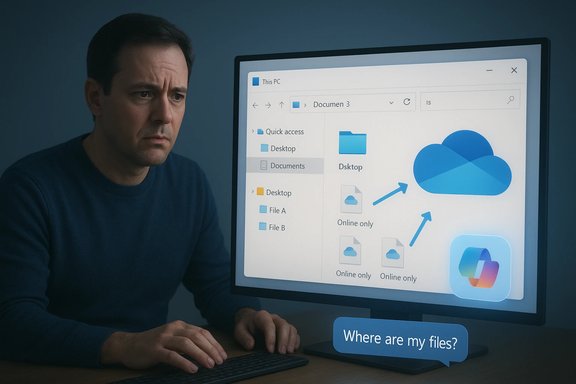
Typical symptom reports follow the same pattern: after a setup, update, or account sign‑in, a user opens Documents, Desktop, or Pictures and finds an empty folder or a single helper link labeled “Where are my files?” Clicking the link navigates to the OneDrive folder where the files now live. To someone who expected files to remain in C:\Users\username\Documents, this is terrifying — especially when the files are large photo collections, personal videos, or irreplaceable documents.Why this feels like deletion
The perception of deletion is amplified by two technical details:- Files On‑Demand can make content appear in File Explorer without actually storing the bytes locally. A filename may be visible while the file itself is “online‑only.” If a user deletes cloud content or unlinks an account without ensuring local copies, the visible filenames can vanish.
- Historically, the flow to stop backing up a folder gave mixed results. In older builds turning off backup left files under OneDrive; more recent client builds sometimes add a “move back to local folders” option, but that behavior is inconsistent across platforms and release channels. That inconsistency is the core of recurring confusion.
Real-world incidents and the credibility crisis
Account locks and AI-driven enforcement
A subset of reports goes beyond “files moved” to account suspension or lockouts triggered by automated content scanning. Multiple users have posted long, anguished threads and videos describing how a single photograph or file triggered a content policy scan and led to a blocked account and disabled email access while appeals stuck in bureaucratic loops. Some reports say dozens of appeals or compliance forms were submitted with no rapid human escalation. These incidents — whether isolated or systemic — create a perception that automation not only relocates files but can remove access to them altogether. The underlying claims of account lockouts and difficult appeal paths are widely reported in community threads and tech coverage, but the resolution status of many individual cases remains unclear. Treat specific user outcomes reported on social media as anecdotes that flag real risk rather than proven systemic deletion by Microsoft.Cautionary note: the details of any single account‑lock episode (how the automated classifier reached that decision, what human review occurred, or whether the user ultimately regained access) are not always publicly verified. Where claims state account data or decades of photos were “deleted,” independent confirmation of permanent deletion is rare; in many cases the path to recovery remains open but opaque. Always treat such reports as serious red flags that require verification in each instance.
Why escalation often stalls
Affected users describe dead ends: phone lines routed to bots, contact forms requiring a working sign-in, and limited direct human support for consumer OneDrive accounts. For users simultaneously locked out of their email, the typical recovery channels evaporate. This combination of automatic enforcement and weak recovery paths makes an otherwise correct technical approach (cloud scanning for illegal content) feel like an assault on user data. The structural problem is not the detection algorithm per se but the human support and transparency that must accompany any automated enforcement system.The mechanics explained: Known Folder Move, Files On‑Demand, and backup defaults
Known Folder Move (KFM)
KFM redirects OS-known folder pointers (Desktop, Documents, Pictures) to OneDrive paths, such as C:\Users\username\OneDrive\Documents. Applications still save to those paths, and Windows presents the same folder names in Explorer, preserving a seamless experience — until you disable the backup or unlink the account. When KFM is active, the OneDrive copy is the canonical one.Files On‑Demand
Files On‑Demand shows placeholders for cloud-stored files to conserve local storage. Placeholders behave like normal files until you open them; only then are bytes downloaded. This is ideal for saving SSD space but unintuitive for users who expect visible files to equal local files. If you choose “Free up space” or rely on Files On‑Demand and later sever the cloud link, you may be left without local bytes.Defaults during setup (OOBE) and Windows 11 25H2
Newer Windows setup flows and some versions of the Out‑Of‑Box Experience make OneDrive Backup more prominent during Microsoft account sign-in. On some installs, users are asked to sign in with a Microsoft account and prompted — sometimes subtly — to back up their important folders. Where an explicit “Only save files to this PC” option is present, it’s easy to miss if a user quickly progresses through setup. These defaults increase the chance a user will unknowingly enable KFM.Technical release context: Windows 11 version 25H2 reached broad availability in late 2025, and Microsoft continues to integrate OneDrive Backup behaviors and options into the Windows update and onboarding flows. That timing matters because a user who upgraded or freshly installed the OS during those rollouts had higher odds of encountering the default KFM prompt.
Copilot in OneDrive: productivity gains and new surface area for risk
What Copilot brings
Copilot in OneDrive adds AI-assisted capabilities: summarize documents, compare multiple files, answer questions about file content, and speed navigation across hundreds of files. The feature has been rolled out to Microsoft 365 Personal and Family subscribers in waves and is also available to commercial customers with Copilot licensing. For many users, Copilot means you can extract value from archives without opening each file manually.Why this amplifies the issue
Embedding generative AI into the file layer increases two tensions:- Privacy and selective access: Copilot needs to index and parse content to be useful. Users who purposely keep local‑only files will understandably worry about additional indexing and how that data is used. Even if Copilot respects tenant and account controls, expectation mismatches can erode trust.
- Automated content review and enforcement: The same automated scanning or indexing that makes Copilot powerful could also feed content‑safety classifiers. A false positive in an automated classifier used to protect users — for example, misinterpreting a family photo — can trigger account actions that are difficult to reverse. The core question: are the guardrails around automatic enforcement and human review adequate for the consequences?
Recovery and mitigation: clear steps for users
If your files “vanished” or access is restricted, follow this prioritized checklist. These are practical, no‑nonsense steps derived from Microsoft documentation and community troubleshooting guidance.- Sign in to OneDrive.com with the Microsoft account you suspect contains the files and check the Desktop, Documents, and Pictures folders there. The web view is canonical and confirms whether the files exist in the cloud.
- On the PC, open the OneDrive folder (C:\Users\username\OneDrive) and look for Desktop/Documents/Pictures subfolders. If present, copy files from OneDrive back to C:\Users\username\Documents to restore local copies.
- If you stopped backup or unlinked OneDrive and folders appear empty, use the OneDrive “Manage backup” setting to inspect status before unlinking. Pause sync to prevent immediate cloud operations while you copy files.
- If an account is blocked due to policy enforcement, follow Microsoft’s published appeal process. Document every form submitted, include timestamps, and preserve all evidence of ownership. If typical channels fail, search for Microsoft’s escalation paths for account recovery and use any business or partner support options you may have. Be aware that consumer recovery paths can be slow and opaque.
- Check the OneDrive Recycle Bin on the web for recently deleted items; restore within the retention period if necessary. Unlock and inspect Personal Vault content through the web portal if you use the Vault.
- Maintain an independent, offline backup: external drives or a second cloud provider reduce single‑vendor dependency.
- Pin or mark critical files “Always keep on this device” to ensure local bytes exist.
- When setting up a new PC or reinstalling Windows, carefully choose “Only save files to this PC” during OOBE if you prefer local-first storage, or create a local account if that option is essential.
- Use Group Policy or Intune to block KFM and manage OneDrive behavior centrally for fleets that require local-first data handling.
- If an application hardcodes absolute paths, consider either moving files back to the expected local path or updating the app configuration; as a last resort, create a junction/symbolic link (advanced).
Policy, transparency, and product recommendations
Where Microsoft should improve (practical recommendations)
- Make the OOBE choice to “Only save files to this PC” explicit and unavoidable for users who prefer local storage. A clear, separate confirmation would reduce accidental enrollment.
- Publish a versioned note describing the exact stop-backup behavior for each OneDrive client and Windows build (which builds automatically move backed-up files back to local folders). This eliminates the “it depends” ambiguity that currently confuses users.
- Improve consumer account recovery and provide a direct human escalation path for cases with potential loss of irreplaceable data. Automation is necessary at scale, but transparent human oversight is essential when the outcome is locked access to many years’ worth of files.
- Add client-side safeguards before destructive cloud actions (for example, warning and a “download a local archive” option before deleting files that were relocated by KFM).
What to demand as a user or admin
- Clear, persistent UI indicators that a folder is redirected to OneDrive (not just a small icon or a helper link).
- Default retention grace periods and more forgiving local rollback flows when users opt out of backup.
- Documentation that highlights quota implications for KFM — moving a large Documents folder into a 5 GB free account will quickly break sync and produce confusing errors; users should be warned during onboarding.
Strengths of Microsoft’s approach — and why giving up on cloud is not the answer
It’s important to balance critique with recognition that KFM, Files On‑Demand, and OneDrive Backup address a real gap: a large portion of Windows users never set up reliable backups. For many, the OneDrive defaults reduce the risk of permanent loss from device theft, failure, or local accidental deletion. The integration of Copilot into OneDrive is similarly well‑motivated: extracting insights from documents and large archives is a genuine productivity win when implemented correctly. These features deliver tangible value for users who understand and consent to the trade-offs.Risks and the erosion of trust
However, the costs are real and concentrated among users who:- Do not fully read onboarding screens.
- Rely on free OneDrive quotas and are surprised by sync failures.
- Are locked out of accounts by automated policies with inadequate appeal pathways.
Final analysis and practical takeaway
The OneDrive “files vanished” story is a composite of legitimate usability failures, aggressive cloud-first defaults, and occasional instances where automation intersects painfully with human expectation. The core technical mechanics — KFM and Files On‑Demand — are sound tools for protecting data and preserving local space. The problem is one of presentation, discoverability, and recovery: defaults nudge people toward cloud storage in ways that are easy to accept accidentally, and the reversal path is too often undocumented or inconsistent across client builds.Concrete bottom line for users:
- If you value local copies, keep independent backups and opt out of OneDrive folder protection during setup, or use the Manage backup controls to stop KFM and move files back to your device before unlinking.
- If you use OneDrive, pin critical files for offline access and understand your quota before enabling KFM.
- Document recovery steps and preserve record of any appeals if you face an account lock; automated enforcement is fast, human remediation is often slow.
Conclusion: OneDrive’s folder backup and Copilot integration are valuable features that address real needs, but the experience is currently brittle when defaults change folder residency without making the consequences obvious or providing consistent, easy rollback. Users should proactively secure independent backups and review OneDrive settings after any Windows update or new PC setup; Microsoft should respond with clearer OOBE choices, explicit client behavior documentation, and stronger, faster recovery processes for account enforcement events.
Source: Windows Central Microsoft’s OneDrive mess has users thinking their files vanished
