

Microsoft plans to roll out a new OneDrive option in July 2026 that lets users place newly added shared-folder shortcuts into a dedicated “Shortcuts” folder instead of dropping them into the root of My files. The change is small, almost comically so, but it targets one of the most persistent irritations in Microsoft 365 file management: the slow collapse of tidy personal storage into a dumping ground for every shared project, Teams workspace, and SharePoint folder a user has ever needed once. If Microsoft gets the details right, this is less about a folder icon than about admitting that cloud file systems now need better boundaries.
The “Add shortcut to My files” command has always been one of those Microsoft 365 features that looks obvious after you use it once. A colleague shares a folder from OneDrive, a department stores documents in SharePoint, or a Teams channel contains a working directory, and the shortcut makes that location appear in the user’s own OneDrive. It follows the user across OneDrive on the web, File Explorer, Finder, Teams, and mobile apps, giving shared storage the convenience of a local folder.
That convenience is exactly why the feature became messy. Shortcuts were not tucked away as references or bookmarks; they landed alongside the user’s own folders in the top level of OneDrive. For someone who only collaborates on two or three shared folders, that is tolerable. For a project manager, consultant, school administrator, engineer, or IT staffer with access to dozens of shared libraries, it becomes another kind of inbox.
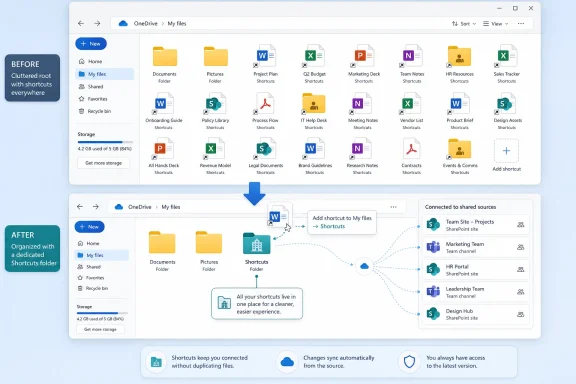
Microsoft’s new approach is to give those shortcuts a default home. The first time a user chooses the new placement option, OneDrive will create a dedicated Shortcuts folder, visually distinguished with its own color and building-style icon. From there, the folder behaves like any other OneDrive folder: it can be moved, renamed, shared, or deleted.
That last detail matters. Microsoft is not hard-coding a new sacred directory into every account, at least according to the roadmap description. It is adding a suggested organizational pattern while leaving users room to override it, which is exactly the kind of compromise OneDrive needs more often.
OneDrive sits at the intersection of three mental models that do not always agree. Users still think in folders. Microsoft 365 increasingly thinks in sites, teams, libraries, permissions, and sharing relationships. Windows File Explorer then tries to make all of that look like a coherent filesystem, even when the underlying objects are not equivalent.
Shortcuts are where those worlds collide. A shortcut to a shared SharePoint folder can look like a normal folder in File Explorer, but it is not simply a copied folder in the user’s storage quota. It points to content owned elsewhere, governed by someone else’s permissions, lifecycle, retention policy, and sync state. That is powerful, but it is also easy to misunderstand.
By corralling shortcuts into a dedicated folder, Microsoft is quietly adding a layer of semantic labeling. These things are still accessible from My files, but they are not quite my files. They are places I work, places I have access to, places that belong to the collaborative mesh around me. The new folder gives that difference a visible shape.
The problem is that every simplification creates another place where complexity reappears. “Add shortcut to My files” was easier than teaching every user the difference between OneDrive, SharePoint, Teams files, synced libraries, shared links, and pinned locations. But once every shared folder began showing up next to a user’s Documents, Pictures, and working folders, the simplification became clutter.
This is a familiar Microsoft pattern. The company often solves adoption friction first and information architecture second. It gets users into the workflow, watches the edge cases pile up, and then starts sanding down the experience through naming changes, admin controls, visual markers, and revised defaults.
The new Shortcuts folder fits that pattern. It does not undo the shortcut model. It accepts that the model is useful, then adds a container around it so the top level of OneDrive can breathe again.
That makes the root folder politically important in a way old local storage rarely was. It is partly personal workspace, partly enterprise-managed collaboration hub, partly sync boundary, and partly user interface. When Microsoft drops shared-folder shortcuts there by default, it is making a product decision about what deserves equal visual weight with the user’s own files.
For IT departments, this is more than aesthetics. Help desks spend real time dealing with users who confuse shared folders with copied folders, who delete shortcuts thinking they are deleting content, or who assume a folder appearing in OneDrive must be theirs to reorganize. A dedicated Shortcuts folder will not eliminate that confusion, but it gives support staff a simpler story to tell.
The root of OneDrive should not be a historical record of every collaboration a user has ever touched. It should be a navigable starting point. Microsoft’s new folder is a belated acknowledgment that visibility without organization becomes noise.
There is also the question of sync behavior. OneDrive shortcuts are useful precisely because they bridge web and local experiences, but that bridge has produced confusion and occasional bugs over the years. Microsoft’s own support material has acknowledged cases where shared-folder shortcuts may temporarily appear as web shortcuts rather than normal folders. Admins have also had to weigh the difference between syncing a SharePoint library and adding a shortcut to OneDrive, especially in environments with lots of files or non-persistent desktops.
The new folder does not magically change those mechanics. A shortcut inside a Shortcuts folder is still a shortcut into shared storage. Its files still depend on permissions, sync health, and the OneDrive client’s interpretation of cloud state.
That is why this feature should be read as an experience improvement, not a systems-level fix. It makes the map clearer. It does not rebuild the territory.
The Shortcuts folder is refreshingly less ambitious. It is not trying to infer intent, rank relevance, or predict the next document. It is just a drawer.
That matters because file management remains stubbornly spatial. Even users who embrace search still want a stable place for durable references. A shortcut is, by definition, a signpost. If the signposts are scattered across the same space as the actual destinations, users eventually stop trusting the map.
A single folder creates a predictable location for those signposts. It also lets users decide whether that location should remain at the root, be moved under a work folder, renamed to match internal conventions, or ignored entirely. In a product family increasingly shaped by automation and AI, the humble act of letting users put things in one place feels almost radical.
A normal folder implies ownership and containment. A shared folder implies collaboration. A shortcut implies indirection. But in File Explorer and web views, these distinctions can blur, especially when users are moving quickly. If Microsoft wants users to understand that the Shortcuts folder is not just another personal directory, it needs the iconography to say so before a training document does.
The building-style icon is a clever choice if Microsoft is trying to communicate institutional content. It suggests that the things inside may come from teams, sites, departments, or organizations rather than from the user’s personal workspace. It is a small cue, but small cues are how modern file managers carry meaning without turning every folder row into a paragraph of metadata.
The risk is that Microsoft’s icon language is already crowded. OneDrive has status badges, sync overlays, sharing indicators, folder colors, and web-versus-local distinctions. If the new folder’s visual identity is too subtle, it will be missed. If it is too loud, it will feel like another special Microsoft thing users do not understand.
In many organizations, OneDrive is no longer optional personal cloud storage. It is the default endpoint for user files, the sync layer for Microsoft 365, and the practical replacement for network home drives. When shared-folder shortcuts multiply at the root, users start treating OneDrive as an undifferentiated pool of stuff. That undermines the very governance model Microsoft 365 relies on, where location and ownership matter.
A dedicated Shortcuts folder gives admins a training anchor. Instead of saying, “Your shared project folders may appear among your own files depending on how you added them,” they can say, “Shared shortcuts can go in the Shortcuts folder.” That is not a policy engine, but it is a cleaner mental model.
The feature could also reduce accidental clutter during migrations from file shares to SharePoint. Organizations often tell users to access departmental libraries through OneDrive shortcuts because it feels familiar in File Explorer. A predictable folder for those shortcuts makes the transition less chaotic, especially for users who still think of cloud storage through the lens of mapped drives.
That flexibility needs to survive rollout. Microsoft has a habit of turning soft defaults into hard patterns over time, especially when telemetry shows most users accept the default. But OneDrive is used by consumers, schools, small businesses, multinational enterprises, contractors, and frontline workers. A shortcut organization scheme that helps one group can annoy another.
Some users will want shortcuts at the root because they only have a few and rely on them daily. Others will want project-specific folders, such as Client A or Fiscal 2027, with shortcuts nested inside. Some organizations may prefer to train users around Teams and SharePoint directly, minimizing OneDrive shortcuts altogether.
The right move is to make the Shortcuts folder obvious without making it compulsory. A good default should reduce clutter for the median user while staying out of the way for people with deliberate structures.
The Shortcuts folder is part of that maturation. So were earlier changes around shortcut naming, favorites, offline access, and the web home experience. Microsoft has been trying to make OneDrive less like a raw sync client and more like the user-facing navigation layer for Microsoft 365 files.
That is an enormous job because OneDrive is asked to hide SharePoint’s complexity without erasing SharePoint’s rules. The folder a user sees in File Explorer might be personal, shared from another person’s OneDrive, backed by a Teams-connected SharePoint site, governed by a retention label, or subject to organizational restrictions. The UI has to simplify that without lying.
This is why small organizational features matter. They are the grammar of the system. If Microsoft cannot make basic concepts like “my files,” “shared with me,” and “shortcuts to other places” legible, then all the Copilot search magic in the world will not rescue users from the feeling that their files are scattered across invisible rooms.
That uncertainty is normal for cloud services. OneDrive touches web experiences, sync clients, Windows and macOS integration, mobile apps, SharePoint permissions, and enterprise configuration. A feature that looks like a folder-placement option can still require careful sequencing to avoid breaking assumptions in the client.
Users should therefore read July 2026 as Microsoft’s current target, not a date to schedule training around with absolute confidence. Admins should watch Message Center posts and tenant-specific rollout notices when the feature gets closer. The important thing is the direction: Microsoft has decided that shortcut sprawl is worth fixing in the product rather than leaving entirely to user discipline.
If the feature lands cleanly, most users will not celebrate it. They will simply notice that OneDrive feels a little less messy. That is the best possible outcome for a file-management improvement.
 OneDrive’s Shortcut Problem Was Really a Clutter Problem
The “Add shortcut to My files” command has always been one of those Microsoft 365 features that looks obvious after you use it once. A colleague shares a folder from OneDrive, a department stores documents in SharePoint, or a Teams channel contains a working directory, and the shortcut makes that location appear in the user’s own OneDrive. It follows the user across OneDrive on the web, File Explorer, Finder, Teams, and mobile apps, giving shared storage the convenience of a local folder.That convenience is exactly why the feature became messy. Shortcuts were not tucked away as references or bookmarks; they landed alongside the user’s own folders in the top level of OneDrive. For someone who only collaborates on two or three shared folders, that is tolerable. For a project manager, consultant, school administrator, engineer, or IT staffer with access to dozens of shared libraries, it becomes another kind of inbox.
Microsoft’s new approach is to give those shortcuts a default home. The first time a user chooses the new placement option, OneDrive will create a dedicated Shortcuts folder, visually distinguished with its own color and building-style icon. From there, the folder behaves like any other OneDrive folder: it can be moved, renamed, shared, or deleted.
That last detail matters. Microsoft is not hard-coding a new sacred directory into every account, at least according to the roadmap description. It is adding a suggested organizational pattern while leaving users room to override it, which is exactly the kind of compromise OneDrive needs more often.
The Smallest File-Management Fixes Are Often the Most Revealing
It is tempting to treat this as a cosmetic tweak, and in a narrow sense it is. Nobody is getting a new storage engine, a new sync protocol, or a new collaboration model. But file-management changes are rarely judged only by technical ambition. They are judged by whether they reduce the number of times a user has to stop and ask, “Where did Microsoft put that?”OneDrive sits at the intersection of three mental models that do not always agree. Users still think in folders. Microsoft 365 increasingly thinks in sites, teams, libraries, permissions, and sharing relationships. Windows File Explorer then tries to make all of that look like a coherent filesystem, even when the underlying objects are not equivalent.
Shortcuts are where those worlds collide. A shortcut to a shared SharePoint folder can look like a normal folder in File Explorer, but it is not simply a copied folder in the user’s storage quota. It points to content owned elsewhere, governed by someone else’s permissions, lifecycle, retention policy, and sync state. That is powerful, but it is also easy to misunderstand.
By corralling shortcuts into a dedicated folder, Microsoft is quietly adding a layer of semantic labeling. These things are still accessible from My files, but they are not quite my files. They are places I work, places I have access to, places that belong to the collaborative mesh around me. The new folder gives that difference a visible shape.
Microsoft Is Cleaning Up After Its Own Collaboration Strategy
OneDrive’s root-folder clutter did not appear by accident. It is the natural byproduct of Microsoft’s successful push to make SharePoint and Teams the storage substrate for everyday work. Teams made document libraries less intimidating by hiding them behind chat and channels. OneDrive made shared content easier to reach by surfacing it where people already look for files.The problem is that every simplification creates another place where complexity reappears. “Add shortcut to My files” was easier than teaching every user the difference between OneDrive, SharePoint, Teams files, synced libraries, shared links, and pinned locations. But once every shared folder began showing up next to a user’s Documents, Pictures, and working folders, the simplification became clutter.
This is a familiar Microsoft pattern. The company often solves adoption friction first and information architecture second. It gets users into the workflow, watches the edge cases pile up, and then starts sanding down the experience through naming changes, admin controls, visual markers, and revised defaults.
The new Shortcuts folder fits that pattern. It does not undo the shortcut model. It accepts that the model is useful, then adds a container around it so the top level of OneDrive can breathe again.
The Root of OneDrive Has Become Too Politically Important
The top level of a user’s OneDrive is not just another directory. In modern Windows and Microsoft 365 deployments, it is often the place where Known Folder Move redirects Desktop, Documents, and Pictures. It is where users expect their personal work files to live. It is also where shared organizational content, Teams-related folders, and project shortcuts have increasingly accumulated.That makes the root folder politically important in a way old local storage rarely was. It is partly personal workspace, partly enterprise-managed collaboration hub, partly sync boundary, and partly user interface. When Microsoft drops shared-folder shortcuts there by default, it is making a product decision about what deserves equal visual weight with the user’s own files.
For IT departments, this is more than aesthetics. Help desks spend real time dealing with users who confuse shared folders with copied folders, who delete shortcuts thinking they are deleting content, or who assume a folder appearing in OneDrive must be theirs to reorganize. A dedicated Shortcuts folder will not eliminate that confusion, but it gives support staff a simpler story to tell.
The root of OneDrive should not be a historical record of every collaboration a user has ever touched. It should be a navigable starting point. Microsoft’s new folder is a belated acknowledgment that visibility without organization becomes noise.
The Feature Also Shows How Hard “Simple” Is in Microsoft 365
A dedicated shortcut folder sounds straightforward until you think through the edge cases. What happens to existing shortcuts already scattered through My files? The roadmap language appears focused on newly added shortcuts, not a wholesale migration of old ones. That is probably the safer choice, because automatically moving user-visible objects in OneDrive could break habits, scripts, training materials, and user expectations.There is also the question of sync behavior. OneDrive shortcuts are useful precisely because they bridge web and local experiences, but that bridge has produced confusion and occasional bugs over the years. Microsoft’s own support material has acknowledged cases where shared-folder shortcuts may temporarily appear as web shortcuts rather than normal folders. Admins have also had to weigh the difference between syncing a SharePoint library and adding a shortcut to OneDrive, especially in environments with lots of files or non-persistent desktops.
The new folder does not magically change those mechanics. A shortcut inside a Shortcuts folder is still a shortcut into shared storage. Its files still depend on permissions, sync health, and the OneDrive client’s interpretation of cloud state.
That is why this feature should be read as an experience improvement, not a systems-level fix. It makes the map clearer. It does not rebuild the territory.
Users Needed a Drawer, Not Another Dashboard
Microsoft 365 has no shortage of surfaces for finding files. There is OneDrive Home, Shared, Recent, Favorites, Quick access-style views, Teams files, SharePoint sites, Office backstage views, Microsoft Search, and Copilot-powered discovery. The company’s instinct is often to create another intelligent surface that promises to bring the right document to the user at the right time.The Shortcuts folder is refreshingly less ambitious. It is not trying to infer intent, rank relevance, or predict the next document. It is just a drawer.
That matters because file management remains stubbornly spatial. Even users who embrace search still want a stable place for durable references. A shortcut is, by definition, a signpost. If the signposts are scattered across the same space as the actual destinations, users eventually stop trusting the map.
A single folder creates a predictable location for those signposts. It also lets users decide whether that location should remain at the root, be moved under a work folder, renamed to match internal conventions, or ignored entirely. In a product family increasingly shaped by automation and AI, the humble act of letting users put things in one place feels almost radical.
The Visual Identity Is Doing More Work Than It Seems
Microsoft’s roadmap description says the Shortcuts folder will have a distinct look, including a unique color and a building-style icon. That may sound like interface decoration, but visual differentiation is one of the few reliable tools Microsoft has for explaining OneDrive’s overloaded object model.A normal folder implies ownership and containment. A shared folder implies collaboration. A shortcut implies indirection. But in File Explorer and web views, these distinctions can blur, especially when users are moving quickly. If Microsoft wants users to understand that the Shortcuts folder is not just another personal directory, it needs the iconography to say so before a training document does.
The building-style icon is a clever choice if Microsoft is trying to communicate institutional content. It suggests that the things inside may come from teams, sites, departments, or organizations rather than from the user’s personal workspace. It is a small cue, but small cues are how modern file managers carry meaning without turning every folder row into a paragraph of metadata.
The risk is that Microsoft’s icon language is already crowded. OneDrive has status badges, sync overlays, sharing indicators, folder colors, and web-versus-local distinctions. If the new folder’s visual identity is too subtle, it will be missed. If it is too loud, it will feel like another special Microsoft thing users do not understand.
The Admin Angle Is Practical, Even If the Feature Is User-Facing
The roadmap item appears to describe a user-facing convenience rather than a major administrative control. Even so, IT admins should pay attention because user-facing file organization affects support burden, onboarding, and governance.In many organizations, OneDrive is no longer optional personal cloud storage. It is the default endpoint for user files, the sync layer for Microsoft 365, and the practical replacement for network home drives. When shared-folder shortcuts multiply at the root, users start treating OneDrive as an undifferentiated pool of stuff. That undermines the very governance model Microsoft 365 relies on, where location and ownership matter.
A dedicated Shortcuts folder gives admins a training anchor. Instead of saying, “Your shared project folders may appear among your own files depending on how you added them,” they can say, “Shared shortcuts can go in the Shortcuts folder.” That is not a policy engine, but it is a cleaner mental model.
The feature could also reduce accidental clutter during migrations from file shares to SharePoint. Organizations often tell users to access departmental libraries through OneDrive shortcuts because it feels familiar in File Explorer. A predictable folder for those shortcuts makes the transition less chaotic, especially for users who still think of cloud storage through the lens of mapped drives.
Microsoft Should Resist Turning This Into Another Forced Convention
The best part of the planned feature is its flexibility. The Shortcuts folder can reportedly be moved, renamed, shared, or removed. That means Microsoft is not assuming there is one correct way to organize every user’s collaboration links.That flexibility needs to survive rollout. Microsoft has a habit of turning soft defaults into hard patterns over time, especially when telemetry shows most users accept the default. But OneDrive is used by consumers, schools, small businesses, multinational enterprises, contractors, and frontline workers. A shortcut organization scheme that helps one group can annoy another.
Some users will want shortcuts at the root because they only have a few and rely on them daily. Others will want project-specific folders, such as Client A or Fiscal 2027, with shortcuts nested inside. Some organizations may prefer to train users around Teams and SharePoint directly, minimizing OneDrive shortcuts altogether.
The right move is to make the Shortcuts folder obvious without making it compulsory. A good default should reduce clutter for the median user while staying out of the way for people with deliberate structures.
The Timing Fits a Broader OneDrive Maturity Phase
OneDrive’s early cloud-storage pitch was synchronization: put files here, get them everywhere. Its Microsoft 365-era pitch became collaboration: shared files, Office coauthoring, Teams integration, SharePoint-backed libraries, and cross-device access. Now the product is in a maturity phase where the hard problem is not whether files can move, but whether users can understand where work lives.The Shortcuts folder is part of that maturation. So were earlier changes around shortcut naming, favorites, offline access, and the web home experience. Microsoft has been trying to make OneDrive less like a raw sync client and more like the user-facing navigation layer for Microsoft 365 files.
That is an enormous job because OneDrive is asked to hide SharePoint’s complexity without erasing SharePoint’s rules. The folder a user sees in File Explorer might be personal, shared from another person’s OneDrive, backed by a Teams-connected SharePoint site, governed by a retention label, or subject to organizational restrictions. The UI has to simplify that without lying.
This is why small organizational features matter. They are the grammar of the system. If Microsoft cannot make basic concepts like “my files,” “shared with me,” and “shortcuts to other places” legible, then all the Copilot search magic in the world will not rescue users from the feeling that their files are scattered across invisible rooms.
Rollout Promises Should Be Treated as Intent, Not a Calendar Guarantee
The roadmap currently places the feature in development with rollout expected in July 2026. Microsoft 365 roadmap dates are useful signals, but they are not shipping contracts. Features slip, roll out in phases, appear first in targeted release, or arrive unevenly across tenants and regions.That uncertainty is normal for cloud services. OneDrive touches web experiences, sync clients, Windows and macOS integration, mobile apps, SharePoint permissions, and enterprise configuration. A feature that looks like a folder-placement option can still require careful sequencing to avoid breaking assumptions in the client.
Users should therefore read July 2026 as Microsoft’s current target, not a date to schedule training around with absolute confidence. Admins should watch Message Center posts and tenant-specific rollout notices when the feature gets closer. The important thing is the direction: Microsoft has decided that shortcut sprawl is worth fixing in the product rather than leaving entirely to user discipline.
If the feature lands cleanly, most users will not celebrate it. They will simply notice that OneDrive feels a little less messy. That is the best possible outcome for a file-management improvement.
The OneDrive Mess Now Has a Name and a Place
The practical lessons from this change are narrow, but they point to a bigger truth about Microsoft 365: collaboration features need visible boundaries, or they eventually turn into clutter.- Microsoft is preparing a dedicated OneDrive Shortcuts folder for newly added shared-folder shortcuts, with rollout currently targeted for July 2026.
- The feature is meant to keep shortcuts from being scattered across the root of My files, where they can sit awkwardly beside a user’s own folders.
- The new folder is expected to be visually distinct, using a unique color and building-style icon to signal that it contains shortcut-style references.
- The folder should behave like a normal OneDrive folder, giving users the option to move, rename, share, or remove it if their workflow calls for something else.
- Existing shortcut behavior, sync dependencies, permissions, and SharePoint ownership rules still matter, so this should be treated as an organization improvement rather than a fix for every OneDrive shortcut issue.
- IT teams should see the feature as a training and support win, especially in environments where OneDrive shortcuts are used as a bridge from old file-share habits to SharePoint-backed collaboration.
References
- Primary source: Neowin
Published: 2026-06-04T05:42:07.403369
Microsoft OneDrive is getting a simple yet much needed feature | Neowin
Microsoft OneDrive is soon introducing a new feature that could significantly improve its ease of use for many users. www.neowin.net
- Official source: support.microsoft.com
Add shortcuts to shared folders in OneDrive | Microsoft Support
Add shortcuts to shared folders in OneDrivesupport.microsoft.com - Related coverage: msllc.zendesk.com
Add shortcuts to shared folders in OneDrive for work – Mowery & Schoenfeld
When someone shares a folder in Microsoft OneDrive, SharePoint, or Teams, you can add a shortcut to the shared folder in your OneDrive to...msllc.zendesk.com - Official source: microsoft.com
Microsoft 365 Roadmap | Microsoft 365
The Microsoft 365 Roadmap lists updates that are currently planned for applicable subscribers. Check here for more information on the status of new features and updates.www.microsoft.com
- Related coverage: supersimple365.com
Microsoft OneDrive gets a new naming convention for folder shortcuts - Super Simple 365
Short VersionShortcuts added to your OneDrive are getting a new naming convention; the name will show where a SharePoint folder is stored or who owns a OneDrive folder. Now due late June to mid-July 2025. DetailsThis update applies to shortcuts you add to your OneDrive, which appear in your My... supersimple365.com
- Official source: learn.microsoft.com
"Add to my OneDrive" vs "Add shortcut to My Files" - Microsoft Q&A
Until recently, a family member shared a folder with me, and I worked on it using the "Add to my OneDrive" option. Now I don't have that option, and it only allows me to "Add shortcut to My Files" The problem is that with this option,…learn.microsoft.com
- Official source: techcommunity.microsoft.com
- Official source: answers.microsoft.com
It doesn't appear for me the "Add shortcut to My files" option - Microsoft Q&A
I have installed the OneDrive app and create a new account and I have been trying to add shortcuts since then and this option just doesn't appear in my online OneDrive. I don't know what to do beacuse I need to have this option for my jobanswers.microsoft.com - Related coverage: techriver.com
- Related coverage: sd44.ca
- Official source: adoption.microsoft.com
- Related coverage: nubis365.com
</rdf:Alt> </dc:title> <dc:description> <rdf:Alt> <rdf:li xml:lang="x-default"/> </rdf:Alt> </dc:description> <dc:creator> <rdf:Seq> <rdf:li>Mike Wi
</rdf:Alt> </dc:description> <dc:creator> <rdf:Seq> <rdf:li>Mike Windsornubis365.com
