

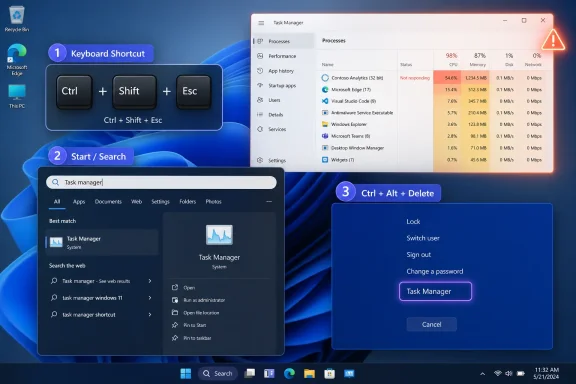
In Windows 11, the fastest way to open Task Manager is to press Ctrl + Shift + Esc, which opens it directly without going through the desktop, Start menu, or security screen. If that does not work, press the Windows key, type “Task manager,” and press Enter; if the PC is partly frozen, press Ctrl + Alt + Delete and choose Task Manager from the security screen.
That is the practical answer, and it is still the answer Microsoft’s own current guidance points users toward. The useful part is knowing which route to use when Windows is behaving badly. Task Manager is not just another app in Windows 11; it is the first diagnostic tool most users reach for when the machine stops feeling like a machine.
Ctrl + Shift + Esc is the cleanest path because it asks Windows for Task Manager directly. There is no right-click target to find, no Start menu to wait for, no search index to depend on, and no detour through another screen.
That matters because people usually open Task Manager under stress. A browser tab is chewing through memory, a game has stopped responding, a driver is making the screen flicker, or the fans have abruptly decided the laptop is a leaf blower. In those moments, the best shortcut is the one that removes the most moving parts.
The procedure is simple: hold Ctrl and Shift, then press Esc. If Windows is responsive enough to launch Task Manager, it should appear immediately. From there, use the Processes view to find the app or background process that is misbehaving, select it, and choose End task if you need to force it closed.
This is the shortcut worth teaching family members, documenting in help-desk scripts, and using yourself before you reach for anything more elaborate. It is also easier to remember than the older folk wisdom around taskbar right-click menus, which has become less central in Windows 11’s design language.
This method is especially good for users who are more comfortable typing the name of the thing they want than memorizing key combinations. It also works well when you are walking someone through a fix remotely: “Press Windows, type Task manager, press Enter” is a sequence that survives bad audio, nervous users, and unfamiliar layouts.
Search also fits the way Microsoft now presents Windows 11 and Windows 10 taskbar usage. The official emphasis has shifted toward search, pinned apps, and Start-centered workflows rather than assuming every user knows the older right-click-the-taskbar habit. For WindowsForum readers who have muscle memory going back to Windows 7 or Windows 8, that shift is easy to underestimate.
The tradeoff is that search depends on more of the shell being alive. If the taskbar, Start menu, or search interface is sluggish, broken, or hidden behind a full-screen app, Ctrl + Shift + Esc is still the better first move.
This path is useful because it does not rely on the same interaction pattern as the Start menu or taskbar. If Explorer is stuck, a full-screen app has captured focus, or the desktop is not responding cleanly, the security screen may still appear. It is the Windows equivalent of stepping outside the room so you can get back in through a different door.
It is important not to confuse Ctrl + Alt + Delete with Ctrl + Shift + Esc. The first opens the Windows security screen, where Task Manager is one option among several. The second opens Task Manager directly. In a healthy session, the direct shortcut wins; in an unhealthy session, the security screen can be the safer fallback.
Microsoft’s own troubleshooting guidance still treats this distinction as live and useful. In display or responsiveness problems, the advice remains: if one path does not show Task Manager, try the other. That is a small detail, but it is the kind of detail that separates a real recovery path from a decorative shortcut roundup.
Windows 11 changed the feel of that muscle memory. Microsoft’s current public guidance leans more heavily on search and pinned-app workflows than on treating the taskbar context menu as the universal gateway to system tools. That does not make the older habit irrelevant everywhere, but it does mean a modern guide should not put it first.
This matters because taskbar behavior is precisely what may be broken when users need Task Manager. If Explorer is hung, the taskbar is missing, or the Start experience is struggling, a workflow that begins by interacting with the taskbar is already fragile. A good Windows 11 answer starts with the routes that survive the most failure modes.
The better mental model is not “How many ways can I open Task Manager?” It is “Which path still works in the condition my PC is currently in?” That turns a trivia list into a troubleshooting ladder.
That is why the opening method matters. If Windows is healthy, every route feels equivalent. If Windows is degraded, the difference between a direct keyboard shortcut and a Start-menu search can be the difference between regaining control and reaching for the power button.
For enthusiasts and sysadmins, the lesson is operational. Put Ctrl + Shift + Esc in runbooks, onboarding docs, and support macros as the first-line path. Use Windows search as the human-friendly path for ordinary users. Reserve Ctrl + Alt + Delete for cases where the shell is suspect or the display/session state has become unreliable.
The same logic applies in classrooms, labs, and family support calls. The person asking for help does not need eight methods at once. They need the next method that fits the failure they are actually seeing.
That does not mean every Windows 10-era habit vanished overnight. It means the safest public advice should match the supported platform’s current behavior and Microsoft’s current documentation. Ctrl + Shift + Esc, search for “Task manager,” and Ctrl + Alt + Delete are the durable paths.
This is especially important for IT pros writing instructions for mixed fleets. If your help-desk note says “right-click the taskbar,” you may get inconsistent results depending on user expectation, Windows version, policy, shell state, and interface changes. If your note says “press Ctrl + Shift + Esc,” the instruction is shorter and more resilient.
Windows 11 has also made ordinary users more comfortable with search as a launcher. That is not always beloved by power users, but it is practical. Search is now a mainstream navigation surface, and Task Manager is exactly the kind of tool users can launch by name.
This is the part most shortcut articles flatten. They present methods as a menu of equal choices, when the real world is conditional. The right answer depends on whether you still have keyboard input, whether Explorer is responsive, and whether the screen you are looking at is trustworthy.
If a single app is frozen but the rest of Windows responds, the direct shortcut is usually enough. If the Start menu works and you are guiding a less technical user, search may be clearer. If the screen is flickering, the desktop is sluggish, or a full-screen app is blocking normal interaction, the security screen gives you another route.
There is no shame in using the slower method when the faster method is blocked. The goal is not shortcut purity. The goal is to get Task Manager open before a recoverable glitch becomes a forced reboot.
If Ctrl + Shift + Esc works but search does not, the problem may be closer to the shell or search experience than the session as a whole. If Ctrl + Alt + Delete works but the desktop does not, the machine may still be recoverable without power cycling. If none of the routes work, you are no longer troubleshooting Task Manager access; you are troubleshooting a deeper hang.
This is where WindowsForum’s long-running Task Manager discussions are still relevant. Users have always come to Task Manager because they suspect something underneath the surface: high CPU, high disk usage, unexplained memory pressure, or a process that refuses to behave. The opening method is just the first move in that investigation.
A good support script should therefore avoid cleverness. Start with the direct shortcut. Fall back to search if the user needs a named app path. Fall back to Ctrl + Alt + Delete when the shell is unstable. Then decide whether you are ending a task, checking resource usage, or escalating to deeper diagnostics.
Task Manager can help in the first three cases. It cannot magically fix the fourth. That is why the fallback order matters: it lets you test how much of Windows is still alive without immediately assuming the worst.
Ctrl + Shift + Esc is the least disruptive probe. Search is a usability path. Ctrl + Alt + Delete is a stronger signal that you are bypassing the normal desktop interaction model. Each failed attempt tells you something.
For Windows enthusiasts, that diagnostic value is almost as useful as Task Manager itself. If the direct shortcut opens instantly, Windows is not dead. If only the security screen responds, the desktop may be the problem. If nothing responds, your troubleshooting has moved beyond a launcher problem.
That is the practical answer, and it is still the answer Microsoft’s own current guidance points users toward. The useful part is knowing which route to use when Windows is behaving badly. Task Manager is not just another app in Windows 11; it is the first diagnostic tool most users reach for when the machine stops feeling like a machine.
 The Direct Shortcut Is Still the Route to Memorize
Ctrl + Shift + Esc is the cleanest path because it asks Windows for Task Manager directly. There is no right-click target to find, no Start menu to wait for, no search index to depend on, and no detour through another screen.That matters because people usually open Task Manager under stress. A browser tab is chewing through memory, a game has stopped responding, a driver is making the screen flicker, or the fans have abruptly decided the laptop is a leaf blower. In those moments, the best shortcut is the one that removes the most moving parts.
The procedure is simple: hold Ctrl and Shift, then press Esc. If Windows is responsive enough to launch Task Manager, it should appear immediately. From there, use the Processes view to find the app or background process that is misbehaving, select it, and choose End task if you need to force it closed.
This is the shortcut worth teaching family members, documenting in help-desk scripts, and using yourself before you reach for anything more elaborate. It is also easier to remember than the older folk wisdom around taskbar right-click menus, which has become less central in Windows 11’s design language.
Search Is the Best Path When the Keyboard Works and the Desktop Still Breathes
If you do not remember the shortcut, Windows search is the next quickest route. Press the Windows key, type “Task manager,” and press Enter. You do not need to open Settings, browse Control Panel, or hunt through administrative folders.This method is especially good for users who are more comfortable typing the name of the thing they want than memorizing key combinations. It also works well when you are walking someone through a fix remotely: “Press Windows, type Task manager, press Enter” is a sequence that survives bad audio, nervous users, and unfamiliar layouts.
Search also fits the way Microsoft now presents Windows 11 and Windows 10 taskbar usage. The official emphasis has shifted toward search, pinned apps, and Start-centered workflows rather than assuming every user knows the older right-click-the-taskbar habit. For WindowsForum readers who have muscle memory going back to Windows 7 or Windows 8, that shift is easy to underestimate.
The tradeoff is that search depends on more of the shell being alive. If the taskbar, Start menu, or search interface is sluggish, broken, or hidden behind a full-screen app, Ctrl + Shift + Esc is still the better first move.
Ctrl + Alt + Delete Is the Fallback When Windows Is Half-Frozen
Ctrl + Alt + Delete is not the fastest route, but it is the route to try when the normal desktop path is unreliable. Press Ctrl + Alt + Delete, wait for the security screen, then choose Task Manager.This path is useful because it does not rely on the same interaction pattern as the Start menu or taskbar. If Explorer is stuck, a full-screen app has captured focus, or the desktop is not responding cleanly, the security screen may still appear. It is the Windows equivalent of stepping outside the room so you can get back in through a different door.
It is important not to confuse Ctrl + Alt + Delete with Ctrl + Shift + Esc. The first opens the Windows security screen, where Task Manager is one option among several. The second opens Task Manager directly. In a healthy session, the direct shortcut wins; in an unhealthy session, the security screen can be the safer fallback.
Microsoft’s own troubleshooting guidance still treats this distinction as live and useful. In display or responsiveness problems, the advice remains: if one path does not show Task Manager, try the other. That is a small detail, but it is the kind of detail that separates a real recovery path from a decorative shortcut roundup.
The Old Taskbar Habit Is No Longer the Center of the Story
Longtime Windows users remember the old two-click move: right-click the taskbar, open Task Manager. WindowsForum has seen that advice passed around for years because it was simple, visible, and easy to explain. It belonged to an era when the taskbar’s context menu was a kind of power-user front porch.Windows 11 changed the feel of that muscle memory. Microsoft’s current public guidance leans more heavily on search and pinned-app workflows than on treating the taskbar context menu as the universal gateway to system tools. That does not make the older habit irrelevant everywhere, but it does mean a modern guide should not put it first.
This matters because taskbar behavior is precisely what may be broken when users need Task Manager. If Explorer is hung, the taskbar is missing, or the Start experience is struggling, a workflow that begins by interacting with the taskbar is already fragile. A good Windows 11 answer starts with the routes that survive the most failure modes.
The better mental model is not “How many ways can I open Task Manager?” It is “Which path still works in the condition my PC is currently in?” That turns a trivia list into a troubleshooting ladder.
Task Manager Is a Recovery Tool Before It Is a Dashboard
Task Manager is often introduced as a performance dashboard, but most people meet it as a recovery tool. They open it because something is wrong: CPU usage is too high, memory pressure is obvious, disk activity is pinned, or an app refuses to close.That is why the opening method matters. If Windows is healthy, every route feels equivalent. If Windows is degraded, the difference between a direct keyboard shortcut and a Start-menu search can be the difference between regaining control and reaching for the power button.
For enthusiasts and sysadmins, the lesson is operational. Put Ctrl + Shift + Esc in runbooks, onboarding docs, and support macros as the first-line path. Use Windows search as the human-friendly path for ordinary users. Reserve Ctrl + Alt + Delete for cases where the shell is suspect or the display/session state has become unreliable.
The same logic applies in classrooms, labs, and family support calls. The person asking for help does not need eight methods at once. They need the next method that fits the failure they are actually seeing.
The Windows 11 Era Makes the Shortcut More Valuable, Not Less
Windows 10 support ended on October 14, 2025, which changes the framing for everyday Windows how-tos in 2026. A useful guide now has to assume a Windows 11-centered world, even if many homes and businesses still have older machines in the mix.That does not mean every Windows 10-era habit vanished overnight. It means the safest public advice should match the supported platform’s current behavior and Microsoft’s current documentation. Ctrl + Shift + Esc, search for “Task manager,” and Ctrl + Alt + Delete are the durable paths.
This is especially important for IT pros writing instructions for mixed fleets. If your help-desk note says “right-click the taskbar,” you may get inconsistent results depending on user expectation, Windows version, policy, shell state, and interface changes. If your note says “press Ctrl + Shift + Esc,” the instruction is shorter and more resilient.
Windows 11 has also made ordinary users more comfortable with search as a launcher. That is not always beloved by power users, but it is practical. Search is now a mainstream navigation surface, and Task Manager is exactly the kind of tool users can launch by name.
The Fastest Path Depends on What Still Works
There are really three practical scenarios. If the keyboard works and Windows is mostly responsive, press Ctrl + Shift + Esc. If the keyboard works but you do not remember the shortcut, use Windows search. If the shell is acting strange or the PC is half-frozen, try Ctrl + Alt + Delete and open Task Manager from there.This is the part most shortcut articles flatten. They present methods as a menu of equal choices, when the real world is conditional. The right answer depends on whether you still have keyboard input, whether Explorer is responsive, and whether the screen you are looking at is trustworthy.
If a single app is frozen but the rest of Windows responds, the direct shortcut is usually enough. If the Start menu works and you are guiding a less technical user, search may be clearer. If the screen is flickering, the desktop is sluggish, or a full-screen app is blocking normal interaction, the security screen gives you another route.
There is no shame in using the slower method when the faster method is blocked. The goal is not shortcut purity. The goal is to get Task Manager open before a recoverable glitch becomes a forced reboot.
The Admin Lesson Is to Document Failure Modes, Not Just Shortcuts
For sysadmins, the interesting point is not that Task Manager has multiple launch methods. It is that each method depends on a different layer of the Windows experience. That makes Task Manager access a tiny but useful diagnostic signal.If Ctrl + Shift + Esc works but search does not, the problem may be closer to the shell or search experience than the session as a whole. If Ctrl + Alt + Delete works but the desktop does not, the machine may still be recoverable without power cycling. If none of the routes work, you are no longer troubleshooting Task Manager access; you are troubleshooting a deeper hang.
This is where WindowsForum’s long-running Task Manager discussions are still relevant. Users have always come to Task Manager because they suspect something underneath the surface: high CPU, high disk usage, unexplained memory pressure, or a process that refuses to behave. The opening method is just the first move in that investigation.
A good support script should therefore avoid cleverness. Start with the direct shortcut. Fall back to search if the user needs a named app path. Fall back to Ctrl + Alt + Delete when the shell is unstable. Then decide whether you are ending a task, checking resource usage, or escalating to deeper diagnostics.
A Shortcut Guide Should Not Pretend Every Freeze Is the Same
The phrase “my PC is frozen” hides several different states. Sometimes only one app is frozen. Sometimes Explorer is frozen but the keyboard still works. Sometimes the display is updating badly, but the secure attention sequence still responds. Sometimes the system is genuinely wedged.Task Manager can help in the first three cases. It cannot magically fix the fourth. That is why the fallback order matters: it lets you test how much of Windows is still alive without immediately assuming the worst.
Ctrl + Shift + Esc is the least disruptive probe. Search is a usability path. Ctrl + Alt + Delete is a stronger signal that you are bypassing the normal desktop interaction model. Each failed attempt tells you something.
For Windows enthusiasts, that diagnostic value is almost as useful as Task Manager itself. If the direct shortcut opens instantly, Windows is not dead. If only the security screen responds, the desktop may be the problem. If nothing responds, your troubleshooting has moved beyond a launcher problem.
The Practical Ladder for a Windows 11 Machine That Needs Task Manager Now
The simplest Windows 11 Task Manager advice is also the most robust: use the direct shortcut first, search second, and the security screen third. That order minimizes delay while preserving recovery options when the desktop stops cooperating.- Press Ctrl + Shift + Esc first when you want Task Manager immediately and the keyboard is responding.
- Press the Windows key, type “Task manager,” and press Enter when you prefer a searchable, easy-to-explain path.
- Press Ctrl + Alt + Delete and choose Task Manager when the desktop, taskbar, or full-screen app is not responding normally.
- Treat the old taskbar-right-click habit as optional muscle memory, not the primary Windows 11 recovery path.
- In support documentation, write the shortcut ladder in the order users should actually try it during a slowdown or partial freeze.
References
- Primary source: support.microsoft.com
Keyboard shortcuts in Windows - Microsoft Support
Learn how to navigate Windows using keyboard shortcuts. Explore a full list of taskbar, command prompt, and general Windows shortcuts.support.microsoft.com
