

Microsoft has confirmed that classic Outlook for Windows can gray out Quick Steps after updating to Version 2512, even though the affected automations may still run through assigned keyboard shortcuts. That is the small factual answer; the larger story is more uncomfortable. Classic Outlook remains the dependable workhorse for many organizations precisely because it supports old habits, old add-ins, and old workflows — and now one of those mature productivity features is reminding everyone how fragile “legacy stability” can be when it is still being actively serviced.
The bug is not catastrophic in the security-patch sense. It does not corrupt mailboxes, take down Exchange, or expose credentials. But it hits a class of user Microsoft often underestimates: the person who has spent years turning Outlook into a personal command center, shaving seconds off hundreds of repetitive actions a week.
Quick Steps are one of those Outlook features that sound mundane until they disappear. They let users chain together common mail actions — move a message, mark it read or unread, apply or clear a category, flag or unflag an item, forward to a team, create a task — and fire the sequence from the ribbon or a shortcut.
For people who live in their inbox all day, that is not decoration. It is muscle memory. A paralegal triaging client messages, an executive assistant managing categories across shared mailboxes, or a support engineer filing escalations may have built a whole working rhythm around a small row of buttons in classic Outlook.
Microsoft’s newly acknowledged behavior breaks that rhythm in a particularly irritating way. If a Quick Step includes an action Outlook believes cannot be fulfilled for the selected message, the UI can disable the entire Quick Step. Microsoft’s own example is a Quick Step that moves a message to a folder and clears categories; if the selected message has no categories, Outlook may gray out the Quick Step.
That is the sort of logic that makes sense to a validation routine and very little sense to a user. The user’s intent is not “clear a category only if one exists.” The intent is “perform this whole filing routine, and if there is no category to clear, just skip that harmless step.” Outlook has historically encouraged that mental model: automate the boring parts and let the client handle the irrelevant details.
The oddest part is that the disabled button is not necessarily disabled in any meaningful operational sense. Microsoft says the Quick Step shortcut can still work even when the visible control is grayed out. In other words, the automation may be capable of running, but the interface tells the user it is not.
That distinction matters. A broken command is one thing. A command that works only if you ignore the visible state of the software is worse in a different way: it trains users to distrust the interface.
At first glance, this looks like a simple bug in command enablement. Outlook appears to be checking whether every action in the Quick Step is applicable to the currently selected message, then disabling the whole Quick Step if one action fails that check. That may be defensible for destructive or impossible operations, but it is clumsy for idempotent cleanup actions.
Clearing a flag from an unflagged message should be a no-op. Clearing categories from an uncategorized message should be a no-op. Those actions are not failed operations in the user’s workflow; they are cleanup steps meant to normalize a message before filing, archiving, or handing it off.
This is the difference between a strict programmer’s model and a practical productivity model. In the strict model, “clear category” has no target if there is no category. In the practical model, “make sure this message has no category” has already succeeded if the message has none.
Outlook’s Quick Steps have always lived in the practical model. They are not a low-code automation platform with typed preconditions and exception handling. They are a user-facing shortcut mechanism for people who want their inbox to get out of the way.
The Version 2512 behavior therefore feels less like a feature decision than a regression in empathy. It changes the contract of Quick Steps from “do what can be done” to “refuse the entire routine if one cleanup step is unnecessary.”
That advice will save some power users. Classic Outlook lets users assign Ctrl+Shift+number shortcuts to Quick Steps, and anyone already driving Outlook from the keyboard may barely notice the ribbon state after the workaround is in place. For a subset of users, the fix is a trip into Manage Quick Steps and a little retraining.
But this is not an adequate answer for everyone. Many Quick Step users discover and use the feature visually. They put a handful of workflows on the ribbon because they want an obvious, clickable command surface. A grayed-out button communicates “not available,” and most users will not know that Outlook is lying by omission.
The workaround also becomes awkward in shared environments. Help desks now have to explain that a disabled-looking button can still work if the user knows a specific shortcut. Trainers have to update internal documentation. Administrators may have to decide whether to roll back Office builds, recommend Outlook on the web, or push users toward the new Outlook client — none of which is frictionless.
There is also an accessibility and preference problem. Not every user is comfortable memorizing shortcuts. Not every workstation or remote desktop setup makes those shortcuts convenient. And not every organization wants to build operational guidance around a behavior that may be fixed, changed, or re-broken in a later channel update.
A workaround that depends on contradicting the UI is a survival tactic. It is not product quality.
Microsoft has been pushing the new Outlook for Windows as the future client, built around a more web-aligned architecture and a more unified experience across platforms. The strategy is understandable. Maintaining multiple Outlook codebases is expensive, and the classic Windows client carries decades of architectural baggage.
But users do not run architecture diagrams. They run workflows.
Classic Outlook still supports capabilities the new Outlook either lacks, only partially supports, or handles differently. COM add-ins remain one of the biggest dividing lines. Many organizations depend on third-party security, CRM, document management, dictation, legal workflow, archiving, and compliance tools that were built for the classic client’s extensibility model.
Microsoft’s own feature comparisons have made the shape of the transition clear: the new Outlook is gaining features, but it is not a drop-in replacement for every classic Outlook deployment. PST support, add-in compatibility, offline behavior, shared mailbox edge cases, automation, and administrative controls all matter differently depending on the organization.
That is why bugs like this carry more weight than their narrow scope suggests. Microsoft can say, accurately, that users may roll back, use Outlook on the web, or switch to new Outlook. But for many businesses, those are not equivalent choices. Rolling back is a managed desktop operation. Outlook on the web may not match local workflows. New Outlook may break add-ins or features that are more important than the broken Quick Step.
Classic Outlook is approaching its twilight, but it is still load-bearing. A load-bearing legacy client needs boring reliability, especially in the features that justify keeping it around.
That tension is especially sharp for Quick Steps. The feature represents exactly the kind of personalized productivity that keeps people attached to classic Outlook. It is not glamorous. It will not headline a Copilot keynote. But it is the daily machinery of mail triage.
The new Outlook has been improving, and Microsoft has added or restored features over time. Still, “has Quick Steps” is not the same as “faithfully preserves every Quick Step workflow used by classic Outlook power users.” The details matter: which actions are supported, how shortcuts behave, whether shared mailbox moves work as expected, how categories and flags are handled, and whether old automations can be migrated without rebuilding them by hand.
This is where Microsoft’s platform strategy runs into lived administrative reality. A CIO may accept the long-term case for moving away from COM add-ins and Win32-era extensibility. A desktop engineer may even welcome a cleaner deployment model. But the migration cannot be sold only as modernization if it removes small, relied-upon affordances faster than it replaces them.
The Quick Steps bug therefore becomes a symbol of the migration gap. Classic Outlook is old enough to be brittle, but new Outlook is not yet trusted enough to be universal. Users are left asking not which client is best in theory, but which one breaks the least amount of their day.
A Quick Step used once a month is a convenience. A Quick Step used 150 times a day is infrastructure. If a user has to replace one click with three clicks, or stop to inspect whether a message has a flag before filing it, the cost compounds quickly.
The damage is also cognitive. Inbox processing depends on flow: scan, decide, act, move on. Anything that makes the user pause and wonder whether a command is available breaks that flow. A grayed-out Quick Step invites troubleshooting at precisely the moment the software should be invisible.
For IT departments, the cost shows up as low-grade noise. Tickets arrive with vague subject lines: “Outlook buttons disabled,” “Quick Steps missing,” “Categories broken,” “Cannot file emails.” The actual cause may be a build update and a specific action inside a Quick Step, but getting there requires asking users about custom automations they may not know how to describe.
That is why mature productivity software is so difficult to change. Its value is partly in the documented feature set and partly in thousands of tiny, undocumented habits. Break the habit and the user experiences the entire product as worse, even if 99 percent of the code is working.
Microsoft knows this, or should. Office’s dominance was built not merely on file formats and enterprise licensing, but on a deep reservoir of user habits. The company benefits from those habits when they keep customers loyal. It also inherits responsibility for them when updates change behavior.
The affected users are likely to be unevenly distributed. One department may never touch Quick Steps. Another may have a few power users with heavily customized workflows. A legal, finance, HR, support, or executive admin team may rely on categories and flags more than the average user.
That unevenness makes testing tricky. A standard smoke test that sends and receives mail will miss the problem. Even a basic Outlook test script may miss it unless it includes Quick Steps with clear-category or clear-flag actions against messages where those properties are absent.
The first administrative response should be inventory by conversation, not tooling. Ask the teams most likely to use Outlook heavily whether they rely on Quick Steps. Ask specifically about actions that clear flags, clear categories, move messages to folders, or operate on shared mailboxes. The users who know the most about the workflow may not be the same people who normally participate in software testing.
The second response is deciding whether the workaround is acceptable. For a small number of affected users, assigning shortcuts may be enough. For a broader group, an Office rollback to Version 2511 may be cleaner until Microsoft ships a fix, assuming the organization’s update channel and security posture allow it.
The third response is documentation. If the help desk knows the symptom, the version, and the workaround, this stays a nuisance. If it does not, it becomes one more ambiguous Outlook complaint in a queue already full of caching issues, profile corruption, add-in conflicts, and authentication prompts.
The company describes the behavior in terms of Quick Steps containing actions that “can’t be fulfilled.” That language subtly treats the disabled state as logical. Yet the shortcut workaround undermines that interpretation. If the keyboard shortcut can run the Quick Step successfully, the issue is not that the Quick Step cannot be fulfilled in any meaningful user-facing sense.
The better framing would be that Outlook is incorrectly disabling Quick Steps in the ribbon when certain actions are inapplicable but harmless. That distinction is more than semantic. It identifies the bug as a UI validation problem rather than a user workflow problem.
This matters because Microsoft’s customers are already sensitive to wording around classic Outlook. When a company is nudging users toward a replacement client, every defect in the old client risks being interpreted through suspicion. Is this a bug? Is this neglect? Is this another sign that classic Outlook is being allowed to rot?
There is no need to reach for conspiracy. Large software products accumulate regressions, especially when codepaths are old, feature interactions are complex, and release channels move continuously. But Microsoft should understand the optics. If it wants customers to trust the Outlook transition, it needs to show care for both sides of the bridge.
Classic Outlook users do not need sentimental reassurance. They need boring fixes.
If your organization is seeing the symptom, the fastest path is to confirm whether the Quick Step still runs from a shortcut. If it does, the business impact may be reduced while you wait for Microsoft to correct the UI behavior. If it does not, the problem may be different or compounded by folder permissions, mailbox type, add-ins, profile state, or another Outlook issue.
There is also a design lesson for users who build Quick Steps. Where possible, keep mission-critical Quick Steps simple and avoid mixing fragile state-dependent cleanup actions with the core operation. That is not how the feature ought to require people to think, but it may reduce exposure to this particular regression.
For administrators, the relevant decision is whether to standardize on a workaround or reverse the update. Rollback is more disruptive, but it restores expected behavior. Shortcuts are lighter, but they normalize a broken UI. Switching clients may solve this one problem while introducing several others.
Source: The Register Classic Outlook's Quick Steps trip over Microsoft bug
The bug is not catastrophic in the security-patch sense. It does not corrupt mailboxes, take down Exchange, or expose credentials. But it hits a class of user Microsoft often underestimates: the person who has spent years turning Outlook into a personal command center, shaving seconds off hundreds of repetitive actions a week.
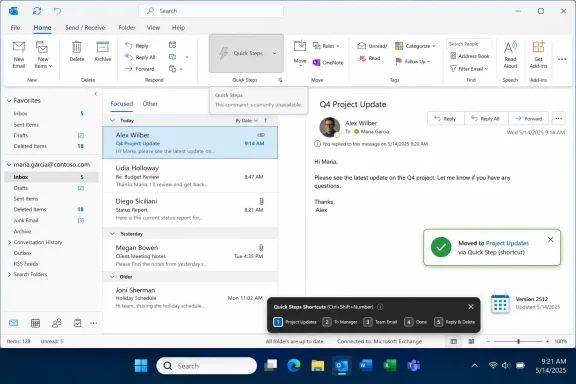 A One-Click Workflow Becomes a Keyboard Easter Egg
Quick Steps are one of those Outlook features that sound mundane until they disappear. They let users chain together common mail actions — move a message, mark it read or unread, apply or clear a category, flag or unflag an item, forward to a team, create a task — and fire the sequence from the ribbon or a shortcut.For people who live in their inbox all day, that is not decoration. It is muscle memory. A paralegal triaging client messages, an executive assistant managing categories across shared mailboxes, or a support engineer filing escalations may have built a whole working rhythm around a small row of buttons in classic Outlook.
Microsoft’s newly acknowledged behavior breaks that rhythm in a particularly irritating way. If a Quick Step includes an action Outlook believes cannot be fulfilled for the selected message, the UI can disable the entire Quick Step. Microsoft’s own example is a Quick Step that moves a message to a folder and clears categories; if the selected message has no categories, Outlook may gray out the Quick Step.
That is the sort of logic that makes sense to a validation routine and very little sense to a user. The user’s intent is not “clear a category only if one exists.” The intent is “perform this whole filing routine, and if there is no category to clear, just skip that harmless step.” Outlook has historically encouraged that mental model: automate the boring parts and let the client handle the irrelevant details.
The oddest part is that the disabled button is not necessarily disabled in any meaningful operational sense. Microsoft says the Quick Step shortcut can still work even when the visible control is grayed out. In other words, the automation may be capable of running, but the interface tells the user it is not.
That distinction matters. A broken command is one thing. A command that works only if you ignore the visible state of the software is worse in a different way: it trains users to distrust the interface.
Version 2512 Turns Defensive UI Into Productivity Damage
The issue arrived after updating to Version 2512, specifically in the Microsoft 365 Apps builds Microsoft identifies in its support note. Reports from users point to the same rough pattern: Quick Steps involving categories and flags are more likely to be affected, especially actions such as clearing categories or clearing message flags.At first glance, this looks like a simple bug in command enablement. Outlook appears to be checking whether every action in the Quick Step is applicable to the currently selected message, then disabling the whole Quick Step if one action fails that check. That may be defensible for destructive or impossible operations, but it is clumsy for idempotent cleanup actions.
Clearing a flag from an unflagged message should be a no-op. Clearing categories from an uncategorized message should be a no-op. Those actions are not failed operations in the user’s workflow; they are cleanup steps meant to normalize a message before filing, archiving, or handing it off.
This is the difference between a strict programmer’s model and a practical productivity model. In the strict model, “clear category” has no target if there is no category. In the practical model, “make sure this message has no category” has already succeeded if the message has none.
Outlook’s Quick Steps have always lived in the practical model. They are not a low-code automation platform with typed preconditions and exception handling. They are a user-facing shortcut mechanism for people who want their inbox to get out of the way.
The Version 2512 behavior therefore feels less like a feature decision than a regression in empathy. It changes the contract of Quick Steps from “do what can be done” to “refuse the entire routine if one cleanup step is unnecessary.”
The Shortcut Workaround Is Clever, but It Is Not a Fix
Microsoft’s workaround is technically useful: assign or use a keyboard shortcut for the Quick Step. The company says the shortcut will still work even if the Quick Step is grayed out in the UI.That advice will save some power users. Classic Outlook lets users assign Ctrl+Shift+number shortcuts to Quick Steps, and anyone already driving Outlook from the keyboard may barely notice the ribbon state after the workaround is in place. For a subset of users, the fix is a trip into Manage Quick Steps and a little retraining.
But this is not an adequate answer for everyone. Many Quick Step users discover and use the feature visually. They put a handful of workflows on the ribbon because they want an obvious, clickable command surface. A grayed-out button communicates “not available,” and most users will not know that Outlook is lying by omission.
The workaround also becomes awkward in shared environments. Help desks now have to explain that a disabled-looking button can still work if the user knows a specific shortcut. Trainers have to update internal documentation. Administrators may have to decide whether to roll back Office builds, recommend Outlook on the web, or push users toward the new Outlook client — none of which is frictionless.
There is also an accessibility and preference problem. Not every user is comfortable memorizing shortcuts. Not every workstation or remote desktop setup makes those shortcuts convenient. And not every organization wants to build operational guidance around a behavior that may be fixed, changed, or re-broken in a later channel update.
A workaround that depends on contradicting the UI is a survival tactic. It is not product quality.
Classic Outlook Is Old, but It Is Not Optional Yet
The bug lands at an awkward moment because classic Outlook is no longer just “Outlook.” It is now “classic Outlook,” a label that carries a faint smell of deprecation even while the application remains essential to many Windows workplaces.Microsoft has been pushing the new Outlook for Windows as the future client, built around a more web-aligned architecture and a more unified experience across platforms. The strategy is understandable. Maintaining multiple Outlook codebases is expensive, and the classic Windows client carries decades of architectural baggage.
But users do not run architecture diagrams. They run workflows.
Classic Outlook still supports capabilities the new Outlook either lacks, only partially supports, or handles differently. COM add-ins remain one of the biggest dividing lines. Many organizations depend on third-party security, CRM, document management, dictation, legal workflow, archiving, and compliance tools that were built for the classic client’s extensibility model.
Microsoft’s own feature comparisons have made the shape of the transition clear: the new Outlook is gaining features, but it is not a drop-in replacement for every classic Outlook deployment. PST support, add-in compatibility, offline behavior, shared mailbox edge cases, automation, and administrative controls all matter differently depending on the organization.
That is why bugs like this carry more weight than their narrow scope suggests. Microsoft can say, accurately, that users may roll back, use Outlook on the web, or switch to new Outlook. But for many businesses, those are not equivalent choices. Rolling back is a managed desktop operation. Outlook on the web may not match local workflows. New Outlook may break add-ins or features that are more important than the broken Quick Step.
Classic Outlook is approaching its twilight, but it is still load-bearing. A load-bearing legacy client needs boring reliability, especially in the features that justify keeping it around.
The New Outlook Escape Hatch Still Has a Missing-Stair Problem
Every classic Outlook bug now doubles as a marketing problem for Microsoft’s migration plan. If the old client misbehaves, Microsoft would like users to consider the new client. But if the new client still cannot satisfy the old client’s most demanding users, each bug instead reinforces the feeling that customers are being squeezed between decay and incompleteness.That tension is especially sharp for Quick Steps. The feature represents exactly the kind of personalized productivity that keeps people attached to classic Outlook. It is not glamorous. It will not headline a Copilot keynote. But it is the daily machinery of mail triage.
The new Outlook has been improving, and Microsoft has added or restored features over time. Still, “has Quick Steps” is not the same as “faithfully preserves every Quick Step workflow used by classic Outlook power users.” The details matter: which actions are supported, how shortcuts behave, whether shared mailbox moves work as expected, how categories and flags are handled, and whether old automations can be migrated without rebuilding them by hand.
This is where Microsoft’s platform strategy runs into lived administrative reality. A CIO may accept the long-term case for moving away from COM add-ins and Win32-era extensibility. A desktop engineer may even welcome a cleaner deployment model. But the migration cannot be sold only as modernization if it removes small, relied-upon affordances faster than it replaces them.
The Quick Steps bug therefore becomes a symbol of the migration gap. Classic Outlook is old enough to be brittle, but new Outlook is not yet trusted enough to be universal. Users are left asking not which client is best in theory, but which one breaks the least amount of their day.
The Real Cost Is Hidden in Repetition
It is tempting to dismiss this kind of bug as minor because the workaround is simple and the affected feature is not core mail transport. That would be a mistake. Productivity bugs should be judged by frequency, not drama.A Quick Step used once a month is a convenience. A Quick Step used 150 times a day is infrastructure. If a user has to replace one click with three clicks, or stop to inspect whether a message has a flag before filing it, the cost compounds quickly.
The damage is also cognitive. Inbox processing depends on flow: scan, decide, act, move on. Anything that makes the user pause and wonder whether a command is available breaks that flow. A grayed-out Quick Step invites troubleshooting at precisely the moment the software should be invisible.
For IT departments, the cost shows up as low-grade noise. Tickets arrive with vague subject lines: “Outlook buttons disabled,” “Quick Steps missing,” “Categories broken,” “Cannot file emails.” The actual cause may be a build update and a specific action inside a Quick Step, but getting there requires asking users about custom automations they may not know how to describe.
That is why mature productivity software is so difficult to change. Its value is partly in the documented feature set and partly in thousands of tiny, undocumented habits. Break the habit and the user experiences the entire product as worse, even if 99 percent of the code is working.
Microsoft knows this, or should. Office’s dominance was built not merely on file formats and enterprise licensing, but on a deep reservoir of user habits. The company benefits from those habits when they keep customers loyal. It also inherits responsibility for them when updates change behavior.
Administrators Get Another Reason to Treat Outlook Updates as Change Events
For WindowsForum readers managing fleets, the practical lesson is not “panic over Quick Steps.” It is that Outlook updates deserve the same change-management respect as browser, Teams, and Windows updates, especially in organizations where mail workflows are tied to revenue, compliance, or customer response times.The affected users are likely to be unevenly distributed. One department may never touch Quick Steps. Another may have a few power users with heavily customized workflows. A legal, finance, HR, support, or executive admin team may rely on categories and flags more than the average user.
That unevenness makes testing tricky. A standard smoke test that sends and receives mail will miss the problem. Even a basic Outlook test script may miss it unless it includes Quick Steps with clear-category or clear-flag actions against messages where those properties are absent.
The first administrative response should be inventory by conversation, not tooling. Ask the teams most likely to use Outlook heavily whether they rely on Quick Steps. Ask specifically about actions that clear flags, clear categories, move messages to folders, or operate on shared mailboxes. The users who know the most about the workflow may not be the same people who normally participate in software testing.
The second response is deciding whether the workaround is acceptable. For a small number of affected users, assigning shortcuts may be enough. For a broader group, an Office rollback to Version 2511 may be cleaner until Microsoft ships a fix, assuming the organization’s update channel and security posture allow it.
The third response is documentation. If the help desk knows the symptom, the version, and the workaround, this stays a nuisance. If it does not, it becomes one more ambiguous Outlook complaint in a queue already full of caching issues, profile corruption, add-in conflicts, and authentication prompts.
Microsoft’s Support Language Reveals the Product Tension
Microsoft’s support note is restrained, as these notes usually are. It describes the condition, gives an example, and offers workarounds. That is appropriate for a support article, but the framing also reveals a product tension Microsoft has not fully resolved.The company describes the behavior in terms of Quick Steps containing actions that “can’t be fulfilled.” That language subtly treats the disabled state as logical. Yet the shortcut workaround undermines that interpretation. If the keyboard shortcut can run the Quick Step successfully, the issue is not that the Quick Step cannot be fulfilled in any meaningful user-facing sense.
The better framing would be that Outlook is incorrectly disabling Quick Steps in the ribbon when certain actions are inapplicable but harmless. That distinction is more than semantic. It identifies the bug as a UI validation problem rather than a user workflow problem.
This matters because Microsoft’s customers are already sensitive to wording around classic Outlook. When a company is nudging users toward a replacement client, every defect in the old client risks being interpreted through suspicion. Is this a bug? Is this neglect? Is this another sign that classic Outlook is being allowed to rot?
There is no need to reach for conspiracy. Large software products accumulate regressions, especially when codepaths are old, feature interactions are complex, and release channels move continuously. But Microsoft should understand the optics. If it wants customers to trust the Outlook transition, it needs to show care for both sides of the bridge.
Classic Outlook users do not need sentimental reassurance. They need boring fixes.
The Inbox Automation Crowd Should Check These Things Now
This particular bug is narrow enough that the immediate response can be practical rather than dramatic. The users most at risk are not everyone with Outlook installed, but people who use Quick Steps containing category or flag cleanup actions after updating to Version 2512 or related builds.If your organization is seeing the symptom, the fastest path is to confirm whether the Quick Step still runs from a shortcut. If it does, the business impact may be reduced while you wait for Microsoft to correct the UI behavior. If it does not, the problem may be different or compounded by folder permissions, mailbox type, add-ins, profile state, or another Outlook issue.
There is also a design lesson for users who build Quick Steps. Where possible, keep mission-critical Quick Steps simple and avoid mixing fragile state-dependent cleanup actions with the core operation. That is not how the feature ought to require people to think, but it may reduce exposure to this particular regression.
For administrators, the relevant decision is whether to standardize on a workaround or reverse the update. Rollback is more disruptive, but it restores expected behavior. Shortcuts are lighter, but they normalize a broken UI. Switching clients may solve this one problem while introducing several others.
A Grayed-Out Button Says More Than Microsoft Intended
The concrete lessons from this bug are small, but they point to a larger Outlook transition that remains messier than Microsoft’s roadmap language suggests.- Classic Outlook Quick Steps can appear disabled after Version 2512 when they include actions Outlook decides cannot be fulfilled for the selected message.
- The most visible reports involve Quick Steps that clear flags or categories, especially when the selected message does not currently have the relevant flag or category.
- Microsoft’s workaround is to use an assigned keyboard shortcut, which may still run the Quick Step even when the ribbon button is grayed out.
- Organizations that rely heavily on Outlook triage workflows should test Quick Steps explicitly before broadly accepting affected builds.
- Moving to new Outlook or Outlook on the web may be viable for some users, but it is not a neutral workaround for environments that still depend on classic Outlook features, COM add-ins, or established local workflows.
- The bug is a reminder that productivity regressions can be operationally significant even when they do not look severe in a service-health dashboard.
Source: The Register Classic Outlook's Quick Steps trip over Microsoft bug
