Microsoft and Apple devices can now play together in a way that many Windows users with iPhones have wanted for years: you can answer calls, send and receive texts, and view phone notifications from Windows 11 using Microsoft’s Phone Link (and the Link to Windows iOS companion), while traditional USB-based backups and media sync remain available through Apple Devices or iTunes on Windows. This article explains how the connection works, verifies the technical requirements and limitations, and evaluates the practical, privacy, and reliability implications for everyday users and power users alike.
For years, Phone Link (formerly “Your Phone”) delivered a deep Windows–Android experience: texts, notifications, app streaming, and file transfers. iPhone support was limited by Apple’s platform restrictions, so Windows users carrying iPhones have relied on clumsy workarounds or USB sync with iTunes/Apple Devices. Microsoft’s recent updates to Windows 11 extend Phone Link functionality to iPhones by combining a new Start-menu integration, the Phone Link desktop app, and Apple’s installer-side permissions via the Link to Windows app for iOS. That bridge is built on Bluetooth Low Energy (BLE) pairing, a QR-code pairing flow, and a Microsoft account sign-in to coordinate the devices.
This is not the same as Apple’s Continuity on macOS — Apple still controls many proprietary elements of iMessage and deeper system APIs — but it’s a meaningful step toward reducing friction for users who run Windows PCs and use iPhones as their daily phone. Independent reporting and Microsoft’s rollout notes confirm this hybrid approach (BLE pairing + companion iOS app + Phone Link on Windows) is the current model.
This is a milestone in reducing the friction between Apple’s iPhone and Microsoft’s Windows ecosystem. It’s a practical, pragmatic solution — not a full reconciliation of both ecosystems. Users should verify app and Windows versions before attempting to pair, follow the permission prompts closely, and use USB-based Apple Devices/iTunes for backups and restores that require a local connection. For now, this measured interoperability is the best of both worlds: convenient phone control on Windows with the fallback reliability of USB-based Apple tools for full device management.
Source: Lifewire iPhone and Windows 11 Can Work Together for Calls and Texts
 Background / Overview
For years, Phone Link (formerly “Your Phone”) delivered a deep Windows–Android experience: texts, notifications, app streaming, and file transfers. iPhone support was limited by Apple’s platform restrictions, so Windows users carrying iPhones have relied on clumsy workarounds or USB sync with iTunes/Apple Devices. Microsoft’s recent updates to Windows 11 extend Phone Link functionality to iPhones by combining a new Start-menu integration, the Phone Link desktop app, and Apple’s installer-side permissions via the Link to Windows app for iOS. That bridge is built on Bluetooth Low Energy (BLE) pairing, a QR-code pairing flow, and a Microsoft account sign-in to coordinate the devices.This is not the same as Apple’s Continuity on macOS — Apple still controls many proprietary elements of iMessage and deeper system APIs — but it’s a meaningful step toward reducing friction for users who run Windows PCs and use iPhones as their daily phone. Independent reporting and Microsoft’s rollout notes confirm this hybrid approach (BLE pairing + companion iOS app + Phone Link on Windows) is the current model.
How Phone Link and Link to Windows work (step-by-step)
Phone Link for Windows plus the Link to Windows app on iPhone creates a two‑way surface that brings selected phone features to the PC. Below is a verified setup summary, distilled from multiple guides and Microsoft community documentation.Quick checklist before you start
- A Windows 11 PC with Bluetooth Low Energy (BLE) support.
- Phone Link app on your PC (the app is usually preinstalled on modern Windows 11 systems).
- Link to Windows app installed on your iPhone (from the App Store).
- A Microsoft account (you’ll sign into it during setup).
- iPhone running a modern iOS (most devices supporting the Link to Windows app — generally iOS 14+ on earlier rollouts; check the App Store listing for minimum iOS version).
Step-by-step pairing (verified process)
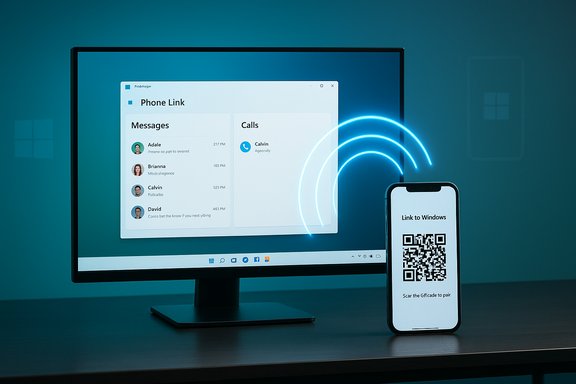
- Open the Phone Link app on Windows 11 and choose “iPhone” as the device type.
- The app shows a QR code. On your iPhone, download and open the Link to Windows app, then scan the QR code. If needed, visit aka.ms/pairyourphone or search the App Store for “Link to Windows (Microsoft Corporation)”.
- On the iPhone, tap Pair your devices → Continue → Pair when asked, and grant the requested permissions (Bluetooth, notifications, camera for QR scanning). Confirm that the 6-digit pairing code shown on both devices matches and allow the pairing.
- Sign in with your Microsoft account on the iPhone and the PC as prompted. Enable permissions for notifications and contact sync in the iPhone’s Bluetooth settings (tap the “i” next to the PC’s Bluetooth device entry and enable Show Message Notifications and Sync Contacts).
- After pairing, Phone Link on Windows shows the Messages, Calls, and Notifications panes; you can use the dialer, click a contact to place a call, or view and respond to messages.
Alternative connection: Apple Devices and iTunes (USB)
If your goal is media sync, backups, firmware updates, or restoring a device from a local backup, the traditional route remains:- Install Apple Devices or iTunes from the Microsoft Store on your PC.
- Connect your iPhone via a USB cable (or USB‑C if your iPhone/PC both use USB‑C), or use a USB‑C-to-USB‑A adapter if necessary.
- Tap Trust on the iPhone when prompted and enter your passcode. The phone will show in the app sidebar, letting you manage media, backups, and restores from Windows.
Requirements, version checks, and verified limits
Several precise technical requirements and version thresholds have been reported and independently confirmed in documentation and testing streams. If you plan to use Phone Link with an iPhone, verify each of the following on your PC and phone:- Windows 11 build and Phone Link requirements: initial Insider previews for Start‑menu iPhone integration were available to Windows Insiders (Beta/Dev channels) — builds referenced in reporting include Beta Build 4805 and Dev Build 26120.3000 as early test points. Phone Link app versions tied to early iPhone features were reported as version 1.24121.30.0 (or later) in Windows 11 previews. These build numbers and app versions were cited in Microsoft Insiders coverage and press reporting. If you are not on an Insider build, the public rollout timing can vary; verify your Windows Update history and Phone Link app version in the Microsoft Store.
- Bluetooth Low Energy (BLE): BLE support on the PC is essential for call/text/notification features. Older Bluetooth stacks or missing BLE hardware will prevent pairing for these Remote Interaction features; in some cases a BLE USB dongle that explicitly supports BLE can be a workaround.
- iOS compatibility: the Link to Windows app is available on the App Store; device compatibility depends on Apple’s supported OS for the app. Early reporting lists iOS 14+ as the baseline for some features, but confirm the minimum iOS version in the App Store listing at the time you install.
- Microsoft account: you will sign into a Microsoft account during setup; cross‑device linking is coordinated through that account context.
- SKU exclusions and enterprise limitations: some Education SKUs and managed devices may not support the feature initially; if your device is managed by an organization, your admin policies may block pairing or data-sharing features. Several community threads and reporting notes called out exclusions for Education editions during early rollout.
What Phone Link can and cannot do (practical feature list)
Phone Link now provides a practical set of features for iPhone users on Windows 11, but the experience has trade‑offs compared with macOS Continuity and the richer Android–Windows Phone Link parity.- What Phone Link does (for iPhone on Windows 11):
- Make and receive phone calls from the PC (acts like a speakerphone).
- Read and reply to text messages and see message notifications via the Messages pane.
- View phone notifications and recent activity in the Start menu integration.
- Sync contacts for dialing and call identification.
- Transfer certain files via the iOS Share sheet → Link to Windows → selected PC (file sharing rollout has been tested in Insider channels).
- What Phone Link doesn’t reliably do (limitations):
- Full iMessage parity (group iMessage threads and some media‑heavy iMessage behaviors can be inconsistent because Apple controls those APIs). Don’t expect macOS‑level iMessage support.
- Deep app mirroring or running iOS apps on Windows (unlike some Android Phone Link features).
- Guaranteed parity across every iPhone model; older hardware or outdated iOS may see reduced functionality.
Troubleshooting: common problems and verified fixes
Because the integration relies on BLE, companion apps, and OS permissions, several failure modes appear repeatedly in community threads and official Q&A entries. These are the most common issues and recommended troubleshooting steps verified from community experience and Microsoft's documentation.- Pairing stuck on “Connecting” or QR code not showing:
- Ensure Bluetooth is on and BLE is available on both devices.
- Close and relaunch Phone Link; regenerate the QR code and retry the scan (QR codes can expire).
- Disable any firewall or aggressive VPN temporarily that might block the app’s initial pairing handshake.
- Reinstall the Link to Windows app and re‑sign in on the iPhone.
- Calls or messages fail after pairing:
- On the iPhone, open Settings → Bluetooth, tap the (i) next to the paired PC, and enable Show Message Notifications and Sync Contacts. Check Notification permissions for Link to Windows in Settings → Notifications.
- Confirm Phone Link has the required permissions on the PC (notifications, microphone for calls).
- File sharing not appearing or failing:
- File sharing to/from iPhone has been rolled out and tested in Insider builds; if you’re not on a recent Phone Link version or the Windows Insider preview, the UI may be absent. Confirm the Phone Link app version and Windows build match minimum rollout requirements.
Security and privacy — what to watch for
Bringing phone calls and messages to a PC introduces new attack surfaces and data‑sharing contexts. The following points summarize the verified permission model and practical security trade‑offs you should consider.- Permissions and Microsoft account: pairing requires sign‑in with a Microsoft account. That account acts as the linking identity between the devices; ensuring strong authentication (MFA) on that account reduces the risk of unauthorized linkage.
- Local pairing and BLE: the link uses BLE for the pairing and ongoing presence checks. BLE itself does not encrypt higher‑level message content; the protection of messages and call metadata depends on the application layers (Apple for iMessage/SMS handling; Microsoft for the desktop transmission). Avoid pairing on untrusted public networks and keep BLE off when not in use.
- Data exposure on shared or corporate PCs: if you use a shared or managed PC, messages and calls shown in Phone Link could be exposed to others using the same machine. For corporate devices, administrators may restrict pairing via policy. Evaluate whether you want messages to appear on that machine.
- Malware and compromised PCs: if a PC is compromised, displaying calls and messages there creates an information‑leak risk. Apply standard protections: keep Windows updated, use reputable antivirus, and avoid pairing an iPhone with a machine you don’t fully trust.
- Use a Microsoft account with multi‑factor authentication.
- Pair only with your personal, up‑to‑date PC.
- Revoke the pairing from either side if the PC is lost or compromised.
- Review Link to Windows and Phone Link permissions periodically.
Real‑world benefits and use cases
The Phone Link + Link to Windows pairing delivers clear productivity wins:- For knowledge workers: respond to messages and answer calls without picking up the phone during focused work sessions.
- For hybrid meetings: quickly place or switch calls through the PC’s headset or microphone, improving audio quality and workflow.
- For content creators and photographers: use Send/Receive file features (when available) to move photos from iPhone to PC without the cable shuffle.
Limitations, business implications, and outlook
- Not a full Continuity replacement: Apple’s Continuity features (Handoff, iMessage/Desktop, AirDrop) remain more tightly integrated across Apple devices. Phone Link brings many of the same conveniences to Windows users who carry iPhones, but it can’t match full Apple-to-Apple parity in all cases.
- Enterprise and education rollout: early exclusions for Education SKUs and managed devices were documented during preview testing; corporate IT teams will need to evaluate policy controls and compliance before wide deployment in business environments.
- Continued evolution during preview: Phone Link’s iPhone features — especially file sharing — were initially tested in Insider channels and described as rolling out incrementally. Expect incremental fixes, UI tweaks, and permission adjustments as Microsoft and Apple refine behavior. Reporting shows file sharing was in testing phases and planned for broader availability over time. Users should expect features to mature after initial public releases.
Practical recommendations (what to do next)
- Verify your Windows build and Phone Link app version in Settings and Microsoft Store; update both.
- Confirm BLE capability on your PC; check Device Manager → Bluetooth and driver status.
- Install Link to Windows on your iPhone and follow the QR code pairing flow in Phone Link; keep the devices close during initial pairing.
- Use a Microsoft account with MFA and review pairing permissions after setup.
- For backups and full-device management continue using Apple Devices or iTunes over USB when you need local encrypted backups or firmware restores.
Conclusion
Windows 11’s Phone Link and the Link to Windows iOS companion bring genuinely useful cross‑device features to iPhone owners who use Windows PCs: calls, texts, contact sync, notifications, and — increasingly — file transfers. The setup is straightforward (QR code + BLE + Microsoft account), and for many users the productivity gains are immediate. At the same time, the integration is not identical to Apple’s Continuity and comes with limits: iMessage parity is partial, file sharing arrived initially via Insider testing, and pairing depends on BLE and correct app/OS versions. Security and privacy considerations require users to be thoughtful about which PCs they pair with and to secure their Microsoft account.This is a milestone in reducing the friction between Apple’s iPhone and Microsoft’s Windows ecosystem. It’s a practical, pragmatic solution — not a full reconciliation of both ecosystems. Users should verify app and Windows versions before attempting to pair, follow the permission prompts closely, and use USB-based Apple Devices/iTunes for backups and restores that require a local connection. For now, this measured interoperability is the best of both worlds: convenient phone control on Windows with the fallback reliability of USB-based Apple tools for full device management.
Source: Lifewire iPhone and Windows 11 Can Work Together for Calls and Texts