

Canon’s PIXMA TS6420a is a 2.4 GHz Wi-Fi-only all-in-one inkjet printer whose “offline” errors in 2026 are usually fixed by restarting the printer, clearing Windows’ offline toggle, repairing the print queue, or reconnecting it to the correct wireless network. That plain fact matters because most users approach an offline printer as if the hardware has failed. In reality, the TS6420a is often doing exactly what modern home printers do badly: depending on a fragile chain of router settings, operating-system queues, mobile apps, drivers, and security software. The useful fix is not one magic button, but a disciplined path through the weak links.
The PIXMA TS6420a is a modest home inkjet, not a network appliance with enterprise-grade management. It is designed to sit on a home Wi-Fi network, accept jobs from Windows, macOS, phones, tablets, AirPrint, Mopria, and Canon’s own app, and somehow remain discoverable through router changes, sleep cycles, software updates, and driver confusion.
That is a lot to ask from a compact consumer printer with a tiny screen and a wireless stack built for convenience rather than diagnosis. When the computer says the printer is offline, it is often not making a moral judgment about the device. It is reporting that one layer in the chain has stopped responding in the way the operating system expects.
This is why the best troubleshooting sequence starts boringly. Turn the printer off and back on. Wait longer than feels necessary. Confirm the Wi-Fi icon is actually present on the printer’s display. These steps sound too simple until you remember that the printer has to reacquire the network, receive an address from the router, and become visible again to the machine or app sending the job.
The temptation is to reinstall everything immediately. That is usually premature. Offline printer errors are less often a grand driver catastrophe than a stale network session, a paused queue, or a Windows setting that turned into a trapdoor.
That single constraint invalidates a surprising amount of generic printer advice. If someone tells a TS6420a owner to move the printer to a 5 GHz SSID, they are solving the problem for a printer Canon did not build. If someone suggests plugging in an Ethernet cable, they are describing a port this model does not have.
The 2.4 GHz limitation is not automatically bad. The band often reaches farther through walls than 5 GHz, and printers rarely need high throughput. But it does mean the printer must be joined to the 2.4 GHz side of the network, and the computer or phone must be able to see that printer across the same home network environment.
The real trouble comes from routers that present separate 2.4 GHz and 5 GHz names, mesh systems that steer devices aggressively, and households that have changed Wi-Fi passwords without reconfiguring every device. A laptop may be happily online through 5 GHz while the printer is stranded on an old 2.4 GHz profile. To the user, both devices are “on Wi-Fi.” To the printer stack, they may as well be in different rooms with the doors locked.
Canon’s own setup flow reflects this reality. The printer’s stored network name and password need to match the router’s 2.4 GHz network, and users can print network details from the device settings to see the SSID and IP address the printer believes it is using. That diagnostic page is often more useful than staring at a laptop’s printer list, because it asks the printer itself what world it thinks it inhabits.
The notorious setting is “Use Printer Offline.” If it is checked, Windows can keep holding the printer in that state even after the underlying connection has recovered. On Windows 10 and Windows 11, the route to that setting differs slightly, but the principle is the same: open the printer queue, open the Printer menu, and make sure the offline mode is not selected.
This is a classic example of a troubleshooting fix that feels absurd because the user did not intentionally enable the setting. But print queues accumulate state. A laptop wakes from sleep, a router restarts, a job fails, Windows preserves a status flag, and the next print attempt inherits the mess.
For Windows 11 users, Canon’s status monitor can also sit in the middle of the experience. That adds another panel, another menu, and another opportunity for users to miss the one switch that matters. It is not elegant, but it is still one of the fastest fixes because it addresses the operating system’s interpretation of the printer rather than the printer itself.
When that happens, the user sees “offline” or “not printing” and naturally blames the wireless connection. Sometimes the wireless connection is fine. The printer is simply never getting a clean job to process.
Clearing the queue is therefore not housekeeping; it is diagnosis. Delete stalled jobs, close the queue, and send a fresh, simple print job. A one-page text document is a better test than a graphics-heavy web page or a large PDF, because the goal is to prove the path before stressing it.
This also explains why users sometimes report that one app can print while another cannot. The failure may not be the printer at all. It may be a particular job format, browser spool, print dialog selection, or stale driver instance. The queue is where those software problems become visible as printer problems.
This is not merely cosmetic. If the operating system sends a job to the wrong instance, the correct printer can be awake, connected, and ready while the job disappears into a dead configuration. The user experiences that as an offline printer because the selected destination is offline, even if the physical device is not.
The fix is to slow down at the print dialog. Confirm that the selected printer is the TS6420a instance that actually corresponds to the current connection. If multiple entries exist, remove stale ones or rename the active one in a way that makes the connection obvious.
On macOS, the same principle applies through Printers & Scanners. The right default matters because users rarely inspect the printer dropdown every time. Once the wrong device becomes default, every routine print job silently begins from a bad assumption.
The utility’s value is not that it performs magic. It automates the obvious but tedious checks: whether the printer is visible, whether the network path is broken, and whether a repair can be attempted without manually rebuilding the setup. For many users, that is exactly the right level of intervention after the basic restart, queue, and offline-toggle checks fail.
There is a broader lesson here for Windows users. Vendor utilities are often bloated, but printer network assistants can still be practical because printing is not a single operating-system feature anymore. It is an ecosystem of discovery protocols, drivers, mobile pathways, and device firmware. When discovery fails, the OS may not know enough about the printer to fix it cleanly.
That does not mean every Canon utility should run forever at startup or be treated as sacred. It means that during troubleshooting, using the official tool before performing destructive resets is a rational middle step. If it can repair discovery or reconnect the printer without wiping settings, it has done its job.
This is especially plausible after a security suite update, a Windows network-profile change, or a move between private and public network settings. A PC that thinks it is on an untrusted network may restrict discovery. A third-party firewall may block Canon software while allowing the browser, email, and cloud apps to work normally.
The safe test is temporary and controlled. Disable the firewall function briefly or create a rule that permits Canon’s printer software to communicate on the local network, then test printing. If the printer comes back, the firewall was not “wrong” to be cautious, but it was wrong for this home-network use case.
The permanent fix is not to leave protections disabled. It is to add a durable exception and confirm the network is treated as private or trusted where appropriate. Printer troubleshooting should not become an excuse to weaken the whole machine.
The right approach is to uninstall the old driver package, obtain the current MP Drivers from Canon’s support page for the operating system in use, install cleanly, and restart the computer. The restart matters. Shutdown on modern Windows systems can preserve more state than users expect, while Restart forces a cleaner reload of services and drivers.
A clean driver install can resolve corrupted configuration, missing Canon components, or stale printer instances. It can also restore the Canon IJ Status Monitor path that Windows users may need for queue and maintenance functions. But it should not be treated as a substitute for checking the network itself.
There is also a practical reason to delay driver surgery. If the printer’s own network details show that it is on the wrong SSID or has no valid IP address, no driver reinstall on the PC will fix the printer’s wireless identity. Solve the physical and network-layer problem first, then move up to software.
Easy Wireless Connect is the consumer-friendly route, especially when using a phone or tablet with the Canon PRINT app. Manual Connect is often better for users who know their 2.4 GHz SSID and password and want to enter them directly on the printer. WPS can be convenient if the router supports it and the household is comfortable using the router button.
The important point is that reconnecting is not the same as resetting everything. Re-running wireless setup updates the printer’s network relationship without necessarily wiping unrelated preferences. It is the right move when the printer’s network printout shows an old SSID, a missing IP address, or a mismatch with the router’s current configuration.
For many households, this is where the fix lands. The printer was not broken. It was carrying yesterday’s Wi-Fi assumptions into today’s network.
The conservative move is LAN-only reset first. It targets the likely problem without taking a hammer to the rest of the printer’s configuration. After that reset, the user can run Wi-Fi setup again and rebuild the connection from a clean slate.
“Reset all” belongs at the end of the line. It can be useful when the device is in a genuinely confused state, but it is destructive in the way factory resets usually are. It can also change administrative defaults, which matters if the printer is shared, managed by someone else in the household, or used in a small-office setting.
This is where good troubleshooting differs from panic. A reset can be a valid tool, but only after the less invasive explanations have been tested: power, Wi-Fi icon, queue, offline toggle, default printer, SSID, firewall, utility repair, driver reinstall, and wireless setup.
But apps do not repeal the network model. If the printer is not on the correct 2.4 GHz network, if the router isolates wireless clients, or if the phone is on a different segment, the app may still fail to find the printer. The phone can be a better setup tool without being a magic wand.
This is particularly relevant in apartments, dorms, guest networks, and mesh-router homes. Some networks intentionally prevent devices from discovering one another. That is good for security in a hotel or campus environment, but disastrous for a consumer printer that expects local discovery.
The practical lesson is to treat the app as part of the troubleshooting path, not as the final authority. If the app says the printer is offline, verify the printer’s own network status and the router’s 2.4 GHz configuration before assuming the app has diagnosed the root cause.
First, restart the printer and confirm Wi-Fi is enabled. Second, make sure Windows has not checked “Use Printer Offline.” Third, clear stalled jobs from the print queue. Fourth, confirm the correct Canon printer instance is selected and set as default. Fifth, verify the printer is on the correct 2.4 GHz SSID and has a plausible IP address.
Only after that should users escalate. Run Canon’s Wi-Fi Connection Assistant. Check firewall rules. Reinstall the MP Drivers and restart the computer. Reconnect the printer through Easy Wireless Connect, Manual Connect, or WPS. Reset LAN settings if necessary, and reserve Reset All for the point where the alternative is calling support or replacing the device.
The structure matters because each step answers a different question. Is the printer awake? Is Wi-Fi enabled? Is Windows artificially holding it offline? Is the job queue jammed? Is the computer targeting the right device? Is the printer actually on the network? Is security software blocking it? Is the driver broken? Is the printer’s network configuration stale?
That is also why shotgun troubleshooting so often fails. Users change five things at once, briefly get a result, and never learn which layer failed. The next outage then feels like a brand-new mystery.
For a user, those are not variations on a theme. They are different problems requiring different fixes. Yet the interface collapses them into one blunt status message, leaving ordinary people to infer network topology from a single word.
This is not just Canon’s problem. It is a consumer-printing problem. Printers are sold as appliances, but they behave like small networked computers whose dependencies are hidden until they fail. The TS6420a’s offline behavior is frustrating because the hardware is visible and powered on while the software relationship around it has quietly broken.
Better diagnostics would make an enormous difference. A message that says “printer is on a different Wi-Fi network,” “Windows queue is paused,” or “firewall blocked local discovery” would prevent hours of guesswork. Instead, users get “offline” and a support industry grows around decoding it.
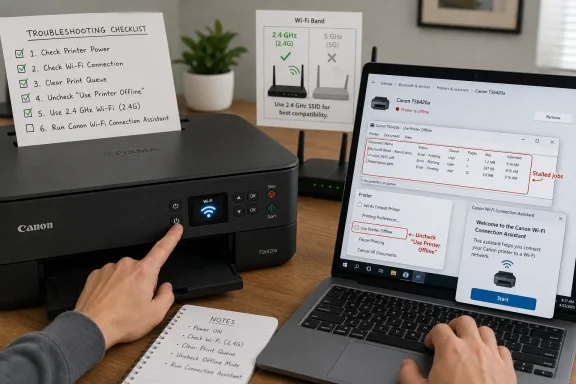 The Printer Is Usually Not Dead; the Chain Around It Is
The PIXMA TS6420a is a modest home inkjet, not a network appliance with enterprise-grade management. It is designed to sit on a home Wi-Fi network, accept jobs from Windows, macOS, phones, tablets, AirPrint, Mopria, and Canon’s own app, and somehow remain discoverable through router changes, sleep cycles, software updates, and driver confusion.That is a lot to ask from a compact consumer printer with a tiny screen and a wireless stack built for convenience rather than diagnosis. When the computer says the printer is offline, it is often not making a moral judgment about the device. It is reporting that one layer in the chain has stopped responding in the way the operating system expects.
This is why the best troubleshooting sequence starts boringly. Turn the printer off and back on. Wait longer than feels necessary. Confirm the Wi-Fi icon is actually present on the printer’s display. These steps sound too simple until you remember that the printer has to reacquire the network, receive an address from the router, and become visible again to the machine or app sending the job.
The temptation is to reinstall everything immediately. That is usually premature. Offline printer errors are less often a grand driver catastrophe than a stale network session, a paused queue, or a Windows setting that turned into a trapdoor.
The 2.4 GHz Detail Is Not Fine Print; It Is the Boundary of Reality
The most important specification for troubleshooting the TS6420a is not its print resolution or cartridge type. It is that the printer uses Wi-Fi 802.11b/g/n on the 2.4 GHz band. It does not have a 5 GHz radio, and it does not have Ethernet.That single constraint invalidates a surprising amount of generic printer advice. If someone tells a TS6420a owner to move the printer to a 5 GHz SSID, they are solving the problem for a printer Canon did not build. If someone suggests plugging in an Ethernet cable, they are describing a port this model does not have.
The 2.4 GHz limitation is not automatically bad. The band often reaches farther through walls than 5 GHz, and printers rarely need high throughput. But it does mean the printer must be joined to the 2.4 GHz side of the network, and the computer or phone must be able to see that printer across the same home network environment.
The real trouble comes from routers that present separate 2.4 GHz and 5 GHz names, mesh systems that steer devices aggressively, and households that have changed Wi-Fi passwords without reconfiguring every device. A laptop may be happily online through 5 GHz while the printer is stranded on an old 2.4 GHz profile. To the user, both devices are “on Wi-Fi.” To the printer stack, they may as well be in different rooms with the doors locked.
Canon’s own setup flow reflects this reality. The printer’s stored network name and password need to match the router’s 2.4 GHz network, and users can print network details from the device settings to see the SSID and IP address the printer believes it is using. That diagnostic page is often more useful than staring at a laptop’s printer list, because it asks the printer itself what world it thinks it inhabits.
Windows’ Offline Toggle Is a Small Checkbox With Outsized Power
Windows has long treated printers as durable objects in the operating system, and that persistence is both useful and infuriating. A printer can remain listed even when it is unreachable, duplicated, renamed, paused, or aimed at the wrong port. The result is a familiar bit of domestic theater: the printer has lights, paper, ink, and Wi-Fi, while Windows insists it is offline.The notorious setting is “Use Printer Offline.” If it is checked, Windows can keep holding the printer in that state even after the underlying connection has recovered. On Windows 10 and Windows 11, the route to that setting differs slightly, but the principle is the same: open the printer queue, open the Printer menu, and make sure the offline mode is not selected.
This is a classic example of a troubleshooting fix that feels absurd because the user did not intentionally enable the setting. But print queues accumulate state. A laptop wakes from sleep, a router restarts, a job fails, Windows preserves a status flag, and the next print attempt inherits the mess.
For Windows 11 users, Canon’s status monitor can also sit in the middle of the experience. That adds another panel, another menu, and another opportunity for users to miss the one switch that matters. It is not elegant, but it is still one of the fastest fixes because it addresses the operating system’s interpretation of the printer rather than the printer itself.
A Stuck Queue Can Masquerade as a Network Failure
The print queue is the airport departure board of the home office: one stalled job can make everything behind it look doomed. A malformed web page, a cancelled PDF, a job sent while the printer was asleep, or a document aimed at the wrong printer can sit in the queue and block later jobs.When that happens, the user sees “offline” or “not printing” and naturally blames the wireless connection. Sometimes the wireless connection is fine. The printer is simply never getting a clean job to process.
Clearing the queue is therefore not housekeeping; it is diagnosis. Delete stalled jobs, close the queue, and send a fresh, simple print job. A one-page text document is a better test than a graphics-heavy web page or a large PDF, because the goal is to prove the path before stressing it.
This also explains why users sometimes report that one app can print while another cannot. The failure may not be the printer at all. It may be a particular job format, browser spool, print dialog selection, or stale driver instance. The queue is where those software problems become visible as printer problems.
Duplicate Printers Are the Ghosts of Setups Past
Many TS6420a owners have installed the printer more than once without realizing it. A USB setup, an IPP setup, an AirPrint entry, a Canon driver entry, and a reinstalled copy can all leave behind similar-looking printer names. Windows may show a “Canon TS6400 series” entry, a duplicate copy, or a default printer that is no longer the one sitting on the network.This is not merely cosmetic. If the operating system sends a job to the wrong instance, the correct printer can be awake, connected, and ready while the job disappears into a dead configuration. The user experiences that as an offline printer because the selected destination is offline, even if the physical device is not.
The fix is to slow down at the print dialog. Confirm that the selected printer is the TS6420a instance that actually corresponds to the current connection. If multiple entries exist, remove stale ones or rename the active one in a way that makes the connection obvious.
On macOS, the same principle applies through Printers & Scanners. The right default matters because users rarely inspect the printer dropdown every time. Once the wrong device becomes default, every routine print job silently begins from a bad assumption.
Canon’s Utility Is Useful Because Home Networks Are Bad at Explaining Themselves
Canon’s Wi-Fi Connection Assistant exists because the normal user interface for home printer networking is inadequate. Routers know one version of the truth. Windows knows another. The printer knows a third. The user is left translating between icons, SSIDs, IP addresses, and vague offline messages.The utility’s value is not that it performs magic. It automates the obvious but tedious checks: whether the printer is visible, whether the network path is broken, and whether a repair can be attempted without manually rebuilding the setup. For many users, that is exactly the right level of intervention after the basic restart, queue, and offline-toggle checks fail.
There is a broader lesson here for Windows users. Vendor utilities are often bloated, but printer network assistants can still be practical because printing is not a single operating-system feature anymore. It is an ecosystem of discovery protocols, drivers, mobile pathways, and device firmware. When discovery fails, the OS may not know enough about the printer to fix it cleanly.
That does not mean every Canon utility should run forever at startup or be treated as sacred. It means that during troubleshooting, using the official tool before performing destructive resets is a rational middle step. If it can repair discovery or reconnect the printer without wiping settings, it has done its job.
Firewalls Can Break Printing While Looking Like They Are Protecting You
Security software has a habit of turning printer problems into detective fiction. A firewall can block local network communication between the computer and printer, leaving both devices technically online but unable to talk in the way printing requires. From the user’s perspective, that again looks like “offline.”This is especially plausible after a security suite update, a Windows network-profile change, or a move between private and public network settings. A PC that thinks it is on an untrusted network may restrict discovery. A third-party firewall may block Canon software while allowing the browser, email, and cloud apps to work normally.
The safe test is temporary and controlled. Disable the firewall function briefly or create a rule that permits Canon’s printer software to communicate on the local network, then test printing. If the printer comes back, the firewall was not “wrong” to be cautious, but it was wrong for this home-network use case.
The permanent fix is not to leave protections disabled. It is to add a durable exception and confirm the network is treated as private or trusted where appropriate. Printer troubleshooting should not become an excuse to weaken the whole machine.
Driver Reinstalls Should Be a Later Move, Not the First Ritual
Reinstalling printer drivers is the folk medicine of home printing. Sometimes it works. Often it merely hides the fact that the queue was paused, the wrong printer was selected, or the device had fallen off Wi-Fi. For the TS6420a, a driver reinstall makes sense after the simpler state problems have been ruled out.The right approach is to uninstall the old driver package, obtain the current MP Drivers from Canon’s support page for the operating system in use, install cleanly, and restart the computer. The restart matters. Shutdown on modern Windows systems can preserve more state than users expect, while Restart forces a cleaner reload of services and drivers.
A clean driver install can resolve corrupted configuration, missing Canon components, or stale printer instances. It can also restore the Canon IJ Status Monitor path that Windows users may need for queue and maintenance functions. But it should not be treated as a substitute for checking the network itself.
There is also a practical reason to delay driver surgery. If the printer’s own network details show that it is on the wrong SSID or has no valid IP address, no driver reinstall on the PC will fix the printer’s wireless identity. Solve the physical and network-layer problem first, then move up to software.
Easy Wireless Connect Is the Reset Before the Reset
When the printer is truly detached from Wi-Fi, running setup again is cleaner than guessing at old settings. On the TS6420a, the path through the operation panel leads to Wi-Fi setup, where users can choose Easy Wireless Connect, Manual Connect, or WPS push-button setup depending on the environment.Easy Wireless Connect is the consumer-friendly route, especially when using a phone or tablet with the Canon PRINT app. Manual Connect is often better for users who know their 2.4 GHz SSID and password and want to enter them directly on the printer. WPS can be convenient if the router supports it and the household is comfortable using the router button.
The important point is that reconnecting is not the same as resetting everything. Re-running wireless setup updates the printer’s network relationship without necessarily wiping unrelated preferences. It is the right move when the printer’s network printout shows an old SSID, a missing IP address, or a mismatch with the router’s current configuration.
For many households, this is where the fix lands. The printer was not broken. It was carrying yesterday’s Wi-Fi assumptions into today’s network.
Resetting LAN Settings Is Sensible; Resetting Everything Is an Admission of Defeat
Canon gives TS6420a users more than one reset path, and the distinction matters. “LAN settings only” clears the network configuration. “Reset all” restores the broader device settings to factory defaults, with notable exceptions such as LCD language and some technical calibration or certificate-related items.The conservative move is LAN-only reset first. It targets the likely problem without taking a hammer to the rest of the printer’s configuration. After that reset, the user can run Wi-Fi setup again and rebuild the connection from a clean slate.
“Reset all” belongs at the end of the line. It can be useful when the device is in a genuinely confused state, but it is destructive in the way factory resets usually are. It can also change administrative defaults, which matters if the printer is shared, managed by someone else in the household, or used in a small-office setting.
This is where good troubleshooting differs from panic. A reset can be a valid tool, but only after the less invasive explanations have been tested: power, Wi-Fi icon, queue, offline toggle, default printer, SSID, firewall, utility repair, driver reinstall, and wireless setup.
The Phone App Is Helpful, but It Does Not Repeal Networking
The Canon PRINT app is the right mobile companion for this class of printer. It can help set up the device, print, scan, check consumables, and provide a friendlier route into Canon’s ecosystem than the printer’s small display. The TS6420a also supports Apple AirPrint and Mopria Print Service, which gives phone and tablet users more than one path to a print job.But apps do not repeal the network model. If the printer is not on the correct 2.4 GHz network, if the router isolates wireless clients, or if the phone is on a different segment, the app may still fail to find the printer. The phone can be a better setup tool without being a magic wand.
This is particularly relevant in apartments, dorms, guest networks, and mesh-router homes. Some networks intentionally prevent devices from discovering one another. That is good for security in a hotel or campus environment, but disastrous for a consumer printer that expects local discovery.
The practical lesson is to treat the app as part of the troubleshooting path, not as the final authority. If the app says the printer is offline, verify the printer’s own network status and the router’s 2.4 GHz configuration before assuming the app has diagnosed the root cause.
The Ten-Fix Playbook Works Because It Moves From State to Surgery
The reliable sequence for a TS6420a offline error is not random. It starts with reversible state changes and ends with destructive repair. That order keeps users from turning a small queue problem into a full afternoon of reinstalling, resetting, and retyping passwords.First, restart the printer and confirm Wi-Fi is enabled. Second, make sure Windows has not checked “Use Printer Offline.” Third, clear stalled jobs from the print queue. Fourth, confirm the correct Canon printer instance is selected and set as default. Fifth, verify the printer is on the correct 2.4 GHz SSID and has a plausible IP address.
Only after that should users escalate. Run Canon’s Wi-Fi Connection Assistant. Check firewall rules. Reinstall the MP Drivers and restart the computer. Reconnect the printer through Easy Wireless Connect, Manual Connect, or WPS. Reset LAN settings if necessary, and reserve Reset All for the point where the alternative is calling support or replacing the device.
The structure matters because each step answers a different question. Is the printer awake? Is Wi-Fi enabled? Is Windows artificially holding it offline? Is the job queue jammed? Is the computer targeting the right device? Is the printer actually on the network? Is security software blocking it? Is the driver broken? Is the printer’s network configuration stale?
That is also why shotgun troubleshooting so often fails. Users change five things at once, briefly get a result, and never learn which layer failed. The next outage then feels like a brand-new mystery.
The Real Product Problem Is That “Offline” Means Too Many Things
The word “offline” is doing too much work. It can mean the printer is powered off. It can mean Wi-Fi is disconnected. It can mean Windows has a checkbox enabled. It can mean a queue is jammed. It can mean a firewall is blocking discovery. It can mean the wrong printer instance is selected. It can mean the printer is on the wrong SSID.For a user, those are not variations on a theme. They are different problems requiring different fixes. Yet the interface collapses them into one blunt status message, leaving ordinary people to infer network topology from a single word.
This is not just Canon’s problem. It is a consumer-printing problem. Printers are sold as appliances, but they behave like small networked computers whose dependencies are hidden until they fail. The TS6420a’s offline behavior is frustrating because the hardware is visible and powered on while the software relationship around it has quietly broken.
Better diagnostics would make an enormous difference. A message that says “printer is on a different Wi-Fi network,” “Windows queue is paused,” or “firewall blocked local discovery” would prevent hours of guesswork. Instead, users get “offline” and a support industry grows around decoding it.
The Small Checks That Save the Afternoon
The fastest path through a TS6420a offline episode is disciplined, not dramatic. Start with the fixes that change the least, then move toward the ones that rebuild the most. By the time a reset is on the table, the obvious state problems should already be gone.- The PIXMA TS6420a must be connected to a 2.4 GHz Wi-Fi network; it cannot join a 5 GHz network and it has no Ethernet fallback.
- The Windows “Use Printer Offline” setting can keep the printer unavailable even after the network connection has recovered.
- A stuck print job can block later jobs, so clearing the queue is a real troubleshooting step rather than mere tidying.
- Duplicate printer entries can send jobs to the wrong destination, especially after USB tests, driver reinstalls, or repeated setup attempts.
- Canon’s Wi-Fi Connection Assistant and the Canon PRINT app are useful middle steps before wiping settings.
- A LAN-only reset is the safer last resort before a full factory reset, because it targets the network problem without erasing everything else.
References
- Primary source: Technobezz
Published: 2026-06-23T02:20:13.861638
Canon PIXMA TS6420a Offline? 10 Fixes That Actually Work (2026) | Technobezz
You hit print, the page never lands, and your computer or the Canon PRINT app insists the PIXMA TS6420a is "offline" even though the printer is sitting .www.technobezz.com - Related coverage: usa.canon.com
- Related coverage: community.usa.canon.com
Wi-Fi setup of TS6420a - Canon Community
Geez, this is a pain. I already wrote up my message in preparation to submit here, but this web forum has pasting disabled. Well, I'll input it all manually again, butcommunity.usa.canon.com
- Official source: play.google.com
- Related coverage: justanswer.com
Printer Offline? Expert Troubleshooting Guide for Canon PIXMA
I'm having a problem again. I can't get my printer to go onlinewww.justanswer.com
- Related coverage: printermanual.net
Canon PIXMA TS6420a Manual (Setup, Getting Started, and User Guide) - Printer Manuals
Download Canon PIXMA TS6420a Manual - By rounding the corners, you can create a familiar form. It is a playful design with a small and compact LCD screen. The status bar intuitively conveys the status of the Canon PIXMA TS6420a printer. An LED status bar that lights up the printer status is...printermanual.net
- Related coverage: downloads.canon.com
