

Microsoft’s Power Automate for desktop is built into Windows 11 and lets Windows 11 Pro users create local “desktop flows” that automate repetitive PC tasks such as file handling, app launching, browser work, form entry, and data movement without writing traditional code. That makes the feature less a hidden toy than a quiet statement about where Windows productivity is going. Microsoft is no longer treating automation as a niche for scripters, admins, and Excel macro veterans. It is trying to make robotic process automation feel like another normal part of using a PC.
Windows has always had automation, but it has rarely been friendly. Batch files, PowerShell scripts, Task Scheduler jobs, Group Policy preferences, COM automation, and Office macros have long given determined users ways to make the operating system do their bidding. The catch was that most of those tools assumed either technical fluency or a willingness to tolerate brittle syntax and cryptic failures.
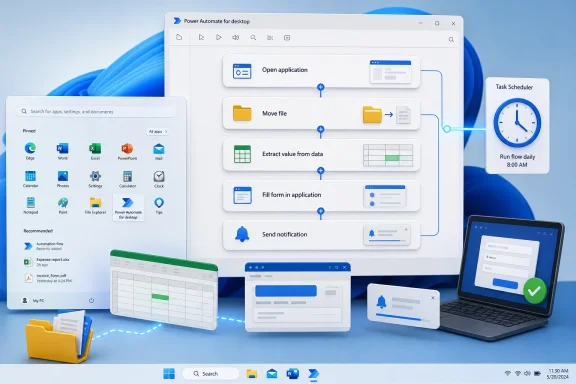
Power Automate for desktop changes the front door. Instead of asking the user to think in commands, it asks them to think in steps. Open an app, click a button, move a file, extract a value, populate a spreadsheet, send a notification: the workflow is assembled from actions, not typed from memory.
That design choice matters because most repetitive work on Windows is not glamorous. It is not a sci-fi assistant drafting a strategic memo or a Copilot producing a quarterly deck. It is the small daily tax of opening the same applications, renaming the same files, copying the same fields, downloading the same reports, and pasting the same data between systems that were never designed to talk to one another.
Windows Central’s walkthrough is useful because it points at the thing many Windows 11 Pro users have probably ignored: Power Automate is already sitting there, waiting to be treated as part of the OS rather than as an enterprise product with a marketing name. That framing is more important than the specific Slack-login example. The larger story is that Windows now ships with a low-code automation layer that can bridge desktop apps, web apps, files, folders, spreadsheets, and legacy interfaces.
That is not the same thing as making automation foolproof. Anyone who has built even a simple macro knows that recorded actions can be fragile. A button moves, a window title changes, a web page loads slowly, a dialog appears in an unexpected place, and yesterday’s perfect automation becomes today’s mysterious failure.
But the threshold has changed. A user no longer needs to know PowerShell before asking, “Can my PC do this for me every morning?” That question is the hinge. Power Automate for desktop reframes automation from an IT-specialist discipline into a habit that ordinary power users can develop.
This is where Windows 11 Pro becomes more interesting than its marketing checklist suggests. Pro has long been sold around business-friendly features such as BitLocker, Remote Desktop, Hyper-V, domain and Azure AD join, and policy management. Power Automate belongs to a different category: it does not just secure or manage the PC. It changes the labor model of using one.
Real workplaces do not always look like that. They are full of old line-of-business apps, intranet forms, vendor portals, Excel workbooks, PDF exports, shared folders, and web interfaces that have no usable API. In those environments, the user interface is not just a presentation layer. It is the only practical integration surface.
Power Automate for desktop exists because Microsoft knows this. Desktop flows are a pragmatic answer to the messy middle of business computing, where “just use the API” is often advice from someone who has never met the accounting package, shipping portal, or regulatory reporting site in question.
That does not make RPA magic. It makes it a compromise. A desktop flow can be enormously useful when it automates a stable, repetitive task in a controlled environment. It can also become technical debt if it quietly depends on screen coordinates, timing assumptions, or a user account whose password rotation breaks the whole chain.
That is also the moment when new users can get the wrong idea. Recording is a fast way to create a skeleton, but it is not a substitute for designing a reliable workflow. The better flows usually need conditions, error handling, variables, waits, retries, and checks that confirm whether the expected thing actually happened.
A recorded “open Slack and sign in” routine is a fine personal example because the stakes are low. If it fails, the user signs in manually and moves on. The same style of automation applied to payroll uploads, invoice processing, customer records, or compliance exports needs more discipline.
Power Automate’s value is not that it eliminates thinking. It moves the thinking to a different layer. Instead of thinking about every click every day, the user thinks once about the shape of the process, the likely exceptions, and the cost of failure.
Task Scheduler is one of those ancient Windows tools that never quite goes away because it solves a permanent problem. Something needs to happen at a time, after a trigger, or under a certain account. Pairing it with Power Automate gives non-programmers a way to create scheduled automations that would once have required scripts, service accounts, or a friendly admin.
But scheduling also raises the stakes. A flow that runs every morning assumes the PC is awake, the user session is in the right state, the target apps are available, and the network is behaving. If the automation touches a browser, it may depend on cookies, extensions, sign-in prompts, and page behavior. If it touches files, it may depend on path consistency and permissions.
This is why Power Automate for desktop should be treated as a productivity tool first and infrastructure second. It can absolutely become part of a lightweight business process. The mistake is pretending that a recorded desktop flow is automatically equivalent to a managed service.
The boundary appears when the automation needs to leave the local, attended desktop model. Cloud-triggered desktop flows, centralized management, shared environments, premium connectors, Dataverse-backed collaboration, and unattended RPA belong to the broader Power Platform licensing world. That world can be powerful, but it is not the same as “a free app included with Windows.”
This distinction matters for Windows 11 Pro users because the first successful automation often leads to a second, then a third, and then an uncomfortable question: can this run when I am not at the keyboard? That is where personal productivity automation starts to resemble business process automation.
Microsoft’s model nudges users along that path. Start locally. Discover value. Then, if the automation needs governance, sharing, cloud triggers, or unattended execution, move into paid territory. That is not sinister; it is a predictable platform strategy. But buyers and admins should understand the line before a department quietly builds half its workflow around flows that only one employee can run.
Shadow IT used to mean someone expensing an unsanctioned SaaS app. Low-code automation creates a subtler version: users can wire together sanctioned systems in unsanctioned ways. A desktop flow may move customer data from a CRM export to a spreadsheet, upload it to a portal, and email a result, all using tools the organization technically permits.
That is convenient until the organization needs to answer who built the flow, what data it touches, where logs live, what happens when it fails, and whether it still complies with retention, privacy, and security policy. The easier automation becomes, the more important inventory and guardrails become.
Windows 11 Pro shops should therefore treat Power Automate less like Notepad and more like Excel macros. Most macros are harmless. Some run entire businesses. A few become terrifying because nobody remembers who wrote them, how they work, or why the finance team is afraid to close the workbook.
That is the point, but it is also the risk. A flow that handles attachments can spread bad inputs through a process. A flow that scrapes web data can capture information that should not be stored. A flow that enters credentials into a legacy app can become a brittle workaround for a system that should have had modern authentication years ago.
The solution is not to ban automation. That would simply push the work back into manual drudgery or encourage users to find less visible tools. The solution is to make the boring parts explicit: credential storage, data handling, logging, ownership, exception paths, and review.
Power Automate’s appeal is that it lowers the barrier. Security’s job is to make sure the lowered barrier does not become a hole in the floor.
That shift is subtle but important. Much of Microsoft’s recent productivity messaging has been dominated by generative AI, Copilot branding, and cloud services. Power Automate for desktop is less glamorous, but in some ways more immediately practical. It does not need to invent text or summarize a meeting to prove its value. It just needs to stop a person from doing the same twelve-click ritual every day.
For Windows enthusiasts, this is a reminder that useful progress does not always arrive as a new Start menu or a redesigned Settings page. Sometimes it arrives as an overlooked app that turns a familiar operating system into a programmable workspace.
For small businesses, it offers a way to squeeze more life out of systems that are too important to replace and too awkward to integrate. For IT pros, it is both an opportunity and a warning: users are going to automate around friction whether the organization plans for it or not.
File cleanup is a natural first target. So are folder organization, report downloads, simple app launch sequences, bulk renaming, moving attachments, extracting values from predictable documents, and copying data between stable interfaces. These tasks are boring enough to justify automation and contained enough that a failure is usually survivable.
The wrong starting point is a process that is poorly understood, full of exceptions, and consequential when wrong. Automation does not fix a bad process. It can make a bad process fail faster, more consistently, and with a false sense of modernity.
There is a useful discipline here: before building a flow, write down the task in plain English. If the steps are unclear, the automation will be unclear. If the exceptions are common, the flow needs to account for them. If the task requires judgment, it may not be a good candidate for RPA at all.
But Microsoft does not need universal adoption for the product to matter. It needs enough users to develop an automation reflex. Once people start seeing repetitive PC work as something that can be delegated, the expectations around software change.
That is the same cultural shift Excel created decades ago. Spreadsheets did not make everyone a professional developer, but they gave office workers a way to build tools without waiting for software teams. The result was messy, powerful, risky, and indispensable. Power Automate is reaching for a similar space, with the added complexity that it can operate across applications rather than inside a grid.
The comparison should make admins both excited and nervous. End-user computing has always been where productivity and governance collide. Power Automate merely updates that collision for a world of web portals, SaaS dashboards, and legacy desktop software that refuses to die.
That future will be useful, but it will not remove the old problems. AI-generated flows will still need permissions, testing, monitoring, and ownership. A suggested automation that misunderstands a business rule is still wrong, no matter how confidently it was assembled.
The more interesting possibility is that AI may help users move beyond brittle recordings. Instead of simply replaying clicks, an assistant could help identify variables, add exception handling, suggest safer actions, and explain why a flow failed. That would be a meaningful advance because the hardest part of automation is rarely the first demo. It is keeping the thing alive after the environment changes.
For now, Power Automate for desktop sits in the transitional phase. It is approachable enough for normal users, deep enough for serious work, and connected enough to Microsoft’s broader platform ambitions. That combination is exactly why it deserves more attention than a preinstalled utility usually gets.
 Microsoft Hid a Robot in the Start Menu
Windows has always had automation, but it has rarely been friendly. Batch files, PowerShell scripts, Task Scheduler jobs, Group Policy preferences, COM automation, and Office macros have long given determined users ways to make the operating system do their bidding. The catch was that most of those tools assumed either technical fluency or a willingness to tolerate brittle syntax and cryptic failures.Power Automate for desktop changes the front door. Instead of asking the user to think in commands, it asks them to think in steps. Open an app, click a button, move a file, extract a value, populate a spreadsheet, send a notification: the workflow is assembled from actions, not typed from memory.
That design choice matters because most repetitive work on Windows is not glamorous. It is not a sci-fi assistant drafting a strategic memo or a Copilot producing a quarterly deck. It is the small daily tax of opening the same applications, renaming the same files, copying the same fields, downloading the same reports, and pasting the same data between systems that were never designed to talk to one another.
Windows Central’s walkthrough is useful because it points at the thing many Windows 11 Pro users have probably ignored: Power Automate is already sitting there, waiting to be treated as part of the OS rather than as an enterprise product with a marketing name. That framing is more important than the specific Slack-login example. The larger story is that Windows now ships with a low-code automation layer that can bridge desktop apps, web apps, files, folders, spreadsheets, and legacy interfaces.
The New Automation Pitch Is Not for Programmers
Microsoft’s pitch is deliberately democratic. Power Automate for desktop includes a visual designer, a recorder, and hundreds of prebuilt actions. A user can build a flow by dragging actions into order, or by recording mouse and keyboard activity and letting the app translate the performance into repeatable steps.That is not the same thing as making automation foolproof. Anyone who has built even a simple macro knows that recorded actions can be fragile. A button moves, a window title changes, a web page loads slowly, a dialog appears in an unexpected place, and yesterday’s perfect automation becomes today’s mysterious failure.
But the threshold has changed. A user no longer needs to know PowerShell before asking, “Can my PC do this for me every morning?” That question is the hinge. Power Automate for desktop reframes automation from an IT-specialist discipline into a habit that ordinary power users can develop.
This is where Windows 11 Pro becomes more interesting than its marketing checklist suggests. Pro has long been sold around business-friendly features such as BitLocker, Remote Desktop, Hyper-V, domain and Azure AD join, and policy management. Power Automate belongs to a different category: it does not just secure or manage the PC. It changes the labor model of using one.
The Desktop Flow Is Microsoft’s Compromise With Reality
The cleanest version of automation is API-based. One system exposes data, another consumes it, permissions are explicit, and the whole process runs without pretending to be a person clicking buttons. That is elegant, auditable, and usually preferable.Real workplaces do not always look like that. They are full of old line-of-business apps, intranet forms, vendor portals, Excel workbooks, PDF exports, shared folders, and web interfaces that have no usable API. In those environments, the user interface is not just a presentation layer. It is the only practical integration surface.
Power Automate for desktop exists because Microsoft knows this. Desktop flows are a pragmatic answer to the messy middle of business computing, where “just use the API” is often advice from someone who has never met the accounting package, shipping portal, or regulatory reporting site in question.
That does not make RPA magic. It makes it a compromise. A desktop flow can be enormously useful when it automates a stable, repetitive task in a controlled environment. It can also become technical debt if it quietly depends on screen coordinates, timing assumptions, or a user account whose password rotation breaks the whole chain.
The Recorder Is the Gateway Drug, Not the Destination
The most approachable feature is the recorder. Press record, perform the task, stop recording, and Power Automate produces a flow. For a first-time user, this is the moment the product clicks: the PC has watched a chore and learned enough to repeat it.That is also the moment when new users can get the wrong idea. Recording is a fast way to create a skeleton, but it is not a substitute for designing a reliable workflow. The better flows usually need conditions, error handling, variables, waits, retries, and checks that confirm whether the expected thing actually happened.
A recorded “open Slack and sign in” routine is a fine personal example because the stakes are low. If it fails, the user signs in manually and moves on. The same style of automation applied to payroll uploads, invoice processing, customer records, or compliance exports needs more discipline.
Power Automate’s value is not that it eliminates thinking. It moves the thinking to a different layer. Instead of thinking about every click every day, the user thinks once about the shape of the process, the likely exceptions, and the cost of failure.
Task Scheduler Is Where the Toy Becomes Infrastructure
The Windows Central example goes one step further by connecting a desktop flow to Task Scheduler. That small detail changes the meaning of the workflow. A button-triggered flow is a convenience; a scheduled flow is a miniature operational system.Task Scheduler is one of those ancient Windows tools that never quite goes away because it solves a permanent problem. Something needs to happen at a time, after a trigger, or under a certain account. Pairing it with Power Automate gives non-programmers a way to create scheduled automations that would once have required scripts, service accounts, or a friendly admin.
But scheduling also raises the stakes. A flow that runs every morning assumes the PC is awake, the user session is in the right state, the target apps are available, and the network is behaving. If the automation touches a browser, it may depend on cookies, extensions, sign-in prompts, and page behavior. If it touches files, it may depend on path consistency and permissions.
This is why Power Automate for desktop should be treated as a productivity tool first and infrastructure second. It can absolutely become part of a lightweight business process. The mistake is pretending that a recorded desktop flow is automatically equivalent to a managed service.
Free Is Not the Same as Unlimited
The word “free” does a lot of work in discussions of Power Automate for desktop. For Windows 11 users, the desktop authoring experience and local attended automation are accessible in a way that makes the tool feel bundled with the operating system. That is genuinely useful, especially for individual users and small teams trying to remove repetitive work without buying another application.The boundary appears when the automation needs to leave the local, attended desktop model. Cloud-triggered desktop flows, centralized management, shared environments, premium connectors, Dataverse-backed collaboration, and unattended RPA belong to the broader Power Platform licensing world. That world can be powerful, but it is not the same as “a free app included with Windows.”
This distinction matters for Windows 11 Pro users because the first successful automation often leads to a second, then a third, and then an uncomfortable question: can this run when I am not at the keyboard? That is where personal productivity automation starts to resemble business process automation.
Microsoft’s model nudges users along that path. Start locally. Discover value. Then, if the automation needs governance, sharing, cloud triggers, or unattended execution, move into paid territory. That is not sinister; it is a predictable platform strategy. But buyers and admins should understand the line before a department quietly builds half its workflow around flows that only one employee can run.
The Admin Problem Is Not Whether Automation Works
For IT departments, the question is not whether Power Automate for desktop can save time. It can. The harder question is how to govern a tool that allows users to automate interactions across apps, files, web pages, and business systems without writing code or opening a ticket.Shadow IT used to mean someone expensing an unsanctioned SaaS app. Low-code automation creates a subtler version: users can wire together sanctioned systems in unsanctioned ways. A desktop flow may move customer data from a CRM export to a spreadsheet, upload it to a portal, and email a result, all using tools the organization technically permits.
That is convenient until the organization needs to answer who built the flow, what data it touches, where logs live, what happens when it fails, and whether it still complies with retention, privacy, and security policy. The easier automation becomes, the more important inventory and guardrails become.
Windows 11 Pro shops should therefore treat Power Automate less like Notepad and more like Excel macros. Most macros are harmless. Some run entire businesses. A few become terrifying because nobody remembers who wrote them, how they work, or why the finance team is afraid to close the workbook.
Security Lives in the Boring Details
Automation inherits the permissions of the account and environment in which it runs. That simple fact should be written on the wall above every RPA project. If a user can access a folder, submit a form, download a report, or email a file, a desktop flow may be able to do the same thing faster and with less hesitation.That is the point, but it is also the risk. A flow that handles attachments can spread bad inputs through a process. A flow that scrapes web data can capture information that should not be stored. A flow that enters credentials into a legacy app can become a brittle workaround for a system that should have had modern authentication years ago.
The solution is not to ban automation. That would simply push the work back into manual drudgery or encourage users to find less visible tools. The solution is to make the boring parts explicit: credential storage, data handling, logging, ownership, exception paths, and review.
Power Automate’s appeal is that it lowers the barrier. Security’s job is to make sure the lowered barrier does not become a hole in the floor.
Windows 11 Pro Gets More Interesting When It Stops Being Passive
The Windows PC has often been treated as a passive endpoint: a place where apps run, documents live, and users perform work. Power Automate suggests a more active model. The PC can become an orchestrator of local tasks, not merely the surface on which those tasks are performed.That shift is subtle but important. Much of Microsoft’s recent productivity messaging has been dominated by generative AI, Copilot branding, and cloud services. Power Automate for desktop is less glamorous, but in some ways more immediately practical. It does not need to invent text or summarize a meeting to prove its value. It just needs to stop a person from doing the same twelve-click ritual every day.
For Windows enthusiasts, this is a reminder that useful progress does not always arrive as a new Start menu or a redesigned Settings page. Sometimes it arrives as an overlooked app that turns a familiar operating system into a programmable workspace.
For small businesses, it offers a way to squeeze more life out of systems that are too important to replace and too awkward to integrate. For IT pros, it is both an opportunity and a warning: users are going to automate around friction whether the organization plans for it or not.
The Best Flows Start With Annoyance, Not Ambition
The right way to begin with Power Automate for desktop is not to automate the most important process in the company. It is to automate the most annoying safe one. Repetitive, low-risk, reversible work is where the tool shines early.File cleanup is a natural first target. So are folder organization, report downloads, simple app launch sequences, bulk renaming, moving attachments, extracting values from predictable documents, and copying data between stable interfaces. These tasks are boring enough to justify automation and contained enough that a failure is usually survivable.
The wrong starting point is a process that is poorly understood, full of exceptions, and consequential when wrong. Automation does not fix a bad process. It can make a bad process fail faster, more consistently, and with a false sense of modernity.
There is a useful discipline here: before building a flow, write down the task in plain English. If the steps are unclear, the automation will be unclear. If the exceptions are common, the flow needs to account for them. If the task requires judgment, it may not be a good candidate for RPA at all.
Microsoft’s Real Bet Is Habit Formation
Power Automate for desktop will not turn every Windows 11 Pro user into an automation designer. Most people will never open it. Many who do will record one flow, watch it break, and decide the old manual way was less frustrating.But Microsoft does not need universal adoption for the product to matter. It needs enough users to develop an automation reflex. Once people start seeing repetitive PC work as something that can be delegated, the expectations around software change.
That is the same cultural shift Excel created decades ago. Spreadsheets did not make everyone a professional developer, but they gave office workers a way to build tools without waiting for software teams. The result was messy, powerful, risky, and indispensable. Power Automate is reaching for a similar space, with the added complexity that it can operate across applications rather than inside a grid.
The comparison should make admins both excited and nervous. End-user computing has always been where productivity and governance collide. Power Automate merely updates that collision for a world of web portals, SaaS dashboards, and legacy desktop software that refuses to die.
AI Will Make the Boundary Blurrier
Microsoft increasingly talks about automation alongside generative AI, and that pairing is not accidental. Low-code tools reduce the need to write syntax; AI reduces the need to know where to start. Together, they point toward a future in which a user describes a workflow and the system proposes the automation.That future will be useful, but it will not remove the old problems. AI-generated flows will still need permissions, testing, monitoring, and ownership. A suggested automation that misunderstands a business rule is still wrong, no matter how confidently it was assembled.
The more interesting possibility is that AI may help users move beyond brittle recordings. Instead of simply replaying clicks, an assistant could help identify variables, add exception handling, suggest safer actions, and explain why a flow failed. That would be a meaningful advance because the hardest part of automation is rarely the first demo. It is keeping the thing alive after the environment changes.
For now, Power Automate for desktop sits in the transitional phase. It is approachable enough for normal users, deep enough for serious work, and connected enough to Microsoft’s broader platform ambitions. That combination is exactly why it deserves more attention than a preinstalled utility usually gets.
The Quiet Windows 11 Pro Feature That Deserves a Pilot Project
Power Automate for desktop is worth treating as a real Windows capability, not just a curiosity in the Start menu. The best use cases are concrete, repetitive, and close to the user, where a small automation can return time immediately without creating an operational dependency nobody understands.- Windows 11 Pro users can create desktop flows that automate routine work across local apps, web apps, files, folders, and spreadsheets.
- The recorder is the fastest way to begin, but reliable flows usually need deliberate checks, waits, variables, and error handling.
- Local attended automation is the natural starting point, while cloud-triggered, shared, and unattended scenarios move into broader Power Platform licensing and governance.
- Task Scheduler can make a desktop flow feel like infrastructure, but scheduled automation needs assumptions about sign-in state, network access, app availability, and failure recovery.
- IT teams should encourage safe automation while setting expectations for ownership, data handling, credential use, logging, and review.
- The best first projects are low-risk annoyances that waste time every day, not mission-critical workflows full of exceptions.
References
- Primary source: Windows Central
Published: Tue, 26 May 2026 21:03:53 GMT
Automate repetitive tasks with Power Automate Desktop on Windows 11 Pro | Windows Central
Windows 11 Pro's built-in automation tool makes it easy for all users to offload routine tasks. Here's how it works.www.windowscentral.com - Official source: learn.microsoft.com
Prerequisites and limitations - Power Automate | Microsoft Learn
Learn about the prerequisites and limitations of Power Automate for desktop.learn.microsoft.com - Official source: microsoft.com
Windows 11 Specs and System Requirements | Microsoft Windows
View Windows 11 specs, system requirements, and features from Microsoft. Learn about the device specifications, versions, and languages available for Windows 11.www.microsoft.com - Official source: techcommunity.microsoft.com
Getting started with Power Automate for desktop in Windows 11 | Microsoft Community Hub
Explore the latest updates to Power Automate: more flexibility with automations, management and control updates, and more! techcommunity.microsoft.com
- Official source: cdn-dynmedia-1.microsoft.com
- Official source: download.microsoft.com
- Official source: info.microsoft.com
- Related coverage: eriyabv.nl
