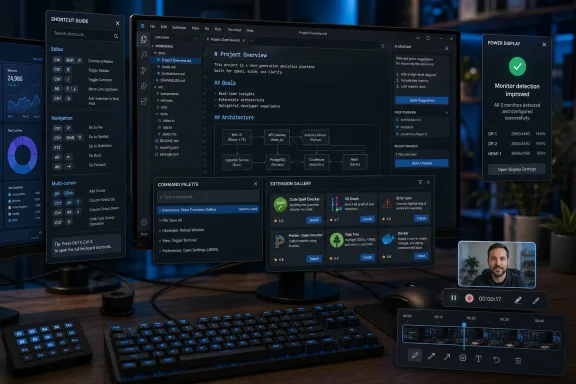
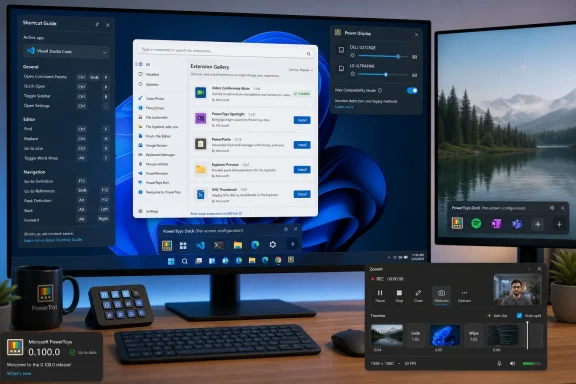
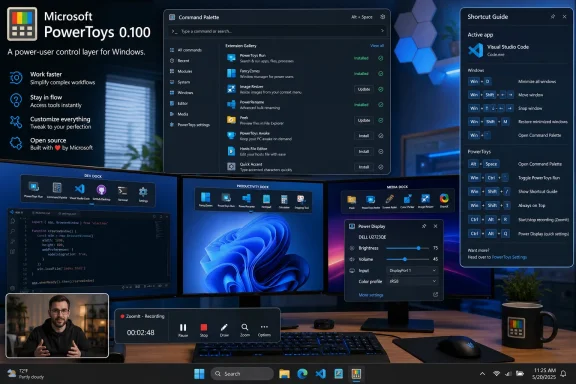
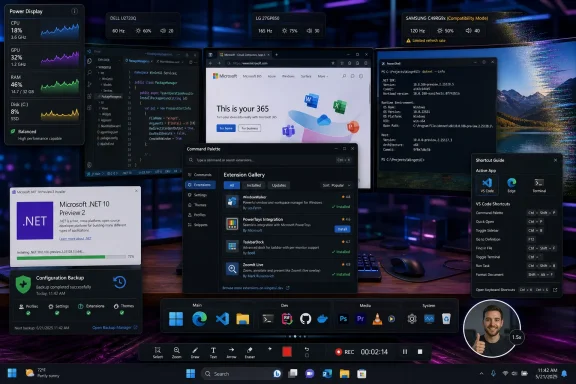
Microsoft released PowerToys v0.100.0 on June 9, 2026, bringing a built-in Command Palette Extension Gallery, a redesigned Shortcut Guide, multi-monitor Dock support, faster Power Display behavior, ZoomIt webcam overlays, and a smaller installer after the project’s move to .NET 10. The headline feature is not the flashiest one, but it may be the most important: Microsoft is turning Command Palette from a clever launcher into a credible Windows power-user platform. That matters because PowerToys has long lived in the awkward space between “unsupported enthusiast toolbox” and “features Windows probably should have had already.” Version 0.100.0 pushes it closer to the latter without giving up the speed and messiness that make it useful.
For most users, PowerToys Command Palette has been easy to admire and hard to fully inhabit. It promised the keyboard-first efficiency of tools like Spotlight, Raycast, Alfred, and PowerToys Run, but its extension story still felt like something built for people who enjoy reading GitHub threads before breakfast. If you knew where to look, you could expand it. If you did not, the feature’s ceiling was hidden behind package managers and scattered discovery paths.
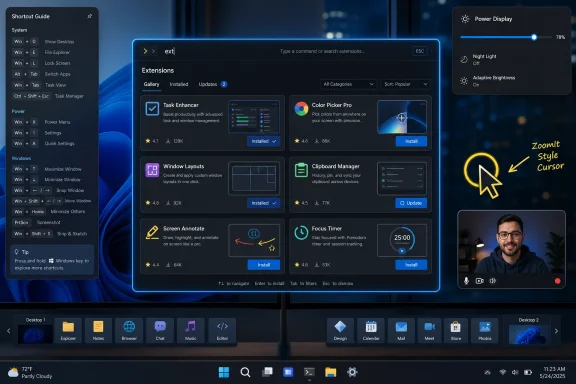
The new Extension Gallery changes that social contract. In v0.100.0, users can browse, install, update, and remove community extensions from inside Command Palette settings, with extension details, screenshots, cached gallery data, and WinGet status integration. That is a mundane sentence with large consequences: it moves extensions from being an external chore into the normal lifecycle of the feature.
This is the difference between a launcher and an ecosystem. A launcher opens apps, runs commands, and maybe performs calculations. An ecosystem invites developers to fill in the gaps Microsoft will never prioritize and gives users a sane way to find that work without treating GitHub, the Microsoft Store, and WinGet as a scavenger hunt.
Microsoft has been here before with Windows. The company often builds extensibility first and discoverability later, assuming the most motivated users will bridge the gap. PowerToys v0.100.0 is one of those moments where the bridge becomes part of the product.
The Extension Gallery is important because it collapses intent and action. A user who wants a GitHub extension, an Obsidian extension, a developer workflow helper, or a productivity plug-in should not have to leave the interface that created the desire in the first place. They should search, inspect, install, and get back to work.
That is especially true for Command Palette because its value increases with context. The more commands, workflows, and destinations it understands, the more often it becomes the fastest path through Windows. But extension systems only work when users trust the path from discovery to installation. If that path feels unofficial, fragmented, or risky, most users never make it past the default experience.
Microsoft’s implementation still appears grounded in WinGet rather than a fully separate extension marketplace, which is the right kind of compromise for PowerToys. It avoids pretending that PowerToys is a polished consumer app store while still giving users a front door. For administrators, it also means the underlying package-management story remains recognizable rather than sealed inside yet another Microsoft-specific distribution layer.
That is not a weakness. It is the point.
PowerToys is where Microsoft can ship Windows-adjacent ideas without committing the entire operating system to them. FancyZones, PowerRename, Awake, Mouse Without Borders, Advanced Paste, PowerToys Run, Command Palette, Workspaces, Peek, Power Display, and ZoomIt all sit somewhere on the spectrum between niche convenience and obvious platform improvement. Some feel like utilities for obsessive multitaskers. Others feel like previews of Windows features that should have existed a decade ago.
Keeping PowerToys separate from Windows lets Microsoft move faster, accept rough edges, and serve users who want control more than minimalism. It also gives the company a release vehicle that is not tied to the Windows feature-update calendar or the politics of what counts as “bloat.” The price is that PowerToys remains something users must discover and install themselves.
Version 0.100.0 sharpens that bargain. It does not make PowerToys more mainstream by sanding away its complexity. It makes the complexity easier to reach, easier to manage, and slightly less intimidating.
Modern Windows is full of power hiding in plain sight. Snap layouts, virtual desktops, taskbar controls, app-specific shortcuts, PowerToys modules, window management tools, and accessibility features all depend on users remembering combinations that are rarely surfaced at the moment they would be useful. Microsoft has spent years making Windows more visually approachable while its fastest workflows remain trapped in muscle memory, forum posts, and “top 20 shortcuts” articles.
Shortcut Guide V2, now simply the shipping Shortcut Guide, tries to make that knowledge more contextual. The release adds built-in manifests for Windows, PowerToys, and common apps, with taskbar and context-aware navigation. It also improves reliability, fixes crashes around missing or unreadable manifests, and cleans up how configured shortcuts are shown.
That is not glamorous, but it is strategically aligned with what PowerToys has become. The suite is no longer just a bucket of utilities. It is increasingly a layer of power-user affordances on top of Windows. If Command Palette is the keyboard-first command surface, Shortcut Guide is the memory aid that helps users understand what surfaces already exist.
There is a subtle humility in that. Instead of assuming users will learn Windows by osmosis, PowerToys is acknowledging that the operating system has become too broad for even experienced users to keep fully indexed in their heads.
Command Palette Dock support now lets users customize dock bands separately per monitor, drag dock bands between monitors, and keep independent layouts for different display arrangements. It also fixes positioning issues when opening palette items from secondary displays, refreshes tooltips properly, and addresses edge cases around dock windows after disconnect and reconnect events. That is the kind of work that never looks spectacular in a release blog but determines whether a feature survives real use.
Multi-monitor bugs are trust killers. A launcher or dock that appears on the wrong screen, forgets its layout, or leaves a visual artifact behind after a monitor wakes up does not feel like a productivity tool. It feels like another thing to babysit.
PowerToys v0.100.0 treats those annoyances as first-class engineering problems. That is significant because PowerToys users are often the same people whose Windows environments are least like Microsoft’s default screenshots. They have mismatched DPI settings, weird USB-C docks, virtual desktops, remote sessions, elevated tools, and enough peripherals to make clean state assumptions collapse.
If Command Palette is going to become a daily control surface, it has to behave correctly in messy physical setups. Version 0.100.0 does not make that story finished, but it clearly moves the Dock from “interesting experiment” toward “something you might leave on all day.”
The challenge is that monitor control is messy because DDC/CI support is messy. Displays vary widely in how they expose capabilities, how accurately they report ranges, and how gracefully they respond to probing. A utility that promises convenient monitor control can quickly become a source of hangs, crashes, or confusing behavior if it assumes every display behaves like a well-documented reference device.
PowerToys v0.100.0 appears to take that lesson seriously. The update improves monitor discovery, distinguishes internal panels from external displays before applying brightness controls, rescans when screens wake, adds a compatibility mode for displays skipped by standard discovery, and introduces safeguards for known problematic monitors. It also scales slider values correctly for monitors whose native ranges are not 0–100 and preserves per-monitor preferences across restarts, reordering, and transient discovery failures.
The more interesting change is philosophical: Power Display now automatically disables itself after a detected DDC/CI capability crash and warns users before they re-enable it. That is a defensive design choice, and a good one. Microsoft is effectively saying that convenience should not keep hammering unstable hardware just because the user flipped a feature on once.
For IT pros, that matters. Monitor-control utilities can look harmless until they produce support tickets that are hard to reproduce. A built-in lockout, clearer diagnostics, and a more cautious probing strategy make Power Display less of a science project and more of a tool administrators might tolerate on real machines.
In v0.100.0, ZoomIt gains webcam capture overlay and multi-clip append-with-transitions support in the recording and trim editor. That moves it closer to the lightweight creator tools many technical workers now need but do not necessarily want to buy as separate subscriptions. It is not trying to replace a full video editor, and it should not. Its strength is that it sits close to the work.
The webcam overlay is particularly telling. The line between “presenting a technical issue” and “creating content” has blurred. A sysadmin recording a five-minute clip for colleagues, a developer explaining a bug, or a trainer documenting a workflow may all want the same basic ingredients: screen, voice, face, annotation, and quick trimming. ZoomIt now covers more of that path.
The update also fixes a nasty hotkey issue where an Alt-only modifier could register in a way that hijacked bare keypresses, and it exposes a 16:9 aspect-ratio toggle for region recording in settings. Those fixes are not secondary. Recording tools live or die by whether they stay out of the way when they are not being used.
There is an old Microsoft pattern here: acquire or steward a beloved utility, slowly make it more broadly useful, and resist overcomplicating it. ZoomIt’s PowerToys integration is beginning to feel less like preservation and more like active modernization.
That matters because PowerToys is vulnerable to the most obvious criticism of any utility suite: why does a set of helper tools need to be this large, this complex, or this resource-hungry? Every new module makes the suite more useful to someone and more suspicious to someone else. A smaller footprint is not just an optimization; it is an argument against the charge that PowerToys is becoming bloat.
The .NET 10 migration also tells us something about PowerToys’ internal role at Microsoft. This is not abandonware, and it is not merely a nostalgic brand revived for GitHub goodwill. It is being moved onto current developer foundations, updated alongside Windows App SDK changes, and maintained with enough seriousness that build tooling now accounts for Visual Studio 2026 preview environments.
That does create a practical boundary. Building PowerToys from source now requires newer tooling, which is fine for the project’s mainline velocity but may irritate contributors on older development setups. Still, for most users, the result is simpler: faster startup paths, smaller downloads, and fewer reasons to accuse a power-user suite of behaving like a heavyweight platform.
PowerToys is increasingly a test of whether Microsoft can modernize Windows-adjacent software without turning it into a slow, cloudy, account-bound service. So far, v0.100.0 is evidence in Microsoft’s favor.
PowerToys users often customize deeply. They remap keys, define FancyZones layouts, create image presets, pin commands, configure shortcuts, and tune modules around personal workflows. Losing that state during an update is not a minor inconvenience. It can turn an optional tool into an operational liability.
The JSON backup behavior is therefore more than housekeeping. It recognizes that configuration is user data. In a suite this broad, settings are not disposable preferences; they are often accumulated workflow knowledge. Protecting them makes frequent updates less risky.
For enterprise environments, the Group Policy template fix is similarly important. The release bumps the en-US ADML revision to match the ADMX file, resolving a Group Policy Editor load error that prevented administrators from loading PowerToys policy templates. That is a narrow fix, but it speaks to the ongoing tension around PowerToys in managed environments.
PowerToys is beloved by technical users, but corporate IT has to think about policy, supportability, and repeatability. Every small enterprise-management improvement makes it easier to argue that PowerToys can be allowed rather than quietly installed by frustrated users.
The v0.100.0 update makes that ambition more explicit. Command Palette now supports parameter pages so extensions can request lightweight inputs directly in the search experience. Bookmarked commands can collect placeholder values inline rather than forcing users through separate pages. The calculator gets new random functions and better parsing for multi-argument functions in locales where commas carry multiple meanings. Remote Desktop support now accepts arbitrary hostnames typed into the list page, not only discovered connections.
Those are small changes in isolation, but together they point toward a richer interaction model. A mature command palette should not merely find commands. It should help complete them. It should ask for the missing input, preserve useful variations, and make repeat actions faster without turning everything into a wizard.
That is where Windows has lagged behind the best third-party launchers on other platforms. Start search is broad but inconsistent. Run is fast but primitive. Terminal is powerful but specialized. Command Palette can sit between them, offering a command surface that is discoverable, extensible, and fast enough to become habit.
The Extension Gallery is the missing piece because an extensible command surface without extension discovery is only theoretically extensible. With v0.100.0, Microsoft is no longer asking users to imagine the ecosystem. It is putting the front door inside the product.
That breadth is both PowerToys’ superpower and its liability. The suite can delight because every update contains something for someone. It can also overwhelm because no single user needs all of it, and the project’s identity becomes harder to explain with every new module.
Microsoft’s answer has been modularity. Users can enable what they need, ignore what they do not, and treat PowerToys as a toolbox rather than a single coherent app. That answer mostly works, but only if the toolbox itself remains manageable. Settings must stay understandable, updates must stay reliable, and background components must not become a tax on every Windows session.
Version 0.100.0 shows awareness of that risk. The Settings UI gets refreshed imagery and cleaner controls. Quick Access gains useful reconnection affordances for Mouse Without Borders. Peek adds a toggle to disable metadata tooltips. Image Resizer reloads settings live. Quick Accent gets UI consistency and high-DPI fixes. These are not banner features, but they keep the suite from collapsing under its own accumulation.
PowerToys is at its best when it feels like a collection of sharp instruments. The danger is that it becomes a drawer full of cables. The v0.100.0 release is encouraging because much of its work is about labeling, organizing, shrinking, and stabilizing the drawer.
Command Palette sits right in the middle of that debate. Windows would benefit from a better command surface, and Start search has spent years damaging user trust by mixing local results, web content, recommendations, and inconsistent ranking. A fast, extensible, keyboard-first command interface would make Windows feel more professional. But shipping that as a default OS feature would raise hard questions about extension security, policy control, support burden, and consumer simplicity.
PowerToys lets Microsoft avoid choosing too early. It can build the feature in public, with the audience most likely to file useful bugs and tolerate iteration. If Command Palette becomes indispensable, Microsoft will have evidence for deeper Windows integration. If it remains a power-user tool, PowerToys remains the right home.
That incubation model is frustrating only if one assumes Windows should absorb every good idea immediately. In reality, Windows is too large and too politically constrained for that. PowerToys works because it is allowed to be opinionated in ways Windows often cannot be.
The irony is that the better PowerToys becomes, the more obvious Windows’ gaps look. Version 0.100.0 does not end that tension. It makes it harder to ignore.
PowerToys v0.100.0 is not a 1.0 moment, and that is probably for the best. Its achievement is subtler: Microsoft has made the suite feel more mature without freezing it into something cautious. If the next phase of Windows productivity is going to be built around command surfaces, contextual shortcuts, modular utilities, and user-controlled workflows, PowerToys is where Microsoft is letting that future arrive early.
 Microsoft Turns Command Palette Into a Place, Not Just a Shortcut
For most users, PowerToys Command Palette has been easy to admire and hard to fully inhabit. It promised the keyboard-first efficiency of tools like Spotlight, Raycast, Alfred, and PowerToys Run, but its extension story still felt like something built for people who enjoy reading GitHub threads before breakfast. If you knew where to look, you could expand it. If you did not, the feature’s ceiling was hidden behind package managers and scattered discovery paths.The new Extension Gallery changes that social contract. In v0.100.0, users can browse, install, update, and remove community extensions from inside Command Palette settings, with extension details, screenshots, cached gallery data, and WinGet status integration. That is a mundane sentence with large consequences: it moves extensions from being an external chore into the normal lifecycle of the feature.
This is the difference between a launcher and an ecosystem. A launcher opens apps, runs commands, and maybe performs calculations. An ecosystem invites developers to fill in the gaps Microsoft will never prioritize and gives users a sane way to find that work without treating GitHub, the Microsoft Store, and WinGet as a scavenger hunt.
Microsoft has been here before with Windows. The company often builds extensibility first and discoverability later, assuming the most motivated users will bridge the gap. PowerToys v0.100.0 is one of those moments where the bridge becomes part of the product.
The Installation Hassle Was a Product Problem Masquerading as User Choice
Before this release, the friction around Command Palette extensions had a familiar Windows flavor. Users could use the Microsoft Store, WinGet, or manual discovery paths, which sounds flexible until you remember that “flexible” is often what vendors call an experience that has not yet been properly designed. Power users can tolerate that, but tolerance is not adoption.The Extension Gallery is important because it collapses intent and action. A user who wants a GitHub extension, an Obsidian extension, a developer workflow helper, or a productivity plug-in should not have to leave the interface that created the desire in the first place. They should search, inspect, install, and get back to work.
That is especially true for Command Palette because its value increases with context. The more commands, workflows, and destinations it understands, the more often it becomes the fastest path through Windows. But extension systems only work when users trust the path from discovery to installation. If that path feels unofficial, fragmented, or risky, most users never make it past the default experience.
Microsoft’s implementation still appears grounded in WinGet rather than a fully separate extension marketplace, which is the right kind of compromise for PowerToys. It avoids pretending that PowerToys is a polished consumer app store while still giving users a front door. For administrators, it also means the underlying package-management story remains recognizable rather than sealed inside yet another Microsoft-specific distribution layer.
PowerToys Reaches 0.100 Without Pretending It Is Finished
The version number is almost too perfect. PowerToys v0.100.0 looks, at a glance, like it should be a milestone on the way to 1.0, a neat psychological marker for a project that has been accumulating utilities, rewrites, and platform experiments for years. But PowerToys has never behaved like a conventional application marching toward a stable final form.That is not a weakness. It is the point.
PowerToys is where Microsoft can ship Windows-adjacent ideas without committing the entire operating system to them. FancyZones, PowerRename, Awake, Mouse Without Borders, Advanced Paste, PowerToys Run, Command Palette, Workspaces, Peek, Power Display, and ZoomIt all sit somewhere on the spectrum between niche convenience and obvious platform improvement. Some feel like utilities for obsessive multitaskers. Others feel like previews of Windows features that should have existed a decade ago.
Keeping PowerToys separate from Windows lets Microsoft move faster, accept rough edges, and serve users who want control more than minimalism. It also gives the company a release vehicle that is not tied to the Windows feature-update calendar or the politics of what counts as “bloat.” The price is that PowerToys remains something users must discover and install themselves.
Version 0.100.0 sharpens that bargain. It does not make PowerToys more mainstream by sanding away its complexity. It makes the complexity easier to reach, easier to manage, and slightly less intimidating.
The Shortcut Guide Redesign Admits Windows Has a Memory Problem
The new Shortcut Guide is easy to underestimate because shortcut references sound boring. They are the kind of feature that appears in onboarding screens, gets dismissed once, and then disappears from memory along with half the keyboard combinations it was trying to teach. But Windows has a genuine discoverability problem, and keyboard shortcuts are one of the clearest symptoms.Modern Windows is full of power hiding in plain sight. Snap layouts, virtual desktops, taskbar controls, app-specific shortcuts, PowerToys modules, window management tools, and accessibility features all depend on users remembering combinations that are rarely surfaced at the moment they would be useful. Microsoft has spent years making Windows more visually approachable while its fastest workflows remain trapped in muscle memory, forum posts, and “top 20 shortcuts” articles.
Shortcut Guide V2, now simply the shipping Shortcut Guide, tries to make that knowledge more contextual. The release adds built-in manifests for Windows, PowerToys, and common apps, with taskbar and context-aware navigation. It also improves reliability, fixes crashes around missing or unreadable manifests, and cleans up how configured shortcuts are shown.
That is not glamorous, but it is strategically aligned with what PowerToys has become. The suite is no longer just a bucket of utilities. It is increasingly a layer of power-user affordances on top of Windows. If Command Palette is the keyboard-first command surface, Shortcut Guide is the memory aid that helps users understand what surfaces already exist.
There is a subtle humility in that. Instead of assuming users will learn Windows by osmosis, PowerToys is acknowledging that the operating system has become too broad for even experienced users to keep fully indexed in their heads.
Dock Multi-Monitor Support Shows Where Enthusiasts Actually Live
Multi-monitor support is another one of those features that sounds like a checkbox until it fails. For the users most likely to install PowerToys, multiple displays are not exotic. They are the default environment: a laptop plus an external monitor, a trading-desk-style wall of panels, a developer setup with one vertical display, or a home office that changes shape every time a dock is connected.Command Palette Dock support now lets users customize dock bands separately per monitor, drag dock bands between monitors, and keep independent layouts for different display arrangements. It also fixes positioning issues when opening palette items from secondary displays, refreshes tooltips properly, and addresses edge cases around dock windows after disconnect and reconnect events. That is the kind of work that never looks spectacular in a release blog but determines whether a feature survives real use.
Multi-monitor bugs are trust killers. A launcher or dock that appears on the wrong screen, forgets its layout, or leaves a visual artifact behind after a monitor wakes up does not feel like a productivity tool. It feels like another thing to babysit.
PowerToys v0.100.0 treats those annoyances as first-class engineering problems. That is significant because PowerToys users are often the same people whose Windows environments are least like Microsoft’s default screenshots. They have mismatched DPI settings, weird USB-C docks, virtual desktops, remote sessions, elevated tools, and enough peripherals to make clean state assumptions collapse.
If Command Palette is going to become a daily control surface, it has to behave correctly in messy physical setups. Version 0.100.0 does not make that story finished, but it clearly moves the Dock from “interesting experiment” toward “something you might leave on all day.”
Power Display Gets Faster by Becoming More Cautious
Power Display, introduced in the previous release cycle, is one of the more practical recent additions to PowerToys. It gives users a way to adjust monitor brightness, contrast, and volume from Windows rather than poking at clumsy monitor buttons and on-screen display menus. Anyone who has used a multi-monitor desktop with inconsistent brightness controls understands the appeal immediately.The challenge is that monitor control is messy because DDC/CI support is messy. Displays vary widely in how they expose capabilities, how accurately they report ranges, and how gracefully they respond to probing. A utility that promises convenient monitor control can quickly become a source of hangs, crashes, or confusing behavior if it assumes every display behaves like a well-documented reference device.
PowerToys v0.100.0 appears to take that lesson seriously. The update improves monitor discovery, distinguishes internal panels from external displays before applying brightness controls, rescans when screens wake, adds a compatibility mode for displays skipped by standard discovery, and introduces safeguards for known problematic monitors. It also scales slider values correctly for monitors whose native ranges are not 0–100 and preserves per-monitor preferences across restarts, reordering, and transient discovery failures.
The more interesting change is philosophical: Power Display now automatically disables itself after a detected DDC/CI capability crash and warns users before they re-enable it. That is a defensive design choice, and a good one. Microsoft is effectively saying that convenience should not keep hammering unstable hardware just because the user flipped a feature on once.
For IT pros, that matters. Monitor-control utilities can look harmless until they produce support tickets that are hard to reproduce. A built-in lockout, clearer diagnostics, and a more cautious probing strategy make Power Display less of a science project and more of a tool administrators might tolerate on real machines.
ZoomIt Becomes More Native to the Creator-Admin Era
ZoomIt has always been one of the strangest jewels in the Windows utility world. It began as a Sysinternals favorite for presenters who needed to zoom, annotate, and draw attention during demos. Over time, its role has expanded because the way technical work is communicated has changed. Screen recordings, internal walkthroughs, incident reviews, training clips, and hybrid meetings have made presentation tools part of everyday IT work.In v0.100.0, ZoomIt gains webcam capture overlay and multi-clip append-with-transitions support in the recording and trim editor. That moves it closer to the lightweight creator tools many technical workers now need but do not necessarily want to buy as separate subscriptions. It is not trying to replace a full video editor, and it should not. Its strength is that it sits close to the work.
The webcam overlay is particularly telling. The line between “presenting a technical issue” and “creating content” has blurred. A sysadmin recording a five-minute clip for colleagues, a developer explaining a bug, or a trainer documenting a workflow may all want the same basic ingredients: screen, voice, face, annotation, and quick trimming. ZoomIt now covers more of that path.
The update also fixes a nasty hotkey issue where an Alt-only modifier could register in a way that hijacked bare keypresses, and it exposes a 16:9 aspect-ratio toggle for region recording in settings. Those fixes are not secondary. Recording tools live or die by whether they stay out of the way when they are not being used.
There is an old Microsoft pattern here: acquire or steward a beloved utility, slowly make it more broadly useful, and resist overcomplicating it. ZoomIt’s PowerToys integration is beginning to feel less like preservation and more like active modernization.
The .NET 10 Move Is the Quiet Infrastructure Story
The most consequential PowerToys changes are often not the ones users can point to in a screenshot. Version 0.100.0 upgrades the project to .NET 10, and Microsoft says the move helps reduce the app’s footprint by roughly 15 percent while improving performance. The installer also shrinks after unused dependencies are removed and Windows App SDK files are deduplicated.That matters because PowerToys is vulnerable to the most obvious criticism of any utility suite: why does a set of helper tools need to be this large, this complex, or this resource-hungry? Every new module makes the suite more useful to someone and more suspicious to someone else. A smaller footprint is not just an optimization; it is an argument against the charge that PowerToys is becoming bloat.
The .NET 10 migration also tells us something about PowerToys’ internal role at Microsoft. This is not abandonware, and it is not merely a nostalgic brand revived for GitHub goodwill. It is being moved onto current developer foundations, updated alongside Windows App SDK changes, and maintained with enough seriousness that build tooling now accounts for Visual Studio 2026 preview environments.
That does create a practical boundary. Building PowerToys from source now requires newer tooling, which is fine for the project’s mainline velocity but may irritate contributors on older development setups. Still, for most users, the result is simpler: faster startup paths, smaller downloads, and fewer reasons to accuse a power-user suite of behaving like a heavyweight platform.
PowerToys is increasingly a test of whether Microsoft can modernize Windows-adjacent software without turning it into a slow, cloudy, account-bound service. So far, v0.100.0 is evidence in Microsoft’s favor.
Auto-Update Reliability Is More Important Than Another Toy
The release notes include a less glamorous but important fix: PowerToys auto-update now actually relaunches after install with a successful update toast, backs up JSON configurations before updating, restores when corruption is detected, and defaults automatic download updates to true for fresh installs. That is the kind of work that determines whether a utility suite feels professional.PowerToys users often customize deeply. They remap keys, define FancyZones layouts, create image presets, pin commands, configure shortcuts, and tune modules around personal workflows. Losing that state during an update is not a minor inconvenience. It can turn an optional tool into an operational liability.
The JSON backup behavior is therefore more than housekeeping. It recognizes that configuration is user data. In a suite this broad, settings are not disposable preferences; they are often accumulated workflow knowledge. Protecting them makes frequent updates less risky.
For enterprise environments, the Group Policy template fix is similarly important. The release bumps the en-US ADML revision to match the ADMX file, resolving a Group Policy Editor load error that prevented administrators from loading PowerToys policy templates. That is a narrow fix, but it speaks to the ongoing tension around PowerToys in managed environments.
PowerToys is beloved by technical users, but corporate IT has to think about policy, supportability, and repeatability. Every small enterprise-management improvement makes it easier to argue that PowerToys can be allowed rather than quietly installed by frustrated users.
Command Palette Is Becoming the Successor PowerToys Run Could Not Fully Be
PowerToys Run was one of the suite’s breakout modern features because it met a deep Windows need: a fast keyboard launcher that felt more capable than Start search and less burdened by web results, advertising, and indexer weirdness. Command Palette is clearly the more ambitious successor. It is not just a replacement launcher; it is a structured command environment.The v0.100.0 update makes that ambition more explicit. Command Palette now supports parameter pages so extensions can request lightweight inputs directly in the search experience. Bookmarked commands can collect placeholder values inline rather than forcing users through separate pages. The calculator gets new random functions and better parsing for multi-argument functions in locales where commas carry multiple meanings. Remote Desktop support now accepts arbitrary hostnames typed into the list page, not only discovered connections.
Those are small changes in isolation, but together they point toward a richer interaction model. A mature command palette should not merely find commands. It should help complete them. It should ask for the missing input, preserve useful variations, and make repeat actions faster without turning everything into a wizard.
That is where Windows has lagged behind the best third-party launchers on other platforms. Start search is broad but inconsistent. Run is fast but primitive. Terminal is powerful but specialized. Command Palette can sit between them, offering a command surface that is discoverable, extensible, and fast enough to become habit.
The Extension Gallery is the missing piece because an extensible command surface without extension discovery is only theoretically extensible. With v0.100.0, Microsoft is no longer asking users to imagine the ecosystem. It is putting the front door inside the product.
The Suite Still Carries the Cost of Being Everything to Someone
The PowerToys changelog is now long enough to be a genre. Version 0.100.0 touches Advanced Paste, Command Palette, Dock, Performance Monitor, Calculator, FancyZones, File Explorer previews, File Locksmith, Grab And Move, Image Resizer, Keyboard Manager, Mouse Without Borders, Peek, Power Display, PowerToys Run, Quick Accent, Settings, Shortcut Guide, Workspaces, ZoomIt, installer logic, build dependencies, CI workflows, documentation, telemetry checks, and Group Policy files.That breadth is both PowerToys’ superpower and its liability. The suite can delight because every update contains something for someone. It can also overwhelm because no single user needs all of it, and the project’s identity becomes harder to explain with every new module.
Microsoft’s answer has been modularity. Users can enable what they need, ignore what they do not, and treat PowerToys as a toolbox rather than a single coherent app. That answer mostly works, but only if the toolbox itself remains manageable. Settings must stay understandable, updates must stay reliable, and background components must not become a tax on every Windows session.
Version 0.100.0 shows awareness of that risk. The Settings UI gets refreshed imagery and cleaner controls. Quick Access gains useful reconnection affordances for Mouse Without Borders. Peek adds a toggle to disable metadata tooltips. Image Resizer reloads settings live. Quick Accent gets UI consistency and high-DPI fixes. These are not banner features, but they keep the suite from collapsing under its own accumulation.
PowerToys is at its best when it feels like a collection of sharp instruments. The danger is that it becomes a drawer full of cables. The v0.100.0 release is encouraging because much of its work is about labeling, organizing, shrinking, and stabilizing the drawer.
Windows Itself Is Still the Elephant in the Room
Every major PowerToys update revives the same argument: why is this not just part of Windows? The answer depends on which feature we are discussing. Some PowerToys modules feel like obvious candidates for native inclusion. Others would be overkill, confusing, or risky for hundreds of millions of mainstream Windows users who have no interest in keyboard remapping, custom command providers, or monitor DDC diagnostics.Command Palette sits right in the middle of that debate. Windows would benefit from a better command surface, and Start search has spent years damaging user trust by mixing local results, web content, recommendations, and inconsistent ranking. A fast, extensible, keyboard-first command interface would make Windows feel more professional. But shipping that as a default OS feature would raise hard questions about extension security, policy control, support burden, and consumer simplicity.
PowerToys lets Microsoft avoid choosing too early. It can build the feature in public, with the audience most likely to file useful bugs and tolerate iteration. If Command Palette becomes indispensable, Microsoft will have evidence for deeper Windows integration. If it remains a power-user tool, PowerToys remains the right home.
That incubation model is frustrating only if one assumes Windows should absorb every good idea immediately. In reality, Windows is too large and too politically constrained for that. PowerToys works because it is allowed to be opinionated in ways Windows often cannot be.
The irony is that the better PowerToys becomes, the more obvious Windows’ gaps look. Version 0.100.0 does not end that tension. It makes it harder to ignore.
The 0.100 Release Draws a Map of Microsoft’s Real Priorities
The concrete story of v0.100.0 is bigger than one gallery button. This release shows Microsoft investing in extensibility, discoverability, multi-monitor workflows, safer hardware integration, lighter packaging, and more reliable updating at the same time. That combination says more about PowerToys’ direction than any single feature demo.- Command Palette extensions are now easier to discover and manage because the Extension Gallery moves installation, updates, and removal into Command Palette settings.
- The redesigned Shortcut Guide strengthens PowerToys’ role as a teaching layer for Windows shortcuts rather than just a collection of hidden utilities.
- Multi-monitor Dock improvements recognize that PowerToys’ most loyal users often run complex desktop setups that expose weak assumptions in ordinary Windows UI.
- Power Display’s new safeguards show Microsoft treating monitor control as a reliability problem, not just a convenience feature.
- The .NET 10 migration and installer cleanup make PowerToys smaller and faster at a moment when the suite’s growing scope could easily invite bloat criticism.
- Auto-update and Group Policy fixes matter because PowerToys is no longer just a hobbyist download; it increasingly lives on machines where reliability and manageability count.
PowerToys v0.100.0 is not a 1.0 moment, and that is probably for the best. Its achievement is subtler: Microsoft has made the suite feel more mature without freezing it into something cautious. If the next phase of Windows productivity is going to be built around command surfaces, contextual shortcuts, modular utilities, and user-controlled workflows, PowerToys is where Microsoft is letting that future arrive early.
References
- Primary source: Windows Central
Published: Wed, 10 Jun 2026 16:08:39 GMT
Windows 11 search and app launching are getting a speed boost | Windows Central
A new Extension Gallery in PowerToys streamlines how you find, install, and update Command Palette extensions.www.windowscentral.com - Official source: devblogs.microsoft.com
PowerToys 0.100 is here: new Shortcut Guide, Command Palette improvements and much more! - Windows Command Line
We're back with a fresh PowerToys release! This month introduces the brand-new Shortcut Guide, a major Command Palette update with the new Extensiondevblogs.microsoft.com - Official source: github.com
Releases · microsoft/PowerToys · GitHub
Microsoft PowerToys is a collection of utilities that supercharge productivity and customization on Windows - Releases · microsoft/PowerToys github.com
- Related coverage: newreleases.io
microsoft/PowerToys v0.100.0 on GitHub
New release microsoft/PowerToys version v0.100.0 Release v0.100.0 on GitHub. newreleases.io
- Official source: learn.microsoft.com
Finding and installing Command Palette extensions | Microsoft Learn
Learn how to discover, install, update, and uninstall extensions for PowerToys Command Palette using the built-in Gallery or community sources.learn.microsoft.com - Related coverage: gitclear.com
- Related coverage: myreleasenotes.ai
microsoft/PowerToys | My Release Notes
Track GitHub releases for microsoft/PowerToys. AI-powered summaries and notifications.www.myreleasenotes.ai - Related coverage: deskmodder.de
PowerToys 0.100.0 nutzt jetzt .NET 10 und bietet den neuen Shortcut Guide - Deskmodder.de
PowerToys 0.100.0 wurde von Microsoft veröffentlicht und bringt einige Änderungen mit. So nutzen die PowerToys jetzt .NET 10. Neu gestaltet wurde der Shortcut Guide. Die Auswahl erscheint jetzt am Rand des Bildschirms. (Siehe Bild) Auch die Befehlspalette kommt mit einer…www.deskmodder.de - Related coverage: pcworld.com
Windows PowerToys update brings 3 big changes and improvements | PCWorld
The Command Palette, Keyboard Manager, and CursorWrap features just got even better.www.pcworld.com - Related coverage: gitee.com
Login - Gitee
Gitee.com(码云) 是 OSCHINA.NET 推出的代码托管平台,支持 Git 和 SVN,提供免费的私有仓库托管。目前已有超过 1400万的开发者选择 Gitee。gitee.com
- Related coverage: doccompiler.ai