

If you own a SAPPHIRE Radeon X1650 Pro and are running Windows 10, the short, practical reality is this: the X1650 Pro is a legacy GPU from the mid‑2000s and there is no modern, AMD‑maintained “Windows 10 native” driver that adds contemporary features or WHQL guarantees; your safest and most reliable options are to accept Microsoft’s signed legacy driver delivered through Windows Update, or to perform a carefully controlled manual install of an archived Catalyst/legacy package — and only if you understand the risks, steps, and fallback plans involved.
The Radeon X1650 Pro is a midrange DirectX 9 family card (RV535/RV530 variants) introduced in 2006–2007. Typical board specs used by partners like SAPPHIRE include a 128‑bit memory bus with 256 MB of GDDR3, a ~600 MHz GPU clock and ~700 MHz memory clock on many retail cards. This vintage hardware was designed for Windows XP/Vista/Windows 7 era drivers and never benefited from the modern Adrenalin driver architecture targeted at newer GPUs. Why that matters: modern AMD driver suites focus engineering resources on current GPU families and Windows 11 validation. Legacy X1000/X1600 family drivers were frozen years ago and are typically provided as archived Catalyst packages. Those older packages may run on Windows 10 only after manual steps (INF inspection, extraction, or using Microsoft’s generic driver) and they lack the features, performance tuning, and security updates of current drivers. Expect limited 3D/acceleration features and no new optimizations.
Preflight checklist (do this first):
Source: Born2Invest https://born2invest.com/?b=style-238326212/
 Overview: what the X1650 Pro is — and why driver choices matter
The Radeon X1650 Pro is a midrange DirectX 9 family card (RV535/RV530 variants) introduced in 2006–2007. Typical board specs used by partners like SAPPHIRE include a 128‑bit memory bus with 256 MB of GDDR3, a ~600 MHz GPU clock and ~700 MHz memory clock on many retail cards. This vintage hardware was designed for Windows XP/Vista/Windows 7 era drivers and never benefited from the modern Adrenalin driver architecture targeted at newer GPUs. Why that matters: modern AMD driver suites focus engineering resources on current GPU families and Windows 11 validation. Legacy X1000/X1600 family drivers were frozen years ago and are typically provided as archived Catalyst packages. Those older packages may run on Windows 10 only after manual steps (INF inspection, extraction, or using Microsoft’s generic driver) and they lack the features, performance tuning, and security updates of current drivers. Expect limited 3D/acceleration features and no new optimizations. What “best driver” means for X1650 Pro on Windows 10
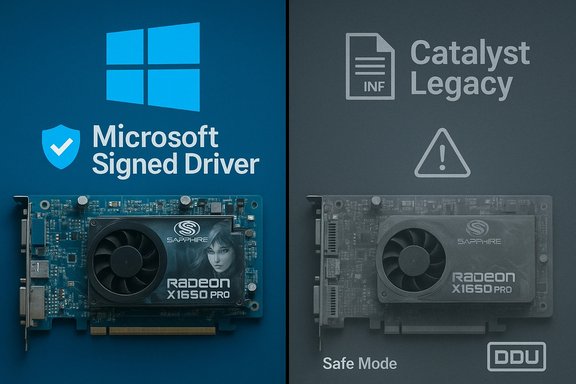
“Best” in this context is a pragmatic definition based on safety, stability, and the functional outcome you need:- Safest / most compatible: Microsoft’s signed legacy driver supplied via Windows Update. It provides stable 2D acceleration, correct resolutions, and video playback without unsigned installs. Use this on machines where stability and security matter.
- Most complete (possible): A manually installed, archived ATI/AMD Catalyst driver that includes an INF entry for your exact VID/PID. This can sometimes restore more features than the Microsoft basic driver, but it requires extracted packages, DDU cleanup, and manual installation steps. Only advanced users should attempt this.
- Least recommended: Third‑party “one‑click” driver updaters and repackaged legacy installers from untrusted sites. They may claim Windows 10 support, but they often repackage older installers — sometimes modifying INFs or adding unsigned binaries — and present security and stability hazards.
Verified technical snapshot (what you’ll actually be installing)
Here are the core hardware facts you should verify before proceeding; these are stable historical specifications, cross‑checked against independent hardware databases:- GPU family: Radeon X1650 Pro (RV535 / RV530 variants).
- Memory: commonly 256 MB GDDR3 on a 128‑bit bus (some variants and partner cards shipped with 512 MB).
- Typical clocks: GPU ~600 MHz; memory ~700 MHz effective (1,400 Mbps).
- Interface: PCI‑Express x16 (some AGP variants exist for older systems).
The reality of driver availability today
Multiple reputable archives and modern driver catalog sites list legacy ATI/AMD drivers for X1650 series cards — for example, packages carrying version numbers such as 8.593.100.0000 from 2009. Those packages were designed for Windows XP/Vista/7-era kernels and may be coaxed to work under Windows 10 using the extraction + manual INF method, but they are not AMD’s actively maintained Windows 10 drivers in the contemporary Adrenalin sense. AMD’s public driver strategy over recent years has shifted toward Windows 11 as the primary validation baseline, while continuing to preserve compatibility for Windows 10 in many releases. That means you may not see explicit Windows 10 branding in every recent release note, but AMD has publicly clarified that Windows 10 compatibility remains possible for many installs — however, legacy GPUs (X1650 family) are functionally in maintenance/archival territory and not on the active optimization roadmap. Treat any claim that “AMD supports X1650 on Windows 10 as current/fully maintained” with caution unless it originates from AMD’s official download portal or an OEM support page.Safe, practical workflows — ranked and stepwise
1) Recommended: Let Windows Update install the Microsoft‑signed legacy driver
This is the default, lowest‑risk approach for users who need a working desktop, multiple monitors, and stable video playback.- Open Settings → Update & Security → Windows Update → Check for updates.
- Expand “Optional updates” and look for driver updates; accept the applicable display driver.
- Reboot, validate Device Manager shows a display driver from Microsoft, and check resolution/acceleration.
2) Advanced: Manual install of an archived Catalyst/legacy package (only if INF matches)
This yields the most features when it works, but it is an advanced procedure and requires careful backups.Preflight checklist (do this first):
- Create a full image or at minimum a System Restore point. Driver changes to the display stack can leave the system unbootable.
- Record your GPU hardware IDs in Device Manager → right‑click the device → Properties → Details → Hardware Ids (copy the PCI\VEN_1002&DEV_xxxx string). Many X1650 device IDs fall into the PCI\VEN_1002&DEV_72xx/7293 range; verify yours before proceeding.
- Download a legacy Catalyst package or ATI driver archive (for example, an XP/Vista era Catalyst package). Save the installer. Prefer official AMD archives or a reputable OEM support page.
- Right‑click the installer and extract its contents (many AMD installers unpack into C:\AMD by default). If the installer won’t run, many installers still self‑extract when run; let it extract then close the installer.
- Inspect the extracted folder and open Display.Driver*.inf files with a text editor. Search for your VID/PID string. If the INF lists your hardware ID, you can attempt a manual “Have Disk” install. If it does not, do not proceed unless you are prepared to edit and re‑sign an INF (unsafe for most users).
- Boot to Safe Mode and run Display Driver Uninstaller (DDU) to remove any previous AMD/NVIDIA remnants. This reduces the chance of partial installs.
- Reboot to normal mode. In Device Manager, right‑click the display adapter → Update driver → Browse my computer → Let me pick from a list → Have Disk… → point to the extracted *.inf. Follow prompts and reboot.
- If Windows warns about unsigned drivers, consider this only for testing: temporarily disable driver signature enforcement to install, test thoroughly, and then re‑enable enforcement. Do not leave signature enforcement disabled on machines used for sensitive tasks.
- If Device Manager still shows the Microsoft Basic Display Adapter after an install, run DDU again and retry the manual INF method; partial installs are a common outcome when remnants remain.
- If Windows Update keeps reverting the driver, pause Windows Update during the manual install or hide the driver update until you validate the manual install.
3) Avoid: third‑party “one‑click” updaters and unvetted repackaged installers
Driver hubs and updaters sometimes host legacy packages and claim Windows 10 compatibility (for example, version 8.593.100.0000 is widely circulated on legacy driver sites). These sites may be convenient, but they often bundle optional software, omit signatures, or repack installers, which raises security concerns. If you use them, treat them as last‑resort and validate digital signatures and file hashes.Troubleshooting common failure modes (practical fixes)
- Partial install (CCC installs but GPU remains Microsoft Basic Display Adapter): run DDU in Safe Mode, then reattempt manual INF install. Many forum reports show this sequence fixes partial installs.
- Installer aborts with “device not supported”: open the extracted INF and verify your hardware ID; if it’s missing, don’t proceed with blind INF edits unless you can re‑sign and test on a non‑production machine.
- Windows Update repeatedly replaces manual driver: pause Windows Update during the manual install and reboot only after completion; consider hiding the driver update.
- Radeon GUI/Adrenalin fails to open after an install: legacy CCC/Radeon packages sometimes corrupt profile data. Deleting profile folders (CN or RadeonSoftware user data), restarting RadeonBackgroundService, or performing a clean reinstall can solve the problem; apply these carefully with backups.
Security, legal and lifecycle considerations — you must read this
- Unsigned drivers and disabled signature enforcement: temporarily disabling signature enforcement to test an INF can allow untrusted kernel‑level code to run. Re‑enable enforcement immediately after any test. This is not an acceptable long‑term configuration for machines handling sensitive data.
- Windows 10 OS lifecycle: Microsoft ended mainstream support for Windows 10 in October 2025; that changes risk profiles for legacy drivers and reduces vendor validation priorities. AMD may continue to allow Windows 10 compatibility in builds, but legacy GPUs are increasingly treated as archival. Plan for a hardware or OS migration if you rely on security‑sensitive workloads.
- Buying used SAPPHIRE X1650 Pro cards: used listings (Newegg / marketplace) are common; when buying, ask for photos of the actual PCB, verify ports and power connectors, and prefer sellers offering short test guarantees or returns. Expect that drivers will still need to come from Microsoft or AMD archives; a driver CD from the seller is not necessary but helpful for provenance.
A practical decision tree for readers
- Need a stable desktop and safe browsing/video playback? Use Windows Update and stop here.
- Need extra functionality from legacy Catalyst and are comfortable with manual work and backups? Follow the DDU → extract → INF → Have Disk workflow using an archived Catalyst package, and test thoroughly.
- Want modern gaming, security, or futureproofing? Replace the card with a modern low‑cost GPU or use the system’s integrated graphics; the total cost and long‑term reliability will likely be lower than the maintenance burden of a legacy GPU.
Quick reference: useful commands and Device Manager steps
- To view hardware IDs: Device Manager → Display adapters → right‑click your adapter → Properties → Details → select “Hardware Ids.” Record the PCI\VEN_* string.
- Device Manager manual install: Update driver → Browse my computer for drivers → Let me pick from a list → Have Disk → point to extracted *.inf.
- Pause Windows Update: Settings → Update & Security → Windows Update → Pause updates (select a short pause while you test manual installs).
- Use DDU for clean removal: Boot Safe Mode → run Display Driver Uninstaller → reboot to normal → install new driver. DDU reduces partial install artifacts.
Final, pragmatic recommendations (short)
- For most Windows 10 users with a SAPPHIRE Radeon X1650 Pro, the best practical approach is to accept the Microsoft‑signed driver from Windows Update for stability and security.
- If you need more features and are comfortable with risk, use an archived ATI/AMD Catalyst package but only after DDU cleanup, INF verification, and creating a full backup or system image.
- Avoid third‑party “driver updaters” and unsigned repackaged installers unless you can validate checksums and signatures; these are frequent sources of instability and malware.
- If you are using the machine for anything security sensitive or modern gaming, replace the GPU with a modern, supported card — it’s the least expensive and least risky long‑term option.
Conclusion
The SAPPHIRE Radeon X1650 Pro is a dependable vintage GPU for basic desktop and legacy‑game use, but it sits firmly in the “legacy” support bucket. For Windows 10, the safest, recommended path is to rely on Microsoft’s signed legacy driver via Windows Update; only advanced users should attempt to resurrect additional functionality by extracting old Catalyst packages and manually installing INFs after a full cleanup and backup. If your needs extend beyond simple display and older games, the most future‑proof, secure, and cost‑effective move is a hardware upgrade to a modern GPU or leveraging integrated graphics that ship with current CPU platforms. The tradeoffs are clear: short‑term tinkering can restore features, but long‑term reliability and security are best served by supported hardware and signed drivers.Source: Born2Invest https://born2invest.com/?b=style-238326212/
