

A tiny, unofficial utility has already started to do what Microsoft hasn’t fully solved for many users: turn the disruptive new Copilot key on modern Windows keyboards into something useful — or invisible — without wrestling with firmware, registry hacks, or losing functionality you relied on before.
Microsoft’s push to put a dedicated Copilot key on many new laptops set off an immediate, polarized reaction. For some, a one‑press shortcut to an AI assistant is genuinely helpful; for many others the key sits where a familiar modifier or context menu key used to be, and it triggers unexpectedly during games, typing, or workflows—interrupting what people are doing and offering little configurability out of the box. Independent investigations and community reverse engineering reveal the button’s behavior is not a simple single keypress: hardware keyboards map it to a synthesized key combination that can include modifiers, which complicates straightforward remapping and accessibility.
That friction created an opening for community developers. A small AutoHotkey‑based project and a handful of similar scripts and tools have circulated in the last year, offering pragmatic workarounds: remap the Copilot key to a standard right Control (restoring a much‑needed key), make it harmless, or redirect it to a more sensible shortcut. The existence of those projects — and the lively discussions in forums and issue trackers — tells a clear story: users want control and many don’t trust waiting for an official Windows setting to satisfy them.
Because the Copilot key effectively sends a modified key chord, tools that can remap "shortcuts" (a sequence including modifiers) work better than tools that only map one scancode to another. For example, Microsoft PowerToys’ Keyboard Manager supports remapping a shortcut (e.g., pressing the Copilot key as the left side of a shortcut) to a destination key like Right Ctrl. Registry‑level scancode maps (the Scancode Map registry value) are excellent for single scancode swaps but struggle with modifier‑prefixed signals and therefore may not always solve the Copilot key problem on their own.
In short: Microsoft is taking steps, but for many users the fastest fix remains a small local remapper until Microsoft’s settings fully address the keyboard edge cases in a broadly available release.
Several community threads have explicitly called out this dimension: making keys harder to remap effectively reduces accessibility, which is an ethical problem for hardware designers and platform vendors to address.
That said, these community fixes are workarounds. The long‑term solution should come from the platform and OEMs: expose robust, accessible remapping at the firmware or OS level and make that capability discoverable and supported. Until then, the community will continue to supply targeted, useful tools — and users should apply them carefully, prefer auditable scripts over opaque binaries, and keep an eye on official updates that may ultimately render the workaround obsolete.
Source: Neowin Someone built a Windows utility to make the Copilot key less annoying
 Background / Overview
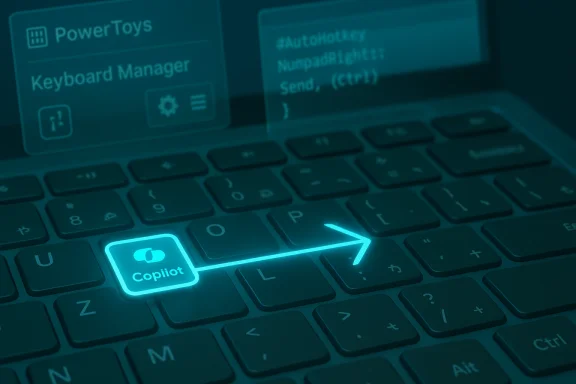
Microsoft’s push to put a dedicated Copilot key on many new laptops set off an immediate, polarized reaction. For some, a one‑press shortcut to an AI assistant is genuinely helpful; for many others the key sits where a familiar modifier or context menu key used to be, and it triggers unexpectedly during games, typing, or workflows—interrupting what people are doing and offering little configurability out of the box. Independent investigations and community reverse engineering reveal the button’s behavior is not a simple single keypress: hardware keyboards map it to a synthesized key combination that can include modifiers, which complicates straightforward remapping and accessibility.That friction created an opening for community developers. A small AutoHotkey‑based project and a handful of similar scripts and tools have circulated in the last year, offering pragmatic workarounds: remap the Copilot key to a standard right Control (restoring a much‑needed key), make it harmless, or redirect it to a more sensible shortcut. The existence of those projects — and the lively discussions in forums and issue trackers — tells a clear story: users want control and many don’t trust waiting for an official Windows setting to satisfy them.
What the Copilot key actually sends (and why that matters)
The scancode and why remapping is nontrivial
Multiple independent analyses and developer reports show that the Copilot key does not send a normal single scancode like an ordinary letter key. Instead, the key is observed to synthesize a combination often reported as Win + Shift + F23 (or variations that include left Shift) — an intentionally obscure signal chosen by hardware designers so the OS recognizes a new dedicated key without colliding with existing assignments. That design choice makes it harder to remap using legacy tools that only handle single scancodes, and it explains why some remaps behave strangely under Sticky Keys or with modifier combos.Because the Copilot key effectively sends a modified key chord, tools that can remap "shortcuts" (a sequence including modifiers) work better than tools that only map one scancode to another. For example, Microsoft PowerToys’ Keyboard Manager supports remapping a shortcut (e.g., pressing the Copilot key as the left side of a shortcut) to a destination key like Right Ctrl. Registry‑level scancode maps (the Scancode Map registry value) are excellent for single scancode swaps but struggle with modifier‑prefixed signals and therefore may not always solve the Copilot key problem on their own.
Accessibility and interaction quirks
Users have reported subtle, important quirks: the hardware may assert a left Shift signal when the Copilot key is pressed, which means remapped behavior can interact badly with sticky keys or typed input. That’s the kind of issue that breaks workflows for people who rely on accessibility features and for fast typists trying to use standard shortcuts that expect a simple Ctrl or Alt. Community threads and issue reports have repeatedly flagged these accessibility pitfalls.The community solution: what the utility does and how it works
The simple AutoHotkey utility
One of the readily available community fixes is a small AutoHotkey script published on GitHub that listens for the Copilot key’s synthesized signal and translates it into a plain keypress — typically a Right Control. The approach is straightforward:- Detect the Copilot key event (the system reports the special F23/modifier combo).
- Inject a synthetic, standard key event (e.g., Right Ctrl) so the rest of the system and applications behave as if a genuine Right Ctrl was pressed.
- Optionally, suppress the Copilot activation so the Copilot UI does not appear.
Why AutoHotkey is an attractive vehicle
AutoHotkey is popular for this use case because:- It operates at the input event level inside a user session, letting you intercept and rewrite key events on the fly.
- Scripts are simple text files — easy to audit, modify, and run without compiling.
- The community maintains many tiny, single‑purpose scripts for keyboard behavior, so discoverability and extension are simple.
Official and semi‑official alternatives
Microsoft PowerToys (Keyboard Manager)
PowerToys’ Keyboard Manager supports remapping shortcuts (modifier + key combos) as well as single key remaps. Because the Copilot key is effectively a Win+Shift+F23 event, telling Keyboard Manager to "Remap a shortcut" and capturing the Copilot key as the left side of the mapping is a reliable route for many users. This method is user‑friendly, reversible, and supported by Microsoft’s PowerToys project. It doesn’t require running an extra script all the time beyond PowerToys itself.Registry Scancode Map (system‑level)
For a deeper, system‑level change that doesn’t depend on a running helper, advanced users can write a binary Scancode Map into the registry. This is persistent and takes effect across sessions, but it’s blunt: traditional Scancode Map entries expect single scancodes and don’t handle modifier‑wrapped events well. That means Scancode Map can be effective on some keyboards where the Copilot key maps to an isolated code, but on many modern boards (which emit Win+Shift+F23) it won’t fix the problem by itself. SharpKeys (a common GUI for Scancode Map) documents that limitation directly.Vendor or firmware utilities
Some OEMs (keyboard vendors or laptop manufacturers) provide tools or firmware updates that change how special keys are reported. If your laptop vendor offers such a utility, that’s preferable because it modifies behavior at the source. In practice, few vendors have pushed a universal fix for the Copilot key, so community tools often remain the quickest remedy.Step‑by‑step: practical ways to make the Copilot key less annoying
Below are practical, ranked options from least invasive to most permanent. Use caution and back up any registry settings before changing them.- Use Microsoft PowerToys — Remap a shortcut
- Install PowerToys and open Keyboard Manager.
- Choose Remap a shortcut, press the Copilot key on the left input, and select Right Ctrl (or any other target) on the right side.
- Save the mapping — PowerToys applies it immediately.
- Pros: Reversible, user‑friendly. Cons: Requires PowerToys to run in the background.
- Use an AutoHotkey script (community remapper)
- Download or copy the small AutoHotkey script that remaps the Copilot combination to Right Ctrl (or a benign action).
- Run the script at login (add it to Startup) so the mapping persists across booted sessions.
- Pros: Highly customizable. Cons: Script must be running; potential quirks with accessibility features.
- Use Scancode Map (registry) or SharpKeys
- If your Copilot key reports a single scancode on your device, Scancode Map can write a persistent binary remap.
- SharpKeys provides a safe GUI to write the Scancode Map for you.
- Pros: System‑level, doesn’t require a background app. Cons: Not reliable for modifier‑wrapped Copilot signals.
- Check for vendor firmware or Windows updates
- Occasionally, Microsoft or OEMs add supported remapping or new Group Policy options for Copilot behavior. If your environment is managed by IT, look for a sanctioned Group Policy or an official firmware update.
- Pros: Official fixes are safest. Cons: They can be slow to reach consumer devices.
Critical analysis: strengths, limitations, and risks
Strengths of the community approach
- Speed and practicality: Community utilities appear quickly and solve real pain points without waiting on vendor timetables.
- Transparency: Open AutoHotkey scripts and GitHub repos let technically minded users inspect code before running it.
- Flexibility: Users can remap Copilot to any useful target (Right Ctrl, Menu key, mute, etc.) or disable it entirely.
Limitations and technical caveats
- Session scope: Most community fixes operate in the logged‑in user session. They don’t affect pre‑login UI or system service contexts.
- Modifier complexity: Because the Copilot key often sends a modifier combo, some remaps behave inconsistently, especially with accessibility features like Sticky Keys or with apps that inspect low‑level input.
- Durability across updates: Windows updates or firmware changes could alter the scancode or how the OS handles the signal, potentially breaking community scripts and requiring maintenance.
Security and trust risks
- Unsigned binaries and unknown builds: Downloading a random executable to disable the Copilot key is riskier than running a small AutoHotkey script you can read. Users should prefer source code they can inspect or official packages from trusted GitHub accounts.
- Persistence and elevated changes: Registry edits and driver‑level changes affect system behavior globally. Mistakes can lock users out or break critical keys (for example, disabling Ctrl or Del accidentally).
- Enterprise policy conflicts: In managed environments, Group Policies or security controls may block user‑level remappers, and changing behavior could violate support agreements.
Microsoft’s posture and administrative controls
Microsoft has been iterating on Copilot deliverables and has started offering more administrative options (for enterprise or managed devices) to control the Copilot app and related behaviors. Recent insider previews and Group Policy discussions suggest Microsoft is exposing more controls to IT admins to disable or manage the consumer Copilot app under constrained conditions. That’s evidence Microsoft recognizes the need for managed options, but these administrative controls are deliberately narrow and may not solve the individual keyboard remapping problem for typical consumer laptops.In short: Microsoft is taking steps, but for many users the fastest fix remains a small local remapper until Microsoft’s settings fully address the keyboard edge cases in a broadly available release.
Accessibility and ethics: why remapping matters beyond convenience
Replacing a key that used to be Right Ctrl, Menu, or an extra modifier has implications beyond annoyance. For people with motor disabilities, keyboard layouts are not a preference — they’re a necessary accommodation. Removing a right‑hand Ctrl or replacing it with a Copilot activation can make systems less usable for those users. Community remappers can restore accessibility quickly, but vendors should be held accountable for designing hardware that preserves expected, accessible functionality or exposes a supported way to reassign keys at the firmware or driver level.Several community threads have explicitly called out this dimension: making keys harder to remap effectively reduces accessibility, which is an ethical problem for hardware designers and platform vendors to address.
How to evaluate and pick a community utility (practical checklist)
- Read the code first. If it’s an AutoHotkey script or a tiny source file, scan it. If you don’t understand something, ask in the project’s issue tracker.
- Check the project’s activity. A maintained GitHub repo with recent commits and responses to issues is a healthier sign than an abandoned binary.
- Prefer remapping to a harmless key rather than disabling system safeguards. Remapping to Right Ctrl or the Menu key is safer than hooking the event and doing complex low‑level injection.
- Test in a safe environment. Try it on a secondary account or spare machine if you can.
- Use built‑in tools where possible. PowerToys covers many scenarios with less risk than ad‑hoc executables.
- Watch for updates. Keep an eye on the project’s issue tracker and on vendor firmware updates; your fix may need tweaking after an update.
Real‑world examples and community reporting
- A concise AutoHotkey remapper on GitHub explicitly maps the Copilot key to Right Ctrl; it’s small, auditable, and was created to restore right‑hand modifier functionality on machines that otherwise lack it. That project demonstrates the minimal code footprint necessary to solve the problem and shows how community code can plug a UX gap quickly.
- Microsoft PowerToys users and issue threads document both successful remaps and failing cases where the Copilot key’s synthesized modifier confuses the remapper. The PowerToys issue tracker contains examples from Lenovo and other laptop users about inconsistent signals and remapping edge cases. These posts are valuable troubleshooting references if your first attempt doesn’t work.
- Technical write‑ups from independent tech publications have confirmed the Copilot key’s special scancode behavior and walked through remapping approaches, giving readers a high‑level primer on why the key behaves differently from ordinary keys and which tools will likely work. Those explainers are helpful if you want a non‑developer overview before trying a script. (tomshardware.com)
Recommendations for end users and IT admins
- End users: If the Copilot key is interfering with your workflow, start with PowerToys and try a shortcut remap. If you need a Right Ctrl and your device doesn’t have one, consider a small AutoHotkey remap with an auditable script and add it to your user startup. Test accessibility features after remapping, especially if you use Sticky Keys or other assistive tech.
- Power users / developers: Fork a minimal AutoHotkey solution, add logging, and submit improvements or compatibility patches back to the community repository. Help the ecosystem by documenting hardware behaviors for different laptop models.
- IT admins / enterprise: Monitor Microsoft’s Group Policy additions for Copilot controls and apply the supported policies where appropriate. For managed devices, avoid unsupported hacks that could violate support or security baselines; instead use vendor tools or sanctioned scripts vetted by your security team.
Conclusion
The Copilot key controversy is a textbook example of what happens when hardware design choices outrun user expectations: a button shipped to make AI instantly accessible, placed where long‑standing keyboard conventions reside, produced immediate friction. Community developers moved fast and produced lightweight, auditable fixes that restore familiarity and accessibility for those who need it. If you want a pragmatic, immediate solution, PowerToys or a tiny AutoHotkey remapper will likely solve your particular annoyance within minutes.That said, these community fixes are workarounds. The long‑term solution should come from the platform and OEMs: expose robust, accessible remapping at the firmware or OS level and make that capability discoverable and supported. Until then, the community will continue to supply targeted, useful tools — and users should apply them carefully, prefer auditable scripts over opaque binaries, and keep an eye on official updates that may ultimately render the workaround obsolete.
Source: Neowin Someone built a Windows utility to make the Copilot key less annoying
