

Microsoft’s April 2026 Remote Desktop hardening push is a classic case of a security improvement arriving with an awkward user-interface footnote. The company has added new warnings when users open
Remote Desktop has always sat at an uncomfortable intersection of convenience and risk. It is indispensable for administrators, remote workers, consultants, and help-desk staff, but it is also a favorite target for attackers because it can hand over a full interactive session if credentials or trust decisions go wrong. Microsoft’s new warning flow for
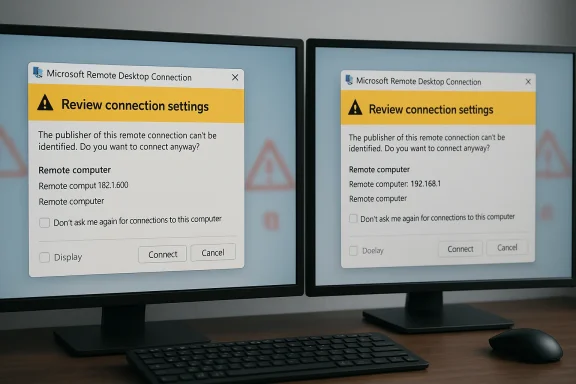
That is why the new bug matters more than its surface appearance suggests. If a warning dialog is clipped, overlapped, or poorly scaled, users can miss the very details Microsoft wants them to inspect before accepting a connection. A security feature that is technically present but visually compromised is still better than nothing, but it is also less effective than designed, and that gap is precisely where attackers like to operate.
Microsoft says the issue affects some multi-monitor configurations with different display scaling settings, such as one screen at 100 percent and another at 125 percent. The company’s temporary workaround is straightforward: use the same scaling on all monitors, or navigate the dialog with keyboard controls if mouse targets are difficult to hit. That fix may be practical for a lab bench, but it is less attractive for people who deliberately mix DPI values to keep a high-resolution laptop panel and an external monitor comfortable at the same time.
The timing is also interesting because this Remote Desktop work lands alongside a separate April 2026.NET servicing update that Microsoft had to ship out of band after discovering CVE-2026-40372. That vulnerability, fixed in.NET 10.0.7, involved the Microsoft.AspNetCore.DataProtection package and an elevation-of-privilege condition tied to an HMAC validation issue. In other words, April’s Windows servicing cycle has been busy on both the endpoint-security and framework-security fronts.
That design is clearly intended to reduce phishing success rates. An attacker can still trick a user into opening a malicious or tampered
The change also reflects a broader shift in Windows security design. Instead of relying solely on invisible policy enforcement, Microsoft is increasingly surfacing decisions to end users at the moment those decisions matter. That is good from a phishing-defense perspective, but it depends on the dialog being readable, legible, and obvious. When the UI breaks, the security argument weakens fast.
This is not the same as a catastrophic failure, but it is not trivial either. Security prompts live or die on text comprehension, button discoverability, and predictable layout. If a user can only partially read the warning, the dialogue becomes harder to interpret; if the buttons are awkward to reach, the chance of accidental acceptance rises. That is precisely the wrong failure mode for a phishing defense.
The practical workaround Microsoft recommends is to align scaling settings across displays. That may be enough for some users, but it is an unsatisfying answer for anyone who chose mixed scaling for a reason. When a workaround asks people to give up a legitimate display preference in order to restore security UI, the underlying product issue is still waiting for a real fix.
But many organizations are moving toward flexible desk setups, hybrid work patterns, and diverse monitor inventories. The more heterogeneous the desktop, the more likely a dialog-sized edge case becomes visible. This is one reason Microsoft’s commitment to safer defaults is welcome, but not sufficient on its own; the UI layer has to survive real-world usage.
This matters because RDP has historically been a “trust the file, trust the environment” workflow. Once a user double-clicked an
In enterprise terms, this is part of a long-running shift from implicit trust to structured trust. Microsoft has been pushing more of these guardrails across Windows for years, and RDP is a particularly logical place to harden because remote sessions are both business-critical and frequently abused. If the warning can be made reliable, it should reduce a class of low-effort social-engineering tricks.
That is particularly valuable because users are often good at detecting obvious scams and bad at identifying workflow-based scams. A fake login page is one problem; a fake connection file from a “support agent” is another. RDP files look like legitimate administrative tools, so they benefit from an additional trust boundary.
Even so, home users are less likely than enterprise administrators to run carefully managed mixed-monitor setups, so the bug’s reach may be narrower in consumer environments. That does not make it harmless; it just means the security upside may still outweigh the UI regression for many everyday users. Security features can be imperfect and still worthwhile.
The new warning is useful because organizations want employees to understand when they are connecting to an approved remote host and what local resource access is being asked for. But enterprises are also more likely to have standardized launch workflows, scripts, and custom file distribution methods. Any change that alters the user’s first interaction with an
Organizations that rely on mixed-DPI monitor fleets may also need to decide whether to normalize scaling, at least on machines used for remote administration. That may seem like an obscure display tweak, but in this case it becomes a security control. It is a good example of how user experience decisions can become security dependencies.
That matters because it shows Microsoft is in the familiar position of trying to balance feature hardening, security remediation, and quality regressions all at once. In modern Windows servicing, those categories are rarely cleanly separated in the real world. A single Patch Tuesday can create fresh security gains, surface new bugs, and trigger emergency out-of-band corrections within days.
The Remote Desktop warning bug is not remotely as serious as a privilege-escalation flaw, but it is a visibility problem in a security feature. That means it has a disproportionate perception risk. When users hear that a protective dialog does not display correctly, they may reasonably wonder whether the new feature is reliable enough to depend on.
This is also consistent with Microsoft’s broader move toward making remote access more transparent. If a file is about to open a remote connection and redirect local resources, the client should probably tell you that in plain language. The security logic is sound; the question is whether the implementation can survive the messy diversity of Windows hardware and desktop configurations.
The best security design is often the one that becomes nearly invisible because it fits naturally into workflow. But warnings are a special case: they need to be visible enough to interrupt behavior without becoming unreadable or intimidating. The current bug shows how narrow that line can be.
The broader question is whether Microsoft can keep tightening the security posture of legacy workflows like RDP without introducing enough usability friction to make users hostile to the change. That is the real test here. Security features succeed when they change behavior; they fail when they become background noise or annoying obstacles. The ideal outcome is not just a warning, but a warning people can actually use.
Source: theregister.com Remote Desktop security beefed up with hard-to-read messages
.rdp files, aimed at reducing phishing risk by showing the requested connection settings before a session starts, but Microsoft also acknowledges that the warning can render incorrectly on some systems. In practice, that means the new defense may be harder to read — and in some mixed-monitor setups, harder to use — exactly when clarity matters most.
 Overview
Remote Desktop has always sat at an uncomfortable intersection of convenience and risk. It is indispensable for administrators, remote workers, consultants, and help-desk staff, but it is also a favorite target for attackers because it can hand over a full interactive session if credentials or trust decisions go wrong. Microsoft’s new warning flow for .rdp files is therefore not cosmetic fluff; it is part of a broader effort to make the connection process more explicit, more transparent, and less susceptible to social engineering.That is why the new bug matters more than its surface appearance suggests. If a warning dialog is clipped, overlapped, or poorly scaled, users can miss the very details Microsoft wants them to inspect before accepting a connection. A security feature that is technically present but visually compromised is still better than nothing, but it is also less effective than designed, and that gap is precisely where attackers like to operate.
Microsoft says the issue affects some multi-monitor configurations with different display scaling settings, such as one screen at 100 percent and another at 125 percent. The company’s temporary workaround is straightforward: use the same scaling on all monitors, or navigate the dialog with keyboard controls if mouse targets are difficult to hit. That fix may be practical for a lab bench, but it is less attractive for people who deliberately mix DPI values to keep a high-resolution laptop panel and an external monitor comfortable at the same time.
The timing is also interesting because this Remote Desktop work lands alongside a separate April 2026.NET servicing update that Microsoft had to ship out of band after discovering CVE-2026-40372. That vulnerability, fixed in.NET 10.0.7, involved the Microsoft.AspNetCore.DataProtection package and an elevation-of-privilege condition tied to an HMAC validation issue. In other words, April’s Windows servicing cycle has been busy on both the endpoint-security and framework-security fronts.
Why Microsoft Changed RDP File Behavior
The new warning flow is built around a simple premise: an.rdp file is not just a shortcut, it is a set of instructions that can redirect local resources into a remote session. Microsoft’s documentation says the Remote Desktop Connection app now shows a first-launch educational dialog and then a per-connection warning that lists requested settings before any connection is made. By default, each requested resource is turned off, and users must explicitly opt in.That design is clearly intended to reduce phishing success rates. An attacker can still trick a user into opening a malicious or tampered
.rdp file, but the new dialog adds friction by forcing the user to pause, inspect the destination, and think about what local resources are being exposed. That pause is the entire point. Security teams often ask for more awareness training; Microsoft is effectively trying to bake some of that awareness into the connection flow itself.The security logic behind the warning
Microsoft’s own guidance emphasizes that.rdp files can be risky because they tell the client where to connect and what local features to redirect. The company also distinguishes between files with a verifiable publisher and those without one, making the dialog more explicit when the source cannot be confirmed. That is a meaningful step up from the older, more implicit “just open the session” behavior.The change also reflects a broader shift in Windows security design. Instead of relying solely on invisible policy enforcement, Microsoft is increasingly surfacing decisions to end users at the moment those decisions matter. That is good from a phishing-defense perspective, but it depends on the dialog being readable, legible, and obvious. When the UI breaks, the security argument weakens fast.
- The new dialog is meant to expose destination details before a session starts.
- It makes local redirection choices explicit rather than implicit.
- It warns about phishing risks linked to opening
.rdpfiles. - It is more protective when the file’s publisher cannot be verified.
- Its effectiveness depends on the dialog being visible and usable.
The Display Scaling Bug
Microsoft’s known-issues entry is blunt in the way only release health notes can be: the warning message that appears when opening Remote Desktop files might not display correctly in some cases. The company narrows that down to multi-monitor systems with different scaling values, which is a classic Windows compatibility trap. If one monitor is at 100 percent and another is at 125 percent, dialog sizing, button placement, and clipping can go sideways.This is not the same as a catastrophic failure, but it is not trivial either. Security prompts live or die on text comprehension, button discoverability, and predictable layout. If a user can only partially read the warning, the dialogue becomes harder to interpret; if the buttons are awkward to reach, the chance of accidental acceptance rises. That is precisely the wrong failure mode for a phishing defense.
Why mixed-DPI setups are so common
Multi-monitor, mixed-scaling setups are common because Windows users frequently combine a laptop screen with an external monitor, or a 4K panel with a standard-dpi side display. Microsoft itself supports per-monitor scaling, so different values are not a misuse of Windows so much as a normal productivity pattern. The bug therefore lands in the narrow but important space where a platform feature collides with a security dialog.The practical workaround Microsoft recommends is to align scaling settings across displays. That may be enough for some users, but it is an unsatisfying answer for anyone who chose mixed scaling for a reason. When a workaround asks people to give up a legitimate display preference in order to restore security UI, the underlying product issue is still waiting for a real fix.
Consequences for administrators
For enterprise IT, the bug is less about annoyance and more about standardization. If a team uses RDP files to connect into sensitive systems, the warning prompt should be treated as part of the control surface, not a decorative nuisance. In environments where display policies are already managed, enforcing a consistent scale factor across commonly used workstations may be the cleanest short-term mitigation.But many organizations are moving toward flexible desk setups, hybrid work patterns, and diverse monitor inventories. The more heterogeneous the desktop, the more likely a dialog-sized edge case becomes visible. This is one reason Microsoft’s commitment to safer defaults is welcome, but not sufficient on its own; the UI layer has to survive real-world usage.
- Mixed scaling is a normal modern desktop pattern.
- The bug affects the security warning UI, not the connection protocol itself.
- The most immediate workaround is matching display scaling across monitors.
- Keyboard navigation can still help if buttons are difficult to click.
- Enterprises may need policy-level display standardization for now.
What the Warning Actually Changes
Microsoft’s documentation describes two security steps: a first-time educational prompt and a recurring per-file warning before connection. The recurring dialog displays the remote address and shows check boxes for each local resource the file requests, with those access options turned off by default. That is a concrete behavior change, not just a new message string.This matters because RDP has historically been a “trust the file, trust the environment” workflow. Once a user double-clicked an
.rdp file, the client did a lot of work automatically, and that convenience could obscure the implications. The new design forces a more explicit trust decision at the edge of the session, which is exactly where phishing attacks like to insert themselves.Why this is more than a pop-up
The warning is effectively a lightweight policy checkpoint. It exposes the remote target, publisher status, and resource redirections so that users can make a more informed decision. That is different from a generic “Are you sure?” prompt because it ties the trust question to the actual session characteristics.In enterprise terms, this is part of a long-running shift from implicit trust to structured trust. Microsoft has been pushing more of these guardrails across Windows for years, and RDP is a particularly logical place to harden because remote sessions are both business-critical and frequently abused. If the warning can be made reliable, it should reduce a class of low-effort social-engineering tricks.
- The dialog surfaces the remote address.
- It shows requested local resources one by one.
- Those options are disabled by default.
- The first-launch prompt is meant to educate users about phishing.
- The warning is designed to make trust explicit rather than assumed.
Security Gains for Consumers
For home users and small offices, the biggest win is awareness. Many people still think of Remote Desktop as a feature reserved for power users, but phishing kits increasingly target business workflows that ordinary users encounter through support scripts, shared files, or remote assistance arrangements. By warning when an.rdp file is opened, Microsoft is trying to make the ordinary user more suspicious in the right way.That is particularly valuable because users are often good at detecting obvious scams and bad at identifying workflow-based scams. A fake login page is one problem; a fake connection file from a “support agent” is another. RDP files look like legitimate administrative tools, so they benefit from an additional trust boundary.
Consumer impact in practical terms
The ideal outcome is that people slow down before granting remote access to the wrong machine or enabling unnecessary redirections. If the dialog is clear, users can confirm they expected the connection and the permissions it requests. If it is unclear, the risk shifts back toward guesswork, which is exactly what attackers want.Even so, home users are less likely than enterprise administrators to run carefully managed mixed-monitor setups, so the bug’s reach may be narrower in consumer environments. That does not make it harmless; it just means the security upside may still outweigh the UI regression for many everyday users. Security features can be imperfect and still worthwhile.
Enterprise Impact and Operational Trade-offs
In enterprise environments, Remote Desktop is often part of the plumbing. It underpins support workflows, admin access, jump-host operations, remote app delivery, and older line-of-business systems that never fully moved to web or zero-trust alternatives. A change to the RDP file experience therefore has operational ripple effects well beyond the individual dialog.The new warning is useful because organizations want employees to understand when they are connecting to an approved remote host and what local resource access is being asked for. But enterprises are also more likely to have standardized launch workflows, scripts, and custom file distribution methods. Any change that alters the user’s first interaction with an
.rdp file can affect help-desk load and support documentation.The policy angle
IT departments may need to review whether existing RDP deployment assumptions still hold. If a user sees an unfamiliar publisher status or a warning they do not understand, the natural response will be to open a ticket. That can be good from a security standpoint, but it adds friction to environments that prize fast remote access.Organizations that rely on mixed-DPI monitor fleets may also need to decide whether to normalize scaling, at least on machines used for remote administration. That may seem like an obscure display tweak, but in this case it becomes a security control. It is a good example of how user experience decisions can become security dependencies.
- Enterprise support desks may see more questions about first-run prompts.
- Administrators may need to update RDP usage guides.
- Standardizing scaling can become a short-term security workaround.
- RDP file distribution methods may need review for clarity and provenance.
- Mixed-monitor admin stations are the most likely place for dialog issues.
The April 2026 Servicing Context
The Remote Desktop issue did not arrive in a vacuum. Microsoft’s April 2026 servicing cycle also included.NET updates, and the company later shipped an out-of-band.NET 10.0.7 security release to address CVE-2026-40372. According to Microsoft’s.NET blog, the fix addressed a vulnerability in the Microsoft.AspNetCore.DataProtection package that could lead to elevation of privilege.That matters because it shows Microsoft is in the familiar position of trying to balance feature hardening, security remediation, and quality regressions all at once. In modern Windows servicing, those categories are rarely cleanly separated in the real world. A single Patch Tuesday can create fresh security gains, surface new bugs, and trigger emergency out-of-band corrections within days.
Why this matters for trust
Users do not experience servicing as a neat sequence of patches. They experience it as “something changed,” followed by, ideally, “something is safer,” and sometimes, unfortunately, “something broke.” Microsoft’s challenge is to keep enough trust in the platform’s update process that security improvements are welcomed rather than feared.The Remote Desktop warning bug is not remotely as serious as a privilege-escalation flaw, but it is a visibility problem in a security feature. That means it has a disproportionate perception risk. When users hear that a protective dialog does not display correctly, they may reasonably wonder whether the new feature is reliable enough to depend on.
- April 2026 included multiple servicing actions, not one isolated fix.
- Microsoft later shipped .NET 10.0.7 out of band for CVE-2026-40372.
- The Windows and.NET updates highlight the pace of patching pressure.
- Even UI bugs can undermine confidence in security controls.
- End users often judge updates by their visible side effects, not just their intent.
How This Fits Microsoft’s Broader Security Direction
Microsoft has been steadily tightening the user-facing edges of Windows security, and the Remote Desktop warning is part of that trend. The company has long treated the client as a place where the user should be nudged, informed, and occasionally interrupted before potentially dangerous action is taken. That strategy has become more common as phishing remains one of the easiest ways to bypass technical controls.This is also consistent with Microsoft’s broader move toward making remote access more transparent. If a file is about to open a remote connection and redirect local resources, the client should probably tell you that in plain language. The security logic is sound; the question is whether the implementation can survive the messy diversity of Windows hardware and desktop configurations.
The balancing act
Microsoft has to do three things at once: reduce user risk, preserve productivity, and avoid making security prompts so annoying that people work around them. The Remote Desktop dialog is a good example of that tension, because it tries to be both informative and minimal. If the interface is too dense, users ignore it; if it is too sparse or broken, users misread it.The best security design is often the one that becomes nearly invisible because it fits naturally into workflow. But warnings are a special case: they need to be visible enough to interrupt behavior without becoming unreadable or intimidating. The current bug shows how narrow that line can be.
- Microsoft is pushing for more explicit trust decisions.
- Remote access prompts are becoming more detailed by design.
- Security UI must remain usable across hardware diversity.
- The challenge is to avoid creating workarounds that weaken the warning.
- Good security design needs clarity, not just intent.
Strengths and Opportunities
The Remote Desktop change has clear upside because it tackles a real attack surface instead of merely adding more documentation. If Microsoft can stabilize the warning dialog, the new flow could materially reduce casual phishing success against users who open.rdp files without thinking. It also gives administrators a better story for explaining why the connection prompt matters.- Adds a visible trust checkpoint before a remote connection starts.
- Makes resource redirection easier for users to evaluate.
- Helps counter phishing via malicious
.rdpfiles. - Encourages better security awareness at the moment of action.
- Aligns with broader secure-by-default Windows behavior.
- Gives enterprises a reason to tighten remote-access workflows.
- Potentially reduces accidental over-sharing of local resources.
Risks and Concerns
The biggest concern is that a broken security dialog is still a broken security dialog. Even if the underlying protection exists, a clipped or poorly scaled warning can reduce comprehension and confidence at the exact point where the user must make a decision. The mixed-monitor scaling issue also exposes how fragile Windows UI can be when it meets real-world desktop diversity.- The prompt may be hard to read or interact with on mixed-DPI setups.
- Users may dismiss or misinterpret partially hidden controls.
- Enterprises may face extra support requests after the update.
- Workarounds may require undesirable changes to monitor scaling.
- The bug may create false confidence if users assume the warning is fully effective.
- Security value drops if the dialog becomes visually inconsistent.
- The issue underscores the risk of security features depending on perfect UI rendering.
Looking Ahead
Microsoft says it will address the Remote Desktop display issue in a future Windows update, which is the right answer but not the same as an immediate solution. The company has not announced an out-of-band fix for this specific bug, so users with affected setups will need to rely on the current workarounds for now. That makes the next servicing cycle important both for functionality and for confidence.The broader question is whether Microsoft can keep tightening the security posture of legacy workflows like RDP without introducing enough usability friction to make users hostile to the change. That is the real test here. Security features succeed when they change behavior; they fail when they become background noise or annoying obstacles. The ideal outcome is not just a warning, but a warning people can actually use.
- Watch for a Windows update that corrects dialog scaling.
- Expect more attention to RDP phishing defenses in enterprise guidance.
- Monitor whether Microsoft expands security prompts to other remote workflows.
- See if admins adopt standardized monitor scaling as a policy fix.
- Track whether support teams report increased help-desk volume around
.rdpfiles. - Keep an eye on the next servicing cycle for related UI regressions or refinements.
Source: theregister.com Remote Desktop security beefed up with hard-to-read messages
