

SharePoint and OneDrive administrators should use the July 2026 transition to reconcile active external recipients with Microsoft Entra B2B guest accounts, invite the priority people who are missing, and test the exact resources those people need before access becomes urgent.
The practical workflow is report, match, invite, and test:
Start in the SharePoint admin center:
Before acting on any recipient, validate that the tenant’s external-collaboration and sharing policies permit the intended access. Review these policy areas:
In the Entra admin center, go to:
Identity > Users > All users
Search for the external email address from the report. Open a likely result and confirm that it is a guest account, not merely a similarly named internal user. A confirmed existing guest should meet all of these conditions:
Aliases and duplicate addresses need manual handling:
In the Entra admin center:
For known, active collaborators, an Entra invitation is usually the clearest proactive path because it creates an auditable identity workflow before the recipient needs urgent access. For dormant, low-priority, or unexpected recipients, targeted sharing or resharing may be appropriate after an access-denied event and a business-owner check.
Creating a guest does not grant blanket access to SharePoint or OneDrive. The guest identity and the content permission are separate controls: the guest must still be granted access to the site, file, folder, or item through the existing sharing and permission model. That is why a successful invitation alone is not a completion criterion.
WindowsForum’s report on Microsoft Entra ID Introduces Temporary Access Passes for Internal Guests is relevant background on Entra guest-management capabilities, but it does not replace this SharePoint and OneDrive remediation process. The required operational check here is whether the external collaborator has a usable B2B guest identity and permission to the intended resource.
Use this checklist for every priority recipient:
For failure, record enough detail to separate likely causes:
Reissuing every link can create duplicate permissions, confuse recipients, and make it harder for administrators to identify the live sharing path. Instead, reconcile identity first:
The practical workflow is report, match, invite, and test:
- Export the SharePoint external-sharing report and review its User E-mail values.
- Match those addresses to existing Entra guest identities.
- Proactively invite priority collaborators who do not have a confirmed guest account.
- Test the specific SharePoint site, file, folder, or OneDrive item they use.
- Record evidence of success or the precise failure point.
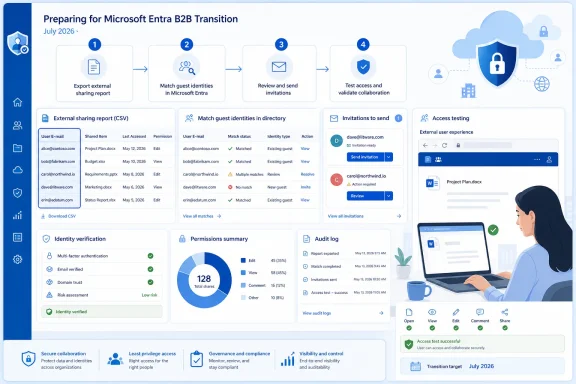 Use the external-sharing report as the starting inventory
Start in the SharePoint admin center:- Go to Reports in the left navigation.
- Open Sharing or the available external-sharing report for the tenant.
- Set the available reporting period and export the report to CSV.
- Open the export and locate the User E-mail column.
Before acting on any recipient, validate that the tenant’s external-collaboration and sharing policies permit the intended access. Review these policy areas:
- Entra External Identities external collaboration settings, including who may invite guests and guest restrictions.
- Entra cross-tenant access settings, where applicable for partner organizations.
- Conditional Access and authentication methods, including the MFA, sign-in, and email one-time-passcode experience available to guests.
- SharePoint and OneDrive sharing settings in the SharePoint admin center, including organization-level and site-level sharing limits.
- Allowed or blocked domain restrictions in SharePoint and Entra, if the organization uses them.
- The organization’s retention, sensitivity-label, data-loss-prevention, and approval requirements for external sharing.
Match report addresses to existing guests carefully
Use the report address as the primary matching identifier. Compare the exact value in User E-mail with the guest’s external email address and identity details in Entra.In the Entra admin center, go to:
Identity > Users > All users
Search for the external email address from the report. Open a likely result and confirm that it is a guest account, not merely a similarly named internal user. A confirmed existing guest should meet all of these conditions:
- The user type is Guest.
- The guest’s email or sign-in identity corresponds to the external recipient being reviewed.
- The account is not an unrelated guest with a similar display name.
- The account is usable under the tenant’s current guest and sign-in policies.
- The recipient can be associated with the specific business relationship or resource in the report.
Aliases and duplicate addresses need manual handling:
- If the report contains an alias, such as
[email][email protected][/email], but the guest signs in as[email][email protected][/email], confirm with the recipient or content owner whether both addresses belong to the same person and which address is used for Microsoft sign-in. - If multiple guest objects appear for one person, do not assume they are interchangeable. Check each object’s email, user type, invitation status, and current access before selecting one for remediation.
- If a recipient has changed employers or email domains, treat the old and new addresses as separate identities unless the business owner confirms otherwise.
- If the report address is a shared mailbox, distribution list, or generic vendor address, verify who actually needs access. A guest account should represent a real, authorized person where policy requires it.
Quick decision table
| Recipient status | Recommended action |
|---|---|
| Recipient already has a confirmed guest account | Test the existing SharePoint or OneDrive link and record the result. |
| Priority recipient lacks a guest account | Proactively create and invite the guest, then test the required resource. |
| Dormant or unknown recipient | Remediate on demand if access is denied, using targeted sharing or resharing after validation. |
Create and invite priority B2B guests
For a high-value recipient who does not have a confirmed guest identity, use the approved Entra B2B invitation process.In the Entra admin center:
- Go to Identity > Users > All users.
- Select New user.
- Select Invite external user.
- Enter the recipient’s email address and display name.
- Add a personal invitation message if the organization’s process requires one.
- Review the invitation details and select Invite.
- Record the external address, the guest object created, the business owner, and the resource that will be tested.
For known, active collaborators, an Entra invitation is usually the clearest proactive path because it creates an auditable identity workflow before the recipient needs urgent access. For dormant, low-priority, or unexpected recipients, targeted sharing or resharing may be appropriate after an access-denied event and a business-owner check.
Creating a guest does not grant blanket access to SharePoint or OneDrive. The guest identity and the content permission are separate controls: the guest must still be granted access to the site, file, folder, or item through the existing sharing and permission model. That is why a successful invitation alone is not a completion criterion.
WindowsForum’s report on Microsoft Entra ID Introduces Temporary Access Passes for Internal Guests is relevant background on Entra guest-management capabilities, but it does not replace this SharePoint and OneDrive remediation process. The required operational check here is whether the external collaborator has a usable B2B guest identity and permission to the intended resource.
Run an executable access test
Test priority recipients with the actual person who needs the content, not with an administrator’s account or a generic test account.Use this checklist for every priority recipient:
- [ ] An approved administrator or guest inviter sends the Entra B2B invitation to the recipient’s confirmed email address.
- [ ] The external recipient receives the invitation and completes the invitation or sign-in flow using the intended email identity.
- [ ] A site owner or administrator sends the recipient the existing sharing link, or a newly authorized link if targeted sharing is required.
- [ ] The recipient opens the exact resource URL they need: the SharePoint site, document library, file, folder, or OneDrive item used for their work.
- [ ] The recipient confirms that the expected action works, such as opening, viewing, editing, or uploading, according to the permission granted.
- [ ] The administrator captures the test date, recipient email, guest object, resource URL, expected permission, and final result.
- [ ] If access fails, the administrator captures the error message, timestamp, browser or client used, and whether the recipient completed the invitation and sign-in steps.
For failure, record enough detail to separate likely causes:
- Identity issue: no guest object, invitation not redeemed, wrong email identity, or blocked guest sign-in.
- Policy issue: external collaboration restrictions, cross-tenant settings, Conditional Access, MFA, domain restrictions, or site-sharing policy blocks access.
- Permission issue: the guest can sign in but lacks permission to the specific site, library, file, or folder.
- Link or resource issue: the URL is expired, points to moved content, or does not match the resource the recipient was intended to use.
Do not reissue every link by default
Microsoft says previously shared links can continue to work when the recipient already has an Entra B2B guest account. That makes broad link replacement unnecessary and potentially disruptive.Reissuing every link can create duplicate permissions, confuse recipients, and make it harder for administrators to identify the live sharing path. Instead, reconcile identity first:
- Confirm the guest account for active recipients.
- Invite missing priority guests through the approved process.
- Test the exact content they need.
- Use targeted resharing when a valid business need exists and the recipient lacks access.
Frequently Asked Questions
Is Microsoft removing one-time passcodes for external users?
No. Microsoft is moving SharePoint and OneDrive external authentication from SharePoint Online’s native OTP flow to Microsoft Entra B2B. Entra B2B can still use email one-time passcodes as a guest authentication fallback.Can an administrator choose the rollout date or delay it?
No. Microsoft says tenants are selected automatically by rollout systems. Administrators cannot choose an activation date and cannot opt out.Does every old SharePoint or OneDrive link need to be recreated?
No. Microsoft says previously shared links continue to work when the recipient has a Microsoft Entra B2B guest account in the tenant. The priority is creating or confirming that guest identity, not replacing links wholesale.Is a guest account enough to guarantee access?
No. A guest account establishes the external identity used by the workflow, but access still depends on the SharePoint or OneDrive sharing permission, the resource’s existing controls, and the tenant policies that govern external sign-in. Test the recipient against the actual resource they need.References
- Primary source: learn.microsoft.com
Frequently Asked Questions: Improvements to external sharing in OneDrive and SharePoint - SharePoint in Microsoft 365 | Microsoft Learn
FAQs to help SharePoint admins as we roll out OneDrive and SharePoint integration with Microsoft Entra B2B for all tenantslearn.microsoft.com - Independent coverage: techcommunity.microsoft.com
- Primary source: WindowsForum
Microsoft Entra ID Introduces Temporary Access Passes for Internal Guests | Windows Forum
In an exciting update for IT administrators and security professionals, Microsoft Entra ID now supports Temporary Access Passes (TAPs) specifically for...windowsforum.com
