

A widely shared registry tweak can make Windows 11 File Explorer feel faster by disabling Automatic Folder Type Discovery, the long-running Windows behavior that guesses a folder’s contents and applies a matching view template each time Explorer decides it needs one. The setting is not magic, and it will not fix every Explorer hang, cloud-sync delay, or shell-extension bug. But it neatly exposes why File Explorer remains one of Windows 11’s most frustrating performance stories: Microsoft has layered modern UI, cloud integration, content awareness, and legacy compatibility onto a tool whose best feature used to be that it got out of the way.
The trick making the rounds is simple enough: create a
That inference system is commonly called Automatic Folder Type Discovery. It is one of those Windows ideas that sounds harmless, even helpful, until it runs into a folder with thousands of mixed files, a slow drive, cloud placeholders, network paths, or metadata-heavy media. Explorer opens the location, sniffs around, chooses a template, and then renders the folder using columns and views it thinks are appropriate.
The trouble is not that folder templates exist. A Pictures folder with thumbnail previews and image-oriented columns is useful; a Music folder with artist and album fields makes sense. The trouble is that the automatic part can turn a basic navigation operation into a small investigation, and Windows users tend to notice when “open folder” stops feeling instantaneous.
That is why the tweak resonates. It does not promise a new file manager, a new kernel, or a secret performance mode. It simply removes a decision point from one of the most frequently used parts of the operating system.
Windows 11 made that complexity more visible. Microsoft redesigned Explorer with a cleaner command bar, new context menu behavior, tabs, a refreshed Home view, deeper OneDrive presence, and modern visual treatment. Some of those changes were overdue. Some were controversial. Nearly all of them gave longtime Windows users a new opportunity to compare the old Explorer’s muscle memory with the new Explorer’s delays.
The complaints have been remarkably consistent: folders take too long to populate, right-click menus hesitate, search lags, thumbnails churn, and Explorer sometimes stops responding during ordinary navigation. On high-end machines, these pauses feel especially offensive. A user with a fast NVMe SSD and a modern CPU does not expect the file manager to behave like it is negotiating with a tape drive.
Microsoft has acknowledged performance work around Explorer in recent Windows 11 development, including efforts around folder navigation, context menus, file operations, and search. That is the right direction. But it also reinforces the uncomfortable truth: Explorer’s performance problem is no longer a fringe complaint from underpowered PCs.
Inside that key, users create a string value named
That is a narrow change, and that narrowness is why it is appealing. It does not disable indexing. It does not rip out thumbnails globally. It does not uninstall OneDrive or replace Explorer with a third-party file manager. It tells Windows to use a generic folder treatment instead of repeatedly trying to be clever.
The practical result is most noticeable in large folders, messy folders, Downloads directories, media dumps, developer workspaces, and locations where file types are mixed. These are precisely the places where automatic classification is least valuable. If a folder contains installers, screenshots, PDFs, ZIP files, log files, exported videos, and random project assets, there is no single “correct” template worth waiting for.
There is a trade-off. Folders may default to a more generic Details-style view, and Windows may no longer automatically pivot a folder into a photo- or music-friendly layout. But for many power users, that is not a loss. A predictable generic view is often preferable to a smart view that gets in the way.
The design assumed that Windows could look at a folder and make an educated guess. If it saw images, it could show picture-oriented views. If it saw music, it could expose music metadata. If it saw documents, it could prioritize document-like presentation. This was not a foolish feature; it was a convenience feature built for a different storage culture.
But storage habits changed. Users now keep enormous Downloads folders, sync entire desktops into cloud services, work with mixed project directories, and accumulate years of screenshots, installers, exports, archives, and media in the same locations. Developers and admins may have folders with thousands of small files, nested repositories, logs, packages, virtual disk images, and build artifacts.
In that world, automatic content discovery can become a tax. It is not always the dominant tax, but it is a tax paid at precisely the wrong moment: when the user is waiting for a folder to open.
Windows has many such features. Individually, they are defensible. Together, they create an operating system that often feels as though it is performing errands on the user’s behalf before allowing the user to perform the original task.
The emotional point remains true even if the percentages move month to month: Windows 10 became the baseline many users use to judge Windows 11. File Explorer is one of the places where that comparison is least forgiving. If the new operating system looks nicer but responds more slowly, users will call it slower, even if benchmarks elsewhere say the machine is faster.
Explorer also carries symbolic weight. A sluggish Settings page can be annoying; a sluggish file manager feels like a breach of contract. File browsing is basic computing. When it stutters, the whole OS feels heavier.
This is why a registry tweak can travel further than a changelog. It gives users agency in a place where Microsoft’s official guidance often feels too generalized: restart, update, clear history, check indexing, disable extensions, run troubleshooters. Those steps may help, but they do not speak as directly to the everyday irritation of “Why did this folder take five seconds to open?”
That said, this specific change is relatively contained. It applies under the current user’s Explorer view settings and is reversible. Deleting the
For enthusiasts and administrators, the appeal is obvious. This is the kind of tweak that can be tested quickly, rolled back quickly, and judged by lived experience. If opening a large Downloads folder becomes noticeably faster, the result speaks for itself. If nothing changes, the system probably had a different bottleneck.
For mainstream users, Microsoft should not be comfortable with the answer being “open Registry Editor and create a string value.” The existence of a useful registry workaround is not a substitute for a product decision. If disabling automatic folder discovery is beneficial often enough to become common advice, it deserves a supported interface, a policy, or smarter default behavior.
Thumbnail generation can hammer folders full of images, videos, or PDFs. Preview handlers can stall when they encounter damaged or unusual files. Third-party context menu extensions can make right-click operations feel broken. Cloud sync clients can delay enumeration while resolving file status, availability, or overlays. Network paths can introduce timeouts. Search indexing can be misconfigured, stale, or absent where the user expects it.
The Downloads folder is a perfect storm. It often contains mixed content, many file types, installers from unknown origins, compressed archives, images, documents, and temporary leftovers. It is also frequently sorted by date, scanned by security tools, touched by browsers, and watched by sync or backup utilities. If Explorer hesitates there, folder type discovery may be part of the reason, but it is rarely the whole system.
That distinction matters for troubleshooting. A user who expects
A generic default folder type can make support easier. If users see consistent columns and layouts, help desk instructions become simpler. If large shared folders open faster or at least more consistently, fewer tickets get filed under vague complaints like “Explorer freezes.” If a tweak can be deployed per user and rolled back cleanly, it becomes a candidate for pilot testing.
But enterprise deployment also raises questions that home users can ignore. Does the tweak interfere with workflows that depend on media-oriented columns? Does it affect departments that browse image libraries, audio archives, or video assets? Does it interact cleanly with existing Group Policy, profile management, roaming settings, or virtual desktop images? Does it survive feature updates without becoming another mystery setting in the golden image?
The answer is likely to vary by organization. An engineering shop with giant source trees and artifact directories may love it. A marketing department living in photo and video folders may prefer automatic templates. A school lab or kiosk environment may simply want the most generic, least surprising Explorer possible.
That is why the tweak belongs in the category of “testable operational preference,” not universal best practice. The registry key is easy; the deployment decision is where the real work begins.
That is the standard Microsoft should be aiming for. Explorer can still support folder types. It can still display image dimensions, music metadata, and video details. It can still remember per-folder views. But it should not block basic navigation while it decides how clever to be.
The broader design lesson is that perceived performance matters as much as total work. If Explorer opens a folder instantly and then fills in thumbnails or specialized columns progressively, users forgive the background activity. If Explorer stalls before showing anything useful, users experience the system as slow even when the machine is doing technically reasonable work.
This is especially important because Windows 11 already asks users to tolerate a more mediated desktop. Search is more web-aware. Start is more recommendation-driven. File Explorer Home is more cloud-conscious. Context menus are more curated. Some of that is good product design, but every layer that interprets user intent must earn its keep in responsiveness.
Automatic Folder Type Discovery fits that pattern perfectly. The setting is not obscure because the idea is obscure; it is obscure because Microsoft never treated “stop guessing my folder type” as a mainstream preference. That may have been reasonable when most users had smaller, more clearly organized libraries. It is harder to defend now.
The best Windows features tend to scale down and up. They help casual users without punishing experts. They make the default experience friendly while allowing administrators and power users to enforce consistency. Folder type discovery currently does the first part better than the second.
WindowsForum readers will recognize the genre. This is not a hack in the cinematic sense. It is an exposed seam between Windows’ consumer-friendly ambitions and the daily expectations of people who manage real file systems.
If the improvement is obvious, keep it. If the loss of automatic templates annoys you, undo it. If nothing changes, move on to the other usual suspects: cloud sync status, thumbnail generation, preview panes, shell extensions, indexing configuration, network locations, storage health, and recent Windows updates.
The important point is not that every Windows 11 user must disable folder discovery. The important point is that File Explorer performance is often shaped by features that feel secondary until they get in the way. Windows does not merely open folders; it interprets them. Sometimes the fastest interpretation is none at all.
 The Fastest File Manager Is the One That Stops Guessing
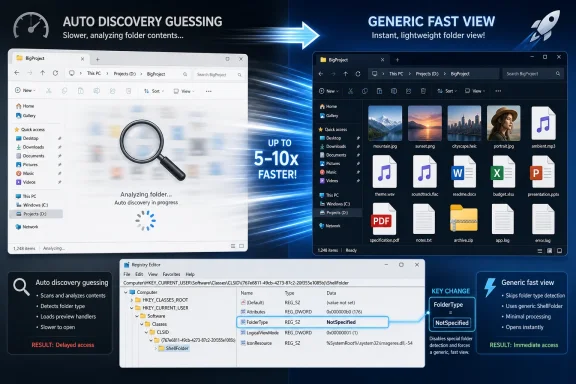
The trick making the rounds is simple enough: create a FolderType string value under the current user’s Explorer “Bags” registry path and set it to NotSpecified. In plain English, that tells Explorer to stop trying to infer whether a folder is full of photos, music, videos, documents, or some other content category before deciding how to present it.That inference system is commonly called Automatic Folder Type Discovery. It is one of those Windows ideas that sounds harmless, even helpful, until it runs into a folder with thousands of mixed files, a slow drive, cloud placeholders, network paths, or metadata-heavy media. Explorer opens the location, sniffs around, chooses a template, and then renders the folder using columns and views it thinks are appropriate.
The trouble is not that folder templates exist. A Pictures folder with thumbnail previews and image-oriented columns is useful; a Music folder with artist and album fields makes sense. The trouble is that the automatic part can turn a basic navigation operation into a small investigation, and Windows users tend to notice when “open folder” stops feeling instantaneous.
That is why the tweak resonates. It does not promise a new file manager, a new kernel, or a secret performance mode. It simply removes a decision point from one of the most frequently used parts of the operating system.
Windows 11 Made Explorer Pretty, Then Users Asked Where the Speed Went
File Explorer has always carried a heavy burden. It is not just a file browser; it is entangled with the desktop, the shell, context menus, preview handlers, thumbnail generation, compressed folders, cloud sync clients, search indexing, removable storage, network discovery, and decades of third-party extensions. When it feels slow, the culprit is rarely one thing.Windows 11 made that complexity more visible. Microsoft redesigned Explorer with a cleaner command bar, new context menu behavior, tabs, a refreshed Home view, deeper OneDrive presence, and modern visual treatment. Some of those changes were overdue. Some were controversial. Nearly all of them gave longtime Windows users a new opportunity to compare the old Explorer’s muscle memory with the new Explorer’s delays.
The complaints have been remarkably consistent: folders take too long to populate, right-click menus hesitate, search lags, thumbnails churn, and Explorer sometimes stops responding during ordinary navigation. On high-end machines, these pauses feel especially offensive. A user with a fast NVMe SSD and a modern CPU does not expect the file manager to behave like it is negotiating with a tape drive.
Microsoft has acknowledged performance work around Explorer in recent Windows 11 development, including efforts around folder navigation, context menus, file operations, and search. That is the right direction. But it also reinforces the uncomfortable truth: Explorer’s performance problem is no longer a fringe complaint from underpowered PCs.
The Registry Tweak Works Because It Removes a Whole Class of Work
The relevant registry path is under the current user hive, not a machine-wide policy location. The commonly used path is:HKEY_CURRENT_USER\Software\Classes\Local Settings\Software\Microsoft\Windows\Shell\Bags\AllFolders\ShellInside that key, users create a string value named
FolderType and set it to NotSpecified. After restarting Explorer or rebooting, folders generally stop being automatically categorized into content-specific templates.That is a narrow change, and that narrowness is why it is appealing. It does not disable indexing. It does not rip out thumbnails globally. It does not uninstall OneDrive or replace Explorer with a third-party file manager. It tells Windows to use a generic folder treatment instead of repeatedly trying to be clever.
The practical result is most noticeable in large folders, messy folders, Downloads directories, media dumps, developer workspaces, and locations where file types are mixed. These are precisely the places where automatic classification is least valuable. If a folder contains installers, screenshots, PDFs, ZIP files, log files, exported videos, and random project assets, there is no single “correct” template worth waiting for.
There is a trade-off. Folders may default to a more generic Details-style view, and Windows may no longer automatically pivot a folder into a photo- or music-friendly layout. But for many power users, that is not a loss. A predictable generic view is often preferable to a smart view that gets in the way.
The Old Windows Feature That Became a Modern Performance Smell
Automatic folder typing dates back to an era when Microsoft was trying to make Windows more context-aware without asking users to configure every folder manually. That ambition made sense. Digital cameras were exploding, MP3 collections were common, and Windows needed to feel friendlier to people who did not know or care about columns, templates, and folder customization.The design assumed that Windows could look at a folder and make an educated guess. If it saw images, it could show picture-oriented views. If it saw music, it could expose music metadata. If it saw documents, it could prioritize document-like presentation. This was not a foolish feature; it was a convenience feature built for a different storage culture.
But storage habits changed. Users now keep enormous Downloads folders, sync entire desktops into cloud services, work with mixed project directories, and accumulate years of screenshots, installers, exports, archives, and media in the same locations. Developers and admins may have folders with thousands of small files, nested repositories, logs, packages, virtual disk images, and build artifacts.
In that world, automatic content discovery can become a tax. It is not always the dominant tax, but it is a tax paid at precisely the wrong moment: when the user is waiting for a folder to open.
Windows has many such features. Individually, they are defensible. Together, they create an operating system that often feels as though it is performing errands on the user’s behalf before allowing the user to perform the original task.
Windows 10’s Long Shadow Still Falls Across Explorer
The BGR/AOL piece that revived this tweak framed it partly through Windows 10’s stubborn popularity. That framing is understandable, though the market-share picture has shifted substantially since Windows 10’s official end of support in October 2025. Windows 11 has since taken a commanding lead in many public market-share trackers, while Windows 10 remains large enough to matter because enterprise fleets, unsupported hardware, conservative users, and extended support options do not disappear overnight.The emotional point remains true even if the percentages move month to month: Windows 10 became the baseline many users use to judge Windows 11. File Explorer is one of the places where that comparison is least forgiving. If the new operating system looks nicer but responds more slowly, users will call it slower, even if benchmarks elsewhere say the machine is faster.
Explorer also carries symbolic weight. A sluggish Settings page can be annoying; a sluggish file manager feels like a breach of contract. File browsing is basic computing. When it stutters, the whole OS feels heavier.
This is why a registry tweak can travel further than a changelog. It gives users agency in a place where Microsoft’s official guidance often feels too generalized: restart, update, clear history, check indexing, disable extensions, run troubleshooters. Those steps may help, but they do not speak as directly to the everyday irritation of “Why did this folder take five seconds to open?”
The Fix Is Safe Enough for Power Users, Not Casual Enough for Everyone
Editing the registry is not inherently reckless, but it is also not the same as flipping a Settings toggle. The Windows Registry is full of configuration that the shell expects to find in particular forms. A typo in the wrong place can break behavior that is difficult for a casual user to diagnose.That said, this specific change is relatively contained. It applies under the current user’s Explorer view settings and is reversible. Deleting the
FolderType value or changing folder customization manually can restore more typical behavior. Backing up the relevant registry branch — or exporting the registry before making changes — remains the sensible first step.For enthusiasts and administrators, the appeal is obvious. This is the kind of tweak that can be tested quickly, rolled back quickly, and judged by lived experience. If opening a large Downloads folder becomes noticeably faster, the result speaks for itself. If nothing changes, the system probably had a different bottleneck.
For mainstream users, Microsoft should not be comfortable with the answer being “open Registry Editor and create a string value.” The existence of a useful registry workaround is not a substitute for a product decision. If disabling automatic folder discovery is beneficial often enough to become common advice, it deserves a supported interface, a policy, or smarter default behavior.
Explorer’s Real Problem Is the Pile-Up Around the Folder Open
The danger in overhyping this tweak is that it can make File Explorer performance sound like a single-defect story. It is not. Automatic Folder Type Discovery is one contributor to sluggishness, but Explorer can be slowed by many other pieces of the Windows shell stack.Thumbnail generation can hammer folders full of images, videos, or PDFs. Preview handlers can stall when they encounter damaged or unusual files. Third-party context menu extensions can make right-click operations feel broken. Cloud sync clients can delay enumeration while resolving file status, availability, or overlays. Network paths can introduce timeouts. Search indexing can be misconfigured, stale, or absent where the user expects it.
The Downloads folder is a perfect storm. It often contains mixed content, many file types, installers from unknown origins, compressed archives, images, documents, and temporary leftovers. It is also frequently sorted by date, scanned by security tools, touched by browsers, and watched by sync or backup utilities. If Explorer hesitates there, folder type discovery may be part of the reason, but it is rarely the whole system.
That distinction matters for troubleshooting. A user who expects
NotSpecified to fix a broken network share, a misbehaving shell extension, or a failing drive will be disappointed. A user who treats it as one pragmatic reduction in Explorer’s workload is more likely to understand both its value and its limits.The Enterprise Case Is Less About Speed Than Predictability
For IT departments, the most interesting part of this tweak is not the millisecond count. It is predictability. Enterprise Windows environments tend to reward standardization, and automatic folder behavior is the opposite of standardization when it surprises users or changes views based on content.A generic default folder type can make support easier. If users see consistent columns and layouts, help desk instructions become simpler. If large shared folders open faster or at least more consistently, fewer tickets get filed under vague complaints like “Explorer freezes.” If a tweak can be deployed per user and rolled back cleanly, it becomes a candidate for pilot testing.
But enterprise deployment also raises questions that home users can ignore. Does the tweak interfere with workflows that depend on media-oriented columns? Does it affect departments that browse image libraries, audio archives, or video assets? Does it interact cleanly with existing Group Policy, profile management, roaming settings, or virtual desktop images? Does it survive feature updates without becoming another mystery setting in the golden image?
The answer is likely to vary by organization. An engineering shop with giant source trees and artifact directories may love it. A marketing department living in photo and video folders may prefer automatic templates. A school lab or kiosk environment may simply want the most generic, least surprising Explorer possible.
That is why the tweak belongs in the category of “testable operational preference,” not universal best practice. The registry key is easy; the deployment decision is where the real work begins.
Microsoft’s Smarter Explorer Should Be Less Eager, Not Less Capable
The obvious objection to disabling folder discovery is that Windows should not need to become dumber to become faster. Users should not have to choose between a helpful Pictures folder and a responsive Downloads folder. A modern file manager ought to defer expensive work, cache intelligently, and let the first view appear before enrichment continues in the background.That is the standard Microsoft should be aiming for. Explorer can still support folder types. It can still display image dimensions, music metadata, and video details. It can still remember per-folder views. But it should not block basic navigation while it decides how clever to be.
The broader design lesson is that perceived performance matters as much as total work. If Explorer opens a folder instantly and then fills in thumbnails or specialized columns progressively, users forgive the background activity. If Explorer stalls before showing anything useful, users experience the system as slow even when the machine is doing technically reasonable work.
This is especially important because Windows 11 already asks users to tolerate a more mediated desktop. Search is more web-aware. Start is more recommendation-driven. File Explorer Home is more cloud-conscious. Context menus are more curated. Some of that is good product design, but every layer that interprets user intent must earn its keep in responsiveness.
The Community Found the Toggle Microsoft Should Have Exposed
There is a familiar rhythm to Windows power-user culture. Microsoft ships a behavior intended to help the broad user base. Enthusiasts find it slow, noisy, or presumptuous. A registry setting, PowerShell command, or third-party utility becomes the de facto switch. Years later, Microsoft either productizes the option, changes the default, or leaves the workaround to circulate forever.Automatic Folder Type Discovery fits that pattern perfectly. The setting is not obscure because the idea is obscure; it is obscure because Microsoft never treated “stop guessing my folder type” as a mainstream preference. That may have been reasonable when most users had smaller, more clearly organized libraries. It is harder to defend now.
The best Windows features tend to scale down and up. They help casual users without punishing experts. They make the default experience friendly while allowing administrators and power users to enforce consistency. Folder type discovery currently does the first part better than the second.
WindowsForum readers will recognize the genre. This is not a hack in the cinematic sense. It is an exposed seam between Windows’ consumer-friendly ambitions and the daily expectations of people who manage real file systems.
A Small Tweak Reveals the Bigger File Explorer Bargain
For anyone trying the change, the sensible process is straightforward: back up the registry, add theFolderType value, restart Explorer, and test the folders that actually bother you. Do not judge it by opening an empty folder on a fast local drive. Judge it by your Downloads folder, your project archive, your media dump, your synced workspace, or the directory that made you search for a fix in the first place.If the improvement is obvious, keep it. If the loss of automatic templates annoys you, undo it. If nothing changes, move on to the other usual suspects: cloud sync status, thumbnail generation, preview panes, shell extensions, indexing configuration, network locations, storage health, and recent Windows updates.
The important point is not that every Windows 11 user must disable folder discovery. The important point is that File Explorer performance is often shaped by features that feel secondary until they get in the way. Windows does not merely open folders; it interprets them. Sometimes the fastest interpretation is none at all.
The Explorer Fix That Says More Than It Promises
Before treating the registry value as a cure-all, it is worth keeping the practical boundaries in view. This is a useful tweak precisely because it is modest.- Disabling Automatic Folder Type Discovery can make large or mixed-content folders open more quickly because Explorer has less content analysis to perform before rendering the view.
- The change is per-user and reversible, but it still requires Registry Editor, so exporting a backup first is the responsible move.
- The main downside is that folders may use a generic layout instead of automatically switching to photo, music, video, or document-oriented templates.
- The tweak will not fix every File Explorer slowdown, especially those caused by cloud sync clients, broken shell extensions, network timeouts, thumbnail handlers, or storage problems.
- Administrators should pilot the change with real user workflows before deploying it broadly, because departments that rely on media-specific folder views may dislike the trade-off.
- Microsoft’s long-term fix should be smarter, lazier folder enrichment rather than forcing users to choose between automatic views and responsiveness.
References
- Primary source: aol.com
Published: 2026-06-28T21:20:32.297424
Changing This One Windows Setting Can Make File Explorer Run Much Better - AOL
If File Explorer on Windows 11 is running slowly and driving you crazy, this simple change to the settings will smooth out the process considerably.www.aol.com - Related coverage: windowscentral.com
Critics on Microsoft extending Windows 10 support for free through 2027: "Are they admitting Windows 11 isn't good enough 5 years later?" | Windows Central
Windows 10 holdouts are already calling on Microsoft to extend support for the operating system beyond 2027.www.windowscentral.com - Related coverage: techradar.com
Windows 11 is now 5 years old — and for the first time this decade, I think Microsoft's finally onto a winner with the OS | TechRadar
It's half a decade since Windows 11 was announced — and I'm happy with the direction it's now heading inwww.techradar.com - Related coverage: tomshardware.com
Windows 11 continues gaining traction, nears 75% market share — Windows 10 finally on the way out, some five months after Microsoft axes support | Tom's Hardware
More people are getting into Windows 11, but is this by choice?www.tomshardware.com - Related coverage: windowsforum.com
Speed Up Windows 11 File Explorer by Disabling Automatic Folder Type Discovery | Windows Forum
Windows 11’s File Explorer can feel sluggish in ways that seem impossible on modern hardware: slow folder opens, stuttering when scrolling, and delays when...windowsforum.com - Related coverage: windowslatest.com
Windows 11 can open big folders in File Explorer faster if you turn off folder discovery
File Explorer in Windows 11 is noticeably slower than its previous version, Windows 10, ut one useful hack could be boost the speed. www.windowslatest.com
- Related coverage: geekermag.com
Fix - Windows 11 File Explorer is slow when opening folders
Windows 11 offers many improvements over its predecessors, but like any operating system, it's not without its quirks and occasional issues. One commongeekermag.com - Related coverage: pcworld.com
Windows 11 has nearly caught up to Windows 10 with market share spike | PCWorld
After a big jump in June 2025, the number of Windows 11 and Windows 10 users are almost equal.www.pcworld.com - Related coverage: techindeep.com
Why Is Windows Explorer Slow? A Software Engineer's Deep Dive into the Performance Issues - Tech in Deep
Discover why is Windows Explorer slow in Windows 11 and learn proven solutions from a software engineer. Fix File Explorer lag with WinUI 3 optimization tips, Microsoft's preloading update, and third-party alternatives like Directory Opus and File Pilot.www.techindeep.com - Related coverage: thewindowsclub.com
Disable Folder Type Discovery in File Explorer in Windows 11
Folder Type Discovery analyzes content of a folder & automatically assigns a template (layout & view mode). Enable or Disable it using REGEDIT.www.thewindowsclub.com - Related coverage: allthings.how
Fix File Explorer Lag When Browsing Large Folders on Windows 11
Resolve persistent delays and freezing in Windows 11 File Explorer when navigating directories with many files by applying targeted solutions that address indexing, background processes, and system settings.allthings.how - Related coverage: tomsguide.com
Windows 10 support officially ends — are you upgrading to Windows 11? | Tom's Guide
Windows 10 has reached its end of life, but millions of PCs are still using Microsoft's older OS. Tell us if you're upgrading to Windows 11 or keeping your Windows 10 PC!www.tomsguide.com - Official source: support.microsoft.com
File Explorer in Windows | Microsoft Support
Find and open File Explorer in Windows, and customize Quick access by pinning and removing files and folders.support.microsoft.com - Official source: learn.microsoft.com
FOLDERTYPEID (Shlguid.h) - Win32 apps | Microsoft Learn
The FOLDERTYPEID values represent a view template applied to a folder, usually based on its intended use and contents.learn.microsoft.com
