

Microsoft’s old Windows “God Mode” folder still works in Windows 11, but a newer open-source PowerShell project called Super God Mode can generate a much broader searchable folder of shortcuts to Control Panel pages, Settings app links, shell folders, URL protocols, and hidden Windows entry points. The difference is not magic; it is taxonomy. God Mode shows the Windows that Microsoft used to organize around Control Panel, while Super God Mode exposes the Windows that actually exists now: layered, duplicated, half-migrated, and full of buried doors.
That makes the How-To Geek pitch more than a neat power-user trick. It is a reminder that Microsoft’s settings story has never quite recovered from the transition away from Control Panel. Super God Mode is useful because Windows itself remains fragmented.
The classic God Mode trick is one of those Windows folk hacks that survived because it feels like a secret handshake. Create a folder, append the well-known class identifier, and Explorer turns it into a special Control Panel-style view. The name can be anything; the GUID is the thing doing the work.
In practical terms, it is not a privilege escalation, a hidden administrator console, or a forbidden Microsoft backroom. It is a shell namespace shortcut, most commonly associated with the Windows Master Control Panel or “All Tasks” view. That distinction matters because the “God” in God Mode has always been a marketing flourish supplied by users and bloggers, not a promise from Windows engineering.
For a long time, though, the name felt earned. In the Windows 7 era, Control Panel was still the center of gravity for serious configuration. If you wanted to manage devices, network adapters, indexing, power options, credentials, backup, fonts, user accounts, or administrative tools, the old panel was where the trail usually led.
That is why the trick became a staple of repair shops, enthusiast desktops, and “new PC setup” checklists. It flattened a maze into a list. The joy of God Mode was not that it revealed secret features, but that it made Windows feel less like an archaeological dig.
The problem is that the dig continued.
The result is familiar to anyone who has managed Windows for more than an afternoon. Some settings live only in Settings. Some live only in Control Panel. Some begin in Settings and end in an old dialog that looks like it wandered in from 2009. Some are reachable through Start search only if you guess the right phrase. Others are effectively hidden until a support article, a registry path, or a forum thread points you toward them.
God Mode reflects the old world. It aggregates Control Panel tasks, which is still useful, but increasingly incomplete. If a setting was born in the Settings app era, uses an
That is the real story behind the How-To Geek comparison. The claim is not that God Mode has broken. It is that Windows moved on without giving users an equally comprehensive replacement.
Super God Mode steps into that gap by treating Windows less like a curated interface and more like a searchable inventory. It does not depend on a single prebuilt shell view. It scans known places where Windows exposes entry points and creates ordinary shortcuts to them.
That sounds almost crude, but it is exactly the sort of crude that Windows rewards. The operating system has decades of compatibility layers, migrated features, renamed panels, dormant app links, legacy namespaces, and protocol handlers. A single blessed “all settings” surface cannot capture that sprawl unless Microsoft decides to build and maintain it. A script that inventories exposed entry points can.
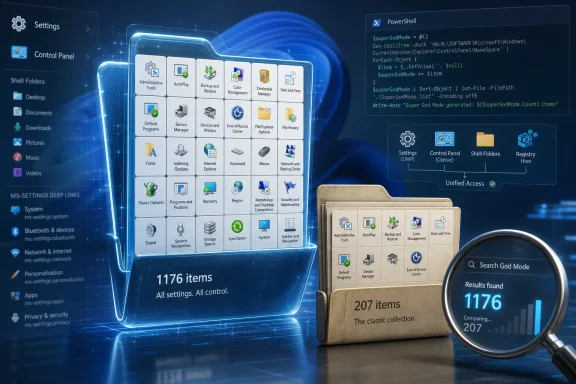
The How-To Geek author reports 207 items in a traditional God Mode folder on a Windows 11 PC and 1,176 shortcuts from Super God Mode on the same class of system. Those numbers should not be treated as universal benchmarks, because the output depends on Windows version, edition, installed apps, language resources, optional features, and configuration. But the scale difference is the point. Super God Mode is not giving you a cleaner Control Panel; it is giving you a rougher but wider map of the system.
It also avoids the biggest misconception. Running the script does not unlock permissions you did not already have. It does not flip hidden switches, bypass policy, or make unsupported changes. It creates shortcuts to things Windows already exposes somewhere.
That makes it powerful in a mundane way. A shortcut folder is easy to inspect, easy to delete, easy to move, and easy to index. For many Windows power users, that is more valuable than another polished interface that still fails to surface the thing they need.
A thousand shortcuts are not useful if you are expected to browse them like a museum catalog. They become useful when they are indexed by Windows Search, Everything, PowerToys Command Palette, Start menu replacements, or whatever launcher a power user already keeps under a hotkey. Super God Mode turns hidden Windows entry points into ordinary files, and ordinary files are the one thing Windows search tools generally understand.
That is why the trick feels modern despite its retro name. The old God Mode was about browsing categories. Super God Mode is about making buried commands discoverable in a launcher-driven workflow.
For IT pros, this matters because the hardest part of Windows administration is often not knowing whether a feature exists. It is remembering where Microsoft put it this year. A network adapter setting may have a modern page, a legacy dialog, a Control Panel applet, a Device Manager path, and a command-line equivalent. If a generated shortcut gets you to the right surface faster, it has earned its keep.
For enthusiasts, the appeal is broader. Super God Mode becomes a guided tour of everything Windows exposes. It surfaces protocol links, special folders, and settings pages that most users would never stumble across. Some are boring. Some are dead ends. Some are duplicates. But taken together, they reveal how much of Windows remains addressable through shortcuts and shell plumbing rather than through the official front door.
That is also why the “Microsoft can’t hide anything from you anymore” framing is catchy but slightly overstated. Microsoft can still hide plenty. Features gated by policy, unavailable on your edition, removed from your build, controlled by cloud-side rollout, or protected behind administrative privileges will not magically appear as working controls just because a shortcut exists. Super God Mode improves discoverability; it does not repeal Windows security or product segmentation.
The responsible path is straightforward. Download from the project’s official repository, inspect the release files, avoid random reuploads, and understand what the launcher is doing before clicking through prompts. PowerShell is powerful by design; a harmless script and a malicious script can arrive in the same file format.
The project’s use of a batch launcher and graphical interface lowers the friction for normal users, but IT shops will view that convenience differently. In a managed environment, scripts downloaded from GitHub are not casual desktop accessories. They are software supply-chain decisions, however small. Security teams may reasonably block or discourage them even if the project itself is benign.
That does not make Super God Mode unsuitable for professionals. It means its best enterprise use may be in labs, admin workstations, documentation environments, and personal troubleshooting kits rather than broad deployment to end-user fleets. A help desk technician who knows exactly what the folder contains can benefit from it. A domain full of users clicking obscure protocol links because a viral article told them to “unlock everything” is another matter.
There is also the matter of stale or nonfunctional shortcuts. Because Super God Mode enumerates a wide range of potential entry points, some generated links will not work on every machine. They may depend on Windows edition, installed components, app packages, feature flags, regional resources, or Microsoft changing a URI in a future release. That is not failure so much as a side effect of mapping an operating system that was not designed to be mapped this way.
Microsoft has spent years improving the Settings app, and Windows 11’s version is far better than the early Windows 8 and Windows 10 attempts. It is more searchable, more visually consistent, and better organized around common tasks. But “better” is not the same as complete. Power users still bounce between Settings, Control Panel, Device Manager, Disk Management, Services, Local Group Policy Editor, Registry Editor, Windows Security, Terminal, and assorted snap-ins.
Some of that fragmentation is unavoidable. Windows serves consumers, gamers, businesses, developers, schools, kiosks, OEMs, accessibility users, and enterprise administrators. A single settings app cannot be equally elegant for Bluetooth pairing, BitLocker recovery, Hyper-V virtual switches, color management, storage spaces, passkeys, and legacy ODBC data sources.
But Microsoft’s problem is not merely complexity. It is trust. When a user searches Settings and cannot find a control they know exists, they learn that the official interface is incomplete. When a Settings page punts them into a legacy dialog, they learn that the modernization layer is partial. When an old Control Panel item disappears from obvious navigation but still exists elsewhere, they learn that “deprecated” often means “harder to find,” not “gone.”
Super God Mode benefits from that distrust. It does not have to be pretty. It only has to be comprehensive enough to make Microsoft’s own navigation feel selective.
The right way is to treat it as an index. Generate it, keep it somewhere predictable, let your search tool ingest it, and use it when Windows search fails you. The value comes from retrieval, not browsing.
That changes how the tool fits into a power-user workflow. A launcher such as PowerToys Command Palette can become a front end for settings that Microsoft’s own Start search may not prioritize. Everything can find obscure entries instantly. Even File Explorer search, slow as it can be, now has a folder of shortcuts to chew on.
There is also a documentation angle. For people who write tutorials, administer mixed Windows environments, or support family PCs across different versions, Super God Mode can expose naming differences and available entry points on a given machine. It is a snapshot of what that installation appears to expose at that moment.
Still, the generated folder should not be mistaken for authority. If a shortcut exists, that does not mean the feature is supported, safe to change, or relevant to your machine. Windows is full of legacy surfaces preserved for compatibility, and some settings interact with policies, device drivers, account types, or hardware capabilities in ways a shortcut cannot explain.
The serious impulse underneath is control. Users want a way to see the system they bought, administer, repair, or depend on. They want fewer mystery doors and fewer moments where a setting exists but cannot be found through the interface that supposedly replaced the old one.
That desire is especially sharp on Windows 11, where Microsoft has tightened the visual language while still carrying forward a huge amount of old machinery. The operating system can look modern on the surface and still reveal classic dialogs three clicks later. Super God Mode does not resolve that contradiction. It makes it visible.
There is a philosophical difference here. Microsoft designs Settings for tasks it expects normal users to perform. Super God Mode maps entry points whether or not they belong in a polished consumer journey. One approach is product design; the other is reconnaissance.
Neither is sufficient alone. A consumer operating system needs sane defaults and curated settings. A power-user operating system needs inspectability. Windows claims both audiences, and tools like Super God Mode exist because the inspectability side often depends on community workarounds.
But enterprise Windows management is not won through shortcut folders. It is won through policy, automation, documentation, configuration baselines, endpoint management, and repeatable procedures. If a setting matters across a fleet, the correct question is not “Can I open it quickly?” but “Can I configure it predictably and audit the result?”
That is where the tool’s consumer-friendly framing can mislead. Super God Mode gives visibility, not governance. It helps you find doors, but it does not tell you which doors your organization should allow users to open. It also does not replace Microsoft Intune, Group Policy, PowerShell Desired State Configuration, security baselines, or the practical discipline of change control.
There is also a supportability issue. If a help desk script or user guide tells people to open controls through generated shortcuts, the procedure may break when Microsoft changes a deep link. Official settings paths can break too, but unofficially discovered links carry a different maintenance burden.
The best admin stance is therefore pragmatic. Keep Super God Mode in the toolbox. Do not confuse it with a management strategy. Use it to discover, then translate anything important into supported commands, documented policies, or official configuration paths.
That may make Microsoft uncomfortable, because it highlights how much remains outside the clean Settings narrative. But it should also be instructive. Users are telling Microsoft exactly what they want: one trustworthy place to find things, even if the underlying implementation remains messy.
If Microsoft built an official equivalent, it would not need the “God Mode” branding. It could be an advanced settings index, an administrator command palette, or a system location browser with clear labels and privilege boundaries. It could separate supported controls from legacy compatibility surfaces. It could expose deep links without forcing users into GitHub scripts and folklore.
Until then, the community version will keep circulating because it solves a real problem. It gives Windows a table of contents.
That makes the How-To Geek pitch more than a neat power-user trick. It is a reminder that Microsoft’s settings story has never quite recovered from the transition away from Control Panel. Super God Mode is useful because Windows itself remains fragmented.
 God Mode Was a Clever Shortcut to an Older Windows
The classic God Mode trick is one of those Windows folk hacks that survived because it feels like a secret handshake. Create a folder, append the well-known class identifier, and Explorer turns it into a special Control Panel-style view. The name can be anything; the GUID is the thing doing the work.In practical terms, it is not a privilege escalation, a hidden administrator console, or a forbidden Microsoft backroom. It is a shell namespace shortcut, most commonly associated with the Windows Master Control Panel or “All Tasks” view. That distinction matters because the “God” in God Mode has always been a marketing flourish supplied by users and bloggers, not a promise from Windows engineering.
For a long time, though, the name felt earned. In the Windows 7 era, Control Panel was still the center of gravity for serious configuration. If you wanted to manage devices, network adapters, indexing, power options, credentials, backup, fonts, user accounts, or administrative tools, the old panel was where the trail usually led.
That is why the trick became a staple of repair shops, enthusiast desktops, and “new PC setup” checklists. It flattened a maze into a list. The joy of God Mode was not that it revealed secret features, but that it made Windows feel less like an archaeological dig.
The problem is that the dig continued.
Windows Settings Became a Split-Brain Operating System
Modern Windows is no longer organized around one control surface. Since Windows 8, Microsoft has been moving consumer-facing and device-era controls into the Settings app, while leaving a large amount of durable administrative machinery in Control Panel, Management Console snap-ins, legacy dialogs, shell folders, and obscure executable tools. Windows 10 accelerated that shift; Windows 11 made the modern Settings app look more coherent without fully finishing the migration.The result is familiar to anyone who has managed Windows for more than an afternoon. Some settings live only in Settings. Some live only in Control Panel. Some begin in Settings and end in an old dialog that looks like it wandered in from 2009. Some are reachable through Start search only if you guess the right phrase. Others are effectively hidden until a support article, a registry path, or a forum thread points you toward them.
God Mode reflects the old world. It aggregates Control Panel tasks, which is still useful, but increasingly incomplete. If a setting was born in the Settings app era, uses an
ms-settings: deep link, belongs to an app package, or sits behind a shell protocol rather than a Control Panel task, the old God Mode folder is unlikely to be the universal map users imagine.That is the real story behind the How-To Geek comparison. The claim is not that God Mode has broken. It is that Windows moved on without giving users an equally comprehensive replacement.
Super God Mode steps into that gap by treating Windows less like a curated interface and more like a searchable inventory. It does not depend on a single prebuilt shell view. It scans known places where Windows exposes entry points and creates ordinary shortcuts to them.
Super God Mode Wins Because It Accepts the Mess
ThioJoe’s Super God Mode project is deliberately less elegant than the original trick, and that is why it works better on Windows 11. Instead of invoking one magic class identifier, the PowerShell script gathers shortcuts across categories: shell folders, named special folders, Control Panel task links, Settings app links, deep links, URL protocols, and app-related hidden links. It then writes them out into a folder structure that normal Windows tools can index and search.That sounds almost crude, but it is exactly the sort of crude that Windows rewards. The operating system has decades of compatibility layers, migrated features, renamed panels, dormant app links, legacy namespaces, and protocol handlers. A single blessed “all settings” surface cannot capture that sprawl unless Microsoft decides to build and maintain it. A script that inventories exposed entry points can.
The How-To Geek author reports 207 items in a traditional God Mode folder on a Windows 11 PC and 1,176 shortcuts from Super God Mode on the same class of system. Those numbers should not be treated as universal benchmarks, because the output depends on Windows version, edition, installed apps, language resources, optional features, and configuration. But the scale difference is the point. Super God Mode is not giving you a cleaner Control Panel; it is giving you a rougher but wider map of the system.
It also avoids the biggest misconception. Running the script does not unlock permissions you did not already have. It does not flip hidden switches, bypass policy, or make unsupported changes. It creates shortcuts to things Windows already exposes somewhere.
That makes it powerful in a mundane way. A shortcut folder is easy to inspect, easy to delete, easy to move, and easy to index. For many Windows power users, that is more valuable than another polished interface that still fails to surface the thing they need.
Search Is the Real Interface Now
The most important feature of Super God Mode is not the folder. It is search.A thousand shortcuts are not useful if you are expected to browse them like a museum catalog. They become useful when they are indexed by Windows Search, Everything, PowerToys Command Palette, Start menu replacements, or whatever launcher a power user already keeps under a hotkey. Super God Mode turns hidden Windows entry points into ordinary files, and ordinary files are the one thing Windows search tools generally understand.
That is why the trick feels modern despite its retro name. The old God Mode was about browsing categories. Super God Mode is about making buried commands discoverable in a launcher-driven workflow.
For IT pros, this matters because the hardest part of Windows administration is often not knowing whether a feature exists. It is remembering where Microsoft put it this year. A network adapter setting may have a modern page, a legacy dialog, a Control Panel applet, a Device Manager path, and a command-line equivalent. If a generated shortcut gets you to the right surface faster, it has earned its keep.
For enthusiasts, the appeal is broader. Super God Mode becomes a guided tour of everything Windows exposes. It surfaces protocol links, special folders, and settings pages that most users would never stumble across. Some are boring. Some are dead ends. Some are duplicates. But taken together, they reveal how much of Windows remains addressable through shortcuts and shell plumbing rather than through the official front door.
That is also why the “Microsoft can’t hide anything from you anymore” framing is catchy but slightly overstated. Microsoft can still hide plenty. Features gated by policy, unavailable on your edition, removed from your build, controlled by cloud-side rollout, or protected behind administrative privileges will not magically appear as working controls just because a shortcut exists. Super God Mode improves discoverability; it does not repeal Windows security or product segmentation.
The Safety Story Is Better Than the Name Suggests
Any time a PowerShell script promises to expose hidden Windows controls, caution is warranted. The Super God Mode project’s saving grace is that its core behavior is comparatively conservative: it creates shortcuts and reference files rather than modifying system settings. That does not mean users should run it blindly, but it places the tool in a different risk category than debloat scripts, registry tweak packs, or “optimization” utilities.The responsible path is straightforward. Download from the project’s official repository, inspect the release files, avoid random reuploads, and understand what the launcher is doing before clicking through prompts. PowerShell is powerful by design; a harmless script and a malicious script can arrive in the same file format.
The project’s use of a batch launcher and graphical interface lowers the friction for normal users, but IT shops will view that convenience differently. In a managed environment, scripts downloaded from GitHub are not casual desktop accessories. They are software supply-chain decisions, however small. Security teams may reasonably block or discourage them even if the project itself is benign.
That does not make Super God Mode unsuitable for professionals. It means its best enterprise use may be in labs, admin workstations, documentation environments, and personal troubleshooting kits rather than broad deployment to end-user fleets. A help desk technician who knows exactly what the folder contains can benefit from it. A domain full of users clicking obscure protocol links because a viral article told them to “unlock everything” is another matter.
There is also the matter of stale or nonfunctional shortcuts. Because Super God Mode enumerates a wide range of potential entry points, some generated links will not work on every machine. They may depend on Windows edition, installed components, app packages, feature flags, regional resources, or Microsoft changing a URI in a future release. That is not failure so much as a side effect of mapping an operating system that was not designed to be mapped this way.
Microsoft’s Control Panel Migration Still Has a Credibility Problem
The continued appeal of God Mode derivatives says something unflattering about Windows. Users do not reach for unofficial indexers of system settings when the official navigation model is working.Microsoft has spent years improving the Settings app, and Windows 11’s version is far better than the early Windows 8 and Windows 10 attempts. It is more searchable, more visually consistent, and better organized around common tasks. But “better” is not the same as complete. Power users still bounce between Settings, Control Panel, Device Manager, Disk Management, Services, Local Group Policy Editor, Registry Editor, Windows Security, Terminal, and assorted snap-ins.
Some of that fragmentation is unavoidable. Windows serves consumers, gamers, businesses, developers, schools, kiosks, OEMs, accessibility users, and enterprise administrators. A single settings app cannot be equally elegant for Bluetooth pairing, BitLocker recovery, Hyper-V virtual switches, color management, storage spaces, passkeys, and legacy ODBC data sources.
But Microsoft’s problem is not merely complexity. It is trust. When a user searches Settings and cannot find a control they know exists, they learn that the official interface is incomplete. When a Settings page punts them into a legacy dialog, they learn that the modernization layer is partial. When an old Control Panel item disappears from obvious navigation but still exists elsewhere, they learn that “deprecated” often means “harder to find,” not “gone.”
Super God Mode benefits from that distrust. It does not have to be pretty. It only has to be comprehensive enough to make Microsoft’s own navigation feel selective.
The Tool Is Most Useful When Treated as an Index, Not a Dashboard
The wrong way to use Super God Mode is to treat the generated folder as a new Control Panel. A folder containing more than a thousand shortcuts is not a pleasant dashboard, and it will not make Windows administration simpler by itself. It can become clutter if users move it to the desktop and then forget why half the entries exist.The right way is to treat it as an index. Generate it, keep it somewhere predictable, let your search tool ingest it, and use it when Windows search fails you. The value comes from retrieval, not browsing.
That changes how the tool fits into a power-user workflow. A launcher such as PowerToys Command Palette can become a front end for settings that Microsoft’s own Start search may not prioritize. Everything can find obscure entries instantly. Even File Explorer search, slow as it can be, now has a folder of shortcuts to chew on.
There is also a documentation angle. For people who write tutorials, administer mixed Windows environments, or support family PCs across different versions, Super God Mode can expose naming differences and available entry points on a given machine. It is a snapshot of what that installation appears to expose at that moment.
Still, the generated folder should not be mistaken for authority. If a shortcut exists, that does not mean the feature is supported, safe to change, or relevant to your machine. Windows is full of legacy surfaces preserved for compatibility, and some settings interact with policies, device drivers, account types, or hardware capabilities in ways a shortcut cannot explain.
The Name Is Silly, but the Impulse Is Serious
“Super God Mode” is a name engineered for YouTube thumbnails and search clicks. It implies drama where the underlying mechanism is mostly enumeration and shortcut generation. Yet Windows enthusiasts have always named their tools this way because the platform itself makes discovery feel like spelunking.The serious impulse underneath is control. Users want a way to see the system they bought, administer, repair, or depend on. They want fewer mystery doors and fewer moments where a setting exists but cannot be found through the interface that supposedly replaced the old one.
That desire is especially sharp on Windows 11, where Microsoft has tightened the visual language while still carrying forward a huge amount of old machinery. The operating system can look modern on the surface and still reveal classic dialogs three clicks later. Super God Mode does not resolve that contradiction. It makes it visible.
There is a philosophical difference here. Microsoft designs Settings for tasks it expects normal users to perform. Super God Mode maps entry points whether or not they belong in a polished consumer journey. One approach is product design; the other is reconnaissance.
Neither is sufficient alone. A consumer operating system needs sane defaults and curated settings. A power-user operating system needs inspectability. Windows claims both audiences, and tools like Super God Mode exist because the inspectability side often depends on community workarounds.
Where Admins Should Draw the Line
For administrators, Super God Mode is useful but not transformative. It can speed up local troubleshooting, surface obscure configuration pages, and help technicians find the right UI without memorizing every URI and shell folder. It may be particularly handy on test machines where the goal is exploration rather than standardized management.But enterprise Windows management is not won through shortcut folders. It is won through policy, automation, documentation, configuration baselines, endpoint management, and repeatable procedures. If a setting matters across a fleet, the correct question is not “Can I open it quickly?” but “Can I configure it predictably and audit the result?”
That is where the tool’s consumer-friendly framing can mislead. Super God Mode gives visibility, not governance. It helps you find doors, but it does not tell you which doors your organization should allow users to open. It also does not replace Microsoft Intune, Group Policy, PowerShell Desired State Configuration, security baselines, or the practical discipline of change control.
There is also a supportability issue. If a help desk script or user guide tells people to open controls through generated shortcuts, the procedure may break when Microsoft changes a deep link. Official settings paths can break too, but unofficially discovered links carry a different maintenance burden.
The best admin stance is therefore pragmatic. Keep Super God Mode in the toolbox. Do not confuse it with a management strategy. Use it to discover, then translate anything important into supported commands, documented policies, or official configuration paths.
The Windows Map Now Belongs to the Search Box
The most concrete lesson from Super God Mode is that Windows has become too large for menu navigation alone. The operating system’s administrative surface is distributed across eras, frameworks, and design philosophies. A searchable shortcut corpus is a blunt but effective response to that reality.That may make Microsoft uncomfortable, because it highlights how much remains outside the clean Settings narrative. But it should also be instructive. Users are telling Microsoft exactly what they want: one trustworthy place to find things, even if the underlying implementation remains messy.
If Microsoft built an official equivalent, it would not need the “God Mode” branding. It could be an advanced settings index, an administrator command palette, or a system location browser with clear labels and privilege boundaries. It could separate supported controls from legacy compatibility surfaces. It could expose deep links without forcing users into GitHub scripts and folklore.
Until then, the community version will keep circulating because it solves a real problem. It gives Windows a table of contents.
The Shortcut Folder Is Really a Vote of No Confidence
Super God Mode is worth trying for enthusiasts, but its importance is bigger than the setup trick. It shows where Windows remains powerful, where it remains messy, and where Microsoft’s official interface still leaves users hunting.- The classic God Mode folder is still useful, but it mostly reflects the Control Panel-centered Windows of an earlier era.
- Super God Mode generates a much wider shortcut index by scanning multiple Windows entry-point systems rather than relying on one shell folder.
- The tool does not grant new permissions or secretly modify Windows; it mainly creates shortcuts to locations and actions that already exist.
- Its biggest practical advantage is searchability through tools such as Windows Search, Everything, or PowerToys Command Palette.
- Some generated shortcuts will fail or vary by device because Windows versions, editions, installed apps, and feature availability differ.
- Administrators should treat it as a discovery aid, not a replacement for policy-based management or supported automation.
References
- Primary source: How-To Geek
Published: Wed, 27 May 2026 13:31:17 GMT
Windows God Mode is hiding from you—Super God Mode unlocks everything in seconds
Standard Windows God Mode is too limited—Super God Mode breaks those limits. www.howtogeek.com
- Official source: github.com
GitHub - ThioJoe/Windows-Super-God-Mode: Creates shortcuts to virtually every special location or action built into Windows · GitHub
Creates shortcuts to virtually every special location or action built into Windows - ThioJoe/Windows-Super-God-Mode github.com
- Related coverage: ulvbjornsson.com
Creating a Windows Master Control Panel shortcut .{ED7BA470-8E54-465E-825C-99712043E01C} – musings of a consultant
The Windows Master Control Panel, also known as Windows God Mode, or the All Tasks folder is a shortcut to access a variety of control settings found in any operating system later then Windows Vist…ulvbjornsson.com - Related coverage: pcworld.com
Super God Mode for Windows grants easy control over 1,200 settings | PCWorld
Super God mode gives you full control over your Windows settings. A new tool makes this possible.www.pcworld.com - Related coverage: techspot.com
Enable Windows 10's Hidden "God Mode" | TechSpot
As indicated by enthusiasts around the Web, there is a simple way to access a hidden 'God Mode' in Windows. With a name like that, your expectations...www.techspot.com - Related coverage: pureinfotech.com
Super God Mode unlocks all settings and features on Windows 11, 10 - Pureinfotech
To start using Super God Mode on Windows 11 (or 10), download and run the script, and then access the settings and feature shortcuts. pureinfotech.com
- Related coverage: techrepublic.com
How to enable access to god-mode in Microsoft Windows 11 - TechRepublic
In certain circumstances, power users need to access more than the basic Windows 11 settings. Enabling god-mode will allow access to just about every setting available.www.techrepublic.com
- Related coverage: technastic.com
How to Enable God Mode Folder in Windows 11 & 10 - Technastic
To enable the God Mode folder in Windows 11 and 10, create a new folder and use the code "GodMode.{ED7BA470-8E54-465E-825C-99712043E01C}".technastic.com - Related coverage: korben.info
Windows Super God Mode - Accédez à tous les réglages cachés de votre OS - Korben
Préparez-vous à entrer dans la matrice de Windows, tel Néo sous coke ! Aujourd'hui, je vais vous parler d'un outil qui va faire briller vos yeux de mille ...korben.info
- Related coverage: theblownlightbulb.com
Windows Master Control Panel (God Mode)
 theblownlightbulb.com
- Related coverage: thewindowsclub.com
How to enable God Mode in Windows 11/10
The God Mode is a feature that can be found hidden in Windows. The hidden mode allows you to view and adjust all settings within Windows.www.thewindowsclub.com - Related coverage: komando.com
