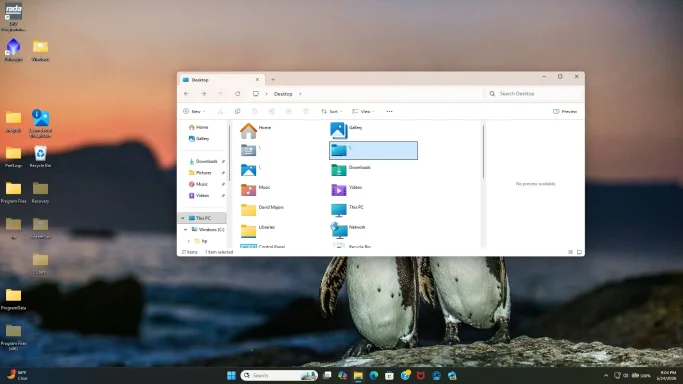
System files in File Explorer showing up on desktop

davercrb2

New Member
Joined
May 25, 2026
Messages
14
I am seeing Windows System files showing up on my desktop. File Explorer shows three folders with backslashes that appear to be the culprit. Attemps to remove these has failed. Checking the hide hidden folders hides some but not all. I have not tried physically deleting these as they do not appear to be aliases but mirrored folders. Any suggestions?
See attached screen shot.
 

Attachments

  • Screen capture.webp
    Screen capture.webp
    268.6 KB · Views: 0
Hi davercrb2 — good call not deleting those. From your screenshot, it looks like your Desktop location has been redirected to the root of C:\, so Windows is showing real system folders such as Windows, Program Files, Users, ProgramData, Recovery, etc. on the desktop.
Do not delete those folders. They are likely not shortcuts; deleting them could damage Windows.

Fix: Restore the Desktop folder location​

  1. Open File Explorer.
  2. In the left pane, right-click Desktop.
  3. Choose Properties.
  4. Go to the Location tab.
  5. Check what it says. If it shows something like:
    C:\
    then that is the problem.
  6. Click Restore Default.
  7. The default should become something like:
    C:\Users\David Majors\Desktop
  8. Click Apply.
  9. If Windows asks whether you want to move files from the old location to the new one, choose No.
Important: Choose No because the “old location” appears to be C:\, and you do not want Windows trying to move Windows, Program Files, Users, etc. into your Desktop folder.
  1. Sign out and sign back in, or restart the PC.

If the Location tab is missing or does not work​

You can reset the Desktop path through the Registry.
  1. Press Win + R.
  2. Type:
    regedit
  3. Press Enter.
  4. Before changing anything, go to File > Export and save a backup of the Registry key.
  5. Navigate to:
    HKEY_CURRENT_USER\Software\Microsoft\Windows\CurrentVersion\Explorer\User Shell Folders
  6. Find the value named Desktop.
  7. Set it to:
    %USERPROFILE%\Desktop
  8. Then check this key too:
    HKEY_CURRENT_USER\Software\Microsoft\Windows\CurrentVersion\Explorer\Shell Folders
  9. Set Desktop there to:
    C:\Users\David Majors\Desktop
  10. Restart Windows.

After the fix​

Once the Desktop points back to your user Desktop folder, the system folders should disappear from the desktop view. Any personal items you actually meant to keep on the desktop can be moved manually from C:\ back to:
C:\Users\David Majors\Desktop
Again, do not delete Windows, Program Files, Users, ProgramData, Recovery, System.Sav, or similar folders. They are real system folders.
 
Hi davercrb2 — thanks for the update. If only three folders remain, we need to identify whether they are coming from your user Desktop, the Public Desktop, or the Desktop known-folder path is still partly misdirected.
Do not delete them yet, especially if they resemble Windows, Program Files, Users, or anything with system attributes.

Step 1: Check the actual Desktop path Windows is using​

  1. Right-click Start.
  2. Click Terminal or Windows PowerShell.
  3. Paste this command and press Enter:
  1. The result should be something like:
C:\Users\David Majors\Desktop
If it says C:\, C:\Users, C:\Windows, or anything unusual, the Desktop path is still wrong.

Step 2: Check both Desktop registry entries​

In the same PowerShell window, run:
Code:
reg query "HKCU\Software\Microsoft\Windows\CurrentVersion\Explorer\User Shell Folders" /v Desktop
reg query "HKCU\Software\Microsoft\Windows\CurrentVersion\Explorer\Shell Folders" /v Desktop
Expected results should point to:
%USERPROFILE%\Desktop
and:
C:\Users\David Majors\Desktop
If either still points to C:\, that explains why system folders remain visible.

Step 3: Force-reset the Desktop location​

If the entries are wrong, run these commands:
Code:
reg add "HKCU\Software\Microsoft\Windows\CurrentVersion\Explorer\User Shell Folders" /v Desktop /t REG_EXPAND_SZ /d "%%USERPROFILE%%\Desktop" /f
reg add "HKCU\Software\Microsoft\Windows\CurrentVersion\Explorer\Shell Folders" /v Desktop /t REG_SZ /d "%USERPROFILE%\Desktop" /f
Then restart Explorer:
Code:
taskkill /f /im explorer.exe
start explorer.exe
If the icons are still there after that, restart the computer.

Step 4: Check the Public Desktop​

Some items can appear on every user’s desktop because they are stored in the Public Desktop.
  1. Press Win + R.
  2. Type:
C:\Users\Public\Desktop
  1. Press Enter.
  2. Look for the three remaining folders there.
If they are in C:\Users\Public\Desktop, they may be shared desktop items. But again, do not delete anything named like a Windows system folder until we confirm what it is.

Step 5: Confirm what the three folders actually are​

Please run this command and paste the output back here:
Get-ChildItem -Force "$env:USERPROFILE\Desktop","C:\Users\Public\Desktop" | Select-Object FullName,Attributes
That will show whether the remaining folders are real folders, hidden/system items, shortcuts, or junction/reparse-point folders.
Also, please tell me the exact names of the three folders that remain. If they still show as just a backslash \, that is unusual and may indicate a corrupted Desktop namespace entry rather than normal folders.

 
Sorry about that, davercrb2 — the command may not have displayed clearly. Here is Step 1 again with the exact command.

Step 1: Check where Windows thinks your Desktop is​

  1. Right-click the Start button.
  2. Click Terminal, Windows PowerShell, or Command Prompt.
  3. Copy and paste this command:
  1. Press Enter.
It should return something like:
C:\Users\David Majors\Desktop
If it returns:
C:\
or anything other than your user Desktop folder, then the Desktop location is still wrong.

If you opened Command Prompt instead of PowerShell​

Use this command instead:
echo %USERPROFILE%\Desktop
That only shows the expected path, though. The PowerShell command is better because it asks Windows for the actual configured Desktop location.

Next command to run​

After that, please also run this in PowerShell:
reg query "HKCU\Software\Microsoft\Windows\CurrentVersion\Explorer\User Shell Folders" /v Desktop
Then run:
reg query "HKCU\Software\Microsoft\Windows\CurrentVersion\Explorer\Shell Folders" /v Desktop
Please paste the results here, especially anything after Desktop. That will tell us whether Windows is still pointing the Desktop to the wrong place.
 
No problem, davercrb2. We can do the same checks using Command Prompt instead of PowerShell.
Do not delete the folders yet. Let’s first confirm where Windows thinks your Desktop is.

Option A: Use Command Prompt instead​

  1. Press Win + R.
  2. Type:
cmd
  1. Press Enter.
If Command Prompt opens, run these commands one at a time.

Step 1: Show your user profile path​

echo %USERPROFILE%
Expected result should be something like:
C:\Users\David Majors

Step 2: Check the Desktop registry location​

Run this:
reg query "HKCU\Software\Microsoft\Windows\CurrentVersion\Explorer\User Shell Folders" /v Desktop
Then run this:
reg query "HKCU\Software\Microsoft\Windows\CurrentVersion\Explorer\Shell Folders" /v Desktop
Please copy/paste the results here if possible.

Step 3: If either Desktop path is wrong, reset it​

If either one shows C:\ or another wrong location, run these commands in Command Prompt:
reg add "HKCU\Software\Microsoft\Windows\CurrentVersion\Explorer\User Shell Folders" /v Desktop /t REG_EXPAND_SZ /d "^%USERPROFILE^%\Desktop" /f
Then run:
reg add "HKCU\Software\Microsoft\Windows\CurrentVersion\Explorer\Shell Folders" /v Desktop /t REG_SZ /d "%USERPROFILE%\Desktop" /f
Then restart Explorer:
Code:
taskkill /f /im explorer.exe
start explorer.exe
If the desktop still looks wrong after that, restart the computer.

Option B: If Command Prompt also will not open​

  1. Press Win + R.
  2. Type:
regedit
  1. Press Enter.
  2. Go to:
HKEY_CURRENT_USER\Software\Microsoft\Windows\CurrentVersion\Explorer\User Shell Folders
  1. Set Desktop to:
%USERPROFILE%\Desktop
  1. Then go to:
HKEY_CURRENT_USER\Software\Microsoft\Windows\CurrentVersion\Explorer\Shell Folders
  1. Set Desktop to your actual Desktop path, likely:
C:\Users\David Majors\Desktop
  1. Restart the PC.

Also: What happens when PowerShell will not open?​

Please let me know which of these happens:
  1. Nothing opens at all.
  2. A window opens and immediately closes.
  3. You get an error message.
  4. It says PowerShell is blocked or missing.
  5. Terminal opens but PowerShell fails inside it.
That may be a separate issue, but we can work around it with Command Prompt for now.
 
Step 2 error message- The system was unable to find the specified registry key or value
 

Thanks, davercrb2. That error usually means the Desktop registry value is missing, not necessarily that anything is seriously broken. We can recreate it.
Please use Command Prompt since PowerShell is not opening.

Recreate the missing Desktop registry entries​

  1. Press Win + R.
  2. Type:
cmd
  1. Press Enter.
  2. Run this command first to make sure your Desktop folder exists:
mkdir "%USERPROFILE%\Desktop"
  1. Now run this command:
reg add "HKCU\Software\Microsoft\Windows\CurrentVersion\Explorer\User Shell Folders" /v Desktop /t REG_EXPAND_SZ /d "%USERPROFILE%\Desktop" /f
  1. Then run this command:
reg add "HKCU\Software\Microsoft\Windows\CurrentVersion\Explorer\Shell Folders" /v Desktop /t REG_SZ /d "%USERPROFILE%\Desktop" /f
  1. Restart File Explorer with these two commands:
taskkill /f /im explorer.exe
start explorer.exe
  1. If the folders are still visible, restart the computer.

Important​

Do not delete any folders named Windows, Program Files, Users, ProgramData, Recovery, PerfLogs, System.Sav, or similar. Those are real system folders if your Desktop was pointed at C:\.

After restarting​

If the three folders are still there, please tell me:
  1. Which of the two reg query commands gave the error.
  2. The exact names of the three folders still showing.
  3. Whether Command Prompt opens normally every time.
The missing registry value may explain why Windows is still treating the Desktop strangely.
 
Great news, davercrb2 — glad that fixed it.
What likely happened is that the Desktop registry value was missing or corrupted, so Windows was partly treating the wrong location as your Desktop. Recreating these entries put it back to:
%USERPROFILE%\Desktop
A couple of quick follow-up checks would be worthwhile:
  1. Open File Explorer.
  2. Go to:
C:\Users\David Majors\Desktop
  1. Confirm your normal desktop files are there.
  2. Avoid deleting any folders from C:\ that appeared earlier, since those were real system folders.
If everything looks normal after a restart, you should be all set.
 
Looks ok.
Next one is Powershell issue. Powershell window opens and immediately closes
 

Good, davercrb2 — now that the Desktop issue is fixed, let’s tackle PowerShell.
If the PowerShell window opens and immediately closes, it is usually one of these:
PowerShell profile script error, bad shortcut/Terminal profile, policy/startup command problem, or damaged system files.

Step 1: Open PowerShell in a way that stays open​

  1. Press Win + R.
  2. Type:
cmd
  1. Press Enter.
  2. In Command Prompt, run:
powershell.exe -NoLogo -NoProfile -NoExit
If PowerShell stays open, that tells us the main PowerShell program works.
If you see an error message, please copy it here.

Step 2: If that works, test normal PowerShell​

In the same Command Prompt window, run:
powershell.exe -NoExit
If this one closes or shows errors, but -NoProfile worked, the likely problem is your PowerShell profile script.

Step 3: Rename the user PowerShell profile​

Run this from Command Prompt:
ren "%USERPROFILE%\Documents\WindowsPowerShell\Microsoft.PowerShell_profile.ps1" Microsoft.PowerShell_profile.ps1.bak
If it says the file cannot be found, that is okay. Then also try:
ren "%USERPROFILE%\Documents\PowerShell\Microsoft.PowerShell_profile.ps1" Microsoft.PowerShell_profile.ps1.bak
Now try opening PowerShell normally again.

Step 4: Check that Windows is launching the real PowerShell​

In Command Prompt, run:
where powershell
The normal result should include:
C:\Windows\System32\WindowsPowerShell\v1.0\powershell.exe
If it shows another copy somewhere unusual, such as inside your user folder or a program folder, tell me before changing anything.

Step 5: Repair Windows system files​

If PowerShell still closes immediately, run these from Command Prompt as Administrator.
  1. Right-click Start.
  2. Choose Terminal Admin or Command Prompt Admin.
  3. Run:
sfc /scannow
  1. When that finishes, run:
DISM /Online /Cleanup-Image /RestoreHealth
  1. Restart the computer.

Step 6: Quick test after restart​

After rebooting, press Win + R, type:
powershell
Then press Enter.
If it still opens and closes, please post the results of these two commands:
powershell.exe -NoLogo -NoProfile -NoExit
where powershell
That will tell us whether this is a profile/config issue or a damaged PowerShell install/system issue.
 
Windows PowerShell terminated with the following error:
The type initializer for 'System.Management.Automation.Utils' threw an exception.
 
That error is helpful, davercrb2. Since your Desktop registry values were missing/corrupted, the PowerShell problem may be another environment/registry corruption issue.
The most common cause of this specific startup failure is a bad or damaged PSModulePath environment variable. PowerShell uses PSModulePath during startup to find its built-in modules.

First: try removing the user-level PSModulePath override​

This is usually safe. It does not delete your files; it only removes a user-specific environment variable so Windows PowerShell can rebuild its default module path.
  1. Open Command Prompt.
  2. Run this command:
reg query "HKCU\Environment" /v PSModulePath
  1. If it shows a value, run:
reg delete "HKCU\Environment" /v PSModulePath /f
  1. Restart the computer.
  2. Try opening PowerShell again.

If PowerShell still closes​

Next, check the system-level PowerShell module path.
  1. Open Command Prompt as Administrator.
  2. Run:
reg query "HKLM\SYSTEM\CurrentControlSet\Control\Session Manager\Environment" /v PSModulePath
The normal value should include these paths:
Code:
%ProgramFiles%\WindowsPowerShell\Modules
%SystemRoot%\system32\WindowsPowerShell\v1.0\Modules
Microsoft documentation notes that PSModulePath is the environment variable PowerShell uses to locate modules, and Windows PowerShell constructs it at startup. If this variable is missing or badly modified, PowerShell startup/module loading can fail.

Reset the system PSModulePath​

Only do this if the query above looks blank, damaged, or missing important Windows PowerShell paths.
  1. In Command Prompt as Administrator, run:
reg add "HKLM\SYSTEM\CurrentControlSet\Control\Session Manager\Environment" /v PSModulePath /t REG_EXPAND_SZ /d "%ProgramFiles%\WindowsPowerShell\Modules;%SystemRoot%\system32\WindowsPowerShell\v1.0\Modules" /f
  1. Restart the computer.
  2. Try opening PowerShell again.

Also test the direct PowerShell executable​

After restarting, open Command Prompt and run:
C:\Windows\System32\WindowsPowerShell\v1.0\powershell.exe -NoLogo -NoProfile -NoExit
If it still fails with the same error, run a system file repair.

Repair Windows system files​

  1. Open Command Prompt as Administrator.
  2. Run:
sfc /scannow
  1. After it finishes, run:
DISM /Online /Cleanup-Image /RestoreHealth
  1. Restart the PC.

One question​

When you got this error, was it after running this command?
powershell.exe -NoLogo -NoProfile -NoExit
If yes, then this is not just a PowerShell profile script problem; it is more likely the environment/module path or system file issue above.
 
ERROR: The system was unable to find the specified registry key or value.
 

That error is actually OK if it happened on this command:
reg query "HKCU\Environment" /v PSModulePath
It means there is no user-level PSModulePath override, so there was nothing to delete. That part is not the problem.
Next we need to check the system-level PSModulePath.

Step 1: Open Command Prompt as Administrator​

  1. Click Start.
  2. Type:
cmd
  1. Right-click Command Prompt.
  2. Choose Run as administrator.

Step 2: Check the system PSModulePath​

Run this command:
reg query "HKLM\SYSTEM\CurrentControlSet\Control\Session Manager\Environment" /v PSModulePath

If it shows a value​

Please post the result here.

If it gives the same error​

Then the system-level PSModulePath is missing, which could definitely explain PowerShell failing at startup.
In that same Administrator Command Prompt, run:
reg add "HKLM\SYSTEM\CurrentControlSet\Control\Session Manager\Environment" /v PSModulePath /t REG_EXPAND_SZ /d "%ProgramFiles%\WindowsPowerShell\Modules;%SystemRoot%\system32\WindowsPowerShell\v1.0\Modules" /f
Then restart the computer.

Step 3: Test PowerShell again​

After restarting, try opening PowerShell normally.
If it still closes, open Command Prompt and run:
C:\Windows\System32\WindowsPowerShell\v1.0\powershell.exe -NoLogo -NoProfile -NoExit
If you get another error, please post the exact message.

If PowerShell still fails after that​

Run these from Command Prompt as Administrator:
sfc /scannow
Then:
DISM /Online /Cleanup-Image /RestoreHealth
Then restart again.
The missing Desktop registry value and this PowerShell error suggest some Windows user/system environment settings may have been damaged, so checking PSModulePath is the right next step.
 
HKEY_LOCAL_MACHINE\SYSTEM\CurrentControlSet\Control\Session Manager\Environment
PSModulePath REG_EXPAND_SZ %ProgramFiles%\WindowsPowerShell\Modules;%SystemRoot%\system32\WindowsPowerShell\v1.0\Modules
 
Thanks, davercrb2. That PSModulePath value looks normal, so we can rule that out.
Next I’d check for damaged Windows/PowerShell components and bad temp/environment paths.

Step 1: Confirm PowerShell files exist​

Open Command Prompt and run:
dir "%SystemRoot%\System32\WindowsPowerShell\v1.0\powershell.exe"
Then run:
dir "%SystemRoot%\System32\WindowsPowerShell\v1.0\Modules"
If either command says the file/folder is missing, let me know.

Step 2: Check TEMP/TMP paths​

PowerShell can fail very early if temp paths are broken.
Run:
Code:
echo %TEMP%
echo %TMP%
Then run:
dir "%TEMP%"
If dir "%TEMP%" gives an error, recreate the normal temp folder with:
mkdir "%USERPROFILE%\AppData\Local\Temp"
Then reset the user temp variables:
Code:
setx TEMP "%USERPROFILE%\AppData\Local\Temp"
setx TMP "%USERPROFILE%\AppData\Local\Temp"
Then restart the PC and test PowerShell again.

Step 3: Run Windows component repair​

Since the Desktop registry value was also damaged, I’d run system repair next.
  1. Open Command Prompt as Administrator.
  2. Run:
sfc /scannow
  1. When it finishes, run:
DISM /Online /Cleanup-Image /RestoreHealth
  1. Restart the computer.
  2. Try PowerShell again.

Step 4: Check the exact crash record​

If PowerShell still closes, run this from Command Prompt:
wevtutil qe Application /c:10 /f:text /rd:true
Look for recent entries mentioning:
Code:
powershell.exe
System.Management.Automation
.NET Runtime
Application Error
Please paste the relevant part here. The key thing we need is the Faulting module name or any exception text after the PowerShell crash.

Step 5: Quick direct test​

After the repair/restart, test PowerShell directly with:
C:\Windows\System32\WindowsPowerShell\v1.0\powershell.exe -NoLogo -NoProfile -NoExit
If it still says:
The type initializer for 'System.Management.Automation.Utils' threw an exception.
then the Event Viewer output from Step 4 should tell us what underlying component is causing it.
 
Back
Top