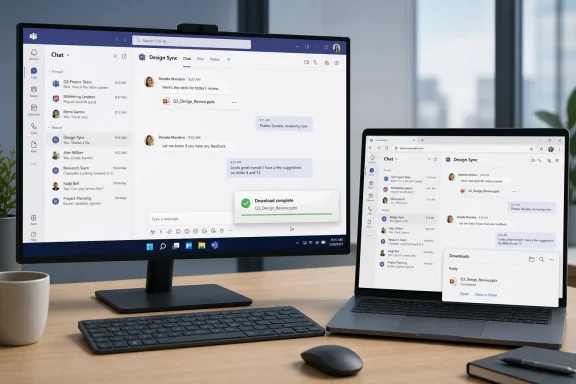
Microsoft is rolling out a new file download manager for Microsoft Teams in June 2026, giving desktop and web users a less intrusive way to track downloads while preserving the existing file locations, permissions, and security behavior. The change is small enough to sound cosmetic, but it lands in one of Teams’ most important daily workflows: moving work out of a conversation and into a file. For users, it means fewer pop-ups lingering on screen. For IT, it is another reminder that Teams is no longer merely a chat client; it is the front door to Microsoft 365 work.
The new Teams download manager is not the sort of feature that gets a keynote demo. It will not rewrite collaboration, make meetings shorter, or persuade anyone that their tenant governance model is finally complete. But it addresses a very real irritation: Teams is a high-frequency file exchange system, and its download notifications have had a way of occupying more visual attention than they deserve.
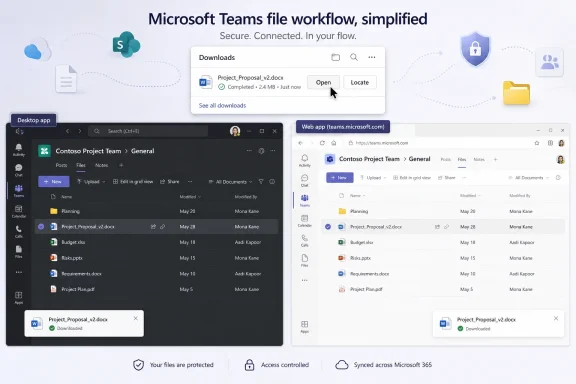
Microsoft’s planned behavior is straightforward. File download notifications will automatically dismiss after roughly four seconds, and users will still be able to open or locate downloaded files after completion. The company says the change does not alter where files are stored, how permissions work, or the security controls already in place.
That last part matters more than it might seem. Whenever Microsoft changes file handling in Teams, administrators immediately want to know whether the underlying storage model has shifted. In this case, the answer appears to be no: the interface changes, but the compliance and access-control assumptions remain intact.
The rollout is scheduled across June 2026, with Targeted Release arriving in the first half of the month and general availability following in the latter half. It is enabled by default, which is Microsoft’s usual way of saying that this is considered a user-experience improvement rather than a policy decision for every tenant to debate.
That abstraction is convenient until something changes. When the interface shifts, the support ticket rarely says “SharePoint-backed file affordance changed in a Teams client surface.” It says, “I can’t find my download,” or “Teams used to show me something different.” The new manager may reduce notification clutter, but it will also create a brief period where screenshots, training decks, and helpdesk scripts no longer match what users see.
Microsoft appears to know this, which is why its Message Center wording emphasizes continuity. File locations do not change. Permissions do not change. Security controls do not change. That is the company reassuring administrators that this is not another files-platform migration hiding behind a prettier UI.
Still, user perception is its own operational reality. If a notification disappears after four seconds, a user who has been trained to wait for a persistent confirmation may assume something went wrong. The download may be successful, but the support burden can still arrive if the user does not know where the download manager lives.
The risk is that downloads are one of the few actions where users still expect a strong sense of completion. A disappearing notification is elegant when everything works. It is less comforting when the user is on a slow connection, moving between browser and desktop clients, or handling a file whose name resembles five other files in the Downloads folder.
Microsoft is betting that a centralized manager can carry the trust burden that lingering notifications used to carry. If the download manager is easy to access from the title bar or by keyboard shortcut, then the notification does not need to become a tiny billboard. The interface can get out of the way because the record of the action remains available somewhere else.
That is the right direction, but it raises the standard for discoverability. A quiet notification system only works when users know where the quiet went. If the manager is hidden, the feature will feel like Teams stopped telling users what happened.
That is a sensible goal because Teams is at its worst when it behaves like a series of waiting rooms. Wait for the file to upload. Wait for the preview to render. Wait for the attachment action to complete. Wait for the notification to clear. Each delay may be minor, but Teams is used in such high volume that small delays become institutional texture.
Microsoft’s challenge is that Teams has accumulated roles faster than it has shed complexity. It is a meeting client, chat app, phone system, file surface, app host, workflow front end, and increasingly an AI workspace. Every feature that reduces friction in one role has to avoid creating ambiguity in another.
The new download manager is therefore a useful test of Microsoft’s current Teams design instincts. If the feature makes downloads feel calmer without making them harder to verify, it will be a genuine quality-of-life improvement. If users simply lose the visible cues they relied on, it will become another example of Teams sanding down friction by sanding down feedback.
Helpdesk teams should know that a download notification may now disappear after a few seconds. Training pages that show the old notification behavior should be updated. Internal guidance should point users to the download manager rather than telling them to wait for a persistent toast or banner.
This is also a useful moment to revisit how users are told to handle files in Teams generally. Many organizations still have a gap between their official file governance model and the way employees actually use Teams chats as informal document pipelines. A cleaner download manager does not solve that gap, but it may hide some of the visible mess that previously reminded users and administrators that file movement was happening constantly.
The main operational concern is not that the feature weakens security. It is that it may reduce obviousness. In enterprise software, obviousness is a control surface of its own.
A shared download manager experience should help reduce that inconsistency. But administrators should still expect a staggered lived reality during the rollout window. Targeted Release tenants may see the new behavior before general availability, and users within a large organization may notice the change before the helpdesk has encountered it directly.
That staggered deployment pattern is now normal for Microsoft 365, but it remains awkward for support. The person who reports the change first is often not an IT pilot user; it is a heavy Teams user who downloads files all day and notices the notification vanishing. By the time the admin center message is circulated internally, the user has already formed an opinion.
The best defense is a short advisory before the feature lands broadly. Not a 12-slide change-management package, but a simple explanation: downloads will still go to the same place, the notification will disappear sooner, and the download manager remains available if you need to open or locate the file.
For consumer-style software, this is normal. For enterprise collaboration software, it remains a point of tension. Microsoft 365 administrators are expected to maintain predictable working environments, but the platform they manage is increasingly fluid by design.
In fairness, requiring every tenant to opt into a download notification cleanup would be absurd. Most users do not want their IT department convening a governance board over a four-second toast. But default-on changes accumulate, and administrators feel that accumulation as background noise.
That is why Message Center literacy has become a real operational skill. The organizations best prepared for Microsoft 365 change are not the ones that freeze every interface; they are the ones that quickly separate cosmetic updates from control-plane changes. This download manager belongs in the first category, but it still deserves a place in the weekly change digest.
A centralized manager can be better than a swarm of notifications if it supports keyboard navigation, screen-reader clarity, and predictable placement. The ability to open it from the title bar or with a keyboard shortcut is not just a convenience feature for power users. It is part of making the file workflow less dependent on catching a temporary visual cue before it disappears.
The design challenge is timing. Four seconds may be enough for a glance, but not enough for every user in every context. That makes the manager’s persistence and accessibility critical. The notification can be brief only if the underlying state remains available.
Microsoft’s best Teams improvements in recent years have tended to make the app feel less like an attention trap. This change fits that pattern. But accessibility success will depend on how the new manager behaves in practice, not how neatly it is described in a roadmap entry.
A Teams-specific download manager has to make sense in that crowded mental model. If a user downloads a file from Teams on the web, is the browser the authority or Teams? If a user downloads from the desktop app, does the Teams manager feel like a native part of Windows or another Microsoft 365 overlay? The cleaner the experience, the less users will think about these distinctions.
That is Microsoft’s broader ambition with Teams: make the collaboration surface feel like the place where work happens, not merely a window into other services. The download manager supports that ambition by keeping file state visible inside Teams. It says, in effect, that Teams is not just handing the action off to the browser or OS; Teams is managing the workflow.
There is value in that. But it also deepens Teams’ role as a meta-interface for Microsoft 365, which is exactly why small UI changes can carry outsized importance. When the hub changes, everyone notices.
The stronger caution is that enterprise users do not only need less noise. They need reliable confirmation that actions completed. In file workflows, trust is built through repeatable signals: the file downloaded, it is in the expected location, it can be opened, and its permissions remain governed.
Microsoft is trying to preserve that trust while shrinking the visible interruption. That is the correct design trade, but it is not automatic. The manager must be discoverable enough that users do not interpret quietness as failure.
This is why the feature should be judged not by whether the notification disappears, but by what happens next. If users can quickly open the manager, locate the file, and move on, Microsoft will have removed friction. If they have to hunt, the company will merely have moved the friction out of sight.
The most obvious update is to documentation that includes Teams download screenshots. The second is helpdesk awareness. The third is user messaging for teams that handle large volumes of files, such as finance, legal, HR, operations, and project management groups.
There is also a governance opportunity here. If users are downloading sensitive files from Teams frequently, that is not inherently a problem, but it is a workflow worth understanding. The new manager does not change permissions, but it may make frequent downloading feel smoother. Security teams should be comfortable with the existing controls before the experience becomes less annoying.
That is not an argument against the feature. It is an argument for remembering that usability improvements can increase usage. When Microsoft removes friction from file movement, organizations should make sure their data policies are already aligned with how people work.
The company is not trying to reinvent file collaboration with this release. It is trying to make a routine action feel less clumsy. In mature enterprise software, that is often where the most meaningful improvements happen.
The danger for Microsoft is that Teams users have become sensitive to change fatigue. Even welcome changes can be met with suspicion when they arrive constantly. A new download manager must therefore be boring in the best possible way: obvious, stable, and uncontroversial after the first week.
If Microsoft gets that right, the feature will disappear into muscle memory. That is the highest compliment for this kind of work.
 Microsoft Turns a Tiny Annoyance Into a Teams Design Signal
The new Teams download manager is not the sort of feature that gets a keynote demo. It will not rewrite collaboration, make meetings shorter, or persuade anyone that their tenant governance model is finally complete. But it addresses a very real irritation: Teams is a high-frequency file exchange system, and its download notifications have had a way of occupying more visual attention than they deserve.Microsoft’s planned behavior is straightforward. File download notifications will automatically dismiss after roughly four seconds, and users will still be able to open or locate downloaded files after completion. The company says the change does not alter where files are stored, how permissions work, or the security controls already in place.
That last part matters more than it might seem. Whenever Microsoft changes file handling in Teams, administrators immediately want to know whether the underlying storage model has shifted. In this case, the answer appears to be no: the interface changes, but the compliance and access-control assumptions remain intact.
The rollout is scheduled across June 2026, with Targeted Release arriving in the first half of the month and general availability following in the latter half. It is enabled by default, which is Microsoft’s usual way of saying that this is considered a user-experience improvement rather than a policy decision for every tenant to debate.
Teams Files Are Never Just Teams Files
The reason a download manager deserves attention is that Teams files sit at the intersection of several Microsoft 365 systems. A document shared in a channel is usually rooted in SharePoint. A file shared in a chat is typically backed by OneDrive. The user, however, often experiences all of this simply as “a file in Teams.”That abstraction is convenient until something changes. When the interface shifts, the support ticket rarely says “SharePoint-backed file affordance changed in a Teams client surface.” It says, “I can’t find my download,” or “Teams used to show me something different.” The new manager may reduce notification clutter, but it will also create a brief period where screenshots, training decks, and helpdesk scripts no longer match what users see.
Microsoft appears to know this, which is why its Message Center wording emphasizes continuity. File locations do not change. Permissions do not change. Security controls do not change. That is the company reassuring administrators that this is not another files-platform migration hiding behind a prettier UI.
Still, user perception is its own operational reality. If a notification disappears after four seconds, a user who has been trained to wait for a persistent confirmation may assume something went wrong. The download may be successful, but the support burden can still arrive if the user does not know where the download manager lives.
The Four-Second Notification Is Microsoft Choosing Flow Over Certainty
Auto-dismissing notifications are a design philosophy in miniature. They assume the user’s primary task is not managing notifications but continuing the work that produced them. In Teams, that work is usually replying to a thread, reading a document, joining a meeting, or pulling a file out of a conversation before the next interruption lands.The risk is that downloads are one of the few actions where users still expect a strong sense of completion. A disappearing notification is elegant when everything works. It is less comforting when the user is on a slow connection, moving between browser and desktop clients, or handling a file whose name resembles five other files in the Downloads folder.
Microsoft is betting that a centralized manager can carry the trust burden that lingering notifications used to carry. If the download manager is easy to access from the title bar or by keyboard shortcut, then the notification does not need to become a tiny billboard. The interface can get out of the way because the record of the action remains available somewhere else.
That is the right direction, but it raises the standard for discoverability. A quiet notification system only works when users know where the quiet went. If the manager is hidden, the feature will feel like Teams stopped telling users what happened.
This Is Part of a Larger War on Teams Friction
The download manager is arriving alongside other file-adjacent Teams improvements, including work on asynchronous file uploads that allow users to continue sending messages while a file uploads in the background. Taken together, these changes reveal a design target: Teams should stop making file operations feel like modal interruptions.That is a sensible goal because Teams is at its worst when it behaves like a series of waiting rooms. Wait for the file to upload. Wait for the preview to render. Wait for the attachment action to complete. Wait for the notification to clear. Each delay may be minor, but Teams is used in such high volume that small delays become institutional texture.
Microsoft’s challenge is that Teams has accumulated roles faster than it has shed complexity. It is a meeting client, chat app, phone system, file surface, app host, workflow front end, and increasingly an AI workspace. Every feature that reduces friction in one role has to avoid creating ambiguity in another.
The new download manager is therefore a useful test of Microsoft’s current Teams design instincts. If the feature makes downloads feel calmer without making them harder to verify, it will be a genuine quality-of-life improvement. If users simply lose the visible cues they relied on, it will become another example of Teams sanding down friction by sanding down feedback.
Administrators Should Treat This as a Documentation Change, Not a Security Event
For most IT departments, the correct response is not a panic meeting. Microsoft has not described this as a change to data residency, file permissions, retention behavior, download locations, or conditional-access enforcement. The practical work is closer to communications hygiene.Helpdesk teams should know that a download notification may now disappear after a few seconds. Training pages that show the old notification behavior should be updated. Internal guidance should point users to the download manager rather than telling them to wait for a persistent toast or banner.
This is also a useful moment to revisit how users are told to handle files in Teams generally. Many organizations still have a gap between their official file governance model and the way employees actually use Teams chats as informal document pipelines. A cleaner download manager does not solve that gap, but it may hide some of the visible mess that previously reminded users and administrators that file movement was happening constantly.
The main operational concern is not that the feature weakens security. It is that it may reduce obviousness. In enterprise software, obviousness is a control surface of its own.
The Web and Desktop Split Still Matters
Microsoft says the rollout applies to Teams desktop and web users globally. That is important because Teams behavior can feel inconsistent across clients, especially in organizations where some users live in the browser while others use the installed client.A shared download manager experience should help reduce that inconsistency. But administrators should still expect a staggered lived reality during the rollout window. Targeted Release tenants may see the new behavior before general availability, and users within a large organization may notice the change before the helpdesk has encountered it directly.
That staggered deployment pattern is now normal for Microsoft 365, but it remains awkward for support. The person who reports the change first is often not an IT pilot user; it is a heavy Teams user who downloads files all day and notices the notification vanishing. By the time the admin center message is circulated internally, the user has already formed an opinion.
The best defense is a short advisory before the feature lands broadly. Not a 12-slide change-management package, but a simple explanation: downloads will still go to the same place, the notification will disappear sooner, and the download manager remains available if you need to open or locate the file.
Microsoft’s Default-On Strategy Keeps Winning
The update will be enabled by default and requires no user action. That is consistent with how Microsoft tends to ship smaller Teams experience changes: tenants are informed, not asked. The administrative bargain is that Microsoft handles the rollout and preserves the policy boundaries, while organizations absorb the training and expectation shift.For consumer-style software, this is normal. For enterprise collaboration software, it remains a point of tension. Microsoft 365 administrators are expected to maintain predictable working environments, but the platform they manage is increasingly fluid by design.
In fairness, requiring every tenant to opt into a download notification cleanup would be absurd. Most users do not want their IT department convening a governance board over a four-second toast. But default-on changes accumulate, and administrators feel that accumulation as background noise.
That is why Message Center literacy has become a real operational skill. The organizations best prepared for Microsoft 365 change are not the ones that freeze every interface; they are the ones that quickly separate cosmetic updates from control-plane changes. This download manager belongs in the first category, but it still deserves a place in the weekly change digest.
The Accessibility Angle Is More Than Corporate Polish
Microsoft’s roadmap language also emphasizes improved visibility, control, and accessibility. That may sound like boilerplate, but file-download feedback is an accessibility issue when notifications are transient, visually busy, or hard to rediscover.A centralized manager can be better than a swarm of notifications if it supports keyboard navigation, screen-reader clarity, and predictable placement. The ability to open it from the title bar or with a keyboard shortcut is not just a convenience feature for power users. It is part of making the file workflow less dependent on catching a temporary visual cue before it disappears.
The design challenge is timing. Four seconds may be enough for a glance, but not enough for every user in every context. That makes the manager’s persistence and accessibility critical. The notification can be brief only if the underlying state remains available.
Microsoft’s best Teams improvements in recent years have tended to make the app feel less like an attention trap. This change fits that pattern. But accessibility success will depend on how the new manager behaves in practice, not how neatly it is described in a roadmap entry.
The Real Competition Is the Browser Download Shelf
Teams does not exist in isolation. Users already understand downloads through the browser, the operating system, and cloud storage sync clients. Chrome, Edge, Windows File Explorer, OneDrive, and SharePoint all have their own signals for where a file went and whether it completed.A Teams-specific download manager has to make sense in that crowded mental model. If a user downloads a file from Teams on the web, is the browser the authority or Teams? If a user downloads from the desktop app, does the Teams manager feel like a native part of Windows or another Microsoft 365 overlay? The cleaner the experience, the less users will think about these distinctions.
That is Microsoft’s broader ambition with Teams: make the collaboration surface feel like the place where work happens, not merely a window into other services. The download manager supports that ambition by keeping file state visible inside Teams. It says, in effect, that Teams is not just handing the action off to the browser or OS; Teams is managing the workflow.
There is value in that. But it also deepens Teams’ role as a meta-interface for Microsoft 365, which is exactly why small UI changes can carry outsized importance. When the hub changes, everyone notices.
Less Noise Is Good, but Trust Is Better
The strongest case for the new download manager is that Teams has too much visual noise. Chat badges, meeting banners, app notifications, file previews, reactions, presence changes, and activity alerts all compete for the same limited attention. A file download confirmation should not behave like breaking news.The stronger caution is that enterprise users do not only need less noise. They need reliable confirmation that actions completed. In file workflows, trust is built through repeatable signals: the file downloaded, it is in the expected location, it can be opened, and its permissions remain governed.
Microsoft is trying to preserve that trust while shrinking the visible interruption. That is the correct design trade, but it is not automatic. The manager must be discoverable enough that users do not interpret quietness as failure.
This is why the feature should be judged not by whether the notification disappears, but by what happens next. If users can quickly open the manager, locate the file, and move on, Microsoft will have removed friction. If they have to hunt, the company will merely have moved the friction out of sight.
The June Rollout Gives IT a Narrow but Manageable Window
Because the rollout is expected across June 2026, organizations do not have months to prepare. They also do not need months. The preparation task is small, provided someone owns it.The most obvious update is to documentation that includes Teams download screenshots. The second is helpdesk awareness. The third is user messaging for teams that handle large volumes of files, such as finance, legal, HR, operations, and project management groups.
There is also a governance opportunity here. If users are downloading sensitive files from Teams frequently, that is not inherently a problem, but it is a workflow worth understanding. The new manager does not change permissions, but it may make frequent downloading feel smoother. Security teams should be comfortable with the existing controls before the experience becomes less annoying.
That is not an argument against the feature. It is an argument for remembering that usability improvements can increase usage. When Microsoft removes friction from file movement, organizations should make sure their data policies are already aligned with how people work.
The Small Teams Fix That Says Where Microsoft Is Headed
This update fits a pattern in Microsoft’s current Teams work: reduce blocking behavior, hide unnecessary interruptions, and make the app feel more continuous. That is the same logic behind background uploads, improved file previews, and other incremental changes that rarely dominate headlines but shape daily productivity.The company is not trying to reinvent file collaboration with this release. It is trying to make a routine action feel less clumsy. In mature enterprise software, that is often where the most meaningful improvements happen.
The danger for Microsoft is that Teams users have become sensitive to change fatigue. Even welcome changes can be met with suspicion when they arrive constantly. A new download manager must therefore be boring in the best possible way: obvious, stable, and uncontroversial after the first week.
If Microsoft gets that right, the feature will disappear into muscle memory. That is the highest compliment for this kind of work.
The Admin Note Hidden Inside the Four-Second Toast
The practical lesson is not that every Teams user should celebrate a new download manager. It is that Microsoft continues to refine Teams as the operating layer for Microsoft 365 collaboration, and every refinement changes the support surface a little.- The new Teams file download manager is scheduled to roll out globally in June 2026 for desktop and web users.
- Download notifications are expected to dismiss automatically after about four seconds.
- Microsoft says file locations, permissions, and existing security controls are not changing.
- The experience is enabled by default, so most organizations should prepare communications rather than deployment steps.
- Helpdesk teams should be ready to explain where users can open or locate downloaded files after the notification disappears.
- Internal screenshots and training materials that show the old download behavior should be reviewed during the rollout window.
References
- Primary source: Neowin
Published: Tue, 02 Jun 2026 08:22:00 GMT
Microsoft Teams is getting a new file download manager - Neowin
Microsoft is launching a streamlined file download experience for Teams desktop and web users this month. www.neowin.net
- Related coverage: m365admin.handsontek.net
New file download manager in Teams - M365 Admin
Microsoft Teams will introduce a new file download manager starting June 2026, with notifications auto-dismissing after about 4 seconds. Users can still open or locate files easily. The update applies to all users by default, requires no action, and does not change file permissions or security...m365admin.handsontek.net - Related coverage: app.cloudscout.one
- Official source: microsoft.com
Microsoft 365 Roadmap | Microsoft 365
The Microsoft 365 Roadmap lists updates that are currently planned for applicable subscribers. Check here for more information on the status of new features and updates.www.microsoft.com
- Related coverage: windowsreport.com

Microsoft Teams to Soon Get Improved Download Manager, Faster Call Transfers & AI Meeting Notes
Microsoft has been actively adding new features to Teams lately, and it seems that trend is not slowing down. This time, we have spotted three new features in the Microsoft 365 Official Roadmap that will improve downloads, calling, and meeting workflows. Just to be clear, all three features are...
windowsreport.com
- Official source: cdn-dynmedia-1.microsoft.com
- Official source: download.microsoft.com
- Related coverage: techriver.com