

Microsoft Teams Rooms on Windows should not use native pan-tilt-zoom controls as a fleet-wide default simply because Microsoft enables the setting by default when the feature arrives in September 2026. Organizations should preserve Enhanced Framing in rooms built around automated participant coverage, while allowing manual PTZ in spaces where presenters, instructors, or operators need predictable control over exactly what remote attendees see.
The distinction matters because the two experiences are not presented as complementary controls. Microsoft’s change communication says local PTZ controls appear in Camera settings when Enhanced Framing is turned off, creating a practical operating choice between AI-driven composition and user-directed pan, tilt, and zoom.
According to the Microsoft 365 Roadmap, native PTZ controls for Teams Rooms on Windows are currently scheduled to begin rolling out in September 2026. The capability is intended for connected cameras that support PTZ, initially with limited support focused on mechanical and optical movement rather than every form of digital camera control.
Administrators will be able to manage local PTZ on each Teams Rooms on Windows device through Admin Settings > Peripherals. Microsoft says the setting will be enabled by default, so leaving the configuration untouched is itself a decision: in-room users may gain access to camera movement as soon as the relevant software and hardware pieces align.
The immediate preparation process should be straightforward:
In those spaces, predictable composition may be more valuable than automatic inclusiveness. A presenter or room operator can place the shot where it belongs and avoid having an automated system reframe because someone walked through the room, shifted in a chair, or stood near the edge of the image.
Optical PTZ also has a practical advantage when fine detail matters. Moving the lens assembly and using optical zoom can provide a more intentional view than asking an automated framing system to decide which faces or regions deserve emphasis. That does not make manual control universally better, but it gives these rooms a clear operational reason to expose it.
The weakness is that someone must take responsibility for the camera. A manually positioned shot can remain pointed at an empty lectern after the speaker moves, exclude participants who begin contributing from another part of the room, or be left zoomed in for the next meeting. Remote attendees then receive a worse experience precisely because the controls worked as designed.
Organizations enabling PTZ in these spaces therefore need more than a technical toggle. Room instructions should explain where the controls are, that Enhanced Framing must be disabled, and how users should restore a sensible room view before ending the meeting.
The automated approach reduces the chance that one meeting’s camera adjustment becomes the next meeting’s problem. It also supports the broader objective of giving remote participants useful views of people rather than forcing them to watch a static wide shot or an abandoned close-up.
This is particularly important for rooms whose hardware investment was justified by AI-assisted camera behavior. WindowsForum has recently covered Microsoft’s planned Enhanced IntelliFrame additions for certified AI-capable cameras, illustrating how camera intelligence is becoming a central Teams Rooms Pro capability rather than an optional novelty. Turning off framing simply to expose manual PTZ could sideline the experience the room was designed to provide.
The right question is not whether users would occasionally appreciate a zoom button. It is whether they can be expected to make consistently better camera decisions than the framing system during routine meetings. In most unattended collaboration rooms, the answer will be no.
A useful room-class policy might therefore enable local PTZ in operator-led and presentation-oriented spaces while disabling it in general-purpose rooms that depend on automated framing. Exceptions can then be handled as exceptions rather than allowing Microsoft’s default to become the organization’s policy by accident.
That distinction is unusually important here. Microsoft’s published peripheral catalogue contains PTZ-capable cameras alongside specific certified firmware baselines. A camera can therefore be listed as certified while the organization still needs to validate its actual firmware, USB path, Teams Rooms software behavior, and local control experience.
Administrators should compare deployed firmware with the catalogue rather than checking only the model name. They should also include any USB extenders, switching equipment, capture interfaces, docks, or room-control processors in the test path, because Teams Rooms interacts with the camera it can enumerate and control—not the simplified architecture shown on an inventory spreadsheet.
The useful evidence is observed behavior on the production-style room stack:
Microsoft’s documentation says multi-stream intelligent cameras are not supported in the multiple-camera configuration. That creates another architectural fork: a room designed around several qualifying single-stream cameras is not interchangeable with one relying on a multi-stream intelligent camera to produce multiple views.
For administrators, the implication is that “enable PTZ everywhere” becomes even less defensible in large rooms. They must first determine which camera architecture the room uses, which device is active, and whether users controlling one view could undermine the intended multi-camera experience.
A classroom might benefit from separate cameras covering the instructor and students, while an auditorium might need an operator to steer a mechanical PTZ camera toward a speaker. A boardroom using intelligent camera processing may instead be built to avoid manual intervention altogether. These scenarios belong in different deployment profiles even when every system runs Teams Rooms on Windows.
Testing should also include the actual meeting types and operational patterns used in the room. A successful pan command during a short test call does not prove that staff can manage camera selection and framing during a long hybrid session with changing presenters.
Help-desk teams should be prepared for reports that are configuration misunderstandings rather than defects: PTZ controls are missing because Enhanced Framing is active, automated framing disappeared because a user turned it off, or a room opens with an unexpectedly narrow shot after the previous meeting. Those incidents can be reduced by assigning a documented default to each room class.
Organizations should define at least three categories: automated collaboration rooms, manually directed presentation rooms, and complex rooms requiring individual engineering review. The local PTZ toggle can then follow the room’s purpose instead of the preferences of whichever technician commissioned it most recently.
Microsoft’s default makes the capability easy to discover, but it does not make manual control the correct experience. Before September 2026, Teams Rooms administrators should validate firmware and USB behavior, test the framing tradeoff with real users, and establish a room-class policy that keeps AI composition where it helps while reserving PTZ for spaces where a human can genuinely direct the shot better.
The distinction matters because the two experiences are not presented as complementary controls. Microsoft’s change communication says local PTZ controls appear in Camera settings when Enhanced Framing is turned off, creating a practical operating choice between AI-driven composition and user-directed pan, tilt, and zoom.
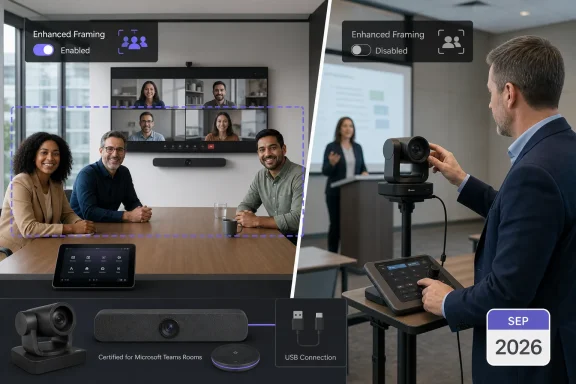 Set the Policy Before the New Default Sets It for You
According to the Microsoft 365 Roadmap, native PTZ controls for Teams Rooms on Windows are currently scheduled to begin rolling out in September 2026. The capability is intended for connected cameras that support PTZ, initially with limited support focused on mechanical and optical movement rather than every form of digital camera control.Administrators will be able to manage local PTZ on each Teams Rooms on Windows device through Admin Settings > Peripherals. Microsoft says the setting will be enabled by default, so leaving the configuration untouched is itself a decision: in-room users may gain access to camera movement as soon as the relevant software and hardware pieces align.
The immediate preparation process should be straightforward:
- Inventory each Teams Rooms on Windows device, its active camera model, connection method, and installed camera firmware.
- Record whether the room currently depends on Enhanced Framing or another automated camera workflow during ordinary meetings.
- Check Microsoft’s certified-peripherals catalogue for the camera model and its published certified firmware baseline.
- Test the room with Enhanced Framing enabled, then disable it and check whether local PTZ controls appear in Camera settings.
- Exercise pan, tilt, and optical zoom during a real Teams meeting rather than relying only on an idle-room preview.
- Reboot the room system and camera, then repeat the test to catch USB enumeration, firmware, or startup-order problems.
- Decide whether local PTZ should remain enabled for that room class, and document the choice before broad deployment.
Manual PTZ Wins in Rooms With a Deliberate Subject
Manual PTZ is the stronger operating mode when the camera needs to show a known subject or physical area instead of continually interpreting the room. Training spaces, lecture rooms, council chambers, divisible rooms, demonstration environments, and executive presentation suites often have an obvious target: a lectern, panel, product table, stage, or particular group of seats.In those spaces, predictable composition may be more valuable than automatic inclusiveness. A presenter or room operator can place the shot where it belongs and avoid having an automated system reframe because someone walked through the room, shifted in a chair, or stood near the edge of the image.
Optical PTZ also has a practical advantage when fine detail matters. Moving the lens assembly and using optical zoom can provide a more intentional view than asking an automated framing system to decide which faces or regions deserve emphasis. That does not make manual control universally better, but it gives these rooms a clear operational reason to expose it.
The weakness is that someone must take responsibility for the camera. A manually positioned shot can remain pointed at an empty lectern after the speaker moves, exclude participants who begin contributing from another part of the room, or be left zoomed in for the next meeting. Remote attendees then receive a worse experience precisely because the controls worked as designed.
Organizations enabling PTZ in these spaces therefore need more than a technical toggle. Room instructions should explain where the controls are, that Enhanced Framing must be disabled, and how users should restore a sensible room view before ending the meeting.
Enhanced Framing Fits Rooms Without a Camera Operator
Enhanced Framing is generally the safer choice for ordinary huddle rooms and conference rooms where participants expect to walk in, join a meeting, and let the system handle the picture. These rooms rarely have a designated camera operator, and their subject changes naturally as different people speak or move.The automated approach reduces the chance that one meeting’s camera adjustment becomes the next meeting’s problem. It also supports the broader objective of giving remote participants useful views of people rather than forcing them to watch a static wide shot or an abandoned close-up.
This is particularly important for rooms whose hardware investment was justified by AI-assisted camera behavior. WindowsForum has recently covered Microsoft’s planned Enhanced IntelliFrame additions for certified AI-capable cameras, illustrating how camera intelligence is becoming a central Teams Rooms Pro capability rather than an optional novelty. Turning off framing simply to expose manual PTZ could sideline the experience the room was designed to provide.
The right question is not whether users would occasionally appreciate a zoom button. It is whether they can be expected to make consistently better camera decisions than the framing system during routine meetings. In most unattended collaboration rooms, the answer will be no.
A useful room-class policy might therefore enable local PTZ in operator-led and presentation-oriented spaces while disabling it in general-purpose rooms that depend on automated framing. Exceptions can then be handled as exceptions rather than allowing Microsoft’s default to become the organization’s policy by accident.
Certification Does Not Settle the Control Question
A “Certified for Microsoft Teams” badge is a starting point, not proof that every PTZ workflow will operate as expected. Microsoft’s certification documentation explicitly says the program evaluates hardware design and performance but does not evaluate feature-level or cloud-environment support.That distinction is unusually important here. Microsoft’s published peripheral catalogue contains PTZ-capable cameras alongside specific certified firmware baselines. A camera can therefore be listed as certified while the organization still needs to validate its actual firmware, USB path, Teams Rooms software behavior, and local control experience.
Administrators should compare deployed firmware with the catalogue rather than checking only the model name. They should also include any USB extenders, switching equipment, capture interfaces, docks, or room-control processors in the test path, because Teams Rooms interacts with the camera it can enumerate and control—not the simplified architecture shown on an inventory spreadsheet.
The useful evidence is observed behavior on the production-style room stack:
- The intended camera remains selected after restarts.
- Camera settings expose PTZ only under the expected framing state.
- Pan, tilt, and zoom commands produce consistent movement.
- Switching framing modes does not leave the camera in an unusable position.
- The camera and room recover cleanly after USB reconnection or a device reboot.
Multi-Camera Rooms Need a Separate Design Review
Teams Rooms on Windows also supports multiple-camera view for qualifying rooms with a Teams Rooms Pro license. That capability is aimed at larger or more complex spaces, but it should not be folded casually into the same policy as a single PTZ camera.Microsoft’s documentation says multi-stream intelligent cameras are not supported in the multiple-camera configuration. That creates another architectural fork: a room designed around several qualifying single-stream cameras is not interchangeable with one relying on a multi-stream intelligent camera to produce multiple views.
For administrators, the implication is that “enable PTZ everywhere” becomes even less defensible in large rooms. They must first determine which camera architecture the room uses, which device is active, and whether users controlling one view could undermine the intended multi-camera experience.
A classroom might benefit from separate cameras covering the instructor and students, while an auditorium might need an operator to steer a mechanical PTZ camera toward a speaker. A boardroom using intelligent camera processing may instead be built to avoid manual intervention altogether. These scenarios belong in different deployment profiles even when every system runs Teams Rooms on Windows.
Testing should also include the actual meeting types and operational patterns used in the room. A successful pan command during a short test call does not prove that staff can manage camera selection and framing during a long hybrid session with changing presenters.
The September Decision Is Operational, Not Cosmetic
The most significant risk is not that PTZ controls fail to appear. It is that they appear successfully, users discover them, and the organization has never decided when they should be used.Help-desk teams should be prepared for reports that are configuration misunderstandings rather than defects: PTZ controls are missing because Enhanced Framing is active, automated framing disappeared because a user turned it off, or a room opens with an unexpectedly narrow shot after the previous meeting. Those incidents can be reduced by assigning a documented default to each room class.
Organizations should define at least three categories: automated collaboration rooms, manually directed presentation rooms, and complex rooms requiring individual engineering review. The local PTZ toggle can then follow the room’s purpose instead of the preferences of whichever technician commissioned it most recently.
Microsoft’s default makes the capability easy to discover, but it does not make manual control the correct experience. Before September 2026, Teams Rooms administrators should validate firmware and USB behavior, test the framing tradeoff with real users, and establish a room-class policy that keeps AI composition where it helps while reserving PTZ for spaces where a human can genuinely direct the shot better.
References
- Primary source: learn.microsoft.com
Teams Rooms certified systems and peripherals - Microsoft Teams | Microsoft Learn
Find lists of certified systems and peripherals for use with Microsoft Teams Rooms systems.learn.microsoft.com - Independent coverage: deltapulse.app
(Updated) Microsoft Teams Rooms on Windows: Native PTZ controls | DeltaPulse - Microsoft 365 Change Intelligence
Service: Microsoft Teams. Category: Stay Informed. Microsoft Teams Rooms on Windows will support native PTZ camera controls in the Camera settings menu when Enh deltapulse.app
- Independent coverage: microsoft.com
Microsoft 365 Roadmap | Microsoft 365
The Microsoft 365 Roadmap lists updates that are currently planned for applicable subscribers. Check here for more information on the status of new features and updates.www.microsoft.com
- Independent coverage: support.microsoft.com
Microsoft Teams Rooms (Windows) | Microsoft Support
Microsoft Teams Rooms for Windows (formerly Skype Room Systems version 2) brings HD video, audio, and content sharing to Microsoft Teams or Skype for Business calls and meetings of all sizes, from small huddle areas to large conference rooms.support.microsoft.com - Independent coverage: mc.merill.net
RM409534 - Microsoft Teams: Local PTZ for Microsoft Teams Rooms on Windows | Microsoft 365 Message Center Archive
Microsoft Teams Rooms on Windows will provide native Pan-Tilt-Zoom (PTZ) controls for connected cameras that support this capability. The feature will initially contain limited…mc.merill.net - Primary source: WindowsForum
Teams Rooms Pro Enhanced IntelliFrame: AI-Capable Cameras, Edge Data Channel | Windows Forum
Microsoft added Roadmap ID 564969 on June 17, 2026, and updated it on July 2, confirming that Teams Rooms on Windows will gain enhanced IntelliFrame...windowsforum.com
