

You can send and read text messages on a Windows computer with Google Messages for web or Phone Link for Android, and with Phone Link for iPhone. If you own both an iPhone and a Mac, Apple Messages is the more complete option for iMessage, SMS, MMS, and RCS. This guide covers Windows 10 and Windows 11 PCs, Android phones, iPhones, Macs, and web-based numbers from Google Voice, Google Fi, and T-Mobile DIGITS as of July 2026.
Use the service that actually handles the number you want to text from:
Your iPhone must remain on, connected to Wi-Fi or cellular service, and able to send and receive messages. SMS, MMS, and RCS availability can vary by carrier, country, and region.
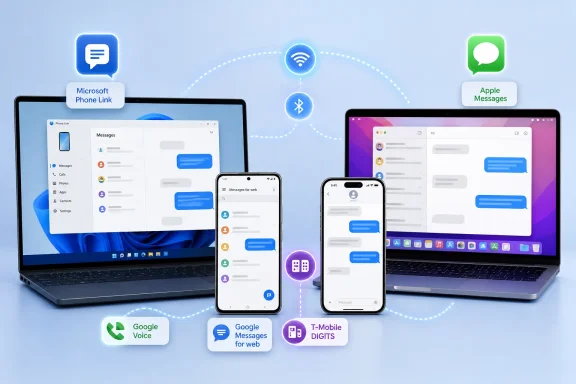 Choose the route that matches your phone number
Use the service that actually handles the number you want to text from:- Android with Google Messages: Use Google Messages for web for the fullest browser-based message view, including SMS, MMS, and RCS chats.
- Android with Windows: Use Phone Link when you want texting inside a Windows app alongside calls, notifications, and photos.
- iPhone with Windows: Use Phone Link, but expect fewer messaging features than on Android.
- iPhone with Mac: Use the Messages app on the Mac for Apple’s full supported setup.
- Google Voice number: Use the Google Voice website.
- Google Fi on Android: Use Google Messages for web with Google Account pairing.
- T-Mobile DIGITS number: Use the DIGITS web client.
Use Google Messages for web with an Android phone
Google Messages for web is the primary browser method for Android texting. It mirrors conversations from the Google Messages app on your phone, so the phone must remain powered on and connected to Wi-Fi or mobile data.What you need
- An Android phone running Android 5.0 or later.
- The current version of Google Messages, set as the default SMS app.
- An internet connection on the phone and computer.
- Chrome, Microsoft Edge, Firefox, or Safari on the computer.
Pair the computer
- On the Android phone, open Google Messages.
- Tap your account picture or initial in the upper-right corner.
- Select Device Pairing.
- If prompted, choose the Google Account you want to use for messages on the computer.
- On the computer, open the Google Messages for web page in a supported browser.
- Sign in with the same Google Account selected on the phone.
- Google Messages displays an emoji confirmation on both devices. On the phone, tap the emoji that matches the computer screen.
- Wait for the phone to vibrate or for conversations to appear in the browser.
If Google Messages is not your default app
- Open Google Play Store on the Android phone.
- Search for and install or update Google Messages.
- Open it.
- When prompted, choose Set as default or Set as default SMS app.
- Complete any on-screen import or setup prompts before pairing the computer.
Remove Google Messages web access
On the computer:- Open Google Messages for web.
- Select the Menu button.
- Choose Unpair.
- Open Google Messages.
- Tap the account picture or initial.
- Select Device Pairing.
- Select the paired computer.
- Choose Unpair or remove the device.
Use Phone Link for Android on Windows
Phone Link is Microsoft’s Windows application for messaging through an Android phone. It is the better choice if you want text messages, phone notifications, recent photos, and calls in one Windows interface.Requirements
- Windows 11, or Windows 10 with the October 2022 Update or later.
- An Android phone; Microsoft recommends Android 10 or later.
- The Link to Windows app on the Android phone. It may already be installed; otherwise, install it through Google Play or the Samsung Galaxy Store.
- A Microsoft account used during setup.
- Both devices turned on and online. Microsoft recommends using the same Wi-Fi network for the normal Android setup.
Pair the phone and PC
- On the Windows PC, open Start, type Phone Link, and press Enter.
- Sign in with your Microsoft account if requested.
- Choose Android.
- On the phone, open Link to Windows.
- Sign in with the same Microsoft account when prompted.
- Follow the Phone Link pairing instructions. If the PC displays a QR code, use Link to Windows on the phone to scan it.
- Approve the requested Android permissions, especially access to messages and contacts.
- In Phone Link, select Messages.
- Select New message.
- Enter the recipient’s name or phone number.
- Select the recipient from the results.
- Type the message.
- Select Send.
Enable or adjust message permissions
If the Messages tab is empty or attachments do not work:- Open Phone Link.
- Select Settings.
- Select Features and then Messages.
- Turn on Allow this app to show text messages from my phone.
- If needed, enable:
- Allow this app to send MMS attachments from my phone
- Allow this app to receive MMS attachments from my phone
- Automatically download MMS attachments from my phone
- Check the Android phone for a permission prompt and approve it.
Remove the Android phone from Phone Link
- Open Phone Link on the PC.
- Go to Settings > Devices.
- Open the menu for the phone.
- Select Remove.
- Confirm Remove.
Use Phone Link with an iPhone on Windows
Phone Link can send and receive some iPhone messages through Bluetooth, but it is not equivalent to Messages on a Mac. In particular, Microsoft says iPhone Phone Link does not support sending or receiving images, GIFs, or Memojis, and you cannot create or reply to group conversations from the PC.Requirements
- Windows 11, or Windows 10 with the May 2019 Update or later.
- A PC that supports Bluetooth Low Energy.
- An iPhone running iOS 15 or later.
- Bluetooth enabled on both devices.
Pair and enable messages
- Open Phone Link on the Windows PC.
- Choose iPhone.
- Follow the Bluetooth pairing prompts on the PC and iPhone.
- On the iPhone, open Settings > Bluetooth.
- Find the paired Windows PC and tap the Info button beside it.
- Enable Show Notifications and Sync Contacts when available.
- Return to Phone Link and approve the requested permissions.
- Select Messages to view or reply to supported individual conversations.
Send iPhone messages from a Mac
For iPhone users with a Mac, Apple Messages is the supported full-feature route. It handles iMessage directly and can relay SMS, MMS, and RCS from the iPhone when the devices are signed in to the same Apple Account.- Open Messages on the Mac.
- Choose Messages > Settings > iMessage.
- Sign in with your Apple Account.
- On the iPhone, open Settings > Apps > Messages.
- Turn on iMessage.
- Select Send & Receive and confirm that the Apple Account matches the Mac.
- Return to Messages settings on the iPhone and select Text Message Forwarding.
- Turn on the Mac in the device list.
Your iPhone must remain on, connected to Wi-Fi or cellular service, and able to send and receive messages. SMS, MMS, and RCS availability can vary by carrier, country, and region.
Text from a Google Voice, Google Fi, or T-Mobile DIGITS number
These methods apply when the number belongs to the service, rather than to your phone’s ordinary SMS app.Google Voice
- Open the Google Voice website on the computer.
- Select Messages.
- Select Send a message.
- Enter a contact name or phone number.
- Type the message and select Send.
Google Fi on Android
For the Google Fi web experience:- Confirm the primary Fi phone is powered on and can receive messages in Google Messages.
- Open Google Messages for web on the computer.
- Pair with your Google Account.
T-Mobile DIGITS
- Open the T-Mobile DIGITS web client in Chrome or Microsoft Edge.
- Select Log In.
- Sign in with the T-Mobile ID associated with the DIGITS line.
- Complete identity verification if prompted.
- Select Messages.
- Select New Message.
- Enter the recipient in the To field.
- Choose the sending line in the From field if you have more than one DIGITS number.
- Type the message and select Send.
Fix common texting-on-PC problems
- Google Messages does not show conversations: Confirm Google Messages is the default SMS app, the same Google Account is used on both devices, and the Android phone has internet access.
- Phone Link shows no Android texts: In Phone Link, check Settings > Features > Messages, then review message permissions on the phone.
- Phone Link iPhone messages disappeared: Reconnect the iPhone through Bluetooth. Microsoft removes Phone Link’s iPhone message history when the Bluetooth connection ends.
- Mac is missing from Text Message Forwarding: Verify the same Apple Account is signed in on both devices and that iMessage is enabled.
- A verification code will not reach Google Voice: Use a carrier mobile number instead; some services do not support Google Voice for verification texts.
- A work or school device will not pair: Your organization may have blocked Phone Link, iMessage, Bluetooth pairing, or connected-device settings through management policy. Consumer setup steps cannot override that restriction.
References
- Primary source: Technobezz
Published: 2026-07-15T18:45:01.702000+00:00
How to Send and Read Text Messages on a Computer (2026) | Technobezz
How to send and read text messages on a computer using Google Messages, Phone Link, Mac Messages, Google Voice, or T-Mobile DIGITS.www.technobezz.com - Official source: support.microsoft.com
Send and receive text messages from your PC | Microsoft Support
While setting up the Phone Link app, you'll be prompted to enable access to your phone's messages.support.microsoft.com
