

A non‑responsive or jumpy touchpad can derail a work session in seconds — and the good news is that most of those problems are fixable at home in a few minutes. Windows 10 and Windows 11 bundle a mix of built‑in troubleshooters, per‑device settings and driver hooks that address the majority of touchpad complaints: from lost two‑finger scrolling and phantom taps to entirely dead input. This feature walks through a practical, step‑by‑step technician’s checklist you can run down now, explains what each fix actually changes under the hood, and flags the risks and edge cases where you’ll need deeper help.
Background / Overview
Windows exposes several layers that control touchpad behaviour: the operating‑system touchpad UI, the driver supplied by the touchpad vendor (Synaptics, ELAN, Microsoft Precision, and others), manufacturer utilities (Dell, HP, Lenovo apps), and finally firmware/BIOS settings. Problems can originate at any of those layers — software conflicts, corrupted drivers, accidental setting changes, BIOS toggles, or physical/firmware faults — which is why troubleshooting benefits from a short, ordered procedure rather than random clicks.- Quick fixes like toggling settings and restarting are cheap and often effective.
- Driver work (update, rollback, reinstall) resolves many odd behaviours caused by corrupted or mismatched drivers.
- Firmware/BIOS and hardware-level issues account for cases where Windows never sees the device at all.
Quick triage checklist (2–5 minutes)
If the touchpad suddenly stops responding, run these quick tests in order:- Confirm the touchpad isn’t disabled by a function key or setting. Many laptops have an Fn + F‑key shortcut or an on/off toggle in Settings → Devices/ Bluetooth & devices → Touchpad.
- Plug in an external mouse (USB or Bluetooth). If the mouse works but the touchpad is silent, the problem is likely driver/configuration.
- Reboot. This simple step clears transient driver and firmware states.
- If the touchpad still doesn’t appear, check Device Manager (Device Manager → Mice and other pointing devices and Human Interface Devices) for disabled, missing, or error‑marked entries.
Start with Windows’ built‑in troubleshooting
Windows’ hardware diagnostic framework can find and sometimes fix driver or configuration problems automatically. Historically that was an item in Settings; on many devices you can still launch the hardware troubleshooter manually with the command:msdt.exe -id DeviceDiagnostic
Run that from an elevated Command Prompt or Run box; it will scan for hardware issues and propose fixes. Note, however, that Microsoft is deprecating the legacy MSDT troubleshooters and redirecting functionality into newer “Get Help” flows and in‑product recommenders, so this approach is most reliable on older builds or until your device has the new Get Help replacements. Treat the troubleshooter as a safe first step but not a universal cure.
Update the touchpad driver from the manufacturer (recommended)
Why: Outdated or generic drivers are the source of most sensitivity, gesture and tap problems. Laptop makers and component vendors release touchpad driver packages that include both low‑level firmware interfaces and the user control panels that expose features like PalmCheck and gesture maps.How to do it:
- Identify your laptop model (System Information or printed model number).
- Visit your OEM’s support page (Dell, HP, Lenovo, ASUS, etc., find the driver section for your model, and download the latest touchpad/precision driver specific to your Windows version. OEM sites often bundle OEM utilities that integrate with Windows touchpad settings.
- Install the driver per the vendor’s instructions, reboot, and test.
Remove and reinstall the touchpad driver (repair corrupted driver files)
Why: Driver files can become corrupted or conflict with Windows updates; uninstalling and letting Windows reinstall a fresh copy often clears corruption and restores the driver stack.Steps:
- Open Device Manager → expand “Mice and other pointing devices” and “Human Interface Devices.”
- Right‑click the touchpad entry (Synaptics, ELAN, “HID‑compliant touchpad” or similar) → Uninstall device. If prompted, check “Delete the driver software for this device” only if you plan to install an OEM driver after the restart.
- Restart — Windows will attempt to reinstall the driver automatically. If Windows installs a generic driver that doesn’t restore full functionality, install the OEM package you downloaded earlier.
Fine‑tune speed, sensitivity and taps in Settings
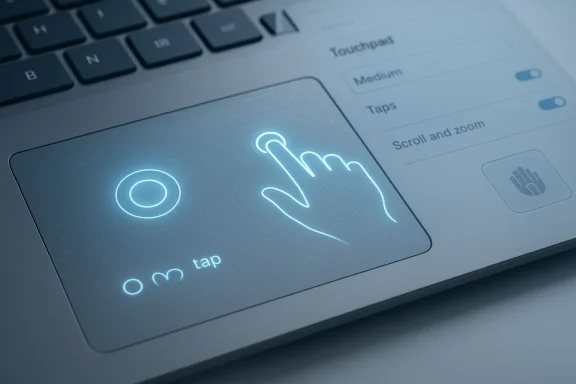
If the touchpad is present but “feels wrong,” the OS settings are often your friend.Windows 11 path: Settings → Bluetooth & devices → Touchpad.
Windows 10 path: Settings → Devices → Touchpad.
Key options to try:
- Cursor speed slider (top of the page) to change pointer velocity.
- Taps → Touchpad sensitivity: Low, Medium, High, Most sensitive. Increasing sensitivity can eliminate delay and allow simultaneous keyboard+touchpad input; lowering it reduces accidental clicks while typing.
- Under Scroll & zoom: enable two‑finger scrolling and pinch‑to‑zoom, and set scroll direction.
- Three‑finger and four‑finger gestures can be customised or set to “Nothing” to stop accidental triggers.
Change how scrolling, zoom and gestures behave
If scrolling feels reversed, jumpy, or too fast:- Verify two‑finger scrolling is enabled in Settings → Touchpad → Scroll & zoom. Toggle scroll direction and test.
- For palm‑related issues (cursor drifts while typing) adjust PalmCheck / Palm Detection in the OEM control panel (found via “More touchpad settings” or Additional mouse options). Many Synaptics and ELAN panels expose a PalmCheck or PalmTrace slider to reduce accidental touches. If the option is absent in Settings, it will usually be in the OEM control panel.
Advanced fixes: BIOS, firmware, and registry (use caution)
When to use them: if Windows never detects the touchpad, or it disappears randomly, or toggles are greyed out.- BIOS/UEFI: Many laptops include an “Internal Pointing Device” or “Touchpad” option in BIOS. If the touchpad is disabled at firmware level it won’t appear in Windows. Enter BIOS (common keys: F2, F10, F12, Del during boot) and check that the internal pointing device is Enabled. If you toggle this setting, save and reboot.
- Registry edits for PalmCheck: Some older Synaptics stacks expose a registry key (PalmDetectConfig) that can be adjusted to change palm detection behaviour. This is an advanced, potentially risky edit — incorrect registry changes can destabilize Windows. Back up the registry and only follow vendor instructions. Many vendors and community posts document PalmDetectConfig, but behaviour can vary by driver version and OEM. If unsure, prefer driver/utility changes over registry edits.
- Driver removal with DDU or clean‑install: On stubborn systems (especially after multiple driver attempts), perform a clean driver uninstall and fresh OEM install. Tools like Display Driver Uninstaller (DDU) are widely used in the GPU world; for touchpads the simpler route is uninstall → reboot → install OEM driver package. If you try a third‑party utility, choose reputable tools and understand the recovery steps.
Precision Touchpad vs OEM drivers — why it matters
- Precision Touchpad is Microsoft’s standardized driver model for Windows. Machines with Precision drivers expose full gesture/customization options directly in Settings. Microsoft documents the Precision Touchpad requirements and tuning guidance; over time OEMs have been encouraged to adopt the standard because it provides a consistent user experience.
- OEM drivers (Synaptics, ELAN, etc. sometimes offer additional manufacturer features (haptics, palm detection toggles) but can also introduce fragmentation: functions hidden in legacy control panels, or driver updates that break the Windows Settings integration. If you have inconsistent gesture options or missing Settings controls, confirm whether your device reports a Precision touchpad and consider installing the official Precision driver only if your OEM supports it or if the OEM recommends doing so.
Symptom matrix: common problems and targeted fixes
- Symptom: Touchpad completely dead; not visible in Device Manager.
Likely causes: BIOS disabled, hardware fault, cable disconnected.
What to try: Check BIOS/UEFI for Internal Pointing Device, reseat cables only if comfortable opening the laptop, contact OEM service for hardware diagnosis. - Symptom: Two‑finger scrolling or gestures missing.
Likely causes: Generic/HID driver in use or wrong driver version.
What to try: Install OEM touchpad driver or Microsoft Precision driver; check Settings → Touchpad and the OEM control panel. - Symptom: Touchpad moves while typing (cursor jump) or clicks register accidentally.
Likely causes: Palm detection sensitivity too low or firmware quirks.
What to try: Increase PalmCheck/palm tracing sensitivity in OEM control panel or set Touchpad Sensitivity to a lower level in Settings; if necessary, update/reinstall driver. Registry edits exist but are advanced and risky. - Symptom: Touchpad works but taps don’t register (only physical clicks).
Likely causes: Tap to click disabled in Settings or driver control panel.
What to try: Enable “Tap with a single finger to single‑click” in Touchpad settings; check OEM utilities.
Preventive maintenance and best practices
- Keep an OEM driver copy: after you update drivers successfully, save the driver installer to a safe folder. If future Windows Update pushes a problematic driver, you can reinstall the known‑good package.
- Use Windows Update’s Optional updates for vetted driver offers, but prefer OEM packages for laptop touchpads because they include device‑specific fixes.
- Clean the touchpad surface periodically with a soft, lint‑free cloth and isopropyl alcohol if greasy — contaminants can change capacitance and cause erratic input. Physical cleaning is low‑risk and often overlooked.
- If you use a laptop case, check whether pressure or condensation is affecting the pad. Some cases press on the pad surface and create phantom touches.
- Avoid driver “update loop” problems by turning on System Restore or creating a restore point before installing driver packages that change firmware or low‑level settings.
When to call the manufacturer or a repair technician
- The touchpad is absent in Device Manager and BIOS has no touchpad entry. This typically means a hardware fault or disconnected cable — a service visit is the next step.
- Reinstalling several driver versions and a clean Windows image don’t restore the device — escalate to manufacturer support.
- You’re uncomfortable editing the registry or BIOS: these carry real risk to system stability; get guided help.
Risks and caveats (what can go wrong)
- Registry edits (PalmDetectConfig and similar) are powerful but dangerous. Changing wrong keys or values can disable devices or create system instability. Always export the registry branch before editing and prefer vendor tools.
- Installing a non‑OEM “universal” driver can strip hardware‑specific features and cause regressions. If you experiment with Precision drivers on a non‑Precision device, keep a tested OEM fallback.
- The legacy MSDT troubleshooters are being phased out. Reliance on msdt.exe is temporary — Microsoft is redirecting to newer Get Help flows — so use msdt as a short‑term diagnostic step, not a final support plan.
- Third‑party driver websites and driver update utilities can be risky. Use OEM sites, Microsoft Update Catalog, or Windows Update where possible.
A pragmatic, ordered checklist you can follow now
- Reboot and connect an external mouse. If the mouse works, proceed to step 2.
- Run msdt.exe -id DeviceDiagnostic from an elevated Run/Command Prompt and apply fixes if suggested. (Use this only as an initial step; it is being deprecated for some Windows builds.
- Open Settings → Touchpad. Confirm touchpad enabled, try changing sensitivity to Most or High, and toggle taps and two‑finger scrolling. Test.
- If gestures are missing, open More touchpad settings / Additional settings → check OEM tab (Synaptics/ELAN) for PalmCheck and gesture options. Adjust and test.
- If problems persist, download the manufacturer’s latest touchpad driver and installer, uninstall the existing driver in Device Manager, reboot, and install the OEM package.
- If the device is absent from Device Manager, enter BIOS/UEFI and ensure the internal pointing device is enabled. If still absent, contact OEM support.
Final words: speed, scope and safety
Fixing a balky touchpad is usually straightforward — update or reinstall drivers, tune sensitivity and gestures, and check BIOS. Most fixes are non‑destructive and inexpensive in time. The few dangerous steps (registry edits, firmware/BIOS changes, hardware disassembly) are necessary only in persistent, edge‑case scenarios and should be done with backups and caution.For the typical Windows user the best path is systematic: start with Settings, run the troubleshooter, update drivers from the OEM, and only then try advanced fixes. That sequence solves the bulk of problems while keeping risk low. The underlying message: modern Windows provides the tools; understanding which layer — OS, driver, vendor utility or firmware — controls a behaviour is the real key to resolving it efficiently.
Source: livemint.com Windows laptop touchpad not responding? Experts say these easy settings might help | Mint
