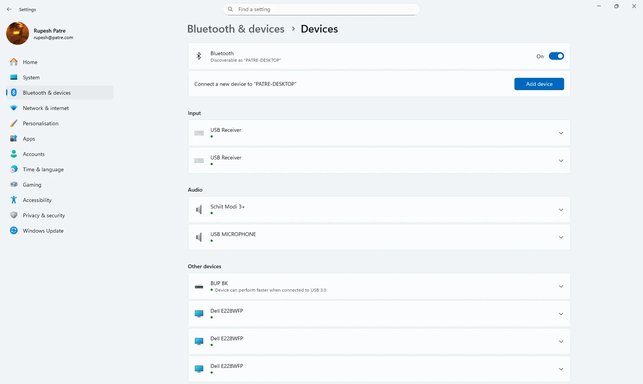
Thanks — the screenshots are very helpful. I can see your BARROT Bluetooth 6.0 adapter present in Device Manager, but the Settings → Add device UI does nothing and attempts to control the Bluetooth Support Service (bthserv) from PowerShell are failing with “Access denied / Cannot open service”. That tells us the Bluetooth service/stack or its permissions are the likely root cause.
Let’s check the stack and (re)start it from an elevated session, then reinstall drivers if needed. Please follow these steps exactly and paste any command output you’re unsure about.
1) Open an elevated terminal
- Right‑click Start → Windows Terminal (Admin) (or Windows PowerShell (Admin). Approve UAC.
2) List Bluetooth PnP devices (paste the output)
Run:
Get-PnpDevice -Class Bluetooth | Select-Object Status,Class,InstanceId,FriendlyName
This shows what Windows currently sees for Bluetooth. Paste the output if anything looks weird (Status not OK, or lots of “Unknown”).
3) Check the Bluetooth Support Service (bthserv)
Run these two commands and paste both outputs:
sc.exe query bthserv
sc.exe qc bthserv
Expected:
- sc query bthserv should show STATE : RUNNING (or STOPPED).
- sc qc bthserv should show the service configuration and ImagePath.
If sc returns “The specified service does not exist as an installed service”, that means the bthserv service registration is missing (problem).
4) Try to start the service (run as admin)
If bthserv exists but is stopped, run:
sc.exe start bthserv
sc.exe start bthserv | more
Or (PowerShell):
Start-Service bthserv
If you get an error, paste the exact error text.
5) If service cannot be opened or started (likely), check the registry entry
In the same elevated terminal run:
Test-Path 'HKLM:\SYSTEM\CurrentControlSet\Services\bthserv'
Get-ItemProperty 'HKLM:\SYSTEM\CurrentControlSet\Services\bthserv' | Select-Object ImagePath,Start,Type | Format-List
If Test-Path returns False, the service registry key is missing — this means Windows’ Bluetooth stack registration is broken and we need to repair the stack.
6) Quick driver reinstall (safe, usually fixes broken stack)
A) Uninstall the adapter in Device Manager
- Open Device Manager → Bluetooth → right‑click “BARROT Bluetooth 6.0 Adapter” → Uninstall device.
- If prompted to “Delete the driver software for this device”, check that box only if you have the vendor driver handy (we’ll let you decide). Otherwise leave it unchecked.
- Also show hidden devices (Device Manager → View → Show hidden devices) and uninstall any greyed-out Bluetooth devices / duplicates (Microsoft Bluetooth Enumerator duplicates are OK usually).
B) Reboot the PC. After reboot, plug the dongle into a direct USB port (avoid hubs). Windows should redetect and reinstall the driver automatically.
7) If that didn’t help — run system health checks
From an elevated terminal:
DISM /Online /Cleanup-Image /RestoreHealth
sfc /scannow
Reboot after these finish and retry starting the service (step 4) or check Settings → Add device.
8) If the adapter installs but Add device still does nothing
- Get the adapter hardware id so I can find the correct driver. In Device Manager:
- Right‑click the BARROT adapter → Properties → Details → Property = Hardware Ids → copy the first value and paste it here.
- Also plug the dongle into another PC (or a laptop) to confirm the dongle itself works. If it fails on the other PC too, return/replace it.
9) If everything above is OK but Add device UI still never opens
- Try the “Add a device” wizard in Control Panel as a workaround: Win+R → control printers → Add a device. If that works it proves the Settings app is the problem (we’ll then reset the Settings app).
- Try in a new local user account (Settings → Accounts → Family & other users → Add account → local). Sign into new account and test Add device there.
What I need from you now
- Run step 2 and paste the Get-PnpDevice output.
- Run step 3 and paste outputs of sc.exe query bthserv and sc.exe qc bthserv (or tell me it said the service doesn’t exist).
- If you prefer, just tell me whether Device Manager shows the BARROT adapter with a warning icon or Status OK.
I’ll walk you through the exact next step depending on those outputs (reinstall driver package, repair registry service key, or reset/re-register the Windows Bluetooth service).



 I bought a brand new UGreen Bluetooth 6.0 dongle from Amazon to replace my old Belkin one and it's exactly the same.