

HP’s 2026 Tech Takes guide for Windows 10 and Windows 11 users argues that most “USB device not recognised” errors can be solved by restarting cleanly, changing ports, checking drivers, adjusting USB Root Hub power settings, or disabling Fast Startup. That sounds basic because it is basic — and that is precisely the point. The modern USB failure is rarely one clean failure; it is a negotiation among Windows power policy, drivers, cables, hubs, ports, phone modes, and storage metadata. The useful lesson is not that there are six magic fixes, but that Windows users need a triage order that separates a dead device from a confused operating system before money or data is put at risk.
USB is supposed to be invisible infrastructure. You plug in a mouse, storage drive, phone, headset, webcam, dock, card reader, MIDI controller, or security key, and Windows is expected to do the rest. When that handshake fails and Windows reports that a USB device is not recognised, the failure feels primitive in a way modern computing normally does not: the computer has seen something, but it cannot make enough sense of it to use it.
HP’s Tech Takes Blog frames the problem correctly for 2026: the first response should not be panic, registry editing, or buying a replacement drive. The first response should be a short decision tree. Restart the computer with the USB device disconnected, try another USB port, test the same device on another computer, update Windows, inspect Device Manager, change USB Root Hub power settings, and consider disabling Fast Startup if the issue appears after shutdown and restart.
That ordering matters. USB problems are easy to overcomplicate because the symptoms are vague. A failing flash drive, a charge-only phone cable, a sleepy laptop port, a corrupted driver entry, and an underpowered hub can all collapse into the same user-facing message. The job is to make the failure less ambiguous.
The strongest part of HP’s guidance is its insistence that most cases are resolved in the first three steps. That is not a throwaway line; it is the discipline many home users and help desks skip. If the device works in a rear desktop port but not a front-panel port, the likely culprit is the port or internal cabling. If it fails on every computer, the likely culprit is the device or cable. If it works everywhere else but not on one Windows installation, the hunt moves to drivers, power management, or Windows’ state after boot.
A clean restart clears temporary software state, reloads device enumeration, and gives Windows a fresh chance to negotiate with the USB controller. HP is careful to say restart from the Start menu rather than using Sleep. That distinction is important because Sleep preserves state, while the goal here is to discard a potentially confused session. If a device suddenly works after a proper restart, the failure was likely transient rather than structural.
Trying another USB port is equally diagnostic. On desktops, HP recommends a rear port rather than a front port because rear motherboard ports remove one layer of case wiring, header connection, and physical wear from the chain. On laptops, the equivalent is to test every available USB port, not because users enjoy crawling around their machines, but because each port may sit behind different internal routing, power characteristics, or wear history.
Testing the USB device on another computer is the fastest way to avoid blaming Windows for a dead accessory. If a drive, cable, phone, or peripheral fails across multiple PCs, reinstalling USB controllers on the first machine is busywork. Conversely, if the device works immediately on another computer, the original PC becomes the suspect, and Windows-side fixes become worth the time.
This is also where cables deserve more respect than they get. HP notes that cables fail more often than expected, and that is especially true in the phone and external-drive world. Some cables are power-only. Some are damaged internally while looking fine externally. Some can charge a phone but cannot sustain a reliable data connection. A user who skips the cable test may spend an hour in Device Manager trying to fix a $5 physical problem.
That does not mean every USB issue is solved by the latest Windows update. It means a Windows installation that has been sitting behind on updates may also be sitting behind on device metadata, inbox driver fixes, or compatibility improvements. For an IT professional, “check Windows Update” is not a ritual; it is a baseline-state correction before deeper troubleshooting begins.
The practical warning is that updates should be installed and followed by a restart before the USB device is retested. Users often click Check for updates, see downloads start, plug the device in again, and then declare the step ineffective. That is not a valid test. Driver and platform changes frequently do not matter until after Windows has restarted and re-enumerated hardware.
There is also a sequencing lesson here for support desks. If the device is obviously damaged or fails everywhere, Windows Update is not the answer. If the device works elsewhere and the affected PC has pending updates, updating before manually uninstalling devices is sensible. It reduces the chance of chasing a bug that the system is already prepared to fix once allowed to finish maintenance.
The first move is conservative: right-click the affected device and select Update driver, then choose the automatic search option. If that fails, HP recommends right-clicking the device and selecting Uninstall device, then restarting so Windows can reinstall the driver automatically on startup. That sounds drastic to users who fear deleting something important, but in this context uninstalling the device is not the same as deleting personal files. It removes the device instance and forces Windows to rebuild the relationship.
Microsoft’s own Device Manager error-code documentation reinforces why this step is not superstition. Code 28 means the drivers for the device are not installed. Code 31 means Windows cannot load the driver for the device. Code 43 means Windows has stopped the device because it reported a problem. Those are different failures with different implications, even though users may see them all as “USB broke.”
The trap is treating Device Manager as a magic broom. If the error indicates the device itself is reporting a problem, reinstalling drivers may not overcome a failing peripheral. If the issue is missing drivers, the manufacturer’s package may be required. If the device works after uninstalling and restarting, the fix was not the user’s brilliance; it was Windows being forced to re-enumerate the device cleanly.
The table also shows why support scripts should capture the exact code before telling users what to do. “USB device not recognised” is a symptom. Code 28, Code 31, Code 43, and Code 19 are closer to diagnoses.
This is the point where the article intersects with a larger Windows design tradeoff. Microsoft’s driver documentation describes USB selective suspend as a power-saving feature that lets the hub driver suspend an individual port without affecting the rest of the hub. That is good engineering, especially on portable computers. A laptop that keeps every device path fully awake all the time wastes battery and may block deeper sleep states.
But power management is only useful when devices wake cleanly. The real-world complaint is not that Windows saves power; it is that a port or device sometimes fails to return from a low-power state in a way the user understands. A laptop owner sees a mouse vanish, a drive disappear, or a headset reconnect repeatedly, while Windows sees a stack of power policies doing what they were designed to do.
That is why HP’s advice is targeted rather than ideological. It does not tell users to destroy Windows’ entire power model. It tells them to stop Windows from turning off the USB Root Hub device in Device Manager. In practical terms, this is most defensible when the same USB device works reliably until the system sleeps, idles, or restarts, or when laptops show recurring disconnects under battery-conscious profiles.
Administrators should be more cautious than home users here. Microsoft generally presents selective suspend as a feature worth preserving, not a bug to be globally disabled on every fleet machine. The right response in a managed environment is to apply the change to affected systems, models, docks, or device classes after testing, not to treat every power-saving feature as hostile.
The key phrase is “if the issue happens after shutdown and restart.” Fast Startup is not the first fix for a physically damaged port or a missing phone prompt. It is a suspect when a device is absent after what the user believes was a fresh boot, but appears after a fuller restart or a replug. In that scenario, the machine may not have gone through the hardware and driver initialization path the user assumes it did.
This is one of the stranger support realities of modern Windows: “shut down” and “restart” are not always equivalent for troubleshooting. A restart is often the cleaner test. A shutdown with Fast Startup enabled can preserve enough system state to carry a problem forward. That difference matters when USB detection fails after boot but not after unplugging and reconnecting the device.
For power users, disabling Fast Startup is a low-drama experiment. For IT teams, it has tradeoffs. Faster perceived boot times are useful on fleets, and changing power behavior can alter user expectations. But when a class of machines repeatedly fails to detect USB peripherals after shutdown, Fast Startup belongs near the top of the suspect list.
This is the troubleshooting equivalent of clearing the table. It is more forceful than updating one driver because it asks Windows to rebuild the USB controller stack instead of correcting a single problem device. HP correctly labels it a more advanced fix, and it should be used after simpler port, cable, update, and root-hub settings checks have failed.
The risk is not usually data deletion, but temporary loss of input. On some desktops, if the keyboard and mouse are both USB and the wrong controller disappears before the restart, the user may be briefly stuck. That is one reason this step should be described carefully rather than tossed into a one-line forum reply. Know how you will restart the system before you remove the devices that may control your keyboard and mouse.
For admins, this step also has a documentation benefit. If uninstalling controllers and restarting fixes a recurring model-specific issue, the problem may involve driver state rather than a single bad peripheral. If it does not fix the issue, the evidence shifts toward physical ports, firmware-level behavior, specific device drivers, or power delivery.
The modern phone is not a dumb storage device. It may deliberately expose nothing useful to the PC until the user unlocks it, selects a transfer mode, or approves trust. On Android, HP notes that USB Debugging in Developer Options may be relevant for advanced connections. On iPhone, the crucial action is tapping Trust when prompted.
This is where many Windows users misread the symptom. If the phone charges, they assume the cable and port are fine. That only proves power is flowing. It does not prove the cable carries data, that the phone has authorized the computer, or that the selected mode is File transfer (MTP) or Photo transfer (PTP).
The best practical test is brutally simple: use a cable known to transfer data, unlock the phone, watch the phone screen rather than only the Windows desktop, and change the USB mode. If Windows never sees the device but another computer does, then return to Device Manager and Windows-side troubleshooting. If no computer sees the phone for data, the problem is probably phone settings, the cable, or the phone’s port.
This distinction can save users from dangerous assumptions. A drive missing from File Explorer is not necessarily dead. It may be present in Disk Management without a drive letter. In that case, assigning a drive letter may make it visible again. If it appears as Unallocated, the situation is more serious, and users should be careful not to format or initialize anything if the drive contains important data.
Power is another major variable. HP notes that externally powered drives may need their own power adapter connected, and that larger drives may not get enough power from a USB-A port. That is a mundane but critical warning. A spinning external drive that clicks, spins down, or appears intermittently may not be receiving enough stable power, especially through a weak port or unpowered hub.
The practical hierarchy for external drives is therefore different from a keyboard or mouse. First, determine whether the drive appears in Disk Management. Second, determine whether it lacks a drive letter or appears as Unallocated. Third, test power and cabling. Fourth, only then decide whether the issue is Windows, the enclosure, the disk, or the USB path.
The shape of the connector no longer tells the whole story. A USB-C port may support data only. Another may add power delivery. Another may support display output. Another may support Thunderbolt. A cable that fits all of them may not support the protocol, speed, or power level the device requires. The result is a perfect mismatch between user intuition and technical reality: it plugs in, therefore it should work.
For Windows users, the fix begins with expectations. A USB-C storage device, display adapter, dock, or Thunderbolt accessory should be checked against the capabilities of both the port and the cable. HP also recommends updating Thunderbolt drivers separately if available from the device manufacturer, which is sensible because Thunderbolt behavior often depends on platform firmware, controller software, and vendor packages rather than generic USB assumptions alone.
This is also why USB-A devices working normally does not clear the PC. A working USB-A mouse says little about whether a USB-C port supports the required alternate mode or power delivery. USB-C narrowed the physical plug but widened the support matrix behind it.
The first test is to bypass the hub. Connect the device directly to the computer and see whether it works. If it does, the hub becomes the suspect. If it does not, the hub may be innocent, and attention returns to the device, cable, port, driver, or Windows state.
For users with several external drives, audio interfaces, capture devices, RGB controllers, webcams, or charging accessories, this is not a corner case. The bus-powered hub is often asked to do more than the host port can supply. The failure may not appear when one device is connected, only when several draw power at once.
A powered USB hub is not glamorous advice, but it is often the difference between a stable workstation and a desk full of intermittent ghost problems. If a setup regularly depends on multiple high-power devices, powering the hub externally is not optional polish. It is part of the design.
That is useful for mixed environments. A household may have one Windows 10 laptop, one Windows 11 desktop, and a pile of USB devices moving between them. A small business may be in the same state. The operating systems diverge in interface polish and settings layout, but USB troubleshooting still depends on the same evidence: port behavior, device behavior on another machine, driver status, power management, Fast Startup, and controller reinstall.
The bigger issue is that Windows now sits between older peripherals and newer connection expectations. USB 2.0 devices remain common and compatible, while USB 3.x ports are faster and provide more power. HP notes that USB 3.x ports are usually identified by a blue insert. That visual clue is crude but still useful when troubleshooting older desktops and peripherals.
Compatibility does not mean equivalence. A device may work in a slower port but perform poorly. A higher-power device may behave better on a newer port. A legacy peripheral may be happier away from a hub or dock. The practical lesson is to treat ports as variables, not interchangeable holes.
For admins, the value is not memorizing six fixes. It is creating a runbook that prevents unnecessary replacements and avoids risky actions. Before a drive is formatted, before a port is declared dead, before a laptop is sent for repair, the support flow should capture whether the device works elsewhere, whether another cable was tested, whether Device Manager shows a code, and whether Disk Management sees the drive.
The same runbook should distinguish personal peripherals from business-critical storage. A headset that fails after sleep can be tested aggressively. A drive that appears as Unallocated should not be “fixed” casually if it may hold important files. The wrong kind of enthusiasm can turn a recoverable storage problem into data loss.
That is the right level of escalation. Registry corruption sounds severe, but Windows often has safer repair paths than manual editing. Device reinstall forces Windows to rebuild the device instance. System File Checker gives the OS a chance to repair protected system files. Neither step requires a user to hand-edit configuration areas they may not understand.
The broader lesson is that error codes should inform escalation, not create panic. Code 28 points toward missing drivers. Code 31 points toward a driver Windows cannot load. Code 43 may mean the device itself reported a problem. Code 19 points toward stored configuration trouble. Each narrows the field; none justifies reckless repair work.
For support professionals, this is why screenshots matter. Ask the user for the exact Device Manager message before recommending fixes. The difference between “drivers are not installed” and “Windows has stopped this device because it reported a problem” is the difference between downloading a driver and suspecting hardware.
Safe ejection remains important for storage drives. Removing a drive while it is in use can corrupt files and create future recognition issues. Windows has become more tolerant over time, and many users have become casual as a result, but storage writes are still storage writes. If the drive matters, eject it properly.
Quality cables are the least exciting fix in computing and one of the most effective. A worn cable can imitate a driver problem. A charging-only cable can imitate a phone authorization problem. A cable that works at one angle and fails at another can imitate intermittent port failure. The cheapest part of the chain can waste the most time.
Keeping Windows updated is similarly unglamorous. It will not repair a cracked connector, and it will not give a USB-C port Thunderbolt capability it never had. But it keeps the operating system closer to the driver and compatibility baseline vendors expect. That matters in a world where many peripherals rely on generic Windows behavior until they suddenly do not.
The same applies to ports. If no device works in one specific port, the port feels loose or wobbly, and other ports work normally, the evidence points away from Windows. At that stage, professional repair or working around the dead port through a functional port and hub may be more rational than continued driver surgery.
This distinction matters most with storage. A failing external drive should not be tortured through endless retries if the data matters. Clicking sounds, intermittent recognition, warmth, and cross-machine failure all argue for caution. The priority shifts from making Windows mount the drive to preserving the best chance of recovery.
For everyday peripherals, replacement may be cheaper than the labor spent chasing the fault. For drives, phones, and business equipment, the calculation changes. Troubleshooting should be methodical, but it should not become denial.
The next wave of USB frustration will not come from the old rectangular plug alone. It will come from more USB-C docks, more Thunderbolt-capable but not always Thunderbolt-enabled ports, more high-power desk setups, more phones that require explicit trust, and more laptops tuned aggressively for battery life. HP’s guide is useful because it treats “USB device not recognised” as a layered Windows problem rather than a single error message, and the users who adopt that mindset will solve more cases quickly — and know sooner when there is nothing left to fix but the hardware itself.
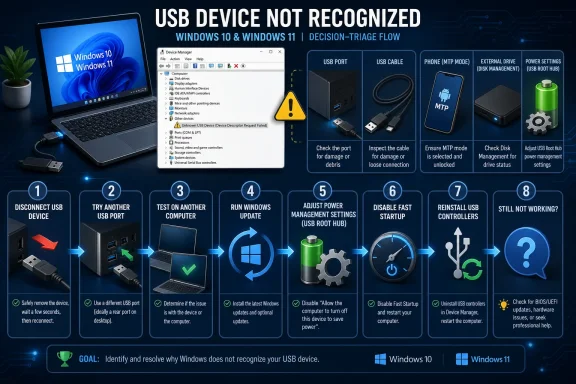 Windows Still Treats USB Like Plumbing, Until It Doesn’t
USB is supposed to be invisible infrastructure. You plug in a mouse, storage drive, phone, headset, webcam, dock, card reader, MIDI controller, or security key, and Windows is expected to do the rest. When that handshake fails and Windows reports that a USB device is not recognised, the failure feels primitive in a way modern computing normally does not: the computer has seen something, but it cannot make enough sense of it to use it.HP’s Tech Takes Blog frames the problem correctly for 2026: the first response should not be panic, registry editing, or buying a replacement drive. The first response should be a short decision tree. Restart the computer with the USB device disconnected, try another USB port, test the same device on another computer, update Windows, inspect Device Manager, change USB Root Hub power settings, and consider disabling Fast Startup if the issue appears after shutdown and restart.
That ordering matters. USB problems are easy to overcomplicate because the symptoms are vague. A failing flash drive, a charge-only phone cable, a sleepy laptop port, a corrupted driver entry, and an underpowered hub can all collapse into the same user-facing message. The job is to make the failure less ambiguous.
The strongest part of HP’s guidance is its insistence that most cases are resolved in the first three steps. That is not a throwaway line; it is the discipline many home users and help desks skip. If the device works in a rear desktop port but not a front-panel port, the likely culprit is the port or internal cabling. If it fails on every computer, the likely culprit is the device or cable. If it works everywhere else but not on one Windows installation, the hunt moves to drivers, power management, or Windows’ state after boot.
The First Three Fixes Are Really a Hardware Trial
The beginner version of USB troubleshooting says “restart and try another port.” The more accurate version says those steps are evidence collection.A clean restart clears temporary software state, reloads device enumeration, and gives Windows a fresh chance to negotiate with the USB controller. HP is careful to say restart from the Start menu rather than using Sleep. That distinction is important because Sleep preserves state, while the goal here is to discard a potentially confused session. If a device suddenly works after a proper restart, the failure was likely transient rather than structural.
Trying another USB port is equally diagnostic. On desktops, HP recommends a rear port rather than a front port because rear motherboard ports remove one layer of case wiring, header connection, and physical wear from the chain. On laptops, the equivalent is to test every available USB port, not because users enjoy crawling around their machines, but because each port may sit behind different internal routing, power characteristics, or wear history.
Testing the USB device on another computer is the fastest way to avoid blaming Windows for a dead accessory. If a drive, cable, phone, or peripheral fails across multiple PCs, reinstalling USB controllers on the first machine is busywork. Conversely, if the device works immediately on another computer, the original PC becomes the suspect, and Windows-side fixes become worth the time.
This is also where cables deserve more respect than they get. HP notes that cables fail more often than expected, and that is especially true in the phone and external-drive world. Some cables are power-only. Some are damaged internally while looking fine externally. Some can charge a phone but cannot sustain a reliable data connection. A user who skips the cable test may spend an hour in Device Manager trying to fix a $5 physical problem.
Windows Update Is a Driver Tool, Not Just a Security Chore
HP’s second method is to update Windows, and this is where the article moves from household triage into operating-system maintenance. On Windows 10, the path is Settings > Update & Security > Windows Update > Check for updates. On Windows 11, it is Settings > Windows Update > Check for updates. The paths differ, but the logic is the same: Windows Update is still one of the normal delivery channels for driver improvements.That does not mean every USB issue is solved by the latest Windows update. It means a Windows installation that has been sitting behind on updates may also be sitting behind on device metadata, inbox driver fixes, or compatibility improvements. For an IT professional, “check Windows Update” is not a ritual; it is a baseline-state correction before deeper troubleshooting begins.
The practical warning is that updates should be installed and followed by a restart before the USB device is retested. Users often click Check for updates, see downloads start, plug the device in again, and then declare the step ineffective. That is not a valid test. Driver and platform changes frequently do not matter until after Windows has restarted and re-enumerated hardware.
There is also a sequencing lesson here for support desks. If the device is obviously damaged or fails everywhere, Windows Update is not the answer. If the device works elsewhere and the affected PC has pending updates, updating before manually uninstalling devices is sensible. It reduces the chance of chasing a bug that the system is already prepared to fix once allowed to finish maintenance.
Device Manager Is Where the Vague Error Becomes a Case File
Device Manager is the point at which “not recognised” stops being a complaint and starts becoming evidence. HP’s guide sends users to Windows + X, then Device Manager, then Universal Serial Bus controllers. From there, the key visual clue is the yellow exclamation mark, which indicates a problem device.The first move is conservative: right-click the affected device and select Update driver, then choose the automatic search option. If that fails, HP recommends right-clicking the device and selecting Uninstall device, then restarting so Windows can reinstall the driver automatically on startup. That sounds drastic to users who fear deleting something important, but in this context uninstalling the device is not the same as deleting personal files. It removes the device instance and forces Windows to rebuild the relationship.
Microsoft’s own Device Manager error-code documentation reinforces why this step is not superstition. Code 28 means the drivers for the device are not installed. Code 31 means Windows cannot load the driver for the device. Code 43 means Windows has stopped the device because it reported a problem. Those are different failures with different implications, even though users may see them all as “USB broke.”
The trap is treating Device Manager as a magic broom. If the error indicates the device itself is reporting a problem, reinstalling drivers may not overcome a failing peripheral. If the issue is missing drivers, the manufacturer’s package may be required. If the device works after uninstalling and restarting, the fix was not the user’s brilliance; it was Windows being forced to re-enumerate the device cleanly.
| Device Manager code | HP’s stated meaning | What it usually narrows down | First practical move |
|---|---|---|---|
| Code 43 | Windows has stopped the device because it reported a problem. | The device, cable, port, or controlling driver may have failed the handshake. | Update or reinstall the driver, then test the device on another computer. |
| Code 28 | The drivers for the device are not installed. | Windows lacks the needed driver package. | Update through Device Manager or obtain the manufacturer’s driver. |
| Code 19 | The registry has a corrupt entry for the device. | Windows’ stored configuration for the device is damaged. | Uninstall and reinstall the device, then run sfc /scannow in Command Prompt if needed. |
| Code 31 | Windows cannot load the driver for the device. | The installed driver path is present but unusable. | Reinstall the driver, run Windows Update, or restore the system to a previous restore point. |
Power Management Is the Invisible Culprit on Laptops
HP’s fourth method targets a setting that has caused years of intermittent peripheral misery: the USB Root Hub power-management option. In Device Manager, under Universal Serial Bus controllers, users can right-click USB Root Hub, open Properties, go to the Power Management tab, and uncheck Allow the computer to turn off this device to save power. HP recommends repeating that for every USB Root Hub listed.This is the point where the article intersects with a larger Windows design tradeoff. Microsoft’s driver documentation describes USB selective suspend as a power-saving feature that lets the hub driver suspend an individual port without affecting the rest of the hub. That is good engineering, especially on portable computers. A laptop that keeps every device path fully awake all the time wastes battery and may block deeper sleep states.
But power management is only useful when devices wake cleanly. The real-world complaint is not that Windows saves power; it is that a port or device sometimes fails to return from a low-power state in a way the user understands. A laptop owner sees a mouse vanish, a drive disappear, or a headset reconnect repeatedly, while Windows sees a stack of power policies doing what they were designed to do.
That is why HP’s advice is targeted rather than ideological. It does not tell users to destroy Windows’ entire power model. It tells them to stop Windows from turning off the USB Root Hub device in Device Manager. In practical terms, this is most defensible when the same USB device works reliably until the system sleeps, idles, or restarts, or when laptops show recurring disconnects under battery-conscious profiles.
Administrators should be more cautious than home users here. Microsoft generally presents selective suspend as a feature worth preserving, not a bug to be globally disabled on every fleet machine. The right response in a managed environment is to apply the change to affected systems, models, docks, or device classes after testing, not to treat every power-saving feature as hostile.
Fast Startup Saves Seconds and Can Cost an Hour
Fast Startup is one of those Windows features that makes sense until it does not. HP’s guide says the feature speeds up boot times but can interfere with USB detection on some systems, specifically on Windows 10 and Windows 11. The recommended fix is to open Control Panel, go to Hardware and Sound, click Power Options, choose what the power buttons do, change settings currently unavailable, and uncheck Turn on fast startup.The key phrase is “if the issue happens after shutdown and restart.” Fast Startup is not the first fix for a physically damaged port or a missing phone prompt. It is a suspect when a device is absent after what the user believes was a fresh boot, but appears after a fuller restart or a replug. In that scenario, the machine may not have gone through the hardware and driver initialization path the user assumes it did.
This is one of the stranger support realities of modern Windows: “shut down” and “restart” are not always equivalent for troubleshooting. A restart is often the cleaner test. A shutdown with Fast Startup enabled can preserve enough system state to carry a problem forward. That difference matters when USB detection fails after boot but not after unplugging and reconnecting the device.
For power users, disabling Fast Startup is a low-drama experiment. For IT teams, it has tradeoffs. Faster perceived boot times are useful on fleets, and changing power behavior can alter user expectations. But when a class of machines repeatedly fails to detect USB peripherals after shutdown, Fast Startup belongs near the top of the suspect list.
Reinstalling USB Controllers Is the Reset Button Before Hardware Repair
HP reserves the more aggressive fix for later: uninstalling USB controllers. The process is to open Device Manager, expand Universal Serial Bus controllers, right-click each entry, select Uninstall device, work top to bottom, and then restart. Windows should reinstall all USB controllers automatically.This is the troubleshooting equivalent of clearing the table. It is more forceful than updating one driver because it asks Windows to rebuild the USB controller stack instead of correcting a single problem device. HP correctly labels it a more advanced fix, and it should be used after simpler port, cable, update, and root-hub settings checks have failed.
The risk is not usually data deletion, but temporary loss of input. On some desktops, if the keyboard and mouse are both USB and the wrong controller disappears before the restart, the user may be briefly stuck. That is one reason this step should be described carefully rather than tossed into a one-line forum reply. Know how you will restart the system before you remove the devices that may control your keyboard and mouse.
For admins, this step also has a documentation benefit. If uninstalling controllers and restarting fixes a recurring model-specific issue, the problem may involve driver state rather than a single bad peripheral. If it does not fix the issue, the evidence shifts toward physical ports, firmware-level behavior, specific device drivers, or power delivery.
Phones Fail Differently Because “Connected” Does Not Mean “Sharing Data”
USB phone troubleshooting deserves its own branch because a phone can be connected and still not be available to Windows in the way the user expects. HP’s guide tells users to unlock the phone, look for a USB mode notification, and switch from Charging only to File transfer (MTP) or Photo transfer (PTP). That is not a driver hack; it is permission and mode selection.The modern phone is not a dumb storage device. It may deliberately expose nothing useful to the PC until the user unlocks it, selects a transfer mode, or approves trust. On Android, HP notes that USB Debugging in Developer Options may be relevant for advanced connections. On iPhone, the crucial action is tapping Trust when prompted.
This is where many Windows users misread the symptom. If the phone charges, they assume the cable and port are fine. That only proves power is flowing. It does not prove the cable carries data, that the phone has authorized the computer, or that the selected mode is File transfer (MTP) or Photo transfer (PTP).
The best practical test is brutally simple: use a cable known to transfer data, unlock the phone, watch the phone screen rather than only the Windows desktop, and change the USB mode. If Windows never sees the device but another computer does, then return to Device Manager and Windows-side troubleshooting. If no computer sees the phone for data, the problem is probably phone settings, the cable, or the phone’s port.
External Drives Add a Second Failure Plane: The Disk May Exist Without a Letter
External SSDs and HDDs complicate USB troubleshooting because USB recognition and disk usability are not identical. A drive may be physically detected but absent from File Explorer because Windows has not assigned a drive letter or because the disk appears as Unallocated. HP’s instruction is to open Disk Management with Windows + X, then Disk Management, and inspect the list.This distinction can save users from dangerous assumptions. A drive missing from File Explorer is not necessarily dead. It may be present in Disk Management without a drive letter. In that case, assigning a drive letter may make it visible again. If it appears as Unallocated, the situation is more serious, and users should be careful not to format or initialize anything if the drive contains important data.
Power is another major variable. HP notes that externally powered drives may need their own power adapter connected, and that larger drives may not get enough power from a USB-A port. That is a mundane but critical warning. A spinning external drive that clicks, spins down, or appears intermittently may not be receiving enough stable power, especially through a weak port or unpowered hub.
The practical hierarchy for external drives is therefore different from a keyboard or mouse. First, determine whether the drive appears in Disk Management. Second, determine whether it lacks a drive letter or appears as Unallocated. Third, test power and cabling. Fourth, only then decide whether the issue is Windows, the enclosure, the disk, or the USB path.
USB-C Made the Connector Simple and the Capabilities Confusing
USB-C was supposed to clean up the port landscape. Physically, it did. Operationally, it made user expectations harder. HP’s guide says not all USB-C ports support video, charging, or Thunderbolt, and that a standard USB-C cable does not deliver Thunderbolt speeds. That one sentence explains an enormous amount of modern docking and accessory frustration.The shape of the connector no longer tells the whole story. A USB-C port may support data only. Another may add power delivery. Another may support display output. Another may support Thunderbolt. A cable that fits all of them may not support the protocol, speed, or power level the device requires. The result is a perfect mismatch between user intuition and technical reality: it plugs in, therefore it should work.
For Windows users, the fix begins with expectations. A USB-C storage device, display adapter, dock, or Thunderbolt accessory should be checked against the capabilities of both the port and the cable. HP also recommends updating Thunderbolt drivers separately if available from the device manufacturer, which is sensible because Thunderbolt behavior often depends on platform firmware, controller software, and vendor packages rather than generic USB assumptions alone.
This is also why USB-A devices working normally does not clear the PC. A working USB-A mouse says little about whether a USB-C port supports the required alternate mode or power delivery. USB-C narrowed the physical plug but widened the support matrix behind it.
Hubs Are Convenient Until Power Becomes the Bottleneck
USB hubs create another layer of ambiguity. HP draws the right distinction between powered USB hubs and bus-powered hubs, noting that powered hubs work better for high-power devices and that unpowered hubs may not supply enough power to multiple devices simultaneously. A hub can fail as a power distributor even when it looks fine as a plastic box with ports.The first test is to bypass the hub. Connect the device directly to the computer and see whether it works. If it does, the hub becomes the suspect. If it does not, the hub may be innocent, and attention returns to the device, cable, port, driver, or Windows state.
For users with several external drives, audio interfaces, capture devices, RGB controllers, webcams, or charging accessories, this is not a corner case. The bus-powered hub is often asked to do more than the host port can supply. The failure may not appear when one device is connected, only when several draw power at once.
A powered USB hub is not glamorous advice, but it is often the difference between a stable workstation and a desk full of intermittent ghost problems. If a setup regularly depends on multiple high-power devices, powering the hub externally is not optional polish. It is part of the design.
The Windows 10 and Windows 11 Paths Differ, but the Troubleshooting Logic Does Not
HP’s title explicitly frames the guide for Windows 10 and Windows 11 in 2026, and that framing matters because both operating systems remain present in the real world. The menu paths differ: Windows 10 uses Settings > Update & Security > Windows Update > Check for updates, while Windows 11 uses Settings > Windows Update > Check for updates. But the underlying diagnostic order is largely shared.That is useful for mixed environments. A household may have one Windows 10 laptop, one Windows 11 desktop, and a pile of USB devices moving between them. A small business may be in the same state. The operating systems diverge in interface polish and settings layout, but USB troubleshooting still depends on the same evidence: port behavior, device behavior on another machine, driver status, power management, Fast Startup, and controller reinstall.
The bigger issue is that Windows now sits between older peripherals and newer connection expectations. USB 2.0 devices remain common and compatible, while USB 3.x ports are faster and provide more power. HP notes that USB 3.x ports are usually identified by a blue insert. That visual clue is crude but still useful when troubleshooting older desktops and peripherals.
Compatibility does not mean equivalence. A device may work in a slower port but perform poorly. A higher-power device may behave better on a newer port. A legacy peripheral may be happier away from a hub or dock. The practical lesson is to treat ports as variables, not interchangeable holes.
Admins Should Turn HP’s Consumer Fixes Into a Repeatable Runbook
The HP article is written for ordinary users, but its best ideas scale into IT operations. USB incidents are common because USB is where personal workflow meets hardware entropy: employees bring in phones, drives, headsets, docks, adapters, presenters, cameras, and specialized devices. Each one becomes a possible support ticket.For admins, the value is not memorizing six fixes. It is creating a runbook that prevents unnecessary replacements and avoids risky actions. Before a drive is formatted, before a port is declared dead, before a laptop is sent for repair, the support flow should capture whether the device works elsewhere, whether another cable was tested, whether Device Manager shows a code, and whether Disk Management sees the drive.
The same runbook should distinguish personal peripherals from business-critical storage. A headset that fails after sleep can be tested aggressively. A drive that appears as Unallocated should not be “fixed” casually if it may hold important files. The wrong kind of enthusiasm can turn a recoverable storage problem into data loss.
Action checklist for admins
- Confirm the device type, cable type, and whether the device has ever worked on that PC.
- Restart the computer with the USB device disconnected, then test a direct port connection before testing through a hub or dock.
- Test the device and cable on another computer to separate device failure from PC-specific failure.
- Check Windows Update and Device Manager, including Universal Serial Bus controllers and any yellow exclamation mark.
- Record any Device Manager code, especially Code 43, Code 28, Code 19, or Code 31, before changing drivers.
- For recurring laptop or post-sleep failures, review USB Root Hub power settings and Fast Startup behavior.
- For external drives, inspect Disk Management before assigning blame to USB, and do not initialize or format drives that may contain needed data.
- For high-power multi-device setups, replace bus-powered hubs with powered USB hubs.
The Registry Is Not the First Stop, Even When Code 19 Appears
Code 19 is the error that tempts users into dangerous territory because HP describes it as a corrupt registry entry for the device. The correct response is not to start deleting registry keys from a forum post. HP’s recommended sequence is uninstalling and reinstalling the device, then running a system file check withsfc /scannow in Command Prompt.That is the right level of escalation. Registry corruption sounds severe, but Windows often has safer repair paths than manual editing. Device reinstall forces Windows to rebuild the device instance. System File Checker gives the OS a chance to repair protected system files. Neither step requires a user to hand-edit configuration areas they may not understand.
The broader lesson is that error codes should inform escalation, not create panic. Code 28 points toward missing drivers. Code 31 points toward a driver Windows cannot load. Code 43 may mean the device itself reported a problem. Code 19 points toward stored configuration trouble. Each narrows the field; none justifies reckless repair work.
For support professionals, this is why screenshots matter. Ask the user for the exact Device Manager message before recommending fixes. The difference between “drivers are not installed” and “Windows has stopped this device because it reported a problem” is the difference between downloading a driver and suspecting hardware.
Prevention Is Boring, Which Is Why It Works
HP closes with prevention advice that reads simple because good prevention usually does. Eject storage devices safely. Use quality cables. Avoid overloading USB hubs. Keep Windows updated. These habits do not eliminate USB failures, but they reduce the number caused by user behavior and neglected maintenance.Safe ejection remains important for storage drives. Removing a drive while it is in use can corrupt files and create future recognition issues. Windows has become more tolerant over time, and many users have become casual as a result, but storage writes are still storage writes. If the drive matters, eject it properly.
Quality cables are the least exciting fix in computing and one of the most effective. A worn cable can imitate a driver problem. A charging-only cable can imitate a phone authorization problem. A cable that works at one angle and fails at another can imitate intermittent port failure. The cheapest part of the chain can waste the most time.
Keeping Windows updated is similarly unglamorous. It will not repair a cracked connector, and it will not give a USB-C port Thunderbolt capability it never had. But it keeps the operating system closer to the driver and compatibility baseline vendors expect. That matters in a world where many peripherals rely on generic Windows behavior until they suddenly do not.
When It Is Time to Stop Troubleshooting and Suspect Damage
The most underappreciated support skill is knowing when to stop. HP lists clear signs that the USB device itself may be physically damaged: it is not recognised on any computer, there is visible connector or cable damage, it feels warm without being plugged into power, or a spinning external drive makes unusual sounds. Those are not software symptoms wearing a hardware costume. They are hardware warnings.The same applies to ports. If no device works in one specific port, the port feels loose or wobbly, and other ports work normally, the evidence points away from Windows. At that stage, professional repair or working around the dead port through a functional port and hub may be more rational than continued driver surgery.
This distinction matters most with storage. A failing external drive should not be tortured through endless retries if the data matters. Clicking sounds, intermittent recognition, warmth, and cross-machine failure all argue for caution. The priority shifts from making Windows mount the drive to preserving the best chance of recovery.
For everyday peripherals, replacement may be cheaper than the labor spent chasing the fault. For drives, phones, and business equipment, the calculation changes. Troubleshooting should be methodical, but it should not become denial.
The Real Fix Is a Shorter Path From Symptom to Evidence
The most concrete value in HP’s 2026 USB guide is not any single step; it is the order. USB troubleshooting fails when users jump randomly from ports to drivers to registry lore to hub replacement. It succeeds when each test answers a question.- A restart with the device disconnected tests whether Windows was stuck in a bad temporary state.
- A different port tests whether the original port or path is the weak link.
- Another computer tests whether the device or cable is the real failure.
- Windows Update and Device Manager test whether drivers or device state are broken.
- USB Root Hub power settings test whether power saving is cutting off the device.
- Fast Startup testing matters when detection fails after shutdown and boot.
- Disk Management matters when an external drive exists but File Explorer does not show it.
The next wave of USB frustration will not come from the old rectangular plug alone. It will come from more USB-C docks, more Thunderbolt-capable but not always Thunderbolt-enabled ports, more high-power desk setups, more phones that require explicit trust, and more laptops tuned aggressively for battery life. HP’s guide is useful because it treats “USB device not recognised” as a layered Windows problem rather than a single error message, and the users who adopt that mindset will solve more cases quickly — and know sooner when there is nothing left to fix but the hardware itself.
References
- Primary source: HP
Published: 2026-07-09T05:11:12.378150
Loading…
www.hp.com - Official source: learn.microsoft.com
Loading…
learn.microsoft.com - Official source: support.microsoft.com
Loading…
support.microsoft.com - Official source: answers.microsoft.com
Loading…
answers.microsoft.com - Official source: techcommunity.microsoft.com
Loading…
techcommunity.microsoft.com
