

Logitech’s G933 Artemis Spectrum remains one of the most talked-about older gaming headsets when people dig out their gear or spot a clearance deal — but if you’re buying one today for use on a modern Windows 10 desktop, the real question isn’t the price tag so much as whether you can get reliable drivers, firmware support, and the surround-sound features working without fragile hacks. In short: the hardware still holds up, but the software story is messy. This feature walks you through what works, what doesn’t, how to get the G933 functional on Windows 10, and the practical trade‑offs you should accept (or refuse) before you decide to clutter your desk with legacy peripherals.
The G933 Artemis Spectrum launched as a premium, feature-rich headset that offered wireless 2.4 GHz connectivity, a USB “mix” adapter, RGB lighting, programmable G‑keys, and virtual 7.1 surround via Logitech’s software. At release it relied on Logitech Gaming Software (LGS) to expose its full functionality, and official materials list Windows 10 as a supported platform at the time.
Over the years Logitech shifted its software strategy toward the newer G HUB ecosystem and then gradually de-emphasized legacy tools. That left G933 owners in a gray zone: LGS remains the recommended route for full functionality, but official download pages and support notices have become inconsistent and community troubleshooting is now a major resource for drivers, firmware files, and workarounds.
If you’re reading this because you found a G933 on clearance or second‑hand and you want to use it on a Windows 10 desktop, this article gives a clear, verifiable checklist and a conservative decision framework so you can weigh effort vs. reward.
But the software story is where friction occurs:
If you’re comfortable with archival downloads, driver plumbing, and occasional resets, a clearance G933 can be an economical and enjoyable purchase. If you require stability, up‑to‑date driver signing, or corporate security, the sensible path is to budget for a modern headset with active vendor support instead.
The good news: you don’t have to reinvent the wheel. Community documentation, gists and forum threads contain precise, battle‑tested steps for most problems (driver folders, depot paths, and reset procedures). Use them, keep a backup of working installers, and — most importantly — weigh the time you’ll spend troubleshooting against the money you’ll save buying clearance hardware. If you need a hands‑on walkthrough for your specific error messages or the exact text from Device Manager, gather the log text and system details and bring them to the community: there’s a rich record of fixes and a lot of institutional knowledge waiting to help.
Conclusion: the G933 can still sing on Windows 10, but it often requires patience, archival installers, and a willingness to be your own tech support. If that appeals to you, go for it; otherwise, choose a modern, supported headset and enjoy the peace of mind.
Source: Born2Invest https://born2invest.com/?b=style-341573812/
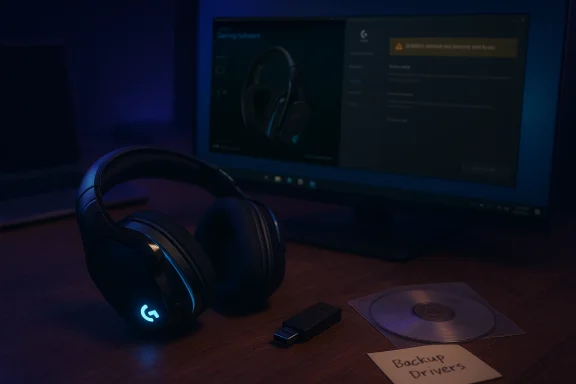 Background / Overview
The G933 Artemis Spectrum launched as a premium, feature-rich headset that offered wireless 2.4 GHz connectivity, a USB “mix” adapter, RGB lighting, programmable G‑keys, and virtual 7.1 surround via Logitech’s software. At release it relied on Logitech Gaming Software (LGS) to expose its full functionality, and official materials list Windows 10 as a supported platform at the time. Over the years Logitech shifted its software strategy toward the newer G HUB ecosystem and then gradually de-emphasized legacy tools. That left G933 owners in a gray zone: LGS remains the recommended route for full functionality, but official download pages and support notices have become inconsistent and community troubleshooting is now a major resource for drivers, firmware files, and workarounds.
If you’re reading this because you found a G933 on clearance or second‑hand and you want to use it on a Windows 10 desktop, this article gives a clear, verifiable checklist and a conservative decision framework so you can weigh effort vs. reward.
Why the G933 still matters — and why it’s a headache
The G933’s hardware specs — 40 mm Pro‑G drivers, a unidirectional boom mic, and the USB Wireless Mix Adapter that mixes multiple audio sources — are still attractive for gamers and streamers who want a single headset that can handle game audio, chat, and music simultaneously. The physical build and audio signature keep many users loyal even when software support wanes.But the software story is where friction occurs:
- Logitech originally shipped the headset with Logitech Gaming Software (LGS) for full feature access (lighting, G‑keys, virtual surround). That remains the route that historically delivered the headset’s full functionality.
- G HUB — Logitech’s newer software — supports many modern headsets but historically has been flaky or incomplete with the G933. Users report detection issues, incomplete feature exposure, or intermittent behaviour when mixing LGS and G HUB on the same system. Community workarounds exist, but they’re not guaranteed.
- Logitech’s public downloads and documentation have changed over time. Some product pages now show limited or missing downloads for legacy products, forcing owners to rely on archived installers, community mirrors, or cached LGS builds. That raises provenance and security questions.
What you need to know before you start
Before trying to install or update drivers for a legacy headset, set realistic goals and protect your system.- Define success. Do you want basic stereo audio and a working microphone, or do you need full software features (equalizer, RGB, virtual 7.1, programmable keys)? If the latter, plan to use LGS and archival installers. If the former, Windows’ native drivers and simple USB/3.5 mm connections may be enough.
- Create a restore point. Always create a System Restore point and a full backup of important data before installing legacy drivers or experimenting with kernel-level components. Community guidance strongly recommends this precaution.
- Prefer vendor files. Where possible download Logitech’s official LGS installer for the correct OS (64‑bit vs 32‑bit). If Logitech’s site has broken links, reputable community archives or cached copies are an option — but treat them with caution and scan downloads for integrity. Community posts show LGS versions such as 9.02.x and 9.04.x have been used successfully by many G933 owners.
- Expect software conflicts. If you have G HUB and LGS on the same machine, they can conflict. Uninstalling drivers, cleaning AppData, removing device entries in Device Manager, and then reinstalling the desired software in a clean state is a commonly cited recovery pattern.
Where to get the drivers and software (trusted options)
- Official Logitech support pages and product documentation — the primary authoritative source for supported OSes and required software. Use the Connect the G933 and Supported operating systems pages for the headset’s expectations (Windows 10 listed at release), and to learn that LGS 8.74.80 or later was the intended software for full functionality.
- Logitech Gaming Software download archives — some official FTP links and cached builds (versions in the 9.02–9.04 family) are still referenced by community posts as working LGS builds when the main downloads page returns broken links. Exercise caution and confirm file size and checksum where available.
- Community guides and GitHub gists — several community-maintained notes explain where LGS/G HUB stores driver files and how to manually point Device Manager at installed driver blobs when G HUB installs Microsoft generic drivers by default. These notes are invaluable for troubleshooting if the software shows the headset as “2.0 stereo” instead of virtual surround.
- Reputable archives (last resort) — sites such as Softpedia or other archives sometimes host legacy installers. These are practical lifelines but require checksum verification and an AV scan. Community counsel echoes this: prefer vendor files, then reputable archives.
Step-by-step: Installing G933 for reliable Windows 10 operation
This sequence is the most conservative path to restore the G933’s full functionality on Windows 10.- Preparation
- Create a System Restore point and back up any important data.
- Fully charge the headset battery and have the USB Wireless Mix Adapter handy.
- If you already installed G HUB or LGS and it’s acting flaky, uninstall both apps first and reboot. Remove leftover Logitech folders under %AppData% and %ProgramData% as community guides recommend.
- Choose the right software
- For full feature access, obtain a stable build of Logitech Gaming Software (LGS) — community-referenced builds in the 9.02–9.04 range have been used successfully with G933. If LGS links are dead on Logitech’s pages, community mirrors or cached files are commonly referenced — but verify integrity.
- Install as Administrator
- Run the LGS installer as Administrator. If Windows prompts about unsigned drivers or compatibility, accept only if you obtained the file from a reputable source and scanned it. Do not disable kernel protections unless absolutely necessary.
- Connect the hardware
- With LGS installed, plug the USB Wireless Mix Adapter into a direct motherboard USB port (rear I/O preferred) — avoid hubs. Turn the headset to Wireless On and let the adapter pair. Logitech documentation stresses direct USB connection for reliability.
- Confirm in Device Manager
- Open Device Manager → Sound, video and game controllers and look for multiple Logitech audio entries (often more than one driver). If Windows installs a generic Microsoft driver, use Update Driver → Browse my computer → point to the LGS program folder (or driver subfolder) so Windows installs the vendor drivers that enable virtual 7.1. Community posts point to driver paths created by G HUB installers when they succeed; if you install LGS, the software should register the vendor INF itself.
- Test surround and G‑keys
- Open LGS and check the virtual surround/7.1 toggle, EQ and G‑key programming. Test audio playback and microphone behavior in Windows Sound Settings and in your voice app (Discord/Teams/Zoom) to confirm endpoints.
- Firmware update (if available)
- If LGS or G HUB prompts for a firmware update, follow the vendor instructions carefully. Firmware updates can fix major issues but always ensure the update completes without interruption. Community guides sometimes recommend connecting via USB power and using the firmware tool if available.
Troubleshooting: common failure modes and safe fixes
- Symptom: Headset detected as stereo (2.0) only, no virtual 7.1
- Fix: Ensure LGS is installed and that Windows is using the Logitech audio driver rather than Microsoft’s generic driver. Manually update the driver in Device Manager and point to the vendor driver folder inside LGS or the G HUB depots when present. Community gists show exact paths where G HUB places driver blobs if you need to point Device Manager manually.
- Symptom: G HUB shows “not connected” or LGS won’t detect headset
- Fix: Unplug the adapter, uninstall software, delete residual AppData Logitech folders, reboot, reinstall LGS as admin, plug adapter into rear USB 3.0 port, then power cycle headset. This clean reinstall dance is frequently successful.
- Symptom: Random beeps, volume wheel stops working, or G‑keys misbehave
- Fix: Community reports point to firmware mismatches, conflicts between LGS and G HUB, and driver corruption. Resolution steps include removing all Logitech drivers from Device Manager, rebooting, and doing a fresh LGS install. A hardware reset on the headset (pin reset switch under left cover) is sometimes required.
- Symptom: Downloads for LGS broken on Logitech site
- Fix: Use reputable archived builds referenced by Logitech support articles or community posts (verify checksums). If you’re uncomfortable with archived downloads, lean on native stereo via USB cable or 3.5 mm, or choose a modern headset.
- Danger sign: Installer asks you to disable Memory Integrity / Core isolation
- Caution: some very old drivers for other headsets once required toggling off Windows’ Memory Integrity to install unsigned kernel components. This is a security trade-off and should be used only as a last resort and only on non-critical systems — then re-enable protections immediately. For the G933 specifically, this is rarely required, but the general rule applies to any legacy driver work.
Advanced tips and manual driver plumbing
If you’ve reached this point and still need help, here are advanced, community-proven techniques:- Inspect G HUB depots: When G HUB installs drivers successfully it sometimes places audio driver files in a depot path (e.g., C:\ProgramData\LGHUB\depots\<number>\driver_audio). If Windows installed generic drivers, manually point Device Manager to that depot folder to force-install Logitech’s driver. Community gists document this pattern and exact paths.
- Unify driver stacks: If you’re juggling LGS and G HUB for different devices, consider isolating incompatibility by using only LGS for the G933 and G HUB for newer devices — but be prepared for the two apps to interfere. The most stable setups in community reports are either LGS-only for older devices or G HUB-only for newer ones. Mixing often triggers bugs.
- Avoid USB hubs: Put the USB Wireless Mix Adapter in a rear motherboard port. Many dropouts and pairing issues disappear when the dongle is not attached to a hub or front‑panel extension.
- Reset hardware: If the headset behaves erratically (beeping, stuck mic), a hardware reset (pin press under left cover) repeated per the manual can restore factory state before driver reinstalls.
Risk analysis — what you gain and what you risk
Consider these trade-offs before investing time in a clearance G933:- Benefits
- Audio quality and features: Good hardware with useful mixing features; many users still prefer its sound signature.
- Cost-effectiveness: If a real clearance saves you 50%+ and you enjoy tinkering, it’s a reasonable short‑term buy.
- Risks and costs
- Software fragility: Official support is fragmented. LGS downloads may be inconsistent and G HUB support may be buggy. Expect time-consuming troubleshooting and potential incompatibilities with future Windows updates.
- Security trade-offs: Doing anything that requires disabling Windows’ kernel protections (Memory Integrity / HVCI) is risky on a machine that stores sensitive data or is used for work. Community guidance advises avoiding weakening system security for legacy drivers.
- Long-term viability: If you depend on a stable, low-friction setup (e.g., corporate, content production), buying a supported, modern headset with current vendor software is likely the better choice.
If you decide not to fight with legacy drivers: practical modern alternatives
If the maintenance cost outweighs the savings, consider replacement headsets that offer:- Active vendor support and frequent firmware updates
- Native support in G HUB (or reliable software)
- Signed, modern drivers that won’t fight Windows security features
Quick reference checklist (one‑page actionable)
- Before you begin: Create System Restore point; back up data; charge headset.
- Preferred software: Install LGS (stable archival build) for full G933 features; if LGS download links fail, use reputable archived build with checksum verification.
- Installation: Uninstall G HUB/LGS leftovers, reboot, run LGS as Admin, plug adapter into rear USB port, pair headset.
- If Windows installs generic drivers: Manually update driver in Device Manager and point to LGS driver folder or G HUB depot path.
- Firmware updates: Proceed only via vendor tool in LGS/G HUB, and avoid power interruption.
- If downloads are missing: Consider stereo-only use via 3.5 mm or buy a modern supported headset.
Final verdict
The Logitech G933 is a capable headset whose hardware can still deliver a satisfying experience — but only if you accept software caveats. On Windows 10, the most reliable path to full functionality is historically to use Logitech Gaming Software (LGS), install drivers as Administrator, and follow the community best practices for driver reinstallation and firmware updates. Logitech’s own documentation confirms Windows 10 support at release and recommends LGS for full features, but official downloads and support for legacy products are now spotty.If you’re comfortable with archival downloads, driver plumbing, and occasional resets, a clearance G933 can be an economical and enjoyable purchase. If you require stability, up‑to‑date driver signing, or corporate security, the sensible path is to budget for a modern headset with active vendor support instead.
The good news: you don’t have to reinvent the wheel. Community documentation, gists and forum threads contain precise, battle‑tested steps for most problems (driver folders, depot paths, and reset procedures). Use them, keep a backup of working installers, and — most importantly — weigh the time you’ll spend troubleshooting against the money you’ll save buying clearance hardware. If you need a hands‑on walkthrough for your specific error messages or the exact text from Device Manager, gather the log text and system details and bring them to the community: there’s a rich record of fixes and a lot of institutional knowledge waiting to help.
Conclusion: the G933 can still sing on Windows 10, but it often requires patience, archival installers, and a willingness to be your own tech support. If that appeals to you, go for it; otherwise, choose a modern, supported headset and enjoy the peace of mind.
Source: Born2Invest https://born2invest.com/?b=style-341573812/
