

I opened the Recycle Bin, hit Empty, and felt a familiar little relief—until a recovery app showed me files I had deleted months earlier, untouched and perfectly recoverable.
The everyday mental model most Windows users have is simple: delete a file, empty the Recycle Bin, and the file is gone. In practice, Windows typically removes a file’s directory entry and marks the underlying disk space as available; it does not immediately wipe the sectors that held your data. That’s why undelete tools can often reconstruct files—even long after they were “permanently” deleted—so long as those sectors haven’t been overwritten. This real-life surprise—recovering photos, documents and vault files from drives I thought cleared—mirrors the practical advice and experiments reported in the consumer tech write‑up that prompted this investigation. ns exactly why deleting isn’t the same as erasing, how modern storage (especially SSDs) changes the rules, how consumer tools like SDelete and BleachBit actually work, and which steps you should take to securely erase data before you sell, donate, or dispose of a PC.
On magnetic hard drives (HDDs), that means deleted data may persist for a long time if the disk isn’t heavily used. On solid‑state drives (SSDs), however, the situation is different because of TRIM and internal garbage collection: modern SSDs commonly receive a TRIM command from the operating system when files are deleted, telling the SSD which pages are no longer in use so the controller can erase or reuse them. That can make recovery practically impossible within minutes or hours after deletion. Sandisk’s and Kingston’s support materials explain how TRIM accelerates garbage collection and reduces recoverability on flash storage.
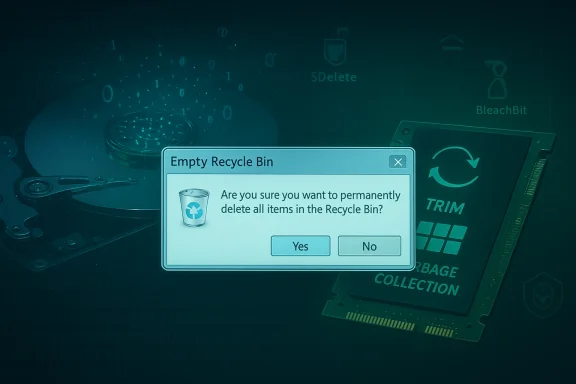
Key takeaway: the “are you sure you want to permanently delete this?” prompt in Windows refers to bypassing the Recycle Bin, not to overwriting physical storage. The file is often still recoverable—unless something else (an overwrite, TRIM, or full‑disk sanitization) removes the underlying bits.
The practical implications are twofold:
Two important consequences follow:
Important technical notes:
If you want to recover deleted files:
Conclusion
Emptying the Recycle Bin rarely accomplishes what most users assume. The filesystem-level deletion process preserves the underlying bytes until they’re overwritten, and that window is exploitable for both good (data recovery) and bad (data theft). Tools such as SDelete and BleachBit give ordinary users practical ways to overwrite data and wipe free space, while encryption and full‑disk sanitization strategies offer better long‑term protection. Know your device type (HDD vs SSD), stop using a drive if you need to recover files, and choose the appropriate sanitization path when you’re ready to hand a device off. That small extra step—safely overwriting or encrypting—will close the surprising gap between “deleted” and deleted for good.
Source: MakeUseOf I thought emptying the Recycle Bin deleted my files — this app proved me wrong
 Background / Overview
The everyday mental model most Windows users have is simple: delete a file, empty the Recycle Bin, and the file is gone. In practice, Windows typically removes a file’s directory entry and marks the underlying disk space as available; it does not immediately wipe the sectors that held your data. That’s why undelete tools can often reconstruct files—even long after they were “permanently” deleted—so long as those sectors haven’t been overwritten. This real-life surprise—recovering photos, documents and vault files from drives I thought cleared—mirrors the practical advice and experiments reported in the consumer tech write‑up that prompted this investigation. ns exactly why deleting isn’t the same as erasing, how modern storage (especially SSDs) changes the rules, how consumer tools like SDelete and BleachBit actually work, and which steps you should take to securely erase data before you sell, donate, or dispose of a PC.Why “Delete” is misleading: what Windows actually does
When you delete a file on Windows the operating system removes the file’s metadata (the index entry that tells File Explorer where to find it) and flags the disk space as free. The file’s raw bytes—the ones that contain your photos, documents, or vault notes—remain on the disk until the OS writes new data over them. This behavior is true across common Windows file systems, notably NTFS, where the Master File Table (MFT) entry is marked as unused while the clusters are simply available for reuse. Microsoft documentation and low‑level file system notes confirm that the MFT and file record segments are treated this way: entries are marked free, but the data persists until overwritten.On magnetic hard drives (HDDs), that means deleted data may persist for a long time if the disk isn’t heavily used. On solid‑state drives (SSDs), however, the situation is different because of TRIM and internal garbage collection: modern SSDs commonly receive a TRIM command from the operating system when files are deleted, telling the SSD which pages are no longer in use so the controller can erase or reuse them. That can make recovery practically impossible within minutes or hours after deletion. Sandisk’s and Kingston’s support materials explain how TRIM accelerates garbage collection and reduces recoverability on flash storage.
Key takeaway: the “are you sure you want to permanently delete this?” prompt in Windows refers to bypassing the Recycle Bin, not to overwriting physical storage. The file is often still recoverable—unless something else (an overwrite, TRIM, or full‑disk sanitization) removes the underlying bits.
The lived experience: recovery is often shockingly easy
Consumer recovery tools routinely scan free space, parse file system metadata and signatures, and reconstruct files even after the Recycle Bin has been emptied. In the case that sparked this article, a free recovery utility and a more advanced app were able to recover hundreds of photos and vault files, including items deleted weeks or months prio typical: entry‑level tools can restore many common file types, and more advanced utilities increase the success rate and previewability of recovered content.The practical implications are twofold:
- Relief: accidental deletions are often recoverable if you act quickly and stop using the disk.
- Risk: sensitive files you believe removed can be retrieved by anyone with basic recovery tools—unless you take additional steps to sanitize the storage.
Why SSDs change everything: TRIM, garbage collection, and recoverability
SSDs use NAND flash and cannot overwrite individual pages without an erase cycle at the block level. To manage this, modern operating systems issue TRIM instructions to tell the SSD which blocks are no longer in use. SSD controllers then schedule those blocks for erasure and reuse as part of their garbage collection routines.Two important consequences follow:
- On SSDs with TRIM enabled, deleted data becomes much harder to recover—often immediately or within a short background processing window—because the SSD can proactively free or zero the blocks. Sandisk and Kingston documentation make this explicit: TRIM is intended to improve performance and endurance and it does so by cooperating with garbage collection, which reduces the window of opportunity for recovery.
- On HDDs there’s no TRIM; deleted clusters persist until overwritten. That makes HDDs the friendliest platform for recovery software and the least safe if you want secure deletion without extra steps.
Tools that actually overwrite data: SDelete and BleachBit
If you need files gone for good, the only reliable software solution is to overwrite the bits.- SDelete (Microsoft Sysinternals) is a command‑line utility designed to securely delete files and to overwrite free space, implementing the Department of Defense DOD 5220.22‑M overwrite patterns by default. SDelete can securely delete an existing file or cleanse unallocated disk space by creating and overwriting large files until there is no free space left. The official Microsoft documentation lays out its usage and explains how it approaches free‑space cleaning.
- BleachBit is a graphical cleaner that includes file shredding and free‑space wiping. BleachBit’s documentation describes how it performs single‑pass overwrites for shredding and stresses that multiple‑pass options provide little practical benefit on modern drives—more passes often give a false sense of security. BleachBit can be easier for most users who prefer a GUI and offers integration with Windows Explorer in some builds.
Important technical notes:
- SDelete provides a -p option to specify overwrite passes (default 1) and a -c or clean mode to wipe free space efficiently. It also takes steps to overwrite the NTFS Master File Table (MFT) free portions by allocating files that consume MFT records, since MFT entries may hold remnants of deleted file names or metadata. However, SDelete cannot directly overwrite free directory space without risk to file system integrity; it uses safe indirect techniques to fill free space first.
- BleachBit explicitly avoids multiple passes by default, arguing that a single reliable overwrite is sufficient for almost all modern storage scenarios and that multiple passes are largely a marketing relic. It notes limits such as slack space and remapped sectors that wiping tools may not reach.
What “secure delete” actually guarantees — and what it doesn’t
Secure deletion tools reduce or eliminate the ability of standard recovery tools to reconstruct deleted content, but no software method is an absolute guarantee in every possible scenario. Consider the following:- Remapped or bad sectors: Hard drives and SSD controllers can map out damaged areas and hide them from the OS. Overwriting free space at the logical layer will not touch those remapped physical sectors; specialized hardware tools are needed to address those. BleachBit’s documentation and other expert analyses highlight this limitation.
- Files cached or copied elsewhere: Windows may store data in swap/hibernation files, application caches, cloud sync copies (OneDrive, Dropbox), or backup images. Sanitizing a local drive doesn’t wipe those other copies. The only safe approach to transfer-out is to locate and destroy all copies across backups and cloud services in addition to wiping the local disk.
- SSD controller-level quirks: SSD wear leveling and opaque internal remapping mean you can’t be certain an overwrite at the logical block level touches a particular physical cell. For truly sensitive scenarios (national security, legal evidence), the recommended approach is physical destruction or returning the drive to a professional lab that performs chip‑off forensics—because these labs can access raw NAND where possible. Many vendor guidelines and NIST recommendations discuss the limits of logical overwrites for flash storage.
- File names and directory metadata: Tools like SDelete can rename and overwrite file names a limited number of times before deletion, but they cannot always purge all free directory name traces without risking file system corruption. SDelete’s documentation explains why some directory remnants cannot be directly overwritten safely.
Practical workflows: recover vs. sanitize
Below are practical, prioritized steps depending on whether you want to recover lost data or ensure it’s gone.If you want to recover deleted files:
- Stop using the affected drive immediately. Every write increases the chance of overwriting deleted sectors.
- Make a forensic image of the drive if the data is mission‑critical; otherwise run a reputable recovery tool to scan for file signatures and metadata. Windows File Recovery or third‑party tools can help—but create a destination drive for recovered files that is different from the source.
- Try multiple tools if needed: free utilities may succeed for common formats; paid or advanced tools often recover additional file types (e.g., RAW camera files).
- For single files or folders: use a shredding tool to overwrite the specific item. For example, SDelete can remove a folder and recursively overwrite its contents, and BleachBit can shred individual files. Use the GUI if you prefer a visual preview, or SDelete for speed and scriptability.
- For the entire free space: run SDelete’s free‑space cleanse (sdelete -c or the documented procedure) or BleachBit’s “wipe free disk space” feature. These operations ensure previously deleted files are overwritten.
- For an entire drive you no longer control (e.g., selling the PC): overwrite the whole drive or reinstall the OS after a full-disk wipe. Tools that overwrite the entire device or DBAN‑style utilities physically write new data across the full device. For SSDs consider ATA Secure Erase (manufacturer tool) or, when in doubt, full-disk encryption from day one so that a secure erase of the encryption key effectively renders the data unreadable. BleachBit and SDelete are useful, but for device transfer consider steps that address the entire drive and not just free space.
- For the highest assurance: destroy the drive (drill, shred, or professionally degauss/disintegrate) and ensure backups and cloud copies are deleted or transferred. BleachBit’s guidance and independent studies emphasize that mechanical destruction is the only surefire method when certification is required.
How to use SDelete and BleachBit safely (quick how‑to)
SDelete (command line)- To securely delete a folder and its contents:
sdelete -s -r C:\FolderName
The -s and -r flags recurse through subdirectories; use -p to specify overwrite passes if you insist on multiple passes (default = 1). SDelete can also clean free space with the -c option. Read the Sysinternals documentation for full parameter details and caveats.
- Open BleachBit, choose the files and cleaners you want, and use the Shred/Overwrite options to permanently remove selected items. Use the “Wipe free disk space” option to overwrite all unallocated space. BleachBit’s docs explain that it uses a single pass and highlights limits like slack space and remapped sectors.
- Back up anything you might later need. Overwrites are irreversible for practical purposes.
- Don’t attempt to clean a Windows system drive while Windows is actively running unless you know what you’re doing; use bootable rescue media if you need to wipe system partitions safely.
- When in doubt about which drive contains the data, image the disk and work on the image for both recovery and sanitization tasks to avoid accidental losses.
Common myths and marketing traps
- Myth: “Multiple passes are always better.” Reality: For modern drives, especially SSDs and most HDDs, a single well‑implemented overwrite is sufficient. Multiple passes can be time‑consuming and rarely provide measurable added protection for consumer data. BleachBit and contemporary analysis explicitly warn against relying on multi‑pass claims as a security guarantee.
- Myth: “Emptying Recycle Bin = secure erase.” Reality: Emptying the Recycle Bin removes directory entries. It does not overwrite sectors; the underlying data is often recoverable until overwritten or cleared by other means.
- Myth: “TRIM is bad because it destroys recoverability.” Reality: TRIM is a feature designed to maintain SSD performance and longevity. It does reduce the window for recovery, which is good for privacy but bad if you rely on recovery after accidental deletion. Know which device you have and the implications.
When to call a professional lab
If the deleted data is legally critical, commercially sensitive, or irreplaceable—think legal evidence, proprietary intellectual property, or unique family archives—you should consider a professional data‑recovery or forensics lab. Labs have equipment and procedures (imaging, chip‑off recovery, controller analysis) that go beyond consumer tools. But understand the trade-offs: cost is high aanteed, especially if TRIM has run on an SSD or the sectors have been overwritten. Consumer tools are a great first step; forensics is the next step when the stakes warrant it.Practical checklist: secure disposal and everyday privacy
- Before selling or donating:
- Remove personal accounts and deactivate Find‑My and other device ties.
- Back up any data you want to keep to an external device or encrypted cloud.
- Either perform a full‑disk wipe (preferred) or use SDelete/BleachBit to wipe free space and overwrite the whole drive where possible.
- Reinstall the OS after wiping to leave the device in usable condition for the next owner.
- For everyday privacy:
- Use full‑disk encryption (BitLocker on Windows) so that even if recovery is attempted, data is protected unless the encryption key is disclosed.
- Be aware that cloud sync and backups keep copies outside the local machine.
- Use tools like BleachBit to shred sensitive files you create and to periodically wipe free space if you’re concerned about lingering artifacts.
Final analysis: strengths, risks, and recommended posture
There are three core lessons from the recovery experience and the technical evidence.- Strength — Recoverability is a mercy for mistakes. If you lose a file, there’s a good chance you can recover it—especially from an HDD—if you stop using the drive and act promptly. Tools and techniques for recovery are mature and accessible.
- Risk — Perceived deletion is not the same as secure deletion. For privacy and security, relying on the Recycle Bin or Shift+Delete is insufficient. Logical overwrites, TRIM, and controller behavior complicate the landscape. Use purpose‑built sanitization tools when you need assurance.
- Recommended posture — Plan for both outcomes. Use strong disk encryption from day one to reduce the risk of exposure on a lost or resold device; create backups and test recovery workflows for yourself; and when disposing of a device, choose the sanitization level appropriate for the sensitivity of the data—from software overwrites (SDelete/BleachBit) to manufacturer secure erase utilities for SSDs, or physical destruction for the highest assurance.
Conclusion
Emptying the Recycle Bin rarely accomplishes what most users assume. The filesystem-level deletion process preserves the underlying bytes until they’re overwritten, and that window is exploitable for both good (data recovery) and bad (data theft). Tools such as SDelete and BleachBit give ordinary users practical ways to overwrite data and wipe free space, while encryption and full‑disk sanitization strategies offer better long‑term protection. Know your device type (HDD vs SSD), stop using a drive if you need to recover files, and choose the appropriate sanitization path when you’re ready to hand a device off. That small extra step—safely overwriting or encrypting—will close the surprising gap between “deleted” and deleted for good.
Source: MakeUseOf I thought emptying the Recycle Bin deleted my files — this app proved me wrong


