

Windows still carries a surprising amount of DOS DNA, and not just as museum pieces. The most visible examples—drive letters, command-line tools, batch files, FAT variants, and 8.3 filenames—survive because they solve practical problems that modern Windows still has to handle. Microsoft’s own documentation shows that many of these commands and behaviors remain built into Windows 10, Windows 11, and Windows Server today, even when the original DOS environment is long gone
DOS was never simply an operating system; it was the foundation of an entire way of using a PC. It assumed small disks, short filenames, floppy-first boot sequences, and a command-line workflow that rewarded precision over convenience. When Microsoft built Windows on top of that world, it did not erase those assumptions so much as layer a graphical interface over them.
That layering explains why so many old conventions survived. Windows had to remain compatible with existing software, disk formats, scripts, and admin habits. In practice, that meant retaining identifiers like drive letters, old command syntaxes, and file-system logic that predated long filenames and large storage devices.
The result is a curious hybrid: a modern desktop OS that can feel fully contemporary in File Explorer while still depending on infrastructure that would look familiar to a DOS user from the early 1990s. Microsoft’s command documentation still exposes classics such as
That backward compatibility has always been one of Windows’ quiet superpowers. It is also one of its biggest constraints. Every legacy feature that remains useful today is also a reminder that the modern Windows stack still has to accommodate decades of software and workflow expectations.
Another reason is that some DOS-era ideas were never truly obsolete. A command-line interface is still extraordinarily efficient for automation, recovery, and troubleshooting. A portable file system like FAT32 still matters for removable media because nearly anything can read it. And drive letters, while awkward, remain a consistent mental model for storage access.
This matters because drive letters are not just cosmetic labels. They are deeply embedded in Windows behavior, from boot logic to application paths and service configurations. As the How-To Geek article notes, changing the system drive away from C: is technically possible in extreme cases, but in real-world Windows installations it is so deeply assumed that doing so tends to break essential components.
Today, that convention continues to reduce ambiguity. Users, admins, and software all know where the main system volume usually lives. That consistency is valuable, especially in environments where scripts, recovery procedures, and deployment tools must work the same way on thousands of machines.
That persistence is important because the command prompt is not just a fallback for power users. It is still a foundational administrative surface. Even in an era of PowerShell and Windows Terminal, classic commands are often the shortest path to solving a problem, especially when the goal is to inspect files, move data, or perform quick recovery actions.
Microsoft’s own command references continue to describe these tools in straightforward operational terms.
They remain relevant because the format is easy to learn and still deeply integrated into Windows. You can use batch files to launch software, move files, clean directories, and coordinate legacy workflows with almost no overhead. That combination of low barrier and broad support explains why batch files are still common in Windows 11, even with PowerShell available.
There is also a cultural factor. Many IT staff inherited batch knowledge from earlier Windows eras, and they continue to rely on it for quick automation. Microsoft’s continued support for command-line utilities means batch files can still orchestrate many of the same commands they did decades ago.
This matters because removable storage is where compatibility expectations are highest. Flash drives, cameras, game consoles, and recovery media often need to be readable across many different devices. FAT32 succeeds there because it is old, simple, and ubiquitous, even though its 4GB file size limit is now a significant drawback.
The tradeoff is the file-size cap. A 4GB limit is increasingly restrictive for video files, disk images, and game assets. That is why FAT32 is often a compatibility choice rather than the best technical choice.
For users, this means the old FAT lineage has not vanished; it has evolved. Windows still depends on DOS-era storage concepts, but it now offers a more flexible variant when the original design hits its limits.
This is one of those features that remains invisible until a command-line tool or legacy application exposes it. In Command Prompt,
Microsoft support material also shows that short path formats still matter in some Office automation scenarios, where documentation explicitly recommends using a short-path format in certain troubleshooting cases
The practical benefit is that modern users get flexible naming, while legacy tools can still work if they need a short path. It is an elegant compromise, even if it is not obvious from the outside.
That continuity matters because troubleshooting does not go out of style. When a system is broken, a lightweight native utility is often more useful than a fancy GUI. The DOS-era philosophy of small, direct tools still works remarkably well in that setting.
Its endurance is especially notable because it has to handle both old and new storage realities. SSDs behave differently from spinning disks, but the utility remains relevant because file systems still need validation, repair, and health checks.
This policy has enormous benefits, especially for businesses. Enterprises often delay upgrades, keep old line-of-business software alive, and rely on scripts and installers that would be painful to rewrite. Windows’ tolerance for old behaviors is a major reason the platform remains entrenched in corporate environments.
For enterprises, the story is more serious. Legacy support directly affects deployment tooling, automation, supportability, and data portability. A company may not care whether a command feels elegant; it cares whether a script written years ago still runs on new hardware.
What will change is the context around them. More users will interact through Windows Terminal, PowerShell, and richer management interfaces, while legacy commands remain as the reliable underlayer. That pattern has already held for years, and there is no sign it will reverse soon.
Source: How-To Geek 6 ways Windows still relies on DOS features
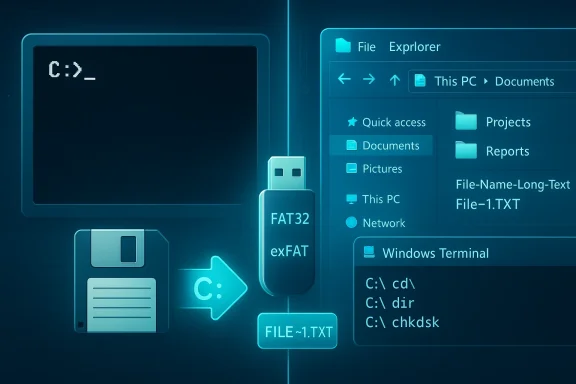 Background
DOS was never simply an operating system; it was the foundation of an entire way of using a PC. It assumed small disks, short filenames, floppy-first boot sequences, and a command-line workflow that rewarded precision over convenience. When Microsoft built Windows on top of that world, it did not erase those assumptions so much as layer a graphical interface over them.That layering explains why so many old conventions survived. Windows had to remain compatible with existing software, disk formats, scripts, and admin habits. In practice, that meant retaining identifiers like drive letters, old command syntaxes, and file-system logic that predated long filenames and large storage devices.
The result is a curious hybrid: a modern desktop OS that can feel fully contemporary in File Explorer while still depending on infrastructure that would look familiar to a DOS user from the early 1990s. Microsoft’s command documentation still exposes classics such as
cd, copy, del, dir, rd, and chkdsk, and those utilities remain part of the platform rather than historical curiositiesThat backward compatibility has always been one of Windows’ quiet superpowers. It is also one of its biggest constraints. Every legacy feature that remains useful today is also a reminder that the modern Windows stack still has to accommodate decades of software and workflow expectations.
Why legacy features persist
The biggest reason is simple: compatibility beats purity. Enterprises depend on scripts, installers, and administrative routines that were written years ago and still need to work. Consumers benefit too, even if they never notice how much of Windows’ convenience depends on old design choices underneath.Another reason is that some DOS-era ideas were never truly obsolete. A command-line interface is still extraordinarily efficient for automation, recovery, and troubleshooting. A portable file system like FAT32 still matters for removable media because nearly anything can read it. And drive letters, while awkward, remain a consistent mental model for storage access.
- Compatibility keeps older applications alive.
- Automation keeps command-line tools relevant.
- Portability keeps FAT-based file systems in circulation.
- Predictability keeps Windows manageable at scale.
Drive Letters: The Most Visible DOS Leftover
The most obvious DOS relic is the drive-letter system. Windows starts with C: instead of A: because A and B were historically reserved for floppy drives, and DOS-era conventions carried forward into Windows’ storage model. That decision has outlived floppy drives by so long that it now feels like a law of nature, even though it is really a historical accident.This matters because drive letters are not just cosmetic labels. They are deeply embedded in Windows behavior, from boot logic to application paths and service configurations. As the How-To Geek article notes, changing the system drive away from C: is technically possible in extreme cases, but in real-world Windows installations it is so deeply assumed that doing so tends to break essential components.
Why C: still matters
C: became the default because the early PC ecosystem treated A: and B: as floppy slots. Once hard drives became common, the first fixed storage volume was simply assigned C: and everything else followed. What began as a practical convention hardened into a compatibility requirement.Today, that convention continues to reduce ambiguity. Users, admins, and software all know where the main system volume usually lives. That consistency is valuable, especially in environments where scripts, recovery procedures, and deployment tools must work the same way on thousands of machines.
Drive letters in the real world
Drive letters remain useful because they are compact and universal within Windows. They are also easy to type in scripts, which matters when the platform still relies on shell automation. Microsoft’s command-line tools continue to assume the drive-letter model across utilities such aschkdsk, cd, and copy- C: is the default system drive on most Windows installations.
- A: and B: remain culturally reserved even without floppies.
- Scripts and recovery tools still use drive letters constantly.
- Enterprise deployments often rely on the consistency of drive-based paths.
Command Prompt: DOS Syntax That Never Fully Left
Windows has long since outgrown DOS, but its command prompt still speaks a very DOS-like language. Core commands such asdir, cd, copy, del, ren, and cls remain present in modern Windows shells because they are useful, terse, and familiar. Microsoft’s documentation continues to maintain these commands as supported Windows utilities rather than compatibility fossilsThat persistence is important because the command prompt is not just a fallback for power users. It is still a foundational administrative surface. Even in an era of PowerShell and Windows Terminal, classic commands are often the shortest path to solving a problem, especially when the goal is to inspect files, move data, or perform quick recovery actions.
The enduring value of terse commands
The reasondir and cd survive is not nostalgia. It is efficiency. Short commands reduce friction in interactive troubleshooting and make batch files easy to read, write, and teach. A technician can type dir, cd, and del in seconds without needing a graphical interface.Microsoft’s own command references continue to describe these tools in straightforward operational terms.
cd changes directories, copy transfers files, del deletes files, and chkdsk checks disks; none of that is exotic, which is exactly why the commands have enduredWhy PowerShell did not replace everything
PowerShell is far more capable, but capability is not the same as simplicity. For quick one-off operations, the older syntax still wins on speed and memorability. That is why Windows ends up supporting both worlds at once: the modern scripting environment for advanced automation, and the old DOS-like command set for everyday utility.diris still the quickest way to list files.cdremains the fastest way to move around a filesystem.copyanddelare still basic building blocks for admins.clsstill clears a terminal screen instantly.renis still a clean way to rename files in bulk workflows.
Batch Files: The Old Automation Workhorse
Batch files are one of the clearest examples of DOS-era survival in Windows. They exist because repetitive command-line work is tedious, and a simple text file full of commands can automate it. Long before modern automation platforms became popular, batch scripts gave users a way to package repeatable tasks into something executable.They remain relevant because the format is easy to learn and still deeply integrated into Windows. You can use batch files to launch software, move files, clean directories, and coordinate legacy workflows with almost no overhead. That combination of low barrier and broad support explains why batch files are still common in Windows 11, even with PowerShell available.
Why batch survives PowerShell
PowerShell is more powerful, but batch is often good enough. Its syntax is compact, its behavior is familiar, and its scripts can be created in a plain text editor without needing a special tooling ecosystem. That makes it especially valuable for lightweight admin tasks and compatibility-focused environments.There is also a cultural factor. Many IT staff inherited batch knowledge from earlier Windows eras, and they continue to rely on it for quick automation. Microsoft’s continued support for command-line utilities means batch files can still orchestrate many of the same commands they did decades ago.
Practical uses that still matter
The How-To Geek piece is right that batch files are ancient in computer years, but that is precisely why they are dependable. They are easy to distribute, easy to inspect, and easy to adapt for repetitive maintenance. In some workplaces, that predictability matters more than elegance.- Launch multiple apps at once.
- Automate file moves and renames.
- Clear temporary files.
- Run repeated maintenance commands.
- Chain together simple admin tasks without extra software.
A legacy format with modern value
Batch files are not glamorous, and they are not the future of Windows automation. But they are still part of the platform’s operational fabric. Their endurance tells us something important about Windows itself: a feature does not need to be modern to remain useful.FAT, FAT32, and exFAT: DOS File Systems That Refuse to Die
The FAT family of file systems may have been born in the DOS era, but it remains highly relevant in modern Windows. FAT32 is still widely used on USB flash drives because it is broadly compatible, and exFAT exists precisely to extend that compatibility to larger files and storage devices. Microsoft’s exFAT specification shows that FAT lineage is still actively maintained within the Windows ecosystemThis matters because removable storage is where compatibility expectations are highest. Flash drives, cameras, game consoles, and recovery media often need to be readable across many different devices. FAT32 succeeds there because it is old, simple, and ubiquitous, even though its 4GB file size limit is now a significant drawback.
Why FAT32 still ships everywhere
FAT32 remains a default choice for many USB drives because it works almost everywhere. That kind of universality is hard to beat, especially when the goal is portable storage rather than a high-performance system disk. Microsoft documentation and support materials still refer to FAT32 and exFAT as standard options in Windows workflows, especially for removable media and recovery use casesThe tradeoff is the file-size cap. A 4GB limit is increasingly restrictive for video files, disk images, and game assets. That is why FAT32 is often a compatibility choice rather than the best technical choice.
Why exFAT became the modern compromise
exFAT is effectively the modern bridge between legacy compatibility and larger-file support. Microsoft describes it as a file system designed for large storage devices, and it is now widely used where FAT32’s size limits are too constrainingFor users, this means the old FAT lineage has not vanished; it has evolved. Windows still depends on DOS-era storage concepts, but it now offers a more flexible variant when the original design hits its limits.
File systems as compatibility strategy
The persistence of FAT-based formats shows that Microsoft has never treated backward compatibility as an afterthought. It is a design principle. Windows remains able to interoperate with older devices and newer ones alike, and that makes the platform far more resilient than a cleaner but less compatible system would be.- FAT32 is still common on USB flash drives.
- exFAT addresses large-file and large-drive needs.
- Compatibility remains the deciding factor for removable media.
- 4GB limits still shape user choices in storage formats.
- Recovery media often relies on these older assumptions.
8.3 Filenames: Short Names in a Long-Name World
Windows supports long filenames now, but it still generates 8.3-style short names in many situations. That convention dates directly back to DOS, which could not handle modern-style filenames and instead limited names to eight characters plus a three-character extension. Even though users usually never see these short names, Windows still keeps them around for compatibility and internal reference.This is one of those features that remains invisible until a command-line tool or legacy application exposes it. In Command Prompt,
dir /x can reveal the short-name version of files and folders, which is a good reminder that the old rules are still sitting underneath the modern interface.Why short names still exist
Short names persist because old software still expects them. Some installers, scripts, and automation tools rely on paths that fit the 8.3 model. Removing short-name support entirely would break too many legacy workflows to be worth the cleanup.Microsoft support material also shows that short path formats still matter in some Office automation scenarios, where documentation explicitly recommends using a short-path format in certain troubleshooting cases
Why users rarely notice them
Most Windows users interact only with long filenames, and that is fine. The system can hide the old behavior while still preserving it in the background. That balance is typical of Windows: modern interfaces on top of compatibility mechanisms that remain available when needed.The practical benefit is that modern users get flexible naming, while legacy tools can still work if they need a short path. It is an elegant compromise, even if it is not obvious from the outside.
The old rule that still shapes the new OS
8.3 filenames are a reminder that Windows was not built in a clean-room design process. It inherited constraints, adapted them, and then kept them alive because too much depended on them. That is legacy engineering in its most practical form.- Short names still exist in the filesystem.
dir /xcan expose them in Command Prompt.- Some legacy tools still require them.
- Compatibility is the reason they have not disappeared.
- Modern Windows hides the behavior unless it is needed.
Built-in Utilities: DOS Tools That Still Solve Real Problems
Many of Windows’ built-in maintenance commands still trace their lineage to DOS, and that is not a coincidence. Tools like CHKDSK,ping, ipconfig, tracert, and tree persist because they are simple, reliable, and useful in diagnostics. Microsoft’s current documentation still lists chkdsk as a supported Windows command, and related system utilities remain part of the platform’s standard toolsetThat continuity matters because troubleshooting does not go out of style. When a system is broken, a lightweight native utility is often more useful than a fancy GUI. The DOS-era philosophy of small, direct tools still works remarkably well in that setting.
Why CHKDSK remains indispensable
CHKDSK has a deep history and a surprisingly modern role. Microsoft documents it as a supported command on Windows 10, Windows 11, and current server releases, and it remains the standard built-in tool for checking file system integrity and repairing certain kinds of disk issuesIts endurance is especially notable because it has to handle both old and new storage realities. SSDs behave differently from spinning disks, but the utility remains relevant because file systems still need validation, repair, and health checks.
The networking trio: ping, ipconfig, tracert
These are classic examples of old commands still doing very modern work.ping measures reachability and latency, ipconfig exposes network configuration, and tracert shows packet routing hops. Their age does not diminish their usefulness; if anything, it increases it because they are available everywhere and documented as part of the Windows command set.Why built-in tools still matter to admins
Administrators like tools that are already present, do not require installation, and behave consistently across machines. Native commands fit that requirement perfectly, which is why they remain staples in support workflows and incident response.- CHKDSK checks and repairs disk-related issues.
- ping tests basic connectivity and latency.
- ipconfig reveals configuration details.
- tracert maps network path behavior.
- tree gives a quick view of folder hierarchies.
Utility as platform philosophy
Windows is not just preserving these commands by accident. It is preserving them because they still represent the fastest way to answer certain questions. That is a strong argument for continuity, even in a system otherwise full of modern interfaces.Backward Compatibility as a Microsoft Strategy
The deeper story here is not any one feature, but Microsoft’s long-standing commitment to backward compatibility. Windows still runs a remarkable amount of old software because the company chose to keep the hooks, assumptions, and helper tools needed to support it. That is why applications from older Windows eras can still launch, often with little or no adjustment.This policy has enormous benefits, especially for businesses. Enterprises often delay upgrades, keep old line-of-business software alive, and rely on scripts and installers that would be painful to rewrite. Windows’ tolerance for old behaviors is a major reason the platform remains entrenched in corporate environments.
Compatibility mode as a bridge
When older applications fail, Windows compatibility mode provides a practical middle ground. The feature does not magically modernize old software, but it can smooth over enough differences to make a program usable again. That kind of engineering is not flashy, but it saves time and money.Why this helps consumers too
Consumers benefit whenever an older tool, game, or utility still runs years later. Even if they never think about compatibility mode or drive-letter conventions, they benefit from the preservation work happening underneath. The less visible the compatibility layer, the more seamless the experience feels.The hidden cost of preserving the past
Compatibility is valuable, but it is not free. Every legacy behavior Windows retains adds complexity, testing burden, and design constraints. Microsoft has accepted that tradeoff because the alternative—breaking too much old software—would be worse.- Older software keeps running longer.
- Enterprise migration costs stay lower.
- Consumer devices remain easier to manage.
- Admin workflows keep their muscle memory.
- Platform evolution becomes more cautious.
Consumer Impact vs Enterprise Impact
For consumers, DOS leftovers usually show up as convenience or confusion. Drive letters feel odd until you learn the pattern. Command Prompt seems archaic until you need a quick fix. FAT32 looks outdated until you plug a flash drive into a camera, console, or old PC and it just works.For enterprises, the story is more serious. Legacy support directly affects deployment tooling, automation, supportability, and data portability. A company may not care whether a command feels elegant; it cares whether a script written years ago still runs on new hardware.
Why enterprises care more deeply
Enterprise environments are built around repeatability. If a batch script, short path, or command-line utility breaks across Windows releases, the cost multiplies quickly. That is why the old features survive: they are embedded in operational reality, not just nostalgia.Why consumers still benefit
Consumers may never write a batch file or runchkdsk manually, but they still depend on the compatibility layer. USB drives formatted in FAT32, simple command-line fixes, and familiar drive-letter behavior make Windows easier to navigate and support.The same relic, different meaning
What looks like a leftover to one user is infrastructure to another. That distinction explains why Microsoft keeps old features alive long after the original hardware or software context has disappeared.- Consumers get convenience and compatibility.
- Enterprises get stability and lower migration risk.
- Support teams get familiar diagnostics.
- Developers get a consistent baseline.
- Windows gets continuity across generations.
Strengths and Opportunities
Windows’ continued reliance on DOS-era features is not just a quirk; it is a strategic advantage. The platform retains deep practical value because these old ideas still solve modern problems, especially when compatibility and recovery are more important than elegance.- Drive letters remain simple and widely understood.
- Command-line tools are fast for troubleshooting.
- Batch files still make easy automation accessible.
- FAT32/exFAT keep removable storage broadly compatible.
- 8.3 filenames preserve legacy application behavior.
- CHKDSK and friends give admins immediate built-in diagnostics.
- Backward compatibility protects business continuity.
- Windows Terminal gives old commands a modern home.
Risks and Concerns
The same features that make Windows resilient can also slow it down. Legacy support can become a burden when old assumptions conflict with modern expectations, and users may never see the complexity until something breaks.- Old constraints can limit storage and naming flexibility.
- Drive-letter assumptions can make edge cases brittle.
- Batch scripting is easy to misuse or overextend.
- Short-name support adds hidden filesystem complexity.
- Compatibility layers can mask deeper technical debt.
- Legacy utilities may confuse users expecting modern tooling.
- Preserving the past can delay cleaner platform redesigns.
Looking Ahead
The most likely future for Windows is not the removal of these DOS relics, but their gradual fading into the background. Microsoft has little incentive to break working conventions that still support real workloads, especially when the company can keep modernizing the user experience around them. The old tools may become less visible, but they will probably remain available for a long time.What will change is the context around them. More users will interact through Windows Terminal, PowerShell, and richer management interfaces, while legacy commands remain as the reliable underlayer. That pattern has already held for years, and there is no sign it will reverse soon.
What to watch next
- Whether Microsoft de-emphasizes Command Prompt further in favor of modern shells.
- Whether 8.3 short-name generation becomes even less visible by default.
- Whether FAT32’s role keeps shrinking as exFAT and NTFS take over more workflows.
- Whether batch files remain common in admin environments despite PowerShell’s growth.
- Whether new compatibility features continue to prioritize old Windows software.
Source: How-To Geek 6 ways Windows still relies on DOS features
Last edited:
