

Microsoft’s Mark Russinovich has explained that Windows 11 can keep reporting a closed file as “in use” because another process, antivirus scanner, network client, or loaded DLL may still hold a handle or memory reference to it. The short version is that Windows is not lying so much as speaking in a dialect only kernel developers love. The longer version is more interesting: one of the most familiar Windows annoyances is really a case study in how much of the modern desktop still depends on old, durable, low-level design choices.
That matters because “the action can’t be completed” is not just a consumer irritation. It is the kind of small, stubborn failure that derails admin scripts, software deployments, build pipelines, shared-folder cleanup jobs, and the basic expectation that closing an app should mean the file is free. Microsoft has spent years modernizing the Windows 11 surface, but this particular error lives several layers below the surface, where compatibility and data integrity usually beat convenience.
The “file is open in another program” dialog has always sounded more certain than it really is. It implies a neat relationship: you opened a document in Word, Word still has it open, and if you close Word the file becomes deletable. Sometimes that is exactly what happens. Often, it is not.
At the core is the Windows handle model. When an application opens a file, Windows gives that process a handle, a reference the operating system uses to track access to the underlying object. If the process still has a handle, Windows may refuse to delete, rename, or overwrite the file in the way the user requested, because the alternative can be data loss or undefined behavior.
That part is not a bug. It is the operating system doing what it is supposed to do. The friction comes from the gap between what Windows knows and what File Explorer tells the user. Explorer is presenting a human-readable error for a kernel-level state, and the translation has never been especially generous.
The irony is that the user’s mental model is not unreasonable. If the visible application is gone, the file should be free. Windows, however, does not care whether the app window disappeared. It cares whether a process, service, driver, remote session, or mapped image still has a reference that makes deletion unsafe.
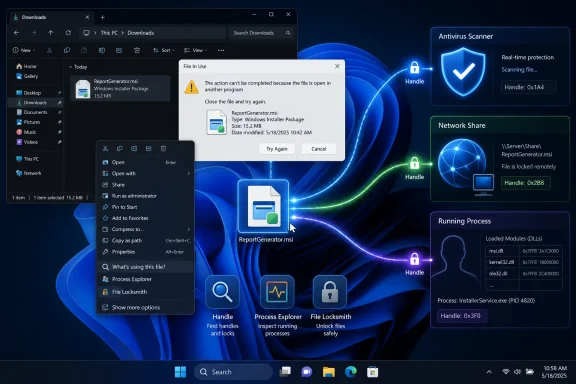
That is not accidental misbehavior. Modern endpoint protection products have to inspect files when they appear, change, or execute. The cost is that a scanner can briefly become the process holding the file hostage, even after the editor, media player, installer, or archive tool that originally touched it has exited.
Network access creates a second class of confusion. A file on a share may look local enough in File Explorer, but another machine may still have it open. In a home network this is annoying; in an office or lab environment it can become a diagnostic rabbit hole, especially when the remote client is idle, sleeping, disconnected, or running a background job no one remembers starting.
Then there is the DLL case, which is where the dialog’s plain-English confidence really breaks down. A DLL loaded into a process is not merely “open” in the familiar document sense. It may be mapped into a process address space, and that can keep the file from being replaced even when ordinary handle searches do not show the answer users expect. At that point, the lock is not a visible document session; it is part of a running program’s memory layout.
Handle is the blunt instrument. Run it with administrative privileges, search for a filename, and it can show which process has an open reference. For sysadmins and power users, that is often enough: find the process ID, decide whether it is safe to close, and retry the operation.
Process Explorer is the more humane version. Its Find Handle or DLL search turns the same conceptual hunt into something graphical. The important detail is that it searches for handles and DLLs, because the DLL scenario is exactly where the normal “who has this file open?” question becomes too narrow.
This is where Windows’ age becomes an asset and a liability at the same time. The same object model and Win32 assumptions that allow ancient business applications to keep running also mean certain behaviors remain deeply embedded. Microsoft can make File Explorer faster, prettier, darker, and more cloud-aware, but it cannot casually change the semantics of file handles without breaking software that assumes those semantics are stable.
File Locksmith also reflects Microsoft’s current split personality around power-user features. Some tools remain in Sysinternals, with the expectation that the user knows what a handle is and why killing one might be dangerous. Others migrate into PowerToys, where the audience is broader and the workflow begins in Explorer rather than an elevated console.
That distinction matters. A helpdesk technician can tell a user to install PowerToys and use File Locksmith far more easily than walking them through Handle syntax. A developer can add File Locksmith’s command-line behavior to scripts. A Windows enthusiast can finally see that the mystery lock came from Photos, Defender, an indexing process, a backup client, or an app they forgot was still running in the tray.
But the friendlier interface does not remove the danger. Ending the wrong process can discard unsaved work, corrupt an application’s state, interrupt an installer, or break a service. The utility gives visibility; it does not magically turn every locked file into a safe deletion target.
This is an old deployment trick in a cleaner outfit. Software installers, updaters, and administrators have long relied on deferred replacement, staged files, reboot-time cleanup, and rename operations to get around locked binaries. The user sees a file that “won’t delete.” The system sees an object with active references, a namespace entry, and a set of rules about what can change safely while the object remains in use.
The workaround is not universal. If a process has opened the file with sharing restrictions that block rename operations, Windows will still refuse. If the locked file is an executable or DLL actively loaded by a service, the sane answer may be to stop the service, close the application, reboot, or schedule replacement during maintenance.
Still, the advice is practical because it separates two goals users often collapse into one. If the immediate goal is “make a new version available under the expected name,” renaming the old file and dropping in a new one may solve the operational problem. If the goal is “remove every trace of the old file right now,” Windows may quite properly insist that you wait.
That is why File Locksmith feels so overdue. The correct next step should be discoverable from the error itself. If Explorer knows enough to block the operation, the shell should ideally offer a “show what is using this” option directly in the dialog, with appropriate warnings and privilege boundaries.
There are hard problems here. Some processes run under other users. Some locks are transient and disappear before the UI can enumerate them. Some references involve kernel-mode components, network clients, memory-mapped files, or permissions that a normal user should not be able to inspect freely. Microsoft cannot turn every denial into a perfect explanation without creating security, privacy, and reliability tradeoffs.
But Windows has already crossed part of that bridge with PowerToys. If Microsoft is comfortable shipping a first-party utility that identifies locking processes and can end them, the case for surfacing a safer, read-only version in File Explorer is strong. Windows does not need to make every user a kernel debugger. It does need to stop pretending “another program” is good enough.
A script that works perfectly in a lab can fail on a user’s machine because Teams, OneDrive, Defender, a shell extension, or a line-of-business app has a file open at the wrong moment. A shared folder cleanup can stall because a remote user left a document open. A developer build can fail because a test runner, language server, or previous debug session still has an output binary loaded.
The professional response is not to disable locking. It is to design for it. That means retry logic, clearer logging, graceful service stops, scheduled replacements, and tools that identify the blocking process instead of leaving admins to guess. Windows is doing its job when it prevents corruption; enterprise tooling has to do its job by treating locks as expected states rather than exceptional mysteries.
This is also why rebooting remains the crude but effective folk remedy. A reboot tears down processes and releases their handles. It is not elegant, and it is not always acceptable, but it works because it resets the state File Explorer cannot explain. The persistence of that advice is an indictment of the UI, not necessarily of the kernel.
Sysinternals became famous because it exposed the hidden machinery without waiting for the Windows shell to become perfect. PowerToys is now doing something similar for a wider audience. Both are signs of a healthy ecosystem, but also reminders that the base OS still leaves too many advanced truths outside the default experience.
There is a temptation to frame this as Microsoft “admitting” a flaw. That is only half right. The real admission is not that file locks exist; any serious operating system needs mechanisms to prevent concurrent access from becoming data loss. The admission is that Windows has trained generations of users to see a vague dialog instead of a diagnosis.
The fix, then, is partly tooling and partly expectation. Users should know that closing the visible app is not proof the file is free. Administrators should know that Handle, Process Explorer, and File Locksmith are not curiosities; they are practical instruments. Microsoft should know that hiding the instrument panel behind optional utilities is no longer good enough for a desktop that wants to feel modern.
That matters because “the action can’t be completed” is not just a consumer irritation. It is the kind of small, stubborn failure that derails admin scripts, software deployments, build pipelines, shared-folder cleanup jobs, and the basic expectation that closing an app should mean the file is free. Microsoft has spent years modernizing the Windows 11 surface, but this particular error lives several layers below the surface, where compatibility and data integrity usually beat convenience.
 Windows Is Protecting the File, Not Explaining the System
The “file is open in another program” dialog has always sounded more certain than it really is. It implies a neat relationship: you opened a document in Word, Word still has it open, and if you close Word the file becomes deletable. Sometimes that is exactly what happens. Often, it is not.At the core is the Windows handle model. When an application opens a file, Windows gives that process a handle, a reference the operating system uses to track access to the underlying object. If the process still has a handle, Windows may refuse to delete, rename, or overwrite the file in the way the user requested, because the alternative can be data loss or undefined behavior.
That part is not a bug. It is the operating system doing what it is supposed to do. The friction comes from the gap between what Windows knows and what File Explorer tells the user. Explorer is presenting a human-readable error for a kernel-level state, and the translation has never been especially generous.
The irony is that the user’s mental model is not unreasonable. If the visible application is gone, the file should be free. Windows, however, does not care whether the app window disappeared. It cares whether a process, service, driver, remote session, or mapped image still has a reference that makes deletion unsafe.
The Closed App Was Only the Most Visible Suspect
Russinovich’s explanation is useful because it moves the blame away from the app the user just closed and toward the broader ecosystem of processes touching files behind the scenes. Antivirus software is the obvious first culprit. Security tools open files constantly, and they often do so at exactly the moment a user is trying to move, delete, extract, or replace something.That is not accidental misbehavior. Modern endpoint protection products have to inspect files when they appear, change, or execute. The cost is that a scanner can briefly become the process holding the file hostage, even after the editor, media player, installer, or archive tool that originally touched it has exited.
Network access creates a second class of confusion. A file on a share may look local enough in File Explorer, but another machine may still have it open. In a home network this is annoying; in an office or lab environment it can become a diagnostic rabbit hole, especially when the remote client is idle, sleeping, disconnected, or running a background job no one remembers starting.
Then there is the DLL case, which is where the dialog’s plain-English confidence really breaks down. A DLL loaded into a process is not merely “open” in the familiar document sense. It may be mapped into a process address space, and that can keep the file from being replaced even when ordinary handle searches do not show the answer users expect. At that point, the lock is not a visible document session; it is part of a running program’s memory layout.
Sysinternals Still Exists Because Windows Still Needs X-Ray Vision
The most telling detail in the story is not that Windows locks files. It is that Mark Russinovich built tools to diagnose this problem in the 1990s, and those tools remain relevant in 2026. Handle and Process Explorer endure because Windows has always needed an unofficial-looking, but now Microsoft-owned, layer of instrumentation for people who want to see what the system is actually doing.Handle is the blunt instrument. Run it with administrative privileges, search for a filename, and it can show which process has an open reference. For sysadmins and power users, that is often enough: find the process ID, decide whether it is safe to close, and retry the operation.
Process Explorer is the more humane version. Its Find Handle or DLL search turns the same conceptual hunt into something graphical. The important detail is that it searches for handles and DLLs, because the DLL scenario is exactly where the normal “who has this file open?” question becomes too narrow.
This is where Windows’ age becomes an asset and a liability at the same time. The same object model and Win32 assumptions that allow ancient business applications to keep running also mean certain behaviors remain deeply embedded. Microsoft can make File Explorer faster, prettier, darker, and more cloud-aware, but it cannot casually change the semantics of file handles without breaking software that assumes those semantics are stable.
PowerToys Turns an Admin Trick Into a Right-Click Habit
The more consumer-friendly answer is PowerToys File Locksmith. This is the kind of utility Windows arguably should have exposed natively decades ago: right-click a file, ask what is using it, and get a process list without spelunking through command-line tools. It is not glamorous, but it addresses the actual user pain.File Locksmith also reflects Microsoft’s current split personality around power-user features. Some tools remain in Sysinternals, with the expectation that the user knows what a handle is and why killing one might be dangerous. Others migrate into PowerToys, where the audience is broader and the workflow begins in Explorer rather than an elevated console.
That distinction matters. A helpdesk technician can tell a user to install PowerToys and use File Locksmith far more easily than walking them through Handle syntax. A developer can add File Locksmith’s command-line behavior to scripts. A Windows enthusiast can finally see that the mystery lock came from Photos, Defender, an indexing process, a backup client, or an app they forgot was still running in the tray.
But the friendlier interface does not remove the danger. Ending the wrong process can discard unsaved work, corrupt an application’s state, interrupt an installer, or break a service. The utility gives visibility; it does not magically turn every locked file into a safe deletion target.
The Rename Workaround Is Clever Because It Respects the Contract
Russinovich’s workaround—rename the old file, place a fresh copy with the original name, then delete the old one later—sounds almost too simple. Its usefulness comes from the fact that it works with Windows’ object semantics rather than trying to smash through them. In some cases, Windows can allow a rename or replacement pattern that avoids immediately invalidating the reference a process already holds.This is an old deployment trick in a cleaner outfit. Software installers, updaters, and administrators have long relied on deferred replacement, staged files, reboot-time cleanup, and rename operations to get around locked binaries. The user sees a file that “won’t delete.” The system sees an object with active references, a namespace entry, and a set of rules about what can change safely while the object remains in use.
The workaround is not universal. If a process has opened the file with sharing restrictions that block rename operations, Windows will still refuse. If the locked file is an executable or DLL actively loaded by a service, the sane answer may be to stop the service, close the application, reboot, or schedule replacement during maintenance.
Still, the advice is practical because it separates two goals users often collapse into one. If the immediate goal is “make a new version available under the expected name,” renaming the old file and dropping in a new one may solve the operational problem. If the goal is “remove every trace of the old file right now,” Windows may quite properly insist that you wait.
The Error Message Is the Real UI Debt
The deeper complaint is not that Windows refuses unsafe file operations. It is that the operating system still often fails to identify the party responsible. A dialog that says a file is open “in another program” but does not name the program is a half-answer. It gives the user a reason, not a path forward.That is why File Locksmith feels so overdue. The correct next step should be discoverable from the error itself. If Explorer knows enough to block the operation, the shell should ideally offer a “show what is using this” option directly in the dialog, with appropriate warnings and privilege boundaries.
There are hard problems here. Some processes run under other users. Some locks are transient and disappear before the UI can enumerate them. Some references involve kernel-mode components, network clients, memory-mapped files, or permissions that a normal user should not be able to inspect freely. Microsoft cannot turn every denial into a perfect explanation without creating security, privacy, and reliability tradeoffs.
But Windows has already crossed part of that bridge with PowerToys. If Microsoft is comfortable shipping a first-party utility that identifies locking processes and can end them, the case for surfacing a safer, read-only version in File Explorer is strong. Windows does not need to make every user a kernel debugger. It does need to stop pretending “another program” is good enough.
Enterprises See a Reliability Problem Hiding in a Consumer Annoyance
In managed environments, file locks are not just a nuisance. They are a source of failed patch jobs, broken application updates, orphaned temporary files, profile cleanup failures, and mysterious deployment errors. The problem becomes more visible when automation meets desktop unpredictability.A script that works perfectly in a lab can fail on a user’s machine because Teams, OneDrive, Defender, a shell extension, or a line-of-business app has a file open at the wrong moment. A shared folder cleanup can stall because a remote user left a document open. A developer build can fail because a test runner, language server, or previous debug session still has an output binary loaded.
The professional response is not to disable locking. It is to design for it. That means retry logic, clearer logging, graceful service stops, scheduled replacements, and tools that identify the blocking process instead of leaving admins to guess. Windows is doing its job when it prevents corruption; enterprise tooling has to do its job by treating locks as expected states rather than exceptional mysteries.
This is also why rebooting remains the crude but effective folk remedy. A reboot tears down processes and releases their handles. It is not elegant, and it is not always acceptable, but it works because it resets the state File Explorer cannot explain. The persistence of that advice is an indictment of the UI, not necessarily of the kernel.
The Small Dialog That Explains a Big Windows Tradeoff
What makes this story resonate is that it compresses the Windows bargain into a single error box. Windows is flexible, compatible, extensible, and deeply observable if you know the right tools. It is also layered, old, and often opaque at the exact moment ordinary users need clarity.Sysinternals became famous because it exposed the hidden machinery without waiting for the Windows shell to become perfect. PowerToys is now doing something similar for a wider audience. Both are signs of a healthy ecosystem, but also reminders that the base OS still leaves too many advanced truths outside the default experience.
There is a temptation to frame this as Microsoft “admitting” a flaw. That is only half right. The real admission is not that file locks exist; any serious operating system needs mechanisms to prevent concurrent access from becoming data loss. The admission is that Windows has trained generations of users to see a vague dialog instead of a diagnosis.
The fix, then, is partly tooling and partly expectation. Users should know that closing the visible app is not proof the file is free. Administrators should know that Handle, Process Explorer, and File Locksmith are not curiosities; they are practical instruments. Microsoft should know that hiding the instrument panel behind optional utilities is no longer good enough for a desktop that wants to feel modern.
The File Lock Lesson Windows Users Should Actually Keep
The practical lesson from Russinovich’s explanation is that the error is usually solvable once you stop treating it as a mysterious Explorer failure and start treating it as a process ownership problem. The best fix is the one that identifies the holder before you start killing processes or rebooting the machine.- A “file in use” warning means Windows has found an active reference that may make deletion, renaming, or replacement unsafe.
- The visible app you closed may not be the process still holding the file, because antivirus tools, background services, shell extensions, and remote clients can also touch it.
- Handle and Process Explorer remain the most direct Sysinternals tools for finding open handles and loaded DLL references.
- PowerToys File Locksmith is the simplest first stop for most users because it brings the search into File Explorer’s right-click workflow.
- Renaming the locked file and placing a fresh copy under the original name can be a useful workaround, but it depends on how the file was opened and should not be treated as guaranteed.
- Ending a locking process is safer when you understand what the process is doing, because closing handles or killing tasks can destabilize applications or lose work.
References
- Primary source: Windows Latest
Published: Mon, 29 Jun 2026 21:17:47 GMT
Microsoft reveals why Windows 11 keeps saying a file is in use after you close the app, plus the fix
Microsoft's Azure CTO Mark Russinovich explains why Windows still says a file is 'in use' after closing the app, and what to do about it. www.windowslatest.com
