

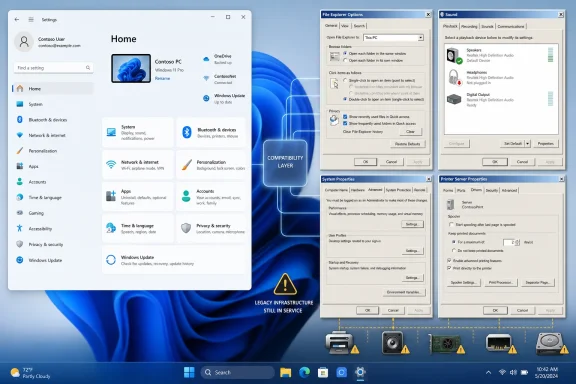
Microsoft has moved many everyday Windows controls into the modern Settings app, but File Explorer Options, advanced sound controls, System Properties, and Printer Server Properties still depend on legacy Control Panel-era interfaces in Windows 10 and Windows 11 as of June 2026. That is not just an aesthetic failure. It is a map of where Windows remains oldest, most compatible, and least willing to break the contract it made with hardware, software, and administrators decades ago. The Settings app may be the future of Windows configuration, but the Control Panel is still where the operating system admits what it really is.
The modern Windows Settings app was supposed to solve a very real problem. Control Panel had become a museum of applets, tabs, nested dialogs, vendor extensions, and administrative affordances accumulated over generations of Windows releases. It worked, but it did not feel designed so much as excavated.
Windows 8 began the split personality in earnest, Windows 10 made Settings the default destination for ordinary users, and Windows 11 polished the interface into something closer to a modern system dashboard. Network, display, Bluetooth, personalization, storage, accounts, Windows Update, privacy, and accessibility all now live in a more consistent visual language. The old Control Panel, meanwhile, has been increasingly hidden behind search results, redirected links, and “More settings” buttons.
Yet the migration has never been complete, and it probably cannot be completed by simply dragging old toggles into a new shell. The reason is not that Microsoft has forgotten these corners exist. It is that many of them are not merely preferences; they are front ends for old subsystems that still shape how Windows talks to files, drivers, devices, remote sessions, search indexes, audio endpoints, print spoolers, and enterprise policies.
That distinction matters. A wallpaper picker can be modernized without much consequence. A print driver form definition, an audio exclusive-mode flag, or a system protection configuration sits closer to the plumbing. If Microsoft gets the abstraction wrong, the cost is not a weird-looking dialog. It is a broken workflow in a school lab, a studio, a warehouse, a hospital, or a business still running specialized hardware from three procurement cycles ago.
For administrators and power users, it is not. File Explorer Options still exposes behaviors that are too particular, too old, or too consequential to fit neatly into the simplified File Explorer command bar. Whether Explorer opens to Home, This PC, or OneDrive is a preference. Whether full paths appear in the title bar, whether search includes system directories, whether file operations reveal particular classes of files, and how folder browsing behaves across sessions are closer to operating assumptions.
This is why File Explorer Options has survived the modernization campaign. It is not just a forgotten settings page; it is a compatibility surface for decades of habits, scripts, documentation, and support playbooks. Anyone who has rebuilt a machine and immediately enabled file extensions knows that these options are part of Windows muscle memory. They are small switches, but they sit at the boundary between consumer friendliness and professional legibility.
Microsoft has tried to make File Explorer less intimidating. Windows 11’s Home view, OneDrive integration, gallery surfaces, cloud search hooks, and context menu redesigns all point toward a file manager that assumes users work across local and cloud spaces. That direction is coherent, but it does not erase the older Windows assumption that the filesystem is a visible machine room.
The result is a split interface that feels awkward but reveals the truth. Settings and File Explorer handle the everyday layer. File Explorer Options handles the don’t break my workflow layer. Until Microsoft is willing to retire or radically reinterpret those older behaviors, the dialog survives because it still says things the new UI is not designed to say.
But Windows audio is not just a volume slider. It is a broker among consumer speakers, Bluetooth devices, USB microphones, HDMI displays, virtual audio cables, game headsets, conferencing apps, digital audio workstations, external DACs, capture devices, and professional interfaces. The old Sound control panel remains where some of that negotiation becomes explicit.
The classic panel’s tabs still matter because they expose assumptions that ordinary settings pages tend to hide. Windows can distinguish between a default playback device and a default communications device. It can let applications take exclusive control of an endpoint. It can assign system event sounds, manage recording devices, and expose device-level properties in a way that still feels closer to driver management than consumer configuration.
That is not a niche concern for people who collect beige hardware. It matters to streamers, musicians, podcasters, accessibility users, remote workers, gamers, and anyone who has ever watched Windows route a meeting through the wrong microphone because a headset driver arrived with its own ideas. The modern Settings app can simplify, but it cannot wish away the fact that audio routing is a contested space.
The old panel also carries an important institutional memory. Windows audio has been revised many times, but the ecosystem around it includes applications written against long-standing APIs and users trained to troubleshoot through familiar dialogs. If a DAW, softphone, or USB interface behaves badly, the old Sound panel is still one of the first places an experienced user checks.
Microsoft could rebuild all of this in Settings. It may eventually do more of that. But the difficult part is not drawing the page; it is preserving the semantics. A clean Settings card that hides exclusive mode, communications defaults, or device-specific properties might look modern while making the system less understandable to the people who most need to understand it.
The Settings app has absorbed pieces of the old System experience. The About page now handles identity and hardware summaries that once sent users through Control Panel. Activation, remote desktop access, storage, and recovery have modern pages of their own. But the old System Properties dialog remains because it is still the direct route to features Windows professionals actually use.
System Restore is the most obvious example. It is an old technology, and it is not a substitute for proper backup, but it remains a practical rollback mechanism for driver failures, configuration mistakes, and bad software installs. The modern Settings app can point toward recovery options, but the granular configuration of restore protection still lives in the old interface.
The Advanced tab is even more revealing. Performance Options, visual effects, virtual memory, processor scheduling, startup and recovery behavior, and environment variables are not “settings” in the consumer sense. They are operating system contracts. Change the paging file, and you are not customizing Windows; you are changing how it manages memory pressure. Change environment variables, and you may alter how development tools, services, and scripts resolve paths.
This is where the Settings app’s design language starts to feel mismatched. A modern toggle suggests reversibility, simplicity, and user confidence. A dialog like System Properties suggests consequence. It is less friendly, but in a strange way it is more honest.
That honesty is useful. Windows has always had to serve two audiences at once: people who should never have to think about virtual memory, and people who need to because a workload, app, or legacy deployment requires it. Hiding the latter group’s tools behind modern design can become a form of condescension. Leaving System Properties intact is not elegant, but it preserves a working boundary between basic personalization and system surgery.
The rest is still a swamp of drivers, forms, ports, spool locations, device capabilities, shared queues, ancient applications, vendor utilities, and office workflows that were never designed for a Settings app. Printer Server Properties is a perfect example. It is not there for someone printing a boarding pass. It is there for someone managing paper sizes, driver packages, spool behavior, and print infrastructure that other people depend on.
Custom forms alone justify the old interface’s continued existence. Receipt rolls, labels, specialized envelopes, lab forms, shipping media, medical paperwork, photo stock, and industrial print formats do not fit the default consumer model. A business may not care whether the form editor looks modern; it cares whether the label printer still cuts correctly at 7:03 a.m. when orders start moving.
The print spooler is another reason this area resists simplification. Moving spool data off the system drive, troubleshooting stuck queues, removing bad drivers, and managing print server behavior are administrative actions. They are also actions with real consequences when performed incorrectly. A friendly UI can help, but it cannot make the underlying problem friendly.
Microsoft has spent years trying to modernize printing, including changes around driver isolation, class drivers, print support apps, and security hardening after serious spooler vulnerabilities forced uncomfortable attention on an old subsystem. But modernization is not the same as deletion. The Windows printing stack still has to respect offices full of devices that are expensive, boring, and expected to last much longer than a laptop.
That is why printer configuration is likely to remain one of the last places where legacy UI survives. Not because anyone loves it, and not because it is good design. It survives because it is attached to real-world equipment that cannot be upgraded on Microsoft’s preferred schedule.
But there is a difference between a product being deprecated and a product being gone. Control Panel is increasingly less of a destination and more of a backplane. Users may not open it by name, but they still land in its applets through redirected links, Run commands, shell commands, troubleshooting guides, and enterprise documentation.
That is why the “Control Panel is dying” narrative keeps failing in practice. It is true at the level of design strategy and false at the level of daily operations. Microsoft can continue removing individual applets, rewriting pages, and burying old entry points, but the remaining pieces are disproportionately the hard pieces.
The easy migrations happened first. Display settings, personalization, Windows Update, accounts, storage cleanup, app uninstall flows, and network overviews all made sense in Settings. The survivors are not random; they are the parts most entangled with legacy APIs, administrative semantics, driver-specific behavior, or workflows that cannot tolerate surprise.
This gives Windows a lopsided but understandable architecture. The modern UI is where Microsoft expresses where it wants Windows to go. The legacy dialogs are where Windows honors where it has been. Users experience that as inconsistency, but enterprises experience it as continuity.
The awkward truth is that continuity is one of Windows’ core features. Microsoft competes not only on polish, but on the promise that old investments keep working. That promise is messy, expensive, and sometimes aesthetically embarrassing. It is also why Windows remains the default environment for vast numbers of businesses that cannot replace every application, driver, peripheral, and process each time the UI changes.
But completeness has a cost. Once Settings tries to include every legacy option, it risks becoming Control Panel with better icons. Microsoft has to decide whether Settings is a curated experience for normal use or a total replacement for every configuration surface. Those goals are in tension.
This is visible in the way Settings often behaves as a polite lobby for older tools. Click deep enough into sound, printing, networking, devices, or advanced system information, and Windows eventually opens a classic dialog. The handoff can feel jarring, but it also preserves the difference between the common path and the expert path.
The design problem is that users now expect search to make everything equally discoverable. If Windows Search can find File Explorer Options or System Properties, then the old UI still feels official. If Settings links to “More sound settings,” then the old panel is not dead; it is delegated authority. Microsoft cannot easily pretend these tools are obsolete while relying on them to complete the configuration story.
There is also a training cost. A generation of Windows users has learned that Settings is the place to start, but not necessarily the place to finish. That is not ideal, yet it may be more realistic than forcing every advanced option into a modern shell before the underlying systems are ready.
In a perfect world, Microsoft would rebuild the old applets as coherent Settings pages with layered disclosure: simple by default, advanced when needed, searchable throughout, scriptable underneath, and documented for administrators. In the real world, Windows has to ship, enterprises have to deploy, and regressions in old workflows create louder problems than ugly dialogs.
Power users and administrators return to old panels because they expose more state. A simplified UI often answers the question Microsoft expects a user to ask. An old dialog often reveals the questions Microsoft could not predict. That matters when troubleshooting.
Consider a user trying to fix a microphone that works in one app but not another. The modern Sound page may show that the device is present and selected. The old Sound panel may reveal communications defaults, recording properties, levels, enhancements, exclusive-mode behavior, or vendor-specific controls. The difference is not visual; it is diagnostic depth.
The same pattern appears with printers. A queue may look fine in Settings while the real issue sits in a driver, port, form, or spooler configuration. A clean interface that hides those layers can make the system feel easier until something breaks. Then the missing complexity becomes the problem.
For IT departments, these old tools are also part of institutional continuity. Help desk scripts, internal documentation, training materials, and remote support sessions often rely on stable dialog names and command-line shortcuts. The Run commands are not trivia; they are quick paths through machines that may be locked down, partially broken, or inconsistent across versions.
That is why Microsoft’s slow migration is less irrational than it looks. It is not just moving settings; it is moving trust. Every relocated option has to behave the same, be findable, respect policy, interoperate with management tooling, and avoid breaking support assumptions. If any of that fails, the old UI starts looking less like clutter and more like the safer interface.
The company has also kept moving pieces over. Account controls, Bluetooth management, display configuration, storage tools, recovery options, accessibility settings, and developer-facing toggles have all improved. Even areas that still fall back to legacy tools often have modern summary pages that reduce how often users need to descend into old dialogs.
But the migration is selective because the operating system itself is selective about risk. Features that can be redesigned around modern expectations move faster. Features that are welded to older APIs, drivers, policy models, or hardware ecosystems move slowly. Some may never move in a recognizable way; instead, they may be replaced by newer management models while the old ones remain for compatibility.
That is the pattern Windows has used for decades. Microsoft rarely wins by making a clean break. It layers. It redirects. It marks things deprecated while leaving them available. It introduces a new framework and lets the old one survive until economic reality, not design preference, finally pushes it aside.
This is why the Control Panel’s fate is likely to be gradual disappearance rather than dramatic execution. One applet at a time, one page at a time, one redirected link at a time, Microsoft will continue shrinking the old surface. What remains at each stage will be weirder, older, and more important to the people who still need it.
The irony is that the Control Panel becomes more revealing as it gets smaller. When the easy settings leave, the survivors tell us exactly where Windows is most constrained. File Explorer Options, Sound, System Properties, and Printer Server Properties are not just leftovers. They are stress fractures in the modernization project.
That means the smart Windows user in 2026 should be bilingual. Learn Settings for the normal path. Remember the legacy dialogs for the moments when the normal path runs out of road. The split may be inelegant, but it is still useful.
 Microsoft’s Clean Settings Dream Keeps Running Into Old Windows
The modern Windows Settings app was supposed to solve a very real problem. Control Panel had become a museum of applets, tabs, nested dialogs, vendor extensions, and administrative affordances accumulated over generations of Windows releases. It worked, but it did not feel designed so much as excavated.Windows 8 began the split personality in earnest, Windows 10 made Settings the default destination for ordinary users, and Windows 11 polished the interface into something closer to a modern system dashboard. Network, display, Bluetooth, personalization, storage, accounts, Windows Update, privacy, and accessibility all now live in a more consistent visual language. The old Control Panel, meanwhile, has been increasingly hidden behind search results, redirected links, and “More settings” buttons.
Yet the migration has never been complete, and it probably cannot be completed by simply dragging old toggles into a new shell. The reason is not that Microsoft has forgotten these corners exist. It is that many of them are not merely preferences; they are front ends for old subsystems that still shape how Windows talks to files, drivers, devices, remote sessions, search indexes, audio endpoints, print spoolers, and enterprise policies.
That distinction matters. A wallpaper picker can be modernized without much consequence. A print driver form definition, an audio exclusive-mode flag, or a system protection configuration sits closer to the plumbing. If Microsoft gets the abstraction wrong, the cost is not a weird-looking dialog. It is a broken workflow in a school lab, a studio, a warehouse, a hospital, or a business still running specialized hardware from three procurement cycles ago.
File Explorer Options Is Where the Friendly File Manager Stops Pretending
File Explorer has received repeated cosmetic and functional revisions, but the old File Explorer Options dialog remains a reminder that browsing files is only the visible part of a much deeper policy surface. Windows hides protected operating system files and file extensions by default, and it offers newer, easier shortcuts for common visibility changes. For many users, the View menu is enough.For administrators and power users, it is not. File Explorer Options still exposes behaviors that are too particular, too old, or too consequential to fit neatly into the simplified File Explorer command bar. Whether Explorer opens to Home, This PC, or OneDrive is a preference. Whether full paths appear in the title bar, whether search includes system directories, whether file operations reveal particular classes of files, and how folder browsing behaves across sessions are closer to operating assumptions.
This is why File Explorer Options has survived the modernization campaign. It is not just a forgotten settings page; it is a compatibility surface for decades of habits, scripts, documentation, and support playbooks. Anyone who has rebuilt a machine and immediately enabled file extensions knows that these options are part of Windows muscle memory. They are small switches, but they sit at the boundary between consumer friendliness and professional legibility.
Microsoft has tried to make File Explorer less intimidating. Windows 11’s Home view, OneDrive integration, gallery surfaces, cloud search hooks, and context menu redesigns all point toward a file manager that assumes users work across local and cloud spaces. That direction is coherent, but it does not erase the older Windows assumption that the filesystem is a visible machine room.
The result is a split interface that feels awkward but reveals the truth. Settings and File Explorer handle the everyday layer. File Explorer Options handles the don’t break my workflow layer. Until Microsoft is willing to retire or radically reinterpret those older behaviors, the dialog survives because it still says things the new UI is not designed to say.
The Sound Panel Survives Because Audio Is Still a Negotiation
The Windows 11 Sound page is much better than the early Settings-era audio controls. It can manage input and output devices, per-app volume, basic device properties, troubleshooting, and common format settings. For most laptop users, that covers the day’s work: pick headphones, adjust the microphone, join a call, and move on.But Windows audio is not just a volume slider. It is a broker among consumer speakers, Bluetooth devices, USB microphones, HDMI displays, virtual audio cables, game headsets, conferencing apps, digital audio workstations, external DACs, capture devices, and professional interfaces. The old Sound control panel remains where some of that negotiation becomes explicit.
The classic panel’s tabs still matter because they expose assumptions that ordinary settings pages tend to hide. Windows can distinguish between a default playback device and a default communications device. It can let applications take exclusive control of an endpoint. It can assign system event sounds, manage recording devices, and expose device-level properties in a way that still feels closer to driver management than consumer configuration.
That is not a niche concern for people who collect beige hardware. It matters to streamers, musicians, podcasters, accessibility users, remote workers, gamers, and anyone who has ever watched Windows route a meeting through the wrong microphone because a headset driver arrived with its own ideas. The modern Settings app can simplify, but it cannot wish away the fact that audio routing is a contested space.
The old panel also carries an important institutional memory. Windows audio has been revised many times, but the ecosystem around it includes applications written against long-standing APIs and users trained to troubleshoot through familiar dialogs. If a DAW, softphone, or USB interface behaves badly, the old Sound panel is still one of the first places an experienced user checks.
Microsoft could rebuild all of this in Settings. It may eventually do more of that. But the difficult part is not drawing the page; it is preserving the semantics. A clean Settings card that hides exclusive mode, communications defaults, or device-specific properties might look modern while making the system less understandable to the people who most need to understand it.
System Properties Is the Old Control Room Microsoft Cannot Flatten
System Properties is one of those Windows dialogs that looks almost comically unchanged because it sits in the shadow of core operating system behavior. Its tabs gather settings that do not belong together aesthetically but do belong together historically: computer name, domain membership, hardware behavior, performance options, user profiles, startup and recovery, Remote Assistance, environment variables, and System Protection.The Settings app has absorbed pieces of the old System experience. The About page now handles identity and hardware summaries that once sent users through Control Panel. Activation, remote desktop access, storage, and recovery have modern pages of their own. But the old System Properties dialog remains because it is still the direct route to features Windows professionals actually use.
System Restore is the most obvious example. It is an old technology, and it is not a substitute for proper backup, but it remains a practical rollback mechanism for driver failures, configuration mistakes, and bad software installs. The modern Settings app can point toward recovery options, but the granular configuration of restore protection still lives in the old interface.
The Advanced tab is even more revealing. Performance Options, visual effects, virtual memory, processor scheduling, startup and recovery behavior, and environment variables are not “settings” in the consumer sense. They are operating system contracts. Change the paging file, and you are not customizing Windows; you are changing how it manages memory pressure. Change environment variables, and you may alter how development tools, services, and scripts resolve paths.
This is where the Settings app’s design language starts to feel mismatched. A modern toggle suggests reversibility, simplicity, and user confidence. A dialog like System Properties suggests consequence. It is less friendly, but in a strange way it is more honest.
That honesty is useful. Windows has always had to serve two audiences at once: people who should never have to think about virtual memory, and people who need to because a workload, app, or legacy deployment requires it. Hiding the latter group’s tools behind modern design can become a form of condescension. Leaving System Properties intact is not elegant, but it preserves a working boundary between basic personalization and system surgery.
Printers Are the Graveyard of Simple Settings
If there is one Windows subsystem that explains why Control Panel refuses to die, it is printing. Printers are the place where the fantasy of clean hardware abstraction goes to suffer. The Settings app can add a printer, show a queue, set a default device, remove a printer, and handle simple jobs. That is the part of printing Microsoft can make look normal.The rest is still a swamp of drivers, forms, ports, spool locations, device capabilities, shared queues, ancient applications, vendor utilities, and office workflows that were never designed for a Settings app. Printer Server Properties is a perfect example. It is not there for someone printing a boarding pass. It is there for someone managing paper sizes, driver packages, spool behavior, and print infrastructure that other people depend on.
Custom forms alone justify the old interface’s continued existence. Receipt rolls, labels, specialized envelopes, lab forms, shipping media, medical paperwork, photo stock, and industrial print formats do not fit the default consumer model. A business may not care whether the form editor looks modern; it cares whether the label printer still cuts correctly at 7:03 a.m. when orders start moving.
The print spooler is another reason this area resists simplification. Moving spool data off the system drive, troubleshooting stuck queues, removing bad drivers, and managing print server behavior are administrative actions. They are also actions with real consequences when performed incorrectly. A friendly UI can help, but it cannot make the underlying problem friendly.
Microsoft has spent years trying to modernize printing, including changes around driver isolation, class drivers, print support apps, and security hardening after serious spooler vulnerabilities forced uncomfortable attention on an old subsystem. But modernization is not the same as deletion. The Windows printing stack still has to respect offices full of devices that are expensive, boring, and expected to last much longer than a laptop.
That is why printer configuration is likely to remain one of the last places where legacy UI survives. Not because anyone loves it, and not because it is good design. It survives because it is attached to real-world equipment that cannot be upgraded on Microsoft’s preferred schedule.
The Control Panel Is Not Dead; It Has Become Infrastructure
The Control Panel’s public story is one of deprecation. Microsoft wants users in Settings. It has said as much in support material and has steadily moved features across over the years. The direction is obvious: Settings is the supported, modern, user-facing home for Windows configuration.But there is a difference between a product being deprecated and a product being gone. Control Panel is increasingly less of a destination and more of a backplane. Users may not open it by name, but they still land in its applets through redirected links, Run commands, shell commands, troubleshooting guides, and enterprise documentation.
That is why the “Control Panel is dying” narrative keeps failing in practice. It is true at the level of design strategy and false at the level of daily operations. Microsoft can continue removing individual applets, rewriting pages, and burying old entry points, but the remaining pieces are disproportionately the hard pieces.
The easy migrations happened first. Display settings, personalization, Windows Update, accounts, storage cleanup, app uninstall flows, and network overviews all made sense in Settings. The survivors are not random; they are the parts most entangled with legacy APIs, administrative semantics, driver-specific behavior, or workflows that cannot tolerate surprise.
This gives Windows a lopsided but understandable architecture. The modern UI is where Microsoft expresses where it wants Windows to go. The legacy dialogs are where Windows honors where it has been. Users experience that as inconsistency, but enterprises experience it as continuity.
The awkward truth is that continuity is one of Windows’ core features. Microsoft competes not only on polish, but on the promise that old investments keep working. That promise is messy, expensive, and sometimes aesthetically embarrassing. It is also why Windows remains the default environment for vast numbers of businesses that cannot replace every application, driver, peripheral, and process each time the UI changes.
Settings Cannot Be Both Simple and Complete
The Settings app’s greatest virtue is also its limitation. It is designed around clarity. Pages use large controls, search-friendly labels, explanatory text, and predictable navigation. That makes the system less intimidating and more accessible, especially compared with old dialogs that assume users already understand the difference between a communications endpoint and a playback endpoint.But completeness has a cost. Once Settings tries to include every legacy option, it risks becoming Control Panel with better icons. Microsoft has to decide whether Settings is a curated experience for normal use or a total replacement for every configuration surface. Those goals are in tension.
This is visible in the way Settings often behaves as a polite lobby for older tools. Click deep enough into sound, printing, networking, devices, or advanced system information, and Windows eventually opens a classic dialog. The handoff can feel jarring, but it also preserves the difference between the common path and the expert path.
The design problem is that users now expect search to make everything equally discoverable. If Windows Search can find File Explorer Options or System Properties, then the old UI still feels official. If Settings links to “More sound settings,” then the old panel is not dead; it is delegated authority. Microsoft cannot easily pretend these tools are obsolete while relying on them to complete the configuration story.
There is also a training cost. A generation of Windows users has learned that Settings is the place to start, but not necessarily the place to finish. That is not ideal, yet it may be more realistic than forcing every advanced option into a modern shell before the underlying systems are ready.
In a perfect world, Microsoft would rebuild the old applets as coherent Settings pages with layered disclosure: simple by default, advanced when needed, searchable throughout, scriptable underneath, and documented for administrators. In the real world, Windows has to ship, enterprises have to deploy, and regressions in old workflows create louder problems than ugly dialogs.
Power Users Are Not Nostalgic; They Are Risk Managers
It is tempting to frame affection for Control Panel as nostalgia. Some of that exists. There are users who simply prefer the old density, old labels, and old muscle memory because it makes Windows feel like Windows. But the stronger argument for legacy settings is not emotional. It is operational.Power users and administrators return to old panels because they expose more state. A simplified UI often answers the question Microsoft expects a user to ask. An old dialog often reveals the questions Microsoft could not predict. That matters when troubleshooting.
Consider a user trying to fix a microphone that works in one app but not another. The modern Sound page may show that the device is present and selected. The old Sound panel may reveal communications defaults, recording properties, levels, enhancements, exclusive-mode behavior, or vendor-specific controls. The difference is not visual; it is diagnostic depth.
The same pattern appears with printers. A queue may look fine in Settings while the real issue sits in a driver, port, form, or spooler configuration. A clean interface that hides those layers can make the system feel easier until something breaks. Then the missing complexity becomes the problem.
For IT departments, these old tools are also part of institutional continuity. Help desk scripts, internal documentation, training materials, and remote support sessions often rely on stable dialog names and command-line shortcuts. The Run commands are not trivia; they are quick paths through machines that may be locked down, partially broken, or inconsistent across versions.
That is why Microsoft’s slow migration is less irrational than it looks. It is not just moving settings; it is moving trust. Every relocated option has to behave the same, be findable, respect policy, interoperate with management tooling, and avoid breaking support assumptions. If any of that fails, the old UI starts looking less like clutter and more like the safer interface.
Windows 11’s Modernization Is Real, but It Is Selective
It would be wrong to say Microsoft has made no progress. Windows 11’s Settings app is substantially more capable than the Settings app that arrived with Windows 8 or early Windows 10. It handles many daily administrative and personalization tasks well enough that ordinary users may go months without opening Control Panel.The company has also kept moving pieces over. Account controls, Bluetooth management, display configuration, storage tools, recovery options, accessibility settings, and developer-facing toggles have all improved. Even areas that still fall back to legacy tools often have modern summary pages that reduce how often users need to descend into old dialogs.
But the migration is selective because the operating system itself is selective about risk. Features that can be redesigned around modern expectations move faster. Features that are welded to older APIs, drivers, policy models, or hardware ecosystems move slowly. Some may never move in a recognizable way; instead, they may be replaced by newer management models while the old ones remain for compatibility.
That is the pattern Windows has used for decades. Microsoft rarely wins by making a clean break. It layers. It redirects. It marks things deprecated while leaving them available. It introduces a new framework and lets the old one survive until economic reality, not design preference, finally pushes it aside.
This is why the Control Panel’s fate is likely to be gradual disappearance rather than dramatic execution. One applet at a time, one page at a time, one redirected link at a time, Microsoft will continue shrinking the old surface. What remains at each stage will be weirder, older, and more important to the people who still need it.
The irony is that the Control Panel becomes more revealing as it gets smaller. When the easy settings leave, the survivors tell us exactly where Windows is most constrained. File Explorer Options, Sound, System Properties, and Printer Server Properties are not just leftovers. They are stress fractures in the modernization project.
The Settings App Wins the Front Door While Control Panel Keeps the Keys
For Windows users, the practical lesson is not to pick a side. Settings is where Microsoft wants the everyday experience to live, and it is usually the right first stop. But the old tools remain necessary for advanced configuration, troubleshooting, and hardware workflows that have not been fully absorbed into the modern model.That means the smart Windows user in 2026 should be bilingual. Learn Settings for the normal path. Remember the legacy dialogs for the moments when the normal path runs out of road. The split may be inelegant, but it is still useful.
- File Explorer Options remains the better place for advanced folder visibility, search behavior, title-bar path display, and default Explorer launch behavior.
- The classic Sound panel still matters when Windows needs to distinguish communications devices, playback devices, recording endpoints, event sounds, and exclusive audio access.
- System Properties remains the fastest route to System Protection, performance options, virtual memory, startup and recovery settings, and environment variables.
- Printer Server Properties is still essential for custom paper forms, driver management, spool behavior, and print environments that go beyond home printing.
- The Control Panel is shrinking, but the parts that remain are often the parts most tied to compatibility, drivers, enterprise habits, and difficult troubleshooting.
References
- Primary source: MakeUseOf
Published: 2026-06-02T20:10:07.525289
These Windows settings still aren't in the Settings app — and might never be
The Settings app handles the basics fine, but these tweaks still send you straight back to the Control Panel www.makeuseof.com
- Related coverage: windowscentral.com
NVIDIA drops the Control Panel for Windows 11 after 20 years of faithful service and goes all in on its newer app | Windows Central
You can still use the Control Panel, but it won't get any further features, fixes, or updates.www.windowscentral.com - Related coverage: tomshardware.com
You can still run the original Nvidia Control Panel by grabbing it from the Microsoft Store today — app remains useful to adjust a handful of RTX Pro and Quadro features, and may be handy for troubleshooting | Tom's Hardware
Is this control panel old yet gold, or did you bid it good riddance?www.tomshardware.com - Official source: support.microsoft.com
File Explorer in Windows - Microsoft Support
Find and open File Explorer in Windows, and customize Quick access by pinning and removing files and folders.support.microsoft.com - Official source: learn.microsoft.com
Features and functionality removed in Windows client | Microsoft Learn
In this article, learn about the features and functionality that have been removed or replaced in Windows client.learn.microsoft.com - Related coverage: windowslatest.com
Microsoft explains why it still can’t fully kill Control Panel in Windows 11
Microsoft is phasing out the Control Panel in Windows 11 in favor of the Settings app, but the transition is careful due to old drivers. www.windowslatest.com
- Related coverage: techspot.com
Microsoft confirms (then negates) it is finally killing the Windows Control Panel in favor of the Settings app | TechSpot
In a blog post this week, Microsoft announced that "the Control Panel is in the process of being deprecated in favor of the Settings app, which offers...www.techspot.com - Related coverage: pcworld.com
Windows is finally ditching Control Panel (maybe) | PCWorld
...but we've heard that before. Who knows if it'll stick this time? And if it does, how soon until it actually happens?www.pcworld.com - Related coverage: techradar.com
Will the Control Panel ever die? Rare feature migration to Settings spotted in Windows 11, but don't get your hopes up for more of this | TechRadar
Jarring bits of ancient interface still lurk in corners of Windows 11www.techradar.com - Related coverage: pureinfotech.com
Windows 11's Control Panel isn't going anywhere yet – and Microsoft finally says why - Pureinfotech
The Control Panel isn't gone yet. Windows 11's migration to Settings is slow and careful to avoid breaking decades-old hardware and drivers. pureinfotech.com
