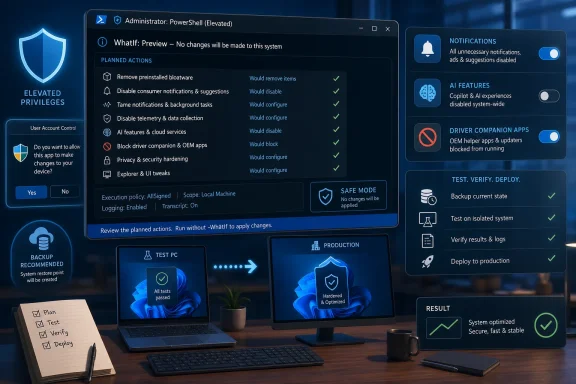
Win11Debloat 07.11.2026, released on July 11, 2026, updates the open-source PowerShell script with a WhatIf preview for Get.ps1, controls for Windows notifications and automatic driver companion apps, stronger error reporting, and fixes for domain accounts, Windows 10, elevation, undo operations, and awkward file paths. The headline feature is not another switch for stripping Microsoft software from Windows; it is a safer way to see what the script intends to change before granting it administrative control. That moves Win11Debloat closer to a change-management tool and farther from the one-click system-cleaning scripts that experienced administrators rightly distrust. It also exposes the central tension behind Windows debloating: users want less Microsoft-directed behavior, but every automated correction creates another configuration layer that must be understood, tested, and maintained.
Win11Debloat has long offered a broad answer to a familiar Windows complaint. Instead of navigating scattered Settings pages, uninstalling applications individually, editing registry values, and tracking down interface promotions one by one, users can apply a collection of changes through a PowerShell script with a graphical interface or command-line controls.
The script can remove preinstalled applications, disable telemetry and diagnostic collection, turn off targeted advertising, suppress suggestions, and hide promotional elements. It can also disable Windows Recall, Click to Do, Microsoft Copilot, and AI features in Edge, Paint, and Notepad, as well as prevent the WSAIFabricSvc AI service from starting automatically.
Those are not cosmetic changes in the narrow sense. They reach into application provisioning, privacy settings, services, Explorer behavior, system policies, and per-user configuration. Running the script therefore requires substantially more trust than installing a conventional desktop utility that stores its preferences in its own folder.
The project’s appeal is that it packages those changes into an understandable workflow and says they can be reversed. Its danger is that convenience can make consequential configuration work feel deceptively ordinary. A checkbox marked “disable” does not reveal which registry values, packages, services, or user scopes sit behind it.
Version 07.11.2026 is important because several of its changes acknowledge that reality. The release does add new customization options, but much of the changelog is about previewing, validating, reporting, elevating, undoing, and warning. Those are the less glamorous parts of automation, and they are precisely the parts that determine whether automation remains useful after it leaves the developer’s own PC.
The release is fundamentally about operational confidence. New switches attract users, but accurate previews and visible failures are what make a script defensible on machines that matter.
In PowerShell, WhatIf is a risk-mitigation convention: a supporting command describes the operation it would perform instead of carrying it out. Microsoft’s PowerShell documentation presents it as a way to inspect expected effects before executing potentially destructive work.
The value is straightforward for a debloating utility. A user should be able to distinguish between selecting an intention and committing a system change. If a preview can reveal which operations are about to occur, administrators gain a chance to spot an unexpectedly broad app-removal selection, a change targeting the wrong user, or an option that should not be applied to a specialized workstation.
WhatIf is not automatically a perfect simulation. Its reliability depends on how thoroughly the script’s functions honor preview mode and how accurately each operation describes its target. A preview also cannot guarantee that the eventual execution will succeed, because permissions, application state, policy enforcement, and environmental differences can intervene after the plan is displayed.
That caveat does not diminish the feature. It defines how administrators should use it. WhatIf should be treated as a review stage, not as proof that a change is harmless.
The feature is especially valuable because Win11Debloat supports both interactive and command-line use. A home user may review a single machine through the graphical workflow, while an administrator may build a repeatable command for multiple systems. In the second case, a small mistake scales rapidly; a dry run becomes a control against turning a typo or misunderstood preset into a fleet-wide incident.
It also gives technically cautious users a better answer to the question that hangs over every third-party administrative script: “What is this actually going to do?” The strongest answer remains a code review, ideally against a pinned and locally stored copy. But most users will not audit a large PowerShell project line by line, and even experienced administrators benefit from a concise, system-specific execution preview.
The addition does not make blind execution prudent. It makes informed execution more practical.
The first addition, contributed by @Sqidy-P in pull request #690, allows Windows notifications to be disabled. That option broadens Win11Debloat’s existing collection of controls for tips, suggestions, promotions, lock-screen content, targeted advertising, and other attention-seeking interface elements.
Notifications are not inherently bloat. They are a delivery mechanism used by security tools, communications applications, update components, calendar software, and line-of-business programs. Disabling them wholesale may create a calmer desktop, but it can also hide information that users or support teams expect to receive.
That makes this option a good illustration of the difference between a personal preference and an organizational policy. A power user who deliberately checks application state may be comfortable suppressing notifications. A business that depends on user-facing security, restart, or workflow alerts needs to evaluate what disappears before applying the change broadly.
The second control, added by @Raphire in pull request #695, prevents automatic installation of driver companion applications. This targets a particularly irritating category of Windows software: the hardware-associated utility that appears after a device or driver is detected, even when the user wanted only the device to function.
Microsoft’s driver documentation describes mechanisms through which hardware-associated apps can be obtained from the Microsoft Store and automatically installed for compatible devices. These applications may provide firmware updates, configuration controls, status displays, or access to hardware-specific capabilities, but they can also become another source of startup entries, notifications, promotional content, background activity, and account prompts.
Preventing their automatic installation therefore addresses something ordinary app removal cannot. Removing an unwanted companion app is only temporary if Windows or the hardware integration can bring it back later. The new Win11Debloat setting aims at the acquisition path rather than repeatedly cleaning up the result.
That is a more durable approach, but it comes with a trade-off. Some companion applications expose device features that are not available through Windows’ built-in controls. A camera, printer, audio device, input peripheral, or other component may work at a basic level without its app while losing advanced configuration, maintenance, or firmware functions.
The distinction between a driver and its companion app matters here. Preventing an associated application from installing is not necessarily the same as preventing the device driver itself from being installed or updated. Administrators should nonetheless verify the behavior on the hardware models they support instead of assuming every vendor’s packaging follows the same clean separation.
Together, the notification and companion-app controls reflect a broader shift in the debloating problem. The question is no longer merely what can be removed from a new Windows installation. It is how to keep the operating system from gradually reconstructing an experience the user already rejected.
PowerShell 7 and the Windows-integrated PowerShell environment are related but not interchangeable. Microsoft documents that PowerShell 7 installs alongside Windows PowerShell rather than replacing it, and that differences remain in module availability, underlying runtime behavior, and compatibility with Windows-specific components.
That distinction is easy to miss because both environments accept familiar PowerShell syntax. A user opening a modern terminal may reasonably assume that a script intended for Windows customization should run in whichever PowerShell host is available.
A partial failure is the dangerous outcome. If the script began applying changes and encountered an incompatible operation midway through, the user could be left with a configuration that reflects only part of the requested plan. Even if Win11Debloat’s undo facilities remained available, diagnosis would be harder because the failure would depend on execution environment rather than merely the selected settings.
A clear refusal is better than optimistic execution. It converts a potentially inconsistent run into an immediate and understandable correction: use the supported host.
This matters particularly in managed environments where PowerShell 7 may have been deployed for automation, development, cloud administration, or cross-platform scripting. Administrators accustomed to standardizing on it may launch Win11Debloat from the wrong shell without realizing that the project expects Windows-specific behavior.
The project is not claiming that PowerShell 7 is defective. It is defining its own supported boundary. Mature automation does that explicitly rather than allowing users to discover the boundary through broken machines.
Failing before modification is safer than failing halfway through it. That principle is more valuable than the appearance of compatibility with every available shell.
The main script’s administrative relaunch has been fixed for paths containing certain characters, a change contributed by @HetCreep in pull request #683. This is not an exotic edge case when Windows profiles, organizational folders, and deployment locations routinely contain spaces, punctuation, parentheses, or user-generated names.
Administrative relaunch is also a delicate boundary. The script must preserve the intended file path and arguments while asking Windows to start an elevated process. Incorrect quoting or argument construction can make a legitimate path appear to be multiple parameters, send the new process to the wrong file, or cause elevation to fail without an obvious explanation.
The corresponding run.bat correction came from @Raphire in pull request #693. The same pull request also fixes issues involving domain accounts, suggesting that the execution and user-context logic was receiving attention as one connected reliability problem rather than as isolated cosmetic defects.
Domain accounts complicate assumptions that hold on a standalone PC. User identifiers, profile paths, group membership, elevation behavior, and account-selection logic may differ from a simple local-account setup. A script capable of modifying other Windows users must identify its target precisely, because applying a per-user change to the administrator performing the deployment rather than the intended employee would produce a successful but incorrect result.
The release also adds a tooltip to the user-selection select box. That is a small interface improvement, but it reinforces the same theme: account targeting needs explanation. When a tool can make changes beyond the currently signed-in user, clarity about scope is a safety control.
None of these corrections introduces a dramatic new capability. They make existing capabilities more dependable outside the simplest possible environment. For administrators, that is often the more important kind of progress.
Undo claims are only as strong as the data and logic behind them. If a script relies on stored registry information to restore previous settings, an unreadable, missing, malformed, or otherwise unusable backup can undermine the recovery path even if the original changes completed successfully.
A silent or poorly surfaced failure creates false confidence. The user sees an interface that offers reversal and assumes the original state is recoverable, while the script may already know that the necessary backup information could not be loaded.
By exposing the failure, Win11Debloat forces the decision back to the operator. The user can stop, investigate, recreate the backup, choose a different restoration method, or decide that the risk is acceptable. None of those choices is available when the underlying problem remains hidden.
This improvement is particularly relevant for organizations that package configuration tools into larger deployment processes. Logs and visible errors determine whether an automation platform can classify a run accurately. A process that reports success after losing its recovery data is not merely inconvenient; it is operationally misleading.
The broader lesson is that reversibility should be verified, not assumed. Before using Win11Debloat at scale, administrators should test both the forward operation and the undo operation. A successful removal or policy change proves only half of the workflow.
Windows configuration tools often blur the distinction between writing a setting and observing its complete effect. A registry value may change immediately while Explorer, a service, the shell, or another component continues operating with its previous state. Some changes can be picked up by restarting a process or signing out, while others need a full reboot.
Without a warning, users may conclude that an operation failed because the interface still behaves as before. The opposite problem can occur during reversal: a setting may have been restored correctly on disk, but the running session continues to exhibit the disabled behavior until Windows restarts.
That uncertainty drives repeated execution. A user sees no immediate effect, runs the option again, tries an adjacent tweak, or begins manually editing settings. By the time the system is rebooted, several overlapping interventions may have been applied, making the final result harder to attribute or reverse.
Explicit reboot guidance reduces that ambiguity. It tells the operator when the configured state and the currently observable state may temporarily disagree.
The warning for undo operations is especially welcome because rollback is often performed under stress. A user restoring a feature wants to know whether the lack of immediate change indicates a broken recovery or merely a pending restart.
Reboot messaging is not sophisticated engineering, but it is essential user communication. Configuration utilities should not leave operators guessing about when Windows has actually consumed the changes they wrote.
Windows features often depend on multiple pieces of state. A debloating action may alter a policy, registry value, scheduled task, application package, service state, or permissions around a setting. Reversing only the most visible value may make the interface appear restored while leaving its supporting permissions in a modified condition.
Permission changes are particularly sensitive because they can outlive the feature toggle that prompted them. If re-enabling store suggestions failed to reset the relevant permissions correctly, future Windows behavior, administrative changes, or updates could encounter a configuration that no longer matched the user-visible setting.
The correction illustrates the difference between reversibility and symmetry. “Disable” and “enable” are not always mirror-image operations. A responsible undo routine must understand the original Windows state and reconstruct it, not merely negate the last command.
That is why the project’s registry-backup handling and undo warnings belong in the same story. Win11Debloat is becoming more explicit about the fact that restoration is a first-class operation with its own possible errors, prerequisites, and delayed effects.
Users should apply the same scrutiny to rollback that they apply to debloating. If a feature matters enough to restore, its return should be tested after the required reboot and under the intended user account.
The icon correction is visually minor but useful. Broken interface assets undermine confidence in a utility that is about to request administrative access and alter system configuration. Users cannot easily distinguish a harmless resource-loading bug from a sign that the package was extracted incorrectly or that other components are missing.
Hiding irrelevant Settings options is more substantive because it reduces the chance that a user will select a control that does not map cleanly to the operating system in front of them. Cross-version tools need to do more than detect whether a command will technically execute; they must avoid presenting nonsensical or misleading choices.
Windows 10 and Windows 11 share enough architecture that many debloating operations can be offered across both. Their interfaces, bundled applications, promotional surfaces, AI features, and Settings layouts are not identical, however. A generic list of tweaks risks implying parity where none exists.
The Windows 10 changes show the project adapting its interface to the target system rather than forcing users to interpret a Windows 11-oriented catalog. That is the correct direction, particularly as administrators may still encounter both operating systems in labs, isolated environments, replacement workflows, or mixed estates.
At the same time, Windows 10 compatibility increases the testing burden. Every setting potentially needs version detection, state detection, execution logic, undo logic, and appropriate presentation. A correction that is safe on one Windows release cannot simply be assumed safe on the other.
This is another reason administrators should resist treating “supports Windows 10 and Windows 11” as a guarantee that every option applies equally. The script’s interface may hide some irrelevant settings, but operational testing remains necessary for the specific Windows version, account type, hardware, and policy environment.
Click to Do is described by Neowin as an AI text and image analysis tool. For users who do not want that class of analysis integrated into the Windows experience, the ability to disable it alongside Recall and other AI components is simpler than locating each control individually.
Yet an anti-AI framing captures only part of the project. Win11Debloat also restores the Windows 10-style context menu, turns off Enhance Pointer Precision—also known as mouse acceleration—disables the Sticky Keys shortcut, controls Storage Sense, and disables fast start-up to produce a full shutdown. It is as much a Windows preference consolidator as an AI-removal utility.
That breadth is both its advantage and its risk. A user may arrive to disable one AI feature and then encounter dozens of appealing tweaks that seem individually minor. In aggregate, those selections can produce a significantly nonstandard Windows configuration.
The more comprehensive the tool becomes, the more important its previews, logs, user targeting, backups, warnings, and compatibility checks become. Feature count alone is not a useful measure of quality for an administrative utility. The better measure is whether the tool can explain what it will do, apply it consistently, report what failed, and restore the previous state when asked.
Win11Debloat 07.11.2026 advances that less marketable side of the product. It does not resolve the inherent risk of allowing third-party PowerShell code to reshape Windows, but it provides more opportunities for the operator to understand and contain that risk.
Open source does not mean automatically safe. A public script can contain mistakes, and a script obtained dynamically can change between testing and deployment if an administrator does not preserve the reviewed version.
Get.ps1 deserves particular attention because bootstrap scripts are designed to make acquisition easy. Convenience workflows that retrieve the current project reduce friction for home users, but organizations generally need the opposite property: a fixed artifact whose contents, source, hash, configuration, and test results can be recorded.
The safest enterprise pattern is not to fetch whatever happens to be current on every machine. It is to review a specific release, store an approved copy internally, test it against representative devices and user types, and promote that same copy through deployment stages.
The WhatIf addition strengthens that process, but it does not replace it. A preview can describe intended system operations; it does not establish the provenance of the code generating the preview.
Administrators should also be cautious about copying commands from unofficial tutorials or using modified forks without reviewing the differences. Neowin has separately warned against using AI-generated debloating scripts blindly, and the principle applies more broadly: PowerShell syntax that looks plausible can still remove the wrong package, alter the wrong scope, or omit a viable restoration path.
The trust advantage of an established open-source project comes from visible maintenance, reproducible review, public issue handling, and traceable changes. Organizations must still build a controlled supply chain around it.
Win11Debloat will continue to exist in the gap between the Windows experience Microsoft chooses to ship and the experience many users actually want, a gap now widened by advertising, suggestions, hardware-associated apps, telemetry, and AI integration. Version 07.11.2026 does not close that divide, but it makes the act of crossing it more deliberate; the project’s next challenge is to keep expanding user control without letting convenience outrun state detection, testing, and trustworthy reversal.
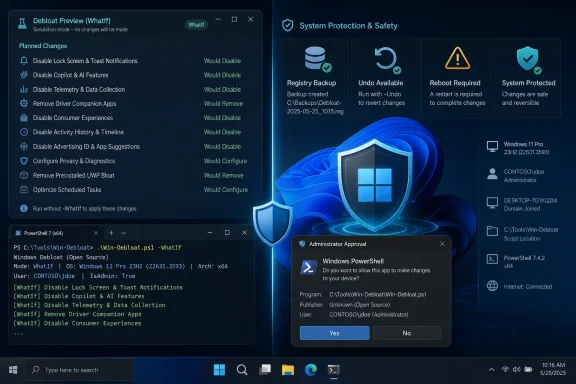 A Debloater Starts Behaving Like Change Management
Win11Debloat has long offered a broad answer to a familiar Windows complaint. Instead of navigating scattered Settings pages, uninstalling applications individually, editing registry values, and tracking down interface promotions one by one, users can apply a collection of changes through a PowerShell script with a graphical interface or command-line controls.The script can remove preinstalled applications, disable telemetry and diagnostic collection, turn off targeted advertising, suppress suggestions, and hide promotional elements. It can also disable Windows Recall, Click to Do, Microsoft Copilot, and AI features in Edge, Paint, and Notepad, as well as prevent the WSAIFabricSvc AI service from starting automatically.
Those are not cosmetic changes in the narrow sense. They reach into application provisioning, privacy settings, services, Explorer behavior, system policies, and per-user configuration. Running the script therefore requires substantially more trust than installing a conventional desktop utility that stores its preferences in its own folder.
The project’s appeal is that it packages those changes into an understandable workflow and says they can be reversed. Its danger is that convenience can make consequential configuration work feel deceptively ordinary. A checkbox marked “disable” does not reveal which registry values, packages, services, or user scopes sit behind it.
Version 07.11.2026 is important because several of its changes acknowledge that reality. The release does add new customization options, but much of the changelog is about previewing, validating, reporting, elevating, undoing, and warning. Those are the less glamorous parts of automation, and they are precisely the parts that determine whether automation remains useful after it leaves the developer’s own PC.
The release is fundamentally about operational confidence. New switches attract users, but accurate previews and visible failures are what make a script defensible on machines that matter.
WhatIf Turns Get.ps1 Into a More Accountable Entry Point
The most consequential addition is WhatIf support for Get.ps1, contributed by @Raphire through pull request #681. Get.ps1 is the downloadable PowerShell entry point identified by Neowin, and it occupies a sensitive position in the workflow because it is responsible for getting the project onto the machine and handing execution to the rest of the tool.In PowerShell, WhatIf is a risk-mitigation convention: a supporting command describes the operation it would perform instead of carrying it out. Microsoft’s PowerShell documentation presents it as a way to inspect expected effects before executing potentially destructive work.
The value is straightforward for a debloating utility. A user should be able to distinguish between selecting an intention and committing a system change. If a preview can reveal which operations are about to occur, administrators gain a chance to spot an unexpectedly broad app-removal selection, a change targeting the wrong user, or an option that should not be applied to a specialized workstation.
WhatIf is not automatically a perfect simulation. Its reliability depends on how thoroughly the script’s functions honor preview mode and how accurately each operation describes its target. A preview also cannot guarantee that the eventual execution will succeed, because permissions, application state, policy enforcement, and environmental differences can intervene after the plan is displayed.
That caveat does not diminish the feature. It defines how administrators should use it. WhatIf should be treated as a review stage, not as proof that a change is harmless.
The feature is especially valuable because Win11Debloat supports both interactive and command-line use. A home user may review a single machine through the graphical workflow, while an administrator may build a repeatable command for multiple systems. In the second case, a small mistake scales rapidly; a dry run becomes a control against turning a typo or misunderstood preset into a fleet-wide incident.
It also gives technically cautious users a better answer to the question that hangs over every third-party administrative script: “What is this actually going to do?” The strongest answer remains a code review, ideally against a pinned and locally stored copy. But most users will not audit a large PowerShell project line by line, and even experienced administrators benefit from a concise, system-specific execution preview.
The addition does not make blind execution prudent. It makes informed execution more practical.
Windows Keeps Repopulating Itself, and Win11Debloat Is Learning to Push Back
The two major new configuration controls address a recurring frustration: Windows does not merely arrive with unwanted elements; it can continue introducing them through ordinary system behavior.The first addition, contributed by @Sqidy-P in pull request #690, allows Windows notifications to be disabled. That option broadens Win11Debloat’s existing collection of controls for tips, suggestions, promotions, lock-screen content, targeted advertising, and other attention-seeking interface elements.
Notifications are not inherently bloat. They are a delivery mechanism used by security tools, communications applications, update components, calendar software, and line-of-business programs. Disabling them wholesale may create a calmer desktop, but it can also hide information that users or support teams expect to receive.
That makes this option a good illustration of the difference between a personal preference and an organizational policy. A power user who deliberately checks application state may be comfortable suppressing notifications. A business that depends on user-facing security, restart, or workflow alerts needs to evaluate what disappears before applying the change broadly.
The second control, added by @Raphire in pull request #695, prevents automatic installation of driver companion applications. This targets a particularly irritating category of Windows software: the hardware-associated utility that appears after a device or driver is detected, even when the user wanted only the device to function.
Microsoft’s driver documentation describes mechanisms through which hardware-associated apps can be obtained from the Microsoft Store and automatically installed for compatible devices. These applications may provide firmware updates, configuration controls, status displays, or access to hardware-specific capabilities, but they can also become another source of startup entries, notifications, promotional content, background activity, and account prompts.
Preventing their automatic installation therefore addresses something ordinary app removal cannot. Removing an unwanted companion app is only temporary if Windows or the hardware integration can bring it back later. The new Win11Debloat setting aims at the acquisition path rather than repeatedly cleaning up the result.
That is a more durable approach, but it comes with a trade-off. Some companion applications expose device features that are not available through Windows’ built-in controls. A camera, printer, audio device, input peripheral, or other component may work at a basic level without its app while losing advanced configuration, maintenance, or firmware functions.
The distinction between a driver and its companion app matters here. Preventing an associated application from installing is not necessarily the same as preventing the device driver itself from being installed or updated. Administrators should nonetheless verify the behavior on the hardware models they support instead of assuming every vendor’s packaging follows the same clean separation.
Together, the notification and companion-app controls reflect a broader shift in the debloating problem. The question is no longer merely what can be removed from a new Windows installation. It is how to keep the operating system from gradually reconstructing an experience the user already rejected.
Refusing PowerShell 7 Is a Guardrail, Not a Failure to Modernize
Version 07.11.2026 now refuses to run under PowerShell 7 and provides a clear message, a change contributed by @HetCreep in pull request #676. At first glance, blocking the newer PowerShell branch may seem backward for a maintained PowerShell project. In practice, it is a compatibility decision that reduces ambiguity.PowerShell 7 and the Windows-integrated PowerShell environment are related but not interchangeable. Microsoft documents that PowerShell 7 installs alongside Windows PowerShell rather than replacing it, and that differences remain in module availability, underlying runtime behavior, and compatibility with Windows-specific components.
That distinction is easy to miss because both environments accept familiar PowerShell syntax. A user opening a modern terminal may reasonably assume that a script intended for Windows customization should run in whichever PowerShell host is available.
A partial failure is the dangerous outcome. If the script began applying changes and encountered an incompatible operation midway through, the user could be left with a configuration that reflects only part of the requested plan. Even if Win11Debloat’s undo facilities remained available, diagnosis would be harder because the failure would depend on execution environment rather than merely the selected settings.
A clear refusal is better than optimistic execution. It converts a potentially inconsistent run into an immediate and understandable correction: use the supported host.
This matters particularly in managed environments where PowerShell 7 may have been deployed for automation, development, cloud administration, or cross-platform scripting. Administrators accustomed to standardizing on it may launch Win11Debloat from the wrong shell without realizing that the project expects Windows-specific behavior.
The project is not claiming that PowerShell 7 is defective. It is defining its own supported boundary. Mature automation does that explicitly rather than allowing users to discover the boundary through broken machines.
Failing before modification is safer than failing halfway through it. That principle is more valuable than the appearance of compatibility with every available shell.
The Three Launch Paths Now Fail More Predictably
Win11Debloat can be reached through several execution paths, and the 07.11.2026 changelog touches each layer. Those fixes may look like housekeeping, but they address the sort of environmental failures that frequently separate a script that works in a test folder from one that works across real user profiles, deployment shares, and enterprise naming conventions.| Execution path | Entry point | Typical use | 07.11.2026 relevance |
|---|---|---|---|
| Downloaded PowerShell bootstrap | Get.ps1 | Obtaining and starting the tool | Gains WhatIf support |
| Traditional batch launcher | run.bat | Starting the extracted package | Fixed for paths containing certain characters |
| Main PowerShell script | Administrative relaunch | GUI or command-line execution requiring elevation | Relaunch fixed for paths containing certain characters |
Administrative relaunch is also a delicate boundary. The script must preserve the intended file path and arguments while asking Windows to start an elevated process. Incorrect quoting or argument construction can make a legitimate path appear to be multiple parameters, send the new process to the wrong file, or cause elevation to fail without an obvious explanation.
The corresponding run.bat correction came from @Raphire in pull request #693. The same pull request also fixes issues involving domain accounts, suggesting that the execution and user-context logic was receiving attention as one connected reliability problem rather than as isolated cosmetic defects.
Domain accounts complicate assumptions that hold on a standalone PC. User identifiers, profile paths, group membership, elevation behavior, and account-selection logic may differ from a simple local-account setup. A script capable of modifying other Windows users must identify its target precisely, because applying a per-user change to the administrator performing the deployment rather than the intended employee would produce a successful but incorrect result.
The release also adds a tooltip to the user-selection select box. That is a small interface improvement, but it reinforces the same theme: account targeting needs explanation. When a tool can make changes beyond the currently signed-in user, clarity about scope is a safety control.
None of these corrections introduces a dramatic new capability. They make existing capabilities more dependable outside the simplest possible environment. For administrators, that is often the more important kind of progress.
Visible Backup Failures Matter More Than Successful Backup Messages
Pull request #685, contributed by @HetCreep, changes Win11Debloat so registry-backup load failures are properly surfaced to the user. The wording is important: this is not merely about creating a backup, but about ensuring that a failure involving backup state is visible.Undo claims are only as strong as the data and logic behind them. If a script relies on stored registry information to restore previous settings, an unreadable, missing, malformed, or otherwise unusable backup can undermine the recovery path even if the original changes completed successfully.
A silent or poorly surfaced failure creates false confidence. The user sees an interface that offers reversal and assumes the original state is recoverable, while the script may already know that the necessary backup information could not be loaded.
By exposing the failure, Win11Debloat forces the decision back to the operator. The user can stop, investigate, recreate the backup, choose a different restoration method, or decide that the risk is acceptable. None of those choices is available when the underlying problem remains hidden.
This improvement is particularly relevant for organizations that package configuration tools into larger deployment processes. Logs and visible errors determine whether an automation platform can classify a run accurately. A process that reports success after losing its recovery data is not merely inconvenient; it is operationally misleading.
The broader lesson is that reversibility should be verified, not assumed. Before using Win11Debloat at scale, administrators should test both the forward operation and the undo operation. A successful removal or policy change proves only half of the workflow.
Undo Now Admits That Windows Sometimes Needs a Reboot
The release adds a reboot warning when undoing features that require one, through @Raphire’s pull request #699. It also adds a reboot-required warning when disabling Window Snapping.Windows configuration tools often blur the distinction between writing a setting and observing its complete effect. A registry value may change immediately while Explorer, a service, the shell, or another component continues operating with its previous state. Some changes can be picked up by restarting a process or signing out, while others need a full reboot.
Without a warning, users may conclude that an operation failed because the interface still behaves as before. The opposite problem can occur during reversal: a setting may have been restored correctly on disk, but the running session continues to exhibit the disabled behavior until Windows restarts.
That uncertainty drives repeated execution. A user sees no immediate effect, runs the option again, tries an adjacent tweak, or begins manually editing settings. By the time the system is rebooted, several overlapping interventions may have been applied, making the final result harder to attribute or reverse.
Explicit reboot guidance reduces that ambiguity. It tells the operator when the configured state and the currently observable state may temporarily disagree.
The warning for undo operations is especially welcome because rollback is often performed under stress. A user restoring a feature wants to know whether the lack of immediate change indicates a broken recovery or merely a pending restart.
Reboot messaging is not sophisticated engineering, but it is essential user communication. Configuration utilities should not leave operators guessing about when Windows has actually consumed the changes they wrote.
Re-Enabling a Feature Must Restore More Than Its Checkbox
Another @HetCreep fix, delivered through pull request #684, corrects permission resetting when store suggestions in search are re-enabled. This is a subtle but important example of why an undo function cannot simply write the inverse of the original value.Windows features often depend on multiple pieces of state. A debloating action may alter a policy, registry value, scheduled task, application package, service state, or permissions around a setting. Reversing only the most visible value may make the interface appear restored while leaving its supporting permissions in a modified condition.
Permission changes are particularly sensitive because they can outlive the feature toggle that prompted them. If re-enabling store suggestions failed to reset the relevant permissions correctly, future Windows behavior, administrative changes, or updates could encounter a configuration that no longer matched the user-visible setting.
The correction illustrates the difference between reversibility and symmetry. “Disable” and “enable” are not always mirror-image operations. A responsible undo routine must understand the original Windows state and reconstruct it, not merely negate the last command.
That is why the project’s registry-backup handling and undo warnings belong in the same story. Win11Debloat is becoming more explicit about the fact that restoration is a first-class operation with its own possible errors, prerequisites, and delayed effects.
Users should apply the same scrutiny to rollback that they apply to debloating. If a feature matters enough to restore, its return should be tested after the required reboot and under the intended user account.
Windows 10 Support Exposes the Cost of a Cross-Version Interface
Despite its name, Win11Debloat also works with Windows 10, and version 07.11.2026 contains two changes specifically for the older operating system. @Raphire fixed icons that were not loading correctly through pull request #696 and hid irrelevant Settings home-page options when the tool runs on Windows 10.The icon correction is visually minor but useful. Broken interface assets undermine confidence in a utility that is about to request administrative access and alter system configuration. Users cannot easily distinguish a harmless resource-loading bug from a sign that the package was extracted incorrectly or that other components are missing.
Hiding irrelevant Settings options is more substantive because it reduces the chance that a user will select a control that does not map cleanly to the operating system in front of them. Cross-version tools need to do more than detect whether a command will technically execute; they must avoid presenting nonsensical or misleading choices.
Windows 10 and Windows 11 share enough architecture that many debloating operations can be offered across both. Their interfaces, bundled applications, promotional surfaces, AI features, and Settings layouts are not identical, however. A generic list of tweaks risks implying parity where none exists.
The Windows 10 changes show the project adapting its interface to the target system rather than forcing users to interpret a Windows 11-oriented catalog. That is the correct direction, particularly as administrators may still encounter both operating systems in labs, isolated environments, replacement workflows, or mixed estates.
At the same time, Windows 10 compatibility increases the testing burden. Every setting potentially needs version detection, state detection, execution logic, undo logic, and appropriate presentation. A correction that is safe on one Windows release cannot simply be assumed safe on the other.
This is another reason administrators should resist treating “supports Windows 10 and Windows 11” as a guarantee that every option applies equally. The script’s interface may hide some irrelevant settings, but operational testing remains necessary for the specific Windows version, account type, hardware, and policy environment.
AI Removal Is the Attraction, but Predictability Is the Real Product
Win11Debloat’s ability to disable Windows Recall, Click to Do, Copilot, WSAIFabricSvc, and AI features in several Microsoft applications will remain the most visible reason many users discover it. Microsoft’s continued integration of AI into Windows has created demand for a consolidated off switch that the operating system itself does not present as a single control.Click to Do is described by Neowin as an AI text and image analysis tool. For users who do not want that class of analysis integrated into the Windows experience, the ability to disable it alongside Recall and other AI components is simpler than locating each control individually.
Yet an anti-AI framing captures only part of the project. Win11Debloat also restores the Windows 10-style context menu, turns off Enhance Pointer Precision—also known as mouse acceleration—disables the Sticky Keys shortcut, controls Storage Sense, and disables fast start-up to produce a full shutdown. It is as much a Windows preference consolidator as an AI-removal utility.
That breadth is both its advantage and its risk. A user may arrive to disable one AI feature and then encounter dozens of appealing tweaks that seem individually minor. In aggregate, those selections can produce a significantly nonstandard Windows configuration.
The more comprehensive the tool becomes, the more important its previews, logs, user targeting, backups, warnings, and compatibility checks become. Feature count alone is not a useful measure of quality for an administrative utility. The better measure is whether the tool can explain what it will do, apply it consistently, report what failed, and restore the previous state when asked.
Win11Debloat 07.11.2026 advances that less marketable side of the product. It does not resolve the inherent risk of allowing third-party PowerShell code to reshape Windows, but it provides more opportunities for the operator to understand and contain that risk.
Open Source Helps Only When the Artifact Is Controlled
Neowin labels the Get.ps1 download as open source, and the public development history identifies individual contributors and pull requests for the changes in this release. That transparency is materially better than an opaque executable that promises to “optimize” Windows without showing its work.Open source does not mean automatically safe. A public script can contain mistakes, and a script obtained dynamically can change between testing and deployment if an administrator does not preserve the reviewed version.
Get.ps1 deserves particular attention because bootstrap scripts are designed to make acquisition easy. Convenience workflows that retrieve the current project reduce friction for home users, but organizations generally need the opposite property: a fixed artifact whose contents, source, hash, configuration, and test results can be recorded.
The safest enterprise pattern is not to fetch whatever happens to be current on every machine. It is to review a specific release, store an approved copy internally, test it against representative devices and user types, and promote that same copy through deployment stages.
The WhatIf addition strengthens that process, but it does not replace it. A preview can describe intended system operations; it does not establish the provenance of the code generating the preview.
Administrators should also be cautious about copying commands from unofficial tutorials or using modified forks without reviewing the differences. Neowin has separately warned against using AI-generated debloating scripts blindly, and the principle applies more broadly: PowerShell syntax that looks plausible can still remove the wrong package, alter the wrong scope, or omit a viable restoration path.
The trust advantage of an established open-source project comes from visible maintenance, reproducible review, public issue handling, and traceable changes. Organizations must still build a controlled supply chain around it.
Action checklist for admins
- Download and retain the specific Win11Debloat 07.11.2026 files approved for testing rather than automatically retrieving a later release during deployment.
- Review the selected features, script contents, user scope, administrative relaunch behavior, and expected reboot requirements.
- Run Get.ps1 with WhatIf support first and preserve the preview and execution output with the deployment record.
- Test removal and undo workflows on representative Windows 10 and Windows 11 systems, including local and domain accounts.
- Verify essential notifications, hardware companion functionality, application dependencies, and AI-related controls after reboot.
- Confirm that registry backup data can be loaded before relying on the script’s reversal workflow.
The Useful Changes Are the Ones That Make Failure Boring
The most notable improvements in Win11Debloat 07.11.2026 can be summarized without pretending the script has become risk-free:- Get.ps1 now supports WhatIf previews before changes are committed.
- Windows notifications and automatic driver companion apps gain dedicated disable controls.
- PowerShell 7 execution is rejected clearly instead of being allowed to fail unpredictably.
- Domain-account, elevation, run.bat path, and Windows 10 interface problems have been corrected.
- Registry-backup failures and reboot requirements are now made more visible.
- Undo behavior receives fixes rather than being treated as an afterthought.
Win11Debloat will continue to exist in the gap between the Windows experience Microsoft chooses to ship and the experience many users actually want, a gap now widened by advertising, suggestions, hardware-associated apps, telemetry, and AI integration. Version 07.11.2026 does not close that divide, but it makes the act of crossing it more deliberate; the project’s next challenge is to keep expanding user control without letting convenience outrun state detection, testing, and trustworthy reversal.
References
- Primary source: Neowin
Published: Sun, 12 Jul 2026 09:40:43 GMT
Win11Debloat 07.11.2026 - Neowin
Win11Debloat is a simple PowerShell script that declutters Windows 10/11 by removing bloatware, disabling telemetry, and stripping unwanted features for a faster, cleaner, more private system. www.neowin.net
- Official source: github.com
How To Use · Raphire/Win11Debloat Wiki · GitHub
A simple, lightweight PowerShell script that allows you to remove pre-installed apps, disable telemetry, as well as perform various other changes to declutter and customize your Windows experience. Win11Debloat works for both Windows 10 and Windows 11. - How To Use · Raphire/Win11Debloat Wiki github.com
- Related coverage: sourceforge.net
Win11Debloat - Browse /2026.06.24 at SourceForge.net
Win11Debloat /2026.06.24 files. Browse /2026.06.24 files for Win11Debloat, A simple, easy to use PowerShell script to remove pre-installed apps sourceforge.net
- Related coverage: deepwiki.com
Command-Line Parameters | Raphire/Win11Debloat | DeepWiki
This page is a complete reference for all parameters accepted by `Win11Debloat.ps1`. It covers parameter names, types, descriptions, and how they interact with each other. For information about the dideepwiki.com - Related coverage: codefactor.io

Updated Get.ps1 to always fetch latest release, instead of using a hardcoded release version #381 Thanks @agadiffe for the suggestion! - cd29f69 - Win11Debloat
Quality software, faster.
www.codefactor.io
- Related coverage: newreleases.io
Raphire/Win11Debloat 2025.12.29 on GitHub
New release Raphire/Win11Debloat version 2025.12.29 Release 2025.12.29 on GitHub. newreleases.io
- Related coverage: ithub.global.ssl.fastly.net
Automation · Raphire/Win11Debloat Wiki · GitHub
A simple, lightweight PowerShell script that allows you to remove pre-installed apps, disable telemetry, as well as perform various other changes to declutter and customize your Windows experience. Win11Debloat works for both Windows 10 and Windows 11. - Automation · Raphire/Win11Debloat Wiki
ithub.global.ssl.fastly.net
- Related coverage: typevar.dev
privacy - Streamlining Windows for Developers: A Win11Debloat Guide - powershell
As a software engineer, you likely appreciate efficiency, clean environments, and having control over your development machinetypevar.dev