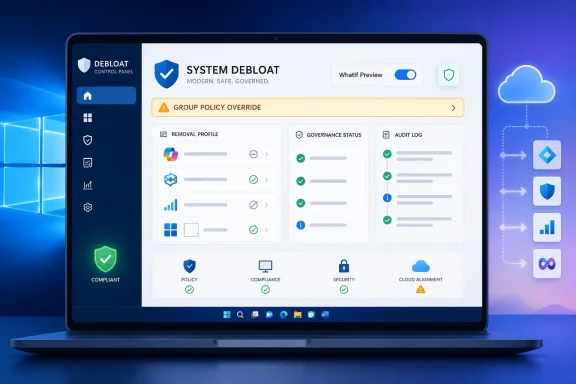
Win11Debloat 2026.06.24 was released on June 24, 2026, as the latest GitHub build of Raphire’s open-source PowerShell utility for removing Windows 10 and Windows 11 bloat, disabling telemetry, hiding ads, and turning off selected AI-era Windows features. The release is less about adding another flashy checkbox than about hardening a tool that has become a pressure valve for Windows users tired of Microsoft’s increasingly promotional desktop. Its most important changes are aimed at reliability, reversibility, and deployment safety — the unglamorous things that matter once a “debloat” script graduates from hobbyist tweak to provisioning habit.
The interesting thing about Win11Debloat is not that it removes apps. Windows users have been removing Candy Crush descendants, OEM trialware, Start menu suggestions, Xbox stubs, OneDrive prompts, Edge nudges, and other unwanted passengers for years. The interesting thing is that a PowerShell script now has to carry a wider philosophical burden: deciding which parts of Windows are operating system, which parts are advertising surface, and which parts are Microsoft’s product strategy wearing a Settings icon.
That tension is why this release lands differently from an ordinary maintenance update. Win11Debloat 2026.06.24 adds and refines controls for a Windows world where the annoyances are no longer just preinstalled apps. They are telemetry-related scheduled tasks, Spotlight surfaces, Microsoft 365 promotions in Settings, Copilot, Recall, Click to Do, AI features in Edge, Paint, and Notepad, and service-level components that sit beneath the interface.
Microsoft would argue that many of these features are optional, locally processed, policy-manageable, or part of the modern Windows value proposition. That is not a ridiculous position. But the existence and popularity of tools like Win11Debloat suggest a counterargument from the user base: optional features still become operational work when they arrive enabled, promoted, pinned, scheduled, or merely waiting to be misunderstood by a helpdesk ticket.
The 2026.06.24 release sharpens that counterargument by adding better warnings, better dry-run behavior, and cleaner execution paths. In other words, Win11Debloat is not merely saying “turn this stuff off.” It is increasingly saying, “show me exactly what will change before Windows or this script surprises me.”
The move is defensible. Legacy compatibility is valuable right up to the point where it becomes a second product hidden inside the first one. Win11Debloat’s app removal logic has been refactored repeatedly in recent releases, and carrying old app-list formats forever would make the tool harder to reason about, harder to test, and harder to explain to the very users it is trying to protect.
That matters because debloating is unusually failure-sensitive. If a media player fails to uninstall, the user shrugs. If a Start menu layout is mangled for every profile on a shared machine, or if a script silently misses a failed WinGet uninstall because it parsed English output instead of an exit code, trust evaporates. The new release’s cleanup of app removal methods is not just housekeeping; it is a recognition that automation should fail in predictable ways.
There is also a subtle maturity signal in dropping support for sunset apps such as Fitbit, Shazam, Twitter, Viber, Wunderlist, XING, and Plex from the removal logic. A debloat script that keeps chasing ghosts eventually becomes an archive of Windows Store history. Pruning those targets makes the current target set more legible, and legibility is underrated when the tool’s job is to modify a live operating system.
That distinction is not academic. If a technician runs a debloat tool on a machine governed by corporate policy, the wrong outcome is not merely “the tweak did not stick.” The wrong outcome is an undocumented configuration fight between endpoint management and a local script, with the user caught in the middle. A warning that a policy override may be in play is a small feature with outsized operational value.
Dry-run previews are equally important because they move Win11Debloat away from the old “trust the script” model and toward an auditable change model. The PowerShell ecosystem has long had
This also makes Win11Debloat more defensible for advanced home users. The right way to use a system modification tool is not to download it and smash “default” on a production laptop five minutes before a meeting. The right way is to understand scope, review changes, back up relevant state, and then execute. A dry-run path nudges users toward that discipline without turning the tool into a 90-page admin manual.
Recall and Click to Do are not ordinary bundled apps. Recall is Microsoft’s timeline-style feature for finding previously seen content through local snapshots and analysis on supported Copilot+ PCs, while Click to Do is an AI-assisted overlay that analyzes visible text and images to suggest actions. Microsoft has spent considerable effort framing these features as local, permissioned, manageable, and privacy-conscious. Yet their presence still triggers a strong reaction from users who do not want the operating system analyzing their activity, even locally, unless they have explicitly built a workflow around it.
That gap between Microsoft’s architecture and user comfort is exactly where third-party tools thrive. A feature can be technically opt-in and still be socially distrusted. A feature can be locally processed and still be unwanted. A feature can have enterprise policy controls and still leave home users searching for a single switch that says, in effect, “not on this machine.”
Win11Debloat’s AI-related options are therefore less about whether Microsoft has implemented these features responsibly in every technical detail. They are about control. For many WindowsForum readers, the question is not whether Recall encrypts snapshots or whether Click to Do analysis is local; the question is why the operating system keeps gaining ambient intelligence layers that users must learn, audit, and disable one by one.
There is a danger here: “telemetry” has become a catch-all word that can mean anything from crash reporting to targeted advertising to basic update health data. Serious administrators should be wary of tools that treat all outbound diagnostics as malicious by default. Windows servicing, Insider builds, Store app behavior, and enterprise reporting can all depend on some level of diagnostic plumbing.
But Microsoft has also trained users to be suspicious by blurring utility and promotion across the shell. The same operating system that collects diagnostic data also promotes Microsoft 365, recommends Edge, injects suggestions into Start, uses Spotlight as a rotating content surface, and increasingly treats Settings as a marketing channel. When users see all of that together, they stop parsing telemetry categories like compliance officers and start looking for a broom.
Win11Debloat succeeds because it matches that lived experience. It does not ask users to pretend that every annoyance is isolated. It groups ads, suggestions, telemetry, app tracking, location access, Spotlight, Edge prompts, and AI features into a coherent narrative: Windows has become too talkative, and this script makes it quieter.
That matters because Win11Debloat now serves multiple audiences. Power users may still run it from a command line, pass parameters, and integrate it into setup flows. But many users encounter it as a downloadable script with a graphical interface, often after reading a recommendation on a forum or watching a Windows cleanup video. For those users, visual polish and clear error reporting are security features in disguise.
The fix replacing dynamic DLL imports with WPF native methods is especially notable because “temporary DLL access denied” errors are exactly the sort of failure that makes a legitimate script feel sketchy. Even when harmless, that class of issue collides with user anxiety about PowerShell execution, antivirus warnings, and random optimization tools. Removing the weirdness makes the tool easier to trust.
Surfacing runspace errors instead of swallowing them in GUI mode is another maturity marker. Silent failure is the enemy of system administration. If a tweak fails, the user needs to know. If an uninstall fails, the script should detect it by reliable exit code rather than brittle text output. If a setting cannot apply because the feature version is out of range, the interface should respect that. These are boring fixes with real consequences.
The 2026.06.24 fixes around Start menu apps not being set correctly for all users, Store suggestions not being disabled correctly when running as another user, and not treating
That is why the timestamped Start menu backup and restore filenames are more important than they sound. Start layout changes are among the most visible modifications a script can make. If they go wrong, the user sees it immediately. Timestamped backups make rollback more rational and reduce the odds that one run overwrites the evidence needed to undo another.
There is a broader lesson here for anyone using Win11Debloat in a repeatable deployment flow: test on sacrificial machines, test with multiple user states, and test after Windows feature updates. The script may be reversible, and many removed apps may be restorable through the Microsoft Store, but reversibility is not the same thing as change control. If the target is a fleet rather than a gaming desktop, treat the script like code, not like a cleanup button.
One user’s junk is another user’s workflow. OneDrive may be an annoyance on a local-only desktop and a business-critical sync client on a work laptop. Widgets may be disposable for a privacy-minded user and useful for someone who actually likes glanceable news and weather. Copilot may be unwanted branding for one reader and a supported productivity tool for another. Even Store suggestions and Start pins can be part of a baseline image in a managed environment.
The 2026.06.24 release’s backup validation fix, safer handling of dismissed unsafe-removal confirmations, and guarding against undefined features all reinforce the importance of reversible intent. A script should not interpret a closed warning as consent. It should not execute undefined feature states. It should not validate backup paths loosely. These are the kinds of defensive details that keep an assertive tool from becoming reckless.
Still, users should not mistake “reversible” for “risk-free.” Some Windows components are deeply integrated, some settings are version-dependent, and Microsoft can change implementation details through cumulative updates. A debloated Windows install is not a static artifact; it is a negotiated state that may need to be rechecked after servicing.
New PCs are where debloat tools feel most emotionally satisfying. The machine is clean, the user wants ownership, and every preloaded app or suggestion tile feels like a trespass. Running a script that removes unwanted packages, disables suggestions, restores the classic context menu, turns off mouse acceleration, disables Sticky Keys shortcuts, and quiets the lock screen gives users an immediate sense that the PC is theirs again.
But the same timing also raises stakes. A Windows 11 deployment in 2026 is not just a matter of uninstalling a few bundled apps. It may involve Copilot+ hardware, AI feature availability, Recall policy decisions, Edge integration, Microsoft account pressure, OneDrive defaults, and a more cloud-connected shell. A debloat tool used casually on Windows 10 becomes a governance tool on Windows 11.
That is why Win11Debloat’s evolution toward warnings, dry runs, cleaner app removal logic, and better multi-user handling is timely. The Windows customization scene does not need more mystery meat optimization scripts promising impossible performance gains. It needs transparent tools that make specific, inspectable changes and admit when policy, version, or scope limits apply.
This is especially true because Windows cleanup tools inhabit a messy ecosystem. Search results and download pages often wrap legitimate utilities in their own framing, mirrors, ads, or outdated descriptions. The safest path is to start from the project’s public repository or the maintainer’s documented install method, not from a rehosted script archive or a “debloat pack” whose contents have been modified by someone else.
Administrators should go further. Fork the repository, pin a known release, inspect diffs before updating, and test the exact commit or release tag that will run in production. The 2026.06.24 release was signed with a verified GitHub signature, which helps establish provenance at the release level, but operational trust still depends on process. A signed tool can still make a change you did not intend if you run it with the wrong parameters.
For home users, the practical advice is simpler: create a restore point or backup, read the selected options, use preview features when available, and do not run any debloat script while half-understanding what it will remove. The best debloat outcome is not the most aggressive one. It is the one that removes friction without creating a mystery to solve later.
The concrete points are straightforward:
 Win11Debloat Is Becoming a Policy Argument in Script Form
The interesting thing about Win11Debloat is not that it removes apps. Windows users have been removing Candy Crush descendants, OEM trialware, Start menu suggestions, Xbox stubs, OneDrive prompts, Edge nudges, and other unwanted passengers for years. The interesting thing is that a PowerShell script now has to carry a wider philosophical burden: deciding which parts of Windows are operating system, which parts are advertising surface, and which parts are Microsoft’s product strategy wearing a Settings icon.That tension is why this release lands differently from an ordinary maintenance update. Win11Debloat 2026.06.24 adds and refines controls for a Windows world where the annoyances are no longer just preinstalled apps. They are telemetry-related scheduled tasks, Spotlight surfaces, Microsoft 365 promotions in Settings, Copilot, Recall, Click to Do, AI features in Edge, Paint, and Notepad, and service-level components that sit beneath the interface.
Microsoft would argue that many of these features are optional, locally processed, policy-manageable, or part of the modern Windows value proposition. That is not a ridiculous position. But the existence and popularity of tools like Win11Debloat suggest a counterargument from the user base: optional features still become operational work when they arrive enabled, promoted, pinned, scheduled, or merely waiting to be misunderstood by a helpdesk ticket.
The 2026.06.24 release sharpens that counterargument by adding better warnings, better dry-run behavior, and cleaner execution paths. In other words, Win11Debloat is not merely saying “turn this stuff off.” It is increasingly saying, “show me exactly what will change before Windows or this script surprises me.”
The Legacy Cleanup Is a Message to Power Users
The headline breaking change in this release is the removal of the legacy app list generator andCustomAppsList file support. That affects users relying on older command-line workflows, including the removed -RemoveAppsCustom and -RunAppsListGenerator parameters. For casual GUI users, this is likely a non-event; for administrators and automation-heavy users, it is the kind of change that demands a quick review before the script goes back into a provisioning sequence.The move is defensible. Legacy compatibility is valuable right up to the point where it becomes a second product hidden inside the first one. Win11Debloat’s app removal logic has been refactored repeatedly in recent releases, and carrying old app-list formats forever would make the tool harder to reason about, harder to test, and harder to explain to the very users it is trying to protect.
That matters because debloating is unusually failure-sensitive. If a media player fails to uninstall, the user shrugs. If a Start menu layout is mangled for every profile on a shared machine, or if a script silently misses a failed WinGet uninstall because it parsed English output instead of an exit code, trust evaporates. The new release’s cleanup of app removal methods is not just housekeeping; it is a recognition that automation should fail in predictable ways.
There is also a subtle maturity signal in dropping support for sunset apps such as Fitbit, Shazam, Twitter, Viber, Wunderlist, XING, and Plex from the removal logic. A debloat script that keeps chasing ghosts eventually becomes an archive of Windows Store history. Pruning those targets makes the current target set more legible, and legibility is underrated when the tool’s job is to modify a live operating system.
Dry Runs and GPO Warnings Push the Tool Toward the Enterprise Edge
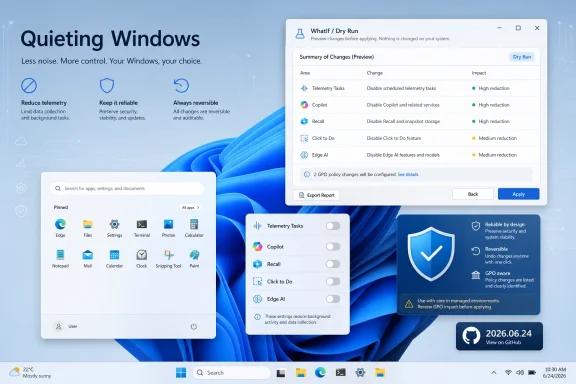
The addition of GPO override warnings andWhatIf dry-run previews is one of the more consequential changes in 2026.06.24. It recognizes a reality that enthusiasts sometimes miss: on managed Windows machines, the local registry is not always the final authority. Group Policy, MDM configuration, and enterprise baselines can overwrite or block local tweaks, leaving users to believe a script failed when the system is actually obeying a higher-priority policy.That distinction is not academic. If a technician runs a debloat tool on a machine governed by corporate policy, the wrong outcome is not merely “the tweak did not stick.” The wrong outcome is an undocumented configuration fight between endpoint management and a local script, with the user caught in the middle. A warning that a policy override may be in play is a small feature with outsized operational value.
Dry-run previews are equally important because they move Win11Debloat away from the old “trust the script” model and toward an auditable change model. The PowerShell ecosystem has long had
WhatIf semantics for exactly this reason: administrators need to see planned changes before they approve them. For a tool that can remove apps, alter registry settings, disable services, and change per-user configuration, preview mode is not a nicety. It is a safety rail.This also makes Win11Debloat more defensible for advanced home users. The right way to use a system modification tool is not to download it and smash “default” on a production laptop five minutes before a meeting. The right way is to understand scope, review changes, back up relevant state, and then execute. A dry-run path nudges users toward that discipline without turning the tool into a 90-page admin manual.
Microsoft’s AI Layer Is Now Part of the Debloat Conversation
The feature list around Win11Debloat has expanded into Microsoft’s AI push, and that is where the script’s cultural role becomes most obvious. The project now advertises options to disable and remove Microsoft Copilot, disable Windows Recall, disable Click to Do, prevent the AI serviceWSAIFabricSvc from starting automatically, and turn off AI features in Edge, Paint, and Notepad. That is a remarkable snapshot of where Windows customization energy has moved.Recall and Click to Do are not ordinary bundled apps. Recall is Microsoft’s timeline-style feature for finding previously seen content through local snapshots and analysis on supported Copilot+ PCs, while Click to Do is an AI-assisted overlay that analyzes visible text and images to suggest actions. Microsoft has spent considerable effort framing these features as local, permissioned, manageable, and privacy-conscious. Yet their presence still triggers a strong reaction from users who do not want the operating system analyzing their activity, even locally, unless they have explicitly built a workflow around it.
That gap between Microsoft’s architecture and user comfort is exactly where third-party tools thrive. A feature can be technically opt-in and still be socially distrusted. A feature can be locally processed and still be unwanted. A feature can have enterprise policy controls and still leave home users searching for a single switch that says, in effect, “not on this machine.”
Win11Debloat’s AI-related options are therefore less about whether Microsoft has implemented these features responsibly in every technical detail. They are about control. For many WindowsForum readers, the question is not whether Recall encrypts snapshots or whether Click to Do analysis is local; the question is why the operating system keeps gaining ambient intelligence layers that users must learn, audit, and disable one by one.
Telemetry Tweaks Move Deeper Than the Settings App
This release adds the ability to disable telemetry-related scheduled tasks underMicrosoft\Windows, which is a good example of how the Windows privacy conversation has moved beyond visible Settings toggles. Users can turn off diagnostic options in the UI and still find background tasks, services, experience improvement components, and app-launch tracking mechanisms that feel like leftovers from a different consent model.There is a danger here: “telemetry” has become a catch-all word that can mean anything from crash reporting to targeted advertising to basic update health data. Serious administrators should be wary of tools that treat all outbound diagnostics as malicious by default. Windows servicing, Insider builds, Store app behavior, and enterprise reporting can all depend on some level of diagnostic plumbing.
But Microsoft has also trained users to be suspicious by blurring utility and promotion across the shell. The same operating system that collects diagnostic data also promotes Microsoft 365, recommends Edge, injects suggestions into Start, uses Spotlight as a rotating content surface, and increasingly treats Settings as a marketing channel. When users see all of that together, they stop parsing telemetry categories like compliance officers and start looking for a broom.
Win11Debloat succeeds because it matches that lived experience. It does not ask users to pretend that every annoyance is isolated. It groups ads, suggestions, telemetry, app tracking, location access, Spotlight, Edge prompts, and AI features into a coherent narrative: Windows has become too talkative, and this script makes it quieter.
The GUI Fixes Matter Because Debloating Has Gone Mainstream
Several changes in 2026.06.24 focus on the GUI: styling cleanup aligned with Windows Fluent design, simplified window management, updated minimum window sizes, native WPF methods replacing dynamic P/Invoke DLL imports, and better surfacing of runspace errors. These are not the kind of changes that generate viral screenshots. They are the kind that decide whether a tool feels trustworthy to someone who does not live in a terminal.That matters because Win11Debloat now serves multiple audiences. Power users may still run it from a command line, pass parameters, and integrate it into setup flows. But many users encounter it as a downloadable script with a graphical interface, often after reading a recommendation on a forum or watching a Windows cleanup video. For those users, visual polish and clear error reporting are security features in disguise.
The fix replacing dynamic DLL imports with WPF native methods is especially notable because “temporary DLL access denied” errors are exactly the sort of failure that makes a legitimate script feel sketchy. Even when harmless, that class of issue collides with user anxiety about PowerShell execution, antivirus warnings, and random optimization tools. Removing the weirdness makes the tool easier to trust.
Surfacing runspace errors instead of swallowing them in GUI mode is another maturity marker. Silent failure is the enemy of system administration. If a tweak fails, the user needs to know. If an uninstall fails, the script should detect it by reliable exit code rather than brittle text output. If a setting cannot apply because the feature version is out of range, the interface should respect that. These are boring fixes with real consequences.
Multi-User Support Is Where Toy Scripts Usually Break
Win11Debloat’s support for making changes to other Windows users and running in Audit mode is one reason it attracts administrators and deployment-minded enthusiasts. It is also where scripts often become dangerous. Windows is not a single-user registry hive with a desktop attached; it is a layered system of default profiles, existing user hives, provisioned app packages, per-user app registrations, policy scopes, and machine-level state.The 2026.06.24 fixes around Start menu apps not being set correctly for all users, Store suggestions not being disabled correctly when running as another user, and not treating
AllUsers or CurrentUser as a username at startup all point to the same problem: scope is hard. A tweak that works perfectly for the signed-in user may be irrelevant for the next profile that logs in. A removal that affects provisioned packages may not clean up every per-user registration. A Start menu change may need to be backed up, restored, or applied differently depending on timing.That is why the timestamped Start menu backup and restore filenames are more important than they sound. Start layout changes are among the most visible modifications a script can make. If they go wrong, the user sees it immediately. Timestamped backups make rollback more rational and reduce the odds that one run overwrites the evidence needed to undo another.
There is a broader lesson here for anyone using Win11Debloat in a repeatable deployment flow: test on sacrificial machines, test with multiple user states, and test after Windows feature updates. The script may be reversible, and many removed apps may be restorable through the Microsoft Store, but reversibility is not the same thing as change control. If the target is a fleet rather than a gaming desktop, treat the script like code, not like a cleanup button.
Reversibility Is the Feature That Makes Aggression Acceptable
Debloat tools live or die on how confidently they can answer one question: what happens if I regret this? Win11Debloat’s project positioning emphasizes that changes can be reversed and that most removed apps can be restored through the Microsoft Store. That is essential because the line between “bloat” and “needed component” is personal, contextual, and sometimes discovered only after something breaks.One user’s junk is another user’s workflow. OneDrive may be an annoyance on a local-only desktop and a business-critical sync client on a work laptop. Widgets may be disposable for a privacy-minded user and useful for someone who actually likes glanceable news and weather. Copilot may be unwanted branding for one reader and a supported productivity tool for another. Even Store suggestions and Start pins can be part of a baseline image in a managed environment.
The 2026.06.24 release’s backup validation fix, safer handling of dismissed unsafe-removal confirmations, and guarding against undefined features all reinforce the importance of reversible intent. A script should not interpret a closed warning as consent. It should not execute undefined feature states. It should not validate backup paths loosely. These are the kinds of defensive details that keep an assertive tool from becoming reckless.
Still, users should not mistake “reversible” for “risk-free.” Some Windows components are deeply integrated, some settings are version-dependent, and Microsoft can change implementation details through cumulative updates. A debloated Windows install is not a static artifact; it is a negotiated state that may need to be rechecked after servicing.
The Windows 10 Context Makes the Timing Sharper
Although Win11Debloat works with Windows 10 and Windows 11, its relevance is increasingly tied to the Windows 11 migration wave. Windows 10’s mainstream consumer support deadline has pushed more users toward Windows 11 hardware, Windows 11 upgrades, or new PCs with OEM images. That means more people are encountering Microsoft’s modern desktop defaults at exactly the moment they are least patient with setup friction.New PCs are where debloat tools feel most emotionally satisfying. The machine is clean, the user wants ownership, and every preloaded app or suggestion tile feels like a trespass. Running a script that removes unwanted packages, disables suggestions, restores the classic context menu, turns off mouse acceleration, disables Sticky Keys shortcuts, and quiets the lock screen gives users an immediate sense that the PC is theirs again.
But the same timing also raises stakes. A Windows 11 deployment in 2026 is not just a matter of uninstalling a few bundled apps. It may involve Copilot+ hardware, AI feature availability, Recall policy decisions, Edge integration, Microsoft account pressure, OneDrive defaults, and a more cloud-connected shell. A debloat tool used casually on Windows 10 becomes a governance tool on Windows 11.
That is why Win11Debloat’s evolution toward warnings, dry runs, cleaner app removal logic, and better multi-user handling is timely. The Windows customization scene does not need more mystery meat optimization scripts promising impossible performance gains. It needs transparent tools that make specific, inspectable changes and admit when policy, version, or scope limits apply.
The Security Model Is Trust, but Verify
No discussion of a PowerShell debloat script should skip the obvious security issue: running community-maintained code with administrative permissions is a meaningful act of trust. Win11Debloat being open source and hosted publicly is a strong point in its favor, but openness is not magic. Users still need to obtain it from the real project, review what they can, and avoid copy-pasted commands from random reposts.This is especially true because Windows cleanup tools inhabit a messy ecosystem. Search results and download pages often wrap legitimate utilities in their own framing, mirrors, ads, or outdated descriptions. The safest path is to start from the project’s public repository or the maintainer’s documented install method, not from a rehosted script archive or a “debloat pack” whose contents have been modified by someone else.
Administrators should go further. Fork the repository, pin a known release, inspect diffs before updating, and test the exact commit or release tag that will run in production. The 2026.06.24 release was signed with a verified GitHub signature, which helps establish provenance at the release level, but operational trust still depends on process. A signed tool can still make a change you did not intend if you run it with the wrong parameters.
For home users, the practical advice is simpler: create a restore point or backup, read the selected options, use preview features when available, and do not run any debloat script while half-understanding what it will remove. The best debloat outcome is not the most aggressive one. It is the one that removes friction without creating a mystery to solve later.
The 2026.06.24 Build Draws a Cleaner Line Around Windows Noise
This release is best understood as a consolidation build with a few strategically important safety improvements. It removes legacy pathways, improves app removal, fixes several user-scope bugs, and makes the interface more reliable. It also deepens the project’s role as a single control surface for users who want to push back against Microsoft’s expanding layer of recommendations, telemetry, AI affordances, and promotional UI.The concrete points are straightforward:
- Win11Debloat 2026.06.24 removes legacy
CustomAppsListsupport and older command-line app-list workflows, so automation users should update scripts before deploying it. - The new GPO override warning and
WhatIfdry-run previews make the tool safer for managed or semi-managed environments where policy may supersede local tweaks. - The release improves telemetry-related cleanup by targeting scheduled tasks under
Microsoft\Windows, but users should understand the possible servicing and diagnostic tradeoffs before disabling everything. - Microsoft Copilot removal, Recall disabling, Click to Do disabling, and AI feature controls show that Windows debloating is now as much about AI governance as app cleanup.
- Fixes for multi-user Start menu behavior, Store suggestions, OneDrive detection, WinGet failure detection, and GUI runspace errors make this release more trustworthy for repeat use.
- The removal of sunset app targets and older app removal methods suggests the project is prioritizing maintainability over nostalgic compatibility.
References
- Primary source: Neowin
Published: 2026-06-25T03:50:23.605539
Win11Debloat 06.24.2026 | Neowin
Win11Debloat is a simple PowerShell script that declutters Windows 10/11 by removing bloatware, disabling telemetry, and stripping unwanted features for a faster, cleaner, more private system. www.neowin.net
- Related coverage: newreleases.io
Raphire/Win11Debloat 2026.04.05 on GitHub
New release Raphire/Win11Debloat version 2026.04.05 Release 2026.04.05 on GitHub. newreleases.io
- Related coverage: techspot.com
Win11Debloat Download | TechSpot
Download Win11Debloat - If you're trying to debloat Windows 10 or 11, try Win11Debloat, an open-source and easy-to-use one-line tool.www.techspot.com - Official source: github.com
Issues · Raphire/Win11Debloat · GitHub
A simple, lightweight PowerShell script that allows you to remove pre-installed apps, disable telemetry, as well as perform various other changes to declutter and customize your Windows experience. Win11Debloat works for both Windows 10 and Windows 11. - Issues · Raphire/Win11Debloat github.com
- Related coverage: deepwiki.com
Raphire/Win11Debloat | DeepWiki
This page describes the purpose, capabilities, and high-level architecture of Win11Debloat. For installation and execution instructions, see $1. For a complete parameter reference, see $1. For detailedeepwiki.com - Related coverage: win11debloat.net
Win11Debloat - Debloat, Declutter And Optimize Windows 10/11
Win11Debloat is a free, open-source tool to remove Windows bloatware, telemetry, and ads. Safe, reversible, and trusted by thousands of users.win11debloat.net
- Related coverage: codefactor.io

Raphire/Win11Debloat - Overview
Code quality results for Raphire/Win11Debloat repo on GitHub. Grade: A, issues: 47, files: 80, branches: 1. Improve Win11Debloat quality by creating an account on CodeFactor.
www.codefactor.io
- Related coverage: win11debloat.com
Download Win11Debloat Latest Version 2026
Before downloading and starting to use Win11Debloat, I recommend you read everything about it on our Homepage, because if you do not know the proper way towin11debloat.com