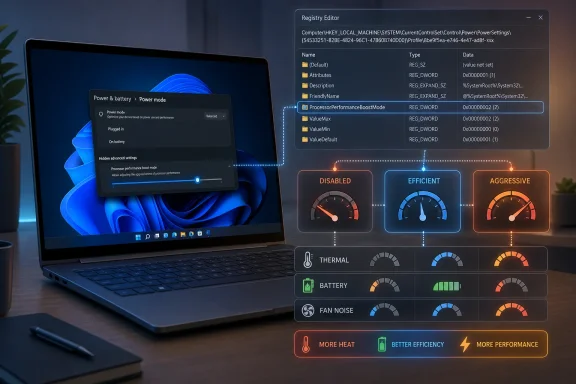
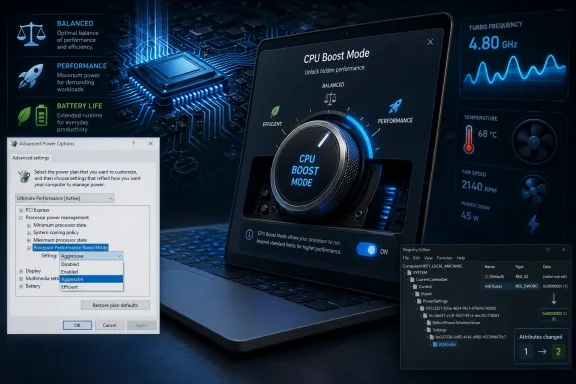
Microsoft’s hidden “Processor performance boost mode” setting is a Windows 10 and Windows 11 power-management option that can be exposed through the Registry or PowerCfg, letting users change how aggressively the CPU enters turbo boost states on supported x86, x64, and Arm systems. It is not a magic speed switch, and it is not really “secret” in the conspiratorial sense. It is a buried policy knob from Windows’ processor power-management stack, and the reason it matters is that it exposes a truth Microsoft’s consumer UI often tries to hide: performance, heat, fan noise, and battery life are still a negotiation.
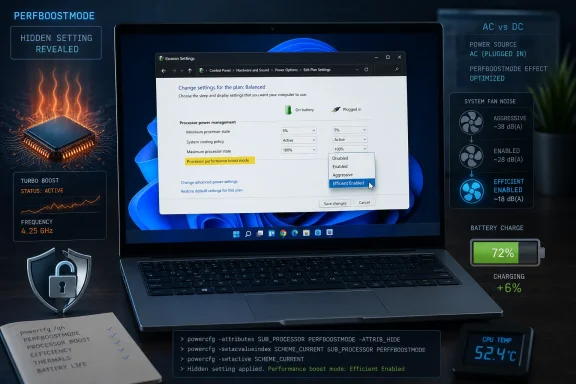
The Neowin guide making the rounds this week is useful because it points ordinary Windows 11 users toward a setting that enthusiasts have been using, rediscovering, and arguing about for years. The setting lives under the Processor power management section of the classic Control Panel power-plan interface, but on most systems it is hidden until the user changes the relevant power setting’s visibility attribute.
That hidden setting is formally known as
That distinction matters. A modern CPU does not run at one fixed clock speed unless something has gone very wrong or has been deliberately constrained. It continuously moves through voltage, frequency, sleep, and boost states based on workload, thermals, firmware limits, power-plan policy, and silicon behavior.
The setting is hidden because Microsoft has spent the last decade trying to reduce the number of sharp edges in Windows’ power UI. That is defensible. Most users should not be asked to choose between “Efficient Aggressive” and “Aggressive At Guaranteed” when what they actually want is “make my laptop stop sounding like a leaf blower during a Teams call.”
But hiding the knob also has a cost. It leaves enthusiasts, laptop owners, and IT admins dependent on vendor utilities, BIOS screens, forum folklore, and registry edits for behavior Windows already knows how to express.
The boost-mode setting belongs to that older world. It sits under the same processor policy family as minimum processor state and maximum processor state, two controls that many users have seen but fewer fully understand. Minimum processor state influences how low Windows is willing to let the processor performance request fall. Maximum processor state caps the upper bound.
For years, a common laptop “fix” has been to set maximum processor state to 99 percent, which often prevents turbo boost from engaging. That trick works on many systems, but it is crude. It tells Windows to stop asking for the top of the performance range rather than giving it a more nuanced boost policy.
Processor performance boost mode is the more direct lever. Instead of pretending the CPU has a slightly lower maximum, it tells Windows what kind of boost behavior to permit. That is why the setting is interesting: it is not just a hack to kneecap the processor. It is a policy surface for deciding how opportunistic boost should be.
That also explains why the feature can feel inconsistent across machines. The visible dropdown may look similar, but the results depend on the CPU, firmware, power plan, AC versus battery state, OEM thermal tables, and whether the system uses traditional ACPI P-states, CPPC, autonomous CPPC, or vendor-specific platform control.
Windows exposes a policy. The silicon and firmware decide how much that policy actually matters.
It is not free. Turbo boost exists because modern processors are designed with a thermal and power budget rather than a single performance number. When a core has headroom, the processor can raise frequency and voltage to complete work faster. When power or heat catches up, it backs off.
The catch is that voltage-frequency scaling is nonlinear. The last few hundred megahertz of boost can cost disproportionately more power and heat than the performance gained. That is why a laptop can feel only slightly slower with boost disabled while running dramatically cooler. It is also why a desktop gaming PC with a large cooler may show almost no downside from aggressive boost settings, while a thin notebook becomes hot, loud, and inconsistent.
This is the point laptop communities have understood for years. Many users are not chasing benchmark records; they are trying to keep a Ryzen or Core mobile chip from slamming into turbo clocks for background tasks, browser bursts, or launcher updates. In that context, disabling boost or choosing a more efficient boost mode can make the machine feel calmer without making it unusable.
But the inverse is just as important. On a workstation, gaming desktop, or high-performance laptop with sufficient cooling, conservative boost behavior can leave performance on the table. The right setting is not universal. It is workload-specific, chassis-specific, and sometimes season-specific.
The names sound like a ladder from slow to fast, but that is only partly true. Disabled is the clearest option: it prevents boost behavior above the nominal level. Enabled allows normal boost. Aggressive pushes the system toward higher boost behavior when conditions allow. The efficient modes attempt to retain boost while biasing the decision toward power efficiency.
The more technical wrinkle is that Windows is not always directly commanding a frequency. On systems using Collaborative Processor Performance Control, or CPPC, the operating system may express a desired performance level and let the processor’s own hardware management respond. On autonomous CPPC systems, the processor can take still more responsibility for choosing performance levels in response to workload and power limits.
That is why a setting that looks like a Windows checkbox is really part of a conversation between the OS, firmware, and CPU. The operating system says what kind of behavior it wants. The processor and platform decide what is possible under current constraints.
For users, the practical implication is simple: do not expect one person’s Reddit result, YouTube guide, or benchmark chart to map cleanly to your laptop. The same setting can reduce temperatures by double digits on one machine and barely move the needle on another.
That is important because it means the hack is not installing a driver, patching Windows, or unlocking a vendor-only overclocking feature. It is changing whether an existing Windows power setting appears in the legacy UI.
There is also a cleaner command-line way to do the same thing with PowerCfg. Enthusiasts often use commands that remove the hidden attribute from the setting, then configure the value separately for AC and DC power states. For administrators, PowerCfg is generally preferable to manual Registry editing because it is scriptable, reversible, and easier to document.
The existence of a command-line path also undercuts the idea that this is some illicit secret. Microsoft documents the setting. Windows ships with the policy. OEMs and admins can configure power schemes around it. The consumer UI simply does not volunteer it.
That difference is more than semantics. Calling it a hidden performance boost implies Microsoft is withholding speed from users. The more accurate framing is that Windows contains a professional-grade power policy control that Microsoft has chosen not to put in front of every consumer.
That pattern is especially familiar on gaming laptops and creator notebooks. The hardware is capable of impressive short-burst performance, but the chassis cannot dissipate sustained heat quietly. Boost policy becomes not just a performance choice but a comfort choice.
Disabling boost can reduce peak temperatures and fan spikes, but it can also make some workloads feel dull. Compiling code, rendering previews, exporting media, launching large apps, or loading complex game scenes may suffer. The efficient boost modes are attractive because they promise a middle path: allow turbo when it materially helps, but avoid wasteful spikes.
The problem is that Windows does not explain the tradeoff in user language. A person trying to solve heat issues has to learn Registry paths, CPPC terminology, and power-plan archaeology. That is absurd for a platform that now sells itself heavily on premium laptops, AI PCs, and battery-life claims.
Microsoft does not need to expose every processor policy in Settings. But it could offer a clearer “limit CPU boost to reduce heat and fan noise” option, especially on portable systems. OEM utilities already do this under names like quiet mode, balanced mode, performance mode, and manual mode. Windows should not be less understandable than a laptop vendor control panel.
Processor performance boost mode sits right in the middle of that conflict. Give users easy access, and some will make their machines unstable, slow, hot, or confusing. Hide it completely, and power users will dig it out anyway, often through less reliable instructions.
The best argument for keeping the setting hidden is support burden. If a user disables boost and later complains that a laptop no longer performs as advertised, the cause may not be obvious. If a user chooses the most aggressive mode and the machine runs hotter, Microsoft, Intel, AMD, and the OEM may all appear to be at fault. The setting can produce real effects without leaving a visible trail in the modern Settings app.
The best argument for exposing it is honesty. Windows already changes behavior under different power modes. OEM utilities already alter boost and fan policy. Users already feel the consequences in battery drain, skin temperature, acoustics, and responsiveness. Pretending this layer does not exist does not make the tradeoff disappear.
The deeper issue is that Windows’ power model has become increasingly sophisticated while its mainstream interface has become increasingly vague. “Best performance” is not a policy; it is a slogan. Enthusiasts do not need slogans. Admins do not either.
That matters in an era where many organizations are standardizing on mobile devices as primary PCs. A fleet of thin-and-light laptops used for browser-based work, virtual desktops, Office, Teams, and line-of-business apps may not need aggressive boost behavior on battery. Reducing boost can improve battery consistency and lower fan noise in conference rooms.
The calculus changes for engineers, developers, analysts, and creators. Those users may benefit from aggressive burst performance, especially when tasks are short and CPU-bound. A one-size-fits-all corporate power plan can punish exactly the employees whose workloads justify higher-performance hardware.
This is where power policy should be tied to device class and role. A call-center laptop, an executive travel machine, a developer workstation, and a mobile CAD system should not necessarily share the same boost behavior. Windows gives administrators the tools to encode those differences, but the setting’s hidden status means many organizations never consider it.
The danger is not that admins will touch the setting. The danger is that they will touch it without measurement. Any change should be tested against real workloads, AC and battery use, thermal behavior, fan noise, and user satisfaction. Benchmarks alone will not capture the lived experience of a laptop that is quiet enough to use in a meeting.
The more interesting truth is that modern PCs are full of negotiated behavior that users rarely see. CPUs boost opportunistically. GPUs shift power budgets. Firmware enforces thermal limits. Windows schedules threads across heterogeneous cores. OEM control apps layer their own profiles on top. The final experience is the product of all of these systems, not a single switch.
Processor performance boost mode is valuable because it makes one piece of that negotiation visible. It shows that Windows can ask for calmer or more aggressive CPU behavior. It also shows why simplistic performance advice often fails.
A user who disables boost and sees temperatures drop from uncomfortable to manageable has not discovered a universal optimization. They have found that their device’s default boost policy was poorly matched to their workload, cooling system, or tolerance for noise. Another user may make the same change and simply lose performance.
That is why this setting should be approached as tuning, not unlocking. Tuning requires observation. Unlocking implies that the better state was obvious all along.
Short synthetic tests may reward aggressive boosting because they finish before the laptop saturates thermally. Longer workloads may show the opposite if aggressive behavior causes early heat buildup and throttling. Battery tests add another layer because screen brightness, background tasks, wireless activity, and firmware policy can swamp small CPU differences.
The best measurements would separate burst responsiveness from sustained performance. Launching apps, opening large spreadsheets, compiling small projects, and loading browser-heavy workflows may reveal whether efficient boost modes preserve the feel of speed. Rendering, encoding, compiling large projects, and gaming sessions can show whether the setting changes sustained behavior.
Thermals and acoustics deserve equal billing. A laptop that is 5 percent slower but 10 degrees cooler and substantially quieter may be the better machine for many users. Conversely, a workstation that leaves performance unused to save a negligible amount of power may be misconfigured.
Users should also be careful when interpreting temperature changes. Lower CPU temperature may mean less boost, not better cooling. Lower power draw may mean longer task completion time, which can complicate total energy use. Sometimes “race to idle” is more efficient; sometimes avoiding a high-voltage boost spike is more efficient. The answer depends on the workload.
On today’s systems, that gap is becoming more consequential. Intel’s hybrid CPUs, AMD’s CPPC behavior, Arm-based Windows machines, NPUs, dGPUs, and OEM thermal profiles all make performance management more dynamic. Users are told to pick a power mode, but they are not told what that mode changes.
Microsoft could fix this without turning Settings into a BIOS replacement. It could expose user-centered controls with plain-language consequences: reduce CPU boost to lower heat, prefer burst responsiveness, prioritize sustained performance, or preserve battery on background workloads. Advanced users could still reach the full policy set through PowerCfg and administrative templates.
The industry already understands this language. Phones have low-power modes. Laptops have quiet modes. GPUs have frame caps and power targets. Even browsers now expose energy-saver behavior in consumer terms. Windows, oddly, still makes users choose between oversimplified presets and GUID spelunking.
That is not good enough for a platform that wants to be both consumer-friendly and professionally manageable. Power behavior is now part of user experience, security posture, hardware longevity, and fleet operations. It deserves better than a hidden dropdown.
 Microsoft Hid the Knob Because Most People Should Not Need It
The Neowin guide making the rounds this week is useful because it points ordinary Windows 11 users toward a setting that enthusiasts have been using, rediscovering, and arguing about for years. The setting lives under the Processor power management section of the classic Control Panel power-plan interface, but on most systems it is hidden until the user changes the relevant power setting’s visibility attribute.That hidden setting is formally known as
PERFBOOSTMODE, with the GUID be337238-0d82-4146-a960-4f3749d470c7. Microsoft’s own documentation describes it as the policy that determines how processors select a performance level when the current conditions allow boosting above the nominal level. In plainer English: it influences how readily Windows and the platform ask the CPU to go beyond its base performance.That distinction matters. A modern CPU does not run at one fixed clock speed unless something has gone very wrong or has been deliberately constrained. It continuously moves through voltage, frequency, sleep, and boost states based on workload, thermals, firmware limits, power-plan policy, and silicon behavior.
The setting is hidden because Microsoft has spent the last decade trying to reduce the number of sharp edges in Windows’ power UI. That is defensible. Most users should not be asked to choose between “Efficient Aggressive” and “Aggressive At Guaranteed” when what they actually want is “make my laptop stop sounding like a leaf blower during a Teams call.”
But hiding the knob also has a cost. It leaves enthusiasts, laptop owners, and IT admins dependent on vendor utilities, BIOS screens, forum folklore, and registry edits for behavior Windows already knows how to express.
The Old Power Plan UI Still Knows Things Settings Does Not
One of the strange features of modern Windows is that power management now has two faces. The Settings app presents simplified power modes like Best power efficiency, Balanced, and Best performance. The older Control Panel power-plan dialog still contains a far more granular map of Windows’ power policy machinery.The boost-mode setting belongs to that older world. It sits under the same processor policy family as minimum processor state and maximum processor state, two controls that many users have seen but fewer fully understand. Minimum processor state influences how low Windows is willing to let the processor performance request fall. Maximum processor state caps the upper bound.
For years, a common laptop “fix” has been to set maximum processor state to 99 percent, which often prevents turbo boost from engaging. That trick works on many systems, but it is crude. It tells Windows to stop asking for the top of the performance range rather than giving it a more nuanced boost policy.
Processor performance boost mode is the more direct lever. Instead of pretending the CPU has a slightly lower maximum, it tells Windows what kind of boost behavior to permit. That is why the setting is interesting: it is not just a hack to kneecap the processor. It is a policy surface for deciding how opportunistic boost should be.
That also explains why the feature can feel inconsistent across machines. The visible dropdown may look similar, but the results depend on the CPU, firmware, power plan, AC versus battery state, OEM thermal tables, and whether the system uses traditional ACPI P-states, CPPC, autonomous CPPC, or vendor-specific platform control.
Windows exposes a policy. The silicon and firmware decide how much that policy actually matters.
Turbo Boost Is Not Free Performance
The appeal of the hidden setting is obvious. If the CPU is allowed to boost more aggressively, short workloads may finish sooner. If boost is disabled or made more efficient, a laptop may run cooler, quieter, and longer on battery. That sounds like a free menu of tradeoffs.It is not free. Turbo boost exists because modern processors are designed with a thermal and power budget rather than a single performance number. When a core has headroom, the processor can raise frequency and voltage to complete work faster. When power or heat catches up, it backs off.
The catch is that voltage-frequency scaling is nonlinear. The last few hundred megahertz of boost can cost disproportionately more power and heat than the performance gained. That is why a laptop can feel only slightly slower with boost disabled while running dramatically cooler. It is also why a desktop gaming PC with a large cooler may show almost no downside from aggressive boost settings, while a thin notebook becomes hot, loud, and inconsistent.
This is the point laptop communities have understood for years. Many users are not chasing benchmark records; they are trying to keep a Ryzen or Core mobile chip from slamming into turbo clocks for background tasks, browser bursts, or launcher updates. In that context, disabling boost or choosing a more efficient boost mode can make the machine feel calmer without making it unusable.
But the inverse is just as important. On a workstation, gaming desktop, or high-performance laptop with sufficient cooling, conservative boost behavior can leave performance on the table. The right setting is not universal. It is workload-specific, chassis-specific, and sometimes season-specific.
The Dropdown Is Less Simple Than the Labels Suggest
The Neowin piece highlights the common visible options: Disabled, Enabled, Aggressive, Efficient Enabled, and Efficient Aggressive. Microsoft’s documentation also lists additional modes such as Aggressive At Guaranteed and Efficient Aggressive At Guaranteed, which may appear depending on platform support and Windows behavior.The names sound like a ladder from slow to fast, but that is only partly true. Disabled is the clearest option: it prevents boost behavior above the nominal level. Enabled allows normal boost. Aggressive pushes the system toward higher boost behavior when conditions allow. The efficient modes attempt to retain boost while biasing the decision toward power efficiency.
The more technical wrinkle is that Windows is not always directly commanding a frequency. On systems using Collaborative Processor Performance Control, or CPPC, the operating system may express a desired performance level and let the processor’s own hardware management respond. On autonomous CPPC systems, the processor can take still more responsibility for choosing performance levels in response to workload and power limits.
That is why a setting that looks like a Windows checkbox is really part of a conversation between the OS, firmware, and CPU. The operating system says what kind of behavior it wants. The processor and platform decide what is possible under current constraints.
For users, the practical implication is simple: do not expect one person’s Reddit result, YouTube guide, or benchmark chart to map cleanly to your laptop. The same setting can reduce temperatures by double digits on one machine and barely move the needle on another.
The Registry Trick Is a Visibility Change, Not a New Feature
The most common way to reveal the setting is to open Registry Editor and navigate to the processor power setting path underHKEY_LOCAL_MACHINE\SYSTEM\CurrentControlSet\Control\Power\PowerSettings. The subgroup GUID 54533251-82be-4824-96c1-47b60b740d00 corresponds to processor settings, and the boost-mode GUID identifies the specific policy. Changing the Attributes value from hidden to visible makes the option appear in Advanced power settings.That is important because it means the hack is not installing a driver, patching Windows, or unlocking a vendor-only overclocking feature. It is changing whether an existing Windows power setting appears in the legacy UI.
There is also a cleaner command-line way to do the same thing with PowerCfg. Enthusiasts often use commands that remove the hidden attribute from the setting, then configure the value separately for AC and DC power states. For administrators, PowerCfg is generally preferable to manual Registry editing because it is scriptable, reversible, and easier to document.
The existence of a command-line path also undercuts the idea that this is some illicit secret. Microsoft documents the setting. Windows ships with the policy. OEMs and admins can configure power schemes around it. The consumer UI simply does not volunteer it.
That difference is more than semantics. Calling it a hidden performance boost implies Microsoft is withholding speed from users. The more accurate framing is that Windows contains a professional-grade power policy control that Microsoft has chosen not to put in front of every consumer.
Laptop Owners Are the Real Audience
Desktop users may be curious, but laptop owners are the group most likely to care. Mobile Windows PCs operate under tight thermal limits, and their boost behavior can shape the entire user experience. A thin notebook with an aggressive CPU can feel wonderfully responsive for a few seconds and then settle into fan noise, heat soak, and throttled performance.That pattern is especially familiar on gaming laptops and creator notebooks. The hardware is capable of impressive short-burst performance, but the chassis cannot dissipate sustained heat quietly. Boost policy becomes not just a performance choice but a comfort choice.
Disabling boost can reduce peak temperatures and fan spikes, but it can also make some workloads feel dull. Compiling code, rendering previews, exporting media, launching large apps, or loading complex game scenes may suffer. The efficient boost modes are attractive because they promise a middle path: allow turbo when it materially helps, but avoid wasteful spikes.
The problem is that Windows does not explain the tradeoff in user language. A person trying to solve heat issues has to learn Registry paths, CPPC terminology, and power-plan archaeology. That is absurd for a platform that now sells itself heavily on premium laptops, AI PCs, and battery-life claims.
Microsoft does not need to expose every processor policy in Settings. But it could offer a clearer “limit CPU boost to reduce heat and fan noise” option, especially on portable systems. OEM utilities already do this under names like quiet mode, balanced mode, performance mode, and manual mode. Windows should not be less understandable than a laptop vendor control panel.
Enthusiasts Want Control; Microsoft Wants Defaults
There is a long-running tension in Windows between configurability and coherence. Windows enthusiasts value knobs because knobs are how the platform became a playground for tuning. Microsoft increasingly values defaults because defaults are how billions of machines remain supportable.Processor performance boost mode sits right in the middle of that conflict. Give users easy access, and some will make their machines unstable, slow, hot, or confusing. Hide it completely, and power users will dig it out anyway, often through less reliable instructions.
The best argument for keeping the setting hidden is support burden. If a user disables boost and later complains that a laptop no longer performs as advertised, the cause may not be obvious. If a user chooses the most aggressive mode and the machine runs hotter, Microsoft, Intel, AMD, and the OEM may all appear to be at fault. The setting can produce real effects without leaving a visible trail in the modern Settings app.
The best argument for exposing it is honesty. Windows already changes behavior under different power modes. OEM utilities already alter boost and fan policy. Users already feel the consequences in battery drain, skin temperature, acoustics, and responsiveness. Pretending this layer does not exist does not make the tradeoff disappear.
The deeper issue is that Windows’ power model has become increasingly sophisticated while its mainstream interface has become increasingly vague. “Best performance” is not a policy; it is a slogan. Enthusiasts do not need slogans. Admins do not either.
Enterprise IT Should Treat This as Policy, Not Folklore
For business environments, the lesson is not that every fleet should reveal the hidden dropdown. It is that processor boost behavior is a manageable part of endpoint policy, and it can affect thermals, battery life, noise, and perceived responsiveness.That matters in an era where many organizations are standardizing on mobile devices as primary PCs. A fleet of thin-and-light laptops used for browser-based work, virtual desktops, Office, Teams, and line-of-business apps may not need aggressive boost behavior on battery. Reducing boost can improve battery consistency and lower fan noise in conference rooms.
The calculus changes for engineers, developers, analysts, and creators. Those users may benefit from aggressive burst performance, especially when tasks are short and CPU-bound. A one-size-fits-all corporate power plan can punish exactly the employees whose workloads justify higher-performance hardware.
This is where power policy should be tied to device class and role. A call-center laptop, an executive travel machine, a developer workstation, and a mobile CAD system should not necessarily share the same boost behavior. Windows gives administrators the tools to encode those differences, but the setting’s hidden status means many organizations never consider it.
The danger is not that admins will touch the setting. The danger is that they will touch it without measurement. Any change should be tested against real workloads, AC and battery use, thermal behavior, fan noise, and user satisfaction. Benchmarks alone will not capture the lived experience of a laptop that is quiet enough to use in a meeting.
The Word “Secret” Obscures the Real Story
The internet loves a hidden Windows setting because it fits a familiar script: Microsoft buried something useful, enthusiasts found it, and a registry edit unlocks better performance. There is some truth in that story, but it is not the most interesting truth.The more interesting truth is that modern PCs are full of negotiated behavior that users rarely see. CPUs boost opportunistically. GPUs shift power budgets. Firmware enforces thermal limits. Windows schedules threads across heterogeneous cores. OEM control apps layer their own profiles on top. The final experience is the product of all of these systems, not a single switch.
Processor performance boost mode is valuable because it makes one piece of that negotiation visible. It shows that Windows can ask for calmer or more aggressive CPU behavior. It also shows why simplistic performance advice often fails.
A user who disables boost and sees temperatures drop from uncomfortable to manageable has not discovered a universal optimization. They have found that their device’s default boost policy was poorly matched to their workload, cooling system, or tolerance for noise. Another user may make the same change and simply lose performance.
That is why this setting should be approached as tuning, not unlocking. Tuning requires observation. Unlocking implies that the better state was obvious all along.
Measuring the Setting Is Harder Than Flipping It
Neowin says it plans to compare the modes for performance and power efficiency, and that is the right next step. The challenge is that meaningful testing requires more than running a benchmark once per mode.Short synthetic tests may reward aggressive boosting because they finish before the laptop saturates thermally. Longer workloads may show the opposite if aggressive behavior causes early heat buildup and throttling. Battery tests add another layer because screen brightness, background tasks, wireless activity, and firmware policy can swamp small CPU differences.
The best measurements would separate burst responsiveness from sustained performance. Launching apps, opening large spreadsheets, compiling small projects, and loading browser-heavy workflows may reveal whether efficient boost modes preserve the feel of speed. Rendering, encoding, compiling large projects, and gaming sessions can show whether the setting changes sustained behavior.
Thermals and acoustics deserve equal billing. A laptop that is 5 percent slower but 10 degrees cooler and substantially quieter may be the better machine for many users. Conversely, a workstation that leaves performance unused to save a negligible amount of power may be misconfigured.
Users should also be careful when interpreting temperature changes. Lower CPU temperature may mean less boost, not better cooling. Lower power draw may mean longer task completion time, which can complicate total energy use. Sometimes “race to idle” is more efficient; sometimes avoiding a high-voltage boost spike is more efficient. The answer depends on the workload.
Windows Needs a Better Language for Power
The hidden boost setting is a small example of a broader Windows problem: Microsoft lacks a modern, trusted language for performance policy. The Settings app is cleaner than the old Control Panel, but it often hides the actual mechanisms. The old Control Panel is powerful, but it looks and feels like a fossil.On today’s systems, that gap is becoming more consequential. Intel’s hybrid CPUs, AMD’s CPPC behavior, Arm-based Windows machines, NPUs, dGPUs, and OEM thermal profiles all make performance management more dynamic. Users are told to pick a power mode, but they are not told what that mode changes.
Microsoft could fix this without turning Settings into a BIOS replacement. It could expose user-centered controls with plain-language consequences: reduce CPU boost to lower heat, prefer burst responsiveness, prioritize sustained performance, or preserve battery on background workloads. Advanced users could still reach the full policy set through PowerCfg and administrative templates.
The industry already understands this language. Phones have low-power modes. Laptops have quiet modes. GPUs have frame caps and power targets. Even browsers now expose energy-saver behavior in consumer terms. Windows, oddly, still makes users choose between oversimplified presets and GUID spelunking.
That is not good enough for a platform that wants to be both consumer-friendly and professionally manageable. Power behavior is now part of user experience, security posture, hardware longevity, and fleet operations. It deserves better than a hidden dropdown.
The Hidden Boost Menu Is Useful Only If You Treat It Like a Scalpel
The practical takeaway is not that every Windows user should rush into the Registry. It is that boost behavior is one of the most important and least visible levers shaping how a modern PC feels, especially on laptops where thermal and battery limits are always close at hand.- Users who want lower temperatures and quieter fans may find that disabling boost or choosing an efficient boost mode helps more than changing the maximum processor state to 99 percent.
- Users who rely on short, CPU-heavy bursts should test carefully before disabling boost, because the system may feel less responsive even if it becomes cooler.
- Desktop users with strong cooling are less likely to benefit from conservative boost settings unless they are chasing lower power draw, lower noise, or more predictable thermals.
- Administrators should treat boost behavior as a fleet policy that varies by device class and workload, not as a universal tweak copied from enthusiast forums.
- Anyone changing the setting should record the original value, test both AC and battery behavior, and revert if the machine becomes unstable, overheats, or performs worse than expected.
- Microsoft should expose a safer, plain-English version of this control in the modern Settings app instead of leaving users to discover it through Registry edits.
References
- Primary source: Neowin
Published: Sun, 14 Jun 2026 18:00:00 GMT
Microsoft hides these secret Windows 11 performance boost settings available on every PC - Neowin
Microsoft, by default, hides several built-in Windows 11 settings that can potentially enhance performance, manage heat, and more. But you can enable them with a simple trick. www.neowin.net
- Official source: learn.microsoft.com
PERFBOOSTMODE | Microsoft Learn
PERFBOOSTMODE determina cómo los procesadores seleccionan un nivel de rendimiento cuando las condiciones de funcionamiento actuales permiten aumentar el rendimiento por encima del nivel nominal.learn.microsoft.com - Related coverage: amd.com
- Related coverage: cordero.me
- Related coverage: cdrdv2-public.intel.com
Intel® Turbo Boost Technology - Configure Per Core Turbo Overview Technology Guide
PDF documentcdrdv2-public.intel.com