

Microsoft has quietly given millions of Windows 10 PCs a one‑year lifeline: eligible consumer devices can still receive free, security‑only updates through October 13, 2026 — but you must enroll, meet precise requirements, and accept a few trade‑offs to claim them.
Microsoft set a firm end‑of‑support date for Windows 10: October 14, 2025. After that date, routine feature and quality servicing for consumer Windows 10 editions ended — meaning unenrolled devices no longer receive the monthly OS security patches that close newly discovered kernel, driver, and platform vulnerabilities. To give home users time to migrate, Microsoft created a consumer Extended Security Updates (ESU) program that provides security‑only updates for eligible Windows 10 devices through October 13, 2026. This consumer ESU is intentionally narrow and time‑boxed. It is a migration bridge, not a permanent alternative: ESU supplies only the Critical and Important security fixes defined by Microsoft’s Security Response Center. It does not include feature updates, broad quality fixes, or standard Microsoft technical support.
Microsoft’s consumer ESU is a narrowly targeted, pragmatic compromise: it keeps the lights on for many Windows 10 households, but only if you accept a Microsoft Account, follow the eligibility checklist, and use the extra year to migrate. The offering reduces immediate exposure to newly discovered critical vulnerabilities, but it is not a substitute for long‑term modernization — treat ESU as a runway, not a destination.
Source: ZDNET You can still get free Windows 10 security patches - here's how until October 2026
 Background / Overview
Microsoft set a firm end‑of‑support date for Windows 10: October 14, 2025. After that date, routine feature and quality servicing for consumer Windows 10 editions ended — meaning unenrolled devices no longer receive the monthly OS security patches that close newly discovered kernel, driver, and platform vulnerabilities. To give home users time to migrate, Microsoft created a consumer Extended Security Updates (ESU) program that provides security‑only updates for eligible Windows 10 devices through October 13, 2026. This consumer ESU is intentionally narrow and time‑boxed. It is a migration bridge, not a permanent alternative: ESU supplies only the Critical and Important security fixes defined by Microsoft’s Security Response Center. It does not include feature updates, broad quality fixes, or standard Microsoft technical support. Who is eligible (the checklist)
Before attempting enrollment, confirm these technical and account prerequisites — the ESU enrollment wizard enforces them:- Device must be running Windows 10, version 22H2 (Home, Pro, Pro Education, or Workstation).
- All pending cumulative and servicing‑stack updates must be installed (Microsoft released preparatory updates in 2025 that enable the ESU enrollment flow).
- You must be signed in to the device with a Microsoft Account (MSA) that has administrator privileges; local Windows accounts are not accepted for consumer ESU enrollment. Note: Microsoft confirmed the Microsoft Account requirement applies even to purchased enrollments.
- Device must not be domain‑joined, Entra‑joined in a managed manner, in kiosk mode, or enrolled in Mobile Device Management (MDM). (Consumer ESU is targeted at personal devices; business/education devices follow commercial channels.
How Microsoft lets consumers get ESU (three enrollment paths)
Microsoft offers three equivalent ways to obtain the consumer ESU entitlement; pick the route that suits your privacy and convenience preferences:- Free (cloud‑backed) — sign in with a Microsoft Account and enable Windows Backup / Sync your settings to OneDrive. Microsoft maps the ESU entitlement to that MSA at no cash cost. Warning: OneDrive’s free tier is only 5 GB; backing up large personal files can consume this quickly.
- Microsoft Rewards — redeem 1,000 Microsoft Rewards points to claim the ESU entitlement on your Microsoft Account. This is effectively another no‑cash route if you already have points.
- Paid one‑time purchase — pay a one‑time fee (approximately $30 USD, regional equivalents apply) to associate ESU coverage with your Microsoft Account. The paid license can cover multiple devices up to Microsoft’s published limit (commonly cited as up to 10 devices per account).
Step‑by‑step: enroll your Windows 10 PC (practical guide)
- Confirm Windows 10 version: open Settings → System → About or run winver. Ensure it reports 22H2.
- Install all pending updates: visit Settings → Update & Security → Windows Update and “Check for updates.” If you see servicing updates like KB5063709 (August 2025 cumulative) or subsequent fixes, install them — Microsoft made these available to fix enrollment bugs.
- Sign in with a Microsoft Account that has administrator privileges. If you’re on a local account, use Settings → Accounts → “Sign in with a Microsoft account instead.”
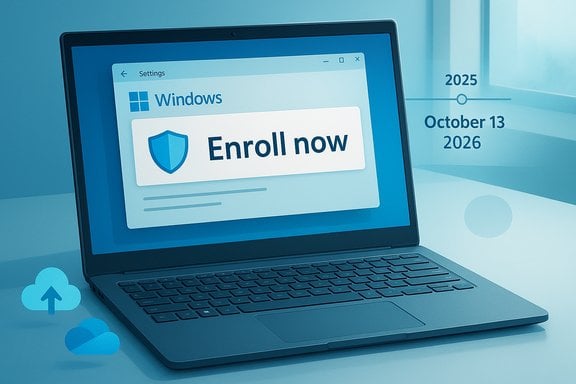
- Open Settings → Update & Security → Windows Update and look beneath “Check for updates” for the Enroll now (ESU) prompt. Click it.
- Choose your enrollment path (Windows Backup sync, redeem Rewards, or pay). Follow the on‑screen wizard to complete enrollment. After the wizard validates the device, ESU eligibility will be applied.
- Reboot if prompted, then verify enrollment by returning to Windows Update — it should show the ESU enrollment status and, once patches are released, ESU security updates will be delivered via Windows Update.
Troubleshooting: common glitches and fixes
- The Enroll now link is missing: Install the August 2025 cumulative patch (KB5063709) and any later servicing updates. Rollout is staged; wait 24–72 hours after installing updates. Check Microsoft Q&A if rollout delays persist.
- Enrollment wizard opens then quits: This was a reported bug fixed in KB5063709; installing that update resolves most cases. If you still see failures, Microsoft released a subsequent patch to clear specific enrollment errors — ensure all updates are installed.
- “Something went wrong” error during enrollment: Microsoft acknowledged and fixed scenarios causing that message; confirm KB5071959 (or the most recent out‑of‑band fix listed in Windows Update) and retry.
- Enrollment blocked by device state: Domain‑joined, MDM‑managed, or enterprise‑enrolled devices are not selectable for the consumer path — organizations must use the commercial ESU channels via Volume Licensing or Cloud Service Providers.
European exception: EEA customers
Microsoft announced different treatment for customers in the European Economic Area (EEA): consumers in the EEA can qualify for free ESU enrollment with fewer requirements, and Microsoft confirmed that EEA customers will qualify automatically under regional consumer protection and regulatory conditions. This regional variance matters if you live in one of the 30 EEA countries — the enrollment flow and requirements can be less restrictive there. Check the Microsoft ESU page that applies to your region for specifics.Business vs consumer: pricing and duration differences
- Consumer ESU (personal devices): One‑year bridge only, runs through October 13, 2026; enrollment may be free via MSA + Windows Backup or Rewards, or a one‑time paid purchase (~$30 USD).
- Commercial ESU (enterprises/education): Sold via Volume Licensing or Cloud Service Providers. Pricing for Year One is commonly published as $61 USD per device; the price doubles each subsequent year (Year Two: $122; Year Three: $244). Commercial ESU can be purchased for up to three years, but it is significantly more expensive and designed for managed migrations.
What ESU does — and does not — protect you against
- ESU delivers Critical and Important security patches for Windows 10 (22H2) that Microsoft decides are necessary to protect customers during the one‑year window. These are delivered via Windows Update to enrolled devices.
- ESU does not include feature updates, general quality rollups, or broad technical support. It won’t restore missing platform improvements or newer mitigations introduced only in Windows 11.
- Microsoft will continue to provide Microsoft Defender Antivirus definition and detection updates and security updates for Microsoft 365 Apps (Office) on Windows 10 through separate timelines (Microsoft published continuity of these protections through October 10, 2028 for Microsoft 365 Apps and similarly extended Defender servicing “to the extent possible”). These application and signature updates are valuable but do not substitute for OS‑level patches.
Privacy, storage, and practical trade‑offs with the free paths
- The free cloud‑backed route requires enabling Windows Backup / Sync your settings to a Microsoft Account and OneDrive. That ties device metadata and settings to Microsoft’s cloud and may upload profile settings or small files. If OneDrive starts to back up large folders and you have only the free 5 GB quota, you may hit storage limits and require purchasing extra OneDrive space or deselecting file backup. Exercise caution: opt in to settings sync only if you want the slim‑profile route, and avoid backing up large data sets unless you have paid OneDrive storage.
- The Microsoft Rewards route is privacy‑friendly in that it avoids cloud backup, but accumulating 1,000 points can require active participation in Microsoft services (Edge/Bing searches, daily quizzes). For some users this is an acceptable trade; for others it’s friction.
- The $30 paid route is the cleanest if you refuse cloud ties, but Microsoft still requires a Microsoft Account for activation and license association. That account requirement means even paid enrollment centralizes entitlement under an MSA.
Risks, limitations, and what to plan for in 2026
- ESU is a single‑year bridge for consumers — use the time to plan a permanent migration: upgrade hardware and switch to Windows 11 where supported, replace the device, or move to another operating system such as a modern Linux distribution or ChromeOS Flex for older hardware.
- Third‑party application and driver vendors may reduce support for Windows 10 over time; you may run into compatibility issues even if security patches continue for a year.
- Enterprises face much higher costs for multi‑year ESU or must invest in faster hardware refresh cycles. Commercial ESU pricing escalates sharply year over year.
Alternatives and a practical migration roadmap
- Short window (0–3 months): Enroll eligible machines in consumer ESU to buy time and prioritize backups, inventories of software/hardware, and compatibility testing.
- Medium term (3–9 months): Attempt in‑place Windows 11 upgrades where hardware allows (use PC Health Check and Microsoft’s upgrade assistant). For incompatible machines, test Linux distributions or ChromeOS Flex for specific use cases.
- Long term (9–12 months): Replace cost‑prohibitive legacy devices, migrate critical workloads to supported infrastructure, or plan enterprise licensing (if applicable) to avoid escalating ESU costs.
Final analysis: strengths and risks of Microsoft’s consumer ESU approach
Strengths- Realistic, pragmatic bridge. For users with perfectly functional hardware that can’t meet Windows 11 requirements, ESU is a narrowly focused, cost‑effective way to stay protected while planning a migration.
- Multiple enrollment paths. The combination of Windows Backup, Rewards, and one‑time purchase gives consumers choices to match privacy, cost, and convenience preferences.
- Account and cloud tie‑ins. The Microsoft Account requirement — even for paid enrollment — represents a meaningful privacy and centralization change for users who deliberately avoided MSAs. That will frustrate privacy‑conscious users and some offline households.
- One‑year only: The consumer ESU is short; it buys time but forces a decision by October 13, 2026. Enterprises that need longer will pay much more.
- Operational rough edges: The phased rollout and initial enrollment bugs created confusion; while Microsoft has patched many issues, some users still report inconsistent behavior and need to chase specific KB updates to resolve failures.
Practical checklist (last word before action)
- Verify Windows 10 is 22H2 and all updates are installed (especially KB5063709 and any KBs released after that).
- Sign in with a Microsoft Account that is an administrator on the device.
- Open Settings → Update & Security → Windows Update and look for Enroll now. If not present, wait; the rollout is phased.
- If you choose the cloud backup free path, confirm how OneDrive will be used and avoid auto‑backing up large folders unless you have paid storage.
- If you manage small‑business or domain‑joined devices, evaluate commercial ESU pricing vs faster hardware refresh; enterprise ESU pricing starts at roughly $61 per device in Year One and escalates in Years Two and Three.
Microsoft’s consumer ESU is a narrowly targeted, pragmatic compromise: it keeps the lights on for many Windows 10 households, but only if you accept a Microsoft Account, follow the eligibility checklist, and use the extra year to migrate. The offering reduces immediate exposure to newly discovered critical vulnerabilities, but it is not a substitute for long‑term modernization — treat ESU as a runway, not a destination.
Source: ZDNET You can still get free Windows 10 security patches - here's how until October 2026
