

Microsoft’s steady migration strategy is entering a new phase: Windows 10 users who refused to move to Windows 11 or enroll in Microsoft’s Extended Security Updates (ESU) program are now reporting that the familiar “Pause updates for 7 days” control has become inaccessible on some machines, and the operating system is pushing critical updates — and even the Windows 11 25H2 installer — with far fewer user controls than before.
Microsoft ended mainstream support for Windows 10 on October 14, 2025, and introduced a paid Extended Security Updates (ESU) pathway to carry security patches for eligible Windows 10 systems through the following year. The ESU program is explicitly targeted at customers who cannot or will not migrate immediately to Windows 11; ESU-enrolled systems receive security fixes while non-enrolled machines no longer receive routine patches from Microsoft after the end-of-support date.
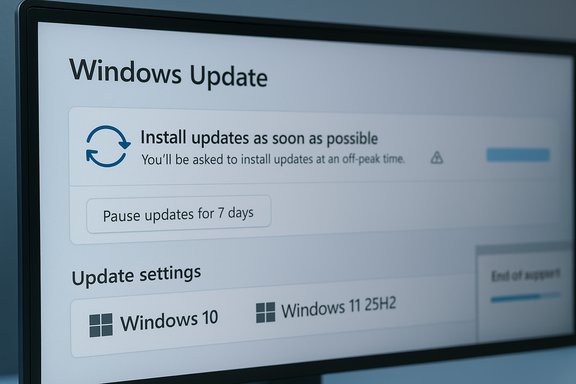
Historically, Windows 10 offered a straightforward, user-facing short-term control: Pause updates for 7 days (expandable up to 35 days via Advanced options). This pause was a small but powerful safeguard that let users delay an incoming update — including major feature upgrades — for a predictable window, giving time to prepare, test, or avoid an update that might be disruptive. That control now appears to be unavailable for a subset of Windows 10 devices, with the UI showing a “pause limit reached” message and a new emphasis on installing updates “as soon as possible.”
Multiple independent outlets and user reports describe the same behavior: the pause button is greyed out on Windows 10 machines not enrolled in ESU; the advanced options claim the device has “reached the pause limit” even if no prior pauses occurred; and, in some cases, the system presents an “Install updates as soon as possible” action that will expedite downloads, install the update automatically, and schedule an automatic restart with minimal notice. These reports coincide with Microsoft’s ongoing rollout of Windows 11 version 25H2 and ESU-targeted cumulative updates for the Windows 10 install base.
Users and administrators should prepare for a more managed update reality: verify ESU options if continued Windows 10 security updates are required, harden update controls through supported management tools where possible, and maintain full backups and recovery plans. Until Microsoft clarifies the intent and mechanics behind the behavior — or issues a fix — treat the current state as an operational risk to be mitigated through conservative update and backup practices.
Source: Daily Express US https://www.the-express.com/tech/te...ft-making-harder-loyal-users-stay-windows-10/
 Background
Microsoft ended mainstream support for Windows 10 on October 14, 2025, and introduced a paid Extended Security Updates (ESU) pathway to carry security patches for eligible Windows 10 systems through the following year. The ESU program is explicitly targeted at customers who cannot or will not migrate immediately to Windows 11; ESU-enrolled systems receive security fixes while non-enrolled machines no longer receive routine patches from Microsoft after the end-of-support date.Historically, Windows 10 offered a straightforward, user-facing short-term control: Pause updates for 7 days (expandable up to 35 days via Advanced options). This pause was a small but powerful safeguard that let users delay an incoming update — including major feature upgrades — for a predictable window, giving time to prepare, test, or avoid an update that might be disruptive. That control now appears to be unavailable for a subset of Windows 10 devices, with the UI showing a “pause limit reached” message and a new emphasis on installing updates “as soon as possible.”
Multiple independent outlets and user reports describe the same behavior: the pause button is greyed out on Windows 10 machines not enrolled in ESU; the advanced options claim the device has “reached the pause limit” even if no prior pauses occurred; and, in some cases, the system presents an “Install updates as soon as possible” action that will expedite downloads, install the update automatically, and schedule an automatic restart with minimal notice. These reports coincide with Microsoft’s ongoing rollout of Windows 11 version 25H2 and ESU-targeted cumulative updates for the Windows 10 install base.
Overview: what’s changing and why it matters
- The Pause updates for 7 days option is reportedly disabled or greyed out on some Windows 10 machines that are not enrolled in ESU.
- The Windows Update interface in these cases displays a message that the system has “reached the pause limit,” even if the user has not previously used the pause feature.
- A new or emphasized control — Install updates as soon as possible (or similar wording) — appears, offering to immediately apply pending updates, including an upsell to download and install Windows 11, version 25H2 when the device is eligible.
- ESU-enrolled devices continue to receive monthly security updates (via documented KB releases) and appear to retain normal pause/defer behavior.
Technical context: how Windows Update pause works today
The pause feature and its limits
Windows 10 and Windows 11 have long offered a temporary pause feature:- A single click on Pause updates for 7 days adds a one-week pause. Repeated clicks extend the pause in one-week increments, up to a 35‑day maximum via the Settings UI.
- Advanced options allow selection of a specific Pause until date within the allowed window.
- After the pause limit is reached, Windows normally requires that the device install the latest updates before the pause feature is re-enabled.
ESU and post‑EOL servicing
- Windows 10 entered end of support on October 14, 2025. Microsoft made ESU available as a paid option for consumers and as a licensing route for enterprise customers, extending critical and important security updates for up to one additional year for consumer ESU (and up to three years for some commercial channels depending on enrollment).
- ESU-enrolled devices are issued ESU‑specific cumulative updates and servicing stack updates (SSUs) identified by KB numbers and build revisions intended for ESU eligibility. Those packages are not visible or offered to devices that are not enrolled in ESU.
- Microsoft also continues to publish Windows 11 servicing and feature updates such as Windows 11 version 25H2, delivered as an enablement package for eligible devices.
What’s being observed in the field
Symptom cluster
- The Pause updates for 7 days control shows as faded or is gone entirely in Settings → Update & Security → Windows Update.
- Advanced options display a message: “You’ve reached the pause limit. Install the latest updates to be able to pause again.” Some users report this message even when they never used the pause feature.
- In place of the pause control, some devices show Install updates as soon as possible, which triggers an expedited update flow: automatic download, install, and a forced restart prompt with a short notice period (e.g., 15 minutes to save work).
- A visible prompt to Download and install Windows 11, version 25H2 appears for eligible Windows 10 machines, replacing or taking a more prominent position than the ESU enrollment button in the UI.
Distribution and reproducibility
- The behavior has been replicated in multiple independent reports across different hardware and VM configurations, including devices with default (non-managed) settings.
- It appears most commonly on systems that are running Windows 10 but are not identified by Microsoft update logic as enrolled in ESU; however, some reports suggest edge cases where the pause control is disabled even for non-ESU test systems.
- Microsoft has not published a public advisory explaining this specific UI change or its intent, leaving observers to infer whether this is a bug or a deliberate policy change.
What Microsoft’s official guidance and behavior indicate
- Official lifecycle documentation and ESU program pages make clear that Windows 10 reached end-of-support on October 14, 2025, and that ESU subscribers will receive security updates through designated ESU periods (consumer ESU coverage through October 13, 2026).
- Microsoft’s cumulative updates for ESU devices — identified by specific KB numbers and OS build targets — are being released and are available only to enrolled systems.
- Microsoft documentation also explains the existence of a pause limit for updates: the system can restrict pause functionality until pending updates are applied if the pause quota has been exceeded.
Risks and real-world impact
For end users
- Loss of an easy short-term delay tool increases the risk of interrupted work due to automatic restarts and potential compatibility regressions after updates.
- Users with older hardware, specialized peripherals, or custom configurations face higher risk if the system installs Windows 11 automatically or applies a quality update that breaks device drivers or third‑party utilities.
- Non-technical users who depend on that 7‑day buffer to defer updates during critical work lose a key failsafe.
For enterprises and small IT shops
- Organizations that deliberately elected not to enroll devices in ESU — whether because they planned a longer migration path or intended to replace hardware — may find their remaining Windows 10 estate behaving in unpredictable ways.
- Windows Update for Business and Group Policy remain the recommended mechanisms for larger deployments to manage update timing. However, smaller organizations and unmanaged endpoints rely on the Settings UI for control; removing that control raises administrative overhead and potential support calls.
Security trade-offs
- From Microsoft’s perspective, forcing timely installation of security updates reduces the attack surface across the ecosystem. But removing user controls also has trade-offs: sharp, untested updates can increase short-term instability and prompt user distrust.
- The presence of ESU retains a path for those who pay or enroll to receive security updates — but that is a paid, time-limited program and may be infeasible for many home users.
Workarounds, mitigations, and recommendations
The following are practical measures users and administrators can apply today to regain some control or reduce the chance of an unwanted upgrade or forced restart.Short-term user-side mitigations
- Set the connection as metered (Settings → Network & Internet → Wi‑Fi → network name → Set as metered connection). Metered connections can prevent large feature upgrades and defer non-critical updates on many systems.
- Use Active Hours and Restart Options (Settings → Update & Security → Windows Update → Change active hours / Restart options) to limit when restarts may happen.
- If the UI offers Don’t restart as soon as possible after initiating the expedited install, select it to delay the restart, then schedule a maintenance window.
- When an update starts downloading unexpectedly, disconnecting from the network or disabling the Windows Update service temporarily can halt the process — this is an emergency measure and not a long-term strategy.
Administrative and configuration options
- For Windows 10 Pro / Enterprise:
- Use Group Policy or Windows Update for Business policies to configure deferral periods for feature and quality updates and to block automatic feature upgrades.
- Configure the policy to “Select when Preview builds and Feature Updates are received” and set a deferral period appropriate to the organization.
- For unmanaged devices:
- Set local Group Policy (gpedit.msc) or registry keys to control feature updates (e.g., TargetReleaseVersionInfo) to pin to a specific Windows 10 version where appropriate.
- Use Microsoft-provided tools:
- The “Show or hide updates” troubleshooter (wushowhide.diagcab) can hide a problematic update temporarily.
- For enterprise customers, WSUS / Configuration Manager continues to give admins the ability to approve or decline updates.
If a Windows 11 upgrade begins
- Interrupt the install process promptly if it started by accident: attempt to cancel via the Windows Update page; if that fails, a controlled power-off and network isolation can stop the download/installation — be aware this can leave the system in a partially-upgraded state requiring recovery.
- Collect logs and roll back where possible: the built-in rollback to previous OS option is available for a limited time after an upgrade (if the upgrade finished), but rollback success depends on the upgrade completing successfully and system integrity.
Strengths and positives in Microsoft’s approach
- From a security standpoint, pushing updates more aggressively reduces the number of vulnerable, unpatched systems connected to the internet and helps protect the broader ecosystem.
- The ESU program provides a concrete, supported path for users and organizations that cannot migrate immediately to Windows 11, delivering critical security patches for an additional period.
- Microsoft continues to make Windows 11 available as a free upgrade for eligible Windows 10 PCs, and the 25H2 release is an enabling package that simplifies deployment for administrators who want to modernize.
Weaknesses, policy issues, and unresolved questions
- Lack of transparency: there has been no public, clear advisory explaining why the pause control is being disabled on non‑ESU devices, making it difficult to judge whether this is intentional policy or a bug.
- User agency and trust: removing a familiar, low-friction control without notice undermines user choice and the ability to manage updates on personal machines.
- Economic barrier: ESU is a paid option that effectively grants continued management for those who can pay — a practice that raises fairness concerns when the alternative is loss of controls for unpaid users.
- Incomplete documentation: the update logic that determines when a machine is treated as “must‑update” vs “can pause” is not fully documented for consumers, leaving ambiguity for troubleshooting.
What to watch next
- Microsoft response: an official advisory or update from Microsoft clarifying whether this is an intentional change, a phased rollout, or an inadvertent bug would resolve much of the uncertainty.
- KB/SSU releases: follow the ESU KB release cadence and servicing stack updates for Windows 10; ESU-specific cumulative updates will continue to be issued to enrolled systems.
- Windows 11 rollout behavior: watch for whether Microsoft changes the logic for offering Windows 11 25H2 to Windows 10 devices, including any toggles that might affect pause behavior or forced installs.
- Community troubleshooting: expect more diagnostic guides and scripts from independent Windows support communities explaining how to detect ESU enrollment status, how Windows Update is detecting device state, and how to safely block an accidental upgrade.
Practical checklist for readers (ordered)
- Check Windows 10 end-of-support and ESU options and deadlines for your device and region.
- Determine whether your device is enrolled in ESU (or eligible) and whether you want to enroll.
- If you need to avoid unexpected upgrades, enable metered connections and configure active hours and restart options.
- For Pro/Enterprise devices, set Group Policy or Update for Business policies to control feature update deferrals.
- If the pause button is greyed out, use Advanced options to inspect the reported pause limit and review update history to see what is pending.
- Back up critical data before applying any major updates or attempting to block an upgrade forcibly.
Conclusion
The recent reports of Windows 10 devices losing the ability to pause updates highlight a tension at the end of a platform lifecycle: Microsoft is moving to consolidate security protections and encourage migrations to Windows 11, but doing so without clear communication risks user frustration, forced upgrades on incompatible hardware, and sudden disruptions for individuals and small organizations. The pause feature was never a long-term mitigation against vulnerability — it was a short, pragmatic control that gave users breathing room. Its sudden disappearance from some non‑ESU Windows 10 systems removes that buffer and raises questions about transparency and the balance between ecosystem security and individual choice.Users and administrators should prepare for a more managed update reality: verify ESU options if continued Windows 10 security updates are required, harden update controls through supported management tools where possible, and maintain full backups and recovery plans. Until Microsoft clarifies the intent and mechanics behind the behavior — or issues a fix — treat the current state as an operational risk to be mitigated through conservative update and backup practices.
Source: Daily Express US https://www.the-express.com/tech/te...ft-making-harder-loyal-users-stay-windows-10/
