

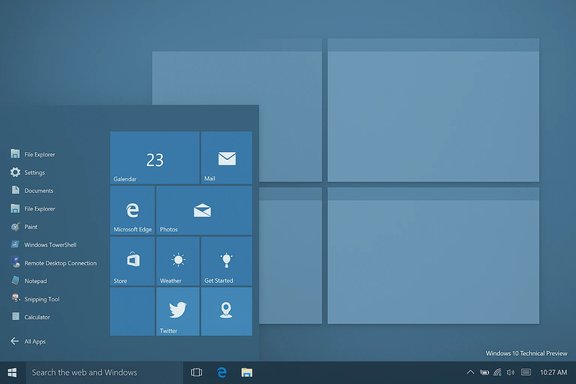
Microsoft’s early Windows 10 Technical Preview is a cautious course correction rather than a dazzle — comforting to some, underwhelming to others, and proof that Microsoft is listening even if it’s still negotiating with its legacy.
Background / Overview
When Microsoft shipped the first public Technical Preview of Windows 10 in late 2014 it did two important things at once: it signalled a retreat from some of Windows 8’s more radical interface choices, and it opened a long, public development window that invited critique and course corrections. The preview builds — starting with the well-known build 9841 and continuing through the Insider program — were deliberately rough around the edges, designed to collect feedback and stabilise direction ahead of the final release. Microsoft later confirmed Windows 10’s general availability date as July 29, 2015. That framing matters: what users and IT pros first met in the Technical Preview was not a finished product but a working draft meant to demonstrate priorities and test reactions. The preview rebuilt trust with keyboard-and-mouse users by restoring familiar elements, while planting the early seeds of cross-device ambitions. But the early preview also left many veterans with the sense that the company had traded a bold re-think for incremental, conservative fixes — plenty of polish, not much reinvention.Start with the Start menu: familiar, fused, flawed
The delicate balance between the old and the modern
The single most visible change in the Technical Preview was the Start menu’s return — but not as a straight reversion. Microsoft delivered a hybrid: a classic left-hand app list coupled with the Live Tile surface on the right. That design aimed to reconcile the desktop-first workflows of Windows 7 with the touch- and tile-oriented direction of Windows 8.This hybrid Start menu is the right idea for a transitional OS: it acknowledges the desktop crowd without abandoning the tile investments Microsoft had made. In execution, though, the menu felt like an uneasy marriage. The right-hand tile area looks like a miniature Start screen. The left-hand app list replaces old fly-out submenus with in-place expansion; folders expand where they stand rather than sweeping outward. That saves screen real estate but introduces awkward edge cases, such as accidental folder selection that forces you to scroll to reach neighboring entries — an unusual and unintuitive consequence for such a central UI element.
What works
- Familiar anchor: The Start button is back as an experience anchor, and the menu’s combination of search and app list restores the speed and discoverability many users missed.
- Power controls: The permanent power buttons (sleep, shutdown, restart) are a real usability win — quicker and more discoverable than in recent releases.
- Search integration: Search is faster and more comprehensive, integrating local results with web results when desired.
What doesn’t
- Tile/menu blend friction: Live Tiles in a menu still feel like a compromise rather than a feature, especially for long-time desktop users who never warmed to Modern apps.
- Navigation quirks: Replacing fly-outs with in-place expansion is functionally fine but feels slower and occasionally clumsy, particularly for deep Start menu folder structures.
Taskbar, Search, and the tension over control
Microsoft added two prominent new taskbar elements in the preview: a dedicated search icon and the Task View button. The search icon’s presence is a simple design choice — it is fast and visible — but the early preview’s implementation felt heavy-handed because it was immovable in some early builds, which prompted complaints that Microsoft was imposing a UI decision rather than letting users choose. The record of the preview’s evolution shows Microsoft listening: later preview builds introduced options to hide the Search and Task View buttons from the taskbar, contradicting early impressions that they were permanent fixtures. This back-and-forth illustrates a broader governance issue: users want control over the presence and behaviour of prominent UI chrome, and Microsoft was learning — publicly — how far to push default placements and how much configurability to expose.Task View and virtual desktops: a long-overdue native option
What Microsoft finally shipped
One of the Technical Preview’s more substantive additions was Task View — a task switcher that integrates virtual desktops at the OS level. Virtual desktops are a standard feature in macOS and many Linux desktops; Windows users relied on third-party utilities for years. Microsoft’s native implementation lets you create multiple live desktops, drag windows between them, and switch using keyboard shortcuts (Win + Ctrl + D to create a desktop, Win + Ctrl + ←/→ to switch). That functionality was a clear win for power users and reviewers alike.Where it felt unfinished
- Visibility: There’s no permanent visual cue that shows how many desktops are active; Task View itself is the main gateway to management. That makes multi-desktop setups feel like a feature that’s present but not fully integrated into daily workflows.
- Desktop overview: The linear thumbnail presentation lacks the rapid, at-a-glance navigation that some other OSes provide. The implementation is functional but basic — a solid foundation that needs refinement.
The Command Prompt renaissance
Perhaps the most pleasantly surprising change in the Technical Preview was the attention paid to the Command Prompt. Console features that developers and IT pros had wanted for years — keyboard copy/paste (Ctrl+C/Ctrl+V), window resizing, adjustable transparency — were added or made easier to enable. Those are small, practical upgrades but disproportionately appreciated by people who live in terminal sessions. In a release that was otherwise about visible UI shifts, this was an example of Microsoft polishing the tools that real power users rely on.Windows, snapping and Modern apps: less jarring, more useful
Two related areas showed meaningful polish:- Window snapping: Snap was extended to support four-quadrant layouts instead of only two-pane splits. On wide or high-resolution displays this becomes genuinely useful for multi-taskers.
- Modern apps in windows: Modern (Store/UWP) apps could run inside resizable windows rather than full-screen only, dramatically reducing the experience gap between “desktop” and “Modern” apps. That change, already hinted at in Windows 8.1 Update, made the transition between app modalities far less jarring.
Directional critique: Microsoft course-corrects but keeps the compass
The Technical Preview reads like a public apology for too much touch-first experimentation. Microsoft clearly admitted that Windows 8’s emphasis on touch-first design had outpaced reality: the majority of Windows devices at that time were still non-touch, and users rejected a “one-size-fits-all” radical change. Windows 10’s desktop-focused stance was therefore reassuring. Publications that covered the preview noted the company’s contrite tone and deliberate emphasis on desktop ergonomics. But there are two sides to that coin:- On the positive side, the preview delivered stability, thoughtful refinements, and sensible bridging of UX gaps.
- On the negative side, it felt incremental — a “fix” rather than a breakthrough. For users hoping Windows 10 would be a radical reimagining that would leap ahead of both Windows 7 and 8, the early preview was not an adrenaline shot. The architecture and core metaphors stayed familiar; the biggest wins were polish and reconciliation rather than reinvention.
Numbers, nomenclature and timelines: what’s fact and what’s speculation
Several claims in early coverage were factual and verifiable; others were speculative and should be flagged as such.- Fact: the Technical Preview build commonly referenced is build 9841, released as Microsoft’s early public preview in late 2014. Microsoft published updates and KB entries for that build.
- Fact: Windows 8.1’s RTM build number was 9600, a useful comparison point when pundits commented on jump sizes between builds.
- Fact: Windows 10’s final general release date was July 29, 2015 — Microsoft announced that timeline publicly.
- Speculation: early commentary suggested the Windows 10 release would land on a “build 10,000” gold master; that was a conjectural shorthand rather than a documented target and must be treated as unverified industry speculation. There is no public Microsoft document tying the RTM to an exact build number of 10,000, and the idea should be read as an anecdote rather than a confirmed roadmap item. Be cautious when reporting build-number arithmetic as predictive.
Strengths: what the Technical Preview got right
- Desktop-first restoration: The Start menu return and improved windowing made desktop users feel respected again.
- Polish where it matters: Improvements to Snap, window shadows, and palette choices made the UI feel more modern and professional without alienating long-time users.
- Power-user attention: Command Prompt improvements, native virtual desktops, and refined keyboard shortcuts signalled that Microsoft still cares about people who use Windows as a tool.
- Iterative, public development: By running a public preview program, Microsoft exposed its design trade-offs and collected meaningful feedback, enabling fixes (like hideable taskbar buttons) to appear in later builds.
Risks and the things that could go wrong
- Perception of mediocrity: Incremental improvement risks being read as a lack of vision. If users expected a bold new direction, the Technical Preview’s conservatism could disappoint and dampen momentum.
- Half-finished UX promises: Cross-device ambitions (phone, tablet, console) were announced, but the preview felt primarily desktop-centric. That gap created uncertainty about how cohesive the “one Windows” story would be in practice.
- Defaults vs. choice: Early taskbar and search behaviours demonstrated the danger of default-first design decisions that impose UI chrome without offering immediate user control. Microsoft adjusted, but initial choices left a trust dent for some users.
- Developer and enterprise friction: Enterprises and ISVs saw fewer disruptive API changes in the preview, which reduces migration pain — but it also reduces the incentive for developers to embrace new capabilities early. That could slow the app ecosystem growth that Microsoft hoped a unified platform would encourage.
Practical takeaways for Windows users and IT pros
- If you are a desktop-first user who avoided Windows 8 because of the Start menu and app model, the Windows 10 Technical Preview is encouraging: it restores the desktop’s primacy while introducing useful modern features.
- Power users will appreciate virtual desktops, Command Prompt improvements, and nicer snapping — but these features are essentially evolutionary rather than transformational.
- Organisations should treat early previews as an opportunity to evaluate the direction of the OS, not as a migration cue; compatibility testing against production workloads remains essential.
- Watch the Insider builds: Microsoft demonstrated that it can and will respond to feedback (for example, making taskbar buttons hideable), so early pain points can be transient.
Final verdict: comfortable, competent — and unfinished
The Windows 10 Technical Preview read less like a revolutionary manifesto and more like a skilled repair job. It fixed the things that broke people’s workflow in Windows 8, brought much-needed polish to UI details, and reintroduced features power users had been asking for. Those are real wins.At the same time, the preview rarely surprised. The operating system felt like a careful synthesis of Windows 7 and Windows 8 — an OS that was more about mending than inventing. For many, that is precisely the right approach: a pragmatic reset that restores confidence. For others, it’s a disappointment, an opportunity missed to use a major release as a platform to leap forward.
What the Technical Preview ultimately promised — and what the public development cycle would deliver over the next months — was a path rather than a destination: Microsoft had re-centred the desktop, re-engaged with power users, and opened the door to cross-device ambitions. Whether Windows 10 would become a bold new chapter or a long, effective polish of the existing Windows story would depend on how Microsoft executed the next rounds of feedback-driven refinement.
The early preview was not perfect, but it was sensible. For those who wanted stability, familiarity, and a solid incremental improvement over Windows 8, it was welcome. For those expecting fireworks, the Technical Preview read as a missed opportunity. Either way, the public preview made one thing clear: Microsoft had listened — and that alone made the preview worth watching as the company prepared for the ship date that would arrive the following summer.
Source: BetaNews The curmudgeon's guide to Microsoft's embryonic Windows 10
