

Windows 11 version 23H2 support cannot be determined from the version number alone: administrators must identify the installed edition, apply Microsoft’s current edition-specific lifecycle table, and upgrade any device that is outside—or approaching the end of—its servicing window.
WindowsForum users repeatedly warned that Home and Pro installations of 23H2 were nearing the end of updates and urged affected users to move to a newer Windows 11 release. Those reports captured the immediate risk for consumer editions, but they should not be converted into a fleet-wide rule. Enterprise and Education follow a different, longer servicing policy, so a mixed estate can contain 23H2 devices in different support states.
“Windows 11 23H2” is not a complete lifecycle identity. Edition is the other required field.
Microsoft gives Home and Pro feature releases a 24-month servicing period. Enterprise and Education releases follow a different lifecycle. Administrators should therefore consult Microsoft’s current Windows 11 release information and the Windows 11 Enterprise and Education lifecycle table before assigning a compliance result.
The 23H2 release-health page is also useful for known issues, safeguards, and update notifications. Release health and lifecycle serve different purposes: a device may have no known upgrade issue yet still be outside its edition’s servicing window.
WindowsForum’s reports focused heavily on Home and Pro because those users faced the earlier deadline. Administrators should preserve that warning without assuming that every 23H2 endpoint has the same deadline. Conversely, the longer Enterprise and Education window must not be used to mark a Pro installation compliant.
Use these classification principles:
The critical fields are
A compact collection script is:
Do not assume that an
An edition-aware query can follow this structure without hard-coding unverified mappings:
The separate mapping table should be controlled evidence, not an assumption embedded in a script. A compact report might look like this:
The collection method depends on the organization’s management platform and enabled inventory features. Verify that exported data contains a trustworthy edition value. If it does not, use direct registry collection or manual verification rather than treating the record as compliant.
In Configuration Manager or another endpoint-management platform, an organization can create separate collections or dynamic groups for validated Home/Pro 23H2 devices, validated Enterprise/Education 23H2 devices, and unknown-edition records. This is an implementation example, not a universal console procedure; available properties and interfaces vary by product release and inventory configuration.
For a manually managed Windows 11 device:
For centrally managed devices, a typical Intune implementation would use a feature-update policy assigned first to a pilot group. A typical Configuration Manager implementation would use the organization’s Windows servicing or operating-system deployment workflow. These are examples rather than fixed navigation instructions: console paths, prerequisites, licensing, synchronization requirements, and reporting behavior can change. Administrators should follow the current vendor documentation displayed for their tenant and product release.
Regardless of platform, the operational sequence should be consistent:
Use this rule:
Define failure handling before broad deployment. Specify how failed upgrades will be detected, which logs the service desk will collect, when an installation will be retried, and when a device will be rolled back, rebuilt, replaced, or removed from service.
Exceptions must be explicit and temporary. “Upgrade failed” is a troubleshooting state, not a permanent exception category. Every exception needs a business reason, accountable owner, compensating controls, next review date, and planned resolution.
WindowsForum users’ warnings show how easily a correct consumer-edition message can become an incorrect universal statement. Reporting that “23H2 is unsupported” omits the edition-specific lifecycle. Reporting that “23H2 remains supported” can be equally misleading when Pro devices are present.
A lifecycle census should divide the estate into:
Internal deadlines should precede Microsoft’s lifecycle boundary. Leave time for pilot failures, offline devices, application remediation, procurement, and replacement. By the applicable deadline, each endpoint should be upgraded, retired, removed from service, or covered by a formally approved exception process.
For automated compliance, collect both fields and validate observed
WindowsForum users repeatedly warned that Home and Pro installations of 23H2 were nearing the end of updates and urged affected users to move to a newer Windows 11 release. Those reports captured the immediate risk for consumer editions, but they should not be converted into a fleet-wide rule. Enterprise and Education follow a different, longer servicing policy, so a mixed estate can contain 23H2 devices in different support states.
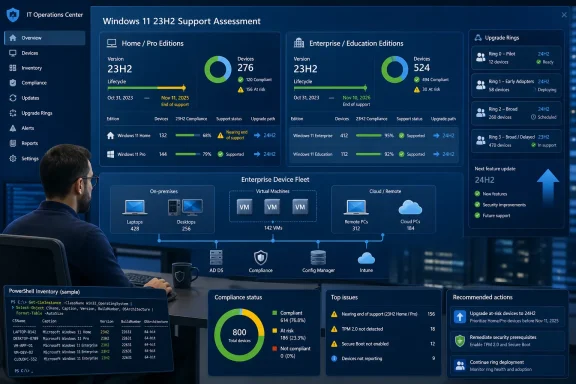 One Version Number Conceals Two Support States
“Windows 11 23H2” is not a complete lifecycle identity. Edition is the other required field.Microsoft gives Home and Pro feature releases a 24-month servicing period. Enterprise and Education releases follow a different lifecycle. Administrators should therefore consult Microsoft’s current Windows 11 release information and the Windows 11 Enterprise and Education lifecycle table before assigning a compliance result.
The 23H2 release-health page is also useful for known issues, safeguards, and update notifications. Release health and lifecycle serve different purposes: a device may have no known upgrade issue yet still be outside its edition’s servicing window.
WindowsForum’s reports focused heavily on Home and Pro because those users faced the earlier deadline. Administrators should preserve that warning without assuming that every 23H2 endpoint has the same deadline. Conversely, the longer Enterprise and Education window must not be used to mark a Pro installation compliant.
Use these classification principles:
- Evaluate
DisplayVersionand edition together. - Apply the Microsoft lifecycle row for the installed edition.
- Treat unfamiliar, missing, or ambiguous edition data as unknown.
- Do not infer edition from ownership, device naming, licensing purchases, or organizational intent.
- Confirm specialized editions and multi-session configurations against the applicable Microsoft table instead of placing them into a familiar category by analogy.
Inventory Must Pair the Release With the Edition
Build a definitive inventory before assigning upgrades. At minimum, record:- Device name
- Product name and edition
- Display version
- OS build
- Management authority
- Device model
- Business owner
- Last successful check-in
- Lifecycle classification
- Upgrade target and deployment status
- Block or exception reason
- Resolution owner and due date
Code:
Get-ItemProperty `
 'HKLM:\SOFTWARE\Microsoft\Windows NT\CurrentVersion' |
Select-Object ProductName, EditionID, DisplayVersion, CurrentBuild, UBRDisplayVersion and EditionID. Treat them as a combined lifecycle identity rather than evaluating either field alone.A compact collection script is:
Code:
$cv = Get-ItemProperty `
 'HKLM:\SOFTWARE\Microsoft\Windows NT\CurrentVersion'

[pscustomobject]@{
 DeviceName = $env:COMPUTERNAME
 ProductName = $cv.ProductName
 EditionID = $cv.EditionID
 DisplayVersion = $cv.DisplayVersion
 Build = "$($cv.CurrentBuild).$($cv.UBR)"
}EditionID string has an obvious compliance meaning. Values can vary by edition, deployment type, and inventory source. First collect the values observed in the estate, then validate each value against the corresponding Windows edition before adding it to an automated rule.An edition-aware query can follow this structure without hard-coding unverified mappings:
Code:
IF DisplayVersion != "23H2":
 Evaluate under that release's current lifecycle table

ELSE IF EditionID is blank, unavailable, or not in the validated mapping table:
 Status = "Unknown edition"
 Action = "Direct verification required"

ELSE:
 EditionGroup = LOOKUP(EditionID, ValidatedEditionMapping)
 LifecycleEnd = LOOKUP("23H2", EditionGroup, MicrosoftLifecycleData)

 IF LifecycleEnd is missing:
 Status = "Unclassified"
 Action = "Review Microsoft lifecycle table"

 ELSE IF CurrentDate > LifecycleEnd:
 Status = "Outside regular servicing"
 Action = "Upgrade or remove from service"

 ELSE:
 Status = "In servicing"
Action = "Upgrade by internal deadline"| Device | Display version | Raw EditionID | Validated edition group | Lifecycle state | Upgrade state | Owner |
|---|---|---|---|---|---|---|
| PC-104 | 23H2 | Observed value | Home/Pro | Check current table | Pilot assigned | Sales IT |
| PC-221 | 23H2 | Observed value | Enterprise/Education | Check current table | Scheduled | Endpoint team |
| PC-317 | 23H2 | Blank | Unknown | Unclassified | Verification required | Service desk |
In Configuration Manager or another endpoint-management platform, an organization can create separate collections or dynamic groups for validated Home/Pro 23H2 devices, validated Enterprise/Education 23H2 devices, and unknown-edition records. This is an implementation example, not a universal console procedure; available properties and interfaces vary by product release and inventory configuration.
Move the Device, Not Just the Spreadsheet
Inventory is only the first step. After confirming compatibility and selecting an approved, supported target release, deploy the feature update through the device’s actual management channel.For a manually managed Windows 11 device:
- Open Settings.
- Select Windows Update.
- Select Check for updates.
- If an approved feature update appears, choose the option to download and install it.
- Restart when prompted.
- After sign-in, run
winveror queryDisplayVersionagain. - Confirm that the inventory and compliance system receives the new result.
For centrally managed devices, a typical Intune implementation would use a feature-update policy assigned first to a pilot group. A typical Configuration Manager implementation would use the organization’s Windows servicing or operating-system deployment workflow. These are examples rather than fixed navigation instructions: console paths, prerequisites, licensing, synchronization requirements, and reporting behavior can change. Administrators should follow the current vendor documentation displayed for their tenant and product release.
Regardless of platform, the operational sequence should be consistent:
- Define the approved target release.
- Confirm licensing and management prerequisites.
- Identify a representative pilot group.
- Deploy and monitor the pilot.
- Investigate safeguards and failed installations.
- Expand in controlled rings.
- Verify the installed version on each endpoint.
- Reconcile stale, offline, and unknown records.
- Close the action only after the inventory reports the new release.
Use an Executable Target-Selection Rule
WindowsForum users often framed the remedy as upgrading from 23H2 to 24H2 or 25H2. That is a useful prompt to act, but release selection must come from current Microsoft servicing information and organizational validation—not from choosing the largest version number.Use this rule:
- Consult Microsoft’s current Windows 11 release information.
- Eliminate releases that do not support the installed edition through the organization’s required planning horizon.
- Eliminate releases not approved for the device model, drivers, firmware, security software, VPN, accessibility tools, and business applications.
- Select a remaining release for which the organization has tested installation, support, recovery, and rollback procedures.
- Document devices for which no acceptable target remains, including an owner and resolution date.
Define failure handling before broad deployment. Specify how failed upgrades will be detected, which logs the service desk will collect, when an installation will be retried, and when a device will be rolled back, rebuilt, replaced, or removed from service.
Exceptions must be explicit and temporary. “Upgrade failed” is a troubleshooting state, not a permanent exception category. Every exception needs a business reason, accountable owner, compensating controls, next review date, and planned resolution.
The Compliance Trap Arrives After the Deadline
The compliance problem is not merely missing an upgrade date. It is losing the edition evidence needed to explain why two 23H2 devices received different classifications.WindowsForum users’ warnings show how easily a correct consumer-edition message can become an incorrect universal statement. Reporting that “23H2 is unsupported” omits the edition-specific lifecycle. Reporting that “23H2 remains supported” can be equally misleading when Pro devices are present.
A lifecycle census should divide the estate into:
- Home and Pro 23H2 devices evaluated against the current Home/Pro lifecycle.
- Enterprise and Education 23H2 devices evaluated against their current lifecycle.
- Devices upgraded to an approved supported release.
- Devices blocked by compatibility or deployment issues.
- Unknown-edition records requiring direct verification.
- Time-limited exceptions with owners and resolution dates.
Internal deadlines should precede Microsoft’s lifecycle boundary. Leave time for pilot failures, offline devices, application remediation, procurement, and replacement. By the applicable deadline, each endpoint should be upgraded, retired, removed from service, or covered by a formally approved exception process.
Frequently Asked Questions
Is Windows 11 23H2 still supported?
It depends on the installed edition and the date of assessment. Home and Pro have a shorter servicing policy than Enterprise and Education. Check the device’s edition against Microsoft’s current edition-specific lifecycle or release-information table rather than classifying it from “23H2” alone.How can I tell which edition a device runs?
Open Settings > System > About, runwinver, or query EditionID and DisplayVersion from:HKLM\SOFTWARE\Microsoft\Windows NT\CurrentVersionFor automated compliance, collect both fields and validate observed
EditionID values before mapping them to lifecycle groups.What should happen when EditionID is missing?
Classify the record as unknown and require direct verification. Do not mark it compliant based only onDisplayVersion=23H2, company ownership, a device-name prefix, or an assumed Enterprise license.How do I manually upgrade a 23H2 PC?
Go to Settings > Windows Update > Check for updates. If Windows offers an approved feature update, choose the download-and-install option, restart, and verify the resulting version. If no update appears, investigate policy, compatibility, storage, and release-health notices.Should an organization choose Windows 11 24H2 or 25H2?
Choose only a release that Microsoft currently lists as supported for the installed edition, remains supported through the required planning horizon, and has passed the organization’s hardware, driver, application, security, deployment, and recovery testing.References
- Primary source: learn.microsoft.com
Windows 11 Enterprise and Education - Microsoft Lifecycle | Microsoft Learn
Windows 11 Enterprise and Education follows the Modern Lifecycle Policy.learn.microsoft.com - Primary source: WindowsForum
Windows 11 23H2 Ends Updates: Plan Your Upgrade by Nov 11, 2025 | Windows Forum
Microsoft has set a firm date: Windows 11, version 23H2 (consumer editions) will stop receiving security and quality updates on November 11, 2025, forcing...windowsforum.com
