

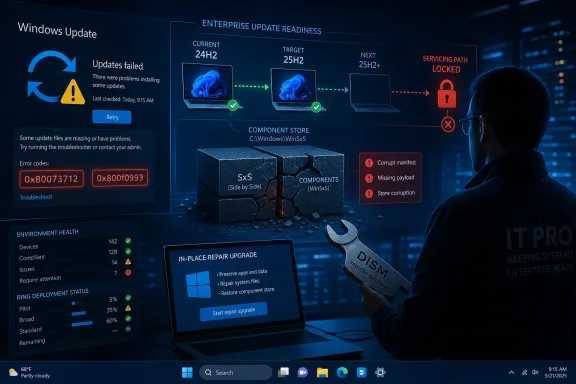
Microsoft has warned that some PCs upgraded from Windows 10 21H2, Windows 10 22H2, or Windows 11 23H2 to Windows 11 24H2 or 25H2 may fail to install future monthly cumulative updates, with affected systems showing errors 0x80073712 or 0x800f0993 after the upgrade. The bad news is not that another Windows update failed; Windows users have a grimly well-developed vocabulary for that. The sharper concern is that the failure can strand an upgraded machine outside the normal servicing path, exactly where Microsoft insists modern Windows is supposed to be most self-healing. For administrators, the episode is a reminder that the move to Windows 11’s current servicing branch is not just a feature upgrade — it is a migration of trust into the component store.
Microsoft is describing the affected population as small, and that matters. This is not a universal Windows 11 24H2 or 25H2 meltdown, nor is it a reason for every home user to assume Patch Tuesday has become radioactive. The problem appears concentrated on devices that took an upgrade path from older releases — Windows 10 21H2, Windows 10 22H2, or Windows 11 23H2 — into the newer Windows 11 releases.
But “small percentage” is a phrase that means different things depending on whether you are talking about one gaming desktop or a 12,000-device estate. A rare servicing failure becomes operationally important when it blocks monthly cumulative updates, because cumulative updates are the mechanism through which Windows receives not only quality fixes but security patches. Once a machine cannot take the monthly rollup, the problem stops being cosmetic and starts becoming a compliance issue.
The reported symptoms are familiar enough to be dangerous: Windows Update tries, fails, and leaves behind an error code that looks like a generic servicing problem. Users may see 0x80073712, the classic component store corruption code, or 0x800f0993, tied in Microsoft’s wording to PSFX_E_REBASE_HYDRATION_CANDIDATES_MISSING. In plain English, the machine’s servicing state is not lining up cleanly with what the update stack expects to find.
That is why this deserves attention beyond the usual “another Windows update bug” shrug. Windows Update is now the foundation for Microsoft’s security promise, feature delivery, Copilot-era plumbing, driver distribution, and enterprise baselines. When that foundation fails after a supported upgrade path, the question becomes less about a single patch and more about whether Windows can reliably maintain itself across the long tail of real-world installations.
That kind of fix is one of the genuinely useful evolutions in Windows servicing. Microsoft can increasingly steer update behavior without forcing every user to manually install an out-of-band package or wait for a full monthly release. In the consumer world, that means fewer people ever learn the name of the bug that almost hit them.
The limitation is just as important. The automatic fix prevents the problem from affecting newly upgraded systems; it does not repair machines that are already broken. If a PC has already upgraded and is already failing cumulative updates, the affected installation may need manual intervention.
That distinction is the whole story for IT departments. Preventive mitigation is good fleet hygiene, but remediation is where labor costs show up. A device that cannot install the monthly cumulative update is no longer just a line in a dashboard; it is a machine that may require command-line repair, an in-place upgrade, user scheduling, BitLocker readiness checks, and verification after the fact.
Cumulative updates are not simply copied into place like a ZIP archive. Modern Windows servicing compares what is on the system with what the package expects, calculates deltas, stages components, and commits changes across a sprawling component store. If the baseline is wrong, missing, or internally inconsistent, the update engine can refuse to proceed because it cannot safely transform the installed system into the patched one.
That is what makes this class of bug especially irritating. The operating system may boot normally. Applications may run normally. Device Manager may look clean. Yet the servicing state can still be unhealthy enough that every future cumulative update hits the same wall.
For a home user, that may look like Windows Update being stubborn. For an administrator, it looks like drift: a device that reports as upgraded to the right feature release but cannot continue along the expected patch cadence. The machine is technically current in name only.
Every in-place Windows upgrade is an act of preservation. Microsoft keeps user data, installed applications, drivers, registry state, device-specific settings, optional features, language packs, and enterprise configuration intact while replacing major pieces of the operating system underneath. That is an extraordinary engineering compromise, and it is one of the reasons Windows remains viable in environments where wiping every device every year would be operationally absurd.
But preservation has a cost. A clean install starts from a known baseline. An upgraded machine carries history. Some of that history is harmless; some of it is exactly what keeps line-of-business software working; and some of it becomes technical debt inside the servicing model.
Windows 11 24H2 was already a more consequential platform shift than its calm branding suggested, and 25H2 builds on the same broad servicing branch. Moving older Windows 10 and Windows 11 machines into that world means the updater must reconcile older component baselines with newer cumulative update assumptions. When that reconciliation fails, the machine can look upgraded but remain structurally brittle.
This is why administrators who treat feature upgrades as mere version bumps tend to get surprised. A feature update is not just a new Start menu behavior or another Settings page shuffle. It is a re-baselining event, and the quality of that baseline determines whether the next year of cumulative updates will be boring.
The patch matrix tells us something important. Microsoft is not merely treating this as a defect inside already-upgraded Windows 11 24H2 or 25H2 systems. It is also fortifying the source and target environments involved in the upgrade path, which suggests the transition process itself needed guardrails.
For enterprise IT, that should translate into a very practical deployment rule: do not rush feature upgrades from stale baselines. If a Windows 10 22H2 or Windows 11 23H2 device is several months behind, bringing it current before attempting the jump is not busywork. It may be the difference between a clean migration and a servicing dead end.
There is a broader lesson here about Microsoft’s increasingly compressed Windows cadence. The company wants customers moving forward, especially as older Windows 10 deployments approach the end of mainstream comfort. But the upgrade pipeline is only as strong as its ability to handle machines that have lived normal, messy, multi-year Windows lives.
Microsoft’s servicing model assumes a lot of continuity. When that continuity breaks, the repair guidance often becomes more old-fashioned than the cloud-managed marketing suggests: open an elevated prompt, remove a package, or perform an in-place repair upgrade.
That is not a casual consumer instruction, even if it is only one line. DISM is a powerful servicing tool, and removing packages from a live Windows image should be done with backups, change tracking, and a clear rollback plan. On a single personal PC, the risk is mostly time and frustration; in an enterprise, the risk is multiplying an untested fix across devices whose exact states may differ.
If removing the package does not restore Windows Update, Microsoft recommends an in-place upgrade of Windows 11. That is a reasonable repair technique because it can rebuild the operating system while preserving files and applications. It is also an admission that once the servicing state is sufficiently tangled, the most reliable fix may be to lay down Windows again over the top.
The in-place upgrade has become the modern equivalent of the old repair install. It is less destructive than a wipe and reload, but it is not frictionless. Administrators still have to account for disk space, encryption, VPN clients, security agents, drivers, user downtime, and post-repair validation.
For Windows enthusiasts, the advice is familiar: check Update history, identify the error, run the command only if it matches the documented case, and be prepared to repair-install if the machine remains stuck. For IT pros, the more important step is detection at scale. A device that is silently failing cumulative updates is not merely “waiting for a fix”; it is falling out of patch compliance.
BitLocker recovery prompts are particularly disruptive because they turn an update problem into an access problem. A failed cumulative update is annoying; a recovery screen can strand a user who does not know where the key is escrowed. In well-managed environments, recovery keys should be available through Entra ID, Active Directory, or endpoint management tooling. In unmanaged environments, the moment can be much uglier.
This is where Microsoft’s update reputation suffers from aggregation. Each individual bug may affect a small subset of users. Each may have a mitigation. Each may be documented on a release health page. But to the public, multiple small failures arriving around the same monthly update window feel like one larger reliability story.
That perception matters because Windows Update asks users and administrators for recurring trust. Microsoft’s answer is usually that staying patched is safer than staying still, and that remains true. But the company cannot ignore the cumulative fatigue created when the patching mechanism itself becomes a regular source of operational uncertainty.
A machine that says it is on Windows 11 25H2 may still be failing the latest cumulative update. That distinction should be visible in Intune, Configuration Manager, Windows Update for Business reports, or whichever patch management layer an organization uses. If it is not visible, this incident is a good excuse to improve reporting.
The watchwords are 0x80073712 and 0x800f0993. Administrators should also look for CBS and Windows Update log evidence that matches Microsoft’s described failure state. The goal is to separate this specific issue from the normal background noise of Windows Update failures caused by disk space, VPN filters, third-party antivirus, broken drivers, or user-initiated shutdowns.
Enterprises should also ensure the June 2026 preventive updates are installed before continuing broad upgrade waves. That is the low-drama path. Feature upgrade rings should pause long enough to confirm that source devices have the relevant protections, particularly if those devices are coming from Windows 10 22H2 or Windows 11 23H2.
The bigger strategic move is to fold servicing health into upgrade readiness. Microsoft’s hardware compatibility checks are not enough. A device can meet Windows 11 requirements and still carry servicing debt. Before a fleet crosses into 24H2 or 25H2, IT should know whether the component store is healthy, whether the device is current, and whether prior cumulative updates have been landing cleanly.
If updates are failing, the first stop is Settings, then Windows Update, then Update history. The relevant failure codes are 0x80073712 and 0x800f0993. If those are not present, the PC may have a different update problem, and applying a package-removal command from an unrelated issue is not a good idea.
Restarting the PC is not magical, but in the modern Windows Update ecosystem it can matter. Microsoft’s cloud-side mitigations and Known Issue Rollback-style fixes often need a reboot to apply cleanly. It is dull advice, but it is also safer than immediately editing the system or running servicing commands copied from a forum thread.
If the documented failure is present and the machine remains stuck, an in-place repair upgrade may be the cleanest route for non-experts who can follow Microsoft’s upgrade assistant or installation media process. It should preserve files and apps, but “should” is not a backup strategy. Anyone doing a repair install should first make sure important files are backed up and BitLocker recovery information is available.
Yet the same sophistication makes failures harder to understand when they do surface. A user sees a failed update. An administrator sees a compliance gap. Underneath, the cause may involve component baselines, differential patch hydration, servicing stack assumptions, or a package that needs to be removed from the live image. The public-facing symptom is simple; the machinery is not.
This is the trade Microsoft has made. Windows is no longer serviced as a collection of occasional big patches and service packs. It is a continuously maintained platform where the update system is itself a living dependency. That model is better for security, but it raises the cost of servicing failures because the platform depends on monthly motion.
The company’s challenge is not merely to fix each bug. It is to make the failure modes legible enough that users and IT departments can respond proportionately. A vague “something went wrong” era is not good enough when the recommended fix may involve DISM or an in-place OS repair.
 The Failure Is Small, but the Blast Radius Is Strategic
Microsoft is describing the affected population as small, and that matters. This is not a universal Windows 11 24H2 or 25H2 meltdown, nor is it a reason for every home user to assume Patch Tuesday has become radioactive. The problem appears concentrated on devices that took an upgrade path from older releases — Windows 10 21H2, Windows 10 22H2, or Windows 11 23H2 — into the newer Windows 11 releases.But “small percentage” is a phrase that means different things depending on whether you are talking about one gaming desktop or a 12,000-device estate. A rare servicing failure becomes operationally important when it blocks monthly cumulative updates, because cumulative updates are the mechanism through which Windows receives not only quality fixes but security patches. Once a machine cannot take the monthly rollup, the problem stops being cosmetic and starts becoming a compliance issue.
The reported symptoms are familiar enough to be dangerous: Windows Update tries, fails, and leaves behind an error code that looks like a generic servicing problem. Users may see 0x80073712, the classic component store corruption code, or 0x800f0993, tied in Microsoft’s wording to PSFX_E_REBASE_HYDRATION_CANDIDATES_MISSING. In plain English, the machine’s servicing state is not lining up cleanly with what the update stack expects to find.
That is why this deserves attention beyond the usual “another Windows update bug” shrug. Windows Update is now the foundation for Microsoft’s security promise, feature delivery, Copilot-era plumbing, driver distribution, and enterprise baselines. When that foundation fails after a supported upgrade path, the question becomes less about a single patch and more about whether Windows can reliably maintain itself across the long tail of real-world installations.
Microsoft Fixed the Door for New Arrivals, Not the Rooms Already Flooded
The best reading of Microsoft’s response is that the company has contained the issue for many devices before it spreads further. A service-side fix became effective on May 19, 2026, for Windows Home devices and unmanaged enterprise PCs, and Microsoft says newly upgraded systems that qualify should no longer run into the same failure. Restarting the PC may help the fix apply sooner, which is Microsoft’s now-standard advice whenever cloud-side Windows Update mitigations are involved.That kind of fix is one of the genuinely useful evolutions in Windows servicing. Microsoft can increasingly steer update behavior without forcing every user to manually install an out-of-band package or wait for a full monthly release. In the consumer world, that means fewer people ever learn the name of the bug that almost hit them.
The limitation is just as important. The automatic fix prevents the problem from affecting newly upgraded systems; it does not repair machines that are already broken. If a PC has already upgraded and is already failing cumulative updates, the affected installation may need manual intervention.
That distinction is the whole story for IT departments. Preventive mitigation is good fleet hygiene, but remediation is where labor costs show up. A device that cannot install the monthly cumulative update is no longer just a line in a dashboard; it is a machine that may require command-line repair, an in-place upgrade, user scheduling, BitLocker readiness checks, and verification after the fact.
The Error Codes Point to a Servicing Stack That Lost Its Place
Windows has trained generations of users to treat update error codes as inscrutable hieroglyphs. In this case, though, the codes are useful signals. Error 0x80073712 generally maps to ERROR_SXS_COMPONENT_STORE_CORRUPT, meaning Windows believes files or manifests needed for servicing are missing or damaged. Error 0x800f0993 is more specific and less familiar, tied to the update engine’s handling of PSFX, Microsoft’s differential update technology.Cumulative updates are not simply copied into place like a ZIP archive. Modern Windows servicing compares what is on the system with what the package expects, calculates deltas, stages components, and commits changes across a sprawling component store. If the baseline is wrong, missing, or internally inconsistent, the update engine can refuse to proceed because it cannot safely transform the installed system into the patched one.
That is what makes this class of bug especially irritating. The operating system may boot normally. Applications may run normally. Device Manager may look clean. Yet the servicing state can still be unhealthy enough that every future cumulative update hits the same wall.
For a home user, that may look like Windows Update being stubborn. For an administrator, it looks like drift: a device that reports as upgraded to the right feature release but cannot continue along the expected patch cadence. The machine is technically current in name only.
The Upgrade Path Is the Clue Microsoft Cannot Ignore
The affected systems are not random Windows 11 installations. Microsoft’s description points to machines that originally ran Windows 10 21H2, Windows 10 22H2, or Windows 11 23H2 before moving to Windows 11 24H2 or 25H2. That upgrade history is not incidental; it is the fingerprint.Every in-place Windows upgrade is an act of preservation. Microsoft keeps user data, installed applications, drivers, registry state, device-specific settings, optional features, language packs, and enterprise configuration intact while replacing major pieces of the operating system underneath. That is an extraordinary engineering compromise, and it is one of the reasons Windows remains viable in environments where wiping every device every year would be operationally absurd.
But preservation has a cost. A clean install starts from a known baseline. An upgraded machine carries history. Some of that history is harmless; some of it is exactly what keeps line-of-business software working; and some of it becomes technical debt inside the servicing model.
Windows 11 24H2 was already a more consequential platform shift than its calm branding suggested, and 25H2 builds on the same broad servicing branch. Moving older Windows 10 and Windows 11 machines into that world means the updater must reconcile older component baselines with newer cumulative update assumptions. When that reconciliation fails, the machine can look upgraded but remain structurally brittle.
This is why administrators who treat feature upgrades as mere version bumps tend to get surprised. A feature update is not just a new Start menu behavior or another Settings page shuffle. It is a re-baselining event, and the quality of that baseline determines whether the next year of cumulative updates will be boring.
The June Patch Tuesday Protections Are Microsoft’s Real Admission
Microsoft’s June 2026 Patch Tuesday releases include protections intended to prevent the issue during future upgrades. The relevant updates are KB5094127 for Windows 10 21H2 and 22H2, KB5093998 for Windows 11 23H2, and KB5094126 for Windows 11 24H2 and 25H2. That is the right place to fix the problem: before devices cross the version boundary.The patch matrix tells us something important. Microsoft is not merely treating this as a defect inside already-upgraded Windows 11 24H2 or 25H2 systems. It is also fortifying the source and target environments involved in the upgrade path, which suggests the transition process itself needed guardrails.
For enterprise IT, that should translate into a very practical deployment rule: do not rush feature upgrades from stale baselines. If a Windows 10 22H2 or Windows 11 23H2 device is several months behind, bringing it current before attempting the jump is not busywork. It may be the difference between a clean migration and a servicing dead end.
There is a broader lesson here about Microsoft’s increasingly compressed Windows cadence. The company wants customers moving forward, especially as older Windows 10 deployments approach the end of mainstream comfort. But the upgrade pipeline is only as strong as its ability to handle machines that have lived normal, messy, multi-year Windows lives.
Microsoft’s servicing model assumes a lot of continuity. When that continuity breaks, the repair guidance often becomes more old-fashioned than the cloud-managed marketing suggests: open an elevated prompt, remove a package, or perform an in-place repair upgrade.
The Manual Fix Is Simple Enough to Type and Serious Enough to Respect
For systems already affected, Microsoft’s first suggested manual step is to remove a problematic package using DISM from an elevated Command Prompt. The command targets a specific RollupFix package:dism /online /remove-package /packagename:Package_for_RollupFix~31bf3856ad364e35~amd64~~26100.1742.1.10That is not a casual consumer instruction, even if it is only one line. DISM is a powerful servicing tool, and removing packages from a live Windows image should be done with backups, change tracking, and a clear rollback plan. On a single personal PC, the risk is mostly time and frustration; in an enterprise, the risk is multiplying an untested fix across devices whose exact states may differ.
If removing the package does not restore Windows Update, Microsoft recommends an in-place upgrade of Windows 11. That is a reasonable repair technique because it can rebuild the operating system while preserving files and applications. It is also an admission that once the servicing state is sufficiently tangled, the most reliable fix may be to lay down Windows again over the top.
The in-place upgrade has become the modern equivalent of the old repair install. It is less destructive than a wipe and reload, but it is not frictionless. Administrators still have to account for disk space, encryption, VPN clients, security agents, drivers, user downtime, and post-repair validation.
For Windows enthusiasts, the advice is familiar: check Update history, identify the error, run the command only if it matches the documented case, and be prepared to repair-install if the machine remains stuck. For IT pros, the more important step is detection at scale. A device that is silently failing cumulative updates is not merely “waiting for a fix”; it is falling out of patch compliance.
BitLocker Noise Makes Patch Week Feel Worse Than It Is
The same reporting cycle also brought user reports of unexpected BitLocker recovery prompts after installing KB5094127. That appears to be a separate issue, but it matters because users experience Patch Tuesday as a single event. If one machine cannot install updates and another asks for a BitLocker key on reboot, the distinction between separate root causes becomes academic to the person on the help desk.BitLocker recovery prompts are particularly disruptive because they turn an update problem into an access problem. A failed cumulative update is annoying; a recovery screen can strand a user who does not know where the key is escrowed. In well-managed environments, recovery keys should be available through Entra ID, Active Directory, or endpoint management tooling. In unmanaged environments, the moment can be much uglier.
This is where Microsoft’s update reputation suffers from aggregation. Each individual bug may affect a small subset of users. Each may have a mitigation. Each may be documented on a release health page. But to the public, multiple small failures arriving around the same monthly update window feel like one larger reliability story.
That perception matters because Windows Update asks users and administrators for recurring trust. Microsoft’s answer is usually that staying patched is safer than staying still, and that remains true. But the company cannot ignore the cumulative fatigue created when the patching mechanism itself becomes a regular source of operational uncertainty.
Enterprises Should Treat This as a Servicing Health Incident
The right enterprise response is not panic; it is inventory. Organizations that have recently upgraded machines from Windows 10 21H2, Windows 10 22H2, or Windows 11 23H2 to Windows 11 24H2 or 25H2 should verify whether those devices are successfully installing monthly cumulative updates. That means checking management-console compliance, Windows Update history, and failure codes rather than relying solely on the reported OS version.A machine that says it is on Windows 11 25H2 may still be failing the latest cumulative update. That distinction should be visible in Intune, Configuration Manager, Windows Update for Business reports, or whichever patch management layer an organization uses. If it is not visible, this incident is a good excuse to improve reporting.
The watchwords are 0x80073712 and 0x800f0993. Administrators should also look for CBS and Windows Update log evidence that matches Microsoft’s described failure state. The goal is to separate this specific issue from the normal background noise of Windows Update failures caused by disk space, VPN filters, third-party antivirus, broken drivers, or user-initiated shutdowns.
Enterprises should also ensure the June 2026 preventive updates are installed before continuing broad upgrade waves. That is the low-drama path. Feature upgrade rings should pause long enough to confirm that source devices have the relevant protections, particularly if those devices are coming from Windows 10 22H2 or Windows 11 23H2.
The bigger strategic move is to fold servicing health into upgrade readiness. Microsoft’s hardware compatibility checks are not enough. A device can meet Windows 11 requirements and still carry servicing debt. Before a fleet crosses into 24H2 or 25H2, IT should know whether the component store is healthy, whether the device is current, and whether prior cumulative updates have been landing cleanly.
Home Users Should Check Before They Start Repairing
For home users, the practical advice is narrower. If Windows Update is not failing, there is no reason to go hunting for trouble. Microsoft says the issue affected only a small percentage of upgraded systems, and the service-side fix should prevent many newly upgraded PCs from encountering it.If updates are failing, the first stop is Settings, then Windows Update, then Update history. The relevant failure codes are 0x80073712 and 0x800f0993. If those are not present, the PC may have a different update problem, and applying a package-removal command from an unrelated issue is not a good idea.
Restarting the PC is not magical, but in the modern Windows Update ecosystem it can matter. Microsoft’s cloud-side mitigations and Known Issue Rollback-style fixes often need a reboot to apply cleanly. It is dull advice, but it is also safer than immediately editing the system or running servicing commands copied from a forum thread.
If the documented failure is present and the machine remains stuck, an in-place repair upgrade may be the cleanest route for non-experts who can follow Microsoft’s upgrade assistant or installation media process. It should preserve files and apps, but “should” is not a backup strategy. Anyone doing a repair install should first make sure important files are backed up and BitLocker recovery information is available.
Windows 11’s Servicing Model Is Becoming More Capable and More Opaque
There is an irony at the center of this story. Microsoft’s servicing system is more sophisticated than it used to be, and that sophistication often protects users from problems they never see. Service-side fixes, safeguard holds, Known Issue Rollback, enablement packages, cumulative updates, dynamic update content, and release health dashboards are all part of a modern machine designed to keep Windows moving.Yet the same sophistication makes failures harder to understand when they do surface. A user sees a failed update. An administrator sees a compliance gap. Underneath, the cause may involve component baselines, differential patch hydration, servicing stack assumptions, or a package that needs to be removed from the live image. The public-facing symptom is simple; the machinery is not.
This is the trade Microsoft has made. Windows is no longer serviced as a collection of occasional big patches and service packs. It is a continuously maintained platform where the update system is itself a living dependency. That model is better for security, but it raises the cost of servicing failures because the platform depends on monthly motion.
The company’s challenge is not merely to fix each bug. It is to make the failure modes legible enough that users and IT departments can respond proportionately. A vague “something went wrong” era is not good enough when the recommended fix may involve DISM or an in-place OS repair.
The Upgrade Lesson Hidden Inside Two Hex Codes
This incident should not stop every Windows 11 deployment, but it should slow down sloppy ones. The concrete lessons are less dramatic than the headline and more useful than the usual Patch Tuesday outrage cycle.- Devices upgraded from Windows 10 21H2, Windows 10 22H2, or Windows 11 23H2 deserve extra scrutiny after moving to Windows 11 24H2 or 25H2.
- The failure codes to watch are 0x80073712 and 0x800f0993, especially when monthly cumulative updates repeatedly fail after the upgrade.
- Microsoft’s May 19, 2026 service-side fix is preventive for many unmanaged and Home devices, but it does not automatically repair systems already stuck in the failure state.
- The June 2026 updates add protections for future upgrades, so source systems should be patched before broad Windows 11 24H2 or 25H2 rollout waves continue.
- Already affected machines may require DISM package removal or an in-place Windows 11 upgrade, both of which should be treated as repair operations rather than routine update clicks.
- Administrators should verify cumulative update success, not merely the displayed Windows version, when judging whether upgraded devices are truly healthy.
References
- Primary source: Windows Report
Published: 2026-06-10T19:20:12.340997
Microsoft Warns Some Windows 11 24H2 and 25H2 PCs Can't Install Future Updates
Microsoft warns some Windows 11 24H2 and 25H2 PCs may fail to install monthly updates, triggering error codes 0x80073712 and 0x800f0993. windowsreport.com
- Official source: learn.microsoft.com
Windows release health | Microsoft Learn
Quickly find official information on Windows updates and servicing milestones. Access resources, tools, and news about known issues and safeguards to help you plan your next update. Want the latest Windows release health updates? Follow @WindowsUpdate on X.learn.microsoft.com - Related coverage: windowscentral.com
Microsoft confirms Windows 11’s May 2026 update is failing to install with error 0x800f0922 and outlines a mitigation for affected PCs | Windows Central
Windows 11 May 2026 update fails on some PCs, but Microsoft has already shipped a workaround, and it's working on a permanent fix.www.windowscentral.com - Related coverage: bleepingcomputer.com
Microsoft: Some Windows PCs fail to install latest monthly updates
Microsoft warned customers on Tuesday that they may have issues installing the latest monthly updates on some Windows devices that were upgraded to Windows 11 24H2 or 25H2.www.bleepingcomputer.com
- Official source: techcommunity.microsoft.com
Installation Failure of KB5074109 on Windows 11 25H2 Multi-Session – Error 0x80073712 | Microsoft Community Hub
We are experiencing persistent issues installing the latest Windows update, KB5074109, on Windows 11 25H2 Multi-Session running in Azure. The installation... techcommunity.microsoft.com
- Related coverage: windowslatest.com
Windows 11 KB5094126 out with CPU boost for performance, direct download links for offline installer (.msu)
Windows 11 KB5094126 is now rolling out with Low Latency Profile, Shared audio, Secure Boot certificate update, and more. www.windowslatest.com
- Related coverage: techgig.com
Microsoft releases cumulative updates KB5094126 and KB5093998 for Windows 11, TechGig
Microsoft has launched cumulative updates KB5094126 and KB5093998 for Windows 11 versions 25H2, 24H2, and 23H2. These updates address security vulnerabilities and enhance system performance.techgig.com
- Official source: learn-attachment.microsoft.com
