

Odessa American’s It’s Geek to Me column has published a timely reminder for Windows users: update-related reboots are configurable, but they are not the only reason a PC may restart unexpectedly.
In Issue 991, published July 19, the column revisits a reader question from May about apparently random restarts. Its central point is sound: Windows generally records a reason for a reboot, whether that is a Windows Update installation, a crash, a hardware problem, overheating, malware, or other software trouble. Event Viewer remains the first stop for identifying which category applies.
For ordinary update restarts, the consumer-facing answer is Windows’ Active Hours setting. Microsoft documents that Windows uses this period to identify when a device is normally in use and schedules automatic restarts outside it where possible.
On Windows 11, the setting is at Settings > Windows Update > Advanced options > Active hours. Users can let Windows adjust the range automatically based on usage, or set it manually. Microsoft says newer Windows releases support an Active Hours window of up to 18 hours.
That will not prevent updates from downloading or installing. It is intended to reduce the chance that Windows chooses a restart time while someone is working. Users should still save work regularly and respond to a pending-restart notification rather than assuming the PC can be left indefinitely.
Microsoft’s own Windows Update guidance favors automatic updates and lets users manage restart timing through Active Hours and restart notifications instead of disabling the service. For managed PCs, administrators have more granular options through Group Policy, mobile-device management, or Windows Update for Business policies.
Useful controls for IT admins include policies to define Active Hours, configure update deadlines, and prevent auto-restarts during the active period. Microsoft also notes that older restart-management policies are not necessarily applicable to Windows 11, so admins should avoid relying on legacy registry tweaks copied from old support forums.
Microsoft’s restart-management documentation confirms that Windows Update restarts are separately configurable, while Windows itself cannot be configured to override hardware or system-failure shutdowns. Event Viewer can help distinguish a planned update restart from an unexpected power loss or bugcheck, but it will not repair bad RAM, a failing power supply, or an overheating CPU.
For most home users, set Active Hours, keep updates enabled, and investigate any reboot that does not line up with Windows Update activity.
In Issue 991, published July 19, the column revisits a reader question from May about apparently random restarts. Its central point is sound: Windows generally records a reason for a reboot, whether that is a Windows Update installation, a crash, a hardware problem, overheating, malware, or other software trouble. Event Viewer remains the first stop for identifying which category applies.
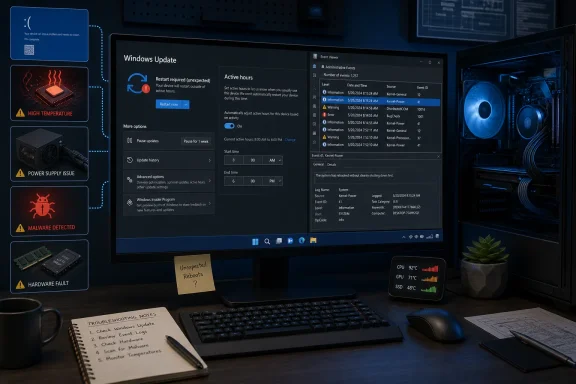 Active Hours are the first control to set
For ordinary update restarts, the consumer-facing answer is Windows’ Active Hours setting. Microsoft documents that Windows uses this period to identify when a device is normally in use and schedules automatic restarts outside it where possible.On Windows 11, the setting is at Settings > Windows Update > Advanced options > Active hours. Users can let Windows adjust the range automatically based on usage, or set it manually. Microsoft says newer Windows releases support an Active Hours window of up to 18 hours.
That will not prevent updates from downloading or installing. It is intended to reduce the chance that Windows chooses a restart time while someone is working. Users should still save work regularly and respond to a pending-restart notification rather than assuming the PC can be left indefinitely.
Pausing updates is temporary, not a cure-all
The Odessa American column also recommends using Pause updates for a short-term interruption, such as during a critical project. That is sensible for an individual system, provided the pause is removed promptly. Delaying updates also delays security fixes, and Windows will eventually require updates to resume.Microsoft’s own Windows Update guidance favors automatic updates and lets users manage restart timing through Active Hours and restart notifications instead of disabling the service. For managed PCs, administrators have more granular options through Group Policy, mobile-device management, or Windows Update for Business policies.
Useful controls for IT admins include policies to define Active Hours, configure update deadlines, and prevent auto-restarts during the active period. Microsoft also notes that older restart-management policies are not necessarily applicable to Windows 11, so admins should avoid relying on legacy registry tweaks copied from old support forums.
A reboot outside Windows Update needs diagnosis
The advice has an important limitation: Active Hours and update pauses only affect update-driven restarts. A machine that is rebooting after a blue screen, thermal shutdown, power fault, driver crash, disk failure, or malware incident will keep doing so until the underlying issue is resolved.Microsoft’s restart-management documentation confirms that Windows Update restarts are separately configurable, while Windows itself cannot be configured to override hardware or system-failure shutdowns. Event Viewer can help distinguish a planned update restart from an unexpected power loss or bugcheck, but it will not repair bad RAM, a failing power supply, or an overheating CPU.
For most home users, set Active Hours, keep updates enabled, and investigate any reboot that does not line up with Windows Update activity.
References
- Primary source: Odessa American
Published: 2026-07-19T17:00:47+00:00
IT'S GEEK TO ME: Take control of how and when Windows reboots - Odessa American
The Odessa American is the leading source of local news, information, entertainment and sports for the Permian Basin.www.oaoa.com
