

Windows 11 can restart more than once while completing a Windows 11 update, and the right default is to let the planned process finish rather than force a shutdown. Multiple restarts during a configuring-updates sequence are not, by themselves, evidence of a fault. The warning signs are a recurring rollback, a visible stop code, or a cycle that never reaches a usable desktop.
Microsoft’s update model explains why. Windows Update can download and stage files while the PC is running, then apply changes around a restart when files and services that cannot be replaced in the live operating system are no longer in use. Microsoft also says an update is not fully complete until its required restart finishes.
WindowsForum readers regularly raise the practical side of that distinction: a restart request can interrupt work, but ignoring it can leave security and servicing changes unfinished. The useful rule is not that every update needs a fixed number of reboots. It is that Windows should be allowed to complete the restart sequence it explicitly requests—unless the evidence changes from planned configuration to a failure.
The status page matters more than counting reboots. A device that starts normally and no longer shows a restart requirement in Windows Update has a much stronger completion signal than one that simply rebooted once.
That does not mean Microsoft promises a particular reboot count for every update. Monthly cumulative updates, feature updates, hardware configurations, and pending servicing work can all produce different experiences. A single reboot can be enough for one device; another may have additional planned restart phases.
If Windows returns to the desktop and then requests another restart, it may be checking or completing pending update work, but the desktop return alone does not prove that. Check the actual status at Start > Settings > Windows Update. If it still says a restart is required, use the offered restart option and then return to that page after sign-in.
For more detail about what installed and whether an update failed, open:
Start > Settings > Windows Update > Update history
That page is useful when an update appears to have completed but Windows Update still reports a problem or another action is needed.
Windows 11 also includes checkpoint cumulative updates in some servicing scenarios. Microsoft says Windows Update and Windows Server Update Services handle prerequisite checkpoints seamlessly. Their existence does not mean home users should manually install a chain of packages or expect a prescribed number of restarts.
The more useful distinction is behavioral:
WindowsForum’s reader discussions about rebooting after updates support the same practical point: completing a requested restart is important for security and productivity, but “restart to finish” is not a reason to ignore a repeatable error pattern.
If you can reach the Windows sign-in screen, enter the Windows Recovery Environment without cutting power:
To review update results from a working desktop, go to:
Start > Settings > Windows Update > Update history
Then return to:
Start > Settings > Windows Update
Read the current status before attempting another restart or another update. If Windows Update offers a specific error code, record that code along with any stop code seen during boot. Those details are far more actionable for a help desk, system administrator, or support forum than “it restarted a lot.”
That does not make shutdown inherently wrong. It does mean a shutdown choice is not always a substitute for a restart Windows Update specifically requests. When the Windows Update page says a restart is needed, choose Restart now or schedule the restart through Windows Update instead of assuming a power-off action will complete the same servicing work.
For organizations, the same principle applies to managed devices. A restart-pending state is not the same as successful update compliance. Check the final Windows Update status, any recorded error, and whether the device can return to normal use.
The safest response to Windows 11 restarting “again” is to judge the outcome, not the reboot count. Let planned configuration complete. If Windows instead rolls back repeatedly, shows a stop code, or cannot reach a usable desktop, stop waiting, record the evidence, and use the recovery path.
Microsoft’s update model explains why. Windows Update can download and stage files while the PC is running, then apply changes around a restart when files and services that cannot be replaced in the live operating system are no longer in use. Microsoft also says an update is not fully complete until its required restart finishes.
WindowsForum readers regularly raise the practical side of that distinction: a restart request can interrupt work, but ignoring it can leave security and servicing changes unfinished. The useful rule is not that every update needs a fixed number of reboots. It is that Windows should be allowed to complete the restart sequence it explicitly requests—unless the evidence changes from planned configuration to a failure.
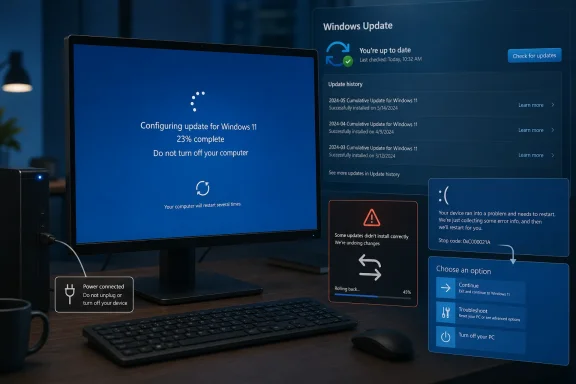 Quick Triage: Wait, Restart, or Troubleshoot
| What you see | What to do |
|---|---|
| A planned configuring-updates message, percentage screen, or restart screen | Keep the PC connected to power and let it continue. Avoid interrupting Windows while it displays planned update configuration; Microsoft says the update is not fully complete until its required restart finishes. |
| Windows reaches the desktop but still asks to restart | Select Start > Settings > Windows Update, review the status, restart if Windows requests it, and check the status again afterward. |
| Repeated rollback messages, a visible stop code, or no usable desktop | Record any error or stop code, then move to recovery steps rather than treating the behavior as a normal update restart. |
Why an Update Can Appear to Finish More Than Once
Windows can prepare part of an update while you are using the PC and complete other parts at restart. That can make one update look like several separate events: Windows installs files, restarts, displays more configuration activity, and restarts again before returning to sign-in.That does not mean Microsoft promises a particular reboot count for every update. Monthly cumulative updates, feature updates, hardware configurations, and pending servicing work can all produce different experiences. A single reboot can be enough for one device; another may have additional planned restart phases.
If Windows returns to the desktop and then requests another restart, it may be checking or completing pending update work, but the desktop return alone does not prove that. Check the actual status at Start > Settings > Windows Update. If it still says a restart is required, use the offered restart option and then return to that page after sign-in.
For more detail about what installed and whether an update failed, open:
Start > Settings > Windows Update > Update history
That page is useful when an update appears to have completed but Windows Update still reports a problem or another action is needed.
Windows 11 also includes checkpoint cumulative updates in some servicing scenarios. Microsoft says Windows Update and Windows Server Update Services handle prerequisite checkpoints seamlessly. Their existence does not mean home users should manually install a chain of packages or expect a prescribed number of restarts.
A Long Restart Is Not the Same as a Restart Loop
A long configuration screen can be frustrating, especially when Windows seemed ready before the reboot. But time alone does not identify a failure. During update configuration, Windows may not have the normal desktop available and may provide limited progress detail.The more useful distinction is behavioral:
- Planned configuration: Windows displays update-related messaging, may restart again, and eventually reaches Windows normally.
- Rollback pattern: Windows repeatedly indicates that it is undoing changes, then returns to the same unsuccessful update attempt.
- Stop-code event: Windows displays an error screen with an identifier before restarting.
- Boot failure: Windows cannot reach a usable desktop or returns to the same error state after each attempt.
WindowsForum’s reader discussions about rebooting after updates support the same practical point: completing a requested restart is important for security and productivity, but “restart to finish” is not a reason to ignore a repeatable error pattern.
Recovery Steps When Windows Will Not Complete Normally
If the PC has clearly entered a rollback loop, repeatedly displays a stop code, or cannot provide a usable desktop, preserve the evidence first. Photograph or write down the exact stop code and wording on screen. Note whether Windows says it is configuring updates or undoing changes.If you can reach the Windows sign-in screen, enter the Windows Recovery Environment without cutting power:
- On the sign-in screen, select the Power button.
- Hold down Shift.
- While holding Shift, select Restart.
- Keep holding Shift until the Choose an option screen appears.
- Select Troubleshoot > Advanced options.
- Select Startup Repair if Windows cannot start normally.
- Select Startup Settings > Restart to display startup choices.
- After the PC restarts to Startup Settings, press 4 or F4 for Enable Safe Mode.
- Press 5 or F5 for Enable Safe Mode with Networking only if you specifically need network access for support instructions or managed IT tools.
To review update results from a working desktop, go to:
Start > Settings > Windows Update > Update history
Then return to:
Start > Settings > Windows Update
Read the current status before attempting another restart or another update. If Windows Update offers a specific error code, record that code along with any stop code seen during boot. Those details are far more actionable for a help desk, system administrator, or support forum than “it restarted a lot.”
Shutdown and Restart Are Not Always Interchangeable
WindowsForum coverage of “Update and shut down” behavior is relevant here. Readers have encountered cases where shutdown, restart, hibernation, and Fast Startup did not produce the outcome they expected. Recent Windows servicing changes have also affected how reliably the Start menu’s update-and-shutdown option powers off in the scenarios Microsoft targeted.That does not make shutdown inherently wrong. It does mean a shutdown choice is not always a substitute for a restart Windows Update specifically requests. When the Windows Update page says a restart is needed, choose Restart now or schedule the restart through Windows Update instead of assuming a power-off action will complete the same servicing work.
For organizations, the same principle applies to managed devices. A restart-pending state is not the same as successful update compliance. Check the final Windows Update status, any recorded error, and whether the device can return to normal use.
Frequently Asked Questions
Is it normal for Windows 11 to restart more than once during an update?
It can be. Windows stages updates while running and completes some changes around restarts, so multiple planned restart phases can occur. Successful completion and the final Windows Update status matter more than the number of reboots.Should I force the PC off if the configuring-updates screen seems slow?
No. Keep the device powered and connected to power while Windows is showing planned update configuration. Microsoft says the update is not fully complete until its required restart finishes.When is a repeated restart a real problem?
Treat it as a problem when Windows repeatedly undoes changes, returns to the same failure state, cannot reach a usable desktop, or shows a visible stop code. Record the code and use the Windows Recovery Environment rather than repeatedly interrupting startup.Where can I see whether an update installed or failed?
Open Start > Settings > Windows Update > Update history. Then check Start > Settings > Windows Update for the current status and any restart requirement.Do checkpoint cumulative updates mean I must install updates manually in stages?
No. Microsoft says Windows Update and WSUS handle checkpoint prerequisites seamlessly. Install the offered update, restart when prompted, and verify the final status in Windows Update.The safest response to Windows 11 restarting “again” is to judge the outcome, not the reboot count. Let planned configuration complete. If Windows instead rolls back repeatedly, shows a stop code, or cannot reach a usable desktop, stop waiting, record the evidence, and use the recovery path.
References
- Primary source: learn.microsoft.com
Checkpoint cumulative updates and the Microsoft Update Catalog | Microsoft Learn
This article describes how to handle checkpoint cumulative updates when you use the Microsoft Update Catalog to update devices and images.learn.microsoft.com - Independent coverage: support.microsoft.com
Windows Update: FAQ | Microsoft Support
Learn how to get the latest Windows updates. Find answers to FAQ about updating Windows to keep your PC up to date.support.microsoft.com - Primary source: WindowsForum
The Importance of Rebooting After Windows 11 Updates | Windows Forum
Understanding Windows 11 Updates and the Role of Rebooting When we talk about Windows updates, particularly in the era of Windows 11, it’s crucial to grasp...windowsforum.com
