

Microsoft’s most irritating bundled Windows 11 apps in 2026 are Edge, OneDrive, the new Outlook, and Clipchamp, not because they are useless, but because each increasingly doubles as a delivery vehicle for Microsoft accounts, subscriptions, cloud services, advertising, or Copilot-era product strategy. That is the real bloat story. The problem is no longer that Windows ships with too many small utilities; it is that its defaults now behave like strategic beachheads. The open-source alternatives matter because they restore a simpler bargain: an app should do the job you installed it for.
There was a time when complaining about bundled Windows apps meant grumbling about Start menu clutter, trialware, or a few megabytes of cruft on a hard drive. That argument feels quaint now. Storage is cheap, Windows images are enormous anyway, and the real cost of preinstalled software is no longer measured in gigabytes.
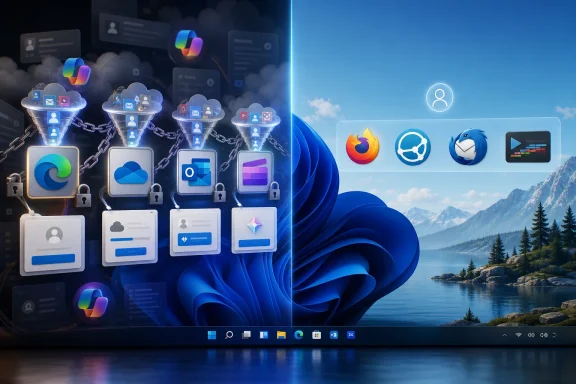
The modern complaint is about attention, defaults, and leverage. Windows 11 is not merely an operating system that happens to include apps; it is a distribution channel for Microsoft’s cloud, advertising, browser, AI, and subscription businesses. That distinction matters because the bundled app is no longer just a convenience. It is a funnel.
Edge wants to be the browser you never replace. OneDrive wants to be the folder you forget is syncing. Outlook wants to turn local mail habits into a Microsoft 365-shaped workflow. Clipchamp wants to make even trimming a clip feel like a cloud-connected account experience.
None of these apps is universally bad. Edge is technically competent, OneDrive is valuable for Microsoft 365 customers, Outlook is unavoidable in many workplaces, and Clipchamp can get a quick edit done. The frustration is that each app arrives with an agenda larger than the user’s immediate task.
Instead, Edge often feels like a browser wrapped in a retention campaign. It has carried sidebars, shopping prompts, Microsoft account nudges, Bing integrations, Copilot entry points, and enough first-run ceremony to remind users that Microsoft sees browsing as a strategic front. The browser works, but it rarely lets you forget who owns it.
That is what makes the common “just use Chrome” answer unsatisfying. Chrome is dominant, but it is hardly an escape from platform leverage. Switching from Edge to Chrome mostly trades Microsoft’s ecosystem gravity for Google’s.
Firefox remains the more interesting recommendation because it is one of the few mainstream browsers not built around Chromium. That matters for the health of the web as much as for individual privacy. A web where every major browser engine is effectively downstream of Google’s priorities is not a competitive web in the fullest sense.
Firefox is not perfect, and Mozilla has made its own unpopular product decisions over the years. But as a daily browser it still presents a cleaner proposition: open the web, block more of the junk by default, customize the experience, and avoid being dragged quite so aggressively into one vendor’s operating-system agenda. For Windows users tired of Edge’s constant attempts to become more than a browser, that restraint is a feature.
That is why browser choice remains a live issue even in a world where changing defaults is easier than it once was. The formal setting is only one layer. Search boxes, widgets, Copilot surfaces, help links, app integrations, and first-party prompts all shape the practical default.
For sysadmins, the problem is less emotional but more operational. A consumer can ignore prompts or install Firefox in five minutes. An administrator managing hundreds or thousands of endpoints has to care about policies, update channels, user confusion, compliance defaults, and whether a new AI-adjacent browser feature appears in a place where it was not expected.
Edge’s enterprise story is strong in part because Microsoft can bind it tightly to Windows management, Microsoft Entra, Defender, and Microsoft 365. That is rational for Microsoft and often convenient for IT. But convenience becomes lock-in when the boundary between “managed browser” and “preferred Microsoft services launcher” gets blurry.
This is where Firefox is less a perfect replacement than a statement of architecture. It says the browser should be a browser first. For many WindowsForum readers, that principle alone is worth the install.
The problem is the consumer Windows experience, where OneDrive’s helpfulness often arrives as pressure. Sign in to Windows, open File Explorer, configure a new PC, and OneDrive is rarely far away. Microsoft’s pitch is simple: your files should follow you, your Desktop and Documents folders should be protected, and cloud storage should become the assumed layer underneath local work.
That pitch can be good advice. It can also be a recipe for confusion. Many users do not understand when a file is local, cloud-only, synced, backed up, or silently tied to a Microsoft account. The moment storage fills up, the helpful sync client becomes an upsell surface.
This is why Syncthing is such a compelling alternative for a specific class of user. It is not a cloud storage service, and pretending otherwise misses the point. Syncthing is for people who want files synchronized between their own devices without handing the job to a commercial cloud provider.
That distinction is powerful. If your real need is “keep this folder current on my desktop and laptop,” OneDrive may be more infrastructure than you need. Syncthing gives you synchronization without turning the folder into a subscription conversation.
There are trade-offs. Syncthing will not replace OneDrive’s web interface, Office document collaboration, recycle-bin recovery, or effortless restore flow for mainstream Microsoft 365 households. It is not the tool to recommend to every relative who just wants photos backed up without thinking.
But Windows power users have different instincts. They may already distrust automatic known-folder backup, dislike account-driven setup flows, or want to know exactly where their files live. For them, Syncthing is not a downgrade. It is a return to explicit control.
The more Microsoft turns Windows into an on-ramp for cloud storage, the more valuable these alternatives become. Not because cloud storage is bad, but because optional cloud storage is different from an operating system that treats local folders as unfinished until they are connected to a subscription-backed service.
That is the heart of the OneDrive complaint. It is not that OneDrive exists. It is that Windows increasingly behaves as if not using OneDrive is an edge case to be corrected.
For users, the result can feel like a bait-and-switch. The old Mail and Calendar apps were not beloved power tools, but they were lightweight, native-feeling, and easy to understand. The new Outlook is more ambitious, but also heavier with service integration, advertising for free accounts, and the sense that a simple mail client has been replaced by a portal.
That distinction matters because email is intimate infrastructure. People tolerate enormous amounts of browser churn, Start menu redesign, and settings reshuffling, but they are much less forgiving when the inbox changes. Mail clients become muscle memory.
Thunderbird is therefore not merely a nostalgia pick. It is a mature, open-source mail client that still treats email like a protocol-centered activity rather than a cloud productivity suite frontage. It supports multiple accounts, calendars, extensions, and local workflows without requiring users to buy into Microsoft’s preferred vision of the inbox.
The new Outlook may be the right answer for Microsoft 365 organizations. It may even become a better app over time. But for users who want a traditional desktop mail client, Thunderbird’s virtue is that it does not try to turn every message into an opportunity to surface adjacent services.
It is also exhausting. Many users do not want the inbox to be a cockpit. They want it to be a mailbox.
The difference sounds small until you live in the software all day. A mailbox is where messages arrive, get sorted, and get answered. A cockpit is where a vendor tries to orchestrate your entire workday.
Thunderbird’s advantage is not that it is more modern in every respect. In some corners, it still feels like software from an older desktop era. But that older desktop logic is precisely what many people miss: accounts, folders, messages, local settings, and fewer attempts to reinterpret email as a subscription platform.
For Windows users fleeing the new Outlook, the most important feature may be the absence of an ulterior motive. Thunderbird wants to manage your mail. That is enough.
There is nothing wrong with Windows including a simple video editor. In fact, Windows has long needed a clean answer for basic clip trimming, screen-recording cleanup, and casual social video edits. The gap left by Windows Movie Maker was real, and not every user needs DaVinci Resolve just to cut ten seconds off a game recording.
The problem is that Clipchamp often feels heavier than its use case. Account sign-in, templates, stock assets, premium feature boundaries, cloud-adjacent workflows, and Microsoft 365 positioning can make the app feel overbuilt for the humble job users most often bring to it. If all you want is to trim a clip, the experience should not feel like entering a creator economy storefront.
Kdenlive sits at the opposite end of the bargain. It is a real multi-track editor, open source, cross-platform, and far more capable than a basic trimming tool. It has a steeper learning curve, but it also gives users a path to grow instead of nudging them toward a paid tier or account-centered workflow.
That makes the recommendation slightly different from the Firefox, Syncthing, and Thunderbird cases. Kdenlive is not merely a cleaner substitute. It is a more serious tool. For anyone willing to learn a proper timeline editor, it is the kind of free software that makes bundled apps look small.
Their advantage is alignment. The user’s goal and the software’s goal are usually closer together. Firefox wants to browse, Syncthing wants to sync, Thunderbird wants to handle mail, and Kdenlive wants to edit video.
Microsoft’s bundled apps increasingly have two jobs. They must perform the visible function, and they must advance Microsoft’s ecosystem strategy. Sometimes those jobs coexist peacefully. Sometimes they do not.
When they conflict, the user feels it as bloat. Not bloat in the old sense of a program being too large, but bloat as accumulated commercial intent. Prompts, panels, sign-ins, upsells, AI buttons, default nudges, and service hooks all add weight even when the executable size is beside the point.
That is why “just uninstall it” is an inadequate answer. Some users can. Some cannot. Some components are entangled with Windows. Others return through updates, policies, or first-run experiences. And even when removal is possible, the operating system’s default posture still shapes millions of less technical users.
The issue is that Microsoft rarely lets a good app remain merely a good app. Once an app becomes strategically important, it is asked to carry more weight. It becomes a sign-in surface, a cloud attach point, a Copilot host, a Microsoft 365 prompt, a Bing reinforcement mechanism, or an advertising slot.
That burden changes the feel of Windows. A fresh Windows 11 install can still be made clean, fast, and pleasant by someone who knows what to remove, disable, or replace. But the out-of-box experience increasingly assumes that the user is not just setting up a PC. They are entering Microsoft’s service economy.
Power users have always customized Windows. What is different now is that customization feels less like preference and more like defense. The first hour with a new PC becomes an exercise in declining offers, untangling defaults, and replacing apps that are technically competent but strategically noisy.
This is where open-source alternatives have a cultural advantage. They do not need to win everyone. They only need to remain available as pressure valves for users who want software without the surrounding campaign.
But on personal PCs, lab machines, enthusiast builds, and family systems where you are the administrator, the default app stack deserves scrutiny. The question is not “Is this Microsoft app bad?” The better question is “What does this app want from me beyond the task I opened it to perform?”
If Edge is just your browser, fine. If it constantly feels like a Bing and Copilot delivery system, install Firefox. If OneDrive is your paid cloud storage backbone, use it. If it is only nagging you to sync folders you intended to keep local, try Syncthing. If the new Outlook fits your work account, accept it. If you want a quieter mail client, Thunderbird is waiting. If Clipchamp is enough for quick edits, keep it. If it feels like a toy wrapped in subscription logic, learn Kdenlive.
The healthiest Windows setup is not necessarily the one with the fewest Microsoft apps. It is the one where every app has earned its place. Defaults should be starting points, not destiny.
That distinction is especially important for less technical users. Microsoft benefits when people do not know there are alternatives, or when switching feels vaguely risky. Enthusiasts and IT pros can counter that not by preaching purity, but by recommending specific replacements that solve specific annoyances.
The next phase of Windows will almost certainly bring more AI integration, more cloud assumptions, and more attempts to turn default apps into service surfaces. Microsoft will describe much of this as convenience, and sometimes it will be right. But convenience that cannot take no for an answer eventually becomes coercion, and the best answer remains the oldest one in personal computing: install tools that serve the user first, then make the operating system work around them.
 Windows Bloat Has Become a Business Model, Not a Disk-Space Problem
There was a time when complaining about bundled Windows apps meant grumbling about Start menu clutter, trialware, or a few megabytes of cruft on a hard drive. That argument feels quaint now. Storage is cheap, Windows images are enormous anyway, and the real cost of preinstalled software is no longer measured in gigabytes.The modern complaint is about attention, defaults, and leverage. Windows 11 is not merely an operating system that happens to include apps; it is a distribution channel for Microsoft’s cloud, advertising, browser, AI, and subscription businesses. That distinction matters because the bundled app is no longer just a convenience. It is a funnel.
Edge wants to be the browser you never replace. OneDrive wants to be the folder you forget is syncing. Outlook wants to turn local mail habits into a Microsoft 365-shaped workflow. Clipchamp wants to make even trimming a clip feel like a cloud-connected account experience.
None of these apps is universally bad. Edge is technically competent, OneDrive is valuable for Microsoft 365 customers, Outlook is unavoidable in many workplaces, and Clipchamp can get a quick edit done. The frustration is that each app arrives with an agenda larger than the user’s immediate task.
Edge Is a Good Browser Trapped Inside a Growth Strategy
Microsoft Edge is the most complicated case because the browser itself is not the punchline. The Chromium-based Edge is fast, compatible, secure enough for enterprise deployment, and far removed from the Internet Explorer era. If Microsoft had simply shipped it as a polished browser and let users make up their own minds, Edge would be much harder to criticize.Instead, Edge often feels like a browser wrapped in a retention campaign. It has carried sidebars, shopping prompts, Microsoft account nudges, Bing integrations, Copilot entry points, and enough first-run ceremony to remind users that Microsoft sees browsing as a strategic front. The browser works, but it rarely lets you forget who owns it.
That is what makes the common “just use Chrome” answer unsatisfying. Chrome is dominant, but it is hardly an escape from platform leverage. Switching from Edge to Chrome mostly trades Microsoft’s ecosystem gravity for Google’s.
Firefox remains the more interesting recommendation because it is one of the few mainstream browsers not built around Chromium. That matters for the health of the web as much as for individual privacy. A web where every major browser engine is effectively downstream of Google’s priorities is not a competitive web in the fullest sense.
Firefox is not perfect, and Mozilla has made its own unpopular product decisions over the years. But as a daily browser it still presents a cleaner proposition: open the web, block more of the junk by default, customize the experience, and avoid being dragged quite so aggressively into one vendor’s operating-system agenda. For Windows users tired of Edge’s constant attempts to become more than a browser, that restraint is a feature.
The Browser Choice Screen Never Solved the Default Problem
Microsoft has learned from the Internet Explorer antitrust era, but it has not abandoned the instinct that the browser is too important to leave alone. The tactics are more polished now. The operating system may let you set a default browser, but the surrounding experience still has ways to pull users back toward Edge, Bing, and Microsoft account services.That is why browser choice remains a live issue even in a world where changing defaults is easier than it once was. The formal setting is only one layer. Search boxes, widgets, Copilot surfaces, help links, app integrations, and first-party prompts all shape the practical default.
For sysadmins, the problem is less emotional but more operational. A consumer can ignore prompts or install Firefox in five minutes. An administrator managing hundreds or thousands of endpoints has to care about policies, update channels, user confusion, compliance defaults, and whether a new AI-adjacent browser feature appears in a place where it was not expected.
Edge’s enterprise story is strong in part because Microsoft can bind it tightly to Windows management, Microsoft Entra, Defender, and Microsoft 365. That is rational for Microsoft and often convenient for IT. But convenience becomes lock-in when the boundary between “managed browser” and “preferred Microsoft services launcher” gets blurry.
This is where Firefox is less a perfect replacement than a statement of architecture. It says the browser should be a browser first. For many WindowsForum readers, that principle alone is worth the install.
OneDrive Turns a Folder Into a Subscription Argument
OneDrive is arguably the most useful app on the list for people already paying for Microsoft 365. A terabyte of storage, Office integration, known-folder backup, Files On-Demand, and cross-device access are not trivial perks. In a managed organization, OneDrive can be an essential part of endpoint resilience and document governance.The problem is the consumer Windows experience, where OneDrive’s helpfulness often arrives as pressure. Sign in to Windows, open File Explorer, configure a new PC, and OneDrive is rarely far away. Microsoft’s pitch is simple: your files should follow you, your Desktop and Documents folders should be protected, and cloud storage should become the assumed layer underneath local work.
That pitch can be good advice. It can also be a recipe for confusion. Many users do not understand when a file is local, cloud-only, synced, backed up, or silently tied to a Microsoft account. The moment storage fills up, the helpful sync client becomes an upsell surface.
This is why Syncthing is such a compelling alternative for a specific class of user. It is not a cloud storage service, and pretending otherwise misses the point. Syncthing is for people who want files synchronized between their own devices without handing the job to a commercial cloud provider.
That distinction is powerful. If your real need is “keep this folder current on my desktop and laptop,” OneDrive may be more infrastructure than you need. Syncthing gives you synchronization without turning the folder into a subscription conversation.
Sync Without the Cloud Is a Different Kind of Trust
Syncthing’s appeal is philosophical, but it is also practical. It uses peer-to-peer synchronization, it is open source, and it does not require a central storage provider to hold the canonical copy of your data. For users with a NAS, a home server, or a few always-on machines, that model feels refreshingly direct.There are trade-offs. Syncthing will not replace OneDrive’s web interface, Office document collaboration, recycle-bin recovery, or effortless restore flow for mainstream Microsoft 365 households. It is not the tool to recommend to every relative who just wants photos backed up without thinking.
But Windows power users have different instincts. They may already distrust automatic known-folder backup, dislike account-driven setup flows, or want to know exactly where their files live. For them, Syncthing is not a downgrade. It is a return to explicit control.
The more Microsoft turns Windows into an on-ramp for cloud storage, the more valuable these alternatives become. Not because cloud storage is bad, but because optional cloud storage is different from an operating system that treats local folders as unfinished until they are connected to a subscription-backed service.
That is the heart of the OneDrive complaint. It is not that OneDrive exists. It is that Windows increasingly behaves as if not using OneDrive is an edge case to be corrected.
The New Outlook Shows How Replacement Apps Can Feel Like Downgrades
The new Outlook for Windows is another example of Microsoft solving a strategic problem while creating a user-experience problem. Microsoft wants a unified Outlook experience across Windows, the web, and Microsoft 365. That makes sense from a product management perspective. It reduces legacy code, centralizes development, and brings consumer Windows mail closer to the web service Microsoft actually wants to maintain.For users, the result can feel like a bait-and-switch. The old Mail and Calendar apps were not beloved power tools, but they were lightweight, native-feeling, and easy to understand. The new Outlook is more ambitious, but also heavier with service integration, advertising for free accounts, and the sense that a simple mail client has been replaced by a portal.
That distinction matters because email is intimate infrastructure. People tolerate enormous amounts of browser churn, Start menu redesign, and settings reshuffling, but they are much less forgiving when the inbox changes. Mail clients become muscle memory.
Thunderbird is therefore not merely a nostalgia pick. It is a mature, open-source mail client that still treats email like a protocol-centered activity rather than a cloud productivity suite frontage. It supports multiple accounts, calendars, extensions, and local workflows without requiring users to buy into Microsoft’s preferred vision of the inbox.
The new Outlook may be the right answer for Microsoft 365 organizations. It may even become a better app over time. But for users who want a traditional desktop mail client, Thunderbird’s virtue is that it does not try to turn every message into an opportunity to surface adjacent services.
Email Is Too Important to Be a Portal
Microsoft’s broader Outlook strategy reflects a familiar enterprise logic: the inbox is where work happens, so the inbox should integrate with everything. Calendars, Teams, Loop, OneDrive, contacts, tasks, Copilot, and Microsoft 365 apps all make more sense if Outlook becomes the daily cockpit. That vision is coherent.It is also exhausting. Many users do not want the inbox to be a cockpit. They want it to be a mailbox.
The difference sounds small until you live in the software all day. A mailbox is where messages arrive, get sorted, and get answered. A cockpit is where a vendor tries to orchestrate your entire workday.
Thunderbird’s advantage is not that it is more modern in every respect. In some corners, it still feels like software from an older desktop era. But that older desktop logic is precisely what many people miss: accounts, folders, messages, local settings, and fewer attempts to reinterpret email as a subscription platform.
For Windows users fleeing the new Outlook, the most important feature may be the absence of an ulterior motive. Thunderbird wants to manage your mail. That is enough.
Clipchamp Makes the Smallest Task Feel Bigger Than It Should
Clipchamp is the oddest member of this quartet because video editing is not a core operating-system function in the same way browsing, file syncing, or email can be. Yet its inclusion in Windows 11 captures the same pattern. Microsoft acquired a lightweight web-friendly video editor and turned it into part of the broader Microsoft account and creator-services landscape.There is nothing wrong with Windows including a simple video editor. In fact, Windows has long needed a clean answer for basic clip trimming, screen-recording cleanup, and casual social video edits. The gap left by Windows Movie Maker was real, and not every user needs DaVinci Resolve just to cut ten seconds off a game recording.
The problem is that Clipchamp often feels heavier than its use case. Account sign-in, templates, stock assets, premium feature boundaries, cloud-adjacent workflows, and Microsoft 365 positioning can make the app feel overbuilt for the humble job users most often bring to it. If all you want is to trim a clip, the experience should not feel like entering a creator economy storefront.
Kdenlive sits at the opposite end of the bargain. It is a real multi-track editor, open source, cross-platform, and far more capable than a basic trimming tool. It has a steeper learning curve, but it also gives users a path to grow instead of nudging them toward a paid tier or account-centered workflow.
That makes the recommendation slightly different from the Firefox, Syncthing, and Thunderbird cases. Kdenlive is not merely a cleaner substitute. It is a more serious tool. For anyone willing to learn a proper timeline editor, it is the kind of free software that makes bundled apps look small.
Free Software Wins When the User’s Goal Is the Product
The common thread across Firefox, Syncthing, Thunderbird, and Kdenlive is not that open source magically produces better interfaces. It often does not. Open-source apps can be inconsistent, underfunded, awkwardly documented, and occasionally hostile to newcomers.Their advantage is alignment. The user’s goal and the software’s goal are usually closer together. Firefox wants to browse, Syncthing wants to sync, Thunderbird wants to handle mail, and Kdenlive wants to edit video.
Microsoft’s bundled apps increasingly have two jobs. They must perform the visible function, and they must advance Microsoft’s ecosystem strategy. Sometimes those jobs coexist peacefully. Sometimes they do not.
When they conflict, the user feels it as bloat. Not bloat in the old sense of a program being too large, but bloat as accumulated commercial intent. Prompts, panels, sign-ins, upsells, AI buttons, default nudges, and service hooks all add weight even when the executable size is beside the point.
That is why “just uninstall it” is an inadequate answer. Some users can. Some cannot. Some components are entangled with Windows. Others return through updates, policies, or first-run experiences. And even when removal is possible, the operating system’s default posture still shapes millions of less technical users.
Microsoft’s Strongest Apps Are Also Its Most Strategic Traps
It would be easy to write this as a simple anti-Microsoft rant, but that would miss the tension. These apps are frustrating precisely because Microsoft is capable of making good software. Edge is not a joke. OneDrive is not vaporware. Outlook is a serious productivity brand. Clipchamp fills a real gap.The issue is that Microsoft rarely lets a good app remain merely a good app. Once an app becomes strategically important, it is asked to carry more weight. It becomes a sign-in surface, a cloud attach point, a Copilot host, a Microsoft 365 prompt, a Bing reinforcement mechanism, or an advertising slot.
That burden changes the feel of Windows. A fresh Windows 11 install can still be made clean, fast, and pleasant by someone who knows what to remove, disable, or replace. But the out-of-box experience increasingly assumes that the user is not just setting up a PC. They are entering Microsoft’s service economy.
Power users have always customized Windows. What is different now is that customization feels less like preference and more like defense. The first hour with a new PC becomes an exercise in declining offers, untangling defaults, and replacing apps that are technically competent but strategically noisy.
This is where open-source alternatives have a cultural advantage. They do not need to win everyone. They only need to remain available as pressure valves for users who want software without the surrounding campaign.
The Better Windows Setup Starts by Refusing the Default Funnel
The practical advice is not to purge every Microsoft app on sight. That kind of absolutism breaks down quickly in the real world, especially in workplaces. If your organization is standardized on Microsoft 365, OneDrive and Outlook may be requirements, not choices.But on personal PCs, lab machines, enthusiast builds, and family systems where you are the administrator, the default app stack deserves scrutiny. The question is not “Is this Microsoft app bad?” The better question is “What does this app want from me beyond the task I opened it to perform?”
If Edge is just your browser, fine. If it constantly feels like a Bing and Copilot delivery system, install Firefox. If OneDrive is your paid cloud storage backbone, use it. If it is only nagging you to sync folders you intended to keep local, try Syncthing. If the new Outlook fits your work account, accept it. If you want a quieter mail client, Thunderbird is waiting. If Clipchamp is enough for quick edits, keep it. If it feels like a toy wrapped in subscription logic, learn Kdenlive.
The healthiest Windows setup is not necessarily the one with the fewest Microsoft apps. It is the one where every app has earned its place. Defaults should be starting points, not destiny.
That distinction is especially important for less technical users. Microsoft benefits when people do not know there are alternatives, or when switching feels vaguely risky. Enthusiasts and IT pros can counter that not by preaching purity, but by recommending specific replacements that solve specific annoyances.
The Apps Worth Replacing Are the Ones That Keep Asking for More
The pattern is now clear enough that Windows users can judge future bundled apps by it. The trouble starts when an app’s secondary agenda becomes more visible than its primary function. Once that happens, even genuinely useful software begins to feel bloated.- Edge is worth replacing when its browser features are outweighed by Microsoft service prompts, Copilot surfaces, and default-browser friction.
- OneDrive is worth replacing when simple folder synchronization becomes inseparable from cloud storage upsells or Microsoft account dependence.
- The new Outlook is worth replacing when email starts to feel like a Microsoft 365 portal rather than a focused inbox.
- Clipchamp is worth replacing when a quick local edit feels like an account-connected creator service.
- The best replacement is the one that matches the actual job, not the one that makes the strongest ideological statement.
The next phase of Windows will almost certainly bring more AI integration, more cloud assumptions, and more attempts to turn default apps into service surfaces. Microsoft will describe much of this as convenience, and sometimes it will be right. But convenience that cannot take no for an answer eventually becomes coercion, and the best answer remains the oldest one in personal computing: install tools that serve the user first, then make the operating system work around them.
References
- Primary source: How-To Geek
Published: Sun, 21 Jun 2026 13:00:17 GMT
The 4 most bloated Microsoft apps in Windows 11 (and what to use instead)
Discover how Microsoft's relentless push for subscriptions and ads in their apps is making users switch to open-source alternatives for a cleaner browsing and productivity experience. www.howtogeek.com
- Official source: learn.microsoft.com
Troubleshoot Copilot icon not showing in Edge sidebar - Microsoft Edge | Microsoft Learn
Resolve the missing Copilot icon in Microsoft Edge sidebar by troubleshooting for settings, policies, browser updates, and account availability.learn.microsoft.com - Official source: support.microsoft.com
Feature comparison between Clipchamp for work and personal versions | Microsoft Support
Find out which features are available in the standard and premium plans of Clipchamp for work and school accounts, and Clipchamp for personal accounts.support.microsoft.com - Related coverage: windowscentral.com
Microsoft Edge is removing its Sidebar to cut clutter while leaving the ever-controversial Copilot untouched | Windows Central
Microsoft says removing Sidebar will simplify Edge, yet Copilot is not part of the discussion.www.windowscentral.com - Official source: microsoft.com
Your request has been blocked. This could be due to several reasons.
www.microsoft.com
- Related coverage: techyorker.com
How to Remove Copilot from Microsoft Edge Sidebar on Windows 11 - TechYorker
×AIDiscover the way to a Faster PC - Chipps AI AssistantNew Update: Boost Your Device Performance Today with Chipps.Fix My... techyorker.com
- Related coverage: winbuzzer.com
Windows 11: Microsoft Copilot Will Bypass Your Default Browser
Microsoft has updated Copilot on Windows to open web links in an in-app side pane, bypassing users' default browser settings without offering an opt-out. winbuzzer.com
- Related coverage: guidingtech.com
How to Disable All Copilot AI Features in Microsoft Edge - Guiding Tech
Want to disable Copilot AI features in Microsoft Edge? You’ll need to either use Edge’s settings or the Registry Editor, but it’s fairly straightforward.www.guidingtech.com
- Related coverage: allthings.how
How to disable every AI feature on Microsoft Edge for Windows 11 without uninstalling it
Turn off Copilot, Bing chat, AI icons and background services in Edge on Windows 11 using built‑in settings, policies and registry edits.allthings.how - Related coverage: techcrunch.com
Microsoft acquires video creation and editing software maker Clipchamp | TechCrunch
Video editing software may become the next big addition to Microsoft's suite of productivity tools. On Tuesday, Microsoft announced it's acquiringtechcrunch.com - Related coverage: techradar.com
- Related coverage: tomshardware.com
Admins finally get the power to uninstall Microsoft Copilot on Windows 11 Pro, Enterprise, and EDU versions — devices must meet specific conditions to allow the removal of the AI app | Tom's Hardware
One less bloatware on Windows 11.www.tomshardware.com
