

Microsoft’s latest Windows 11 Beta releases put long-requested usability improvements ahead of headline-grabbing AI features, delivering a configurable Start menu, richer precision touchpad controls, more practical File Explorer behavior, and major accessibility advances for braille users. Build 26220.8925 for the standard Beta channel carries most of the visible changes, while Beta (26H1) Build 28020.2539 concentrates on Narrator, Voice Access, Settings reliability, and interface polish—together offering a revealing look at Microsoft’s renewed effort to make everyday Windows interactions more flexible and predictable.
Microsoft released both builds on July 20, 2026, but they belong to different Windows 11 development tracks. Build 26220.8925 is based on Windows 11 version 25H2, while Build 28020.2539 serves Insiders testing the newer 26H1 platform branch.
That distinction matters because Microsoft is no longer treating every Beta participant as if they were validating exactly the same operating-system foundation. The company has been reorganizing the Windows Insider Program to make its channels clearer, but the parallel Beta branches still require users and administrators to pay close attention to version numbers rather than relying on the word “Beta” alone.
Some features may also be delivered through controlled feature rollout technology rather than becoming available immediately to every device that installs the build. Insiders should therefore distinguish between successfully installing a build and receiving every feature listed for it.
This is not a return to the Windows 7 or Windows 10 Start menu. Instead, Microsoft is working within the visual and architectural framework of Windows 11 while restoring some of the choice that many users felt disappeared during the transition from Windows 10.
Automatic sizing remains the default, which is sensible for mainstream users who do not want to manage interface dimensions manually. The explicit small and large settings, however, give enthusiasts a way to prioritize either screen space or information density.
This is a better model than forcing users to disable several loosely related options to suppress one section. It makes the relationship between the Settings app and the visible Start layout easier to understand.
The controls also accommodate fundamentally different attitudes toward Start. Some people treat it as an application launcher, others use it to resume documents, and still others want it to function as an index of everything installed on the computer.
“Recommended” carried broader—and often unwelcome—implications. It could suggest advertising, promotional placement, or algorithmic suggestions chosen to benefit Microsoft rather than the user, even when the items shown were simply files the user had opened.
The name change does not automatically settle every concern about the content displayed there. It does, however, establish a clearer promise: this area should primarily help users return to recent work rather than act as an open-ended recommendation surface.
Windows has historically displayed account identity in prominent interface locations. That may be convenient on a private computer, but it can reveal a full name, organization identity, or account image when the desktop is being recorded or shown to others.
Nevertheless, giving users a direct switch is preferable to requiring registry changes, policy workarounds, or carefully cropped recordings. It also demonstrates that interface personalization can serve privacy and security goals rather than existing only for aesthetic preference.
The strongest version of the new page will clearly separate layout, content, account identity, and recommendation behavior. If Microsoft buries the controls in nested menus or uses ambiguous descriptions, the practical benefit will diminish despite the expanded functionality.
This will be an important area for Insider feedback. Users should test not only whether each switch works, but also whether changing multiple sections produces predictable layouts across different resolutions, scaling levels, languages, and monitor configurations.
These changes target a longstanding difference between basic gesture support and genuinely refined input. Windows has supported precision touchpads for years, but users have not always received granular control over how gestures behave across applications.
Zoom speed presents a similar tradeoff. Some users want pinch-to-zoom to respond immediately and cover a large range, while others need controlled adjustments that do not overshoot the intended scale.
System-level controls should also improve consistency. Without them, applications may implement gesture behavior differently, leaving users with an experience that feels fast in one program and sluggish in another.
The feature is particularly valuable in:
Single-finger scrolling can be particularly relevant to accessibility and specialized hardware use. It may also help people transitioning from older touchpad implementations that relied on edge-based scrolling rather than modern multitouch gestures.
The key is optionality. A one-finger gesture that benefits one user could cause accidental movement for another, so Microsoft should keep the behavior clearly configurable rather than making it an opaque default.
That qualification exposes an architectural challenge behind many modern Windows improvements. The operating system can add a new input capability, yet applications may still need framework-level updates before the behavior is fully consistent.
Traditional Win32 applications, browsers, productivity suites, and WinUI-based software may interpret scrolling through different components. Microsoft must therefore coordinate operating-system changes with its development frameworks if it wants the new controls to feel universal.
For users, the likely consequence is a transitional period in which gestures work better in some applications than others. That does not necessarily mean the touchpad driver or Windows setting is broken.
These are examples of “craft” improvements: changes that may not sell a new PC, yet can make Windows less irritating during daily use.
A multi-gigabyte disk image represented as millions of kilobytes forces the user to perform unnecessary mental conversion. Human-readable units make comparisons faster and reduce the chance of misjudging the storage impact of a file.
Microsoft still needs to maintain clear and internally consistent rounding. File Explorer should avoid showing two similarly sized files in ways that obscure meaningful differences, especially when users are troubleshooting disk usage or preparing data for constrained storage.
This makes multi-location file management more efficient. A user can preserve the current location while opening destinations, recent folders, or parent paths in the background.
The change also makes File Explorer’s tab implementation feel less bolted on. Tabs become most useful when navigation gestures work consistently throughout the interface rather than only in the main file list.
File-conflict dialogs can involve multiple choices, metadata comparisons, and potentially destructive actions. Clear announcements are therefore important not just for convenience but for data protection.
The improvement should be tested with large batches containing several conflicts, not merely a single duplicate file. Narrator needs to communicate the current conflict, available choices, selection state, and consequences without overwhelming the user with repetitive speech.
This may attract less mainstream attention than Start customization, but it is arguably the most consequential change in either release. Reducing driver and setup barriers can determine whether a deaf-blind user can independently access a new computer at all.
Microsoft identifies devices including the Orbit Reader 20, Orbit Slate 340, Freedom Scientific Focus 40, and APH Mantis Q40 as compatible examples. Actual results may still depend on firmware, connection mode, and the exact capabilities implemented by each product.
USB users should be able to connect supported hardware and begin reading with fewer preparatory steps. Bluetooth users can pair their display under Bluetooth and devices, enabling wireless operation without treating accessibility equipment as an entirely separate category of peripheral.
Accessibility that activates only after account creation leaves a critical gap. A user may otherwise require help to choose a region, configure networking, review privacy options, sign in, or create an account before the assistive technology becomes usable.
Supporting braille during setup moves Windows closer to genuine independent deployment. It also benefits schools, employers, rehabilitation organizations, and public agencies that prepare devices for users with combined hearing and vision impairments.
Microsoft must ensure that the Settings path itself remains fully accessible and that device reconnection works after sleep, restart, account switching, and Windows Update. Plug-and-play is only meaningful if it stays reliable after the first successful session.
Language support in voice interfaces is not simply a matter of translating commands. Microsoft must account for pronunciation, grammar, regional vocabulary, punctuation, application names, and the way users naturally describe interface actions.
A voice-control system that performs well only for one regional standard can produce frequent recognition errors for the other. Separate support signals that Microsoft is training and tuning the experience around actual spoken usage rather than applying a superficial language label.
Accuracy will need to be evaluated beyond controlled demonstrations. Insiders should test mixed Korean and English content, technical terminology, proper names, punctuation, application switching, and commands issued in noisy environments.
Microsoft should also examine how Voice Access behaves with interfaces that have not been fully localized. Recognition may work correctly while the user still has to refer to an English control label, creating an inconsistent multilingual experience.
The redesign fits a broader shift in Windows from a locally licensed operating system toward an account-connected service platform. Microsoft 365, OneDrive storage, Game Pass, Copilot offerings, and other subscriptions increasingly intersect with the Windows shell.
A consolidated flyout can reduce trips to websites and separate applications. It could also help users distinguish between Windows licensing, Microsoft account status, cloud storage, and Microsoft 365 entitlements—areas that are frequently conflated.
Microsoft should observe several boundaries:
Build 26220.8925 fixes an update-installation failure and improves mouse cursor size persistence. Build 28020.2539 repairs a Graphics Settings crash, enables gamepad navigation in Bluetooth quick settings, and modifies system sounds for dark mode.
A build that repeatedly fails before installation provides little useful feature feedback and may strand devices on older test releases. Fixing the servicing path therefore has broader value than resolving a single visible bug.
Insiders who previously encountered the error should still maintain current backups before retrying. A stated fix reduces the known risk but does not make pre-release operating-system installation equivalent to deploying a stable cumulative update.
A cursor that silently returns to its default size may be a minor annoyance for one person and a serious usability barrier for someone with low vision. Persistence fixes are therefore part of accessibility quality, even when they appear under the broader Input category.
Microsoft’s growing attention to gamepad navigation reflects the diversification of Windows hardware. A system designed around keyboard and mouse input alone feels incomplete on devices intended to be used primarily with controllers.
The challenge is continuity. Users should not be able to open a page with a gamepad only to encounter a dialog, credential prompt, or secondary menu that suddenly requires touch or a mouse.
Softer or less bright-sounding cues could make dark mode feel more cohesive, particularly at night. Microsoft must avoid reducing clarity, however, because system sounds convey warnings, confirmations, device events, and accessibility-relevant state changes.
Start sizing and section controls provide the most immediate visible benefit. Touchpad acceleration could have an equally large practical effect on laptops, even though it is less likely to dominate screenshots or marketing materials.
Users with convertible PCs may also appreciate the expanding range of input options. Windows increasingly needs to transition smoothly among touch, touchpad, pen, mouse, keyboard, voice, braille, and controller input without treating any one method as an afterthought.
That does not mean third-party Start utilities will become irrelevant. Many provide deeper customization than Microsoft is likely to expose, including classic layouts, custom grouping, and extensive visual changes.
The Beta build nevertheless narrows the gap between stock Windows and what users have been requesting. Microsoft appears to recognize that a modern interface does not have to be a rigid interface.
The accessibility improvements deserve particular attention from organizations subject to workplace accommodation requirements. HID braille support during setup could simplify device provisioning and enable employees to participate more independently in onboarding.
A sensible enterprise model would separate configuration from enforcement. Organizations could establish an initial Start layout without permanently preventing employees from adapting it to their work.
Microsoft should also document how section visibility interacts with existing Start policies, mobile device management, assigned access, shared-PC mode, and provisioned pinned applications.
Accessibility teams should also validate HID braille behavior with the exact devices and firmware deployed by the organization. A standard improves interoperability, but it does not eliminate the need for real-world compatibility testing.
Key strengths include:
The principal concerns are:
Some changes could arrive through cumulative updates or controlled feature rollouts once Microsoft considers them ready. Others—particularly those with framework dependencies—may require a longer validation period.
Future release notes must state clearly which features belong to which branch, whether users can move between them, and what happens to their ability to return to a stable version. A cleaner Insider Program cannot rely on users decoding build-number families from memory.
Voice Access expansion likewise needs evaluation across dialects, applications, mixed-language content, and less-than-ideal acoustic conditions. Accessibility features become dependable only when they survive the messy realities of everyday computing.
Microsoft’s July 20 Beta releases do not reinvent Windows 11, but they address several of the operating system’s most persistent usability weaknesses with practical, technically meaningful changes. A configurable Start menu, better touchpad behavior, more coherent File Explorer navigation, and standards-based braille support all point toward a Windows strategy built around flexibility and craft; if Microsoft can preserve that direction while controlling promotional clutter, framework fragmentation, and Insider-channel confusion, these modest-looking improvements could collectively make Windows 11 feel substantially more mature.
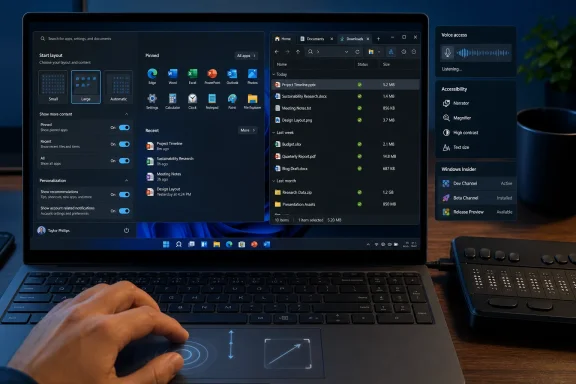 Overview
Microsoft released both builds on July 20, 2026, but they belong to different Windows 11 development tracks. Build 26220.8925 is based on Windows 11 version 25H2, while Build 28020.2539 serves Insiders testing the newer 26H1 platform branch.That distinction matters because Microsoft is no longer treating every Beta participant as if they were validating exactly the same operating-system foundation. The company has been reorganizing the Windows Insider Program to make its channels clearer, but the parallel Beta branches still require users and administrators to pay close attention to version numbers rather than relying on the word “Beta” alone.
Two Beta builds with different priorities
Build 26220.8925 is the more substantial release for most Windows enthusiasts. It introduces or broadens testing for the following changes:- The Start menu can be set to a small, large, or automatic size.
- Pinned, Recent, and All sections can be enabled or disabled independently.
- Precision touchpads gain controls for scrolling and zoom speed.
- Accelerated scrolling makes long documents easier to navigate.
- File Explorer shows file sizes using more appropriate units.
- Middle-clicking folders can open them in new tabs.
- HID-compatible braille displays connect more directly to Narrator.
- The Account Control flyout receives a new subscription-focused design.
These features are still in testing
As always, an Insider appearance does not guarantee that every feature will ship unchanged to stable Windows 11 installations. Microsoft may revise, delay, selectively deploy, or remove experimental functionality based on compatibility data and feedback.Some features may also be delivered through controlled feature rollout technology rather than becoming available immediately to every device that installs the build. Insiders should therefore distinguish between successfully installing a build and receiving every feature listed for it.
The Start Menu Becomes More Configurable
The Start menu is the centerpiece of Build 26220.8925. Microsoft is moving away from the relatively rigid layout that characterized the first several years of Windows 11 and toward a modular interface that users can shape around their preferred workflow.This is not a return to the Windows 7 or Windows 10 Start menu. Instead, Microsoft is working within the visual and architectural framework of Windows 11 while restoring some of the choice that many users felt disappeared during the transition from Windows 10.
Small, large, and automatic sizes
The revised settings provide three Start menu sizing options:- Automatic allows Windows to choose an appropriate layout based on the display and available space.
- Small creates a more compact Start experience for users who want faster access without covering as much of the desktop.
- Large provides more room for apps and recent content, reducing the need for scrolling.
Automatic sizing remains the default, which is sensible for mainstream users who do not want to manage interface dimensions manually. The explicit small and large settings, however, give enthusiasts a way to prioritize either screen space or information density.
Section-level controls remove unwanted content
Build 26220.8925 also provides independent switches for the Pinned, Recent, and All sections. A user can therefore build a minimal Start menu containing only pinned applications, emphasize recent activity, or retain a broader all-in-one launcher.This is a better model than forcing users to disable several loosely related options to suppress one section. It makes the relationship between the Settings app and the visible Start layout easier to understand.
The controls also accommodate fundamentally different attitudes toward Start. Some people treat it as an application launcher, others use it to resume documents, and still others want it to function as an index of everything installed on the computer.
Recommended becomes Recent
Microsoft is renaming the Recommended section to Recent, both in Start and on the corresponding Settings page. The revised name more accurately describes a section largely populated by recently installed applications and recently accessed files.“Recommended” carried broader—and often unwelcome—implications. It could suggest advertising, promotional placement, or algorithmic suggestions chosen to benefit Microsoft rather than the user, even when the items shown were simply files the user had opened.
The name change does not automatically settle every concern about the content displayed there. It does, however, establish a clearer promise: this area should primarily help users return to recent work rather than act as an open-ended recommendation surface.
Privacy and Presentation Improvements in Start
The redesigned Start settings include an option to hide the user’s name and profile picture. It is a small switch with practical implications for screen sharing, live streaming, classroom demonstrations, and workplace presentations.Windows has historically displayed account identity in prominent interface locations. That may be convenient on a private computer, but it can reveal a full name, organization identity, or account image when the desktop is being recorded or shown to others.
A useful control for shared screens
The option should appeal to several groups:- Presenters can open Start without exposing account information to an audience.
- Streamers can reduce the chance of revealing personally identifying details.
- Support technicians can capture screenshots with less manual redaction.
- Shared-device users can create a cleaner, less personalized interface.
- Enterprises can reduce incidental disclosure during demonstrations and training.
Nevertheless, giving users a direct switch is preferable to requiring registry changes, policy workarounds, or carefully cropped recordings. It also demonstrates that interface personalization can serve privacy and security goals rather than existing only for aesthetic preference.
A more coherent Settings page
Microsoft has redesigned the Start settings page to accommodate the new controls. That work is essential because adding options without reconsidering their organization can make Windows more powerful but less understandable.The strongest version of the new page will clearly separate layout, content, account identity, and recommendation behavior. If Microsoft buries the controls in nested menus or uses ambiguous descriptions, the practical benefit will diminish despite the expanded functionality.
This will be an important area for Insider feedback. Users should test not only whether each switch works, but also whether changing multiple sections produces predictable layouts across different resolutions, scaling levels, languages, and monitor configurations.
Precision Touchpads Gain Desktop-Class Controls
Build 26220.8925 adds new gesture-related settings for precision touchpads, including baseline scroll and zoom speed. It also introduces accelerated scrolling, under which repeated scrolling increases traversal speed.These changes target a longstanding difference between basic gesture support and genuinely refined input. Windows has supported precision touchpads for years, but users have not always received granular control over how gestures behave across applications.
Adjustable scrolling and zooming
A baseline speed control lets the user decide how much content moves in response to a gesture. A slower setting can improve precision when reviewing spreadsheets, editing graphics, or navigating dense interfaces, while a faster setting can reduce repeated finger movement when reading long pages.Zoom speed presents a similar tradeoff. Some users want pinch-to-zoom to respond immediately and cover a large range, while others need controlled adjustments that do not overshoot the intended scale.
System-level controls should also improve consistency. Without them, applications may implement gesture behavior differently, leaving users with an experience that feels fast in one program and sluggish in another.
Accelerated scrolling reduces repetitive input
Accelerated scrolling increases speed when the user performs repeated scroll actions. The concept is comparable to pointer acceleration: an initially controlled movement can become faster when the system detects that the user is trying to cover a greater distance.The feature is particularly valuable in:
- Long documents and technical manuals.
- Large spreadsheets and database views.
- Extensive web pages and discussion threads.
- Source-code files with thousands of lines.
- Photo libraries and file collections.
- Lengthy Settings or management interfaces.
Automatic and single-finger behavior
Microsoft’s touchpad preview also encompasses automatic scrolling and optional single-finger scrolling support. These capabilities broaden the range of interaction styles available to users, including those who find standard two-finger gestures difficult or uncomfortable.Single-finger scrolling can be particularly relevant to accessibility and specialized hardware use. It may also help people transitioning from older touchpad implementations that relied on edge-based scrolling rather than modern multitouch gestures.
The key is optionality. A one-finger gesture that benefits one user could cause accidental movement for another, so Microsoft should keep the behavior clearly configurable rather than making it an opaque default.
WinUI 3 Compatibility Is the Technical Catch
Microsoft says the new touchpad functions should work broadly across applications, but WinUI 3 interfaces require newer Windows App SDK releases for complete functionality. The company is working to bring the necessary changes to Windows App SDK versions 1.8 and 2.0.That qualification exposes an architectural challenge behind many modern Windows improvements. The operating system can add a new input capability, yet applications may still need framework-level updates before the behavior is fully consistent.
Why application frameworks matter
Windows input travels through multiple layers: hardware, drivers, operating-system gesture recognition, application frameworks, and application-specific controls. A failure or limitation at any layer can make a system-wide feature appear unreliable.Traditional Win32 applications, browsers, productivity suites, and WinUI-based software may interpret scrolling through different components. Microsoft must therefore coordinate operating-system changes with its development frameworks if it wants the new controls to feel universal.
For users, the likely consequence is a transitional period in which gestures work better in some applications than others. That does not necessarily mean the touchpad driver or Windows setting is broken.
What developers should test
Developers maintaining WinUI 3 applications should verify several behaviors as updated Windows App SDK components become available:- Confirm that scroll-speed adjustments affect native scrolling controls as expected.
- Test accelerated scrolling in short and extremely long views.
- Check nested scroll regions to prevent the wrong panel from capturing input.
- Validate pinch-to-zoom limits and animation smoothness.
- Compare touchpad behavior with mouse wheels, touchscreens, and pen input.
- Test accessibility settings and alternative gesture configurations.
- Monitor CPU usage and frame pacing during rapid scrolling.
File Explorer Receives Practical Refinements
File Explorer’s changes are smaller than the Start redesign, but they address frequent interactions. Build 26220.8925 improves file-size formatting, expands middle-click tab behavior, and enhances screen-reader announcements during file conflicts.These are examples of “craft” improvements: changes that may not sell a new PC, yet can make Windows less irritating during daily use.
Readable file-size units
The Details view now displays sizes using appropriate units such as KB, MB, and GB instead of expressing everything in kilobytes. That makes large files much easier to evaluate at a glance.A multi-gigabyte disk image represented as millions of kilobytes forces the user to perform unnecessary mental conversion. Human-readable units make comparisons faster and reduce the chance of misjudging the storage impact of a file.
Microsoft still needs to maintain clear and internally consistent rounding. File Explorer should avoid showing two similarly sized files in ways that obscure meaningful differences, especially when users are troubleshooting disk usage or preparing data for constrained storage.
Middle-click opens folders in new tabs
Users can now middle-click a folder in File Explorer’s address bar or Home page to open it in a new tab. The behavior matches conventions already established by web browsers and other tabbed applications.This makes multi-location file management more efficient. A user can preserve the current location while opening destinations, recent folders, or parent paths in the background.
The change also makes File Explorer’s tab implementation feel less bolted on. Tabs become most useful when navigation gestures work consistently throughout the interface rather than only in the main file list.
Better announcements during file conflicts
Microsoft has improved screen-reader announcements when File Explorer encounters conflicts during copy and move operations. This helps users understand when a destination already contains a file with the same name or when Windows requires a decision before continuing.File-conflict dialogs can involve multiple choices, metadata comparisons, and potentially destructive actions. Clear announcements are therefore important not just for convenience but for data protection.
The improvement should be tested with large batches containing several conflicts, not merely a single duplicate file. Narrator needs to communicate the current conflict, available choices, selection state, and consequences without overwhelming the user with repetitive speech.
HID Braille Support Is the Most Important Accessibility Change
Both Beta builds introduce direct support for braille displays using the Human Interface Device standard. Compatible USB devices can connect to Narrator with less setup, while Bluetooth models can be paired through the same Settings area used for ordinary accessories.This may attract less mainstream attention than Start customization, but it is arguably the most consequential change in either release. Reducing driver and setup barriers can determine whether a deaf-blind user can independently access a new computer at all.
Moving toward plug-and-play braille
Historically, braille display support could involve model-specific drivers, additional accessibility components, or assistance from a sighted person. Standardized HID communication can simplify that process by allowing Windows to recognize compatible hardware through a common interface.Microsoft identifies devices including the Orbit Reader 20, Orbit Slate 340, Freedom Scientific Focus 40, and APH Mantis Q40 as compatible examples. Actual results may still depend on firmware, connection mode, and the exact capabilities implemented by each product.
USB users should be able to connect supported hardware and begin reading with fewer preparatory steps. Bluetooth users can pair their display under Bluetooth and devices, enabling wireless operation without treating accessibility equipment as an entirely separate category of peripheral.
Braille support during initial setup
The most significant advance is USB HID braille support during the Windows out-of-box experience. This allows a deaf-blind user with compatible equipment to begin interacting with the PC from the first setup screen.Accessibility that activates only after account creation leaves a critical gap. A user may otherwise require help to choose a region, configure networking, review privacy options, sign in, or create an account before the assistive technology becomes usable.
Supporting braille during setup moves Windows closer to genuine independent deployment. It also benefits schools, employers, rehabilitation organizations, and public agencies that prepare devices for users with combined hearing and vision impairments.
Configuration remains available in Settings
Braille input and output options remain under Settings, Accessibility, Narrator, and Braille. Users can configure language and translation behavior after the initial connection.Microsoft must ensure that the Settings path itself remains fully accessible and that device reconnection works after sleep, restart, account switching, and Windows Update. Plug-and-play is only meaningful if it stays reliable after the first successful session.
Voice Access Expands to Portuguese and Korean
Build 28020.2539 adds Voice Access support for Portuguese as spoken in Portugal, Portuguese as spoken in Brazil, and Korean as used in South Korea. The expansion extends hands-free Windows control to a larger and more linguistically diverse audience.Language support in voice interfaces is not simply a matter of translating commands. Microsoft must account for pronunciation, grammar, regional vocabulary, punctuation, application names, and the way users naturally describe interface actions.
Regional Portuguese support matters
Treating European Portuguese and Brazilian Portuguese as distinct supported variants is the correct approach. The two share a written foundation but differ in pronunciation, common phrasing, and vocabulary.A voice-control system that performs well only for one regional standard can produce frequent recognition errors for the other. Separate support signals that Microsoft is training and tuning the experience around actual spoken usage rather than applying a superficial language label.
Korean broadens hands-free computing
Korean support could be particularly valuable in productivity, education, and accessibility contexts. Voice Access aims to let users navigate Windows, click interface elements, dictate text, and control applications without relying exclusively on a keyboard or mouse.Accuracy will need to be evaluated beyond controlled demonstrations. Insiders should test mixed Korean and English content, technical terminology, proper names, punctuation, application switching, and commands issued in noisy environments.
Microsoft should also examine how Voice Access behaves with interfaces that have not been fully localized. Recognition may work correctly while the user still has to refer to an English control label, creating an inconsistent multilingual experience.
Account Control Becomes More Subscription-Aware
Build 26220.8925 refreshes the Windows 11 Account Control flyout with a modern design and a visible subscription badge. Microsoft says the interface helps users identify their plan, review benefits, and explore upgrades.The redesign fits a broader shift in Windows from a locally licensed operating system toward an account-connected service platform. Microsoft 365, OneDrive storage, Game Pass, Copilot offerings, and other subscriptions increasingly intersect with the Windows shell.
Better status visibility can be useful
There is a legitimate usability case for showing subscription state clearly. Users may want to know which plan is active, whether benefits are available, or why a cloud-storage feature behaves differently across accounts.A consolidated flyout can reduce trips to websites and separate applications. It could also help users distinguish between Windows licensing, Microsoft account status, cloud storage, and Microsoft 365 entitlements—areas that are frequently conflated.
The risk of turning Start into a sales surface
The same interface can become intrusive if “discover benefits” and “explore upgrades” receive more emphasis than account management. Windows users have repeatedly objected when system surfaces appear to prioritize promotions.Microsoft should observe several boundaries:
- Subscription information should be factual and easy to dismiss.
- Upgrade prompts should not use misleading urgency.
- Local-account users should not encounter persistent pressure to switch.
- Enterprise-managed devices should respect organizational policy.
- Paid services should not be presented as required Windows features.
- The flyout should not become slower because it is loading commercial content.
Settings, Input, and Sound Fixes Round Out the Releases
Both builds contain smaller refinements that address reliability or consistency. Although these changes lack the visibility of a resizable Start menu, they can have immediate value for affected users.Build 26220.8925 fixes an update-installation failure and improves mouse cursor size persistence. Build 28020.2539 repairs a Graphics Settings crash, enables gamepad navigation in Bluetooth quick settings, and modifies system sounds for dark mode.
Windows Update error 0xc0000409
Microsoft fixed a problem that could cause recent Insider builds to fail installation with error 0xc0000409. Installation reliability is especially important in the Beta channel, where participants expect pre-release risk but still need a viable path from one flight to the next.A build that repeatedly fails before installation provides little useful feature feedback and may strand devices on older test releases. Fixing the servicing path therefore has broader value than resolving a single visible bug.
Insiders who previously encountered the error should still maintain current backups before retrying. A stated fix reduces the known risk but does not make pre-release operating-system installation equivalent to deploying a stable cumulative update.
Cursor size persistence
Build 26220.8925 improves the persistence of the configured mouse cursor size. Accessibility preferences must survive restarts, updates, sign-ins, remote sessions, and display changes to be dependable.A cursor that silently returns to its default size may be a minor annoyance for one person and a serious usability barrier for someone with low vision. Persistence fixes are therefore part of accessibility quality, even when they appear under the broader Input category.
Gamepad navigation in Bluetooth settings
The Bluetooth quick settings page in Build 28020.2539 can be navigated with a gamepad. That is useful for handheld PCs, couch-oriented gaming systems, and Windows devices connected to televisions.Microsoft’s growing attention to gamepad navigation reflects the diversification of Windows hardware. A system designed around keyboard and mouse input alone feels incomplete on devices intended to be used primarily with controllers.
The challenge is continuity. Users should not be able to open a page with a gamepad only to encounter a dialog, credential prompt, or secondary menu that suddenly requires touch or a mouse.
Dark-mode system sounds
Microsoft has also improved system sounds when Windows is operating in dark mode. The description is unusual because audio does not have a literal light or dark appearance, but it suggests an effort to make the sensory character of Windows align with its visual theme.Softer or less bright-sounding cues could make dark mode feel more cohesive, particularly at night. Microsoft must avoid reducing clarity, however, because system sounds convey warnings, confirmations, device events, and accessibility-relevant state changes.
Consumer Impact
For consumers, Build 26220.8925 offers a collection of improvements that can make Windows 11 feel more adaptable without requiring third-party customization utilities. The strongest changes address interactions that users repeat dozens of times each day.Start sizing and section controls provide the most immediate visible benefit. Touchpad acceleration could have an equally large practical effect on laptops, even though it is less likely to dominate screenshots or marketing materials.
Laptop and tablet users gain the most
Portable-computer users are likely to benefit from the combination of compact Start layouts and adjustable touchpad behavior. Smaller displays need efficient use of space, while touchpad-driven systems depend heavily on predictable scrolling.Users with convertible PCs may also appreciate the expanding range of input options. Windows increasingly needs to transition smoothly among touch, touchpad, pen, mouse, keyboard, voice, braille, and controller input without treating any one method as an afterthought.
Enthusiasts get native alternatives to workarounds
Windows enthusiasts have often relied on registry modifications, feature-enablement tools, or shell replacements to recover customization options. Native controls reduce the maintenance and compatibility risks associated with those approaches.That does not mean third-party Start utilities will become irrelevant. Many provide deeper customization than Microsoft is likely to expose, including classic layouts, custom grouping, and extensive visual changes.
The Beta build nevertheless narrows the gap between stock Windows and what users have been requesting. Microsoft appears to recognize that a modern interface does not have to be a rigid interface.
Enterprise Impact
Businesses should view these builds primarily as an early indication of future interface and accessibility changes rather than as deployment candidates. Beta releases are unsuitable for broad production use, but they can help IT departments prepare documentation, policies, application tests, and support procedures.The accessibility improvements deserve particular attention from organizations subject to workplace accommodation requirements. HID braille support during setup could simplify device provisioning and enable employees to participate more independently in onboarding.
Start configuration may need policy support
If the new Start controls reach stable Windows, enterprises may want corresponding management policies. Administrators need to know whether they can set defaults while still permitting user choice, enforce a standardized layout on shared devices, or suppress account-related promotional content.A sensible enterprise model would separate configuration from enforcement. Organizations could establish an initial Start layout without permanently preventing employees from adapting it to their work.
Microsoft should also document how section visibility interacts with existing Start policies, mobile device management, assigned access, shared-PC mode, and provisioned pinned applications.
Application compatibility testing is essential
Organizations with custom WinUI 3 software should test the new touchpad controls as the relevant Windows App SDK changes mature. Internal applications often contain custom grids, nested panels, virtualized lists, or remote content that can expose gesture-handling problems.Accessibility teams should also validate HID braille behavior with the exact devices and firmware deployed by the organization. A standard improves interoperability, but it does not eliminate the need for real-world compatibility testing.
Strengths and Opportunities
These builds show Microsoft concentrating on core Windows quality rather than treating every release as a vehicle for another assistant or cloud service. The result is a package with broad relevance across productivity, accessibility, personalization, and alternative device formats.Key strengths include:
- Start becomes meaningfully modular. Users can choose which sections appear instead of accepting a fixed composition.
- Sizing options respect hardware diversity. Small and large layouts address both compact devices and expansive displays.
- Touchpad controls target everyday productivity. Speed adjustment and acceleration can reduce friction across many applications.
- File Explorer adopts familiar tab behavior. Middle-click navigation brings the file manager closer to established browser conventions.
- HID braille support reduces setup barriers. Standardized connections can improve independence and lower reliance on device-specific drivers.
- Accessibility begins during setup. Braille support in the out-of-box experience addresses a critical gap rather than adding assistance only after configuration.
- Voice Access reaches more users. Regional Portuguese variants and Korean expand hands-free control.
- Microsoft is addressing small quality defects. Cursor persistence, Settings crashes, and installation failures matter to users even if they are not headline features.
Risks and Concerns
The builds also illustrate the complexity of evolving Windows while supporting multiple frameworks, hardware classes, and release branches. Features that look straightforward in Settings may behave inconsistently when exposed to the enormous Windows application ecosystem.The principal concerns are:
- WinUI 3 applications may lag behind. Full touchpad functionality depends on Windows App SDK updates, creating a period of uneven behavior.
- Accelerated scrolling could feel unpredictable. Poor tuning may cause overshooting, motion discomfort, or accidental loss of position.
- Start settings could become overly complex. More choice helps only when controls remain clearly organized and documented.
- Account Control may emphasize upselling. Subscription visibility can easily cross into persistent promotion.
- Parallel Beta branches remain confusing. Users must understand whether they are testing 25H2 or 26H1 before comparing features and bugs.
- Accessibility hardware compatibility may vary. HID support is a strong foundation, but firmware and implementation differences can still produce failures.
- Controlled rollouts complicate troubleshooting. Two PCs on the same build may not expose identical features.
- Insider features are not guaranteed to ship. Users should not redesign production workflows around functionality that remains experimental.
What to Watch Next
The central question is how quickly these features move from Beta testing into stable Windows 11 releases. Build 26220.8925 is based on the 25H2 platform, but Microsoft’s componentized servicing model means individual experiences may not be tied rigidly to one annual feature update.Some changes could arrive through cumulative updates or controlled feature rollouts once Microsoft considers them ready. Others—particularly those with framework dependencies—may require a longer validation period.
Five signals will indicate readiness
- Broader rollout within the Beta channel will show that Microsoft is satisfied with early reliability data.
- Appearance in Release Preview would suggest that stable deployment is approaching.
- Updated administrative policies would indicate that Microsoft is preparing the controls for managed environments.
- Windows App SDK support will determine whether touchpad improvements behave consistently in WinUI 3 applications.
- Expanded HID device validation will show whether plug-and-play braille support works beyond the initial compatibility list.
The split Beta model also needs scrutiny
Microsoft’s separation of standard Beta and Beta (26H1) testing allows newer platform work to proceed without forcing every participant onto the same foundation. It also creates a communication burden.Future release notes must state clearly which features belong to which branch, whether users can move between them, and what happens to their ability to return to a stable version. A cleaner Insider Program cannot rely on users decoding build-number families from memory.
Accessibility reliability must remain a priority
The braille improvements should be judged by sustained reliability rather than first-connection success. Testing should cover setup, recovery, BitLocker screens where applicable, safe mode, Windows Recovery Environment, sleep, Bluetooth reconnection, and cumulative updates.Voice Access expansion likewise needs evaluation across dialects, applications, mixed-language content, and less-than-ideal acoustic conditions. Accessibility features become dependable only when they survive the messy realities of everyday computing.
Microsoft’s July 20 Beta releases do not reinvent Windows 11, but they address several of the operating system’s most persistent usability weaknesses with practical, technically meaningful changes. A configurable Start menu, better touchpad behavior, more coherent File Explorer navigation, and standards-based braille support all point toward a Windows strategy built around flexibility and craft; if Microsoft can preserve that direction while controlling promotional clutter, framework fragmentation, and Insider-channel confusion, these modest-looking improvements could collectively make Windows 11 feel substantially more mature.
References
- Primary source: Neowin
Published: 2026-07-20T21:57:59+00:00
New Windows 11 Beta Insider builds bring a resizable Start menu and new touchpad gestures - Neowin
Check out what's included in the new builds 26220.8925 and 28020.2539 for the Beta channel of the Windows 11 Insider program. www.neowin.net
- Official source: blogs.windows.com
Improving Windows quality: Making Taskbar and Start more personal
In our commitment to Windows quality, we outlined our plans to deliver improvements in performance, reliability, and craft. We are also committed toblogs.windows.com - Related coverage: elevenforum.com
KB5101594 Windows 11 Insider Beta (25H2) build 26220.8925 - July 20 | Windows 11 Forum
Windows Insider Blog: Changes and improvements [Touchpad] We're adding new gesturing-related functionality to precision touchpads in Settings. These...www.elevenforum.com
