

Neowin has highlighted a Windows feature set that is easy to overlook: the built-in clipboard can retain recent copies, pin reusable snippets, sync selected text between PCs, and accept output directly from PowerShell without third-party utilities.
The entry point is Win+V. On a fresh installation, Windows prompts users to enable Clipboard History; it can also be switched on in Settings > System > Clipboard. Microsoft says the history holds up to 25 copied entries, including text, HTML, and bitmap images up to 4 MB each. It is not a file manager: copying a document in Explorer does not place the full file in the history.
The practical benefit is recovery from the familiar “copied over the thing I needed” problem. Instead of only retaining the latest Ctrl+C operation, Win+V exposes recent clips for selective pasting.
Items can be pinned from the history panel. Pinned entries survive the normal 25-item rollover and a restart, making the feature useful for common email responses, support boilerplate, IP addresses, SSH commands, or other non-sensitive fragments. Unpinned history is cleared when Windows restarts.
Windows also supports Clipboard History sync across devices signed in with the same Microsoft or work account. Admins and users can choose automatic synchronization or manual synchronization per item. Microsoft’s documentation notes that manually synced text is uploaded to the cloud before it is made available on other devices, so passwords, recovery codes, credentials, customer data, and other sensitive material should not be copied into a synced clipboard.
The same approach works with diagnostic output, service queries, and configuration checks. PowerShell’s native
Power users who repeatedly need to reuse the last command—not its output—can retrieve it from the session history:
As Neowin notes, that can be wrapped in a PowerShell profile function, such as
For most Windows users, enabling Win+V and pinning a handful of safe, recurring snippets is the quickest way to get more from a feature already on the PC.
The entry point is Win+V. On a fresh installation, Windows prompts users to enable Clipboard History; it can also be switched on in Settings > System > Clipboard. Microsoft says the history holds up to 25 copied entries, including text, HTML, and bitmap images up to 4 MB each. It is not a file manager: copying a document in Explorer does not place the full file in the history.
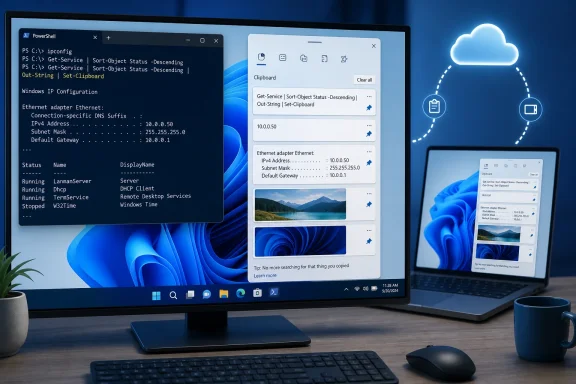 Clipboard History is a small but useful snippet store
The practical benefit is recovery from the familiar “copied over the thing I needed” problem. Instead of only retaining the latest Ctrl+C operation, Win+V exposes recent clips for selective pasting.Items can be pinned from the history panel. Pinned entries survive the normal 25-item rollover and a restart, making the feature useful for common email responses, support boilerplate, IP addresses, SSH commands, or other non-sensitive fragments. Unpinned history is cleared when Windows restarts.
Windows also supports Clipboard History sync across devices signed in with the same Microsoft or work account. Admins and users can choose automatic synchronization or manual synchronization per item. Microsoft’s documentation notes that manually synced text is uploaded to the cloud before it is made available on other devices, so passwords, recovery codes, credentials, customer data, and other sensitive material should not be copied into a synced clipboard.
PowerShell can send output straight to the clipboard
For command-line work, Windows’clip utility remains a quick way to capture output for a ticket, chat, or documentation. Appending a pipe avoids selecting text in a console window:ipconfig | clipThe same approach works with diagnostic output, service queries, and configuration checks. PowerShell’s native
Set-Clipboard cmdlet provides the more direct equivalent:Get-Service | Out-String | Set-ClipboardOut-String matters for object-based PowerShell output, preserving a readable formatted result rather than passing individual objects in an unexpected form. To clear text from the clipboard, use:Set-Clipboard -Value $nullPower users who repeatedly need to reuse the last command—not its output—can retrieve it from the session history:
(Get-History)[-1].CommandLine | Set-ClipboardAs Neowin notes, that can be wrapped in a PowerShell profile function, such as
ccmd, for reuse in future sessions. It is a modest convenience, but it avoids risky Ctrl+C habits when a command is still running.For most Windows users, enabling Win+V and pinning a handful of safe, recurring snippets is the quickest way to get more from a feature already on the PC.
References
- Primary source: Neowin
Published: 2026-07-19T12:00:01+00:00
Windows clipboard is more capable than you think, here's how to get the most out of it - Neowin
The Windows clipboard can give you so much more than a simple copy-paste. Check out the best ways to use it. www.neowin.net
- Official source: support.microsoft.com
Using the clipboard | Microsoft Support
Learn how to use and troubleshoot the clipboard in Windows to paste multiple items, pin items, and sync your clipboard to the cloud.support.microsoft.com
