

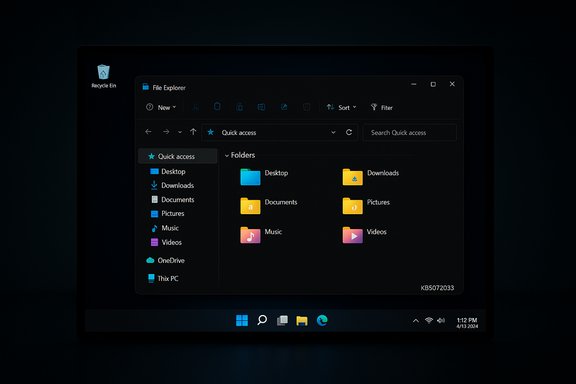
Microsoft has quietly closed one of the most glaring user-experience regressions introduced in early December: the brief, full-window white flash that could momentarily blind you when opening File Explorer in Dark mode has been addressed in the December cumulative update, KB5072033. What began as a preview improvement to File Explorer’s dark UI shipped as KB5070311 on December 1, 2025, and quickly produced an unwelcome side effect — a millisecond‑long white frame that appeared before the dark theme finished painting. Microsoft acknowledged the regression and shipped the cumulative KB5072033 on December 9, 2025 to roll the fix into the wider Patch Tuesday release; the update also bundles other important fixes and security changes.
The December preview package (KB5070311) was billed as a UI polish for File Explorer and Windows 11’s dark visuals, aiming to extend dark theme coverage across dialogs, progress bars and other chrome so the OS would be visually consistent in low‑light scenarios. Instead, on a subset of systems the change introduced a rendering regression: when File Explorer opened or when UI actions forced a repaint (create a new tab, toggle the Details pane, navigate between Home and Gallery, or select More details during a file copy) the window could display a momentary blank white screen before the dark UI appeared. The symptom was visual only — no data corruption — but it was noticeable and jarring, especially on OLED panels and in dim environments. Microsoft documented the problem as a Known Issue shortly after the preview shipped and promised a fix in an upcoming cumulative update. That fix arrived as part of the December 9, 2025 Patch Tuesday cumulative update, KB5072033 (OS Builds 26200.7462 and 26100.7462 for the newest Windows 11 feature sets). The official release notes list the File Explorer white flash as addressed and also highlight fixes to Copilot behavior and virtualization networking, and include a security change to PowerShell 5.1 behavior tied to CVE‑2025‑54100.
From a product quality perspective, the regression illustrated how UI refactors that touch rendering paths can produce platform‑wide side effects across different hardware, GPU drivers and third‑party shell integrations. The symptom’s intermittent nature — reproducible on some machines and absent on others — suggested interactions with drivers, hardware scalers or shell extensions, complicating root cause analysis and testing.
The PowerShell change is instructive of a broader philosophy shift: safer defaults can cause short‑term friction (automation fixes) but reduce long‑term attacker surface area and user risk. Both tradeoffs — faster fixes for visual regressions and conservative security changes — are necessary parts of platform stewardship, but they require clearer communications and better automated test coverage across hardware vendors to avoid repeated cycles of “fix-release-fix.”
Source: BetaNews Microsoft has fixed that Windows 11 dark mode bug that has been annoying you
 Background and context
The December preview package (KB5070311) was billed as a UI polish for File Explorer and Windows 11’s dark visuals, aiming to extend dark theme coverage across dialogs, progress bars and other chrome so the OS would be visually consistent in low‑light scenarios. Instead, on a subset of systems the change introduced a rendering regression: when File Explorer opened or when UI actions forced a repaint (create a new tab, toggle the Details pane, navigate between Home and Gallery, or select More details during a file copy) the window could display a momentary blank white screen before the dark UI appeared. The symptom was visual only — no data corruption — but it was noticeable and jarring, especially on OLED panels and in dim environments. Microsoft documented the problem as a Known Issue shortly after the preview shipped and promised a fix in an upcoming cumulative update. That fix arrived as part of the December 9, 2025 Patch Tuesday cumulative update, KB5072033 (OS Builds 26200.7462 and 26100.7462 for the newest Windows 11 feature sets). The official release notes list the File Explorer white flash as addressed and also highlight fixes to Copilot behavior and virtualization networking, and include a security change to PowerShell 5.1 behavior tied to CVE‑2025‑54100. What exactly Microsoft changed (short summary)
- KB5070311 (preview, Dec 1, 2025) introduced broader dark-mode UI coverage in File Explorer but produced a visual regression that briefly painted a white screen when Explorer repainted in certain scenarios.
- KB5072033 (cumulative, Dec 9, 2025) bundles fixes for that white-flash regression and other issues; the release notes explicitly list the File Explorer flashing issue as fixed.
- The December update also fixed a Copilot interaction bug where the Ask Copilot “Click to Do” window did not reliably come to the foreground, and it resolved a serious virtualization networking regression where external virtual switches could lose NIC bindings after a host restart.
- Separately, Microsoft updated PowerShell 5.1 behavior: Invoke‑WebRequest now prompts interactively with a “Script Execution Risk” confirmation to prevent automatic DOM parsing that could execute embedded script code. This change is tied to a patched vulnerability tracked as CVE‑2025‑54100 and documented in KB5074596. Administrators are advised to use the -UseBasicParsing parameter (or update automation to PowerShell 7+) for non‑interactive scenarios.
Why the white flash mattered — beyond annoyance
The white flash was more than a cosmetic gripe for many users. Dark mode is widely used for comfort and battery conservation on OLED and HDR displays; a sudden, bright full‑window flash is not only visually disruptive but also a genuine accessibility and comfort issue in low‑light conditions. The spike in display brightness could cause discomfort to people sensitive to rapid luminance changes, and it ran counter to the very reason users opt for dark themes.From a product quality perspective, the regression illustrated how UI refactors that touch rendering paths can produce platform‑wide side effects across different hardware, GPU drivers and third‑party shell integrations. The symptom’s intermittent nature — reproducible on some machines and absent on others — suggested interactions with drivers, hardware scalers or shell extensions, complicating root cause analysis and testing.
How Microsoft fixed it (what the release notes say)
Microsoft’s KB5072033 release notes list the File Explorer flash as fixed and frame the update as a roll‑up of fixes from the KB5070311 preview plus new security and reliability patches. The key public-facing items called out are:- [File Explorer (known issue)] Fixed: Explorer briefly flashes white when navigating between pages — resolved in this cumulative update.
- [Copilot] Fixed: Ask Copilot now reliably activates the Click to Do window in the foreground when sharing data.
- [Networking] Fixed: External virtual switches losing NIC bindings after host restart has been corrected. This was particularly consequential for server and virtualization workloads.
- [PowerShell 5.1] The Invoke‑WebRequest change and the associated security guidance are documented in separate PowerShell support notes and hotfix KBs.
Who is affected and how widespread the problem was
The bug was tied to the December preview package and was reported by users running both 25H2 and 24H2 channels of Windows 11. Independent reporting and forum threads indicate the issue was intermittent — many users experienced it immediately and repeatedly, while others never saw it. Anecdotal evidence pointed to a stronger effect on systems with:- OLED or high‑contrast displays where a white frame is visually amplified, and
- Certain GPU driver versions and configurations that affect how windows and composition are painted.
Practical guidance: how to check for the fix, and troubleshooting steps
If you encountered the white‑flash issue, follow these steps:- Check your Windows update status and installed build:
- Settings → Windows Update → Update history will show the installed cumulative update and OS build. KB5072033 corresponds to OS Builds 26200.7462 (25H2) and 26100.7462 (24H2).
- If you have automatic updates enabled, Windows Update should download and install KB5072033 automatically. If not, you can manually check for updates and apply the Patch Tuesday cumulative update.
- If you still see flashing after installing KB5072033:
- Reboot and verify the updated build number in About settings.
- Update GPU drivers (Intel, NVIDIA, AMD) to the latest WHQL drivers from the vendor; display driver interactions are often the root cause of rendering regressions.
- Temporarily disable third‑party shell extensions (tools like ShellExView can help list non-Microsoft shell extensions).
- If needed, roll back KB5070311 by uninstalling the preview update (Settings → Update history → Uninstall updates) and then install the cumulative KB5072033 via Windows Update or the Microsoft Update Catalog. Note that uninstalling an older preview may not always be required once KB5072033 is applied; prefer applying the cumulative update first.
- As a short‑term workaround if the flash is disruptive and you don’t want to fiddle with updates immediately, switch the system theme to Light mode (Settings → Personalization → Colors → Choose your mode → Light) until your machine has the cumulative fix. This is not ideal for users who prefer Dark mode, but it eliminates the symptom.
The PowerShell change: what administrators need to know
One of KB5072033’s broader security updates touches PowerShell 5.1 and addresses a vulnerability (CVE‑2025‑54100) that could allow embedded scripts in downloaded web pages to execute during DOM parsing when using Invoke‑WebRequest. The mitigation is a behavioral change: in affected builds, Invoke‑WebRequest now prompts interactively with a Security Warning: Script Execution Risk message by default unless the caller specifies safer parsing parameters. The recommended action for administrators and automation authors:- For interactive use, acknowledge the prompt when safe or include the -UseBasicParsing parameter to avoid DOM parsing and suppress the prompt.
- For non‑interactive automation (scheduled tasks, CI/CD, headless scripts), update scripts to explicitly use -UseBasicParsing or migrate to PowerShell 7+ (PowerShell Core), which does not depend on the legacy Internet Explorer parsing engine and avoids the same risk profile.
Deeper analysis: strengths, risks, and testing gaps
Strengths
- The fix demonstrates Microsoft’s responsiveness: the preview introduced the regression, Microsoft documented it, and the cumulative Patch Tuesday update included a corrective change. That’s a fast feedback loop that respects user experience.
- Bundling the fix with hardening to PowerShell and virtualization fixes means the update provides both reliability and security improvements in a single package — efficient for administrators controlling large fleets.
- The PowerShell behavioral change is a sensible security posture: making potentially dangerous DOM parsing an opt‑in action aligns with modern secure defaults and promotes migration away from legacy IE‑dependent parsing.
Risks and remaining questions
- Regression testing in diverse hardware and driver ecosystems remains difficult. Community reports indicate KB5072033 resolved the problem for many but not all users; persistent cases likely depend on particular GPU drivers, display hardware or third‑party UI components. Expect additional hotfixes or driver updates for edge configurations.
- The PowerShell prompt change, while secure, can break automation if administrators don’t proactively audit scripts. Scheduled or headless scripts that use Invoke‑WebRequest without -UseBasicParsing can hang awaiting user confirmation. This requires urgent attention in enterprise environments.
- Bundling many fixes into a single Patch Tuesday update reduces fragmentation in the update stream but increases the chance that one cumulative update contains subtle interacting changes; administrators should maintain rollback plans and testing rings to catch platform‑wide regressions early.
Recommended action plan for power users and administrators
- Desktop users (single machine, typical consumer):
- Allow Windows Update to install KB5072033 automatically. Restart when prompted and verify the build number. If problems persist, update GPU drivers and consider changing theme as a temporary workaround.
- IT administrators and enterprise:
- Prioritize deployment to a controlled test ring that mirrors production hardware diversity (laptops, OLED displays, GPO‑managed clients).
- Audit all PowerShell scripts that call Invoke‑WebRequest; add -UseBasicParsing to non‑interactive scripts or migrate to PowerShell 7 for long‑term stability.
- Confirm virtualization hosts — ensure external virtual switches retain NIC bindings and test VM networking across reboots to validate the networking fix on your host configurations.
- Maintain clear rollback documentation for the update and schedule a follow‑up cadence to monitor vendor GPU driver updates for platform‑specific fixes.
What this episode tells us about Windows update management
Windows remains a highly heterogeneous platform: millions of device configurations, countless GPU driver versions, multiple OEM customizations and third‑party shell extensions. That complexity makes UI changes risky despite good intentions. The rapid admission of the File Explorer regression and the inclusion of the fix in the next cumulative update demonstrate a reasonably effective incident response path, but the presence of lingering user reports shows that one cumulative fix rarely ends the story for every configuration.The PowerShell change is instructive of a broader philosophy shift: safer defaults can cause short‑term friction (automation fixes) but reduce long‑term attacker surface area and user risk. Both tradeoffs — faster fixes for visual regressions and conservative security changes — are necessary parts of platform stewardship, but they require clearer communications and better automated test coverage across hardware vendors to avoid repeated cycles of “fix-release-fix.”
Final verdict: meaningful fix, plus a reminder to test
KB5072033 is the right corrective step: it neutralizes the jarring white flash for the majority of users and bundles other important reliability and security patches (Copilot foreground behavior, virtualization NIC binding fix, and PowerShell hardening tied to CVE‑2025‑54100). For the average Windows 11 user, installing the cumulative update will likely end the File Explorer flashing annoyance. For administrators, the PowerShell change and the virtualization fix demand attention and validation in controlled environments before broad rollout. Practical takeaways:- Check Windows Update and install KB5072033 if you were affected by the File Explorer flash.
- Update GPU/display drivers and test virtualization hosts after applying the update.
- Audit PowerShell automation for Invoke‑WebRequest usage and migrate scripts or specify -UseBasicParsing to avoid interactive prompts or hangs.
- If any display glitches persist after the cumulative update, collect logs, GPU driver versions and display model details and report them through Microsoft’s Feedback Hub so they can be triaged to the appropriate engineering teams.
Source: BetaNews Microsoft has fixed that Windows 11 dark mode bug that has been annoying you
