

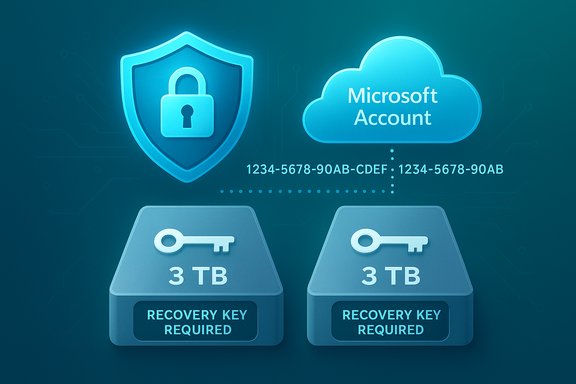
Windows 11’s push toward “secure by default” has a dark side: automatic device encryption can, in edge cases, leave users permanently locked out of their own drives — and a recent Reddit tale shows how catastrophic that can be. A user who performed a routine clean reinstall reported two secondary drives — containing roughly 3TB of backups and games — appearing immediately as BitLocker‑locked and demanding 48‑digit recovery keys that weren’t available in the owner’s Microsoft account. The result was a devastating, avoidable data loss and a warning for anyone who trusts defaults without verifying key custody.
Over the last several Windows generations, Microsoft has steadily moved toward stronger default security. With Windows 11 — especially the 24H2 update — Microsoft expanded automatic device encryption so more consumer devices get full‑disk protection out of the box. If you sign in during Out‑Of‑Box Experience (OOBE) with a Microsoft account (or a work/school account), Windows will often enable device encryption automatically and attempt to escrow the recovery key to your Microsoft account. That behavior is intended to make devices safer when lost or stolen: encrypted drives are useless to thieves without the keys. That security posture is beneficial in many real‑world scenarios — laptops are stolen far more often than desktops, and an encrypted laptop is far less likely to yield readable personal data. But default encryption changes the user’s threat model: now the recovery key becomes a critical single point of failure. If the key isn’t where you expect it to be — or if multiple drives and installs create inconsistent custodial relationships between keys and accounts — you can be locked out permanently. This is not hypothetical; community reports and published pieces document multiple instances where drives went into BitLocker recovery due to reinstall or platform changes.
Important caveat: the granular facts of any single Reddit thread are anecdotal and can’t be independently forensic‑audited from public sources. The broader technical pattern — that automatic encryption plus platform state changes can trigger recovery mode and demand a recovery key — is supported by Microsoft’s documentation and by repeated community reports. Treat the specific user’s story as a credible illustration of the failure mode rather than a sealed forensic case.
Yet the implementation includes brittle operational assumptions:
Automatic encryption is a powerful safety improvement when paired with clear, enforced processes for key custody and backups. The horror story of lost terabytes after a routine reinstall is a painful reminder: encryption protects against theft, not against poor key management. Treat your BitLocker recovery keys as critical assets — back them up in multiple places, verify them now, and don’t assume “the cloud did it for you.” Insecurity often arrives not as a flashy exploit but as simple human error; with a few minutes of preventive work you can avoid the nightmare described above.
Source: PCWorld Yikes! Windows 11 can lock you out of your files. Here’s how to avoid the nightmare
 Background: what changed in Windows 11, and why it matters
Over the last several Windows generations, Microsoft has steadily moved toward stronger default security. With Windows 11 — especially the 24H2 update — Microsoft expanded automatic device encryption so more consumer devices get full‑disk protection out of the box. If you sign in during Out‑Of‑Box Experience (OOBE) with a Microsoft account (or a work/school account), Windows will often enable device encryption automatically and attempt to escrow the recovery key to your Microsoft account. That behavior is intended to make devices safer when lost or stolen: encrypted drives are useless to thieves without the keys. That security posture is beneficial in many real‑world scenarios — laptops are stolen far more often than desktops, and an encrypted laptop is far less likely to yield readable personal data. But default encryption changes the user’s threat model: now the recovery key becomes a critical single point of failure. If the key isn’t where you expect it to be — or if multiple drives and installs create inconsistent custodial relationships between keys and accounts — you can be locked out permanently. This is not hypothetical; community reports and published pieces document multiple instances where drives went into BitLocker recovery due to reinstall or platform changes.How automatic device encryption and BitLocker actually work
To make good decisions you need a clear mental model of the mechanics. Here are the essentials:- Device Encryption: A consumer‑friendly wrapper around BitLocker technologies, available on devices that meet hardware prerequisites. It’s often enabled automatically when you sign into Windows with a Microsoft account after first boot.
- BitLocker: The longstanding, full‑disk encryption feature in Windows Pro/Enterprise/Education that gives more control to power users and IT admins. It supports multiple protectors (TPM, TPM+PIN, USB startup key, recovery password).
- TPM (Trusted Platform Module): A hardware component that holds cryptographic secrets and releases them only if the platform’s measured boot state matches expected values. That makes offline attacks much harder but couples key release to a specific firmware/boot configuration.
- Recovery key (48‑digit number): Generated when a drive is encrypted. If BitLocker enters recovery mode (because the TPM refuses to release the key after a firmware change, reinstall, or bootloader swap), Windows asks for this recovery key to unlock the volume. Microsoft’s documentation says recovery keys are typically stored in the user’s Microsoft account if that option was selected or if device encryption was automatically enabled during OOBE.
What likely went wrong in the reported 3TB incident (the anatomy of the failure)
The widely shared Reddit account (reported in tech press and community threads) describes a multi‑drive PC where the user performed a clean reinstall of Windows 11 and then found two secondary volumes suddenly locked by BitLocker and asking for recovery keys the user did not possess. The boot drive for the fresh install eventually had its own recovery key saved to the user’s Microsoft account, but the older drives’ keys were absent. Because Microsoft cannot retrieve or recreate a lost BitLocker recovery key, those volumes remained inaccessible.Important caveat: the granular facts of any single Reddit thread are anecdotal and can’t be independently forensic‑audited from public sources. The broader technical pattern — that automatic encryption plus platform state changes can trigger recovery mode and demand a recovery key — is supported by Microsoft’s documentation and by repeated community reports. Treat the specific user’s story as a credible illustration of the failure mode rather than a sealed forensic case.
Why default encryption is a double‑edged sword
There are clear benefits:- Stronger default security: Devices are protected immediately without requiring user setup.
- Theft protection: Stolen drives are far less valuable to attackers.
- Consistency with modern platform security: TPM + Secure Boot reduce attack surface for offline compromise.
- Custody confusion: Users may not realize encryption enabled or whether the recovery key was stored in their Microsoft account — and Microsoft is explicit that it cannot recreate lost keys.
- TPM brittleness: Legitimate platform changes (reinstall, firmware upgrades, moving an internal drive to another machine) can trigger recovery, demanding keys that may not be accessible.
- User identity and account muddle: If you used a different Microsoft account (or a local account) when encryption was first enabled, keys might be tied to that other account and invisible to your current sign‑in.
- False sense of safety: Users who rely on cloud key escrow as the only backup can be burned if account recovery fails or if keys were never uploaded consistently.
Immediate, practical steps to avoid the nightmare
If you use Windows 11 or manage devices for others, treat the following as mandatory hygiene.1. Back up your data — multiple copies, multiple locations
- Do not rely on a single backup. Industry best practice is at least two copies in addition to the primary, with one copy off‑site.
- Use a combination of local external drives and cloud backup (or an external hard drive plus a cloud service). Keep a removable backup drive unplugged when not in use to protect against ransomware or drive corruption.
- Validate backups by restoring a random set of files periodically. A backup that hasn’t been tested is a lie.
2. Verify whether device encryption is active right now
- Open Settings.
- Go to Privacy & security > Device encryption. (If you prefer a quick route, type “device encryption” into the Start menu search.
- If you see a toggle for Device encryption, note whether it’s On and whether Windows says a recovery key has been backed up to your Microsoft account. Microsoft’s support pages walk through this exact flow.
3. Back up your BitLocker / Device Encryption recovery key(s) — and keep at least two copies
- Open Control Panel (or type Manage BitLocker in Start) and select Back up your recovery key next to the volume you want to protect. Microsoft’s step‑by‑step guidance shows this process and lists the available save options (Microsoft account, USB flash drive, file, or printout).
- Save the key to your Microsoft account and also to a local file on a removable USB drive you store safely, or print it and place the paper in a fireproof/safe deposit location.
- Don’t store the printed key or USB backup next to the PC it unlocks — that would defeat the protection.
4. Confirm recovery keys are actually in the Microsoft account(s) you used
- Visit the Microsoft recovery key portal (you can find links and references in official docs) and sign in with every Microsoft account you may have used in the past — personal, work, or any old addresses. Keys are attached to specific accounts; if you’re looking in the wrong account, the key won’t be there. Microsoft’s support pages and the online recovery key library explain this lookup path.
5. Consider adding preboot authentication (TPM + PIN) for system drives
- TPM alone is convenient but can be subject to the recovery scenarios described above. If you want stronger guarantees against local attack and clearer ownership over key release, enable TPM + PIN (Require additional authentication at startup / configure TPM startup PIN). This adds a human factor requirement at boot and can make unauthorized decryption significantly harder. Group Policy / Intune settings allow admins to enforce startup PINs and other BitLocker options.
Step‑by‑step: Back up a recovery key right now (concise checklist)
- Press Windows + S and type “Manage BitLocker”; open it.
- Next to each encrypted drive, click Back up your recovery key.
- Select Save to your Microsoft account (if available) and Save to a file (copy that file to a USB and store offline), or Print the recovery key and place the print in a safe.
- Repeat for every internal and external drive that shows as encrypted in BitLocker or Device Encryption.
- Log in to account.microsoft.com (or your organization’s Azure/Entra portal) and confirm the recovery keys are listed for each device.
Recovery options — and the hard truths
- If Windows asks for a BitLocker recovery key, and you cannot find it locally, on a USB, printed, or in any Microsoft/M365/Azure AD account, Microsoft Support cannot recover or recreate the key for you. That’s a determinative fact: without the key your encrypted data is inaccessible. Plan accordingly.
- If the device is managed by an organization, IT may be able to retrieve the key from Active Directory or Azure AD escrows. That’s why enterprise device management often enforces escrow policies. If a machine ever saw a work/school sign‑in, keys might be attached to those accounts.
- Forensic or third‑party vendors can sometimes attempt advanced recovery techniques, but for BitLocker properly configured with TPM and recovery password, those avenues rarely succeed if the recovery password is unknown. Assume data loss if the recovery key is unrecoverable.
Operational recommendations by user type
Home users
- Always back up the recovery key to your Microsoft account and to at least one offline medium you control.
- Keep a tested file backup of personal data (external disk + cloud). Never assume encryption replaces backups.
- If you prefer not to have encryption automatically enabled during setup, use a local account during OOBE and only enable encryption manually after you’ve planned key custody.
Power users / enthusiasts
- If you customize installations frequently, keep a checklist: back up keys before any reinstall, firmware update, or major boot‑loader tweak.
- Consider using BitLocker (Pro) instead of Device Encryption to get more control over protectors (TPM+PIN, startup keys, etc.. Configure a startup PIN to reduce TPM‑only recovery triggers.
IT administrators and small orgs
- Enforce recovery key escrow to Azure AD / Active Directory through policy.
- Use Intune/Group Policy to mandate where and how keys are stored, and test key recovery workflows periodically.
- Document OOBE/device‑provisioning procedures so that users know which account will hold the recovery keys.
Broader analysis: strengths, design tradeoffs, and where Microsoft could improve
Microsoft’s decision to enable device encryption by default is defensible from a security standpoint: most users benefit from default encryption, which reduces risk at scale. The design reduces friction for non‑technical users and protects data without user intervention. That’s a security win.Yet the implementation includes brittle operational assumptions:
- It assumes users will either understand where keys are stored or that their Microsoft accounts will always be available and correctly used to retrieve keys. Real accounts are messy — people have multiple addresses, use work and personal accounts interchangeably, and sometimes lose access to an account.
- TPM‑based releases are fragile across legitimate platform maintenance (reinstalling Windows, swapping drives, firmware updates). This fragility is a feature, not a bug: it protects against offline attacks — but it also raises the bar for recovery when keys aren’t properly handled.
- The default model centralizes key custody to a cloud account. That is useful for many, risky for some. The documented case where keys were absent from the Microsoft account suggests implementation gaps, inconsistent upload behavior, or user confusion about which account was used — all of which indicate a need for clearer UI flows and stronger guardrails during OOBE.
- Make the key‑backup step a mandatory, clearly explained checkpoint during OOBE (not buried or automatic).
- Present a simple, persistent indicator in Windows that lists where every recovery key is stored (local, Microsoft account X, Azure AD Y).
- Provide an automated test button: “Verify recovery key works” that requires user authentication but confirms the key is accessible and correct.
- Improve multi‑account detection during setup so people sign into the account where they intend to store keys, or at least make it obvious which account will be used. The current mismatch between convenience and explicit user control creates the gap that causes incidents like the 3TB loss.
Final checklist — what to do in the next 10 minutes
- Open Settings > Privacy & security > Device encryption. See whether encryption is on.
- If encryption is on, go to Control Panel > Manage BitLocker and back up the recovery key to:
- Your Microsoft account, and
- A file on an external USB (store offline) or print it.
- Make a separate disaster recovery backup of your important data (external drive + cloud) and verify restores.
- If you frequently reinstall Windows or change hardware, add a startup PIN (TPM+PIN) for the boot drive, or document your key‑custody workflow.
Automatic encryption is a powerful safety improvement when paired with clear, enforced processes for key custody and backups. The horror story of lost terabytes after a routine reinstall is a painful reminder: encryption protects against theft, not against poor key management. Treat your BitLocker recovery keys as critical assets — back them up in multiple places, verify them now, and don’t assume “the cloud did it for you.” Insecurity often arrives not as a flashy exploit but as simple human error; with a few minutes of preventive work you can avoid the nightmare described above.
Source: PCWorld Yikes! Windows 11 can lock you out of your files. Here’s how to avoid the nightmare
