

Windows 11 users chasing “Ethernet speed fixes” should resist the usual checklist of adapter tweaks: receive buffers, Energy Efficient Ethernet, interrupt moderation, and DNS can matter in specific workloads, while manually forcing Speed and Duplex or enabling Jumbo Frames can just as easily reduce reliability or performance. The important distinction is not between “optimized” and “default,” but between changes that address a measured bottleneck and changes copied from somebody else’s hardware. MakeUseOf is right to challenge indiscriminate tuning, yet several of its recommendations still need the qualification that networking advice too often omits: workload, driver, adapter, switch, and route all matter. There is no universally fastest Ethernet configuration.
That is especially true on Windows 11, where the Advanced tab of a network adapter’s properties exposes controls supplied largely by the hardware vendor’s driver. Two PCs running the same operating system may present different setting names, different ranges, and entirely different defaults. A value that helps a desktop moving large files across a local network may be counterproductive on a gaming PC, laptop, home server, or corporate endpoint carrying security filters and VPN traffic.
The useful way to read any Ethernet-tuning guide is therefore as a list of hypotheses to test—not as a recipe. Some defaults favor efficiency and broad compatibility, but that does not mean Windows is arbitrarily “limiting” the connection. More often, it means the operating system and adapter are balancing throughput, latency, CPU overhead, power use, and interoperability rather than maximizing a single benchmark number.
Search for “Ethernet speed fixes” and the same advice circulates repeatedly: maximize every buffer, disable every power-saving feature, turn off interrupt moderation, force full duplex, enable Jumbo Frames, replace DNS, disable offloads, and adjust an assortment of registry values. The list looks authoritative because it is long. Its length is precisely the problem.
A network adapter setting is not an isolated Windows preference. It can change where packet-processing work occurs, how much memory the driver reserves, when the adapter interrupts the CPU, how the physical link enters lower-power states, or what frame size the local network is expected to carry. Changing several settings at once makes it almost impossible to identify which one helped, which one did nothing, and which one quietly introduced errors.
Microsoft’s network-performance guidance treats adapter tuning as a set of tradeoffs governed by the adapter’s capabilities, the host’s resources, the workload, and the desired balance between throughput and latency. Although much of Microsoft’s detailed material is written for server environments and driver developers, that central lesson applies directly to Windows 11 clients: an optimization for receive-heavy server traffic is not automatically a sensible gaming tweak.
The driver also owns much of what appears in Device Manager. “Receive Buffers,” “Receive Descriptors,” and similarly named properties may refer to related concepts without guaranteeing identical behavior. Some adapters expose manual resource controls; others tune resources dynamically or use fixed values. A recommendation to enter a particular number is meaningless if it ignores the NIC family, driver implementation, supported range, and current packet-loss behavior.
That is why the baseline matters more than the tweak. Before opening Device Manager, a user should know the negotiated link speed, expected internet-plan rate, local-network capacity, idle and loaded latency, CPU utilization, and whether the problem affects internet traffic, local transfers, or both. Without those distinctions, a speed test can turn a router, cable, remote server, ISP route, DNS lookup, and Windows adapter into one undifferentiated suspect.
The underlying reasoning is sound. Receive buffers give the NIC and driver somewhere to hold incoming traffic while Windows and the CPU process it. If packets arrive faster than the system can service the receive queue and the available descriptors are exhausted, packets can be dropped, forcing retransmissions and reducing effective throughput. Transmit resources perform a corresponding role for outbound data.
Microsoft similarly recommends increasing manually configurable receive resources in receive-intensive scenarios, particularly when low allocations are causing packet loss. That support is important because buffer tuning is one of the few popular “speed fixes” grounded in a recognizable failure mode: the adapter cannot sustain the incoming workload with its current resource allocation.
The trouble begins when a hardware-specific observation is presented as a Windows-wide default. A stated value of 256 packets may describe many adapters, but it is not a universal Windows 11 rule. Some drivers expose different starting values; some use different units; some do not expose the setting at all. A modern NIC may also manage resources dynamically rather than relying on the simple fixed queue implied by the control panel.
A Receive Buffer count beyond 1024 is therefore a reasonable test value only when the adapter supports it and the machine exhibits receive-side pressure. It is not a guaranteed internet accelerator. If a PC is downloading at the full rate permitted by its ISP connection and has no receive drops, enlarging the queue cannot make the remote server or broadband line send faster.
Larger queues may consume more host memory, although the practical cost on a desktop is often modest. More importantly, buffering can conceal congestion by allowing more work to accumulate before it is processed. The setting may improve sustained throughput while doing nothing for—or in some implementations slightly worsening—the responsiveness that motivated the tweak.
Transmit buffers deserve even more restraint. A larger outbound queue may help sustained uploads or high-volume local transfers, but queuing more data is not the same as delivering it sooner. If the actual bottleneck is the router’s upstream queue, an overloaded internet connection, or application-level congestion control, enlarging the NIC’s transmit resources will not cure latency under load.
The defensible recommendation is to raise receive resources incrementally when testing reveals drops or inconsistent high-throughput reception. Transmit resources should be adjusted only when outbound workloads show a corresponding problem. Set both to the largest available numbers merely because the menu permits it, and the exercise stops being tuning and becomes superstition.
There is a plausible case for turning it off on latency-sensitive or intermittently unstable links. Real-time traffic can be more sensitive than bulk transfers to variations in packet timing, and a problematic combination of adapter, driver, switch, or router may handle power-state transitions poorly. A gaming PC, audio workstation, or always-on server experiencing repeatable jitter may become more consistent with EEE disabled.
Microsoft’s driver documentation confirms that EEE is a standardized network-device power feature associated with 802.3az. The standard’s low-power behavior is real, as is the need to transition into and out of energy-efficient operation. That makes EEE a legitimate troubleshooting target rather than one of the invented registry tricks that populate optimization forums.
But “disable it everywhere” is still too broad. The latency attributable to EEE depends on the physical hardware and both ends of the link. A properly functioning adapter and switch may handle it without any user-visible penalty. A laptop or office fleet may also value reduced power consumption and heat across long idle periods, even if the savings on one desktop appear insignificant.
EEE should also not be conflated with every other NIC power-control setting. The adapter’s Advanced tab may separately expose EEE, Green Ethernet, gigabit power-saving behavior, wake features, or operating-system power management. Disabling all of them at once can affect sleep behavior, battery life, wake-on-LAN, and enterprise management without proving which feature caused the original problem.
The right test is simple: establish repeatable latency and stability measurements, disable EEE alone, then run the same workload again. Keep it disabled if jitter, dropouts, or link reliability measurably improve. If nothing changes, restore the default rather than assuming an invisible optimization has occurred.
MakeUseOf recommends disabling the feature for competitive gaming, video calls, and other real-time applications. That recommendation aligns with Microsoft’s low-latency guidance: adapters that require the lowest possible latency may benefit from disabling interrupt moderation. The delayed delivery of a packet from NIC to CPU can affect measured response time, even if the delay is only a small part of the end-to-end trip.
What does not follow is the broader claim that modern CPUs make the overhead irrelevant. Per-packet interrupts still consume CPU time, disturb caches, and compete with application threads. The impact may be inconsequential on a lightly loaded gaming desktop, but it can matter during high packet rates, heavy transfers, virtualization, security inspection, or workloads that already keep processors busy.
Microsoft’s guidance explicitly describes the tradeoff. Interrupt moderation generally improves packet-processing efficiency and can improve throughput under heavy network load, while aggressive moderation can increase response time. Some adapters expose rates rather than a binary switch precisely because the ideal answer may be low moderation, adaptive moderation, or another middle ground.
Disabling the feature is thus a latency experiment, not a blanket speed upgrade. It may shave off a small amount of host-side delay while increasing CPU utilization. It will not remove the milliseconds spent crossing a home router, ISP network, regional backbone, or distant game server; Microsoft notes that NIC-level latency tuning concerns microseconds, while network transit commonly operates on a much larger scale.
That distinction matters because users frequently interpret lower ping variation as greater bandwidth. Interrupt moderation can affect responsiveness without raising the maximum rate of a file transfer. Conversely, leaving it enabled can support higher sustained throughput even if individual packets wait slightly longer before reaching the CPU.
For a gaming-only desktop, disabling it and measuring frame-time consistency, packet loss, and CPU behavior is reasonable. For a workstation, home server, or general-purpose system, the default or adaptive setting may be better. Administrators should be especially wary of fleet-wide changes made from a consumer gaming guide, because the aggregate CPU and throughput cost can dwarf any microscopic latency gain.
A slow, overloaded, or unreliable resolver can make web browsing feel sluggish. Modern pages may reference many hostnames, and delays in serial or cache-miss lookups can postpone content loading. Google’s own documentation explains that resolver proximity, provisioning, caching, network congestion, and communication with authoritative name servers all contribute to DNS latency.
Cloudflare similarly designs its resolver infrastructure to reduce round trips and choose responsive upstream name servers. Quad9 adds a security-oriented reason to switch, while Google’s DNS offers another globally distributed alternative. MakeUseOf is correct to recommend benchmarking rather than assuming that one provider will be fastest from every location.
The article goes too far when it implies that a good DNS server significantly improves the underlying internet connection or routinely increases download speed. Once a hostname has been resolved and a transfer is underway, changing the resolver does not expand the Ethernet link, broadband capacity, TCP congestion window, or remote server’s upload rate. A multi-gigabyte download does not become faster merely because its initial lookup completed a few milliseconds sooner.
DNS can indirectly influence which service endpoint a user reaches, because content-delivery systems may make location-sensitive decisions. A different resolver could therefore produce a better or worse route in some cases. That result is provider-, site-, and location-dependent, however, and should not be confused with a general increase in bandwidth.
There are also policy consequences. A public resolver changes which organization processes DNS queries and may affect parental controls, ISP-specific services, corporate name resolution, split-network configurations, malware filtering, and encrypted-DNS behavior. In managed environments, replacing an assigned resolver can break access to internal names or bypass security controls.
Windows 11 allows an Ethernet connection’s DNS assignment to be edited manually, including under the IPV4 configuration presented by the interface. That makes the change easy to test and easy to reverse. The correct measurement is lookup responsiveness and browsing behavior, not just a conventional download-speed result.
Auto-negotiation lets the NIC and switch, router, or gateway select a mutually supported operating mode. Intel’s guidance identifies Auto Negotiation as the correct default for its copper adapters and warns that manual configuration should generally be reserved for experienced administrators dealing with older or deliberately fixed equipment. Cisco likewise recommends either allowing both ends to negotiate or manually matching both ends.
Changing only the Windows side can produce a speed or duplex mismatch. The link may fail outright, negotiate down, or remain apparently connected while suffering errors and terrible throughput. That last outcome is particularly confusing because the Ethernet icon still looks normal while retransmissions and collisions destroy performance.
The source material cites 100Mbps in full-duplex during its warning, but the practical rule is simpler than any threshold: do not force an arbitrary mode because its name looks faster. A displayed full-duplex option is not an upgrade button. The link partner, cabling, transceivers, adapter capabilities, and driver must all support the selected configuration.
When a supposedly faster connection is stuck at a lower rate, Auto Negotiation should normally remain selected while the user checks the cable, connectors, router or switch port, dock, wall jack, driver, and negotiated status. Manually forcing a mode may hide a physical-layer fault rather than solve it. If a forced setting is genuinely required, it must be configured consistently at both ends and documented.
The point of larger frames is to move more data with fewer packets and less per-packet processing. Microsoft’s performance documentation notes that Jumbo Frames can reduce network-stack overhead and CPU utilization, and has reported throughput improvements in supported high-performance environments. For storage traffic, virtualization, backups, or large local transfers, that efficiency can be valuable.
The catch is that Jumbo Frames are an end-to-end network design choice. The sending adapter, receiving adapter, and every relevant network segment between them must support and be configured for the larger frame size. If one component does not, traffic may be fragmented, dropped, or handled inconsistently.
That makes Jumbo Frames inappropriate as a generic internet-speed tweak. The public internet is not a controlled Ethernet segment, and a Windows user cannot impose a 9,000-byte frame expectation on every router between a PC and a remote service. Even within a home or office, inexpensive switches, router ports, virtual adapters, storage appliances, and management interfaces may disagree on the supported size.
Leaving Jumbo Frames disabled preserves the broadly interoperable 1,500-byte baseline. Enabling them makes sense when an administrator controls the entire path, has a workload that benefits from reduced per-packet overhead, and can verify large-frame delivery end to end. It should not be activated merely because a benchmark article labels bigger packets faster.
The source’s warning about latency and packet loss therefore reaches the correct consumer recommendation for the wrong general reason. A 9,000-byte frame is not inherently six times worse than a 1,500-byte frame; it is six times larger and can be more efficient when the network is designed for it. The real danger is inconsistent configuration.
The table’s most important column is not the suggested value but the failure condition. Receive buffers address exhausted resources. EEE addresses power-transition behavior. Interrupt moderation addresses the CPU-latency tradeoff. DNS addresses lookup performance. Speed and Duplex addresses link negotiation. Jumbo Frames address frame overhead across a controlled path.
None is a substitute for diagnosing the layer where the slowdown occurs.
The distinction between link speed and internet speed is essential. Link speed describes the connection between the NIC and its immediate Ethernet partner. Internet throughput is constrained by the service plan, router, congestion, route, remote endpoint, protocol behavior, and every network between the user and the destination.
Local testing helps separate them. If a machine transfers data quickly to another device on the same network but performs poorly online, the NIC buffers and Ethernet frame size are less likely to be the primary cause. If both local and internet transfers are slow, the adapter, cable, switch port, driver, security software, and host load deserve closer inspection.
Latency should also be measured in layers. A poor result to the local gateway points toward the PC or local network. A clean local result followed by delay farther away points toward the ISP or route. DNS should be tested as DNS, not inferred from a bandwidth test, while packet loss should be checked under both idle and loaded conditions.
Third-party packet inspection can matter as well. Microsoft notes that filtering software can introduce networking overhead when implemented poorly. Firewalls, endpoint protection, VPN clients, traffic shapers, monitoring agents, and virtual network drivers all sit closer to the Windows data path than a public DNS resolver does.
A driver update can alter defaults or rename advanced properties, which is another reason to record changes. The value copied from an online guide may have been tested on a different driver revision with different behavior. After troubleshooting, the optimal configuration should survive a driver reinstall only if there is evidence that it remains necessary.
Start with a reproducible workload. For throughput, use the same local or remote endpoint at comparable times and run multiple tests. For latency, record idle behavior, behavior under download load, and behavior under upload load. For reliability, inspect dropped packets, retransmissions, disconnects, and application symptoms rather than relying on how “snappy” the system feels.
Record the original value of every setting before changing it. Adapter defaults are not always obvious, and a button labeled “Default” may restore the driver’s current package default rather than the value that existed before an OEM customized the machine. Screenshots or exported adapter properties provide a safer rollback path.
Change one setting at a time. Reboot or cycle the adapter if the driver requires it, then repeat the same measurements. A change that improves one test but worsens another is not automatically a failure; it may reveal the intended tradeoff between throughput, CPU use, power, and latency.
The threshold for keeping a tweak should be higher than one unusually good speed-test result. Internet tests naturally vary as routes, servers, and congestion change. A genuine adapter improvement should recur across runs or appear in a local controlled test where external variability is minimized.
Defaults also have to serve incompatible goals. A laptop manufacturer cares about battery life. A desktop NIC vendor cares about throughput without excessive host overhead. Microsoft must support diverse drivers and hardware. A corporate administrator may prioritize manageability and security, while a gamer may accept higher power and CPU use for a small latency improvement.
This does not make defaults sacred. Receive queues can be undersized for a particular workload, EEE can expose buggy hardware interactions, and interrupt moderation can add unwanted delay. It means the burden of proof belongs to the change.
There are also settings conspicuously absent from the recommended list that are best left alone without a specific diagnosis. Hardware offloads, receive-side scaling, and TCP autotuning exist to improve efficiency and throughput in common conditions. Microsoft generally recommends retaining useful offloads and warns that low-latency configurations represent deliberate tradeoffs rather than universal best practice.
The recurring internet instinct is to disable every feature whose name suggests buffering, scaling, moderation, or offloading. That produces a configuration in which the CPU performs more work, packets arrive in less efficient patterns, and Windows loses mechanisms designed to adapt to varied traffic. The system may look “tuned” while operating less intelligently.
A setting matters only when its mechanism matches the observed problem. That principle is more valuable than any universal buffer number or list of check boxes.
That is especially true on Windows 11, where the Advanced tab of a network adapter’s properties exposes controls supplied largely by the hardware vendor’s driver. Two PCs running the same operating system may present different setting names, different ranges, and entirely different defaults. A value that helps a desktop moving large files across a local network may be counterproductive on a gaming PC, laptop, home server, or corporate endpoint carrying security filters and VPN traffic.
The useful way to read any Ethernet-tuning guide is therefore as a list of hypotheses to test—not as a recipe. Some defaults favor efficiency and broad compatibility, but that does not mean Windows is arbitrarily “limiting” the connection. More often, it means the operating system and adapter are balancing throughput, latency, CPU overhead, power use, and interoperability rather than maximizing a single benchmark number.
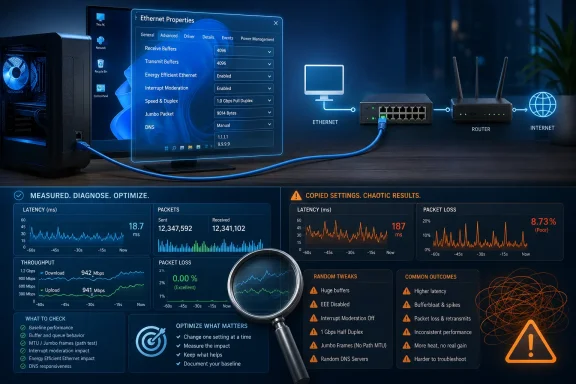 The Advanced tab is not a hidden turbo menu
Search for “Ethernet speed fixes” and the same advice circulates repeatedly: maximize every buffer, disable every power-saving feature, turn off interrupt moderation, force full duplex, enable Jumbo Frames, replace DNS, disable offloads, and adjust an assortment of registry values. The list looks authoritative because it is long. Its length is precisely the problem.A network adapter setting is not an isolated Windows preference. It can change where packet-processing work occurs, how much memory the driver reserves, when the adapter interrupts the CPU, how the physical link enters lower-power states, or what frame size the local network is expected to carry. Changing several settings at once makes it almost impossible to identify which one helped, which one did nothing, and which one quietly introduced errors.
Microsoft’s network-performance guidance treats adapter tuning as a set of tradeoffs governed by the adapter’s capabilities, the host’s resources, the workload, and the desired balance between throughput and latency. Although much of Microsoft’s detailed material is written for server environments and driver developers, that central lesson applies directly to Windows 11 clients: an optimization for receive-heavy server traffic is not automatically a sensible gaming tweak.
The driver also owns much of what appears in Device Manager. “Receive Buffers,” “Receive Descriptors,” and similarly named properties may refer to related concepts without guaranteeing identical behavior. Some adapters expose manual resource controls; others tune resources dynamically or use fixed values. A recommendation to enter a particular number is meaningless if it ignores the NIC family, driver implementation, supported range, and current packet-loss behavior.
That is why the baseline matters more than the tweak. Before opening Device Manager, a user should know the negotiated link speed, expected internet-plan rate, local-network capacity, idle and loaded latency, CPU utilization, and whether the problem affects internet traffic, local transfers, or both. Without those distinctions, a speed test can turn a router, cable, remote server, ISP route, DNS lookup, and Windows adapter into one undifferentiated suspect.
Buffer increases can prevent drops, but “more” is not a complete policy
MakeUseOf begins with Receive and Transmit Buffers, describing network packets as typically 1000–1500 bytes and stating that a NIC is commonly configured to send or receive 256 packets. It recommends keeping the Receive Buffer count high—beyond 1024—while using a more moderate Transmit Buffer value to preserve upload responsiveness.The underlying reasoning is sound. Receive buffers give the NIC and driver somewhere to hold incoming traffic while Windows and the CPU process it. If packets arrive faster than the system can service the receive queue and the available descriptors are exhausted, packets can be dropped, forcing retransmissions and reducing effective throughput. Transmit resources perform a corresponding role for outbound data.
Microsoft similarly recommends increasing manually configurable receive resources in receive-intensive scenarios, particularly when low allocations are causing packet loss. That support is important because buffer tuning is one of the few popular “speed fixes” grounded in a recognizable failure mode: the adapter cannot sustain the incoming workload with its current resource allocation.
The trouble begins when a hardware-specific observation is presented as a Windows-wide default. A stated value of 256 packets may describe many adapters, but it is not a universal Windows 11 rule. Some drivers expose different starting values; some use different units; some do not expose the setting at all. A modern NIC may also manage resources dynamically rather than relying on the simple fixed queue implied by the control panel.
A Receive Buffer count beyond 1024 is therefore a reasonable test value only when the adapter supports it and the machine exhibits receive-side pressure. It is not a guaranteed internet accelerator. If a PC is downloading at the full rate permitted by its ISP connection and has no receive drops, enlarging the queue cannot make the remote server or broadband line send faster.
Larger queues may consume more host memory, although the practical cost on a desktop is often modest. More importantly, buffering can conceal congestion by allowing more work to accumulate before it is processed. The setting may improve sustained throughput while doing nothing for—or in some implementations slightly worsening—the responsiveness that motivated the tweak.
Transmit buffers deserve even more restraint. A larger outbound queue may help sustained uploads or high-volume local transfers, but queuing more data is not the same as delivering it sooner. If the actual bottleneck is the router’s upstream queue, an overloaded internet connection, or application-level congestion control, enlarging the NIC’s transmit resources will not cure latency under load.
The defensible recommendation is to raise receive resources incrementally when testing reveals drops or inconsistent high-throughput reception. Transmit resources should be adjusted only when outbound workloads show a corresponding problem. Set both to the largest available numbers merely because the menu permits it, and the exercise stops being tuning and becomes superstition.
Energy Efficient Ethernet trades wake behavior for lower idle power
Energy Efficient Ethernet, abbreviated EEE, is based on the 802.3az hardware standard. It allows compatible link partners to reduce power use during idle periods and resume active transmission when traffic returns. MakeUseOf argues that the savings are negligible and that the transitions introduce hidden latency, making EEE an obvious feature to disable.There is a plausible case for turning it off on latency-sensitive or intermittently unstable links. Real-time traffic can be more sensitive than bulk transfers to variations in packet timing, and a problematic combination of adapter, driver, switch, or router may handle power-state transitions poorly. A gaming PC, audio workstation, or always-on server experiencing repeatable jitter may become more consistent with EEE disabled.
Microsoft’s driver documentation confirms that EEE is a standardized network-device power feature associated with 802.3az. The standard’s low-power behavior is real, as is the need to transition into and out of energy-efficient operation. That makes EEE a legitimate troubleshooting target rather than one of the invented registry tricks that populate optimization forums.
But “disable it everywhere” is still too broad. The latency attributable to EEE depends on the physical hardware and both ends of the link. A properly functioning adapter and switch may handle it without any user-visible penalty. A laptop or office fleet may also value reduced power consumption and heat across long idle periods, even if the savings on one desktop appear insignificant.
EEE should also not be conflated with every other NIC power-control setting. The adapter’s Advanced tab may separately expose EEE, Green Ethernet, gigabit power-saving behavior, wake features, or operating-system power management. Disabling all of them at once can affect sleep behavior, battery life, wake-on-LAN, and enterprise management without proving which feature caused the original problem.
The right test is simple: establish repeatable latency and stability measurements, disable EEE alone, then run the same workload again. Keep it disabled if jitter, dropouts, or link reliability measurably improve. If nothing changes, restore the default rather than assuming an invisible optimization has occurred.
Interrupt moderation forces a choice between latency and CPU efficiency
Interrupt moderation is the clearest example of why Ethernet settings resist one-size-fits-all advice. Without moderation, the NIC can notify the CPU more frequently as packets arrive. With moderation enabled, it waits until additional packets accumulate or a timer expires, allowing Windows to process multiple packets per interrupt.MakeUseOf recommends disabling the feature for competitive gaming, video calls, and other real-time applications. That recommendation aligns with Microsoft’s low-latency guidance: adapters that require the lowest possible latency may benefit from disabling interrupt moderation. The delayed delivery of a packet from NIC to CPU can affect measured response time, even if the delay is only a small part of the end-to-end trip.
What does not follow is the broader claim that modern CPUs make the overhead irrelevant. Per-packet interrupts still consume CPU time, disturb caches, and compete with application threads. The impact may be inconsequential on a lightly loaded gaming desktop, but it can matter during high packet rates, heavy transfers, virtualization, security inspection, or workloads that already keep processors busy.
Microsoft’s guidance explicitly describes the tradeoff. Interrupt moderation generally improves packet-processing efficiency and can improve throughput under heavy network load, while aggressive moderation can increase response time. Some adapters expose rates rather than a binary switch precisely because the ideal answer may be low moderation, adaptive moderation, or another middle ground.
Disabling the feature is thus a latency experiment, not a blanket speed upgrade. It may shave off a small amount of host-side delay while increasing CPU utilization. It will not remove the milliseconds spent crossing a home router, ISP network, regional backbone, or distant game server; Microsoft notes that NIC-level latency tuning concerns microseconds, while network transit commonly operates on a much larger scale.
That distinction matters because users frequently interpret lower ping variation as greater bandwidth. Interrupt moderation can affect responsiveness without raising the maximum rate of a file transfer. Conversely, leaving it enabled can support higher sustained throughput even if individual packets wait slightly longer before reaching the CPU.
For a gaming-only desktop, disabling it and measuring frame-time consistency, packet loss, and CPU behavior is reasonable. For a workstation, home server, or general-purpose system, the default or adaptive setting may be better. Administrators should be especially wary of fleet-wide changes made from a consumer gaming guide, because the aggregate CPU and throughput cost can dwarf any microscopic latency gain.
DNS changes improve name resolution, not Ethernet line rate
The recommendation to switch from an ISP resolver to Cloudflare, Quad9, or Google’s DNS is useful, but it belongs in a different category from NIC tuning. DNS translates a hostname into the network address that an application needs to contact. It influences how quickly that lookup completes, not how fast Ethernet moves packets after the connection is established.A slow, overloaded, or unreliable resolver can make web browsing feel sluggish. Modern pages may reference many hostnames, and delays in serial or cache-miss lookups can postpone content loading. Google’s own documentation explains that resolver proximity, provisioning, caching, network congestion, and communication with authoritative name servers all contribute to DNS latency.
Cloudflare similarly designs its resolver infrastructure to reduce round trips and choose responsive upstream name servers. Quad9 adds a security-oriented reason to switch, while Google’s DNS offers another globally distributed alternative. MakeUseOf is correct to recommend benchmarking rather than assuming that one provider will be fastest from every location.
The article goes too far when it implies that a good DNS server significantly improves the underlying internet connection or routinely increases download speed. Once a hostname has been resolved and a transfer is underway, changing the resolver does not expand the Ethernet link, broadband capacity, TCP congestion window, or remote server’s upload rate. A multi-gigabyte download does not become faster merely because its initial lookup completed a few milliseconds sooner.
DNS can indirectly influence which service endpoint a user reaches, because content-delivery systems may make location-sensitive decisions. A different resolver could therefore produce a better or worse route in some cases. That result is provider-, site-, and location-dependent, however, and should not be confused with a general increase in bandwidth.
There are also policy consequences. A public resolver changes which organization processes DNS queries and may affect parental controls, ISP-specific services, corporate name resolution, split-network configurations, malware filtering, and encrypted-DNS behavior. In managed environments, replacing an assigned resolver can break access to internal names or bypass security controls.
Windows 11 allows an Ethernet connection’s DNS assignment to be edited manually, including under the IPV4 configuration presented by the interface. That makes the change easy to test and easy to reverse. The correct measurement is lookup responsiveness and browsing behavior, not just a conventional download-speed result.
Speed and Duplex should usually negotiate, not obey a forum post
Of all the settings users are told to change, Speed and Duplex is among the most dangerous because it controls the physical link rather than a software queue. MakeUseOf is right to warn against forcing it, but the reason deserves greater emphasis: the adapter and the device at the other end must agree.Auto-negotiation lets the NIC and switch, router, or gateway select a mutually supported operating mode. Intel’s guidance identifies Auto Negotiation as the correct default for its copper adapters and warns that manual configuration should generally be reserved for experienced administrators dealing with older or deliberately fixed equipment. Cisco likewise recommends either allowing both ends to negotiate or manually matching both ends.
Changing only the Windows side can produce a speed or duplex mismatch. The link may fail outright, negotiate down, or remain apparently connected while suffering errors and terrible throughput. That last outcome is particularly confusing because the Ethernet icon still looks normal while retransmissions and collisions destroy performance.
The source material cites 100Mbps in full-duplex during its warning, but the practical rule is simpler than any threshold: do not force an arbitrary mode because its name looks faster. A displayed full-duplex option is not an upgrade button. The link partner, cabling, transceivers, adapter capabilities, and driver must all support the selected configuration.
When a supposedly faster connection is stuck at a lower rate, Auto Negotiation should normally remain selected while the user checks the cable, connectors, router or switch port, dock, wall jack, driver, and negotiated status. Manually forcing a mode may hide a physical-layer fault rather than solve it. If a forced setting is genuinely required, it must be configured consistently at both ends and documented.
Jumbo Frames are powerful inside the right network—and wrong almost everywhere else
Jumbo Frames illustrate where MakeUseOf’s conclusion is directionally correct but its explanation is incomplete. A 9,000-byte packet takes roughly six times as long to serialize as a 1,500-byte packet at the same link rate because it carries roughly six times as much data. That does not mean the network takes six times longer to transfer the same total payload.The point of larger frames is to move more data with fewer packets and less per-packet processing. Microsoft’s performance documentation notes that Jumbo Frames can reduce network-stack overhead and CPU utilization, and has reported throughput improvements in supported high-performance environments. For storage traffic, virtualization, backups, or large local transfers, that efficiency can be valuable.
The catch is that Jumbo Frames are an end-to-end network design choice. The sending adapter, receiving adapter, and every relevant network segment between them must support and be configured for the larger frame size. If one component does not, traffic may be fragmented, dropped, or handled inconsistently.
That makes Jumbo Frames inappropriate as a generic internet-speed tweak. The public internet is not a controlled Ethernet segment, and a Windows user cannot impose a 9,000-byte frame expectation on every router between a PC and a remote service. Even within a home or office, inexpensive switches, router ports, virtual adapters, storage appliances, and management interfaces may disagree on the supported size.
Leaving Jumbo Frames disabled preserves the broadly interoperable 1,500-byte baseline. Enabling them makes sense when an administrator controls the entire path, has a workload that benefits from reduced per-packet overhead, and can verify large-frame delivery end to end. It should not be activated merely because a benchmark article labels bigger packets faster.
The source’s warning about latency and packet loss therefore reaches the correct consumer recommendation for the wrong general reason. A 9,000-byte frame is not inherently six times worse than a 1,500-byte frame; it is six times larger and can be more efficient when the network is designed for it. The real danger is inconsistent configuration.
Four settings are really four different performance arguments
The settings highlighted by MakeUseOf are often grouped together as “speed” changes even though they affect different layers and metrics. That rhetorical shortcut encourages users to judge all of them by a single internet-speed test, which cannot reveal the full effect.| Setting | Starting claim or default | What it actually targets | When changing it can help | Main risk | Practical verdict |
|---|---|---|---|---|---|
| Receive and Transmit Buffers | Often stated as 256 packets; Receive suggested beyond 1024 | Queue capacity and packet-processing headroom | Sustained traffic with measurable drops or queue exhaustion | More resource use, added queuing, no benefit if another link is limiting | Test incrementally |
| EEE | Enabled power-saving behavior under 802.3az | Idle-link power use and wake transitions | Repeatable jitter, instability, or latency linked to power transitions | Higher power use and possible laptop or fleet-management cost | Disable only after testing |
| Interrupt Moderation | Commonly enabled or adaptive | Interrupt rate, CPU efficiency, and host-side latency | Microsecond-sensitive gaming or real-time workloads | Higher CPU load and potentially lower heavy-load efficiency | Workload-dependent |
| Public DNS | ISP resolver replaced by Cloudflare, Quad9, or Google’s DNS | Hostname lookup speed, reliability, security, and endpoint selection | Slow or unreliable existing DNS service | Privacy, internal-name, policy, or routing consequences | Benchmark locally |
| Speed and Duplex | Auto-negotiated by default | Physical link mode | Older or deliberately fixed equipment configured at both ends | Mismatches, errors, reduced throughput, or lost link | Leave automatic |
| Jumbo Frames | Standard 1,500-byte frame replaced by up to 9,000 bytes | Per-frame overhead on controlled local networks | Large local transfers across a fully compatible path | Drops and inconsistency when any segment lacks support | Leave off for ordinary use |
None is a substitute for diagnosing the layer where the slowdown occurs.
The cable and link usually deserve suspicion before Windows
A Windows 11 Ethernet problem often has nothing to do with an advanced setting. If the negotiated link is lower than expected, the physical connection should be investigated first. A damaged cable, poor termination, marginal wall run, worn connector, limited dock, underperforming USB adapter, or misconfigured router port can cap the link before Windows processes a single internet packet.The distinction between link speed and internet speed is essential. Link speed describes the connection between the NIC and its immediate Ethernet partner. Internet throughput is constrained by the service plan, router, congestion, route, remote endpoint, protocol behavior, and every network between the user and the destination.
Local testing helps separate them. If a machine transfers data quickly to another device on the same network but performs poorly online, the NIC buffers and Ethernet frame size are less likely to be the primary cause. If both local and internet transfers are slow, the adapter, cable, switch port, driver, security software, and host load deserve closer inspection.
Latency should also be measured in layers. A poor result to the local gateway points toward the PC or local network. A clean local result followed by delay farther away points toward the ISP or route. DNS should be tested as DNS, not inferred from a bandwidth test, while packet loss should be checked under both idle and loaded conditions.
Third-party packet inspection can matter as well. Microsoft notes that filtering software can introduce networking overhead when implemented poorly. Firewalls, endpoint protection, VPN clients, traffic shapers, monitoring agents, and virtual network drivers all sit closer to the Windows data path than a public DNS resolver does.
A driver update can alter defaults or rename advanced properties, which is another reason to record changes. The value copied from an online guide may have been tested on a different driver revision with different behavior. After troubleshooting, the optimal configuration should survive a driver reinstall only if there is evidence that it remains necessary.
Good tuning changes one variable and preserves the evidence
The strongest practical lesson from the MakeUseOf article is its warning against modifying everything in sight. The best correction is to apply that warning to the article’s favored settings too.Start with a reproducible workload. For throughput, use the same local or remote endpoint at comparable times and run multiple tests. For latency, record idle behavior, behavior under download load, and behavior under upload load. For reliability, inspect dropped packets, retransmissions, disconnects, and application symptoms rather than relying on how “snappy” the system feels.
Record the original value of every setting before changing it. Adapter defaults are not always obvious, and a button labeled “Default” may restore the driver’s current package default rather than the value that existed before an OEM customized the machine. Screenshots or exported adapter properties provide a safer rollback path.
Change one setting at a time. Reboot or cycle the adapter if the driver requires it, then repeat the same measurements. A change that improves one test but worsens another is not automatically a failure; it may reveal the intended tradeoff between throughput, CPU use, power, and latency.
The threshold for keeping a tweak should be higher than one unusually good speed-test result. Internet tests naturally vary as routes, servers, and congestion change. A genuine adapter improvement should recur across runs or appear in a local controlled test where external variability is minimized.
Action checklist for admins
- Inventory the adapter model, driver, current advanced properties, negotiated link rate, and link partner before making changes.
- Establish separate baselines for local throughput, internet throughput, idle latency, loaded latency, CPU use, and packet loss.
- Increase Receive Buffers only where the adapter exposes the option and receive-heavy testing shows drops or unstable throughput.
- Test EEE and Interrupt Moderation independently, documenting the power, latency, and CPU consequences of each change.
- Keep Speed and Duplex on Auto Negotiation unless both ends of the link are deliberately configured to matching values.
- Enable Jumbo Frames only on an end-to-end controlled network and verify the larger frame size across the complete path.
- Treat public DNS as a resolver, privacy, and policy decision—not as a guaranteed bandwidth upgrade.
- Retest after driver, firmware, switch, router, VPN, or endpoint-security changes, because any of them can invalidate the earlier result.
Defaults are conservative because Ethernet must work outside the benchmark lab
Calling Windows defaults “optimized for compatibility and stability rather than performance” creates a false opposition. Compatibility and stability are components of network performance. A connection that produces a higher synthetic number while dropping packets, consuming excess CPU, breaking sleep behavior, or failing with another switch is not meaningfully faster.Defaults also have to serve incompatible goals. A laptop manufacturer cares about battery life. A desktop NIC vendor cares about throughput without excessive host overhead. Microsoft must support diverse drivers and hardware. A corporate administrator may prioritize manageability and security, while a gamer may accept higher power and CPU use for a small latency improvement.
This does not make defaults sacred. Receive queues can be undersized for a particular workload, EEE can expose buggy hardware interactions, and interrupt moderation can add unwanted delay. It means the burden of proof belongs to the change.
There are also settings conspicuously absent from the recommended list that are best left alone without a specific diagnosis. Hardware offloads, receive-side scaling, and TCP autotuning exist to improve efficiency and throughput in common conditions. Microsoft generally recommends retaining useful offloads and warns that low-latency configurations represent deliberate tradeoffs rather than universal best practice.
The recurring internet instinct is to disable every feature whose name suggests buffering, scaling, moderation, or offloading. That produces a configuration in which the CPU performs more work, packets arrive in less efficient patterns, and Windows loses mechanisms designed to adapt to varied traffic. The system may look “tuned” while operating less intelligently.
A setting matters only when its mechanism matches the observed problem. That principle is more valuable than any universal buffer number or list of check boxes.
What Windows 11 Ethernet users should actually remember
The credible part of the “only these settings matter” argument is not that four controls unlock hidden performance. It is that most users should touch fewer settings, understand each one, and reject advice that promises more bandwidth without identifying the bottleneck.- Receive buffers can help when incoming traffic is exhausting adapter resources, but 256 and beyond 1024 are not universal values for every NIC.
- EEE may contribute to jitter or instability on some hardware, but disabling it exchanges power efficiency for a benefit that should be measured.
- Interrupt moderation is a latency-versus-CPU decision; disabling it may suit real-time workloads while hurting efficiency elsewhere.
- Cloudflare, Quad9, or Google’s DNS may improve lookup responsiveness or reliability, but they do not enlarge the Ethernet link.
- Speed and Duplex should normally remain on Auto Negotiation, with manual settings reserved for matched configurations at both ends.
- Jumbo Frames belong on controlled, end-to-end compatible networks—not ordinary internet connections.
References
- Primary source: MakeUseOf
Published: 2026-07-12T14:31:08.552202
Stop changing every Ethernet setting you see online, only these actually matter
Don’t bother changing every Ethernet setting you see online — these are the only ones that matter. www.makeuseof.com
- Official source: learn.microsoft.com
High-performance networking | Microsoft Learn
Learn about high-performance networking and how hardware accelerations improve networking performance in conjunction with the software but are not intimately part of any software feature.learn.microsoft.com - Related coverage: intel.com
- Related coverage: standards.ieee.org
- Official source: support.microsoft.com
Fix Ethernet connection problems in Windows | Microsoft Support
Learn about different things you can try to fix Ethernet network connection problems in Windowssupport.microsoft.com - Related coverage: cisco.com
- Related coverage: edc.intel.com

