Windows 11 Insider tests File Explorer preloading and new Manage file menu

  • Thread Author
Microsoft has quietly begun testing two deliberate, low‑risk experiments that aim to make File Explorer feel faster and less cluttered: an optional background preloading mechanism that warms parts of Explorer before you open it, and a reworked right‑click context menu that groups seldom‑used commands into a new Manage file submenu and provider‑specific cloud flyouts.

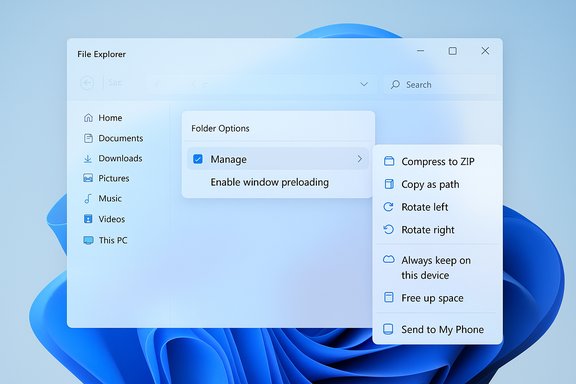
Windows File Explorer displaying Folder Options and a right-side actions panel.Background​

Windows’ File Explorer is the operating system’s most frequently used GUI surface; even tiny frictions — a half‑second “cold start,” a bloated context menu full of cloud and third‑party entries — compound into real productivity loss for millions of users. Microsoft announced these changes as part of Windows 11 Insider Preview Build 26220.7271 (KB5070307), published to the Dev and Beta channels on November 21, 2025. The company frames both moves as explorations that will be tuned using telemetry and Feedback Hub input before any broader release. Community testing and independent coverage confirm the experiments are live for Insiders: testers are seeing a Folder Options toggle labeled Enable window preloading for faster launch times, and a shorter top‑level context menu with a nested Manage file flyout for compress, copy‑as‑path, rotate and similar commands. Early forum reports and reproductions corroborate Microsoft’s release notes.

What Microsoft shipped in the Insider build​

Preloading: warm start for Explorer​

Microsoft is exploring a background preloading approach that keeps a lightweight Explorer skeleton in memory so the first visible window paints almost instantly when invoked. The behavior is optional and exposed with a user toggle at:
File Explorer → View → Options → Folder Options → View → “Enable window preloading for faster launch times.” The implementation follows a familiar Microsoft pattern: perform predictable initialization during idle time so the interactive path is shorter at the moment the user asks for it. Edge’s Startup Boost and later Office prelaunch tasks used the same trade‑off — a small, controlled background cost in exchange for a faster perceived launch. Microsoft’s notes emphasize the change is intended to improve perceived launch speed rather than dramatically rearchitect file enumeration or network enumeration behavior.

Context menu reorganization​

The right‑click (context) menu inside File Explorer has been shortened at the top level. Infrequently used actions — Compress to ZIP, Copy as path, Set as desktop background, and Rotate left/right — are grouped under a new Manage file flyout. Cloud provider options such as Always keep on this device and Free up space are now surfaced inside their respective cloud provider flyouts, and Send to My Phone has been relocated near those provider entries to improve grouping and scanability. Microsoft explicitly notes that the “Manage file” label may change during testing.

Why these two changes matter​

  • Perceived responsiveness: Warming a tiny portion of Explorer before use reduces the visible delay on first open, which is particularly noticeable on older CPUs, eMMC storage, and handheld Windows devices. On budget hardware, a warmed UI can change the feel of the OS from sluggish to snappy.
  • Reduced visual clutter: Grouping infrequent actions into logical flyouts shortens the top‑level context menu, improving scanability and reducing accidental clicks on low‑value items. This is a practical UX trade: expose the common verbs quickly, but keep advanced or rare actions a single extra click away.
  • Consistency with prior engineering choices: Microsoft is reusing a proven pattern (background prelaunch) that has been applied successfully to Edge and Office; the risk profile is therefore well‑understood and manageable.

Technical analysis: how preloading likely works (and what it does not)​

What preloading is likely doing​

Based on Microsoft’s high‑level description and precedent implementations, preloading for Explorer probably:
  • Instantiates a lightweight Explorer process or UI skeleton in the background (address bar, command bar, and common controls).
  • Primes small UI caches and commonly used thumbnail/icon data so the first interactive paint is fully populated.
  • Keeps that process in a suspended or low‑activity state to conserve CPU while reserving memory for instant resume.

What preloading will not magically fix​

Preloading shortens the time to first paint but does not fundamentally speed up:
  • Deep enumeration of very large directories (thousands of files), particularly across slow network shares.
  • The work done by thumbnail generators, heavy preview handlers, or third‑party shell extensions that run on demand.
  • Latency introduced by remote cloud storage or placeholder synchronization when Explorer queries metadata across the network.
Microsoft’s own notes emphasize the distinction: preloading improves perceived launch, not the underlying IO or network performance.

Measured trade‑offs and risks​

Memory and battery overhead​

Preloading trades a modest, predictable memory reservation and occasional CPU activity at idle for faster launch performance. On modern desktops with abundant RAM, the cost is likely imperceptible. On low‑RAM laptops, tablets, or pocketable handhelds, the cumulative memory reserved for additional warmed processes could increase pressure, possibly causing memory trimming or paging earlier in heavy workloads. Battery impact is likely small, but any background work contributes to overall energy use — a legitimate concern for always‑connected, mobile Windows devices. Insiders can opt out with the toggle if they observe unacceptable battery or memory behaviour.

Interactions with third‑party shell extensions​

Third‑party context menu and shell extensions often execute during Explorer initialization. Preloading can change the timing of when those extensions are invoked and may uncover race conditions or initialization assumptions in poorly designed extensions. The change therefore risks exposing compatibility issues; Microsoft appears to be collecting telemetry to detect such regressions during the staged Insider rollout.

Accessibility, discoverability, and muscle memory​

Condensing actions into the Manage file flyout shortens the top menu, which improves scanability for many users but imposes one extra click for tasks some users perform frequently (for example, Compress to ZIP). Microsoft is treating this as an iterative change and warns the label and grouping could evolve. Accessibility testing will be crucial: nested menus can be harder to navigate with assistive technologies if not implemented carefully. Early forum feedback suggests the top‑level reduction aids visual scanning, but some power users and screen‑reader users may need the old layout until discoverability is improved.

Timeline and rollout expectations​

Microsoft shipped the experiments to Insiders on November 21, 2025, but has not committed a firm public date for a general release. Several outlets and community feeds anticipate a staged rollout to stable Windows 11 channels if telemetry and Feedback Hub signal no significant regressions; optimistic public estimates place a broader availability in early 2026. That timeframe depends on internal testing, accessibility verification, and any required fixes. Treat the early‑2026 target as contingent rather than guaranteed.

Practical guidance for users and IT administrators​

For Windows Insiders and power users​

  • Install the preview build only on test machines; do not deploy Insider builds in production.
  • Evaluate the preloading toggle: monitor memory use, boot times, and battery life with the toggle enabled and disabled to measure the real‑world trade‑off.
  • Test common workflows that rely on shell extensions (backup agents, sync clients, encryption tools) because timing changes can expose latent bugs.
  • Provide structured feedback via the Feedback Hub under Desktop Environment > Right‑Click Context Menu and Files Folders and Online Storage > File Explorer Performance.

For IT administrators and enterprise teams​

  • Pilot the build on representative hardware and measure metrics (RAM reserve, boot behavior, battery draw) before wider deployment.
  • Wait for administrative controls and Group Policy options (Microsoft historically adds enterprise controls after telemetry confirms behavior).
  • Use the opt‑out toggle for early deployments if constrained devices show regression; Microsoft’s staged approach and toggle presence make controlled rollout feasible.

Accessibility and developer considerations​

Screen readers and nested flyouts​

Nested flyouts can be screen‑reader friendly when they expose proper ARIA semantics and keyboard focus management, but history shows that subtle implementation gaps often appear in early releases. Microsoft’s explicit invitation to collect Feedback Hub input indicates it will iterate on label changes and accessibility behavior. Organizations supporting users with impaired vision should test the new menu structure with their assistive tech stack before a broad deployment.

Extension developers​

Extension authors should test their context menu and initialization code against the preview builds to ensure no blocking operations assume synchronous Explorer initialization or specific timing. Defensive initialization and asynchronous patterns will reduce the risk of breakage as Explorer’s start‑up timing changes.

Wider implications for Windows UX and product strategy​

The change is emblematic of Microsoft’s recent approach: incremental, telemetry‑driven improvements that prioritize perceived performance and everyday ergonomics over sweeping rewrites. Rather than attempting a full rearchitecture of Explorer’s file enumeration and preview subsystems — a costly and risky effort — Microsoft chose two surgical moves that improve daily experience for many users while keeping changes reversible and tunable. This approach minimizes disruption and lets the company iterate quickly based on real device telemetry and insider feedback. From a product strategy perspective, the update signals continued emphasis on practical polish and cross‑device parity: the same warmed‑process idea has been applied across Edge and Office, and applying it to Explorer fills one of the most visible user pain points without demanding large behavioral changes from users. The context‑menu cleanup also reflects a desire to make the UI readable and mobile/tablet friendly, where long vertical menus can be particularly problematic.

Where reporting and community threads agree (and where to be cautious)​

Independent coverage from mainstream outlets and Windows community threads converges on these facts:
  • The changes are present in Windows 11 Insider Preview Build 26220.7271 and are described as experiments.
  • The preloading toggle appears in Folder Options and is opt‑out capable.
  • Context menu items such as Compress to ZIP, Copy as path, Rotate, and Set as desktop background are now nested under Manage file; cloud options moved to provider flyouts.
Cautionary notes:
  • Microsoft has not committed a firm general‑availability date; early‑2026 rollouts reported in the press reflect expectations rather than official timelines. That timeline remains contingent on Insider telemetry and fixes.
  • Some claims about large, measurable speed improvements for all scenarios are overstated: preloading improves first paint and perceived speed, but does not alter deep enumeration or network IO times. Any reporting that implies preloading eliminates network or storage latency should be treated skeptically.

Recommended short checklist before upgrading (summary)​

  • Confirm the specific build (Windows 11 Insider Preview Build 26220.7271 / KB5070307) is installed on test hardware.
  • Measure baseline memory, boot time, and battery metrics before enabling preloading.
  • Run representative workflows that use third‑party shell extensions and cloud sync providers to catch timing regressions.
  • Test assistive technologies (screen readers, keyboard navigation) against the new context menu layout.
  • File structured feedback through Feedback Hub for any accessibility, performance, or compatibility issues.

Conclusion​

Microsoft’s Explorer experiments in the November 21, 2025 Insider build are a pragmatic, low‑risk attempt to fix two long‑standing usability problems: the familiar “cold‑start” pause when opening Explorer and cluttered, vertically long context menus. By preloading a small portion of Explorer in the background and grouping seldom‑used actions into a Manage file flyout and cloud provider submenus, Microsoft targets the most visible pain points while preserving opt‑out controls and the ability to iterate.
The moves reflect an engineering philosophy favoring telemetry‑backed incrementalism: quick wins that improve perceived performance and clarity without a full shell rewrite. The changes are already visible to Insiders, and a staged rollout to the wider Windows 11 population is expected only after testing — an early‑2026 timeline is possible but not guaranteed. Administrators and users should pilot the change, measure the practical trade‑offs on their hardware, and use the available toggle and Feedback Hub to help shape the final experience.
Source: 247news.com.pk Windows File Explorer to Get Speed and Clarity Update from Microsoft - 247News
 

Microsoft’s small, pragmatic fix for a long‑running annoyance — preloading File Explorer in the background — does make first launches feel snappier, but independent tests show it doesn’t cure the deeper sluggishness Windows 11 users complain about, and it does reserve a modest amount of RAM while doing so.

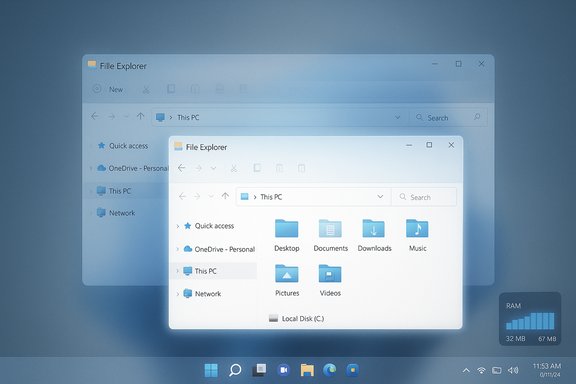
Overlapping Windows File Explorer windows on a blue desktop with a RAM usage widget.Background / Overview​

Windows 11 Insider Preview Build 26220.7271 (KB5070307) introduced an experimental change: Windows will optionally preload parts of File Explorer in the background after sign‑in so the first interactive window paints faster. Microsoft describes the work as an exploration and exposes a user toggle — “Enable window preloading for faster launch times” — inside File Explorer’s Folder Options so testers can opt out. The change is deliberately narrow. It aims to reduce the perceived launch delay (the “cold‑start” pause many people see the first time they open Explorer after boot), not to rewrite Explorer’s internal engine or remove long‑running performance bottlenecks such as slow folder enumeration, heavy preview handlers, or poorly behaving third‑party shell extensions. Microsoft’s choice mirrors previous warm‑start strategies used across its products (Edge Startup Boost, Office prelaunch tasks): warm the runtime during idle time and resume quickly when the user asks for the app.

What the WindowsLatest test found — quick summary​

  • With preloading disabled, the tester observed File Explorer using about 32.4 MB of RAM when idle shortly after boot.
  • With the preload enabled (the same VM, restarted), idle RAM attributable to Explorer increased to roughly 67.4 MB — an extra ~35 MB reserved for the warmed instance. The author judged this memory overhead small but measurable.
  • In timed launch comparisons the warmed (preloaded) Explorer painted noticeably faster on first open, both when the system was idle and under load; in slow‑motion video the difference was obvious.
  • Crucially, preloading only affected launch time. The broader complaint — sluggishness in the UI after launch, context menu latency, and janky interactions — remained. The context menu still loaded extended entries (Ask Copilot, third‑party app verbs, Edit with… items) slowly in the tester’s hands‑on environment.
Those results align with multiple early hands‑on reports and community measurements that describe consistent, perceptual gains on cold starts while noting that the preload is not a fix for deeper enumeration and extension‑related delays.

Why this feels like a band‑aid: the technical explanation​

At the heart of the File Explorer debate is an engineering reality: the modern Windows 11 Explorer remains anchored on the long‑standing Win32 / COM shell foundation (explorer.exe, shell32), while Microsoft has layered newer UI frameworks on top — first XAML Islands / WinUI 2 bridges, and increasingly WinUI 3 via the Windows App SDK. That layering increases rendering and composition work compared with the purely native Win32 widgets Windows 10 used for toolbar, menu, and pane rendering.
  • Windows 10 relied primarily on native Win32 controls for Explorer UI elements; Windows 11 overlays those legacy internals with WinUI/XAML surfaces for a modern look.
  • Migrating components to WinUI 3 (Windows App SDK) means Explorer now composes UI with additional frameworks, which can add milliseconds of cost per paint and more complexity around preview/thumbnail handler initialization.
Preloading hides the cost of that initialization by doing it earlier (during boot or idle). It does not, however, simplify the cost structure: the extra layers still exist and still have to perform work when the user interacts beyond the first paint (opening context menus, enumerating network/cloud folders, invoking preview handlers). For that reason, users may see instant first paint but still experience stuttering or long waits when context menus populate or when heavy shell extensions run.

Cross‑checking the major claims (what independent sources say)​

  • The feature exists in Build 26220.7271 and is being tested in Dev/Beta channels: confirmed by multiple outlets covering Microsoft’s Insider notes.
  • The preload is toggleable in Folder Options → View → “Enable window preloading for faster launch times”: widely reported and visible to Insiders.
  • Preloading produces perceptible first‑open speedups but does not solve deeper lag problems (context menu, enumeration): validated by independent hands‑on reports and community threads summarizing early tests.
  • The memory overhead appears modest (community numbers commonly fall in the 20–50 MB range), but Microsoft has not published precise memory budgets — so treat measured values as anecdotal and device‑dependent.
Those cross‑checks show a consistent picture: preload improves perception of speed on cold start while trading a small, device‑dependent memory reservation. The technique is not controversial technically, but reactions vary widely depending on user priorities (snappiness vs. absolute memory/battery economy).

Hands‑on implications: what users will actually notice​

  • Casual users on modern, high‑spec desktops will hardly notice much change; these systems often have sub‑second cold‑start latency already. On lower‑spec machines (HDDs, older CPUs, small RAM), the preload produces the biggest day‑one feeling of improvement.
  • If you open Explorer many times a day (power users, file wranglers), shaving a second from each first open increases perceived responsiveness and reduces break in workflow.
  • The preload reserves a small persistent chunk of RAM while warmed; testers commonly report figures in the tens of MBs. On systems with 4 GB of RAM or heavily constrained VDI images, that reservation can be meaningful and should be tested before enabling wholesale.
  • The preload does not make context menus or slow preview handlers instantly fast; those parts of Explorer are still the most common sources of perceptible lag. Many of the menu entries that cause delays are new and heavy (cloud provider verbs, third‑party app integrations, AI or Copilot actions).

Risks, trade‑offs and enterprise considerations​

  • Memory vs. Latency: Preloading trades a predictable memory reservation for faster launch times. On devices with limited RAM, that trade‑off may be undesirable. Microsoft typically uses heuristics in similar features (skip preload on low memory or when on battery), but at this stage those heuristics are not fully documented for Explorer. Treat any exact MB figures as provisional until broad telemetry or lab benchmarks are published.
  • Battery and wakeups: Shifting work into sign‑in or idle reduces CPU cost at click time, but it can introduce small consumption in the boot/idle window. For battery‑sensitive scenarios, note the potential for slightly higher wakeups during boot or background warm phases.
  • Third‑party shell extensions: Explorer hosts many vendor extensions (cloud sync, AV context menus, preview handlers). Preloading may initialize some of those earlier, which can surface stability issues or cause unexpected network activity in certain configurations. Enterprises should pilot the feature with common vendor integrations to validate compatibility.
  • Manageability: Right now the feature is a Folder Options toggle. Enterprises will expect Group Policy / ADMX or MDM controls before enabling preload by default across a fleet. Until those controls are published and tested, organizations should keep the setting disabled in images used for wide deployment or test in pilot rings.

What Microsoft did right (strengths of the approach)​

  • Low‑risk, reversible experiment: exposing a user toggle and rolling through Insider channels is the correct way to validate behavior at scale while letting users opt out easily.
  • High‑impact perceptual win: perceived responsiveness matters more than raw startup time metrics for everyday productivity. Preloading targets precisely the UX metric that annoyed many users (the cold start).
  • Context‑menu declutter is good UX hygiene: moving rarely used verbs into a Manage file flyout reduces top‑level noise and helps users find common commands quicker. That change, combined with preload, aims to make Explorer feel both faster and cleaner.

What Microsoft didn’t fix (and what still needs work)​

  • Preloading doesn’t change folder enumeration, network share latency, or preview/thumbnail handler performance — the real causes of recurring slowness in many scenarios. Root‑cause fixes will require targeted optimization or refactors of how Explorer handles third‑party providers and heavy I/O operations.
  • The ongoing migration of Explorer UI elements to WinUI/Windows App SDK means additional rendering layers remain; optimized rendering and tighter integration between Win32 core and WinUI surfaces will be necessary for long‑term parity with the old, lean Win32 Explorer. That kind of work is larger and riskier than a preload experiment.
  • Transparency on resource budgets: Microsoft has not published exact memory/battery budgets for the warmed state. Independent labs and controlled telemetry will be needed to validate trade‑offs across hardware classes.

Practical guidance — what to do today​

  • If you’re an Insider and you want to try the preload:
  • Install Windows 11 Insider Preview Build 26220.7271 (Dev/Beta channels may receive it).
  • Open File Explorer → click the three‑dot menu → Options → View tab → un/check Enable window preloading for faster launch times. The toggle is visible and works immediately.
  • If you manage fleets:
  • Treat this as an experiment. Add the preload toggle to pilot test checklists, measure memory and battery impact on representative devices (especially low‑RAM laptops, thin clients, and VDI images), and wait for published Group Policy controls before enabling across the board.
  • If Explorer still feels sluggish after preload:
  • Audit third‑party shell extensions with ShellExView or vendor documentation.
  • Disable heavy preview handlers (especially for network/cloud file types) and test folder enumeration in isolated cases to identify the real bottleneck.
  • Consider using an alternative file manager for workflows that demand extreme speed and reliability; multiple mature options exist for power users.

Conclusion — a pragmatic step, not a long‑term cure​

Microsoft’s Explorer preload is a sensible, engineering‑conservative fix: it delivers a visible UX improvement with low rollout risk and an easy opt‑out. Early tests (including the WindowsLatest hands‑on) show preloading speeds first opens and does so at the cost of a modest, device‑dependent memory reservation (commonly measured in the tens of megabytes). That said, preloading is not the same as fixing the root causes of sluggishness. Context menus, heavy preview handlers, and the architectural complexity introduced by mixing Win32 with WinUI/XAML still explain why many users feel Windows 11’s Explorer can be slower and less fluid than Windows 10’s. In short: the preload is a useful patch to improve perceived launch times, but the broader Explorer performance story still requires deeper optimizations and clearer telemetry from Microsoft before the problem can be declared truly solved.
For readers who care about immediate responsiveness, enabling preload (or leaving it on where Microsoft rolls it out) is likely worthwhile. For those on constrained hardware or managing large fleets, proceed cautiously: measure, pilot, and wait for enterprise controls and published resource budgets before making it default across your environment.


Source: Windows Latest Tested: Windows 11’s ‘faster’ File Explorer (preloaded) is still slower than Windows 10, and uses additional RAM
 

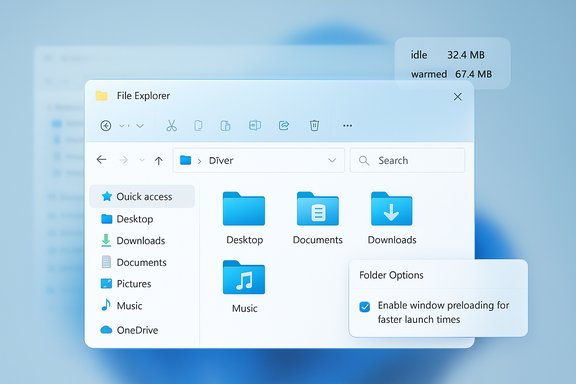
Windows File Explorer UI with blue folder icons and a Folder Options panel.
Microsoft’s recent Insider preview experiment that quietly preloads File Explorer in the background is a pragmatic attempt to hide a long‑standing “cold start” pause, but hands‑on tests show the change delivers only modest launch gains while adding a measurable memory footprint and leaving the deeper sources of Explorer sluggishness untouched.

Background / Overview​

Windows 11 Insider Preview Build 26220.7271 (KB5070307) introduced an experimental feature described by Microsoft as “preloading File Explorer in the background to help improve File Explorer launch performance.” The experiment is currently rolling out to Dev and Beta channel Insiders and exposes a user toggle in File Explorer’s Folder Options labelled “Enable window preloading for faster launch times.” That toggle is present so testers can opt out if they prefer to avoid the background cost. The engineering rationale is straightforward: instead of changing Explorer’s internal architecture, Microsoft is using a warm‑start strategy — load a lightweight portion of the File Explorer UI during idle time and resume it instantly when the user asks for a window. This mirrors earlier Microsoft patterns such as Edge’s Startup Boost and Office prelaunch tasks and aims to improve perceived responsiveness with minimal risk. However, several independent hands‑on reviews and community tests now show this is a narrow solution: preloading reduces first‑open latency but does not materially improve folder enumeration, context‑menu latency, or UI fluidity when Explorer is under load. Those remaining problems are rooted in the mix of legacy shell code and modern WinUI/XAML surfaces that Explorer must compose at runtime.

What Microsoft shipped in Build 26220.7271​

  • A background preload experiment for File Explorer that can be toggled on or off in Folder Options.
  • A context‑menu reorganization that groups seldom‑used verbs into a Manage file flyout and moves cloud provider operations into provider submenus, tidying the top‑level menu.

Where to find the toggle​

  1. Open File Explorer.
  2. Click View → Options to open Folder Options.
  3. Go to the View tab and look for Enable window preloading for faster launch times; uncheck to disable.
This explicit user control reflects a conservative rollout philosophy: let Insiders test the feature on a variety of hardware and usage patterns, then use telemetry and feedback to guide any broader deployment.

The test results that matter: what independent hands‑on reporting found​

Windows Latest ran an empirical test of the preload change that illustrates the trade‑offs in clear, repeatable numbers. With preloading disabled, File Explorer’s idle RAM usage measured roughly 32.4 MB. With preloading enabled, the warmed state increased idle memory usage to about 67.4 MB, an extra ~35 MB reserved by the preloaded instance. The warmed Explorer did open somewhat faster in timed comparisons — the first paint was quicker both on an idle system and under simulated load — but the improvement was modest and most noticeable only in slow‑motion comparisons. Crucially, the context menu and folder navigation remained sluggish in many scenarios; preloading did not resolve those pain points. Other outlets and community threads corroborate two consistent conclusions:
  • Perceived launch time improves — users will usually see a quicker first window paint.
  • Deeper latency remains — tasks dominated by enumeration, preview/thumbnail handlers, or third‑party shell extensions are unaffected by preload.

What the numbers mean in everyday use​

  • On modern desktops with abundant RAM, an extra ~35 MB is usually negligible and most users will appreciate the immediate feel of faster first opens.
  • On low‑RAM devices, VDI images, or battery‑sensitive laptops, the reserved RAM and any potential additional background scheduling could be noticeable and may justify disabling preload in pilot images.

Why preloading helps launch time but not overall responsiveness​

Layering and rendering overhead: Win32 + WinUI/XAML​

File Explorer in Windows 11 is no longer a pure Win32 app. Microsoft has progressively layered WinUI and XAML‑based surfaces on top of the legacy shell core. This hybrid architecture gives a modern look but increases rendering, composition, and interop work at paint time. Preloading hides some of that cost by doing initialization during idle periods, but it cannot remove the underlying overhead that still occurs during interactive operations such as:
  • Building and populating context menus (which may call third‑party shell extensions).
  • Enumerating files on local or network drives, or resolving cloud placeholders (OneDrive and third‑party providers).
  • Running preview and thumbnail handlers that perform I/O or CPU work on first access.
In short, preloading reduces time to first paint; it does not refactor the cost of those subsequent operations.

Third‑party shell extensions and preview handlers remain wildcards​

A major source of Explorer slowdowns historically comes from poorly written shell extensions and preview providers. Those components can run expensive code the first time a menu or preview is requested. Preloading can prime a subset of the runtime, but it cannot neutralize unbounded I/O or CPU work that third‑party components perform on demand. Administrators and power users should still audit shell extensions (for example, with tools like ShellExView) when Explorer continues to behave sluggishly.

Practical trade‑offs: memory, battery, and manageability​

  • Memory: The warmed state reserves a small, predictable chunk of RAM (measured tens of megabytes in community testing). For most modern systems this is not an issue, but in constrained environments the cost is non‑trivial. Windows Latest’s real‑world check showed an increase from ~32.4 MB to ~67.4 MB in a VM test. This is device‑dependent and should be measured on representative hardware.
  • Battery: Microsoft has not published telemetry for battery impact. Any persistent resident instance that wakes CPU periodically or initializes handlers could impact battery life; the effect is likely small but observable on the lowest‑power devices. Treat battery impact as unverifiable until telemetry or broader benchmarking is published.
  • Enterprise manageability: The preview exposes only a user toggle. Enterprises should expect Group Policy / ADMX or MDM controls before enabling preload by default across a fleet. Piloting in representative images — including VDI and non‑persistent session hosts — is essential because preloading changes login‑time resource profiles and could interact with image provisioning behaviors.
Flag: Microsoft has not published a device class breakdown or precise resource budget for preloading. Any exact MB or battery claims in community reports are anecdotal until validated by wider independent benchmarks or Microsoft telemetry.

How to test and (if desired) disable preloading today​

  • Confirm you’re on Windows 11 Insider Preview Build 26220.7271 (KB5070307) and receiving the experiment. Build rollouts can be staged and not all Insiders will see the feature immediately.
  • Measure baseline: before enabling preload, capture idle memory footprint for explorer.exe, cold open time (from click to first usable paint), and representative folder navigation times (local, network, cloud).
  • Enable preload and re-run the same tests across:
    • Idle desktop
    • Heavy CPU / memory load (multiple browser tabs, VMs)
    • Networked folder access and OneDrive placeholder scenarios
  • Disable preload by unchecking the Folder Options setting if the trade‑offs are unfavorable. Steps:
    1. File Explorer → View → Options
    2. View tab → uncheck Enable window preloading for faster launch times
    3. Restart and remeasure.
For enterprises:
  1. Add preload to imaging/pilot test checklists.
  2. Validate behavior with common vendor integrations (backup agents, sync clients, security tools).
  3. Wait for centralized policy controls before broad deployment.

Beyond preload: realistic ways Microsoft (and IT teams) can address Explorer sluggishness​

Preloading is a short‑ to medium‑term mitigation. Addressing root causes will require a set of targeted actions from Microsoft and operational steps by administrators and users.

What Microsoft could do (engineering directions)​

  • Optimize WinUI interop and rendering: reduce composition overhead where WinUI overlays legacy controls, and minimize cross‑framework marshal costs.
  • Improve shell extension heuristics: defer or sandbox third‑party extensions so they don’t block context menu creation or folder enumeration.
  • Refine cloud provider APIs: make placeholder enumeration and status resolution incremental and non‑blocking for common navigation paths.
  • Publish telemetry and resource budgets: clear, device‑class telemetry would make it easier for admins and power users to judge trade‑offs.

What power users and IT teams can do now​

  • Audit and disable non‑essential shell extensions (ShellExView or equivalent).
  • Disable expensive preview/thumbnail handlers for problematic file types (especially for network/cloud folders).
  • Consider alternative file managers for power workflows that need ultra‑fast enumeration or customizable UX; many modern file managers offer dual‑pane, tabbed, or lightweight modes that sidestep Explorer’s mixed heritage.
  • For shared images: add first‑logon smoke tests that include Explorer open, context‑menu timing, and memory profiles to catch regressions introduced by new feature flights.

Reader takeaways: strengths, risks, and the realistic expectation​

Strengths of Microsoft’s approach​

  • Low risk, reversible: the change is an opt‑out experiment with minimal compatibility exposure, letting Microsoft iterate using real‑world telemetry.
  • Immediate perceptual win: shaving milliseconds to produce an instant first paint is a tangible UX improvement for many users, especially on low‑spec hardware.

Risks and limitations​

  • Not a panacea: preloading doesn’t resolve folder enumeration, cloud sync latency, or poorly behaving shell extensions. Expect residual sluggishness in many real‑world workflows.
  • Measured resource cost: community tests report a modest RAM overhead (tens of MB); while small on modern desktops, this matters in resource‑constrained environments.
  • Policy and telemetry gap: until Microsoft publishes budgets and administrative controls, enterprise rollouts must proceed cautiously.

Verdict: pragmatic band‑aid that buys time, not a replacement for deep fixes​

Preloading File Explorer is a sensible, pragmatic engineering trade: it gives Microsoft a visible, low‑risk speed improvement that users will notice on first open, and the opt‑out makes it safe to trial. Yet it is an incremental workaround rather than a cure. The deeper architectural complexity — the legacy Win32 shell interwoven with WinUI/XAML and the ever‑present influence of third‑party extensions and cloud providers — explains why File Explorer can still feel slower than many expect, even after preload is enabled. For most mainstream users on modern devices, the preload will likely feel like a welcome polish: faster initial opens and a cleaner context menu. For power users, IT admins, and those on constrained hardware, the change is worth testing but not a substitute for the operational and engineering work needed to remove the root causes of Explorer latency. Pilot widely, measure carefully, and use the toggle if the trade‑offs don’t fit your environment.

Final recommendations for readers and administrators​

  • If you see the preload in your Insider flight: try it, measure the delta for your workload, and file feedback in Feedback Hub under Files, Folders and Online Storage → File Explorer Performance.
  • Administrators: do not flip preload on fleetwide images until you have tested representative devices and confirmed Group Policy/MDM controls exist (or are available) to manage the behavior at scale.
  • Everyone: if Explorer still feels sluggish after preload, audit shell extensions and preview handlers; consider alternative file managers for high‑intensity workflows.
Microsoft’s experiment is an honest, incremental move toward visible polish. It’s a pragmatic short path to improved perceived responsiveness — but the more ambitious work of eliminating deep, systemic causes of Explorer sluggishness will require additional engineering, clearer telemetry, and robust enterprise controls before we can call File Explorer truly fixed.
Source: Windows Report Microsoft Tried Preloading File Explorer to Make It Faster — A Test Reaveals It Isn’t Paying Off
 

Microsoft’s quiet experiment to “preload” File Explorer in Windows 11 has reignited a familiar trade‑off: shave milliseconds off the first click at the cost of keeping extra Explorer state resident in memory, a choice that independent tests show can effectively double the idle RAM used by the process while delivering only modest real‑world speed wins for many users.

A futuristic blue user interface with a large window and a floating settings panel.Background​

Microsoft shipped the preload as an opt‑in experiment in Windows 11 Insider Preview Build 26220.7271 (KB5070307), surfacing the setting to testers as a Folder Options checkbox labeled "Enable window preloading for faster launch times." The change is deliberately narrow in scope: rather than rewriting Explorer’s internals, Microsoft is warming a lightweight portion of the UI during idle time so the first user‑initiated window paints more quickly. Early coverage and hands‑on tests report the toggle is visible in current Dev and Beta channel flights and is enabled by default for recipients of the experiment. This experiment is paired with a separate context‑menu reorganization that groups seldom‑used actions into a Manage file flyout and moves cloud‑provider options into provider submenus. Together, Microsoft’s aim is pragmatic: reduce the visible “cold‑start” pause and tidy a cluttered right‑click menu without risking compatibility across Explorer’s vast extension surface.

What the measurements say (verification of claims)​

Independent measurement is decisive here because the central criticism — a so‑called “RAM tax” — depends on absolute and relative numbers.
  • A repeatable hands‑on test published by an independent outlet measured Explorer’s idle footprint at roughly 32.4 MB with preloading disabled and 67.4 MB with preloading enabled — an increase of about 35 MB, which is effectively a doubling of the idle Explorer memory allotment in that environment. That same test showed the launch paint completed faster with preload enabled, but the real‑world perceptual difference was subtle except in slow‑motion comparisons.
  • Multiple mainstream outlets and preview write‑ups confirm the feature’s existence in Build 26220.7271 and its toggleable nature, but most do not publish a standardized measurement matrix; instead they report qualitative improvements on low‑spec hardware and minimal impact on modern desktops. This convergence of reporting supports the central technical facts — preload exists, it reserves memory, and it improves time‑to‑first‑paint — while highlighting that numerical impact varies by configuration.
Caveat: the exact memory footprint is device‑dependent. The quoted 35 MB delta is a measured result from a specific lab configuration (a VM used by the reviewer). Different hardware, installed shell extensions, language packs, and cloud providers can change the warmed state considerably. Until Microsoft publishes formal telemetry or an engineering blog with resource budgets, treat precise megabyte figures as indicative rather than universal.

Why the memory change matters (and why "doubles RAM usage" is technically accurate but misleading)​

Saying preloading “doubles RAM usage” is technically defensible when you compare two specific idle snapshots of explorer.exe: 32.4 MB versus 67.4 MB is a ~2× jump. That phrasing, however, hides important context:
  • Absolute size matters. An extra ~35 MB is tiny on a modern desktop with 16 GB or more of RAM. For users on constrained devices (4–8 GB) or heavily loaded virtual desktops, the incremental cost can be meaningful because it nudges system memory pressure and can trigger more aggressive trimming, compression, or paging behavior.
  • Relative vs. absolute framing. Headlines that focus only on the multiplicative change (e.g., “doubles RAM usage”) emphasize proportionality. Readers should weigh both perspectives: proportional change signals design trade‑offs; absolute change speaks to real user impact.
  • Workload sensitivity. Resident memory is only one axis. Preloading also shifts CPU work into idle time and may introduce background wake events and earlier initialization of third‑party shell extensions, which can influence power draw, responsiveness of other apps, and stability in edge cases.

How the preload likely works (technical sketch)​

Microsoft’s public notes are intentionally high‑level, so community engineering analysis and precedent give the most plausible model:
  • A lightweight UI skeleton (address bar, command bar, common controls, initial UI surface) is instantiated or prepared while the system is idle.
  • Small in‑memory caches (icons, commonly used thumbnails, navigation state) are primed so that the first paint fills quickly.
  • The warmed state is held dormant or suspended to minimize CPU while reserving RAM for a fast resume.
  • The feature is toggled in Folder Options and is being trialed in Insider channels to collect telemetry and feedback prior to any broader rollout.
This warm‑start strategy mirrors other Microsoft patterns such as Edge’s Startup Boost and Office prelaunch tasks — practical, low‑risk approaches that trade a predictable background cost for reduced click‑to‑interactive latency. That precedent implies Microsoft may gate the feature with heuristics (minimum free RAM, battery saver state, device class) when it reaches broader channels.

Where preloading helps — and where it doesn’t​

What it helps​

  • First‑open perceived responsiveness. On HDD or low‑spec machines, users report the first Explorer window appears noticeably faster, reducing the irritating “Working on it…” pause.
  • Initial UI smoothness. A warmed UI can avoid partially rendered elements and some first‑use stutters.
  • Low‑risk deployment. Toggleable setting gives users and IT admins direct control to disable the behavior where it’s unwanted.

What it does not fix​

  • Folder enumeration times. Scanning huge local or network directories, or resolving cloud‑provider metadata, remains an I/O problem unaffected by a warmed UI skeleton.
  • Context menu latency driven by third‑party handlers. Preloading doesn’t eliminate the cost of heavy preview handlers or poorly written shell extensions; indeed, it can surface extension bugs earlier.
  • Deep architectural bottlenecks. Explorer’s hybrid Win32 + WinUI/XAML composition can still introduce rendering overheads that are not solved by preloading alone.

Risks and compatibility surface​

  • Third‑party shell extensions. Explorer has historically hosted many extensions that can cause instability. Preloading may initialize some of these earlier or in contexts they previously didn’t run, exposing latent bugs and background crashes. Enterprises that rely on vendor shell extensions should pilot the feature carefully.
  • Memory pressure on constrained devices. On systems with low RAM, the extra resident bytes can worsen overall system responsiveness if it leads to swapping or reduces available working set for browsers and productivity apps.
  • Battery and power draw. Even dormant processes can cause periodic wakeups for maintenance or telemetry. On battery‑sensitive devices, small but repeated wake events can have cumulative effect. Expect Microsoft to use heuristics to limit preloading on battery saver or ultra‑portable classes; don’t assume those heuristics exist without confirmation.
  • Network and privacy side effects. A poorly designed preload could accidentally cause Explorer to touch network shares or cloud metadata while idle. Microsoft must ensure preload avoids unsolicited network enumeration or credential exposure. Early reports flag this as something to watch for; current Insider notes emphasize it as an exploratory change and invite feedback.

Enterprise considerations and deployment guidance​

IT administrators should treat this update as an experiment, not a default policy for mass deployment.
  • Pilot on representative hardware. Include low‑spec laptops, VDI images, and devices with vendor shell extensions.
  • Measure baseline metrics. Record memory pressure, boot time, battery life, and support ticket volume before and after enabling preload.
  • Audit shell extensions. Use tools like ShellExView (or vendor documentation) to identify heavy or risky extensions and coordinate with vendors as needed.
  • Wait for policy controls. Microsoft typically exposes Group Policy / MDM controls for features that affect fleets; hold off on mass enabling until those controls and formal telemetry/budgets are published.
  • Provide an opt‑out in images. If creating corporate images for broad rollouts, include steps to disable the preload checkbox or script a registry/GPO-based policy once Microsoft publishes guidance.

Practical user controls — how to test and disable the preload today​

  • To check the setting if your device has received the experiment: Open File Explorer → View → Options → Folder Options → View tab → locate “Enable window preloading for faster launch times” and uncheck to disable.
  • For conservative users (especially on machines with 4–8 GB RAM), leave the toggle off until Microsoft publishes resource guidance or independent labs report comprehensive measurements across device classes.
  • For power users unhappy with File Explorer performance generally, consider reputable third‑party file managers (dual‑pane, minimal preview handlers) for workflows where raw speed and low memory footprint matter. Reviews and community threads list multiple mature alternatives; trial them on representative tasks before switching.

A critical appraisal: pragmatic engineering vs. deferred complexity​

Microsoft’s preload approach is a textbook pragmatic fix: it delivers a perceptual improvement with low rollback risk and requires less invasive engineering than rewriting Explorer’s complex shell. That philosophy has clear strengths:
  • Low‑risk, reversible change. Exposed toggle and staged Insider rollout reduce the odds of a broad regression.
  • High perceived payoff. Human perception values instant feedback; shaving first‑paint delays can improve user flow.
  • Proven pattern. Microsoft already uses prelaunch heuristics in Edge and Office, so the approach is operationally familiar.
But the strategy also embodies limitations and potential hazards:
  • It’s a band‑aid for architectural debt. Explorer’s sluggishness is an aggregate of rendering layers, third‑party integrations, cloud placeholder behavior, and enumeration latency. Warm‑start optimizations hide symptoms rather than solve root causes.
  • Compatibility externalities. Preloading expands the compatibility surface and could trigger extension bugs or unexpected background activity.
  • Communication and telemetry gap. Microsoft has not published explicit memory budgets, gating heuristics, or enterprise policy guidance for this experiment; that transparency will be crucial before broad deployment.

Recommendations (who should enable preload and who should not)​

  • Enable preload if:
  • You run a low‑spec laptop or HDD‑based machine and are frustrated by Explorer cold‑starts.
  • You use Explorer frequently and the cumulative speed gain is meaningful to your workflow.
  • You’re an Insider tester or enthusiast willing to provide feedback for tuning.
  • Keep preload disabled if:
  • You run critically low‑memory devices (4 GB) or multi‑user VDI images where every megabyte matters.
  • Your device is battery‑sensitive and you cannot tolerate potential background wake events.
  • Your environment uses critical third‑party shell extensions that haven’t been validated with the preload.
  • For enterprise rollouts:
  • Pilot thoroughly on representative hardware and wait for Microsoft to publish policy/MDM controls before enabling broadly.

Alternatives and parallel fixes that deserve attention​

Preloading is one path; others could produce broader, longer‑term wins:
  • Targeted optimization of preview handlers and thumbnails. Many Explorer stalls are caused by heavy preview handlers that run on the UI thread. Lazily loading or sandboxing these handlers would reduce context‑menu and navigation latency without reserving extra RAM.
  • Compatibility lists and delayed extension init. Allow administrators to blacklist risky shell extensions from preload or to defer extension initialization until explicit user actions.
  • Rendering optimizations for WinUI+Win32 composition. A focused engineering effort to reduce layering overhead between old Win32 shell code and new WinUI surfaces could restore Explorer smoothness without a constant memory trade‑off.
  • Policy and transparency from Microsoft. Publish memory budgets, gating heuristics (minimum RAM, battery conditions), and telemetry so IT pros can make informed choices.

Final assessment​

The Windows 11 File Explorer preload is a defensible, low‑risk engineering experiment that can make the first Explorer open feel snappier for many users, especially on HDD or low‑end systems. Independent measurement shows the warmed state can consume an additional few dozen megabytes of RAM — in one test roughly 35 MB, doubling the process’s idle footprint in that environment — and the speed gains are largely limited to the first paint rather than deeper navigation or context‑menu performance. That trade‑off will be acceptable for many desktop users but is non‑trivial for constrained or enterprise environments. Microsoft’s decision to ship the toggle to Insiders and solicit telemetry is the right procedural move. What will determine broad acceptance is not the feature itself but the extras: clear documentation of memory/battery budgets, robust heuristics to avoid enabling preload on unsuitable devices, enterprise policy controls, and parallel engineering work that addresses the deeper sources of Explorer sluggishness. Until those elements arrive, preloading is a practical convenience for end users who value immediate responsiveness and a risk to be managed carefully by administrators and power users.

For readers deciding now: test the toggle on your machine, measure memory and battery metrics before and after, and if you manage fleets, pilot the change across representative devices and third‑party integrations before considering broader deployment. If you prefer not to play guinea pig, the folder option exists to disable the experiment immediately.
Source: TechPowerUp Preloading File Explorer in Windows 11 Doubles RAM Usage, Offers Minimal Speed Boost
 

Microsoft’s experiment to “preload” File Explorer in Windows 11 is a pragmatic attempt to mask the shell’s cold‑start pause, but independent measurements show the change reserves a measurable chunk of RAM while delivering only a modest improvement in perceived launch time — a trade that matters far more on low‑RAM machines and managed fleets than the headlines suggest.

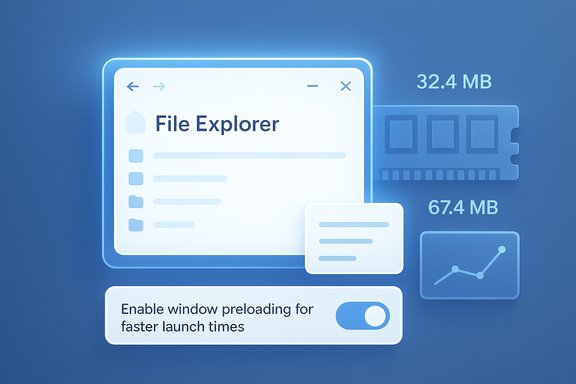
Blue UI concept showing File Explorer with a preloading toggle and storage metrics.Background / Overview​

Microsoft added an optional background preload for File Explorer in Windows 11 Insider Preview Build 26220.7271 (KB5070307), exposing the behavior behind a checkbox labeled “Enable window preloading for faster launch times” in File Explorer’s Folder Options. The company describes this as an exploration: an incremental, low‑risk warm‑start strategy intended to improve the perceived speed of the first Explorer window after sign‑in. Preloading follows a familiar pattern Microsoft has used in other first‑party apps — notably Edge’s Startup Boost and Office’s prelaunch tasks — where lightweight parts of an app are prepared during idle time so the first user action resumes a warmed instance quickly. The goal here is not to rewrite Explorer’s internals but to move predictable initialization out of the click‑to‑interactive path. Alongside preloading, the preview build also reorganizes the right‑click context menu, grouping seldom‑used commands into a Manage file flyout and moving cloud provider items into provider submenus to reduce top‑level clutter. That UX cleanup is separate from the preload but aimed at improving discoverability and surface simplicity.

What Microsoft shipped in Build 26220.7271​

The visible changes​

  • A toggle in File Explorer → View → Options → Folder Options → View: Enable window preloading for faster launch times.
  • A context‑menu reorganization that moves less common verbs (Compress to ZIP, Copy as path, Rotate, etc. into nested flyouts and groups cloud actions under provider menus.
  • The experiment is being evaluated in Dev and Beta Insider rings and is enabled by default for Insiders who receive the flight.

The stated engineering intent​

Microsoft frames preloading as a tactical fix for the “cold‑start” pause many users experience when opening File Explorer after sign‑in. The company explicitly positions this as an exploration to be tuned with telemetry and Feedback Hub input rather than an architectural rewrite of Explorer. That distinction matters: preloading is a perceptual optimization, not a cure for slow enumeration, heavy thumbnailing, or poorly written shell extensions.

How preloading likely works (technical sketch)​

Microsoft has not published a code‑level implementation, but precedent and community analysis point to a plausible model:
  • Instantiate or prepare a lightweight UI skeleton for Explorer in the background (command/address bar, core controls).
  • Prime small in‑memory caches (icons, frequently used thumbnails, common navigation state).
  • Optionally pre‑register a constrained set of preview/thumbnail handlers and shell extension entry points to avoid first‑use stalls.
  • Keep the warmed instance dormant or suspended to minimize CPU use while reserving memory for rapid resume.
This is the same engineering trade‑off used for Edge and Office: trade a modest, predictable background memory reservation for faster first paint and perceived responsiveness.

Independent measurements: RAM and speed​

A hands‑on test widely reported across the Windows press measured File Explorer’s idle memory usage with preload disabled at roughly 32.4 MB, and 67.4 MB with preload enabled — an extra ~35 MB of resident memory attributable to the warmed instance in that specific test. Framing this as a “doubling” is technically defensible for that measurement pair, but it is important to put both the relative and absolute figures in context. Timed launches in the same test showed that the warmed Explorer painted and became interactive faster, particularly when examined in slow‑motion or under simulated load. However, the perceptual difference for many modern desktops was small; the strongest wins were on HDD‑backed or low‑spec machines. Crucially, context‑menu latency and deep navigation performance did not improve substantially — those remain governed by enumeration, preview handlers, and third‑party extensions, which preloading does not eliminate.

Cross‑checking claims​

Multiple outlets confirmed the presence of the preload toggle in Build 26220.7271 and echoed similar qualitative results: faster first‑open paint, modest real‑world benefit on modern hardware, and a measurable but device‑dependent idle memory footprint. This independent agreement supports three central facts: the feature exists, it reserves memory, and it shortens time‑to‑first‑paint — while leaving deeper Explorer performance problems intact.

Why “doubles RAM usage” is technically accurate but misleading​

The headline phrasing that preloading “doubles RAM usage” refers to a specific pair of measurements (32.4 MB → 67.4 MB) and therefore is mathematically correct for that test. That wording, however, obscures practical context:
  • Absolute numbers matter: an extra ~35 MB is trivial on a desktop with 16 GB of RAM but meaningful on a device with 4–8 GB, thin clients, or memory‑constrained virtual desktops.
  • Variation across devices: the warmed state will vary with installed shell extensions, language packs, preview handlers, architecture (x64 vs ARM64), and Microsoft’s own gating heuristics. The 35 MB figure is a single‑lab result, not a universal constant.
  • Multiplicative framing inflates perceived impact. Saying “doubles” highlights proportionality but not whether the absolute impact affects everyday use on most machines.
Treat the measured doubling as a useful data point, not the final word. Until Microsoft publishes telemetry or independent labs provide a broader sampling across hardware, the exact footprint remains device‑dependent and therefore provisional.

Performance analysis: what preloading helps — and what it doesn’t​

What preloading helps​

  • Faster first‑open perceived responsiveness: the warmed UI reduces the one‑to‑two‑second cold‑start pause for many users. This is the primary UX goal.
  • Smoother initial UI painting: initial stutters and partially rendered elements are less likely when the shell has preinitialized components.
  • Low‑risk experimentation: a visible toggle allows Insiders and admins to opt out without registry edits.

What preloading does not fix​

  • Folder enumeration times for large local or network directories: these are I/O and filesystem problems, not pure initialization costs.
  • Context menu latency driven by third‑party shell extensions or heavyweight preview handlers: preloading cannot neutralize unbounded extension code or slow thumbnail generation.
  • Architectural complexity introduced by mixing Win32 with WinUI/XAML surfaces: the layered rendering cost still exists and contributes to jank beyond the first paint.

Risks, hidden costs, and enterprise considerations​

The preload introduces a compatibility surface and operational trade‑offs that matter for IT pros and power users.
  • Memory pressure on constrained devices: on 4–8 GB machines, the extra reserved memory can nudge systems into compression or paging, degrading overall performance. Enterprises should pilot the feature on representative devices.
  • Battery and background wakeups: background initialization shifts CPU work into sign‑in or idle periods and could cause small but tangible battery impact on laptops if heuristics aren’t tuned for battery saver modes.
  • Third‑party shell extension compatibility: Explorer hosts many vendor extensions; preloading may initialize some earlier or in contexts where they previously didn’t run, exposing latent bugs or background crashes. Admins with critical shell extensions should test vendor compatibility.
  • Privacy and network side effects: preloading must avoid unintentional enumeration of network shares or cloud metadata while idle. A misconfigured preload could trigger unexpected network traffic or authentication prompts.
Enterprises should demand clear documentation, telemetry summaries, and Group Policy/MDM controls before enabling the feature broadly. Microsoft’s history of gating warm‑start features by heuristics (RAM/disk thresholds, power profile checks) provides precedent — but those heuristics must be visible and configurable for fleet deployment.

Practical guidance for testers, power users, and admins​

For Insiders and early adopters who want to evaluate the preload, here’s a pragmatic checklist.
  • Measure first: capture baseline memory and battery telemetry before enabling preload.
  • Test across scenarios: boot sign‑in, normal workload, and simulated saturation to observe behavior under realistic pressure.
  • Verify extension behavior: audit third‑party shell extensions (tools like ShellExView are useful) and watch for background crashes or unexpected network activity.
  • Pilot in rings: for managed fleets, roll preload into a small pilot ring before broad deployment and wait for Microsoft to publish policy controls or gating documentation.

How to toggle preloading on/off (Insider builds)​

  • Open File Explorer.
  • Click View → Options to open Folder Options.
  • Select the View tab.
  • Locate Enable window preloading for faster launch times and uncheck to disable, then click OK.
These steps reflect the in‑app toggle Microsoft exposed to make experimentation low‑friction. Enterprises should expect Group Policy and MDM settings to follow if the feature ships broadly.

Strengths of Microsoft’s approach​

  • Incrementalism reduces risk: preloading is a low‑impact, reversible change that can be tuned with telemetry instead of a risky, compatibility‑breaking overhaul. The user‑visible toggle is the right ergonomics for an experiment that could have varied effects across a billion+ device configurations.
  • Immediate UX wins for targeted devices: HDD machines, low‑RAM laptops, and handhelds stand to benefit the most, potentially delivering a meaningful improvement without hardware upgrades.
  • Complementary UX cleanup: the context‑menu reorganization addresses an orthogonal but long‑standing complaint about cluttered right‑click menus. Together with preload, it improves perceived snappiness and discoverability.

Weaknesses and where the approach falls short​

  • Band‑aid, not a fix: preloading masks the symptom (cold start) but leaves root causes — enumeration, third‑party handlers, and render complexity — unaddressed. Users who experience context‑menu lag or slow folder enumeration will still notice pain.
  • Device variance and opaque budgets: Microsoft has not published memory/battery budgets or gating heuristics for the preload, leaving administrators to infer behavior from anecdotal tests. That opacity complicates fleet planning.
  • Compatibility surface risk: initializing components earlier increases exposure to buggy shell extensions and subtle timing regressions that may show up only under specific combinations of hardware and software. Robust extension gating is essential.

Verdict and long‑term outlook​

Preloading File Explorer is a sensible, low‑risk experiment that aligns with Microsoft’s previous warm‑start strategies. For individual consumers on modern desktops the change will mostly be harmless — and sometimes pleasantly noticeable on older hardware. For administrators and power users, the feature introduces trade‑offs that require measurement and cautious pilot deployment. The real test of success will be Microsoft’s follow‑through: publishing telemetry, revealing gating heuristics, providing enterprise controls, and pairing the warm‑start approach with engineering work that targets the deeper bottlenecks in Explorer’s architecture. If Microsoft publishes consistent device‑aware heuristics (for example, do not enable preload on devices below a free‑RAM threshold or on battery saver), and if it provides Group Policy and MDM controls before broad rollout, the risk profile will drop substantially. Without those guardrails, administrators should treat the preload as an opt‑in convenience rather than a default expectation.

Final recommendations (concise)​

  • End users with 8 GB+ RAM and a modern SSD can safely try the feature; it’s likely to feel snappier with negligible downside.
  • Users on 4–8 GB devices, thin clients, or VDI images should measure memory and paging behavior before enabling.
  • IT administrators should pilot preload in a controlled ring, verify vendor shell extension compatibility, and wait for formal Group Policy or telemetry from Microsoft before a broad enablement.
  • All stakeholders should treat reported numbers (e.g., “extra ~35 MB”) as a single‑test result and expect variance across configurations.
Preloading File Explorer is a pragmatic UX optimization — useful and welcome to many but not a silver bullet. Its utility will depend on careful deployment, clear telemetry, and complementary engineering work that tackles the deeper performance culprits still impacting File Explorer’s day‑to‑day responsiveness.

Source: TechPowerUp Preloading File Explorer in Windows 11 Doubles RAM Usage, Offers Minimal Speed Boost | TechPowerUp}
 

Back
Top